






Enable Disable Allow Discoverable Mode in Bluetooth using Intune Policy Settings Catalog
Let’s discuss Enable Allow Discoverable Mode in Bluetooth using the Intune Policy Settings Catalog. This is a setting on Microsoft Intune related to Bluetooth. Allow Discoverable Mode in Bluetooth helps you to allow a device to broadcast its presence to other Bluetooth device Range.
Using Microsoft Intune, users can easily create policies to enable or disable different settings. Thus, you can customize various settings for your organization for specific groups of devices or users. Using Intune Policy, you can access Bluetooth-enabled devices quickly.
This setting in Bluetooth policies determines whether other Bluetooth-enabled devices can discover your device. You can create policies from the Settings Catalog or Templates in Microsoft Intune.
I will help you enable Allow Discoverable Mode in Bluetooth in this blog post using the Intune Policy Settings Catalog. This post provides step-by-step guidance for enabling Allow Discoverable Mode in Bluetooth.

Table of Contents
What is Allow Discoverable Mode?
Enable Allow Discoverable Mode in Bluetooth using Intune Policy Settings Catalog
Settings Catalog is a feature in Microsoft Intune that lists all the settings you can configure for your devices in one place. This catalog simplifies creating policies and managing settings across various platforms, including Windows, iOS/iPadOS, macOS, and Android. The following table shows the
| Steps for Enabling Allow Discoverable Mode |
|---|
| Go to the Intune Admin Center portal |
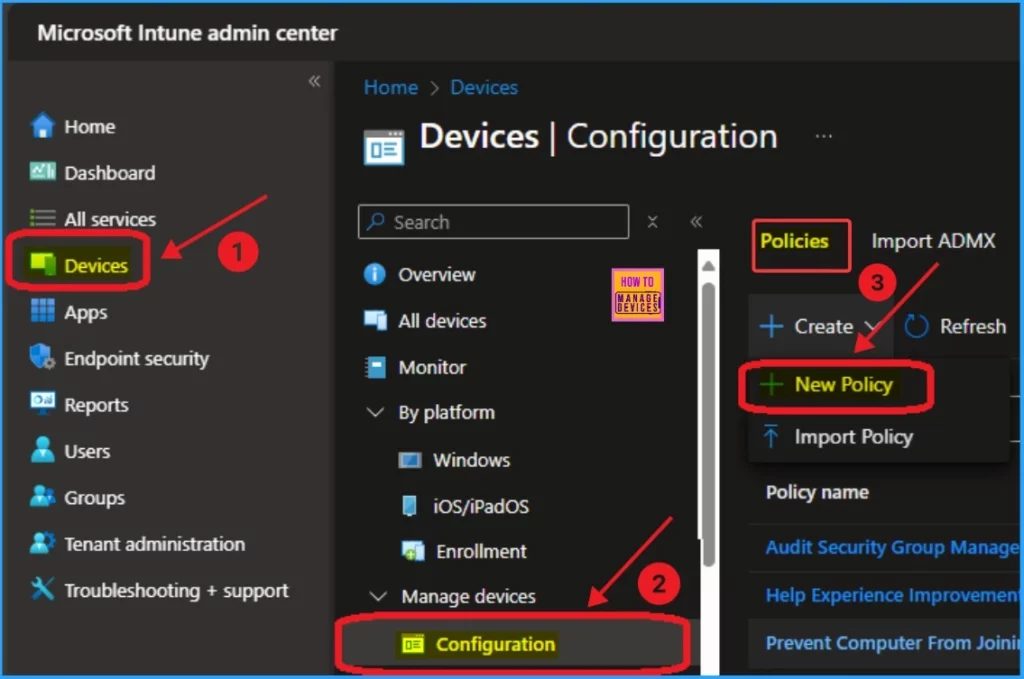
| Go to Devices > Windows >Configuration > Create > New Policy |
- How to Enable or Disable Bluetooth in Windows 11
- 9 Bluetooth Device Settings Run Commands for Windows
- Easily Disable Bluetooth using Intune How to Guide
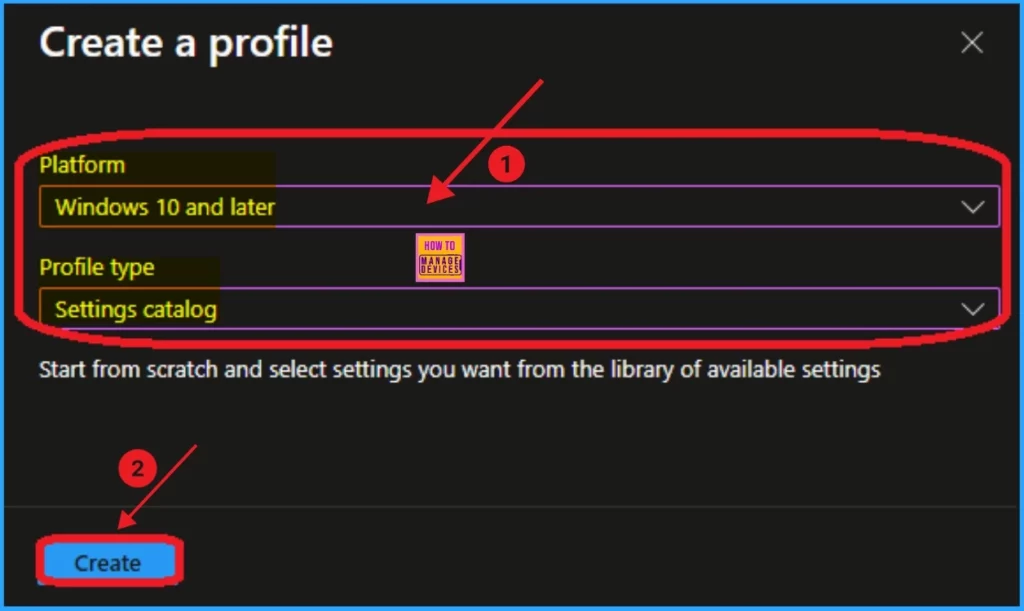
Selecting +New Policy is the first step in creating a Microsoft Intune policy. After that, you must select your policy’s platform and profile type. If you want to create a policy for the Windows platform, select Windows 10 and later as the platform. Then select the Settings Catalog as Profile type.
- Click on the Create button
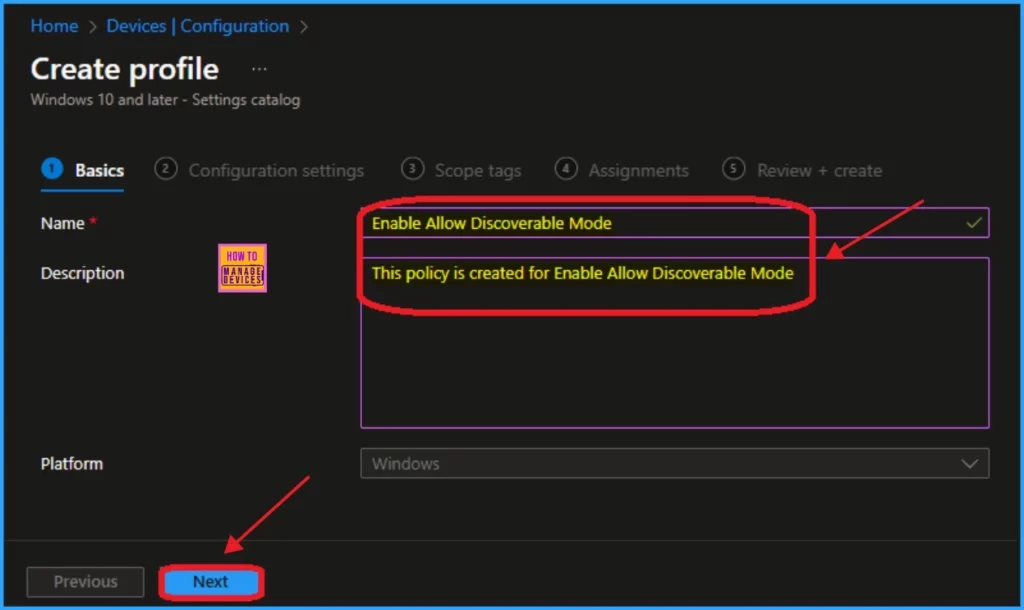
Then, you will get the Basic tab on the Intune Portal. The Basic tab gives a name and description of your policy. It allows you to identify the Policy name quickly. After providing the name and description of your policy, click on the Next Button.
- Name – Enable Allow Discoverable Mode
- Description – This policy is created for Enable Allow Discoverable Mode
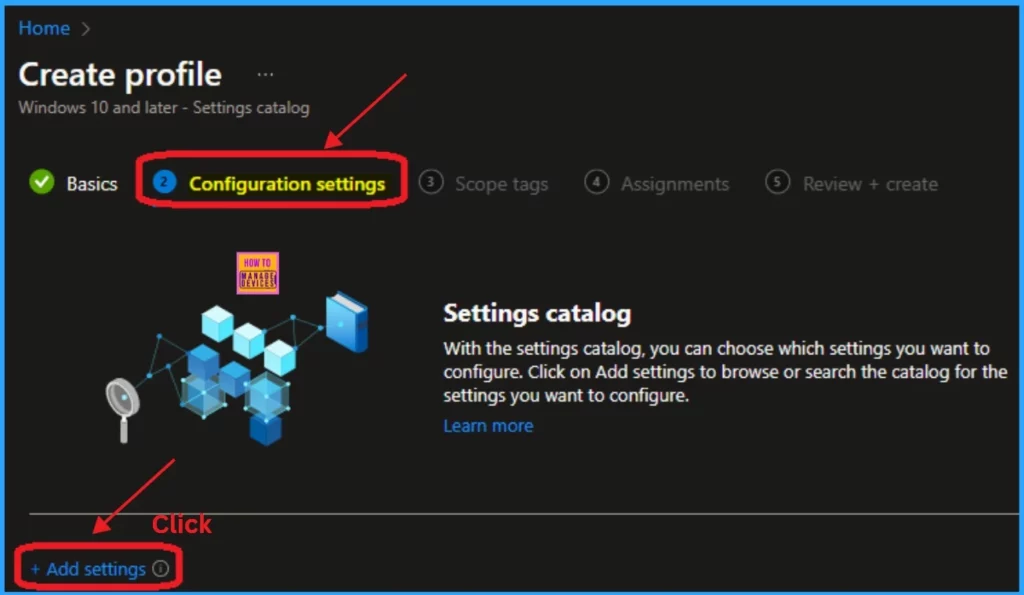
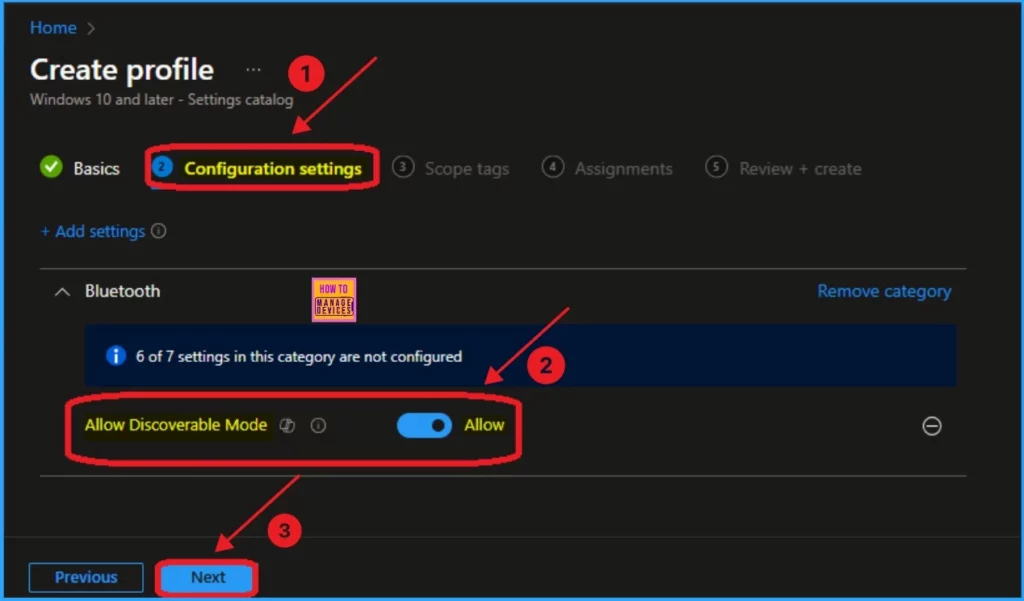
Here, you will enter the Configuration Tab on the Intune Portal. Configuration settings in Microsoft Intune allow you to manage and customize various settings for devices within your organization. Click on the + Settings option from this tab to access various settings.
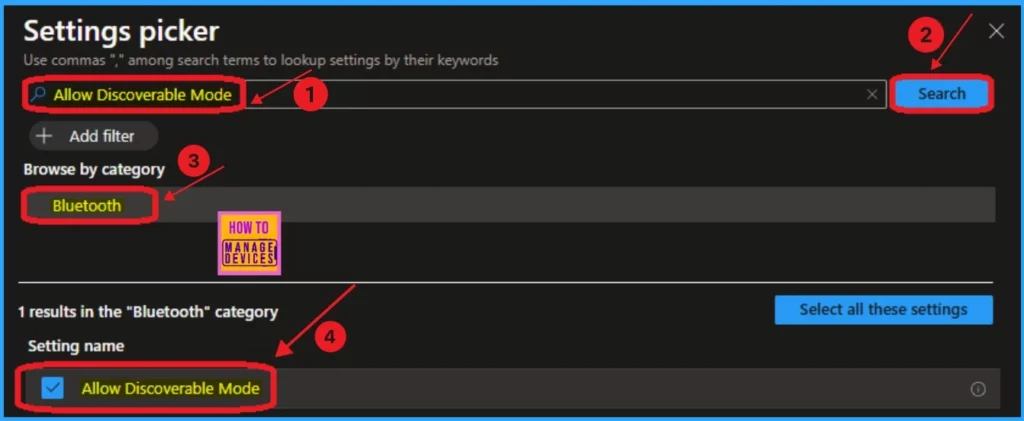
The following screenshot shows the Settings Picker page. From this page, you can search for your settings. Enter a keyword for settings in the Search box and click the Search button. You can use the Add filter option to access the settings easily. The filter option will give you the specific category to which the settings belong. Then, select the category (Bluetooth).
- Click on the Allow Discoverable Mode
Then, you can see the Configuration Settings when the selected settings appear. Here, you can Allow or block(enable or disable) settings chosen according to your preference. Using the toggle button, you can customize the settings. Then click on the Next button.
Scope Tags
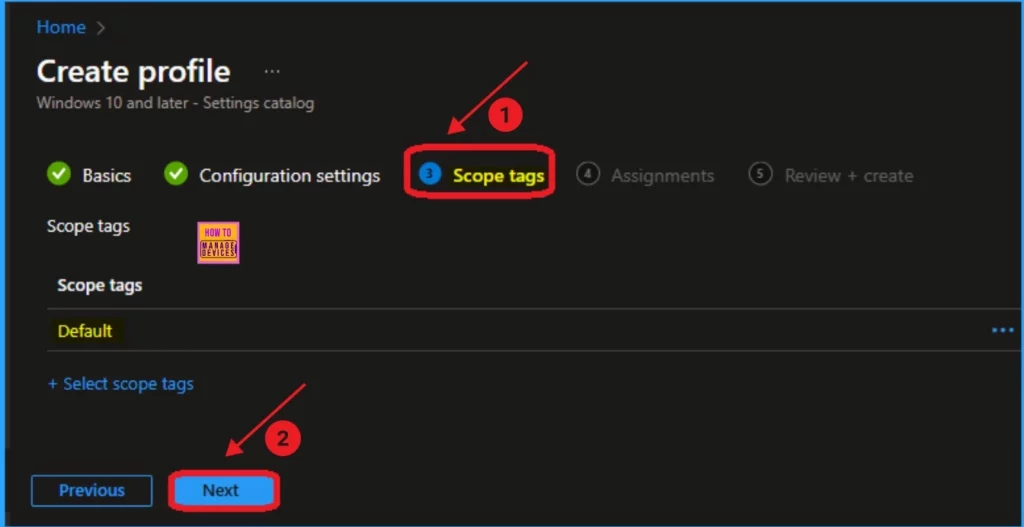
Next is the Scope tags tab. The Scope tags in Microsoft Intune manage and control access to Intune objects such as policies, profiles, and devices. They help ensure that the right administrators have access and visibility to the required Intune objects.
You can skip this tab, and completing this section on the Intune Portal is not mandatory to create a policy. Click on the Next button to continue.
- Best Way to Auto Update Mozilla Firefox Browser Using Intune Configuration Policy
- How to Allow Entra Password Reset in Windows using Intune
- Step-by-Step Guide Install Docker Desktop with Intune Enterprise App Catalog App
Assignments
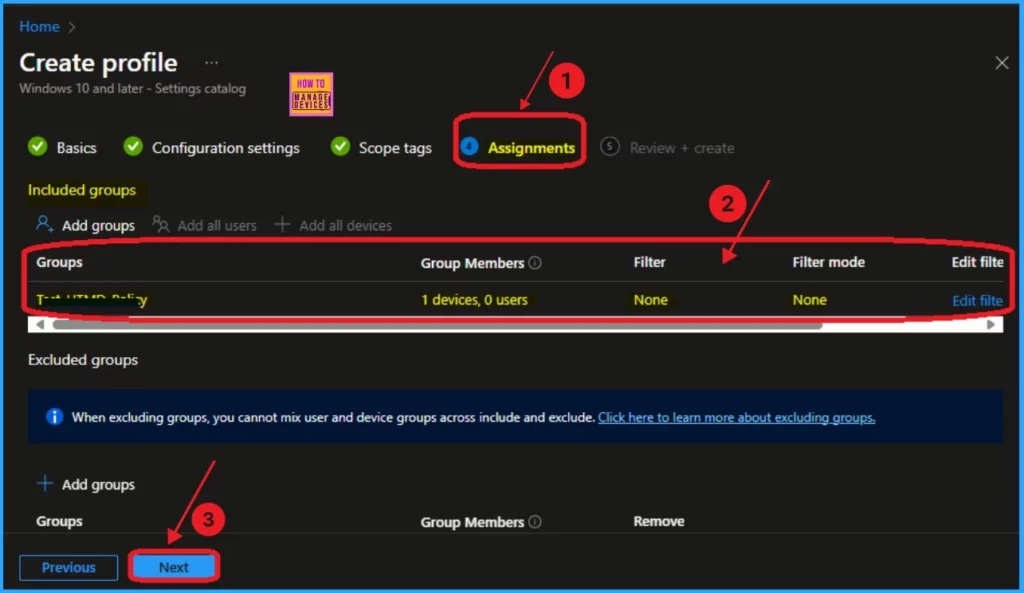
Assignments are the last step in creating a policy on Microsoft Intune. This tab helps you select groups to assign policies to. You can select user groups or device groups for this. You can see Included Groups and Excluded Groups on this page. I like to select Included Groups and click the Add Groups option.
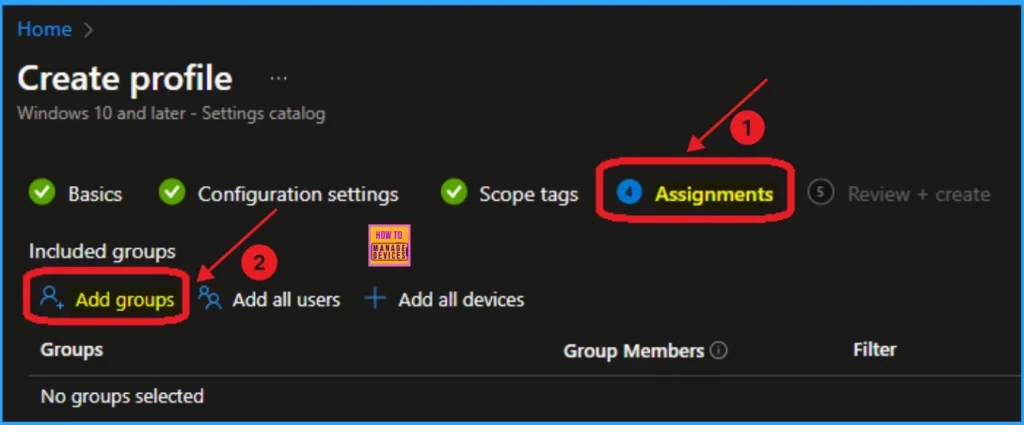
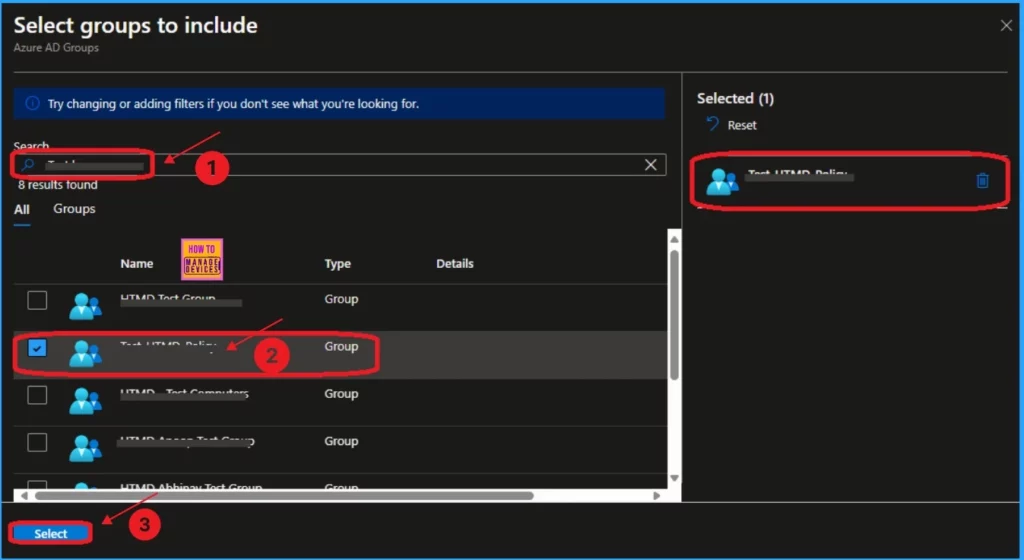
The following window shows the Select groups to include. You can search for groups on this page, select a group or groups, and click on the Select button to continue.
Then you can see the selected groups are shown on the Assignments tab. Then click on the Next button to continue.
Review + Create
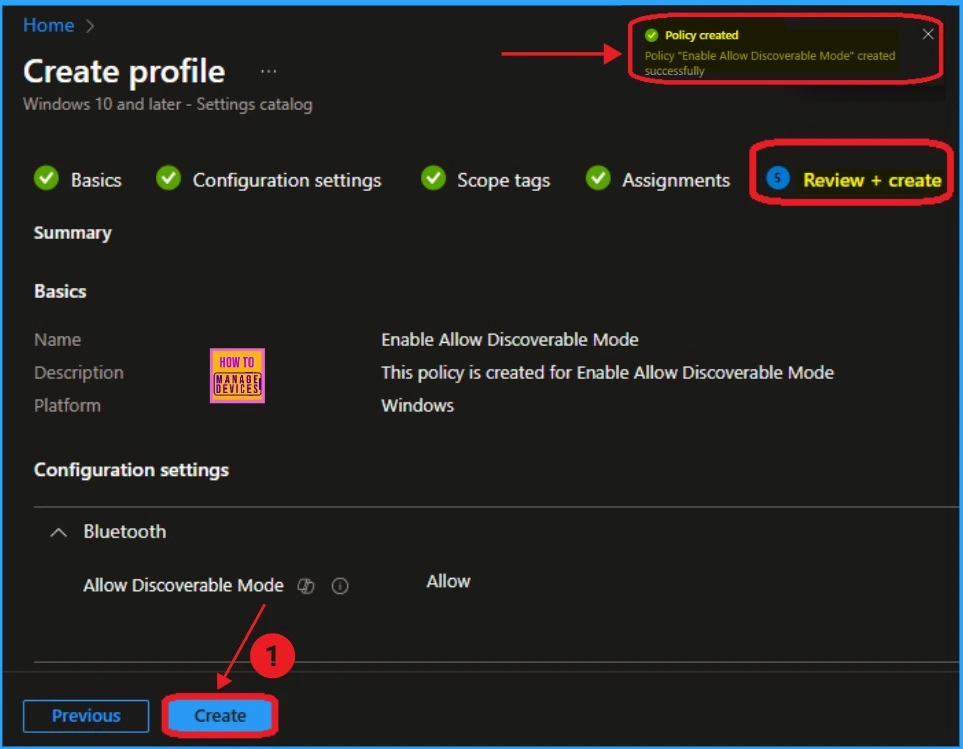
Review + Create is the tab that helps users review and manage settings. This page summarises your policy, and you can check each tab from here. After monitoring all the steps, click on the Create button. Then, you will get a notification that the Policy has been created successfully.
Allow Discoverable Mode Policy Creation Status
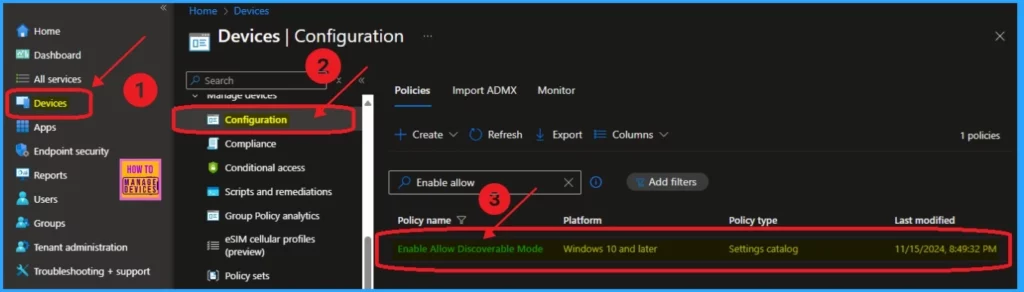
After receiving the notification, you can check the policy on the Intune Portal. To access this, go to Devices and Configuration, search for your policy, and open it.
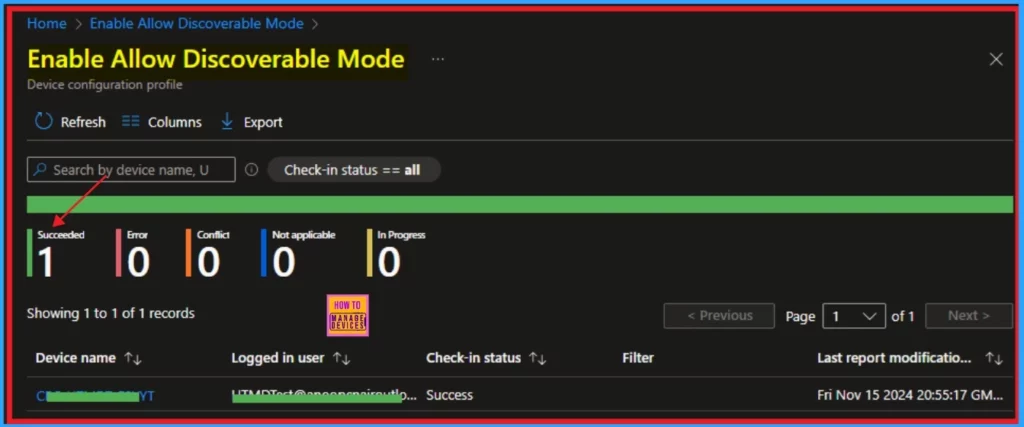
Monitor the Device and User Check-in Status
Here, the Allow Discoverable Mode policy is succeeded, with 1 instance marked as succeeded. The screenshot below shows more details.
Need Further Assistance or Have Technical Questions?
Join the LinkedIn Page and Telegram group to get the latest step-by-step guides and news updates. Join our Meetup Page to participate in User group meetings. Also, Join the WhatsApp Community to get the latest news on Microsoft Technologies. We are there on Reddit as well.
Author
Anoop C Nair has been Microsoft MVP from 2015 onwards for 10 consecutive years! He is a Workplace Solution Architect with more than 22+ years of experience in Workplace technologies. He is also a Blogger, Speaker, and leader of the Local User Group Community. His primary focus is on Device Management technologies like SCCM and Intune. He writes about technologies like Intune, SCCM, Windows, Cloud PC, Windows, Entra, Microsoft Security, Career, etc.


Discussion