






How to Enable Disable Read Aloud Feature in MS Edge Browser through the Microsoft 365 Admin Center Policy
Let’s discuss how to Enable or Disable Read Aloud Feature in MS Edge Browser through the Microsoft 365 Admin Center. Compared to other browsers, Edge Browser has many unbeatable features, such as Read Aloud, Live Captions, and more.
The read-aloud feature in MSEdge has many advantages, such as voice adjustments and easy access to web pages. It helps users absorb the webpage’s content quickly and offers many languages, accents, and natural-sounding tones.
This feature allows the user to listen to the web page’s content, which helps them multitask and improve productivity. It has been available on Windows and macOS since 113 or later.
In this blog post, I will explain how to Enable the read-aloud feature in MSEdge through the Microsoft 365 Admin Center configuration policy.

Table of Contents
What are the Settings in the Windows Registry for ReadAloudEnabled Policy?
Recommended Path: N/AShowDownloadsInsecureWarningsEnabled
Name of the Value: ReadAloudEnabled
Value Type: REG_DWORD
Example value: 0x00000001
What are the Mac information and Settings in ReadAloudEnabled Policy?
Example value: <true/>
Group Policy (ADMX) information of the ReadAloudEnabled Policy
The following table shows the Windows information and settings of the ReadAloudEnabled Policy.
| Group Policy | Details |
|---|---|
| Unique name | ReadAloudEnabled |
| Name | Enable Read Aloud feature in Microsoft Edge |
| Group Policy Mandatory Path | Administrative Templates/Microsoft Edge/ |
| Group Policy Recommended Path | N/A |
| Group Policy ADMX file name | MSEdge.admx |
- Configuration Profile for Edge Browser Extensions and Sidebar Management using Microsoft 365 Admin Center
- Free Intune Training 2024 For Device Management Admins
- Top 46 Azure Virtual Desktop AVD Interview Questions
How to Enable Disable Read Aloud Feature in MS Edge Browser through the Microsoft 365 Admin Center Policy
If you enable this policy or have not configured it, the Read Aloud option will appear in the address bar, Right-click Context Menu, More menu, PDF toolbar, and Immersive Reader. In case you disable this option, you cannot access the listening feature.
You can set up the Enable Read Aloud feature in MSEdge through the Microsoft 365 Admin Portal. To do this, go to the Microsoft 365 Admin Center, then to Settings > Microsoft Edge. There, you can see Configuration Policies settings and click the option to +Create a Policy.
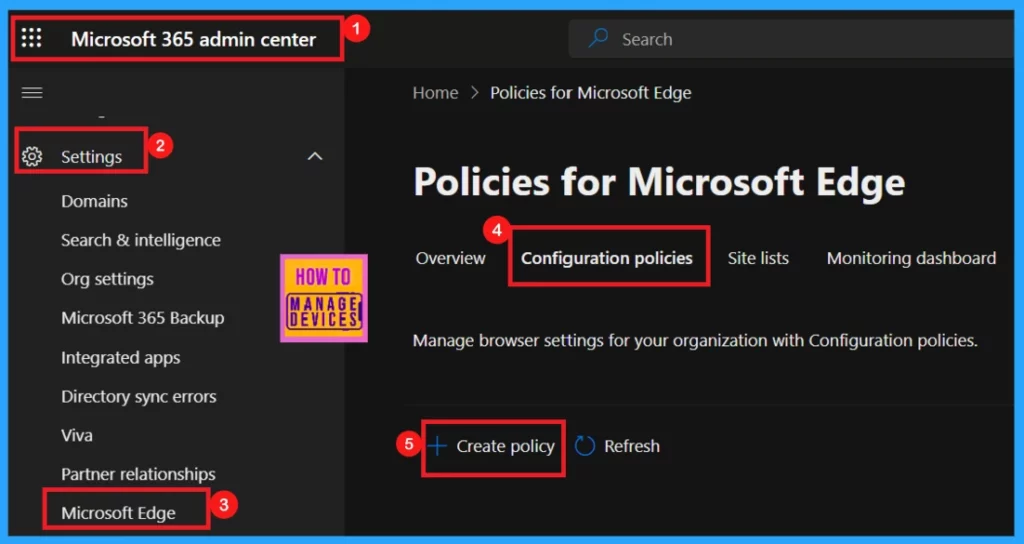
After clicking + Create Policy, a window with Basics, Settings, Extensions, Assignments and Finish page setting details will appear.
The Basic Settings section is very important. In it, you should enter the Policy Name, Description, Policy Type, and Platform for the Microsoft Edge profile. The platform option is filled by default.
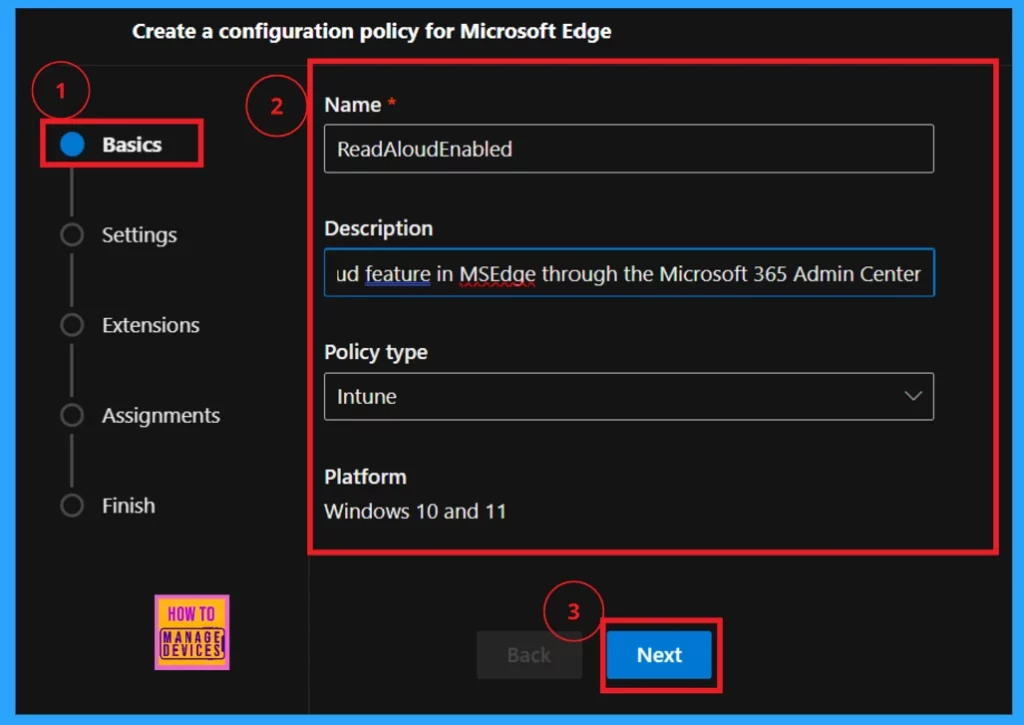
After hitting Next, you will enter another window where you can see Settings.
- Click + Add setting.
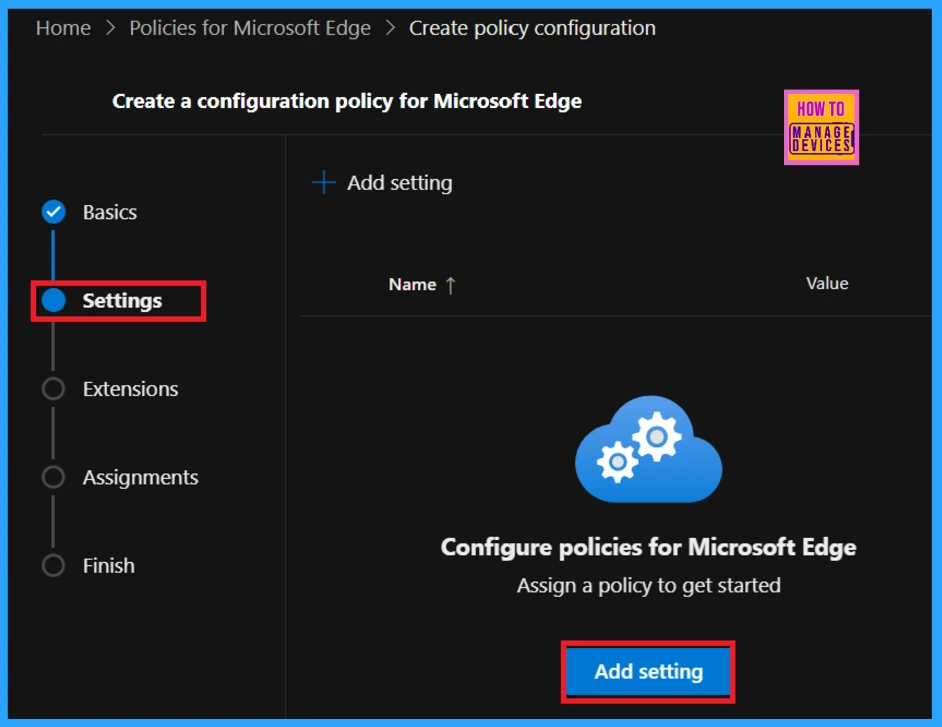
Configure Policies for MSEdge
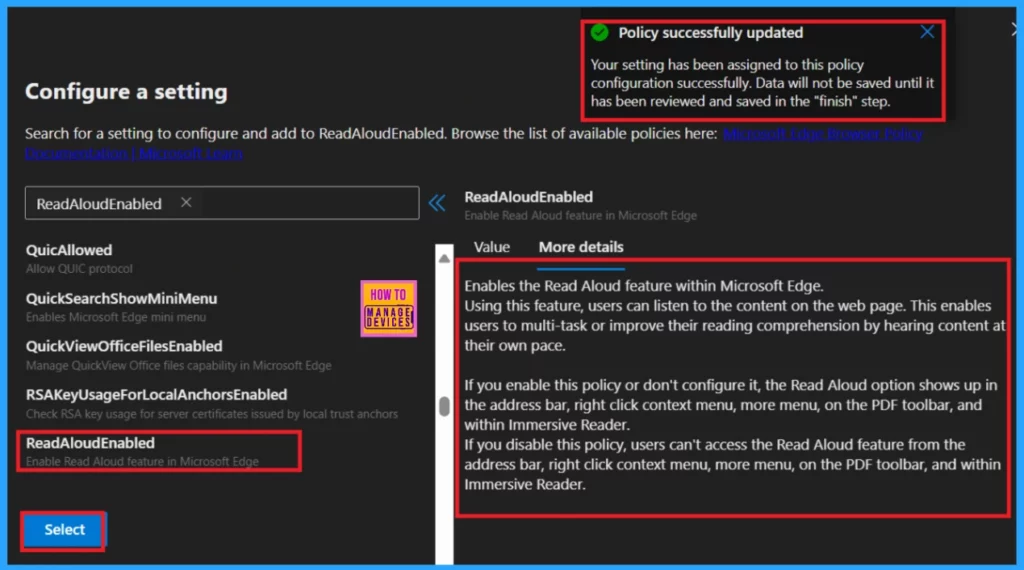
After clicking on + Add Setting, a new window will open, where you can search for a setting to configure and add to ReadAloudEnabled.
- Select the policy name ReadAloudEnabled from the Additional setting option.
- The Value and More Details options are in the right pane.
- The Value section is essential for choosing whether to enable or disable the policy.
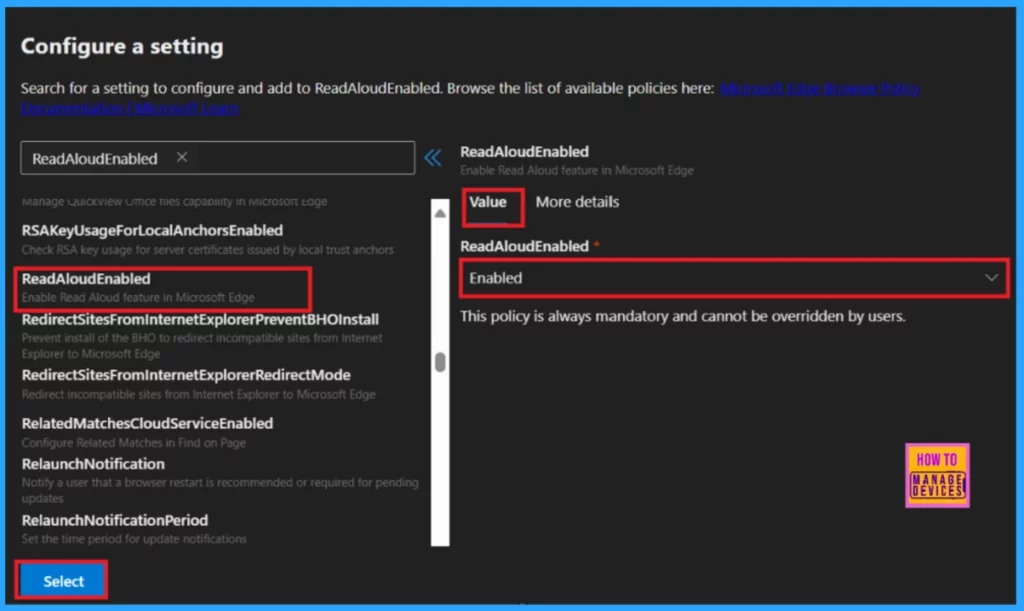
After entering the Value details, click on More Details. This section is essential because it gives all the information about the particular policies.
- Click on Select, under the additional settings
Once you hit Select, a notification will appear, verifying that your settings have been allocated to the policy configuration. Still, the data will not be saved until it is saved in the Finish step.
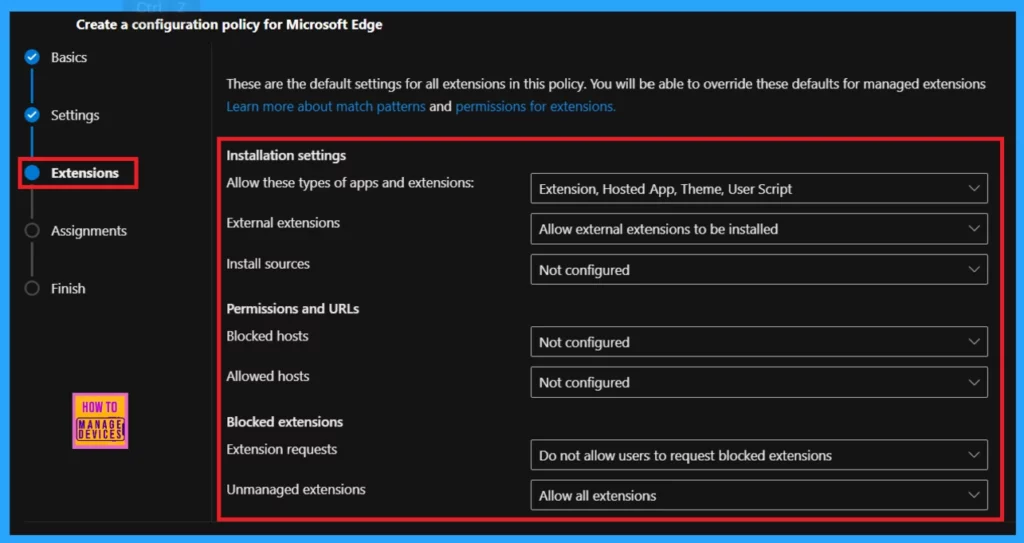
Extension Settings
After setting the Settings, we can enter Extension Settings. There, we can manage extensions to change the profile configuration. The screenshot below shows the default settings for all extensions in this policy.
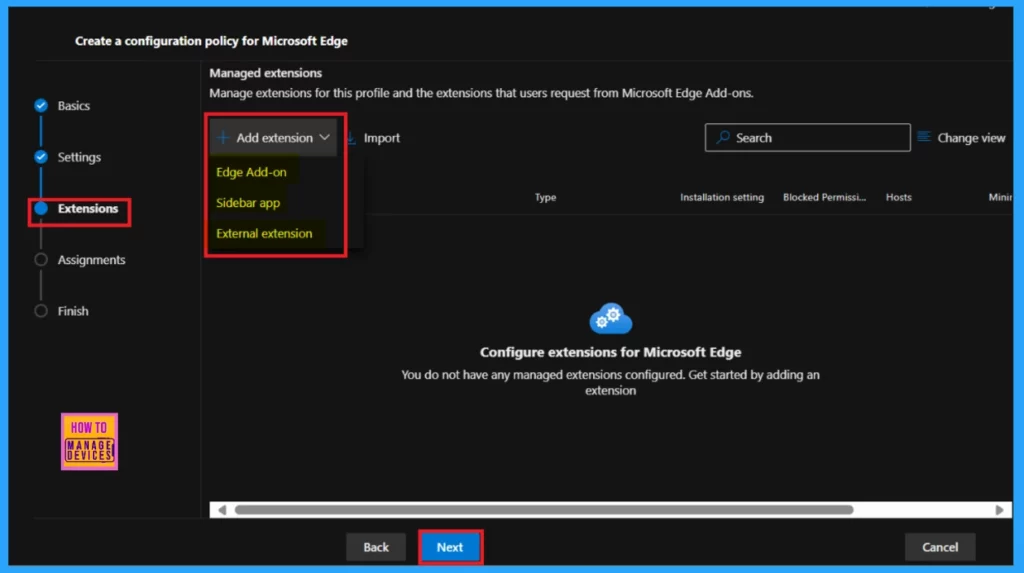
You can change these defaults for managed extensions. We can manage extensions for this profile and users’ requests from Microsoft Edge Add-ons. However, we can only choose the options from the visible profile configurations in the dropdown arrow. These steps are not mandatory.
- Then click Next
Assignment Settings
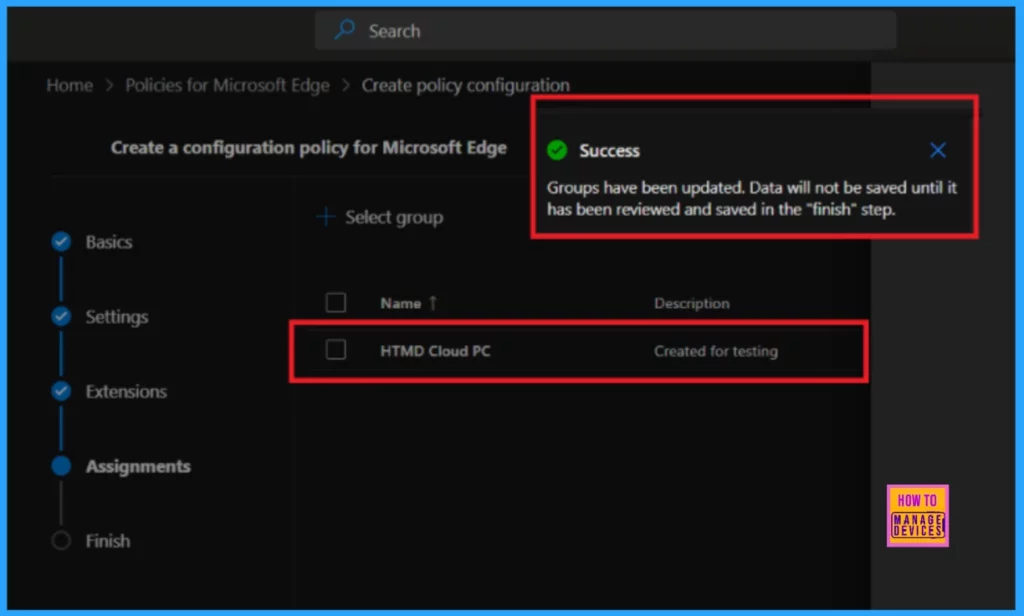
The assignment setting is the most crucial setting where we can add groups. To add a group, click +Select Group and choose any groups from the given list to assign the policy to a specific group of users or devices.
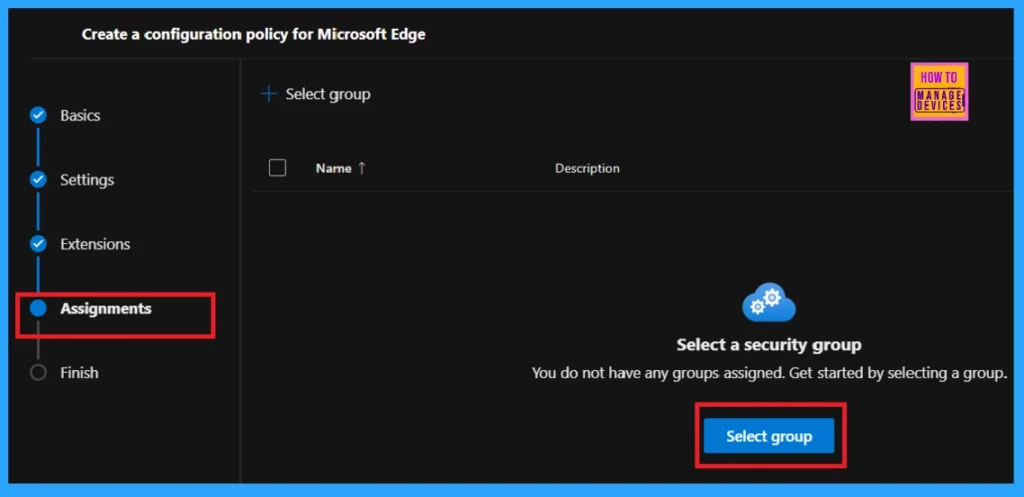
Here, I select the HTMD Cloud PC group. The screenshot below shows that this group has been successfully updated. The data will not be saved until reviewed and saved in the Finish step.
Finish
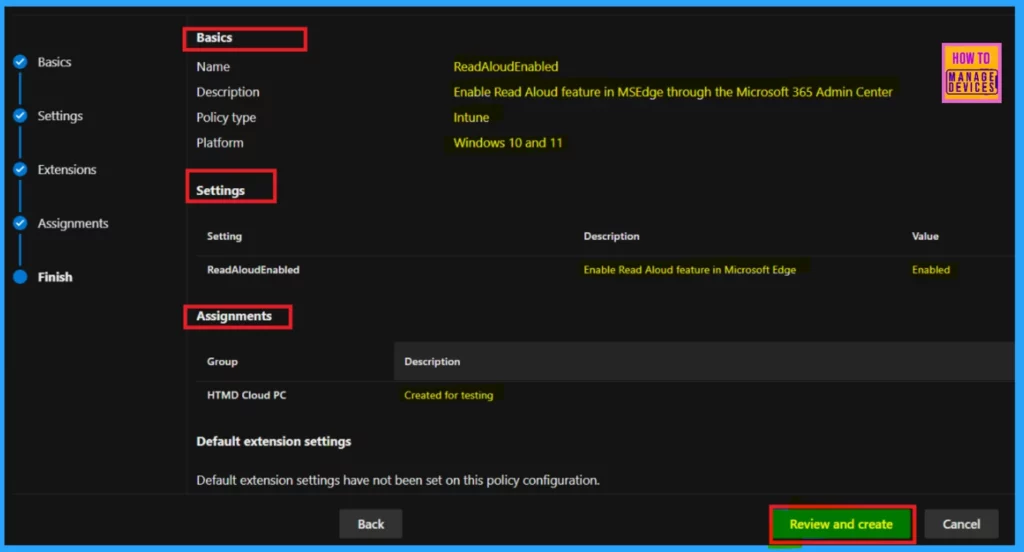
The Finish is the last step. Here, you will see a summary of the Microsoft Edge policy configuration. To finalise the policy, click the Review and Create button.
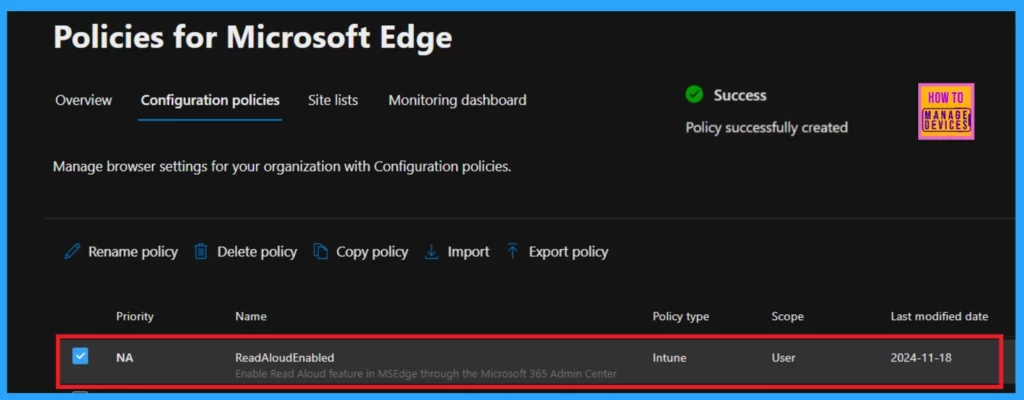
After clicking Review and Create, a notification will appear showing that the Policy was successfully created.
Need Further Assistance or Have Technical Questions?
Join the LinkedIn Page and Telegram group to get the latest step-by-step guides and news updates. Join our Meetup Page to participate in User group meetings. Also, Join the WhatsApp Community to get the latest news on Microsoft Technologies. We are there on Reddit as well.
Author
Anoop C Nair has been Microsoft MVP for 10 consecutive years from 2015 onwards. He is a Workplace Solution Architect with more than 22+ years of experience in Workplace technologies. He is a Blogger, Speaker, and Local User Group Community leader. His primary focus is on Device Management technologies like SCCM and Intune. He writes about technologies like Intune, SCCM, Windows, Cloud PC, Windows, Entra, Microsoft Security, Career, etc.




Discussion