






Patch Chrome with SCCM 3rd Party Software Update Feature
You can patch Chrome with SCCM 3rd Party Software Update Feature. In this post, you will see how to patch Chrome with SCCM 3rd party software to update the custom catalog.
Let’s learn how to patch Chrome, 7-Zip, etc.. with SCCM third-party custom catalog. There are two types of custom catalogs in SCCM 3rd party software updates. The following are the two types of custom catalogs:
- Free Custom catalogs (List of Free SCCM Catalogs for Third-Party Software Updates)
- Paid Custom Catalogs (List of vendor-paid custom catalogs)
This post will teach you how to patch Chrome with SCCM’s 3rd party software update feature and Patch Connect Plus custom catalog. You can download the free trial version of ManageEngine from ManageEngine Patch Connect Plus.
Patch Chrome with SCCM 3rd Party Software Update
Let’s discuss the SCCM third-party software update. While Microsoft applications are patched as part of the Microsoft Software Update patching process, it’s important to note that third-party applications (non-Microsoft) are NOT patched using Microsoft updates.

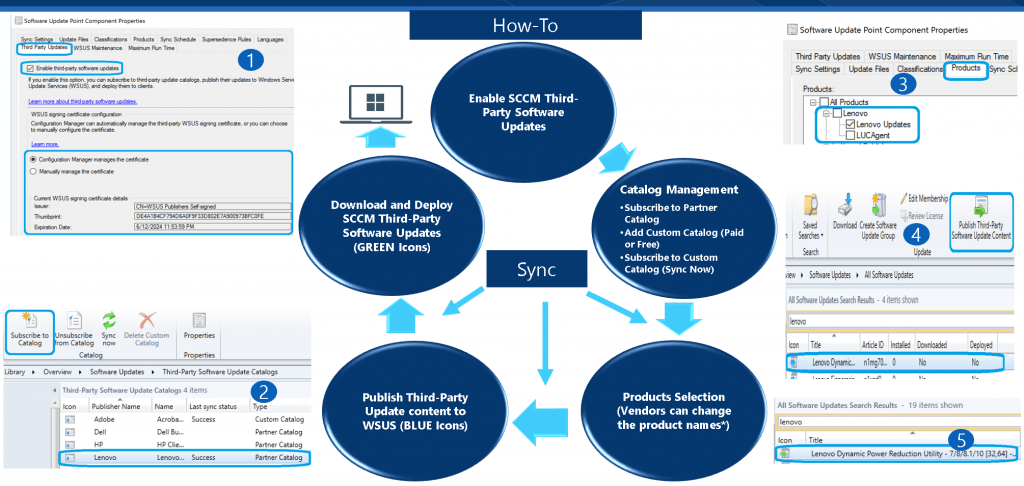
The five (5) steps mentioned in the picture below can be checked out. I will go through each step in detail.
Step 1 – Enable SCCM 3rd party patching
I have already explained the steps to enable SCCM third-party software updates. I would recommend reading the previous post to allow the new feature.
Step 2 – Add Chrome Custom Catalog
Google does not provide a free Chrome catalog to keep Chrome safe and secure. The most reliable way is to use SCCM third-party update options to keep the Chrome browser updated. Let’s see how to keep Chrome secure.
The following steps will help you add a custom catalog from Patch Connect Plus:
- You can request the Free Trial version of Patch Connect Plus from the ManageEngine site (you might need your corporate or private domain Email ID).
- Wait for the trial version confirmation Email with the Custom Catalog URL. Your custom catalog will be something similar to “https://pcp.manageengine.com/thirdpartyupdate catalog?key=0d2079XXXXXd5f9e451926” (This URL won’t work – Use your unique URL, which you get through the eMail)
- Navigate to Software Updates – Third-Party Software Update Catalogs from the latest version of SCCM.
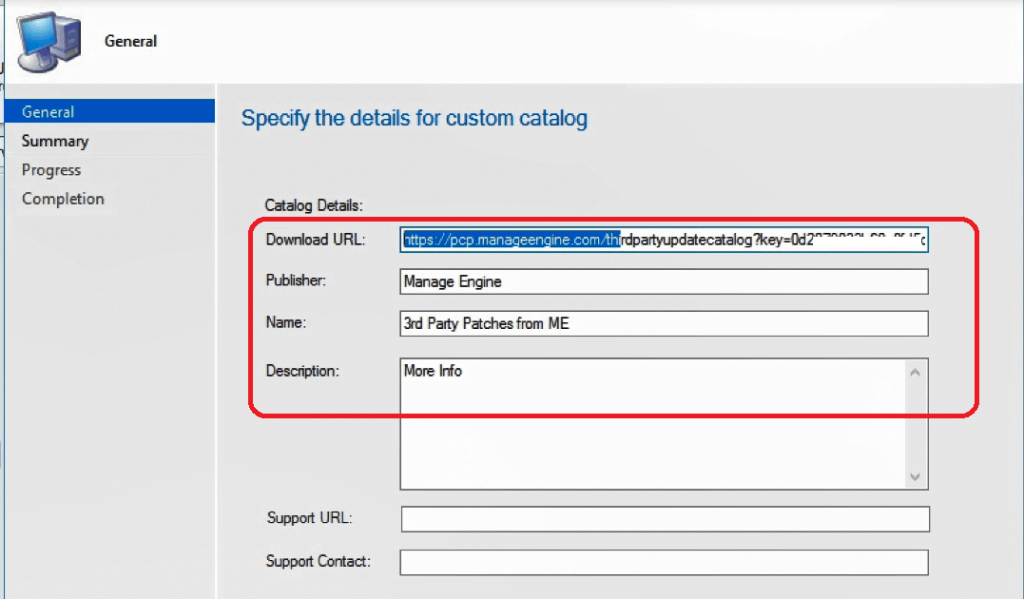
- Click on Add Custom Catalog from the ribbon menu from the SCCM console.
- In the Third-Party Software Updates Custom Catalogs Wizard, you must provide the following details: The next four(4) values are mandatory.
- Download URL – Your unique URL from ManageEngine, as mentioned above
- Publisher – ManageEngine
- Name – Patch Connect Plus
- Description – Mainly for Testing Chrome Updates with the SCCM custom catalog.
- Go ahead and click on Next, Next, and close the wizard to complete the “Add Custom Catalog” step.
Step 2 – Subscribe to Patch Connect Plus Catalog
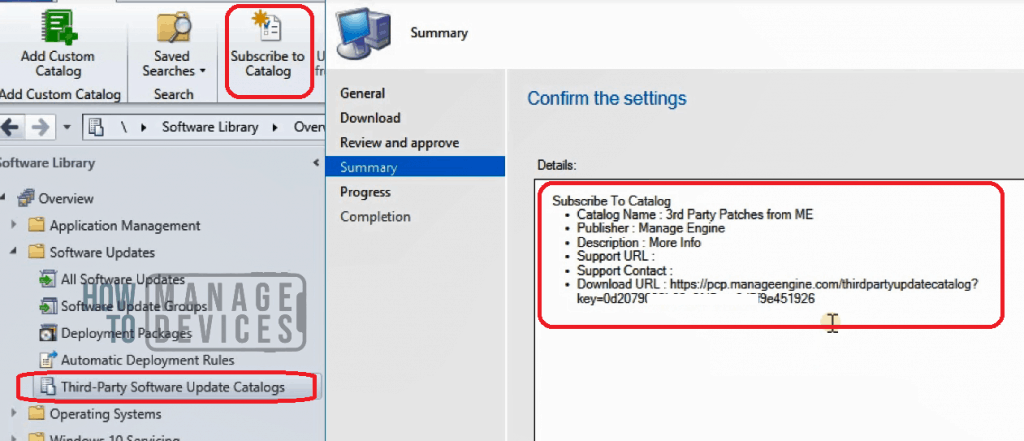
Complete the following steps to subscribe to the Patch Connect Plus Catalog and patch Chrome with SCCM third-party software updates.
- Select the Custom Catalogs to which you want to Subscribe to:
- I selected Patch Connect Plus
- Click the NEXT button from Third-Party Software Updates Wizard
- On the Download page of the third-party software update wizard, SCCM will download the CAB file using the URL you provided while adding a custom catalog (STEP 1).
- Review and Approve the catalog certificate from the review and approve page of the Third-party updates wizard.
- Click on the View Certificates box to view the certificate properties and to confirm whether it’s from Zoho Corp.
- Click the OK button on certificate properties windows.
- Click on the Checkbox near “I have read and understood” to agree and proceed further.
- Click on Next, Next to continue and finish the subscription process of the third-party catalog subscription for Patch Connect Plus.
Step 3 – Select Google Chrome Product Category
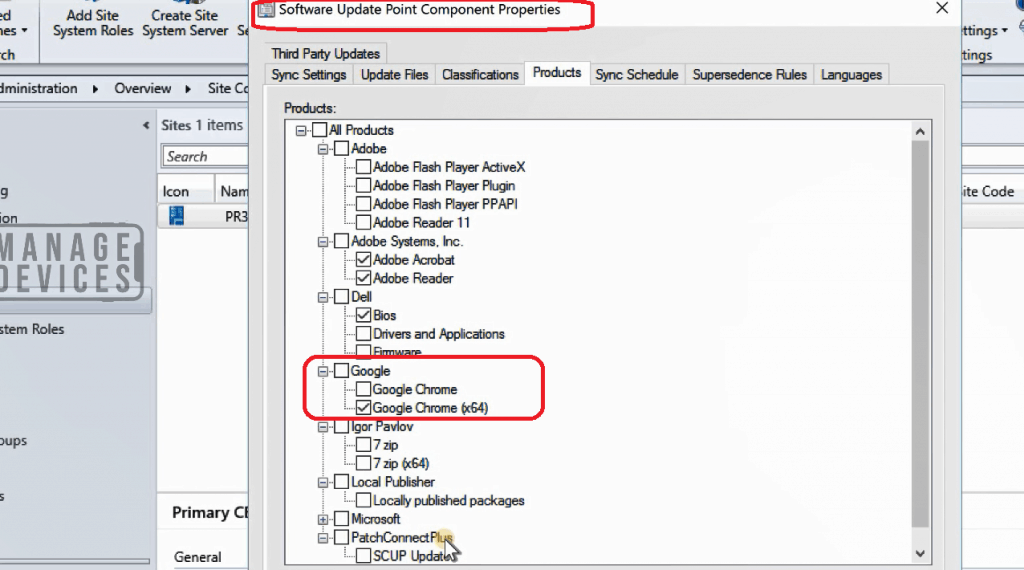
Ensure you have completed the WSUS Sync successfully before checking for Google Chrome (x64) product category from Software Update Point Component Properties.
If you complete the steps mentioned above, you might be able to use the “Google Chrome (x64)” and “7 Zip (x64)” products.
Select “Chrome (x64)” from the Products tab and click on the OK button to close the Software Update Point Component Properties window.
Step 4 – Publish Chrome Patches
You must ensure you’ve completed the WSUS Sync successfully before publishing the Chrome content.
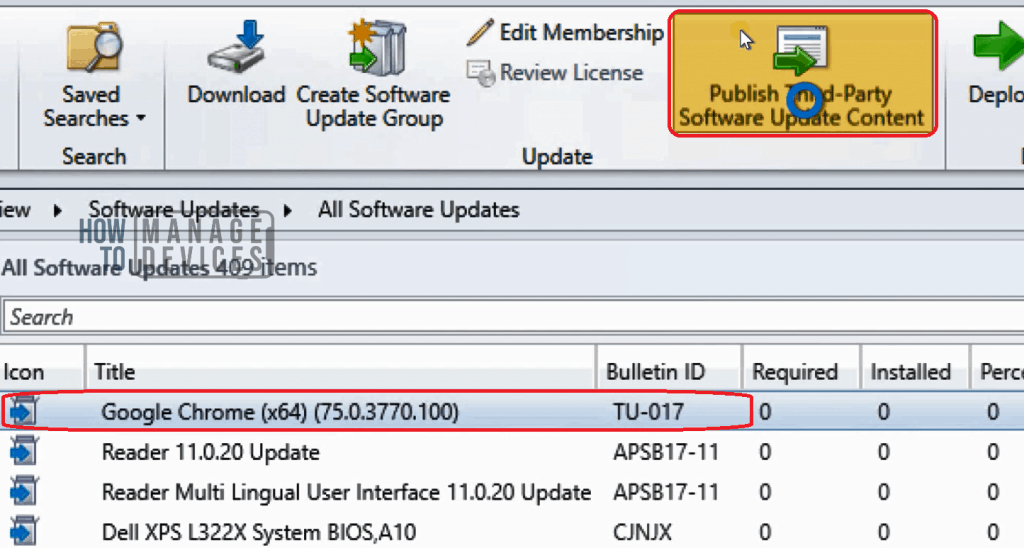
- Choose the Google Chrome (x64) (75.0.3770.100) (Article ID) – BLUE icon from All Software Updates Node.
- Click on Publish Third-Party Software Update Content button from the ribbon menu.
NOTE! – You can get more details from SMS_ISVUPDATES_SYNCAGENT.log. Content folder -> <Driver Letter>:\Program Files\Microsoft Configuration Manager\ISVTemp.
STEP 5 – Deploy Chrome Patches with SCCM
Before continuing this step, you must ensure that WSUS Sync is completed successfully.
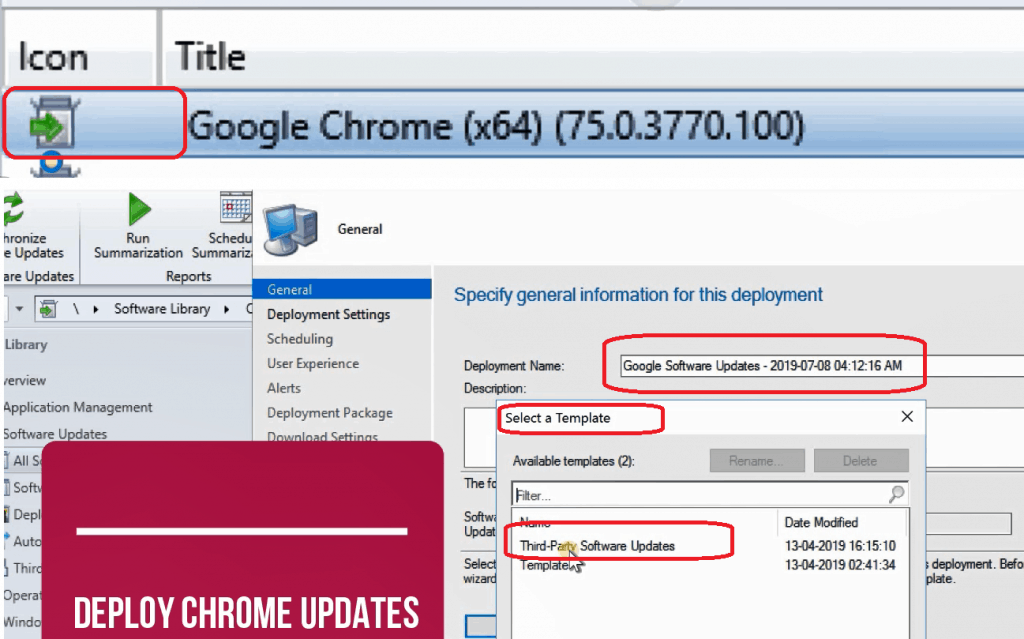
After step 4 and publishing Google Chrome (x64) patches, the update icon will be changed to GREEN. Once the Google Chrome Patch icons are green, you can use your software update templates to create a patch package for Chrome and deploy it to the required clients.
In my previous post, I created a template for software update patching (Adobe patches). I used the same template to deploy Chrome patches with SCCM third-party software updates.
Results – Patch Chrome with SCCM
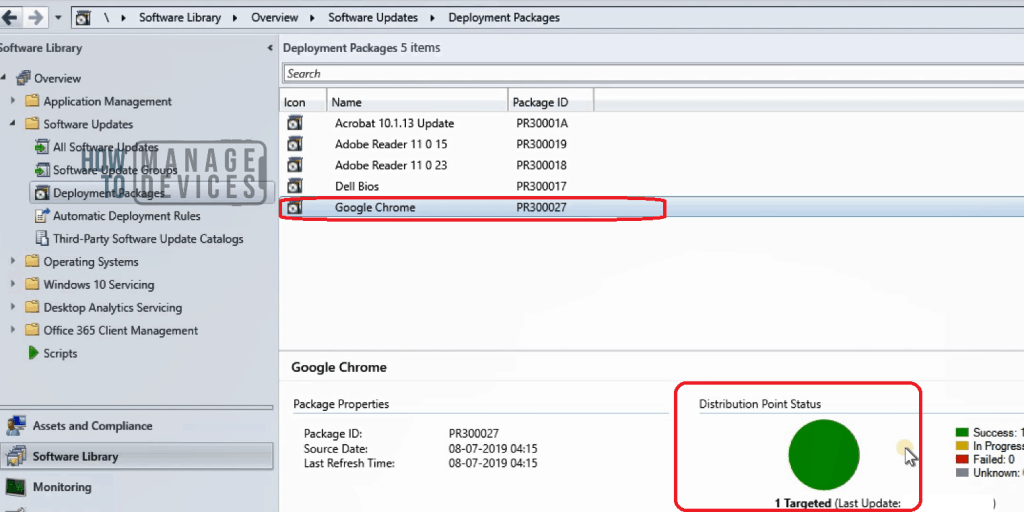
Once you complete step 5, you can validate the deployment and check whether the Chrome patch package is distributed to DPs.
The installation & troubleshooting methods on the SCCM client side are the same as any other software update or patch installation & troubleshooting (check out the Client Software Update Scanning section).
This method is the same because the SCCM client also uses a software update agent component to install SCCM 3rd party software updates.
Video – How to Patch Chrome with SCCM Custom Catalog
This video tutorial explains the end-to-end process of patching Chrome with SCCM custom catalog cab.
Resources
- SCCM Third-Party Software Updates Setup Step by Step Guide Post 1
- List of Free SCCM Catalogs for Third-Party Software Updates
- SCCM Third-Party Updates Step by Step Troubleshooting Process Guide
- Video Guide SCCM Third-Party Software Updates Setup Step by Step Guide
Additional Tip
Do you want to test the 7-Zip updates with the SCCM custom catalog? You can follow the same steps as explained above. On STEP 3, you can select 7 Zip (x64) from the product category and click OK.
We are on WhatsApp. To get the latest step-by-step guides and news updates, Join our Channel. Click here –HTMD WhatsApp.
Author
Anoop C Nair is Microsoft MVP! He is a Device Management Admin with more than 20 years of experience (calculation done in 2021) in IT. He is a Blogger, Speaker, and Local User Group HTMD Community leader. His main focus is on Device Management technologies like SCCM 2012, Current Branch, and Intune. He writes about ConfigMgr, Windows 11, Windows 10, Azure AD, Microsoft Intune, Windows 365, AVD, etc




Discussion