






Enhancing Security with Administrator Protection in Windows 11 using Intune
Hi all, we are discussing new Enhancing Security with Administrator Protection in Windows 11 using Intune. As you all know, cyber threats are very high nowadays. As cyber threats grow, it’s essential to protect actions that require administrative access to keep your computer safe.
Microsoft has introduced Administrator Protection using Windows Hello to boost security. Recently, you know the Microsoft Ignites 2024 event must be ongoing. At this event, they had a discussion on the topic of Security with Administrator Protection with Windows Hello.
We know the impact of Windows Hello on users, so now it’s time for Administrator protection. Users with Administrator rights on Windows can make essential changes to the system, impacting the overall security of a Windows 11 device.
Attackers often target these powerful permissions to steal information and privacy and turn off security features without the user’s knowledge. In this post, we can quickly view this New Feature in Windows Security with Administrator Protection with the help of Windows Hello.

Table of Contents
What are the Benefits of Administrator Protection?
1. Administrator protection requires user approval for every admin task and will enhance the security.
2. Users can manage admin rights, deciding which apps can change the system.
3. It will reduce the malware
Enhancing Security with Administrator Protection in Windows 11 using Intune
Above, we discussed an overall view of Windows Security with Administrator Protection and Windows Hello. Administrator protection ensures that a user confirms their identity with Windows Hello before allowing any actions needing administrator access. These actions include installing programs and changing system settings, such as registry access to sensitive information.
- Administrator protection minimizes the risk of the user making a system-level change by mistake.
- Also, it prevents malware from making changes to the system without the user knowing.
- Modern Windows Hello Visual Communication Experience in Windows 11 Devices
- KB5027215 Issue with Windows Hello Popup Message after signing
- Ensuring Data Protection through Windows Recall with New Security Architecture TPM Windows Hello
How it Perform
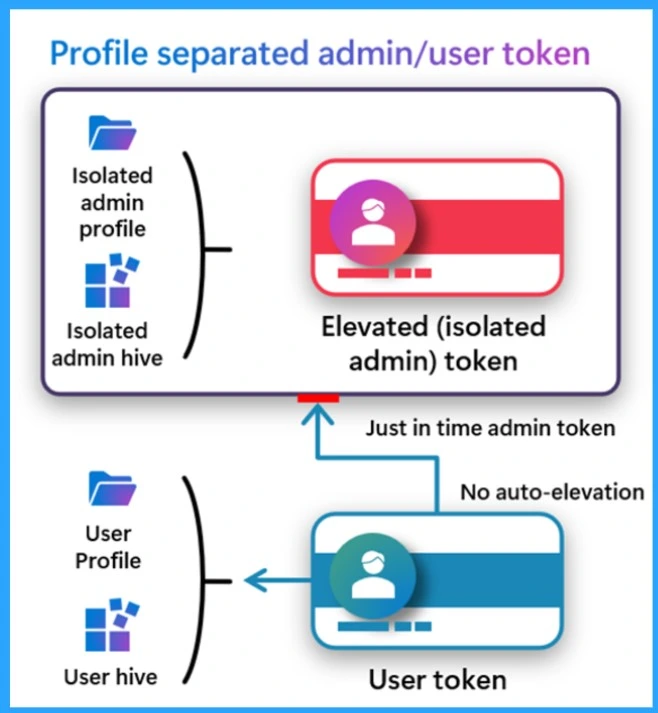
Users who log into Windows are assigned a standard user token with no administrative privileges. Windows will ask the user to confirm the operation if an action requires administrative rights. After the user approves, Windows creates a hidden, system-controlled user account to generate a temporary admin token.
- The process happens again whenever the user needs to do something requiring admin rights.
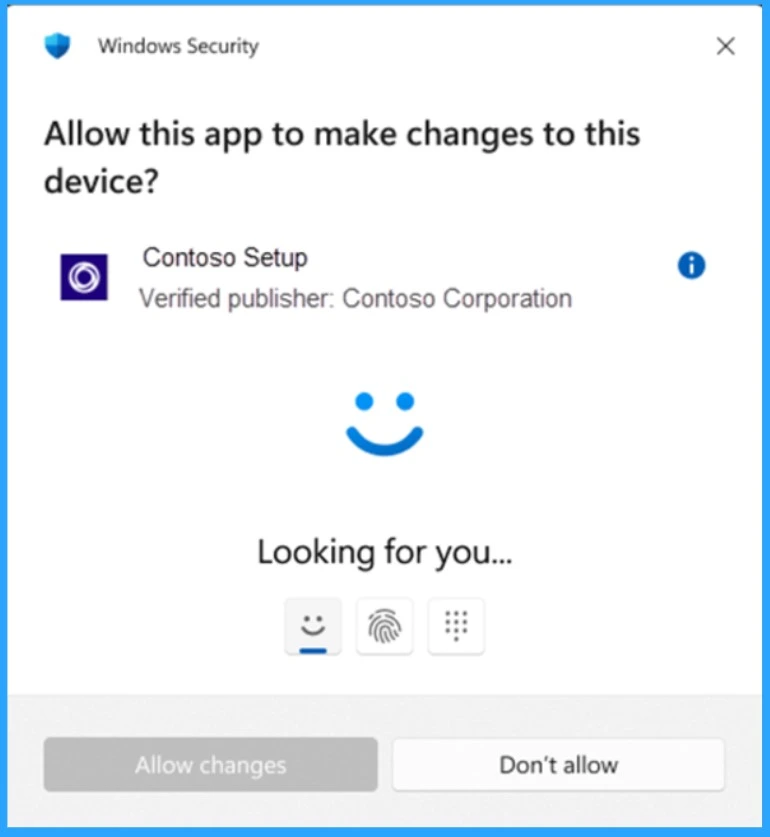
Administrator Protection is Integrated with Windows Hello
Administrator protection works with Windows Hello to make it easy and secure for users to approve admin actions. Another exciting part is that The admin token is deleted after the task is done and created again when needed for another task.
The system uses hidden accounts to create separate admin tokens, preventing malware from accessing admin tasks and protecting the system. Windows Hello makes this process secure and easy to use.
| No | Methods for Configuring Administrator protection |
|---|---|
| 1 | Using Windows Security settings, it will be available soon. |
| 2 | Using Group Policy |
| 3 | Using mobile device management (MDM) |
Configuring Administrator Protection Using MDM
One effective method is Configuring Administrator Protection Using MDM. IT admins can use tools like Microsoft Intune to set up and manage Administrator protection. You can soon use the settings catalog or administrative templates in Intune.
You can Set up the Administrator protection policy in the settings catalog. Add your security group to the policy. Then, Intune will automatically sync and apply the policy to your devices. Restart the devices for the policies to take effect.
- Sign in to the Intune Admin center.
- Navigate to the Device>Configuration> Create New Policy
- select the platform as Windows 10, and then profile type as setting catalog.
- After the basic section, you can get the Configuration settings.
- Click on the Add settings.
- In the settings selector, you can select Local Policies.
- Select the Setting Name as ” User account control behaviour of the elevation prompt for administrator protection(Windows Insiders Only)”.
- User account control type of admin approval mode (Windows Insiders Only).
- You can now close the Window.
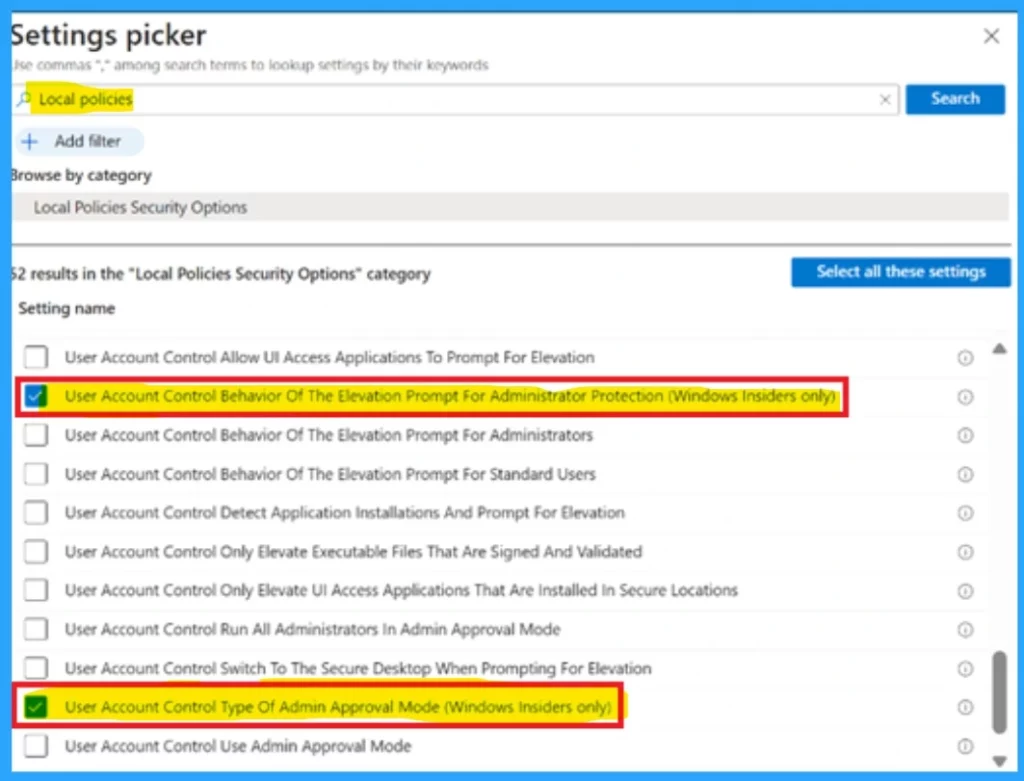
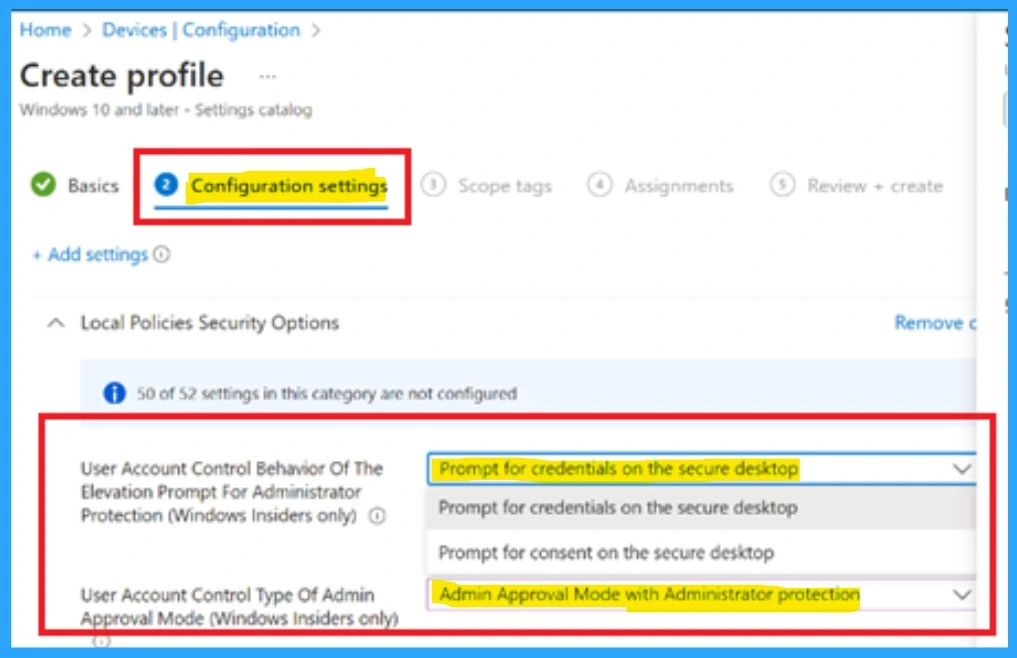
When you close the settings picker, you are on the Configuration setting. The settings option will displayed under the Local policies and security options.
- User account control Behaviour of the elevation prompt for administrator protection (Windows insiders only) – Prompt for credentials on the secure desktop.
- User accounts control the type of admin approval mode (Windows insiders only): Admin approval mode with Administrator protection.
Note: You can soon use these methods ( Windows Security settings, Using Group Policy, and Intune) to configure administrator protection.
Source: Administrator protection on Windows 11
Need Further Assistance or Have Technical Questions?
Join the LinkedIn Page and Telegram group to get the latest step-by-step guides and news updates. Join our Meetup Page to participate in User group meetings. Also, Join the WhatsApp Community to get the latest news on Microsoft Technologies. We are there on Reddit as well.
Author
Anoop C Nair has been Microsoft MVP from 2015 onwards for 10 consecutive years! He is a Workplace Solution Architect with more than 22+ years of experience in Workplace technologies. He is also a Blogger, Speaker, and Local User Group Community leader. His primary focus is on Device Management technologies like SCCM and Intune. He writes about technologies like Intune, SCCM, Windows, Cloud PC, Windows, Entra, Microsoft Security, Career, etc.


Discussion