






Application Control for Business the Ultimate Solution to Block Unwanted Apps and Malware in Windows
Let’s discuss Application Control for Business, the Ultimate Solution to Block Unwanted Apps and Malware on Windows devices. Application Control for Business is a robust security solution designed to help organizations block unwanted applications and protect against malware on Windows devices.
It ensures that only trusted and safe applications are allowed to run by using a combination of IT policy rules and advanced AI-based app reputation technology from Microsoft. IT administrators can easily configure and deploy these policies based on signed templates to create a secure environment.
This proactive approach helps prevent unauthorized software installations, reduces the risk of security breaches, and ensures that only compliant applications are used in the organization.
In this post, you will find everything you need about Application Control for Business, the ultimate solution to block unwanted apps and malware on Windows. This solution helps protect the organization from potential security threats and ensures a safer computing environment for everyone.

Table of Contents
Application Control for Business
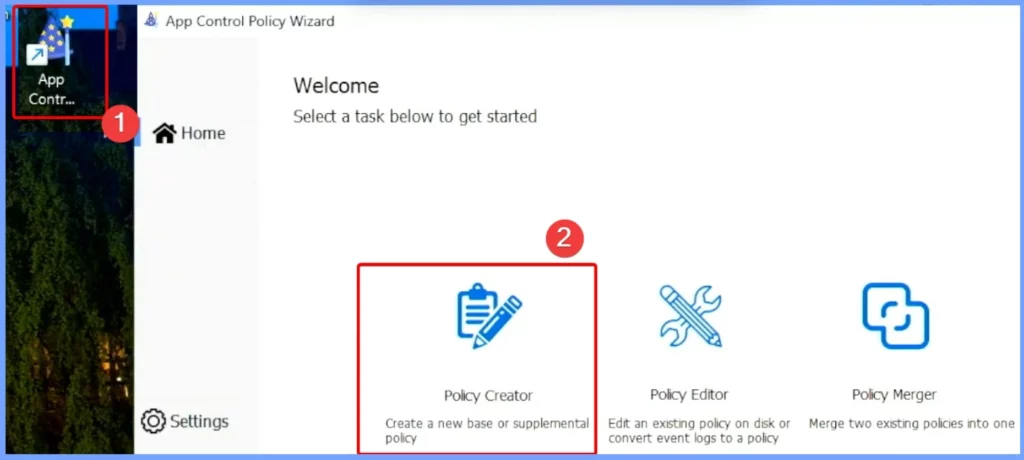
The IT admin uses a trusted, signed, reputable template to set up Application Control for Business policies. After selecting the template, they can make a few changes to customize it for their needs. The admin chooses the “Policy Creation” settings option in the App Control Policy wizard.
This step allows them to create a new base or supplemental policy, depending on the need. The wizard guides them through the process, making it easy to set up the policy rules and get everything ready for deployment.
- 5 New Windows Apps and Drivers Security Enhancements from Phishing and Malware
- Enhancing Security with Administrator Protection in Windows 11 using Intune
Select a Policy Type
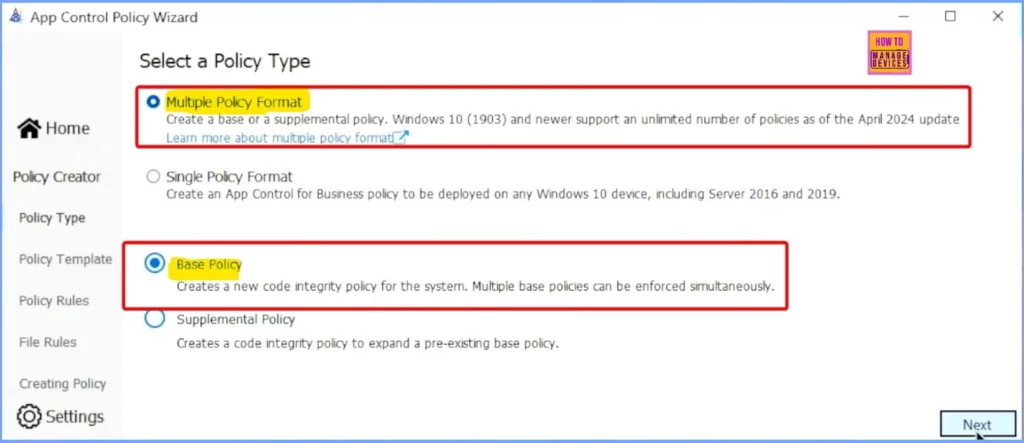
In the screenshot below, select the policy type as “Multiple Policy Format” and “Base Policy.” The “Multiple Policy Format” option allows you to create a base or supplemental policy, depending on your needs.
The “Base Policy” option helps you create a new code integrity policy for the system, ensuring that only trusted and secure applications can run. This setup makes managing and enforcing security policies across your organization’s devices easier.
Signed and Reputable Mode
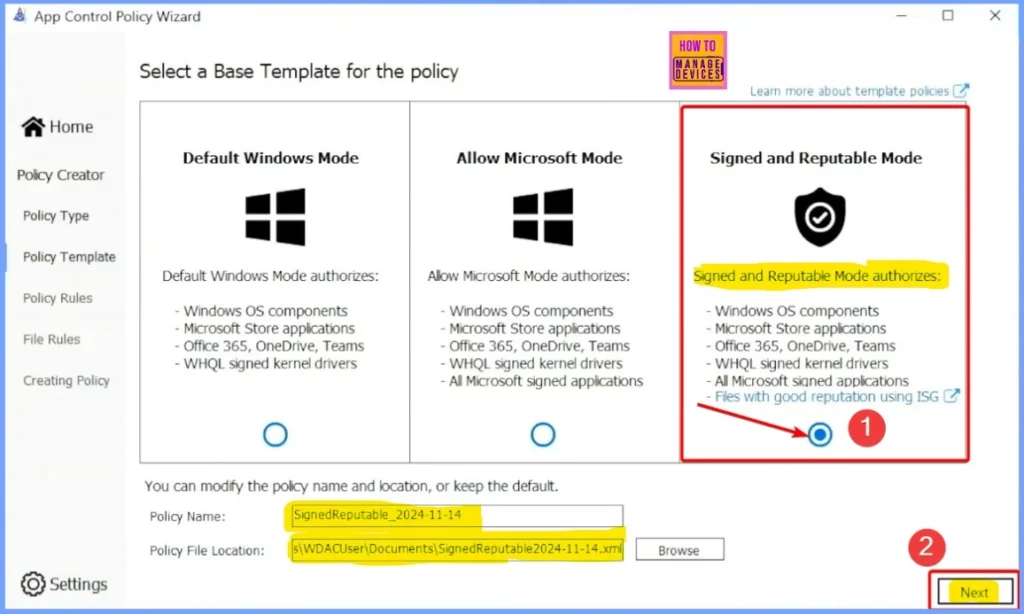
Here, you should enable the “Signed and Reputed Mode.” Once this mode is enabled, you can see the policy name and the location of the policy file. This ensures that the policy is based on trusted and signed templates.
After confirming these details, click “Next” to proceed with the setup and continue creating and deploying the policy.
| Signed and Reputable Mode authorizes |
|---|
| Windows OS components |
| Microsoft Store applications |
| Office 365, OneDrive, Teams |
| WHQL-signed kernel drivers |
| All Microsoft-signed applications |
| Files with good reputation using ISG |
Configure Policy Template
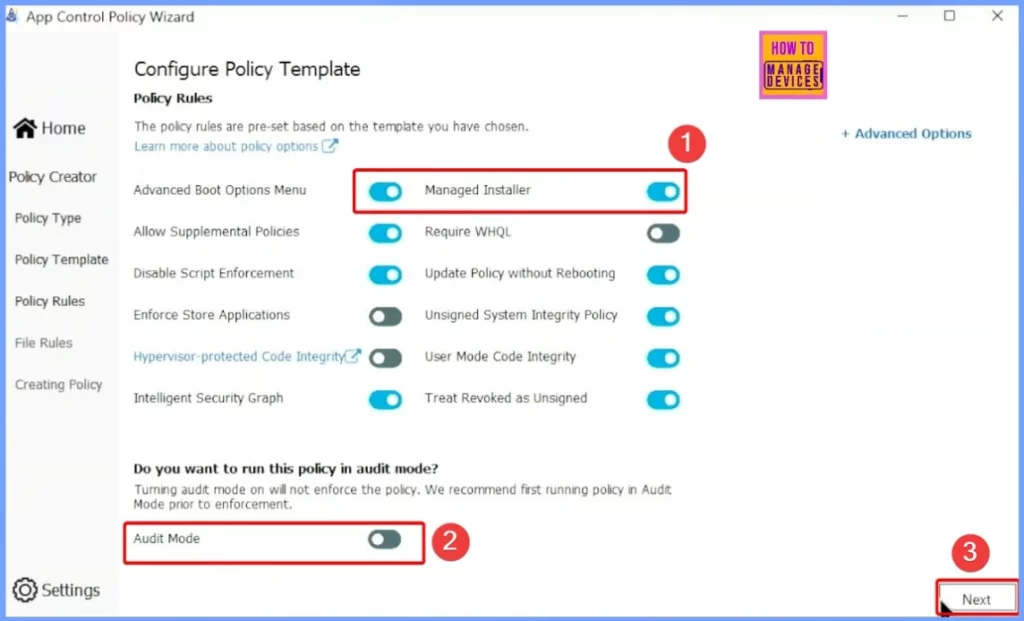
In the “Configure Policy Template” section, you should enable the “Managed Installer” and disable the “Audit Mode.” Audit Mode is helpful for testing but won’t enforce the policy.
Custom Rule Conditions
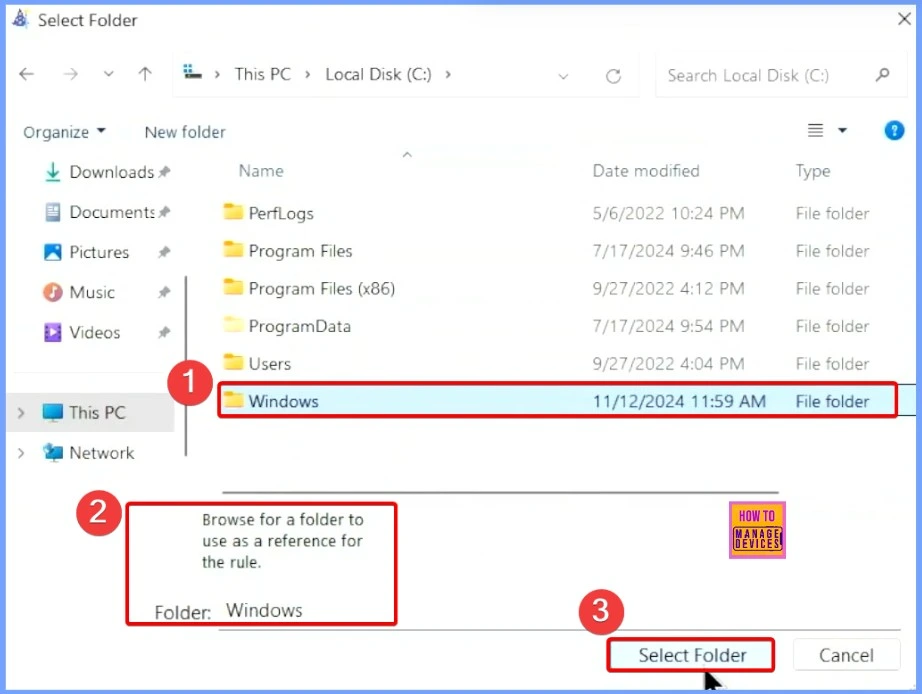
You can easily add custom rule conditions by clicking the “Add Custom” button. A pop-up window will appear where you can select the rule type as “Path.” Then, choose “Reference File” as “Folder” and click “Browse” to locate the folder you want to include in the rule.
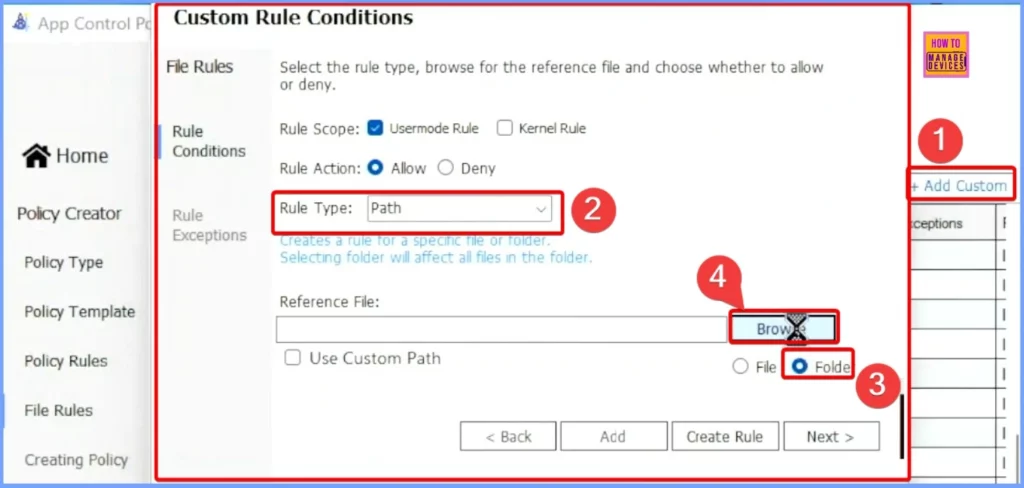
This allows you to customize the policy further by specifying particular folders or paths to control which apps can run. The screenshot below shows more details.
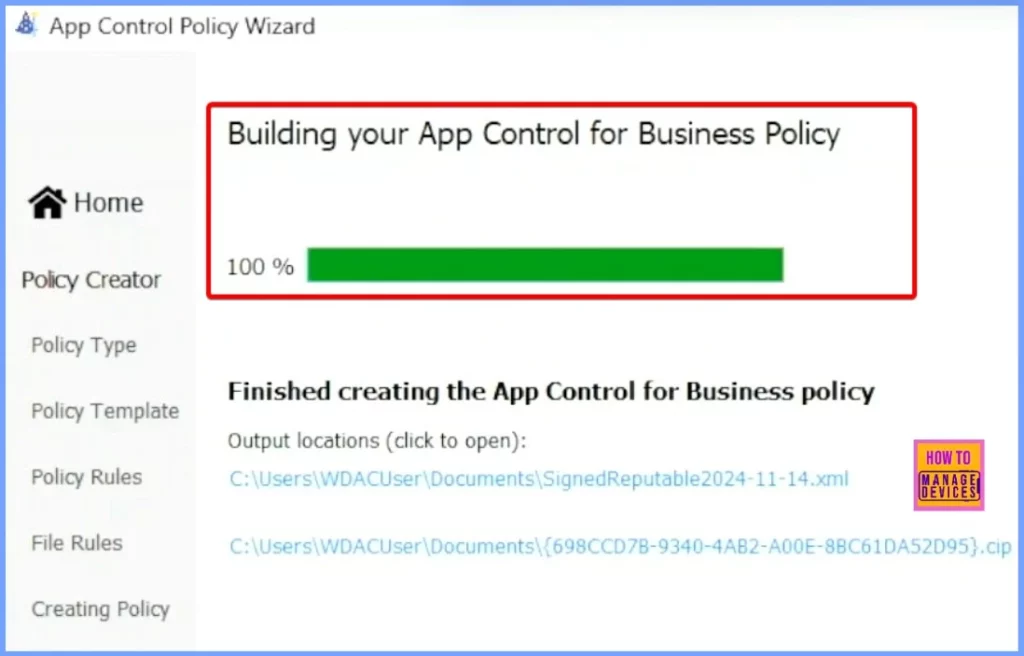
Finished Creating the App Control for Business Policy
The App Control for Business policy has been successfully created. The output files are saved in the following locations:
- C:\Users\WDACUser\Documents\SignedReputable2024-11-14.xml
- C:\Users\WDACUser\Documents{698CCD7B-9340-4AB2-A00E-8BC61DA52D95}.cip
- You can open these files to review the policy settings and prepare for deployment. The first file is the policy in XML format, and the second is a deployment-ready file.
Need Further Assistance or Have Technical Questions?
Join the LinkedIn Page and Telegram group to get the latest step-by-step guides and news updates. Join our Meetup Page to participate in User group meetings. Also, Join the WhatsApp Community to get the latest news on Microsoft Technologies. We are there on Reddit as well.
Resources
Secure and resilient Windows strategy from Client to Cloud
Author
Anoop C Nair has been Microsoft MVP from 2015 onwards for 10 consecutive years! He is a Workplace Solution Architect with more than 22+ years of experience in Workplace technologies. He is also a Blogger, Speaker, and Local User Group Community leader. His primary focus is on Device Management technologies like SCCM and Intune. He writes about technologies like Intune, SCCM, Windows, Cloud PC, Windows, Entra, Microsoft Security, Career, etc.

Discussion