






Simplified Deployment of Cisco Jabber 14 in Intune Using Enterprise App Catalog
Let’s discuss the Simplified Deployment of Cisco Jabber 14 in Intune Using Enterprise App Catalog. Cisco Jabber is a comprehensive communications tool designed for businesses to enhance collaboration and productivity. It integrates multiple communication features into a single platform, making connecting and staying organised easier for users.
Using the Enterprise App Catalog, Deploying Cisco Jabber 14 through Intune is now simpler. This method simplifies the process, allowing IT administrators to configure and distribute the application efficiently across an organisation.
The Enterprise App Catalog is a feature in Microsoft Intune. It includes the Pre-Packaged Applications. It integrates directly with Microsoft Intune, enabling admins to configure and assign apps quickly to devices and users based on organizational policies.
Administrators can use the Enterprise App Catalog in Intune to ensure a consistent deployment experience, enforce security policies, and reduce manual setup efforts. This approach enhances productivity and ensures users can seamlessly access Cisco Jabber’s communication and collaboration features.

Table of Contents
Simplified Deployment of Cisco Jabber 14 in Intune
In this post, you will find all the details about how to easily deploy Cisco Jabber 14 in Intune using the Enterprise App Catalog. By using the Enterprise App Catalog, you can save time, ensure secure app deployment, and provide a consistent experience for users.
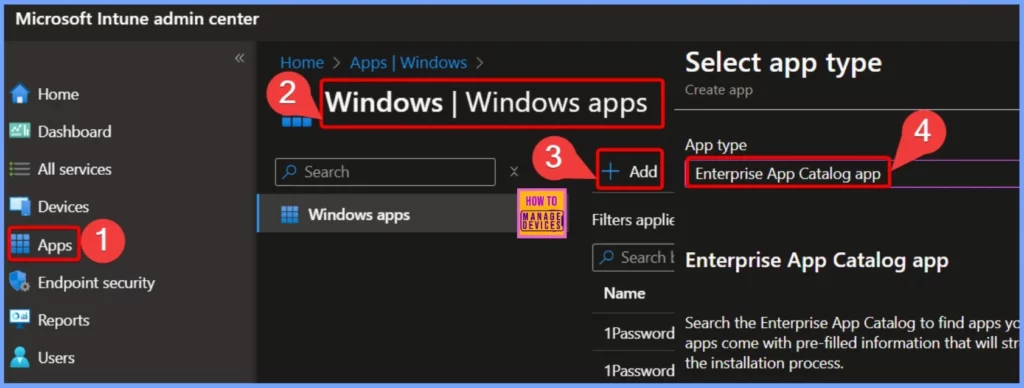
- Sign In to the Microsoft Intune Admin Center using your Intune administrator credentials.
- Go to Apps > Windows > Add > Enterprise app catalog app
- Install 7-Zip App with Intune Enterprise App Catalog App
- Intune Win32 App Supersedence and Auto App Update Explained
- Install Box Drive with Intune Enterprise App Catalog App
App Information
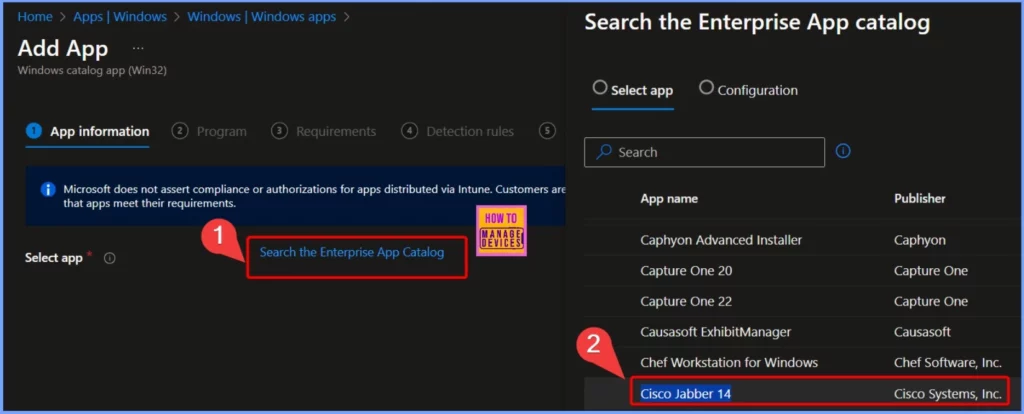
In the App Information tab, click on the “Search the Enterprise app catalog” link to explore and install a variety of applications. This feature makes it easy to find the specific app like Cisco jabber 14.
Configuration
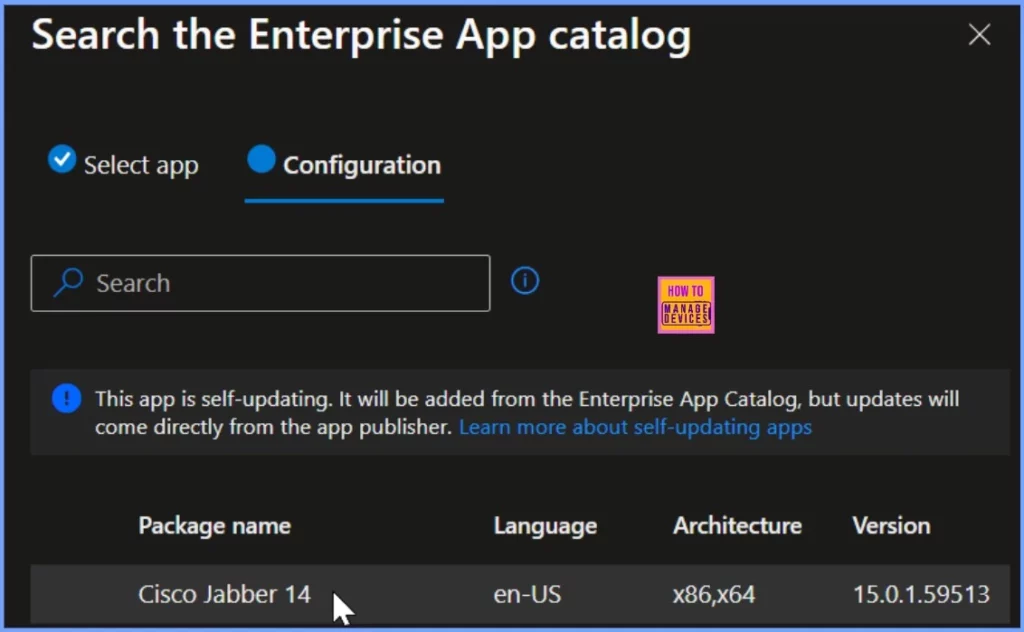
The Configuration tab displays important information like the package name, language, architecture, and version of the app. The table below provides more details about these settings for easy reference.
| Package name | Language | Architecture | Version |
|---|---|---|---|
| Cisco Jabber 14 | en-US | x86,x64 | 15.0.1.59513 |
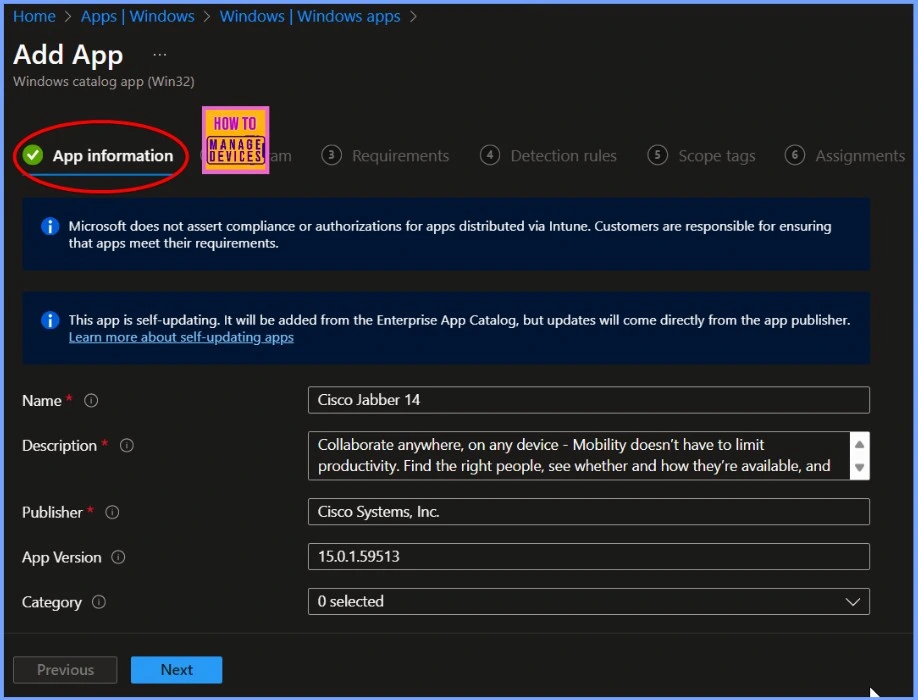
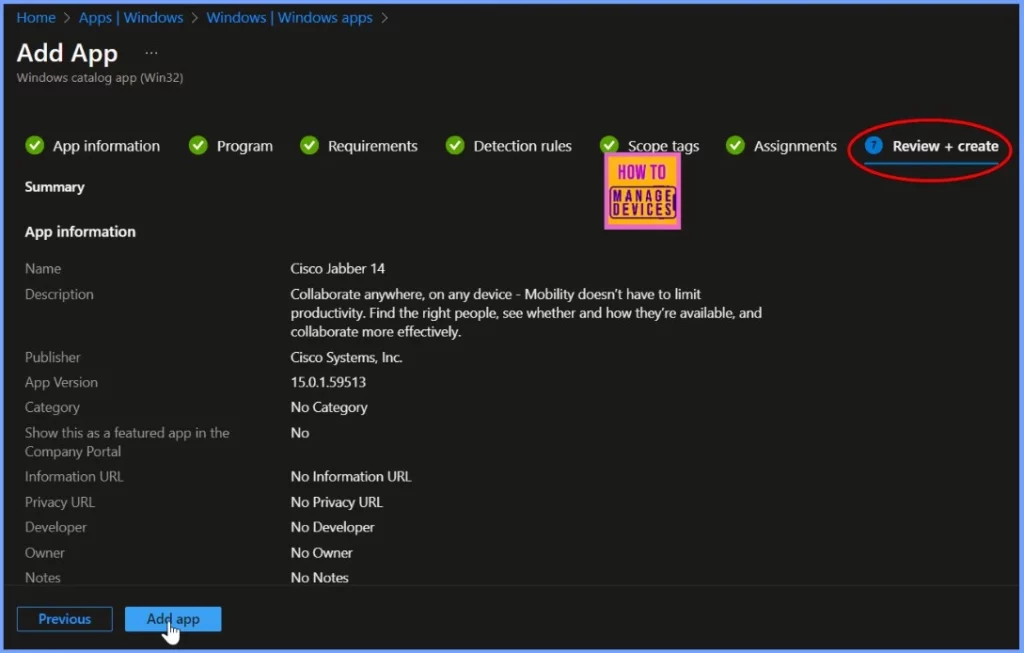
The App Information settings provide key details about Cisco Jabber 14, including its name, description, publisher, and version. Cisco Jabber 14 allows you to collaborate from anywhere on any device, helping you stay productive by easily finding the right people, checking their availability, and connecting with them. The app is published by Cisco Systems, Inc. and the version currently available is 15.0.1.59513.
Program
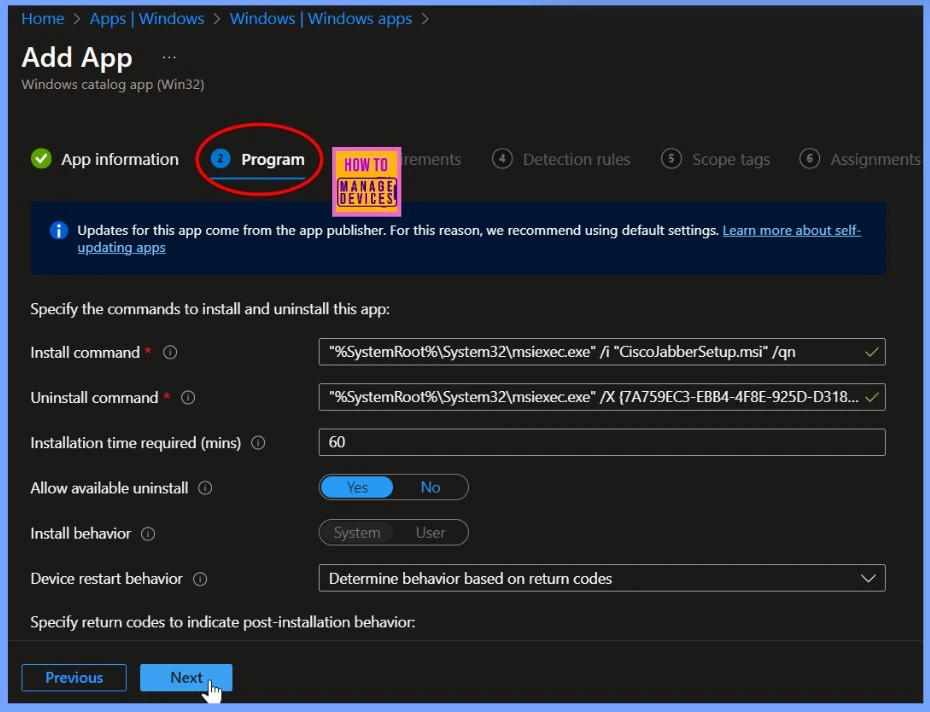
The installation command for Cisco Jabber 14 is %SystemRoot%\System32\msiexec.exe /i “CiscoJabberSetup.msi” /qn, which initiates the setup process. To uninstall the application, use the command %SystemRoot%\System32\msiexec.exe /X {7A759EC3-EBB4-4F8E-925D-D318.
The installation is expected to take approximately 60 minutes. Uninstalling the app is allowed, and the install behavior is set to system-wide. Device restart behavior is determined based on the return codes from the installation process.
Requirements
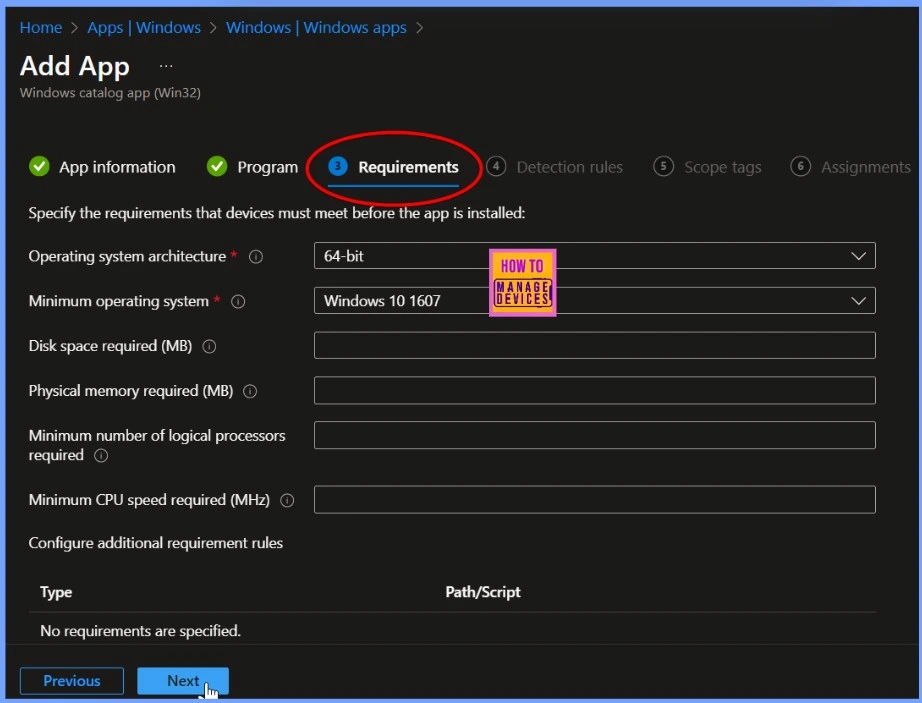
The app requires devices to have a 64-bit architecture and be running at least Windows 10 version 1607. These are the minimum system requirements that must be met before the app can be installed.
Detection Rules and Scope Tag
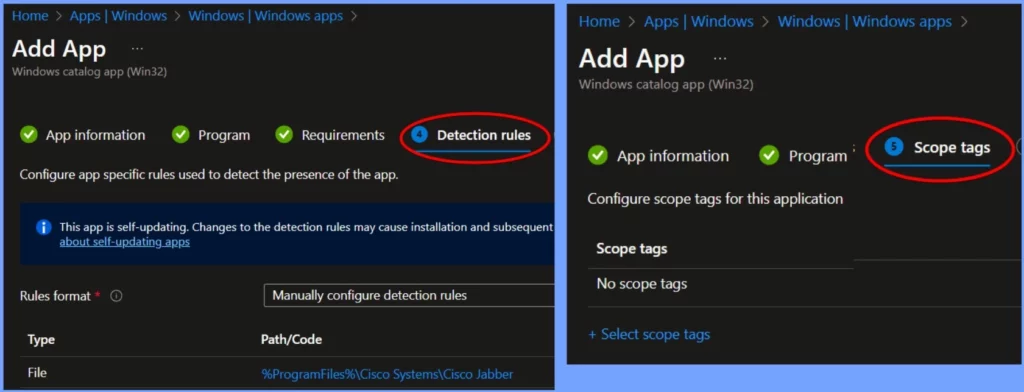
Detection rules in Intune are used to check whether an app is already installed on a device. Scope tags in Intune are used to help organize and manage resources like apps, policies, and profiles based on different groups or departments within an organization.
Assignment Tag in Microsoft Intune
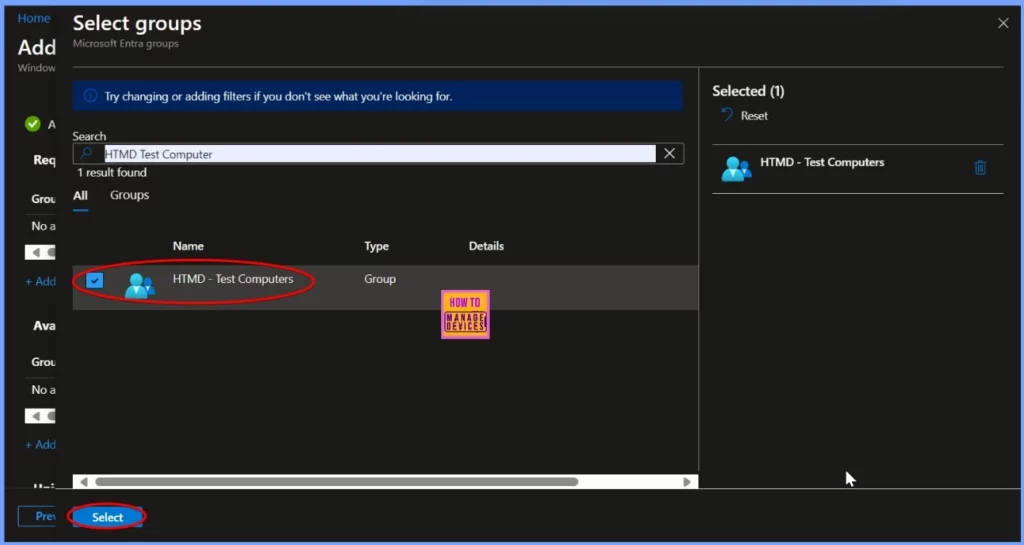
An Assignment Tag in Microsoft Intune is used to associate an app, policy, or profile with specific user or device groups, making it easier to manage and deploy resources in a more targeted manner.
Review + Create Step
The Review + Create step is a part of the process when configuring and deploying resources, such as apps, policies, or profiles, in Microsoft Intune. It is the final step before applying your settings to the target devices or users.
Monitoring Status
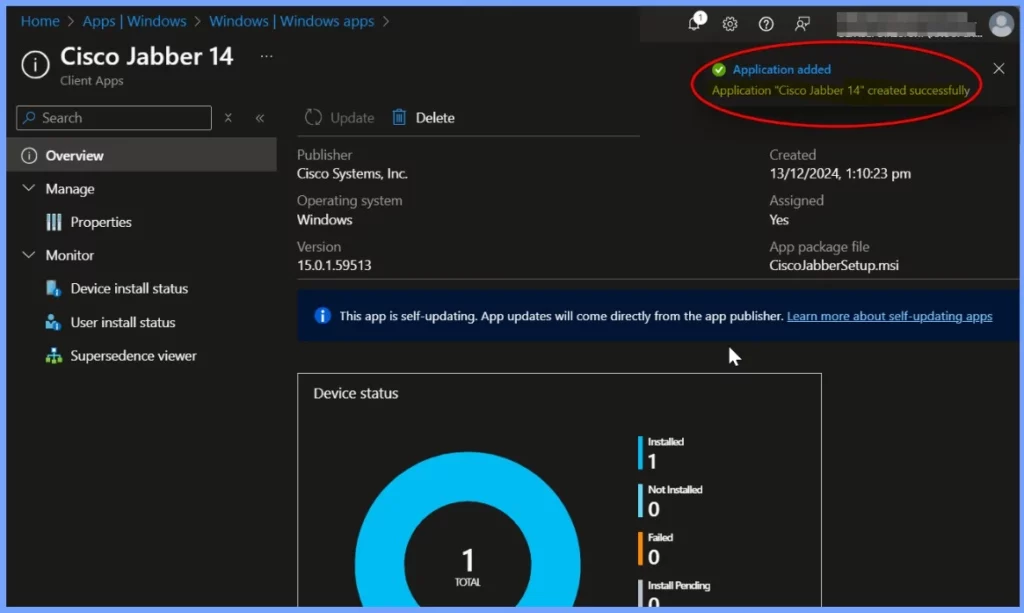
A notification appears confirming the successful creation of the Cisco Jabber 14 application. A banner message also highlights that this is the most recent version of the app from the Enterprise App Catalog. The Device Status shows that the application has been deployed to a single device.
End User Experience
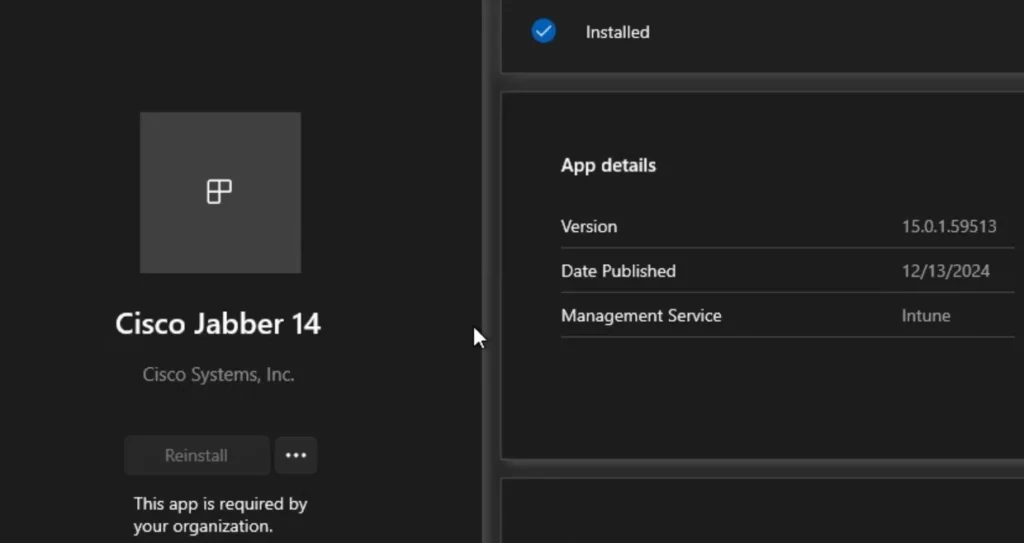
Once the Cisco Jabber 14 application is installed, it will be automatically available on the workstations. To confirm the installation, open the Company Portal on the workstation, navigate to Downloads & Updates, and check if the Cisco Jabber 14 application is listed as installed.
Need Further Assistance or Have Technical Questions?
Join the LinkedIn Page and Telegram group to get the latest step-by-step guides and news updates. Join our Meetup Page to participate in User group meetings. Also, Join the WhatsApp Community to get the latest news on Microsoft Technologies. We are there on Reddit as well.
Author
Anoop C Nair has been Microsoft MVP from 2015 onwards for 10 consecutive years! He is a Workplace Solution Architect with more than 22+ years of experience in Workplace technologies. He is also a Blogger, Speaker, and Local User Group Community leader. His primary focus is on Device Management technologies like SCCM and Intune. He writes about technologies like Intune, SCCM, Windows, Cloud PC, Windows, Entra, Microsoft Security, Career, etc.


Discussion