






How to Disable Wireless Display Multicast DNS Advertisement Using Intune Policy
Let’s discuss how to Disable Wireless Display Multicast DNS Advertisement Using Intune Policy. This policy setting refers to controlling the behavior of Wireless Display services on a device, particularly regarding multicast DNS (mDNS) service advertisements.
Wireless Display is a feature that lets a device, like a laptop or smartphone, wirelessly show its screen on another device, like a TV or monitor. It works over a network and often uses technology like Miracast to make the connection.
Multicast DNS (mDNS) is a networking protocol that allows devices on a small local network to resolve hostnames (device names) to IP addresses without needing a local DNS server. It enables devices to find and connect to each other automatically, making it a zero-configuration service.
Using Microsoft Intune, IT administrators can create and apply a policy to disable the mDNS advertisement for Wireless Display. This prevents the receiver from broadcasting its availability on the network, ensuring it remains hidden from other devices. This guide will walk you through the steps to set up and deploy this policy using Intune simply and effectively.

Table of Contents
Windows CSP Details
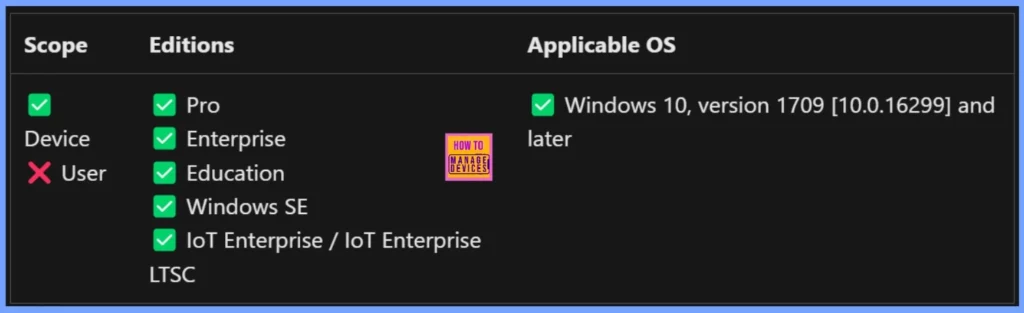
Windows CSP is a set of tools in Windows that allows IT administrators to configure and manage settings on Windows devices, especially for mobile device management (MDM). Through a standardised interface, CSPs provide a way to control various aspects of the system, such as network settings, security policies, and device features.
- This policy setting lets you turn off the multicast DNS (mDNS) advertisement for a Wireless Display receiver.
- By default, the setting is allowed (value 1), meaning the receiver broadcasts its availability on the network so other devices can discover and connect to it.
- If you set the value to 0, the advertisement is turned off, and the receiver will no longer announce its presence.
- The policy supports actions like adding, deleting, getting, or replacing this configuration.
- It uses a simple format where the default value is 1, allowing the service to run unless changed.
./Device/Vendor/MSFT/Policy/Config/WirelessDisplay/AllowMdnsAdvertisement
- Step-by-Step Intune Guide To Disable LLMNR Multicast Name Resolution For Zero Trust Baseline
- Allow Cortana Above Lock Screen Policy using Intune
- Help Experience Improvement Program Policy using Intune
- Turn Off the Picture Password Sign-In Policy using Intune
Disable Wireless Display Multicast DNS Advertisement
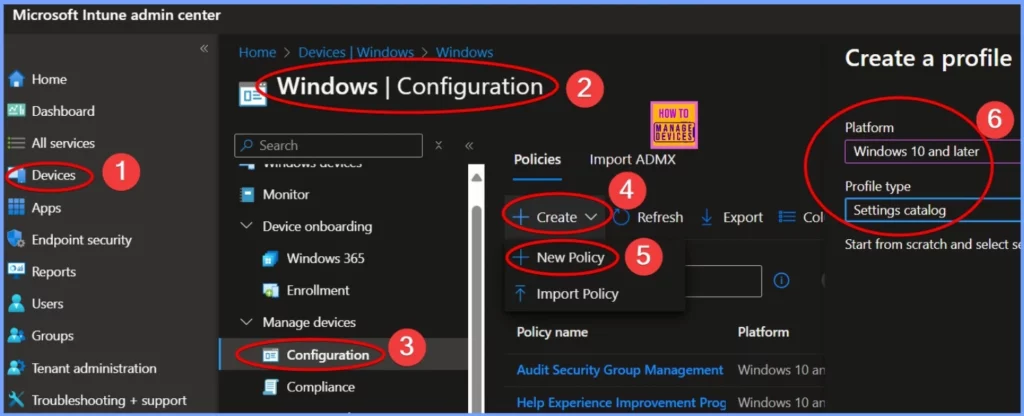
Let’s discuss how to Disable Wireless Display Multicast DNS Advertisement using Intune. The below table helps you to show the steps to Disable Wireless Display Multicast DNS Advertisement.
- Platform as Windows 10 and later
- Profile type as settings catalog
| Steps |
|---|
| Go to the Intune Admin Center portal |
| Go to Devices > Windows >Configuration > Create > New Policy |
Basic Settings
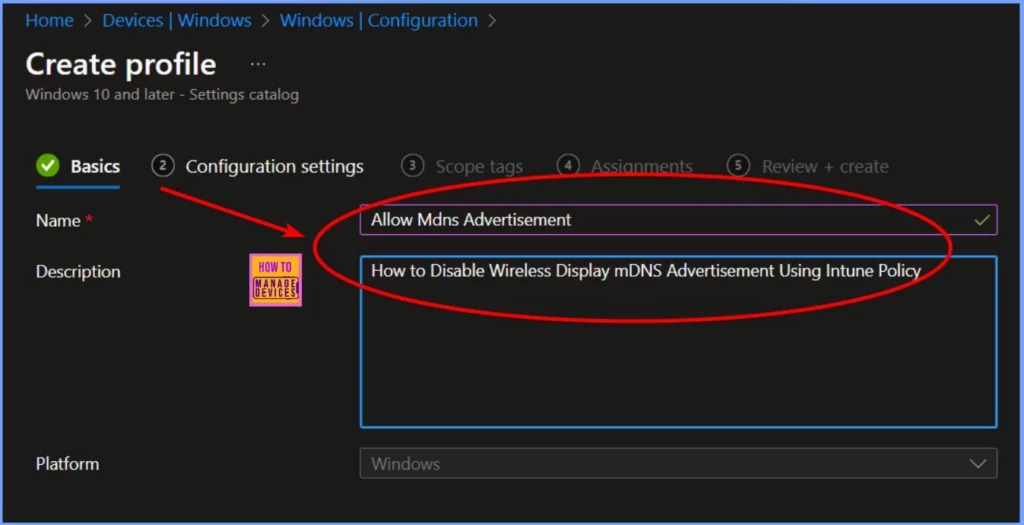
Basic settings are the first tab in the Intune Settings catalog for creating a profile. In this window, add the Name and Description of your policy. This helps to identify the policy later. Click on the Next button to continue.
| Name | Description | Platform |
|---|---|---|
| Allow Mdns Advertisement | How to Disable Wireless Display mDNS Advertisement using Intune Policy | Windows |
Wireless Display
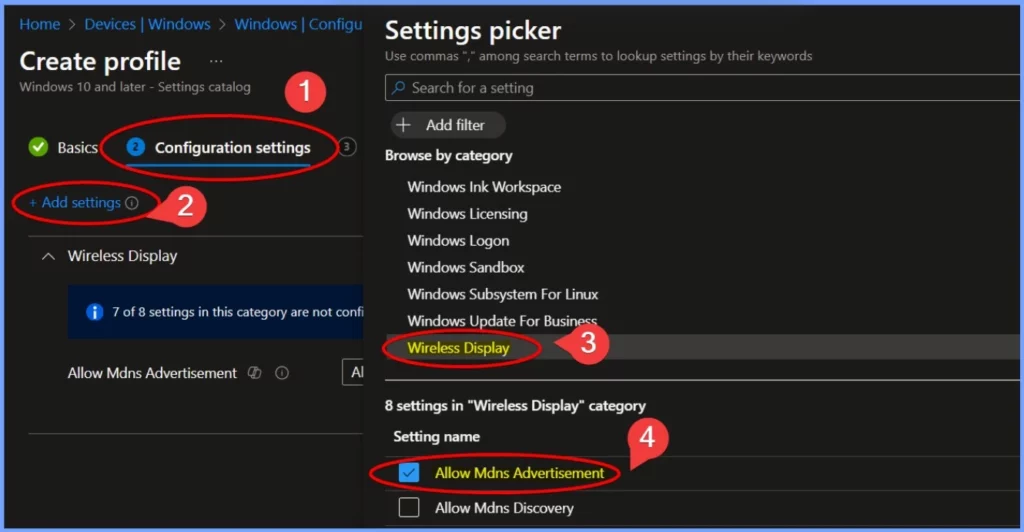
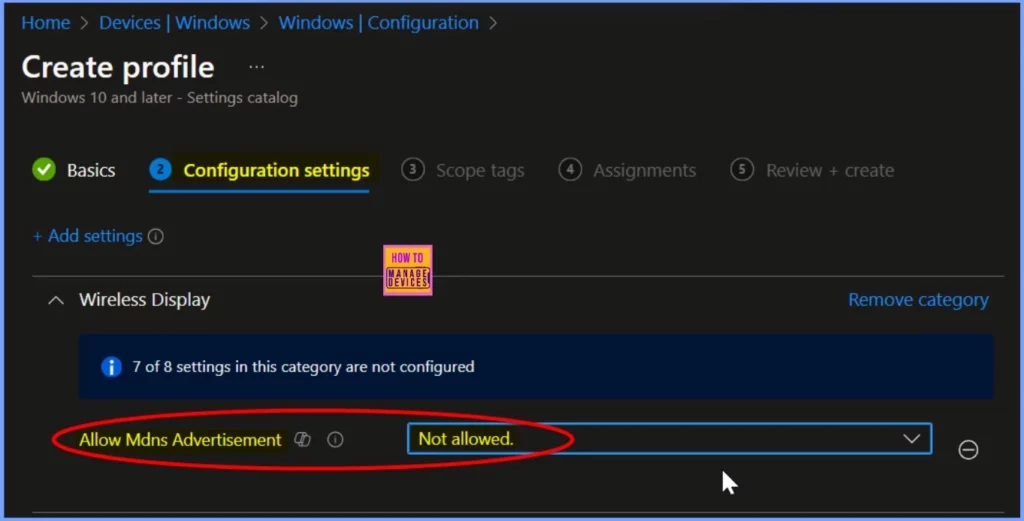
Under the Configuration settings, click on +Add settings. In the Settings picker, find and select Wireless Display. Then, check the box next to AllowMdnsAdvertisement to configure the setting.
Not Allow – AllowMdnsAdvertisement
This policy setting lets you turn off the Wireless Display multicast DNS service advertisement from a Wireless Display receiver. To disable it, simply click the drop-down arrow next to the setting name and select Not allowed.
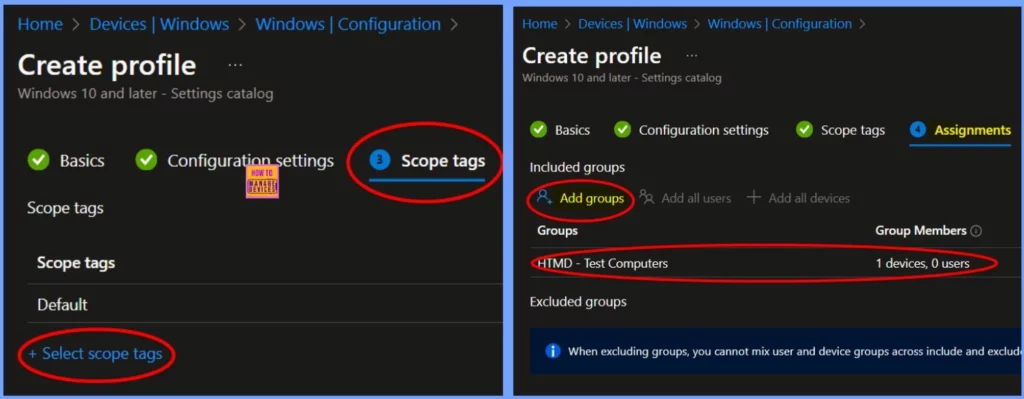
Scope Tags and Assignments
Scope tags are used to organize and filter settings or policies within Intune. Assignments determine who or which devices the policy applies to. The below screenshot helps you to show more details.
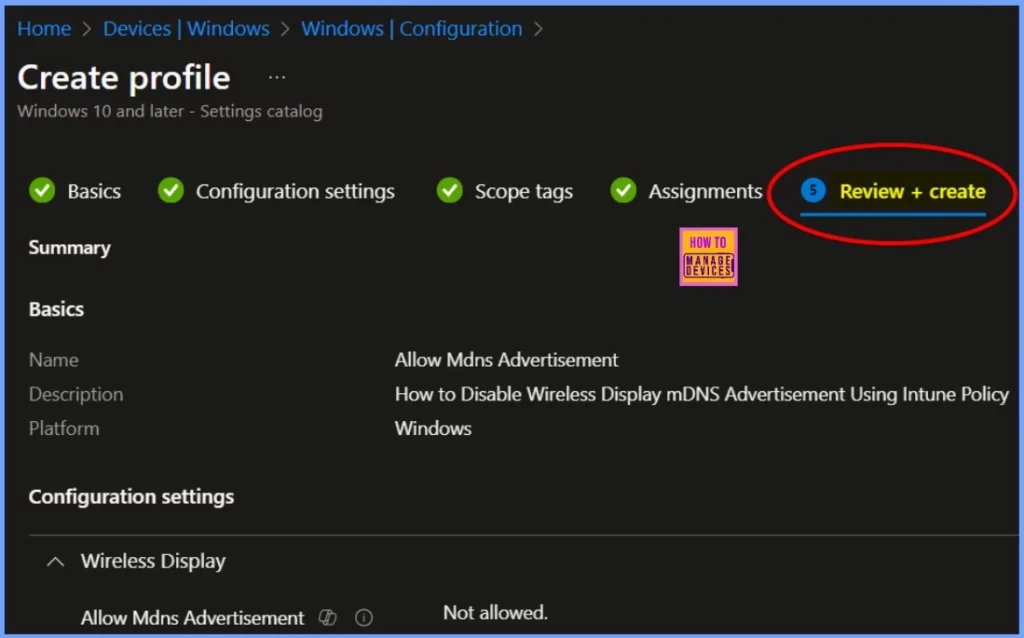
Review + Create Step
The Review + Create step is the final stage when configuring a policy in Intune. You will see a summary of all the settings you configured. This allows you to double-check everything for accuracy.
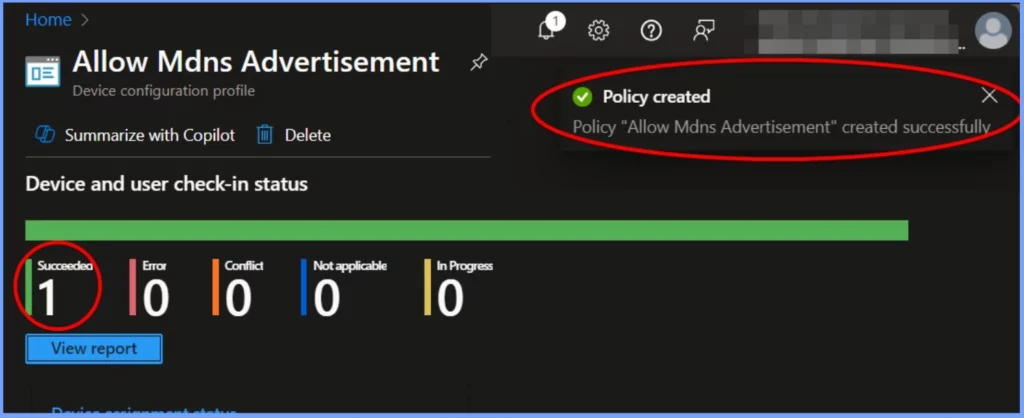
Device and User Check in Status
After reviewing all the steps, click the Create button. You will see a notification confirming that the policy was created successfully. To check the policy, go to the Intune Portal, navigate to Devices > Windows > Configuration, search for your policy, and open it.
Client Side Verification
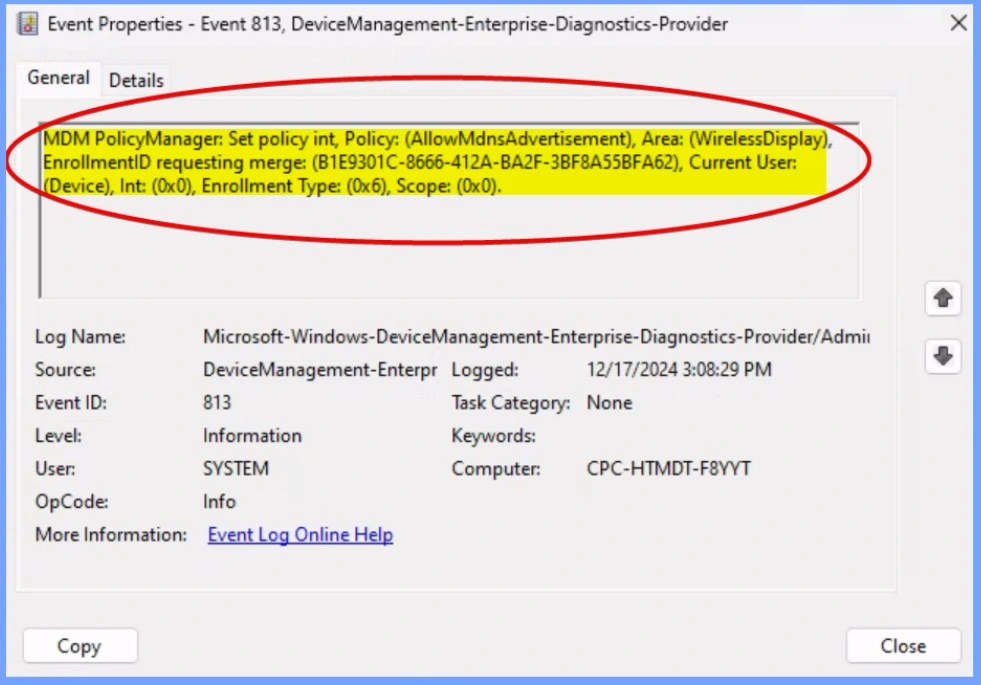
You can check the AllowMdnsAdvertisement policy status in Event Viewer. Go to Start and search for Event Viewer. In the left panel, navigate to Application and Services Logs > Microsoft > Windows > DeviceManagement-Enterprise-Diagnostics-Provider > Admin. Use Event ID 813 to find the relevant log entries quickly.
MDM PolicyManager: Set policy int, Policy: (AllowMdnsAdvertisement), Area: (WirelessDisplay), EnrollmentID requesting merge: (B1E9301C-8666-412A-BA2F-3BF8A55BFA62), Current User: (Device), Int: (0x0), Enrollment Type: (0x6), Scope: (0x0).
Need Further Assistance or Have Technical Questions?
Join the LinkedIn Page and Telegram group to get the latest step-by-step guides and news updates. Join our Meetup Page to participate in User group meetings. Also, Join the WhatsApp Community to get the latest news on Microsoft Technologies. We are there on Reddit as well.
Author
Anoop C Nair has been Microsoft MVP from 2015 onwards for 10 consecutive years! He is a Workplace Solution Architect with more than 22+ years of experience in Workplace technologies. He is also a Blogger, Speaker, and Local User Group Community leader. His primary focus is on Device Management technologies like SCCM and Intune. He writes about technologies like Intune, SCCM, Windows, Cloud PC, Windows, Entra, Microsoft Security, Career, etc.


Discussion