






Easy Way to Install Flash FXP App using Enterprise App Catalog App in Intune
Hi, let’s discuss an easy way to install Flash FXP app using the Enterprise App Catalog in Intune. As we all know, Microsoft Intune is a cloud-based service, and one of its important features is the Enterprise App Catalog.
App management has become essential for organizations today. Installing applications for groups of organizations using the enterprise app catalog is an excellent choice. In this discussion, we will focus on installing the Flash FXP app through the enterprise app catalog.
As you all know Flash FXP is an important file transfer protocol. FlashFXP has an easy-to-use interface that lets users of all levels transfer files. The dual-pane design shows both local and remote directories, allowing drag-and-drop file transfers.
Flash FXP supports FTP, FTPS, SFTP, and HTTP protocols, making it compatible with a wide range of servers and network configurations. It is designed to successfully transfer files even under poor network conditions, which helps reduce the risk of data loss or corruption. In this post, we will discuss how to install Flash FXP in Intune using the Enterprise App Catalog.

Table of Contents
What is Flash FXP App?
Easy Way to Install Flash FXP App using Enterprise App Catalog App in Intune
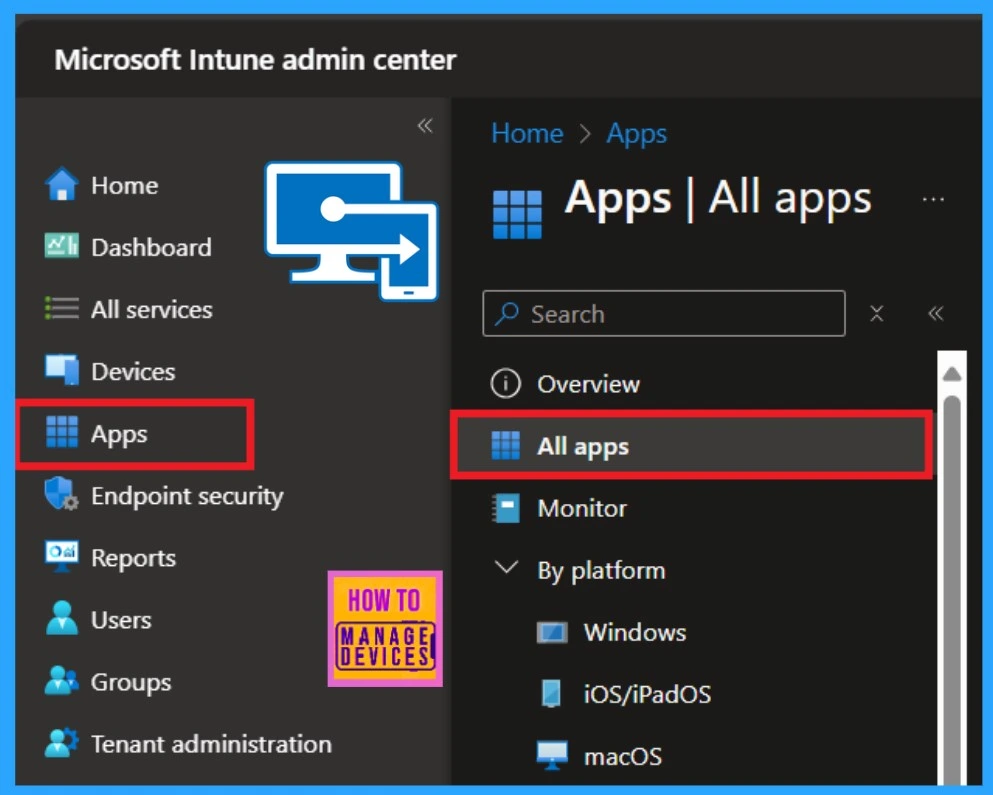
Above we discussed an overall view on the topic of Easy Way to Install Flash FXP App using Enterprise App Catalog App in Intune. To install Flash FXP, sign in to the Microsoft Intune Admin Center. Once the Intune portal opens, navigate to the Apps section, then select All Apps (Apps > All Apps).
- How to Install Google Backup and Sync App with Intune Using Enterprise App Catalog App
- Deploy Windows Catalog App type using Intune Enterprise Application Catalog
- Best way to Install Bullzip PDF to Word App using Intune Enterprise App Catalog App
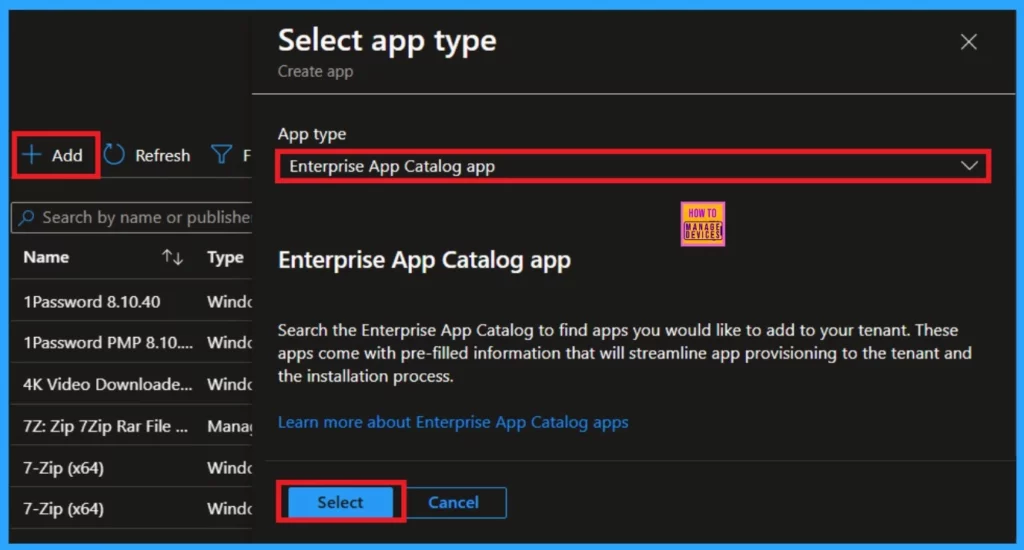
When you click on the All App section now, you will get the +Add option select that. On the Add option, you have to choose the Add type and select the enterprise app catalog app. Then click on the Next.
App Information
On the app information page, you will get the option to select the app there you can select the Flash FXMP. The below screenshot will guide you. Then click on the Next option.
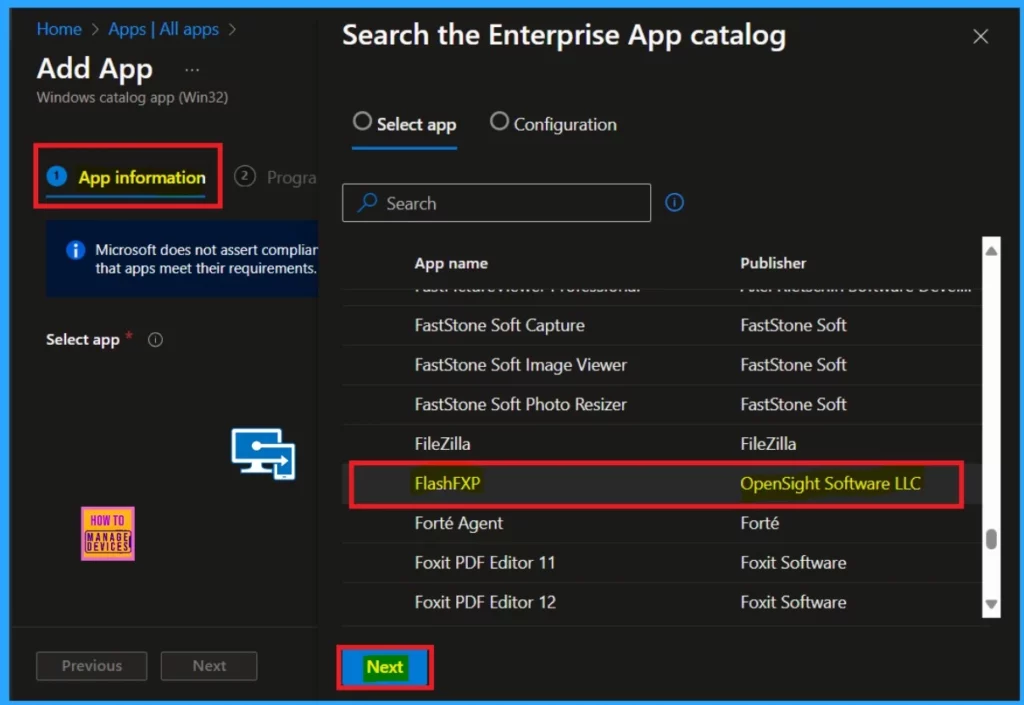
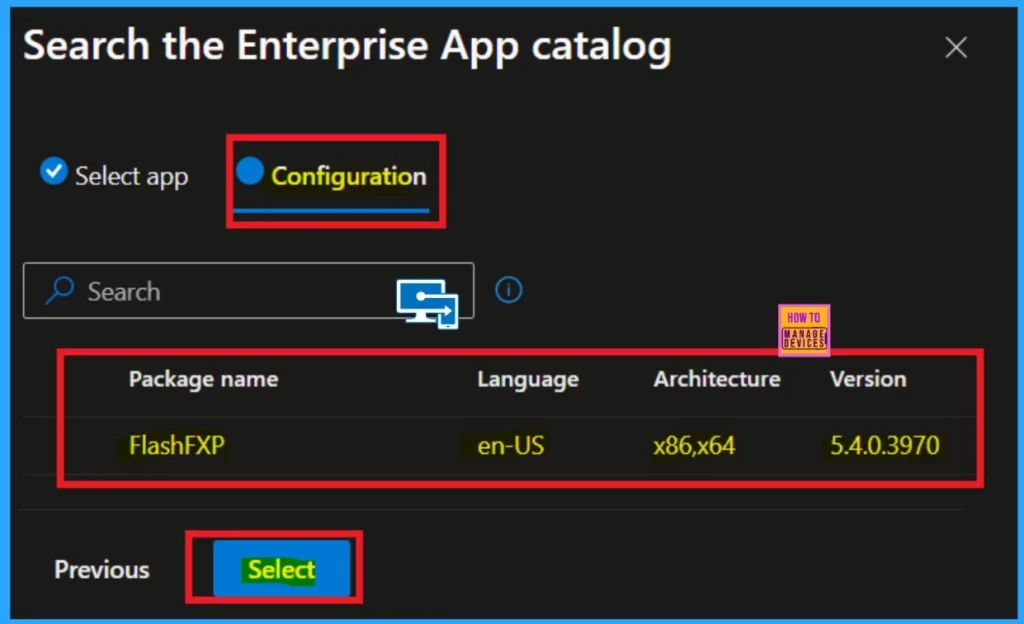
When you select the Flash FXP app, you’ll notice a configuration tab located next to the Select App tab. In the Configuration section, you can view the app’s package name, language architecture, and versions. Once you’re ready, you can click on the select option.
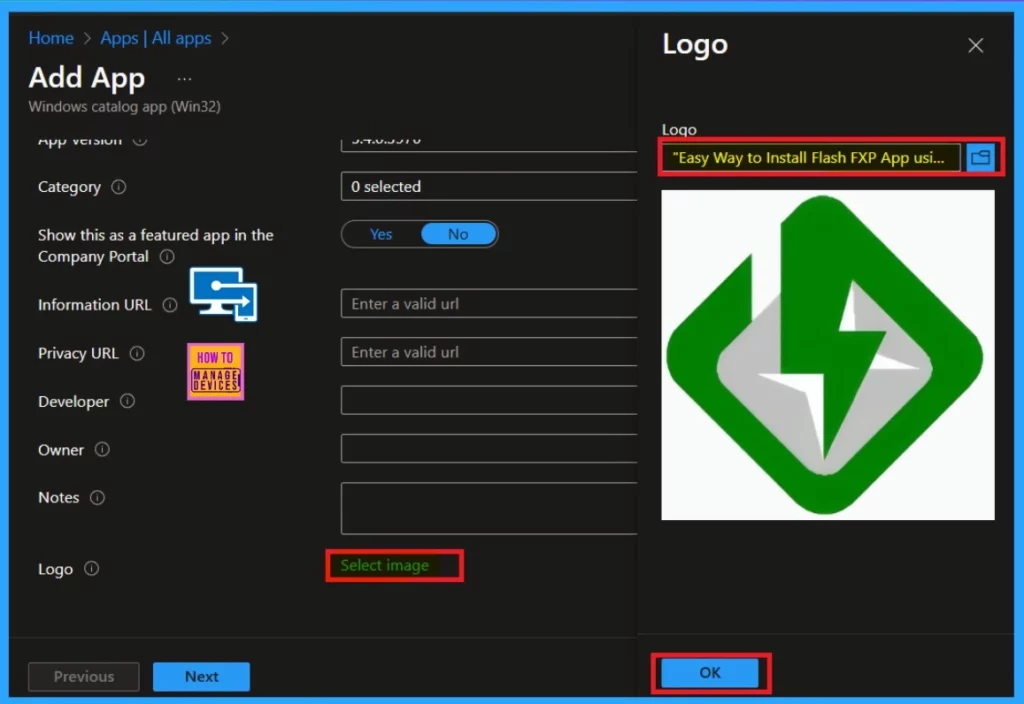
While still on the app information tab, scroll down to find the option to add the app image (logo). Click on the select image option and then, you will get the option to add an image from the File menu. Select the log that you have already saved for the app. After selecting the logo, you will see it on the Intune portal.
Click on the Ok.
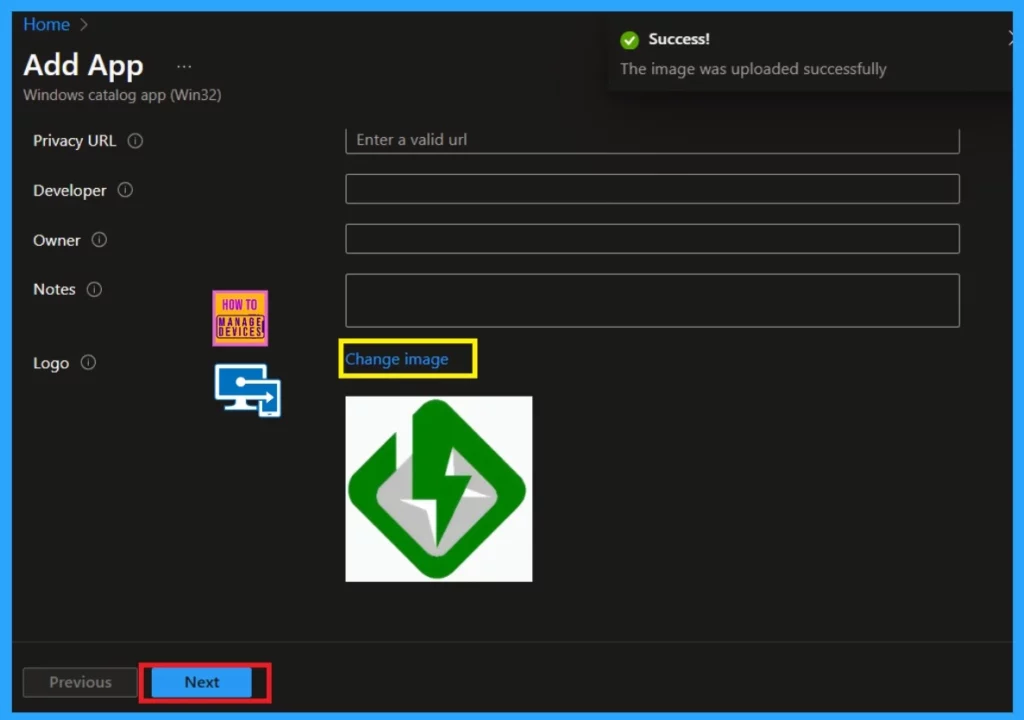
- Now, you will get notified that the image was successfully uploaded.
After clicking OK, you will see the logo on the Intune portal. If you need to change the logo, you can easily click the hyperlink “change image.” Then, you can click on the Next option.
Program
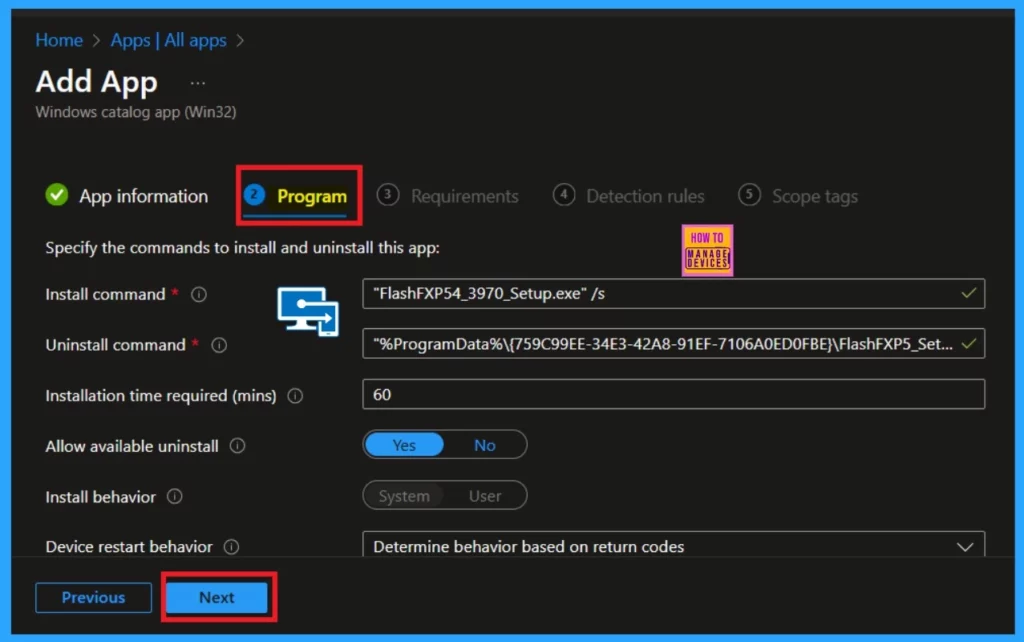
After clicking Next, you will be on the Programme tab. This tab displays the install and uninstall commands, as well as the installation time. Now you can click on the Next for the further process. Select ‘Yes‘ to get the uninstall option.
- Select ‘No‘ to prevent uninstall option.
Requirements
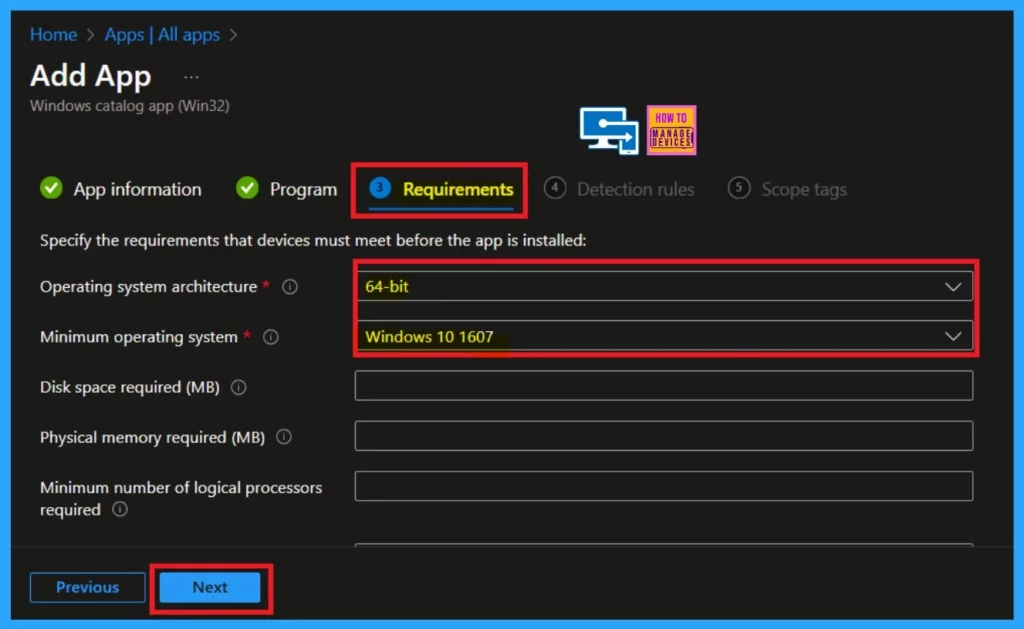
Now, you are on the Requirements tab, where you will get the information about the Flash FXP app. You will learn the operating system architecture and minimum operating system information there. Now, you can click on the next.
Detection Rule
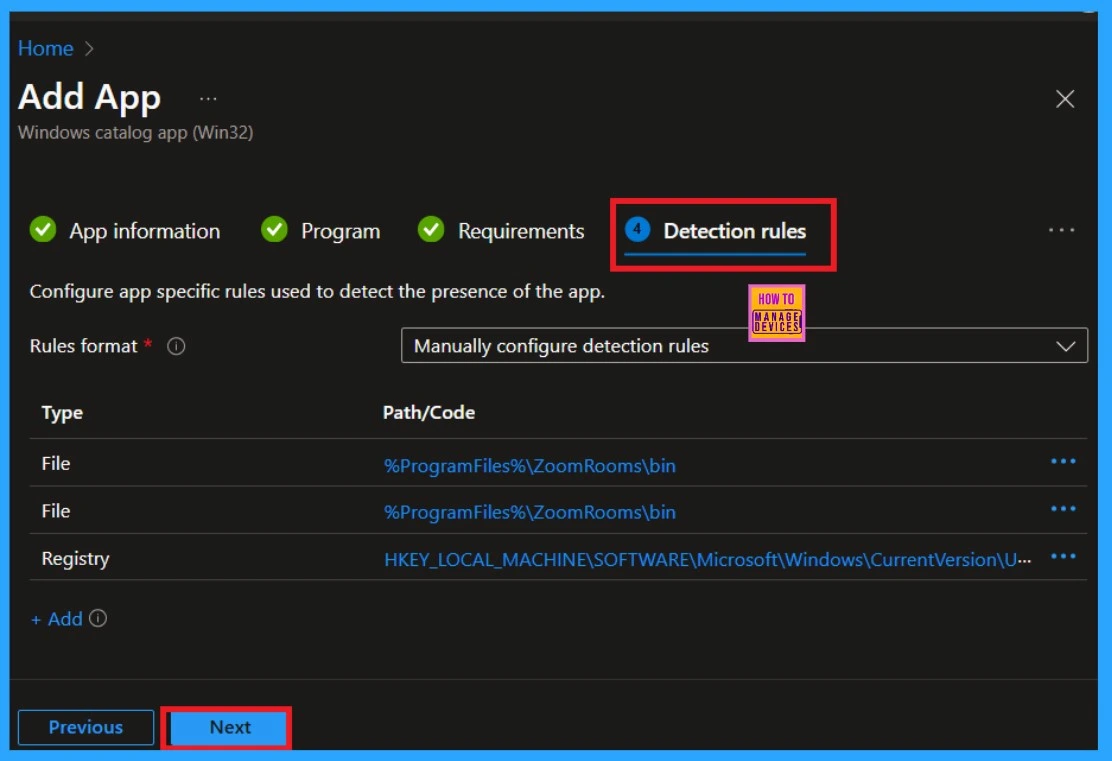
The Detection Rule tab in Microsoft Intune lets administrators set rules to check if a specific app is already installed on a device. This helps ensure that the app is properly installed before applying further actions or updates. Here you can skip this option and it is not necessary to make changes in the app installtion time.
Scope Tag
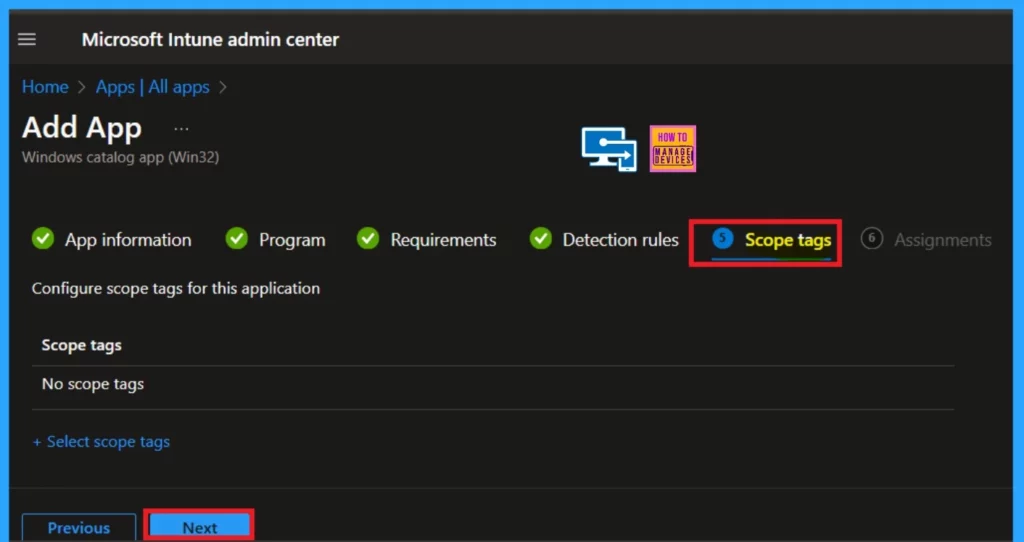
The Scope Tag is an optional feature in Microsoft Intune used during the app deployment process. Here i did not add anything special in app installtion process you can skip this section. It only allow you to assign apps or policies to specific groups, users, or regions within your organization.
Assignment
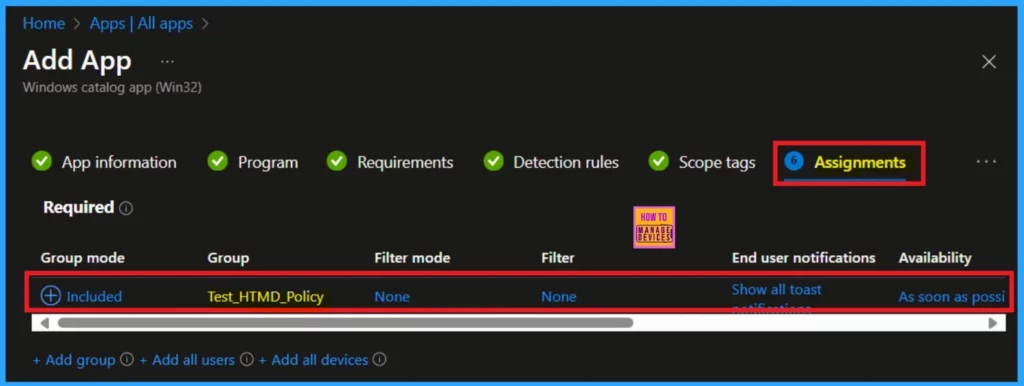
In the Assignments section of Microsoft Intune, you can specify which user or device groups will receive the Flash FXP app. This section allows you to control which groups should have the app installed and which groups should be excluded from receiving it.
- Click on “Included Groups” in the Assignments section.
- A new window will open, allowing you to select the groups you want to include in the deployment.
- Search for and select the groups that should receive the Flash FXP app.
- Once you’ve selected the appropriate groups, click Select to confirm your choice.
Review and Create
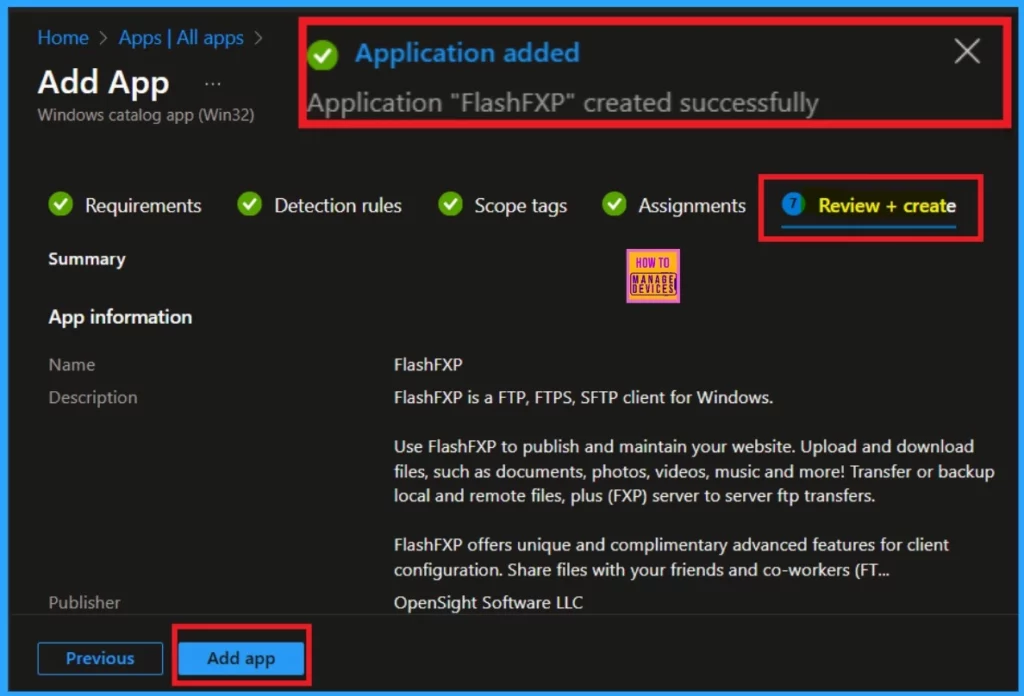
The Review + Create tab in Microsoft Intune provides a detailed summary of the app’s deployment settings before the installation start. Also it allows administrators to review all the details related to the selected app, including its name, description, assignment groups. If everything is fine after reviewing you can click on the Revie + Create button.
- Now you will notify that the application added and successfully created.
Monitor Status
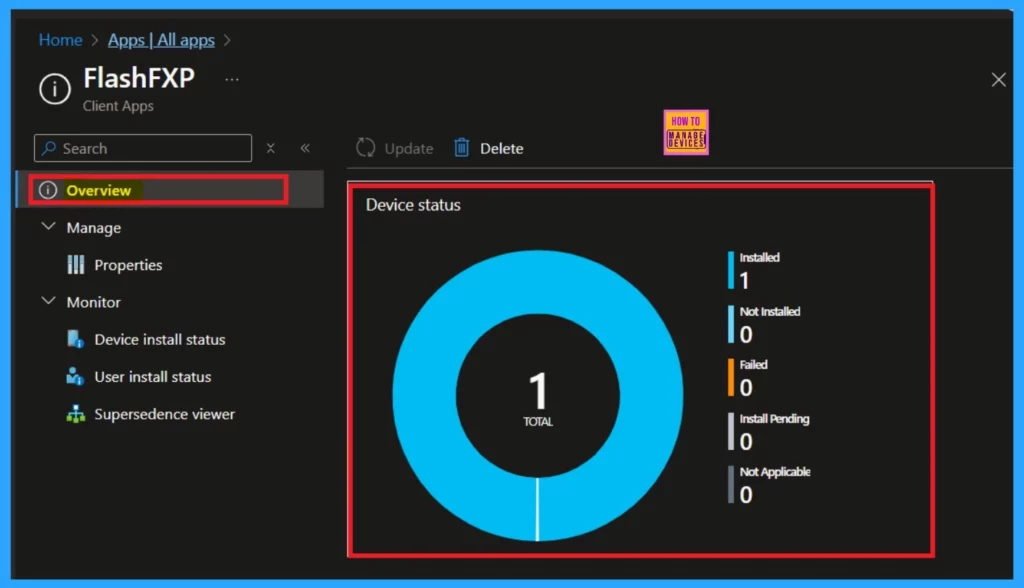
Monitoring the installation status of an app is an essential part of the deployment process. It verifies whether the app has been successfully installed on the specified groups. After assigning the app to these groups, the deployment may take up to 8 hours to complete.
- So, you can manually sync the policy in the company portal.
- Go to the Company portal and then goto the settings and click on the sync.
End User Experiance
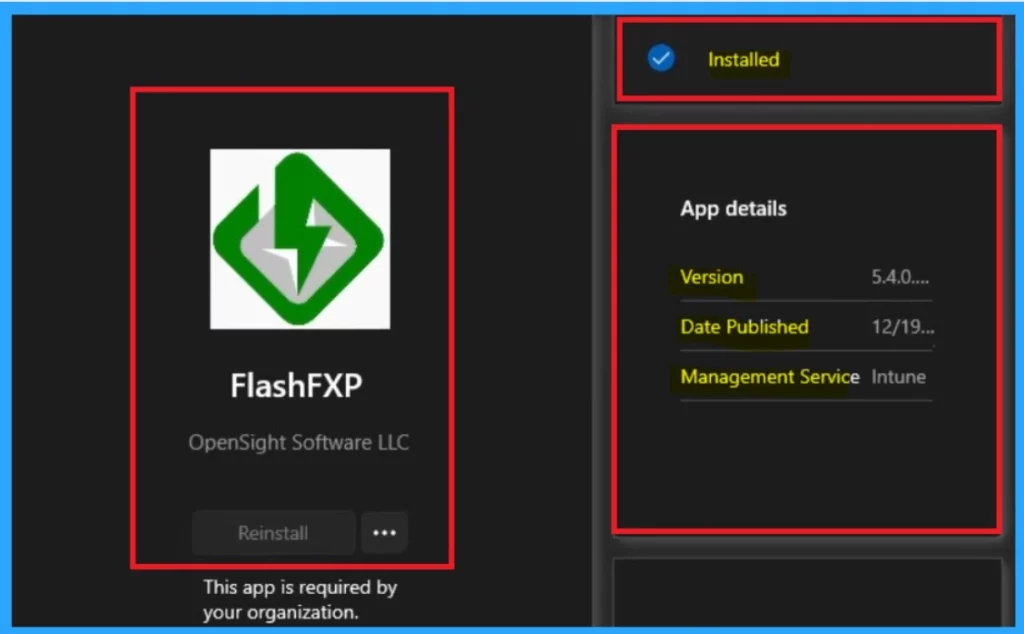
After the manual syncing, it will automatically be deployed to the workstation. To verify the installation, open the company portal and go to downloads and updates. Now, you can search for the FlashFXP to confirm that it has been successfully installed.
| App Details | Info |
|---|---|
| Details | FlashFXP is an FTP, FTPS, and SFTP client for Windows. Use FlashFXP to publish and maintain your website. Upload and download files, such as documents, photos, videos, music, and more! Transfer or backup local and remote files, plus (FXP) server-to-server FTP transfers. FlashFXP offers unique and complimentary advanced features for client configuration. Share files with your friends and co-workers (FTP or SFTP server required). |
| Version | 5.4.0.3970 |
| Date Published | 12/19/2024 |
| Management Service | Intune |
Need Further Assistance or Have Technical Questions?
Join the LinkedIn Page and Telegram group to get the latest step-by-step guides and news updates. Join our Meetup Page to participate in User group meetings. Also, Join the WhatsApp Community to get the latest news on Microsoft Technologies. We are there on Reddit as well.
Author
Anoop C Nair has been Microsoft MVP from 2015 onwards for 10 consecutive years! He is a Workplace Solution Architect with more than 22+ years of experience in Workplace technologies. He is also a Blogger, Speaker, and Local User Group Community leader. His primary focus is on Device Management technologies like SCCM and Intune. He writes about technologies like Intune, SCCM, Windows, Cloud PC, Windows, Entra, Microsoft Security, Career, etc.


Discussion