






Setting Up Turn Off File History with Settings Catalog in Intune
Let’s learn how to Setting Up Turn Off File History with Settings Catalog in Intune. File history is a powerful backup feature, helps us protect our files and folders from accidental loss or damage. Here we are going to disable this facility.
File History is an automatic backup feature that backs up our user folder libraries to a selected external USB storage device. It also keeps a history of file versions for users. With File History enabled, you will have backup versions of your files available.
We can then select and restore previous versions of files preserved by the File History feature. If we enable the “Turn off File History” policy setting, we will not be able to create regular, automatic backups. If we disable or do not configure this policy setting, File history can be activated to create regular, automatic backups.
Now, we know what happens when we disable or enable the policy. Let’s learn how to deploy the policy “Turn off File History” by setting the catalog in Intune. Here are the step-by-step guidelines of how to deploy the policy.

Table of Contents
What Is Intune Compliance Policies?
Setting Up Turn Off File History with Settings Catalog in Intune
Microsoft recommends configuring catalog profiles to create and manage security policies for all Windows devices managed by Intune. The Intune Settings Catalog is the most comprehensive resource for all policy settings within Intune.
| Steps For Turn Off File History |
|---|
| Go to the Intune Admin Center portal |
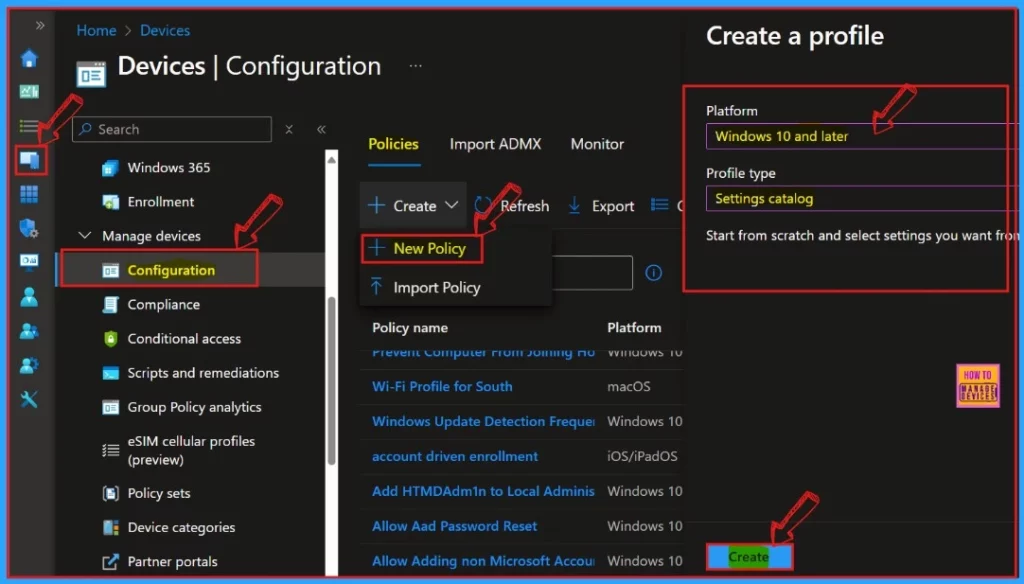
| Go to Devices > Windows >Configuration > Create > New Policy |
Creation of Policy
To create a policy on the Intune Settings Catalog, begin by selecting the appropriate Platform and Profile type for our configuration. In this instance, we will select “Windows 10 and later” as the Platform. Next, select “Settings Catalog” as the Profile type. This process ensures that the policy is customized to meet the specific needs of our organization’s Windows devices.
- Turn Off Windows Activity History Timelines using Intune
- Turn Off Automatic Learning Handwriting Feature using Intune
- 32 Privacy Settings for Windows 11 | 99 Intune Privacy Settings Policies
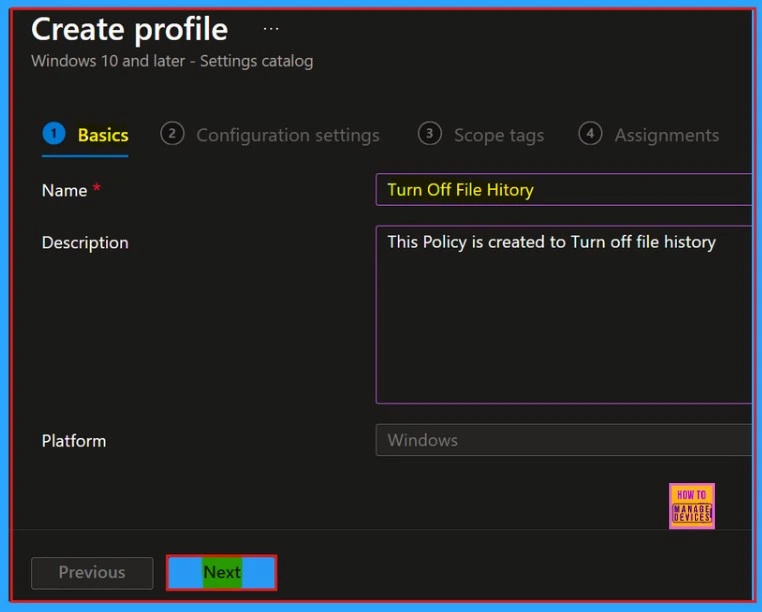
Next, we will navigate to the Basic Tab. This is the first tab in the Intune Settings catalog where you can create a profile. In this window, you’ll need to enter a Name and a Description for your policy. This information will help you identify the policy later on. After entering the details, click the Next button to proceed.
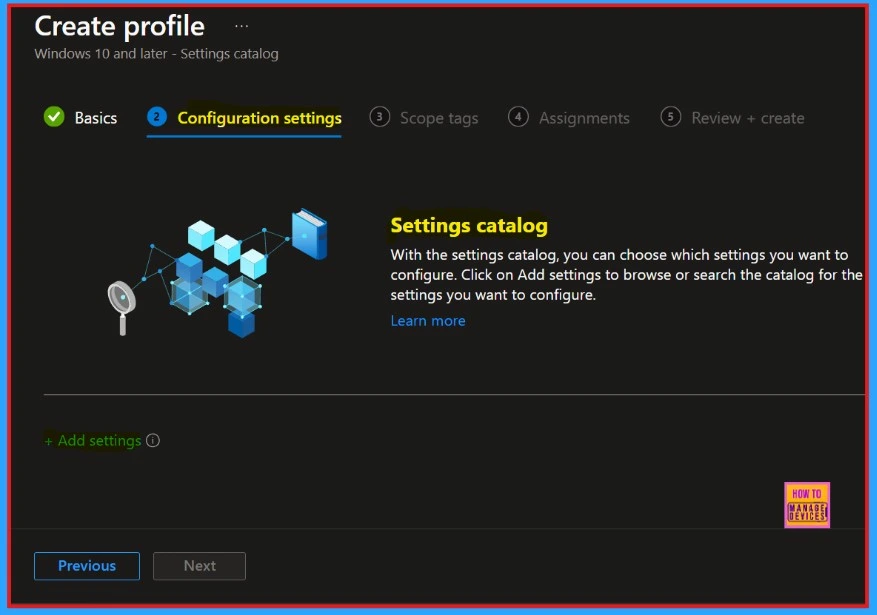
Next, we will move on to the Configuration section, where we will select the settings for +Add to initiate the profile creation process. This section is used to choose the settings you want to configure.
Setting Picker
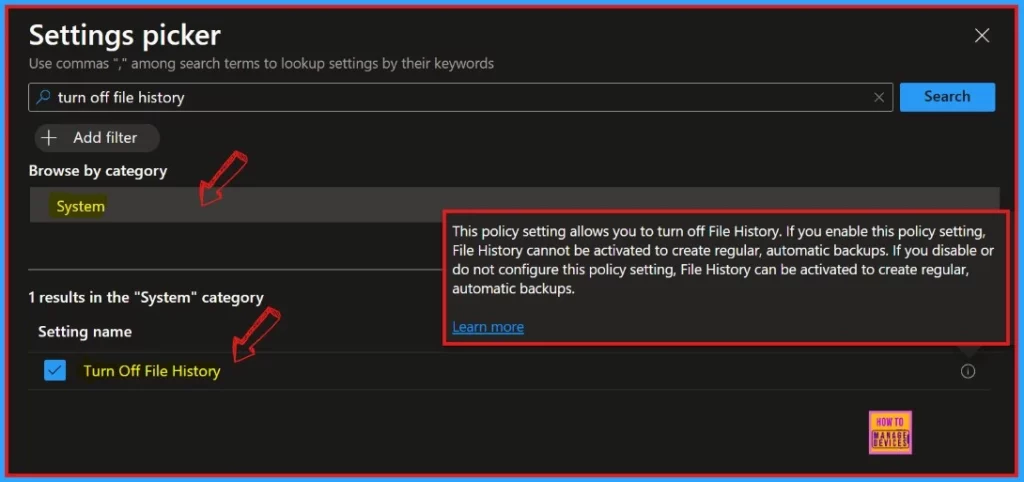
Then, the Settings Picker window will open, and you can search for the keyword of the search item. Here, the keyword is Turn off File History. Then click on the Search button. After, you can browse by category and click on system. There we can see more information about our policy. Click the ‘Learn more’ Button.
Policy Features
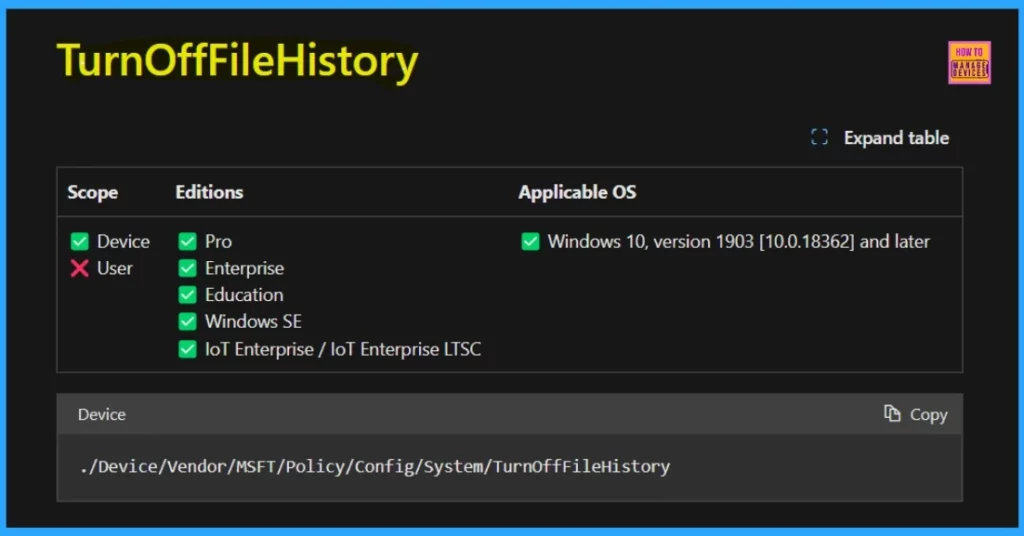
This policy setting allows you to turn off File History. If you enable this policy setting, File History cannot be activated to create regular, automatic backups. If you disable or do not configure this policy setting, File History can be activated to create regular, automatic backups.
/Device/Vendor/MSFT/Policy/Config/System/TurnOffFileHistory
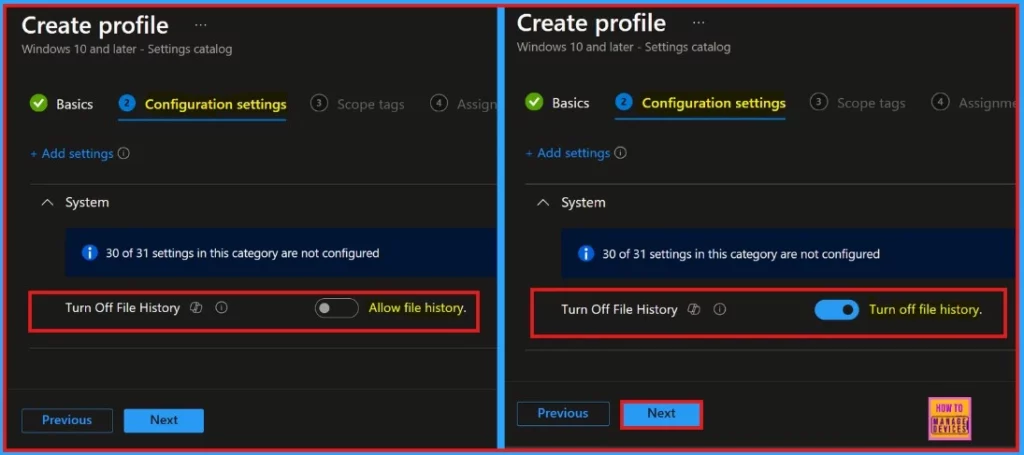
The window below helps you show the Configuration settings page. The list below helps you show how to Enable and Disable the Turn off File History.
- Enable Turn Off File History – Toggle the pane to the Right side
- Disable Turn Off File History– Toggle the pane to the Left side
- How to Block Allow Toasts Notifications in Windows using Intune Settings Catalog
- How to Allow EAP Cert SSO User in Windows using Intune Settings Catalog
- Intune New Clipboard Transfer Direction Settings Now Available in Windows Settings Catalog
Scope Tags
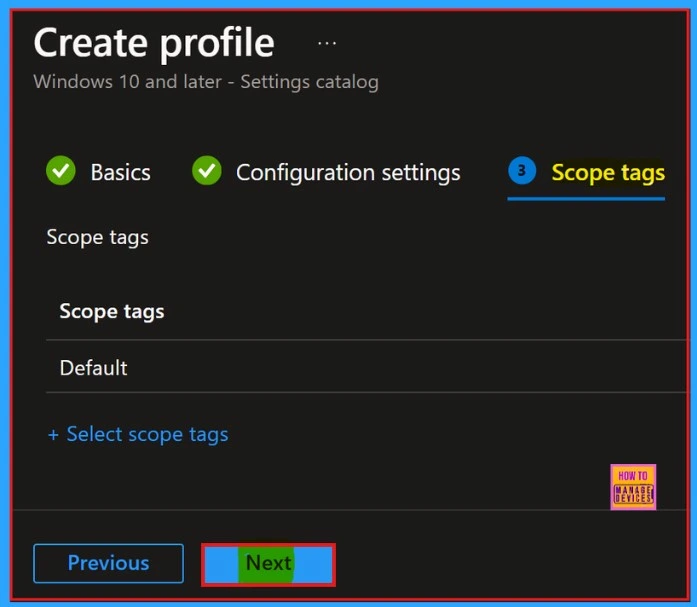
Scope Tag is the next stage in our Profile Creation. We can easily skip this section or add Scope tags for your profile. However, a scope tag is not mandatory for this profile creation. If we want to skip this section, we need to click on the Next button to continue.
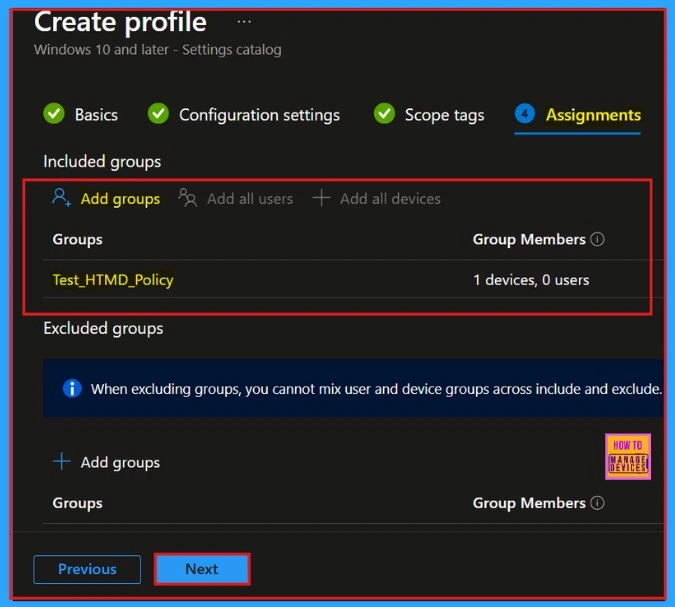
Next is the Assignment section. In this section, we can Add groups to turn off File History. For this, we need to add groups to the included groups. After that, a new window will appear, and we can select a group from there. Then click on the Select button and click on the Next button.
The Final section is Review + Create. In this window, we can see all the details of our profile. It gives us a summary of the profile and shows the previous sections of profile creation. We can quickly go to the earlier sections if any changes are needed. After confirming all the steps, we can complete the Profile creation.
- Click on the Review + Create button from this window
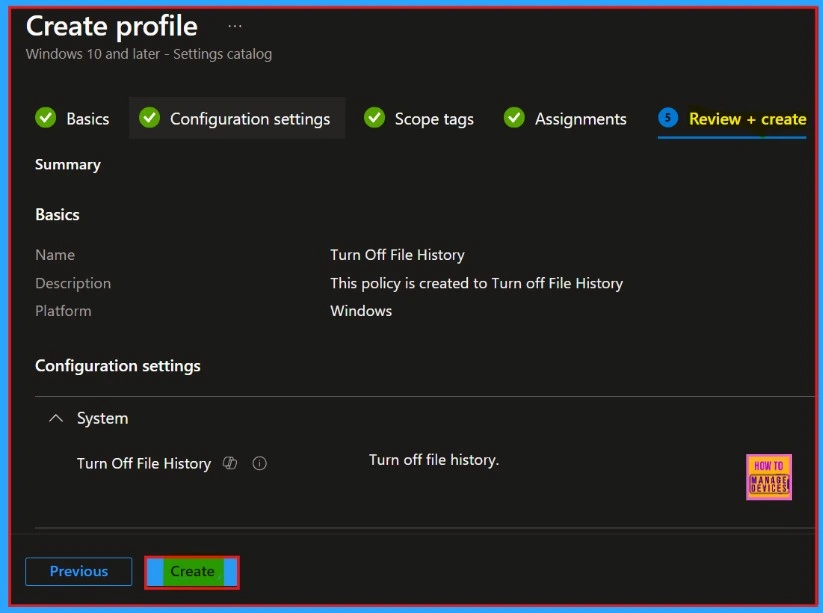
Policy Creation
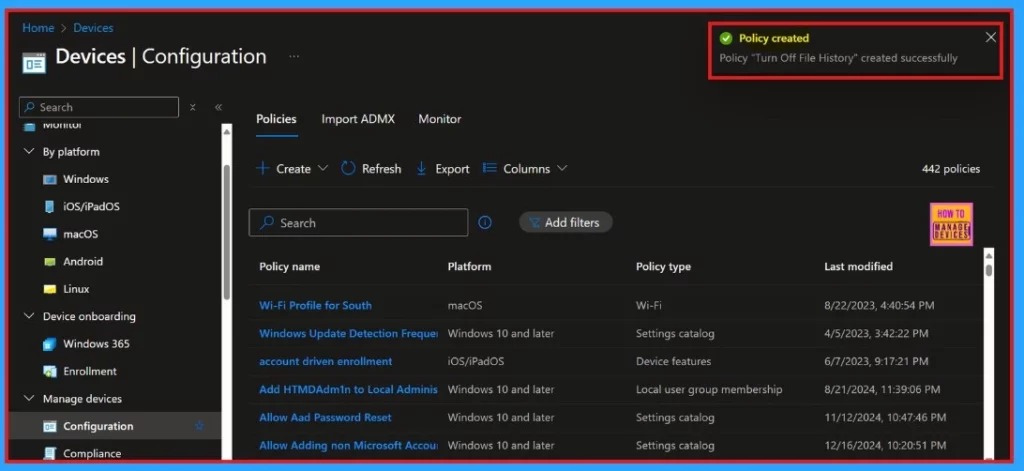
After clicking the Create button, you will get a notification on the Intune Portal as “Policy Turn Off File History created successful”. We can easily check the newly added policy in the Intune Portal.
- Devices > Configuration> Policy Name
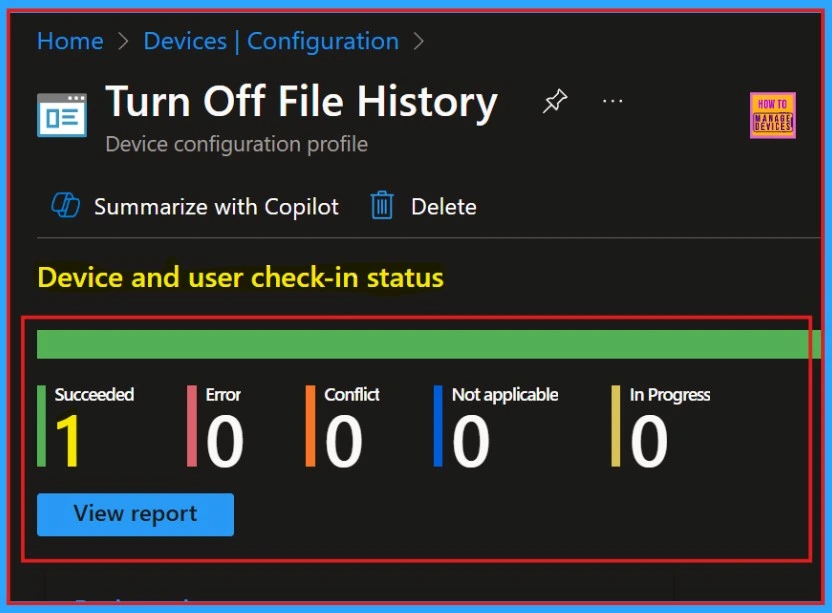
Device and User Check-in Status
When clicking on the Policy, another window will appear, and we can see an elaborate view of the policy details. Clicking the View Report option will display the Device’s name, logged-in user’s name, check-in status, Filter, and the last report modification time.
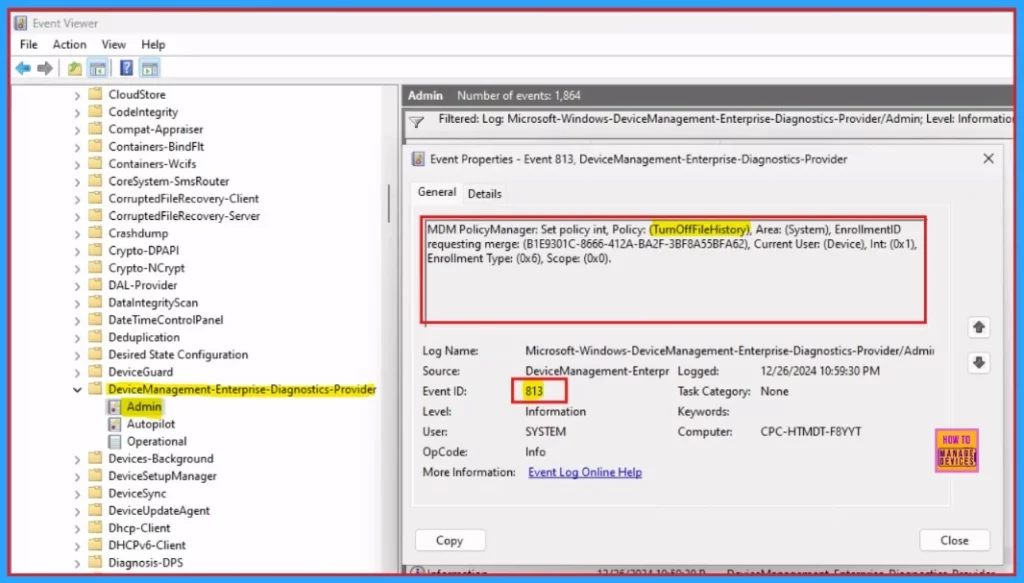
MSM Policy Manager–Event Log
The Intune event ID 813 assure that a string policy is applied on the Windows 11 or 10 devices. We can also see the exact value of the policy being applied on the devices.
We can check the Event log path to confirm this – Applications and Services Logs – Microsoft – Windows – Device management-Enterprise-Diagnostics-Provider – Admin.
Need Further Assistance or Have Technical Questions?
Join the LinkedIn Page and Telegram group to get the latest step-by-step guides and news updates. Join our Meetup Page to participate in User group meetings. Also, Join the WhatsApp Community to get the latest news on Microsoft Technologies. We are there on Reddit as well.
Author
Anoop C Nair has been Microsoft MVP for 10 consecutive years from 2015 onwards. He is a Workplace Solution Architect with more than 22+ years of experience in Workplace technologies. He is a Blogger, Speaker, and Local User Group Community leader. His primary focus is on Device Management technologies like SCCM and Intune. He writes about technologies like Intune, SCCM, Windows, Cloud PC, Windows, Entra, Microsoft Security, Career, etc.


Discussion