






How to Enable Add Provisioning Package using Intune Settings Catalog Policy
Hey there, today we will learn How to enable Add Provisioning Package using Intune Settings Catalog Policy. Windows provisioning simplifies the process for IT administrators to set up end-user devices without the need for imaging.
It allows IT administrators to effortlessly define the necessary configuration and settings for enrolling devices into management. Then, in a matter of minutes, that configuration can be applied to target devices. It’s best suited for small—to medium-sized businesses with deployments ranging from tens to a few hundred computers.
In Microsoft Intune, the “settings catalog” is a comprehensive library of pre-configured settings and policies that aids in the management and security of enrolled devices. This catalog features a wide variety of configurations that allow administrators to enforce security measures, manage applications, and optimize network settings effectively.
Provisioning packages are simple enough that a student or nontechnical user can configure their device with a short set of written instructions. This can significantly reduce the time required to configure multiple devices in your organization. In this blog, we will learn more about how to establish the Allow Warning for Other Disk Encryption Through the Setting Catalog.

Table of Contents
What is Provisioning Package?
A provisioning package (.ppkg) is a container for a collection of configuration settings. Using the Windows client, you can create provisioning packages that allow you to quickly and efficiently configure a device without installing a new image.
How to Enable Add Provisioning Package using Intune Settings Catalog Policy
Provisioning packages let us quickly configure a new device without installing a new image. We can also save time by configuring multiple devices using one provisioning package. Provisioning packages can be installed using removable media such as an SD card or USB flash drive. Here, we learn How to Enable Add Provisioning Package using Intune Settings Catalog Policy
- Devices >Configuration > Create > New policy > select the platform as Windows 10 and later > select the profile type as the setting catalog.
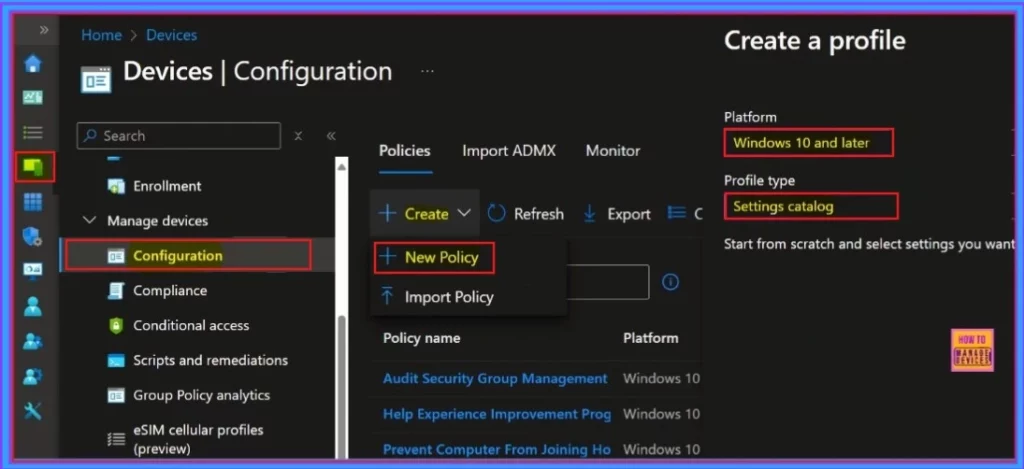
- How to Block Allow Toasts Notifications in Windows using Intune Settings Catalog
- How to Allow EAP Cert SSO User in Windows using Intune Settings Catalog
- How to Allow Direct Memory Access for Data Protection Through Intune Settings Catalog
Create Profile
The first step in creating a profile is the Basic section. In this part, users are required to provide the name and description of the policy they wish to deploy. Completing this section is mandatory in order to proceed with the profile creation process.
| Name | Description |
|---|---|
| Add Provisioning Package | This Policy is created to enable Add Provisioning Package |
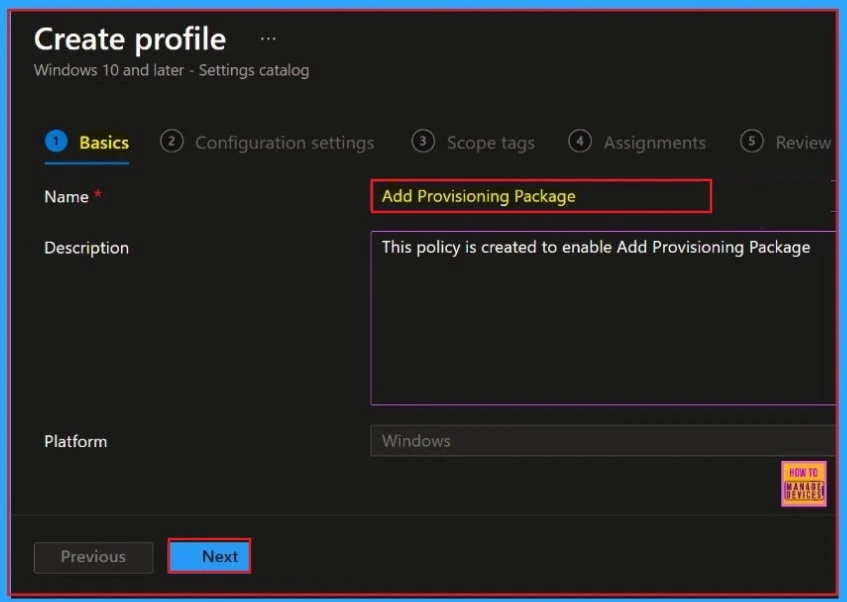
Next, navigate to the Configuration Settings section to select +Add settings and continue creating the profile. This section allows you to choose the settings you wish to configure.
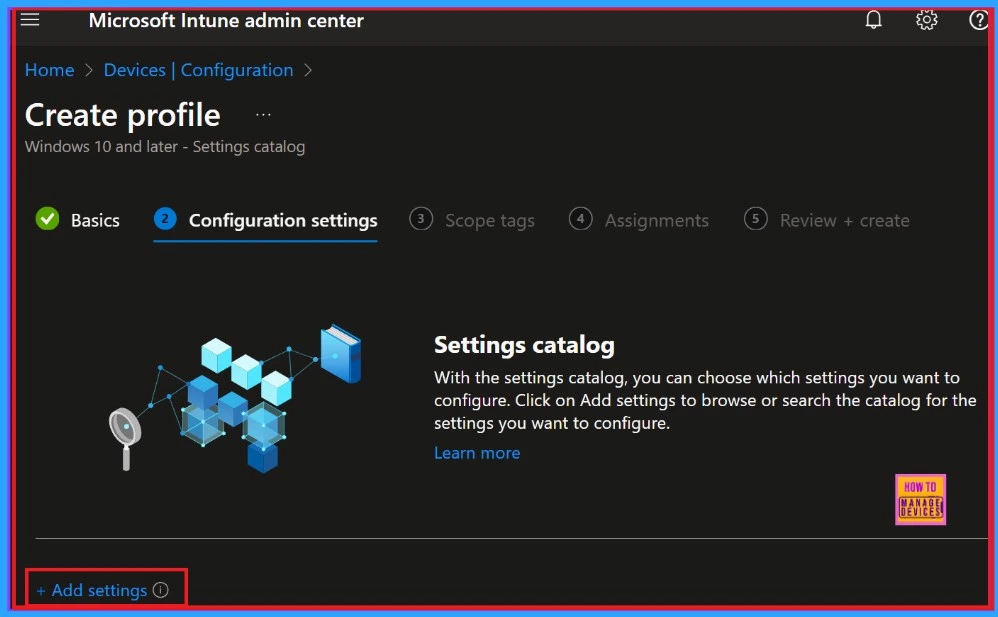
Next, the Settings Picker window will open, it helps us to search for the desired policy. In this case, we will use the keyword “Add Provisioning Package ” Click the Search button to proceed. Afterwards, you can browse by category and select “Security.” Within that category, we will find the option “Allow Add Provisioning Package.”
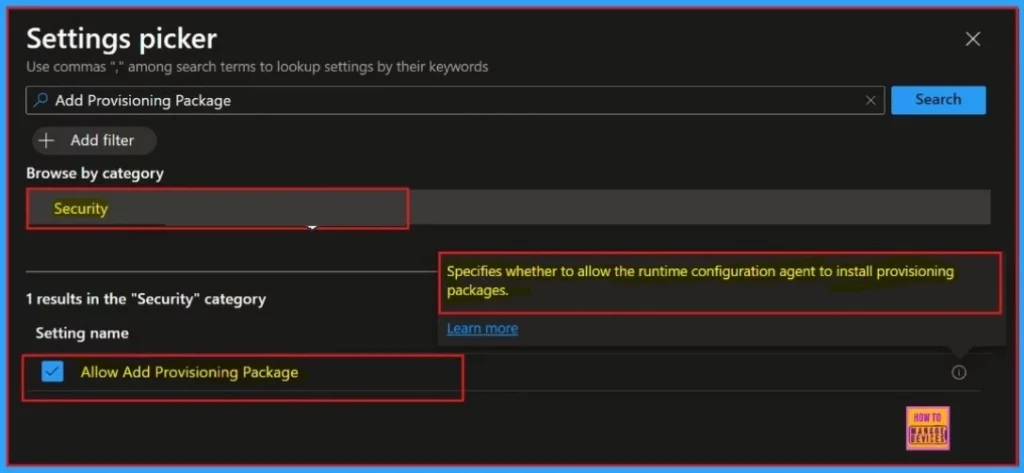
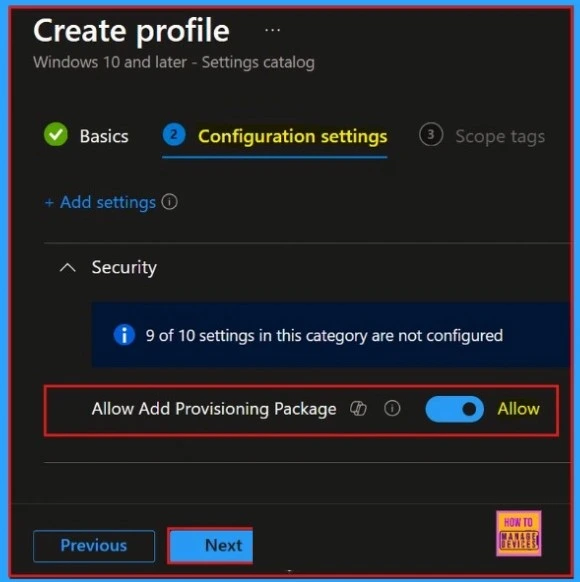
The window displayed below presents the Configuration Settings page. This section shows that the “Allow Add Provisioning Package” option has been allowed. To proceed with the setup process, we should click the “Next” button at the bottom of the page.
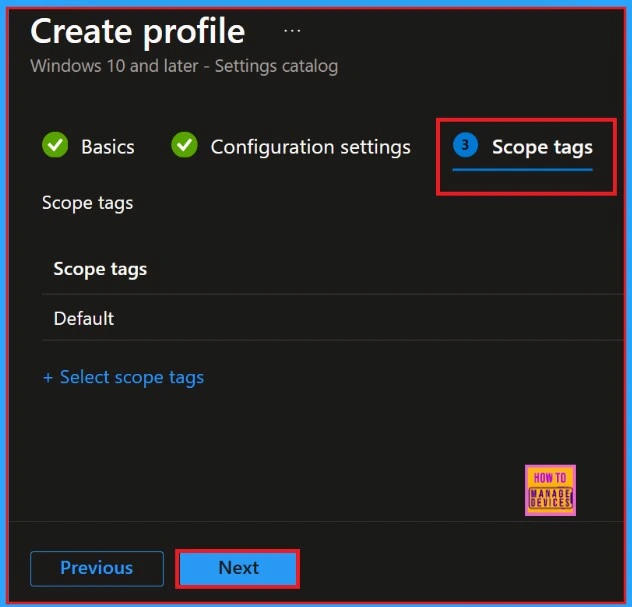
The next step is the Scope Tags section. You have the option to either skip this section or add Scope Tags to your profile. Please note that adding Scope Tags is optional. If you choose to skip this section, simply click the “Next” button to continue.
- How to Enable Speech Recognition and Synthesis Model Updates with Intune
- New Ubuntu 24.04 LTS for Linux Management Now Supported by Intune
- How to Disable Wireless Display Multicast DNS Advertisement Using Intune Policy
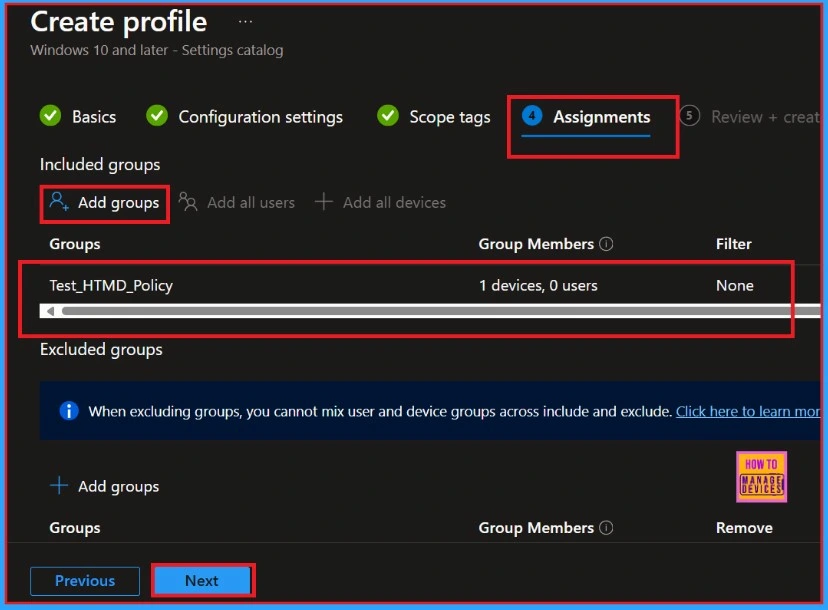
Next is the Assignments section. In this section, we can add groups to the Provisioning Package. First, include the desired groups. A new window will then appear, allowing you to select a group from the list. After selecting the group, click the “Select” button and then click “Next” to proceed.
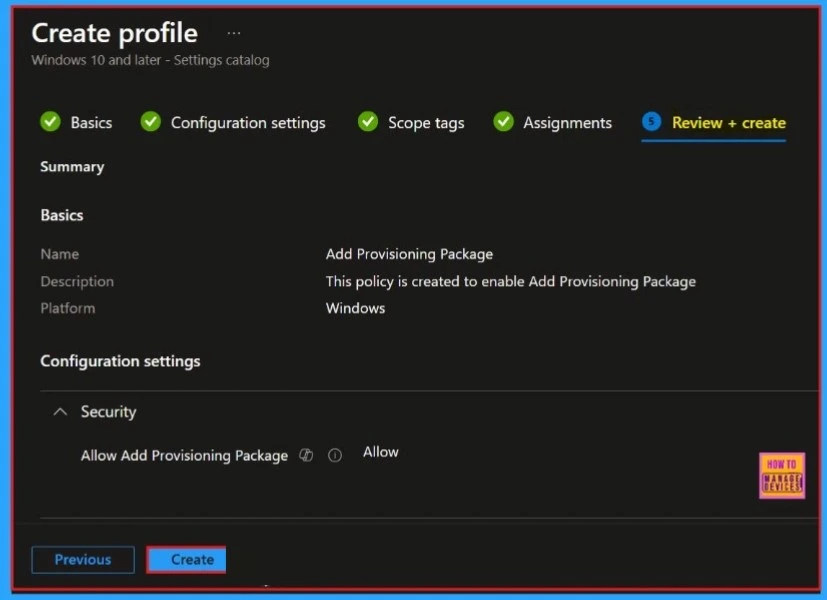
The last section of the profile creation process is titled “Review + Create.” In this window, we will find a comprehensive overview of our profile details, presenting a summary that encapsulates all the information we have entered.
It conveniently lists the previous sections of the profile creation journey so that we can easily navigate back to any area where adjustments may be required. Once we have thoroughly reviewed and confirmed that all the information is accurate and complete, we can proceed to finalize the profile creation.
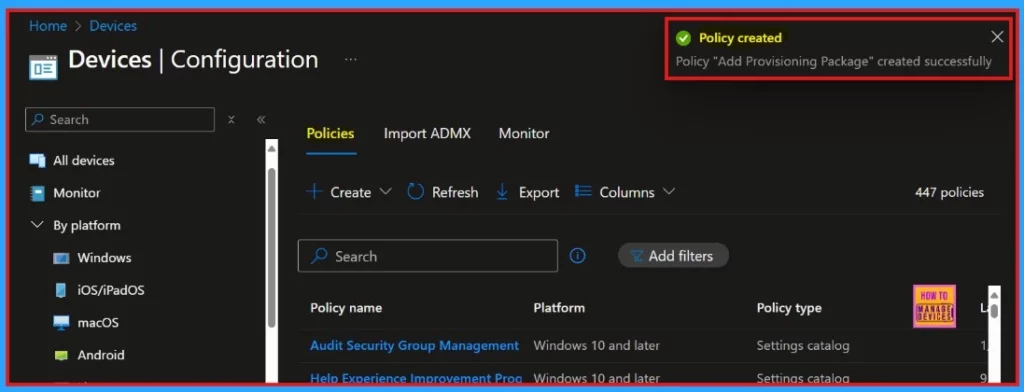
Once we click the Create button, we will receive a notification confirming that the policy titled “Add Provisioning Package” has been created successfully. To verify the details of this newly established policy, we can easily navigate to the Intune Portal and review it there.
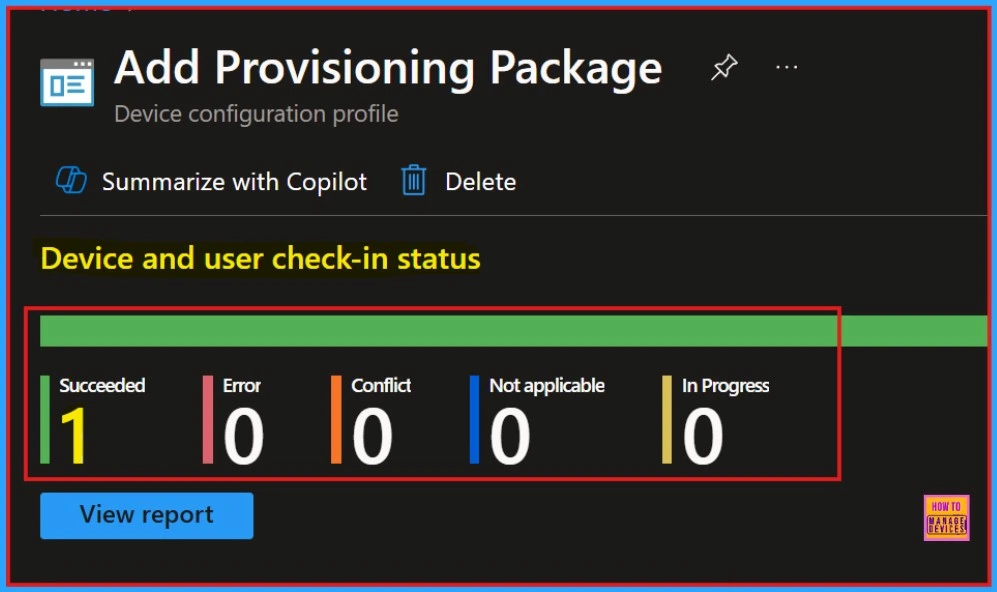
Device and User Check-in Status
When you click on the Policy, a new window will open, providing a detailed view of the policy information. By selecting the “View Report” option, we will see the device’s name, the name of the logged-in user, the check-in status, any applied filters, and the last time the report was modified.
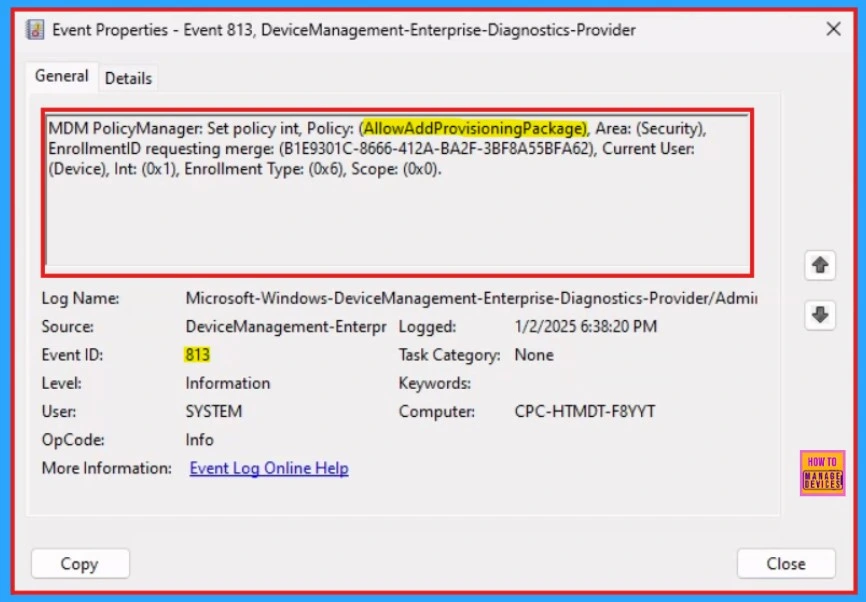
Client-Side Verification
We can check the Event log path to confirm this – Applications and Services Logs – Microsoft – Windows – Devicemanagement-Enterprise-Diagnostics-Provider – Admin.
The Intune event ID 813 is an important indicator that a specific string policy has been successfully applied to devices running Windows 10 or Windows 11. This event not only confirms the policy’s application but also provides the precise policy value that has been enforced on each of these devices.
Need Further Assistance or Have Technical Questions?
Join the LinkedIn Page and Telegram group to get the latest step-by-step guides and news updates. Join our Meetup Page to participate in User group meetings. Also, Join the WhatsApp Community to get the latest news on Microsoft Technologies. We are there on Reddit as well.
Author
Anoop C Nair has been Microsoft MVP for 10 consecutive years from 2015 onwards. He is a Workplace Solution Architect with more than 22+ years of experience in Workplace technologies. He is a Blogger, Speaker, and Local User Group Community leader. His primary focus is on Device Management technologies like SCCM and Intune. He writes about technologies like Intune, SCCM, Windows, Cloud PC, Windows, Entra, Microsoft Security, Career, etc.


Discussion