






Enable or Disable QR Code Generator in MS Edge Browser using M365 Admin Center to Enhance User Experience
Hi there, Let’s discuss Enable or Disable QR Code Generator in MS Edge Browser using M365 Admin Center to Enhance User Experience. Microsoft Edge policies are mandatory and recommended policies that can override user preferences.
The QR code system, an innovative method for encoding and quickly accessing information, was developed in 1994 by the Denso Wave automotive products company, based in Japan. This invention was designed to enhance tracking and inventory management in the automotive industry, allowing for quick scanning and retrieval of data.
As we know, Microsoft 365 is a comprehensive suite of productivity applications and services designed to enhance collaboration and efficiency in the workplace. Owned by Microsoft, it includes well-known tools such as Word, Excel, and PowerPoint, as well as cloud-based solutions like OneDrive and SharePoint.
This platform facilitates seamless communication and teamwork while providing users with the flexibility to access their documents and applications from anywhere, on any device, making it an essential resource for individuals and organizations alike.

Table of Contents
What is a QR Code?
Enable or Disable QR Code Generator in MS Edge Browser using M365 Admin Center to Enhance User Experience
Many QR code generators are available as software or online tools, and they are either free or require a paid subscription. Here we will see the step-by-step process of deploying QR Code generator enable in MicroSoft Edge.
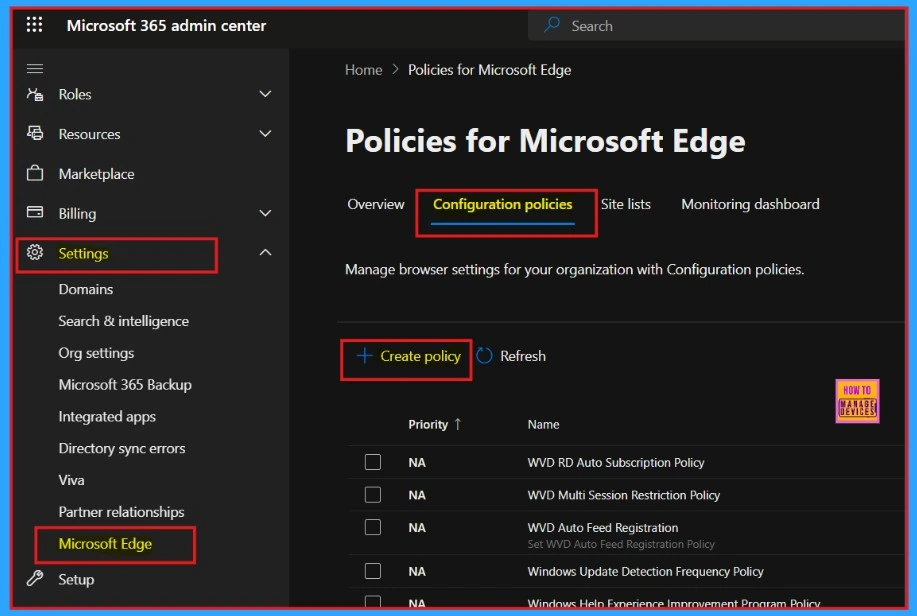
- Open the Microsoft 365 admin center
- Settings > Microsoft Edge > Configuration Policies > Create Policy
- Best Way to Set Copilot Hardware Key Using Microsoft Intune
- Enable Disable Show Home Button in MS Edge Using the Microsoft 365 Admin Center
- Enable Password Delete on Browser Close in MS Edge Using the Microsoft 365 Admin Center
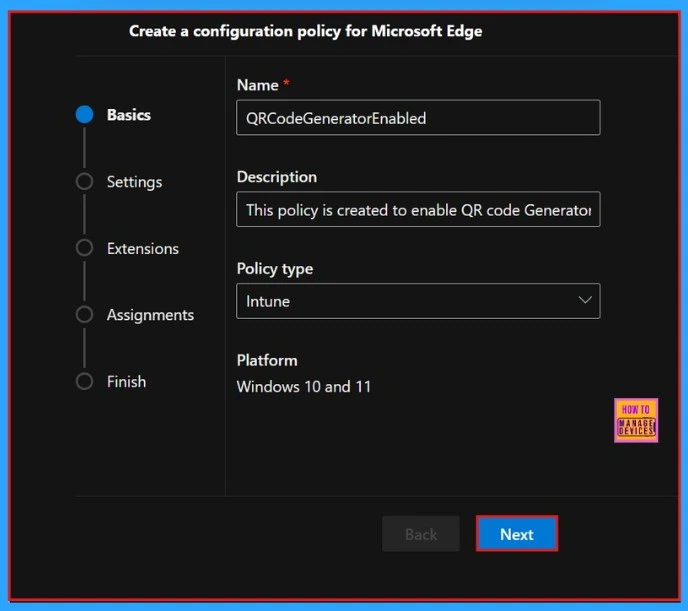
Basics
The first step to deploying the policy is “Basic.” Here, we can type which policy we need to deploy and add the description. We typed QR Code Generator Enabled as the policy name, and this policy is created to enable QR Code Generator enabled as the description.
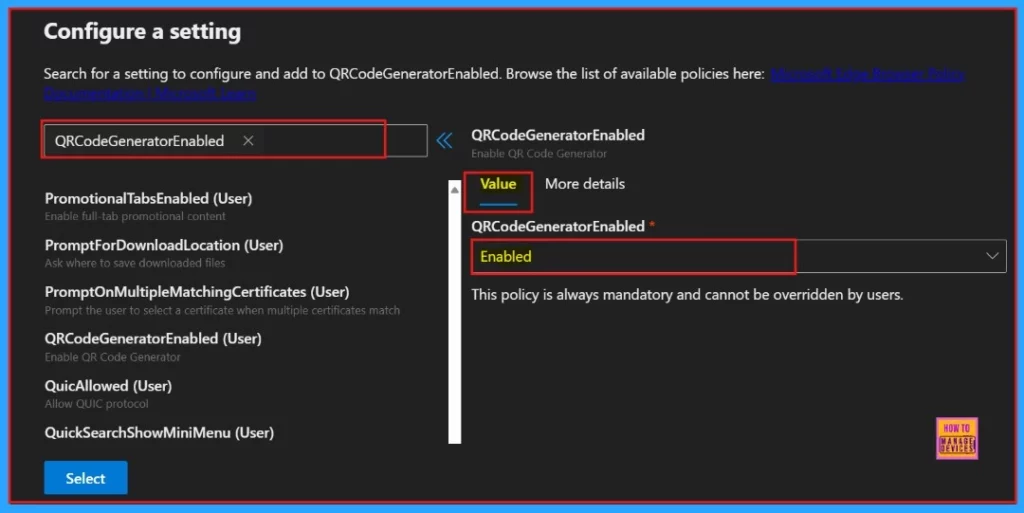
Configure a Setting
The next step is to configure a setting. We can search for our policy by its name “QR Code Generator Enabled“, and then the value of the policy will appear. When we enable it, it says that “this policy is mandatory and cannot be overridden by users.”
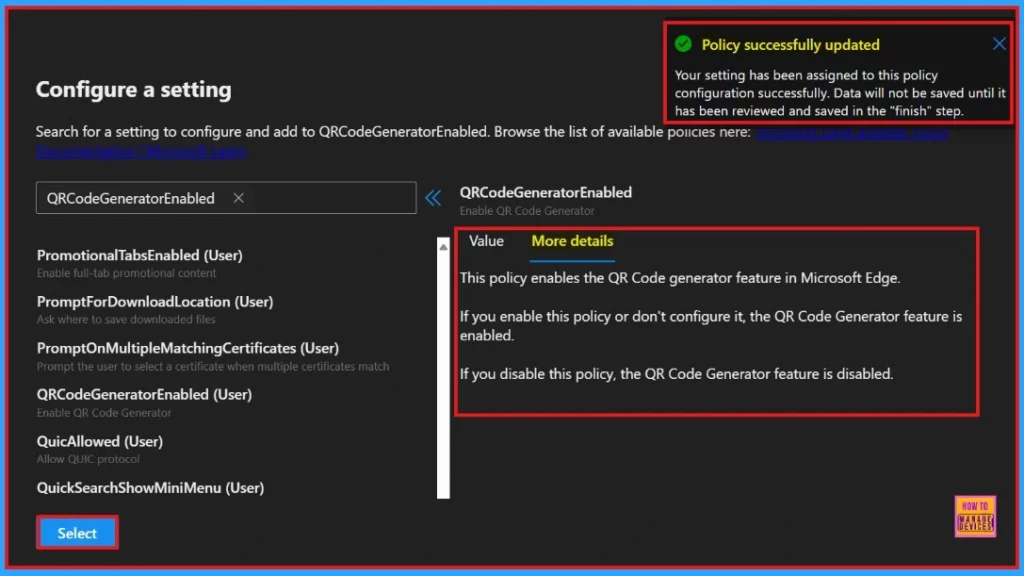
When we click on the “More Details” icon, the policy details will be displayed. After reviewing the details, we need to click the “Select” icon. A pop-up message will appear, confirming that our settings have been successfully assigned to the policy configuration and that the policy has been updated.
| More Details |
|---|
| This policy enables the QR Code generator feature in Microsoft Edge. |
| If you enable this policy or don’t configure it, the QR Code Generator feature is enabled. |
| If you disable this policy, the QR Code Generator feature is disabled. |
Settings
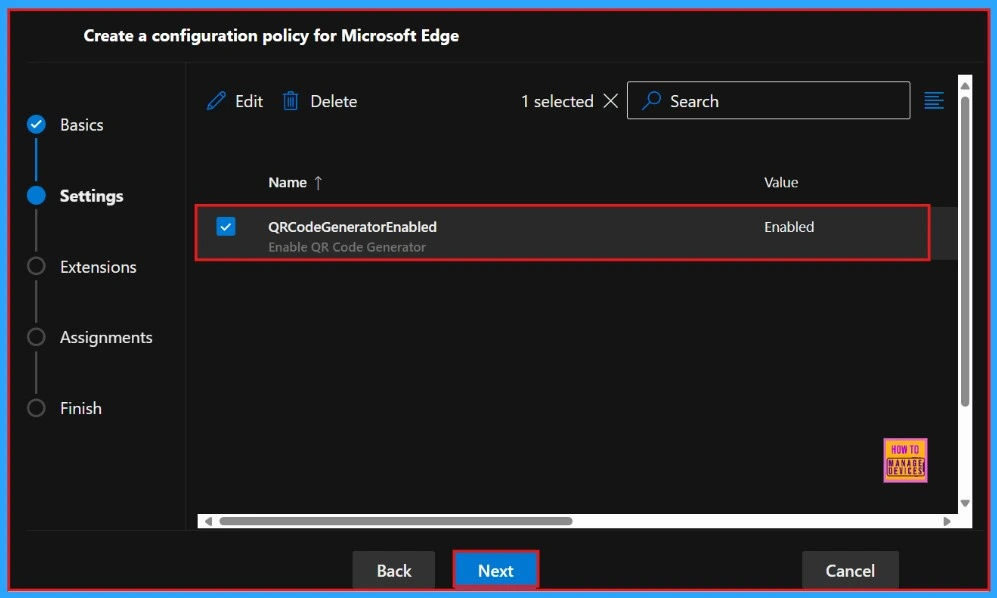
After clicking the select button, you will see the selected policy name and value. Here, you must click the checkbox next to the policy name and then click the Next button.
Extensions
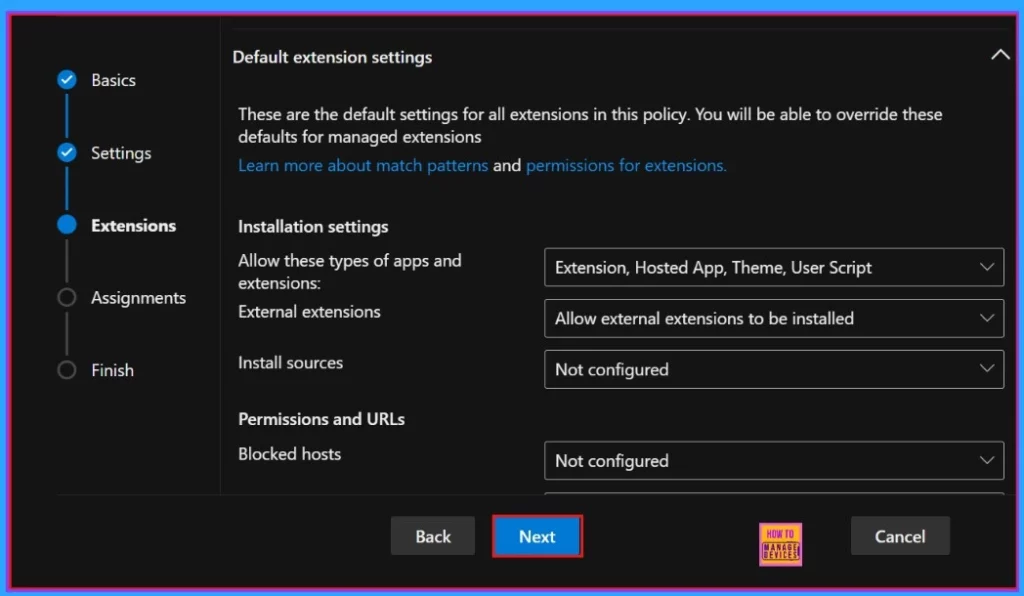
In the next step Extensions, you can view the policy’s extensions, including installation settings, permissions, and URLs. To add an extension, click the + Add extension button. If you prefer, you can skip this section. we are going to skip this section.
- Click “Next“
- Enable Password Delete on Browser Close in MS Edge Using the Microsoft 365 Admin Center
- Enable Alternate Error Pages in Microsoft Edge Via Microsoft 365 Admin Center Policy
- Microsoft 365 Copilot Oversharing Blueprint 3 Phases Shared on Ignite 2024
Assignments
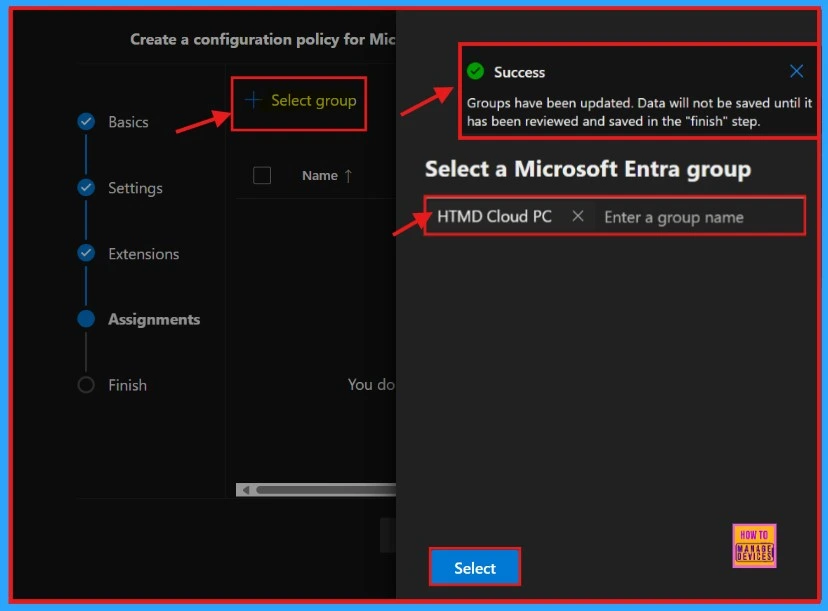
The assignment section allows us to choose which user groups will be assigned the policy. Once a group is selected, the policy will apply only to that group, making it easier to control who has access to specific features or settings. After clicking on the select group option, we can select the group that wants to deploy the policy.
- Click +Select group
- A pop-up message has appeared indicating that the group update was successfully completed.
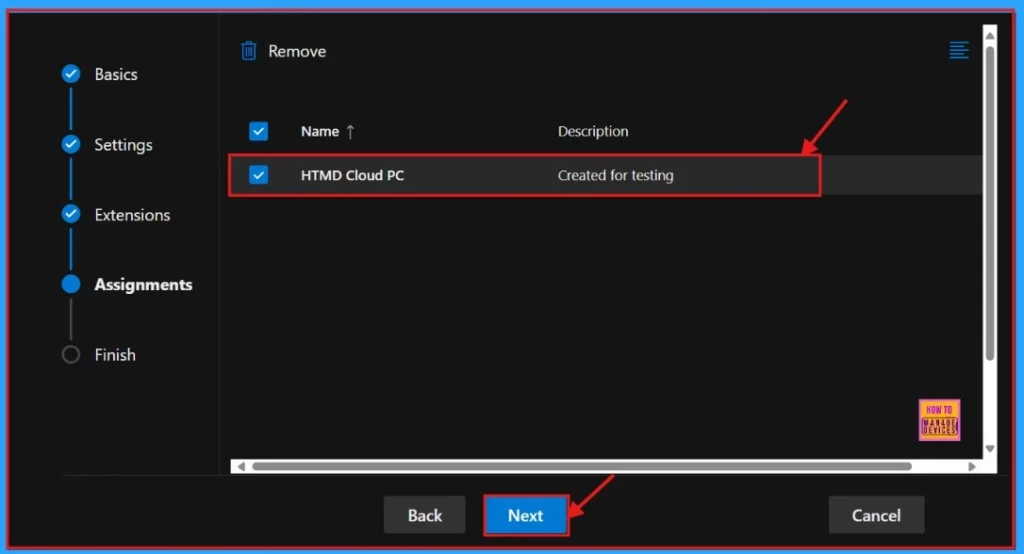
Once you click on the ‘Select‘ button, the group you have chosen will be prominently displayed on the screen. Its description will indicate that it has been “created for testing” purposes, providing a clear context for its intended use.
Review and Create
This section allows us to review all the information you entered in the previous steps. If we need to make any changes, click the back button to return to the previous window. Once we are sure that all the details are correct, click on “Review and Create” to proceed.
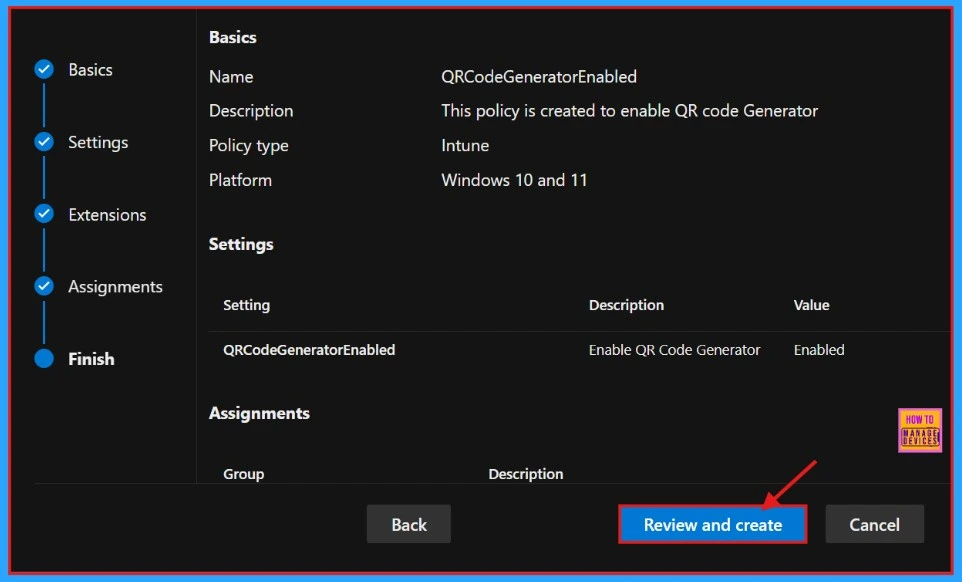
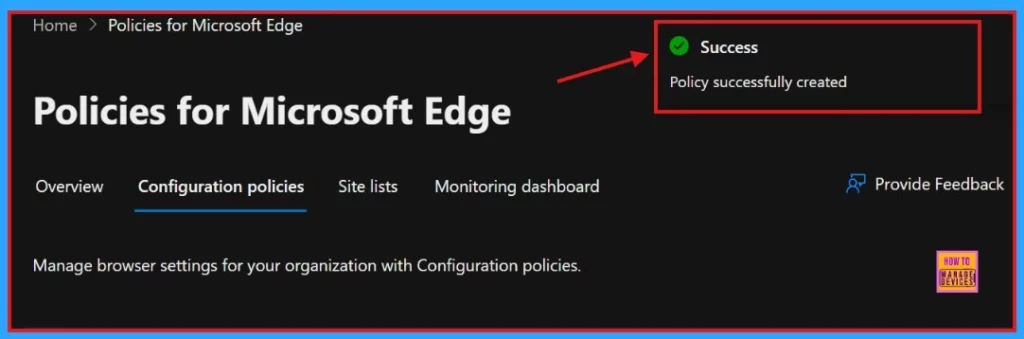
After you click the “Review and Create” button and successfully create the policy, the system will notify you that the policy has been set up successfully. This confirmation indicates that everything is ready to be deployed to the assigned groups.
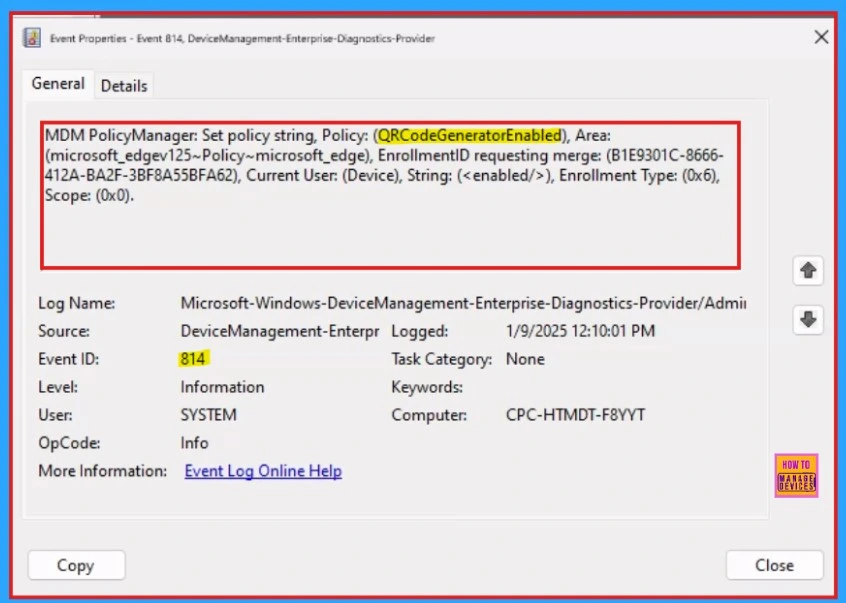
Client-Side Verification
The Event Viewer uses event IDs to identify specific events that can happen on a Windows computer. Event IDs 814 indicate the successful application of string or integer policies. To verify this, navigate to the Event log path: Applications and Services Logs > Microsoft > Windows > Devicemanagement-Enterprise-Diagnostics-Provider > Admin.
End Result
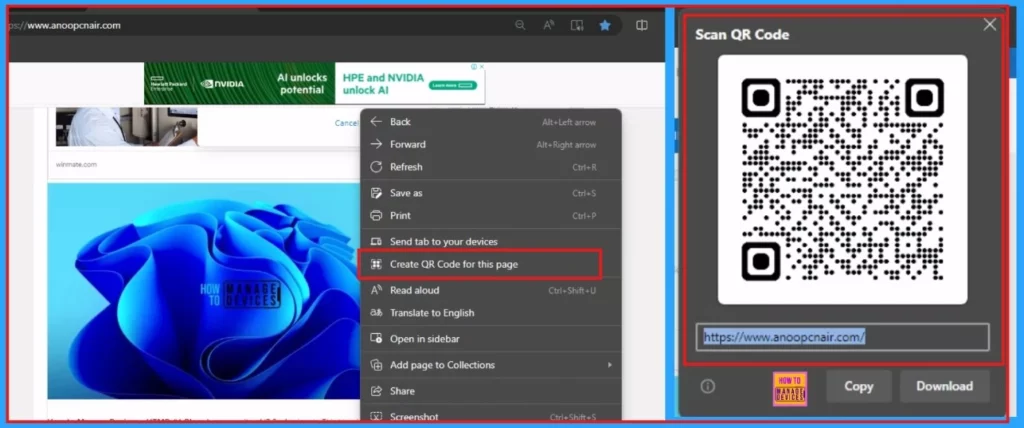
To generate a QR code in Microsoft Edge for the purpose of sharing a specific website or page URL, please follow these detailed steps:
- Browse the site for which you want to generate a QR code
- Right-click on the blank area of the page, and select “ Create QR code for this page ” in the context menu.
Need Further Assistance or Have Technical Questions?
Join the LinkedIn Page and Telegram group to get the latest step-by-step guides and news updates. Join our Meetup Page to participate in User group meetings. Also, Join the WhatsApp Community to get the latest news on Microsoft Technologies. We are there on Reddit as well.
Author
Anoop C Nair has been Microsoft MVP for 10 consecutive years from 2015 onwards. He is a Workplace Solution Architect with more than 22+ years of experience in Workplace technologies. He is a Blogger, Speaker, and Local User Group Community leader. His primary focus is on Device Management technologies like SCCM and Intune. He writes about technologies like Intune, SCCM, Windows, Cloud PC, Windows, Entra, Microsoft Security, Career, etc.




is it possible to edit the link of a generated qrcode ?