






Easy way to Block Pause Updates Ability in Windows Update for Business via Intune
An easy way to block “Pause Updates” ability in Windows Update for Business is by using Intune. Administrators can configure a policy in Intune to disable this feature, ensuring users cannot pause updates on their devices.
This policy gives IT administrators control over the “Pause Updates” feature in Windows Update. The policy allows IT administrators to manage whether users can access the “Pause Updates” option in Windows Update settings. By disabling this feature, organisations can ensure that updates are applied consistently without user intervention, which is critical for maintaining system security and compliance.
Disabling “Pause Updates” minimises the risk of delays caused by users postponing critical updates. The policy is set to 0 by default. The default state, which allows users to pause updates, is enabled by default. Disable the “Pause Updates” feature, blocking user access to this option.
In this post, you will find detailed information about the easiest way to block the “Pause Updates” feature in Windows Update for Business using Intune. This guide provides step-by-step instructions to help IT administrators turn off the “Pause Updates” option.

Table of Contents
Block Pause Updates Ability in Windows Update for Business via Intune
Follow these simple steps to block the “Pause Updates” feature in Windows Update for Business using Intune. Log in to the Microsoft Intune Admin Center with administrator credentials.
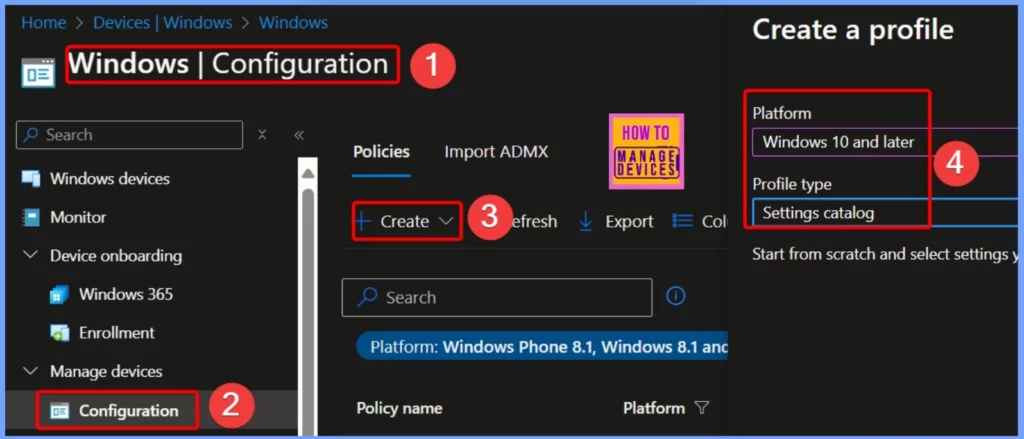
- Go to Devices > Windows > Manage Devices> Configuration.
- Click +Create and then select +New Policy to begin configuring the required settings.
- This table outlines the key options required to create a new Configuration Profile
| Steps | Details |
|---|---|
| Platform | Windows 10 and later |
| Profile Type | Settings Catalog |
- Microsoft Fixes Windows 11 Update Issue During Shutdown Or Restart
- How To Automate Day Windows Update Reboots With Intune
- Best way Intune to Stop Sending New Policy Updates to Windows Devices Pause Config Refresh Feature
- Simplifying Windows Update Management Integration of Intune and Autopatch
Basic Settings
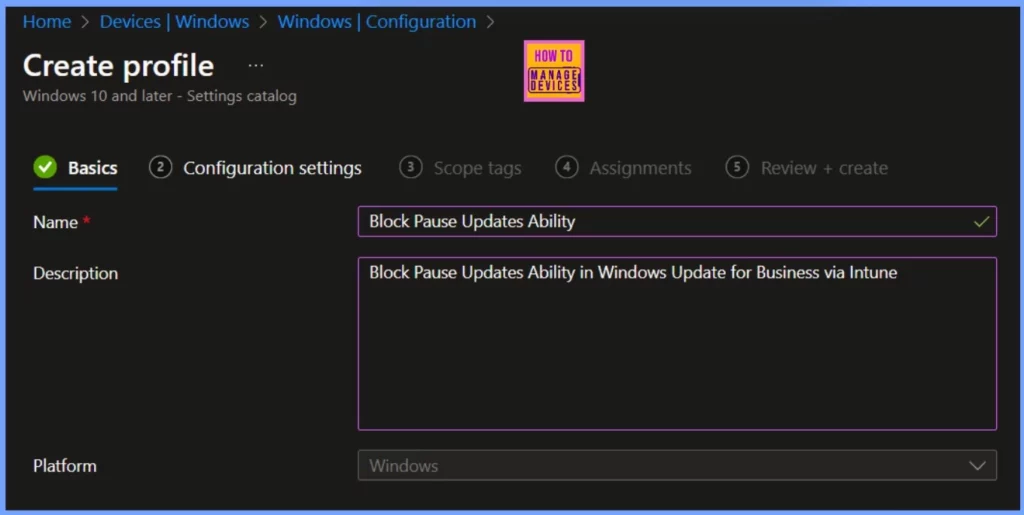
In the Basics details pane, you can name the configuration policy, such as “Block Pause Updates Ability.” You can also add a brief description of what the policy does or how it will be used. After that, click Next to proceed.
Settings Picker Windows Update for Business
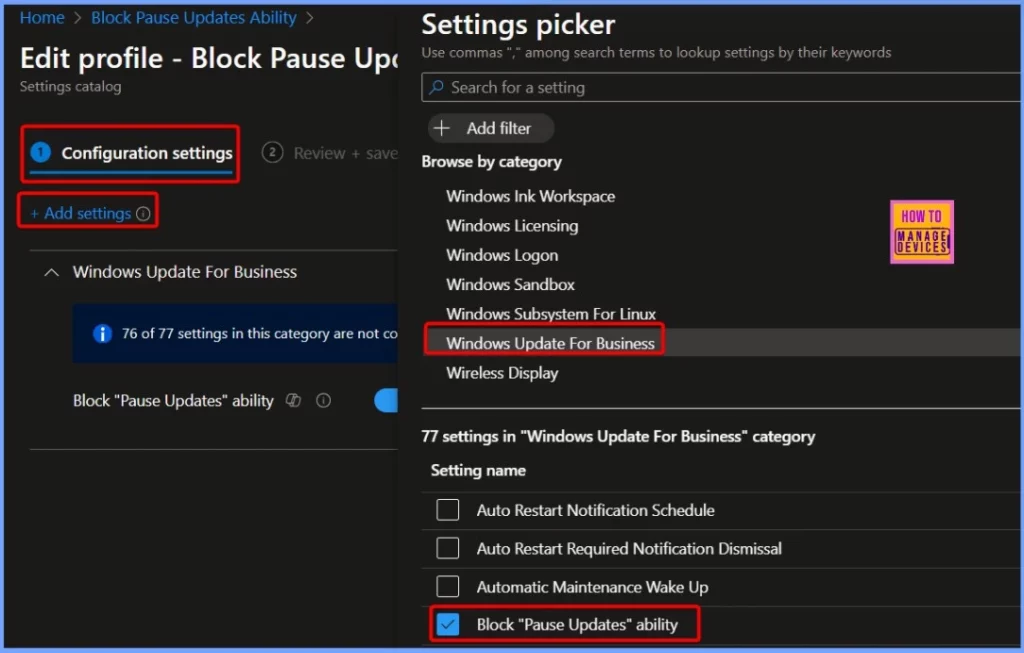
Next, we must add the necessary settings in the Configuration Settings pane. To begin, click on +Add settings, located in the bottom-left corner of the page. Search for “Windows update for business” to find the right policy for your needs.
- Once you do, you will see the option to block the pause updates ability. Enable the setting and close the settings picker window.
Block Pause Updates Ability Policy
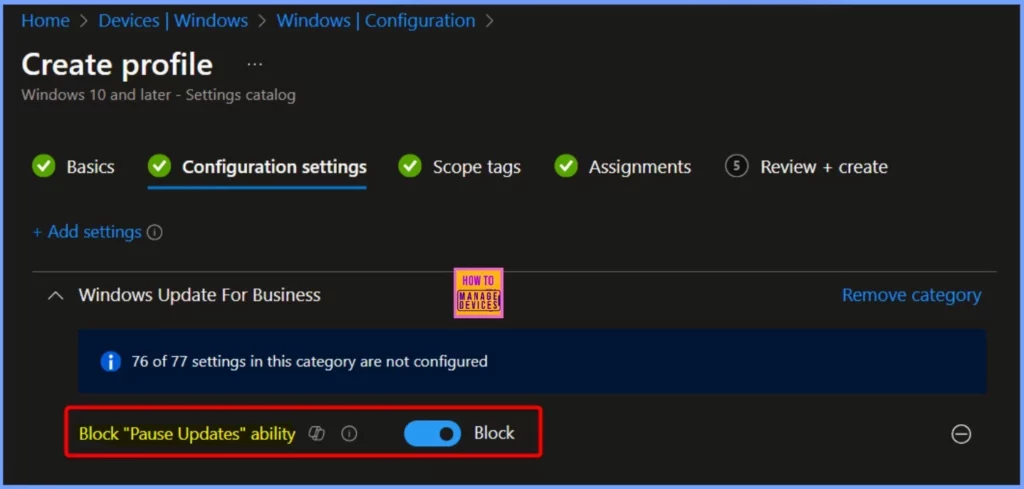
This policy allows the IT admin to disable the Pause Updates feature. When this policy is enabled, the user cannot access the Pause updates feature. Value type is integer. Default is 0. Supported values 0, 1.
- Enable Block pause update ability – Toggle the pane to the Right side
- Disable the Block pause update ability – Toggle the pane to the Left side
Scope Tags and Assignments Settings
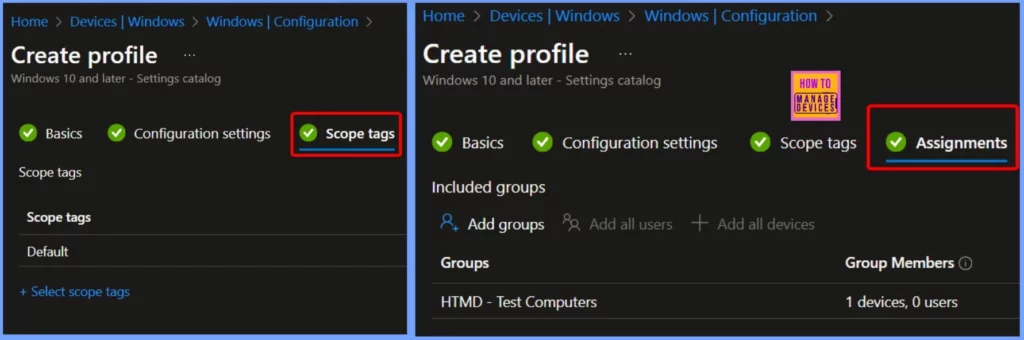
On the next page, leave the Scope tags set to Default. If your organization uses custom scope tags, you can select the appropriate ones based on your policy requirements. Click Next to proceed. In this step, I am assigning the configuration policy to HTMD – Test Computers. To do this, click Add Groups and choose the appropriate device group under the Included Groups section.
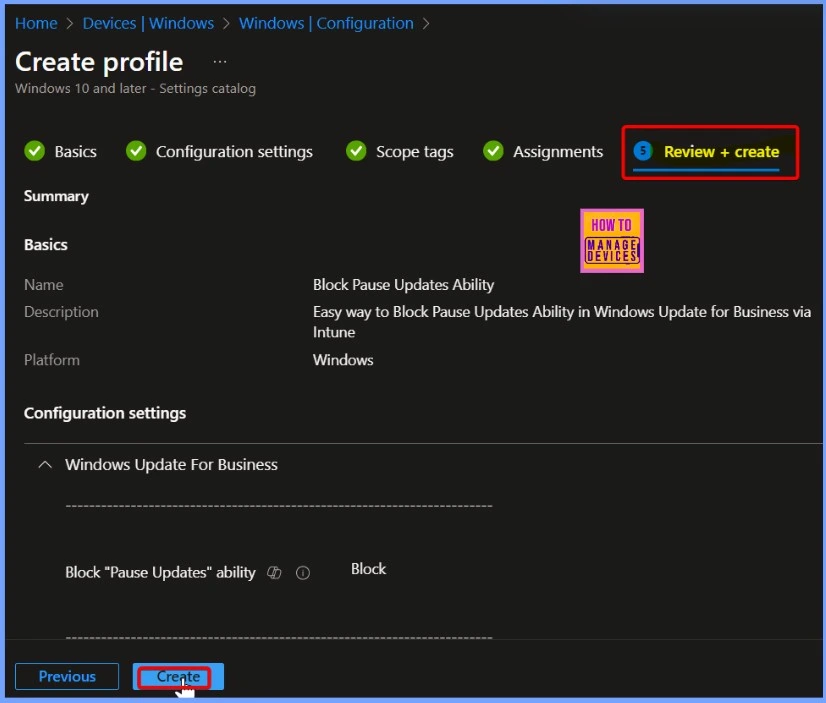
Review + Create Settings
Once you’ve added the required groups, navigate to the Review + Create tab. Here, you can review all your settings and ensure everything is configured correctly. If everything looks good, click Create to apply the policy.
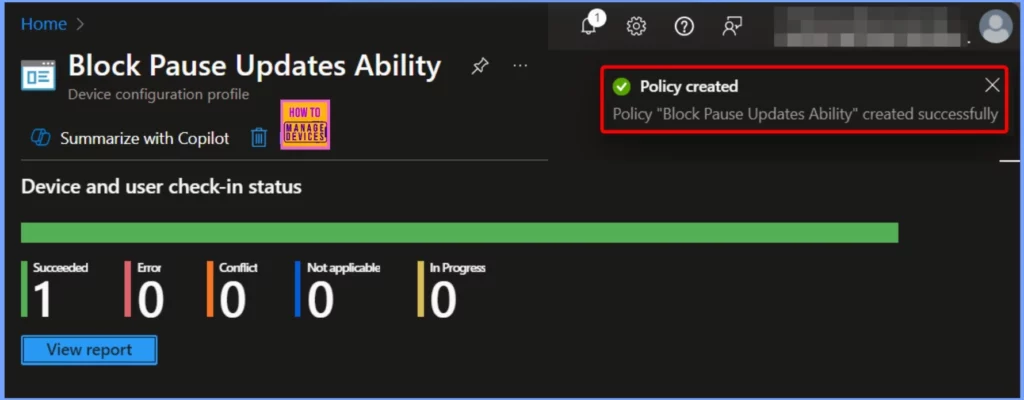
Policy Creation Status
Once the device is synced, the policy will be applied right away. To check the status of the policy deployment in the Intune portal, follow these steps. Go to Devices > Windows > Configuration.
- Search for the “Block pause updates ability” policy.
- Under Device and user check-in status, you can see the current deployment status of the policy.
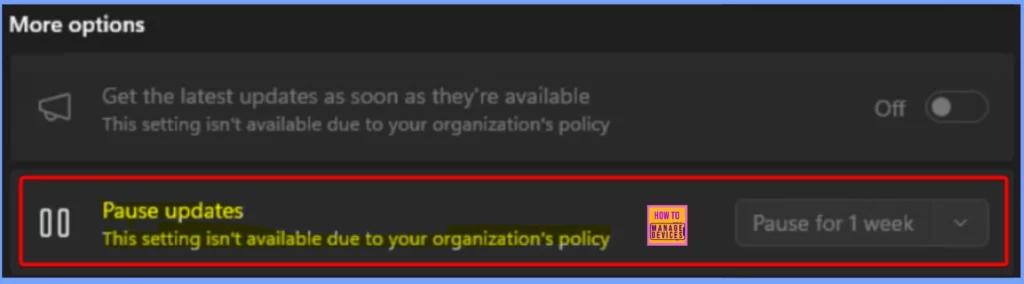
End User Experience
End users will see that the “Pause updates” option is missing because the organisation’s policy has disabled it. This ensures that updates are applied without any delays.
- Press Win + I to open the Settings app.
- Go to Windows Update in the left-hand menu.
- Under the More Options section, look for Pause updates.
Need Further Assistance or Have Technical Questions?
Join the LinkedIn Page and Telegram group to get the latest step-by-step guides and news updates. Join our Meetup Page to participate in User group meetings. Also, Join the WhatsApp Community to get the latest news on Microsoft Technologies. We are there on Reddit as well.
Author
Anoop C Nair has been Microsoft MVP from 2015 onwards for 10 consecutive years! He is a Workplace Solution Architect with more than 22+ years of experience in Workplace technologies. He is also a Blogger, Speaker, and Local User Group Community leader. His primary focus is on Device Management technologies like SCCM and Intune. He writes about technologies like Intune, SCCM, Windows, Cloud PC, Windows, Entra, Microsoft Security, Career, etc.


Discussion