






Best Way to Install Audacity App Via Intune Enterprise App Catalog App
Let’s discuss the best way to Install Audacity App Via Intune Enterprise App Catalog App. Audacity is a popular free, open-source, multi-track audio editor and recorder designed for Windows, macOS, GNU/Linux, and other operating systems.
You may be familiar with the Audacity application if you are an audio editor. It is a beginner’s and professional’s friendly app for audio editing. The app’s interface and powerful features make it a go-to tool for recording, editing, and mixing audio.
This application will be very valuable for your organization. The Audacity app can record live audio, so your organization can use Audacity to create and edit training materials, such as instructional audio recordings, podcasts, and webinars.
In this blog post, I will help you Install the Audacity App Via the Intune Enterprise App Catalog App. You can easily install the Audacity app for your organization using the Intune Enterprise App Catalog app and complete the installation using Intune.

Table of Contents
Which is the Latest Version of the Audacity Application?
Best Way to Install Audacity App Via Intune Enterprise App Catalog App
Audacity’s open-source nature allows organizations to customize the software to meet their needs. Intune Enterprise App Catalog is the easiest method for Installing Audacity Application. Here i am going to show Install Audacity(x64) with Intune. Follow the below steps to install Audacity.
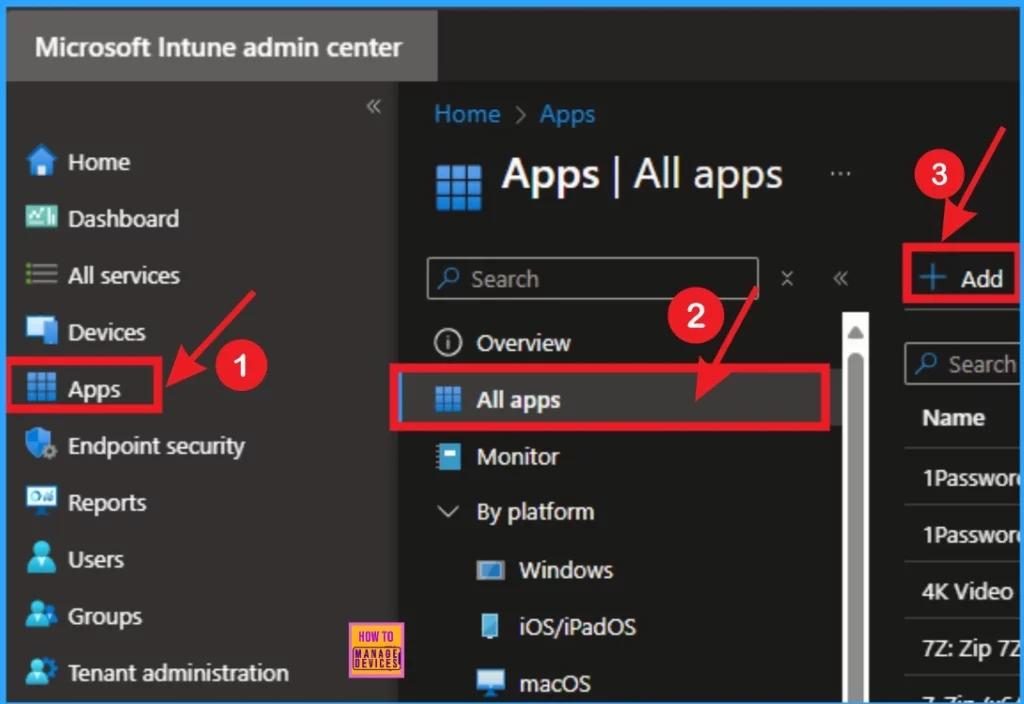
- Sign in to Microsoft Intune Portal
- Select Apps blade from the left side of the portal.
- Click on the +Add button
- How to Install Google Backup and Sync App with Intune Using Enterprise App Catalog App
- Google Chrome for Business Deployment using Intune Enterprise App Catalog App
- How to Allow Direct Memory Access for Data Protection Through Intune Settings Catalog
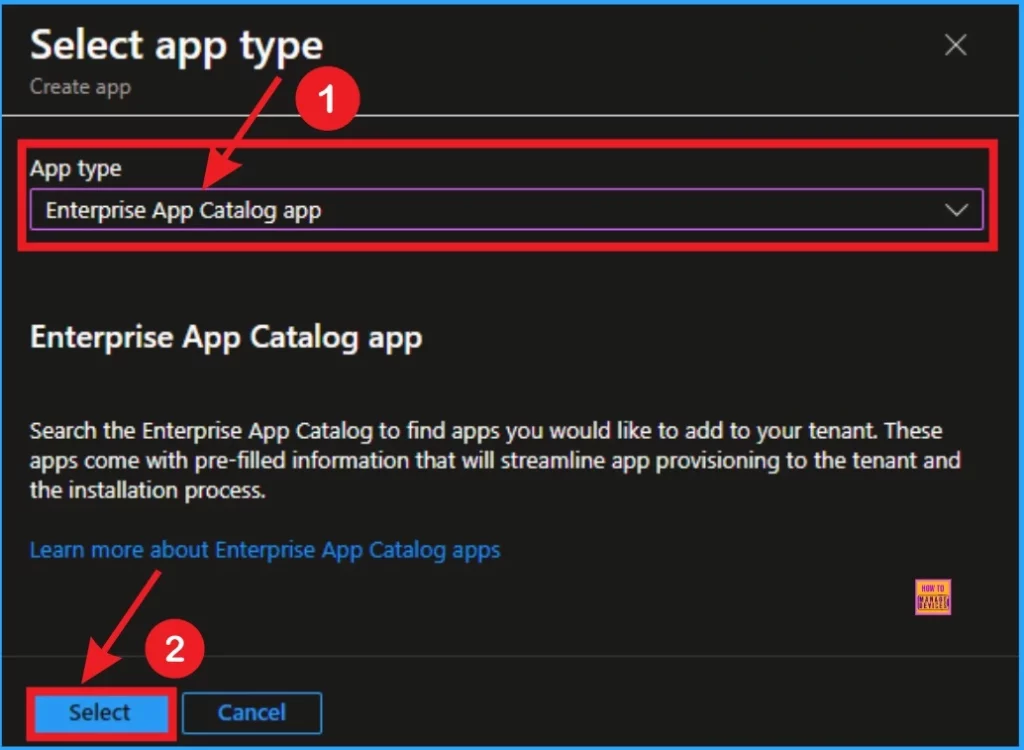
On the next page you can see the option to select app type. Select Enterprise App Catalog App and click on the select button.
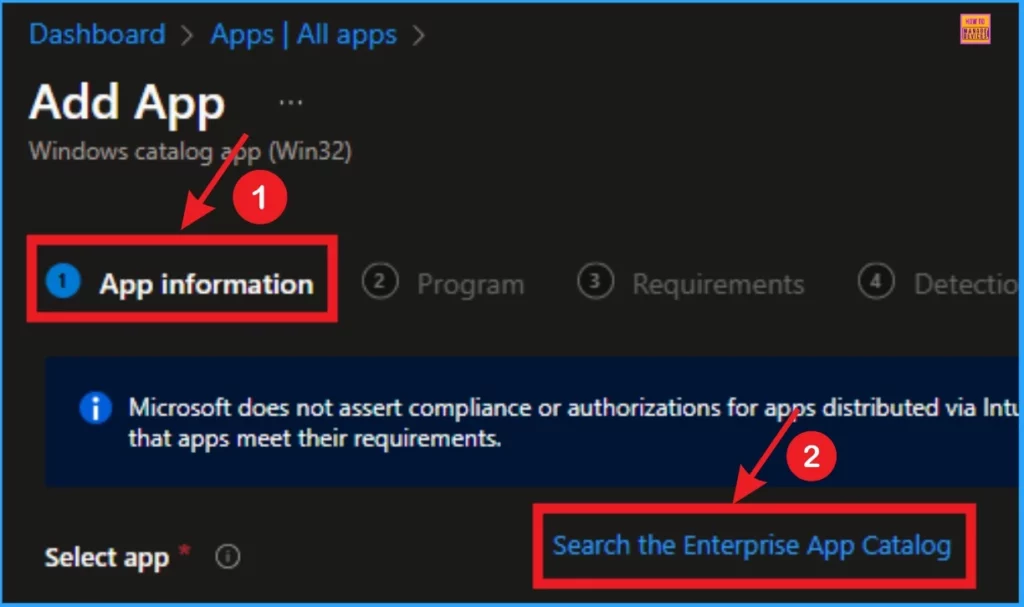
App Information
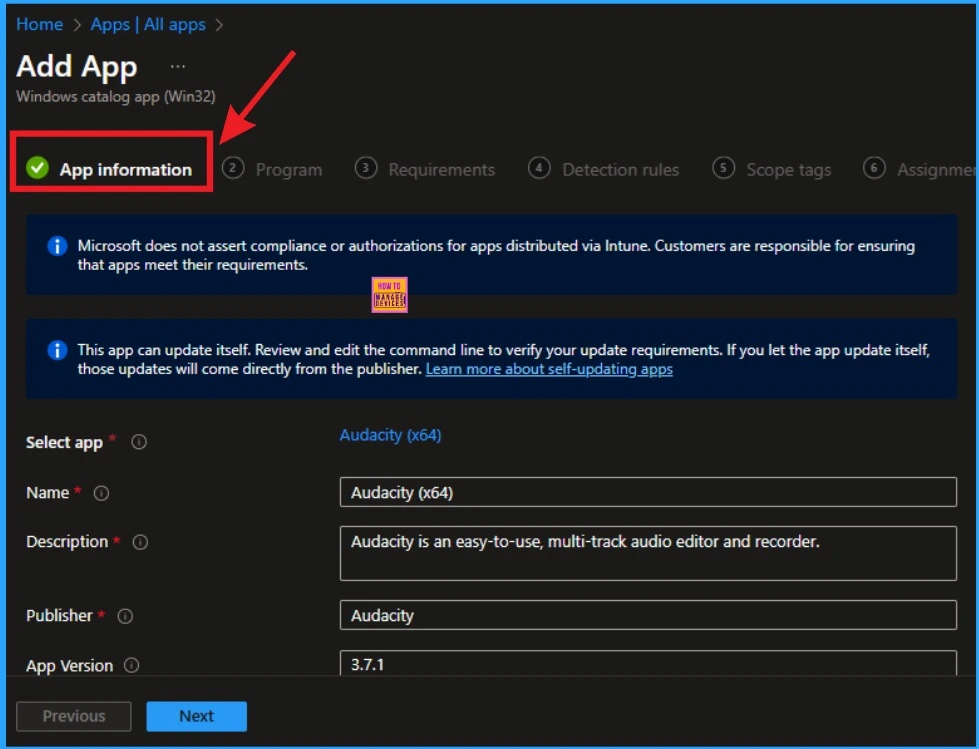
The next window shows App information. From this window, click on the search for the Enterprise app hyperlink. For more clarity, look at the window below.
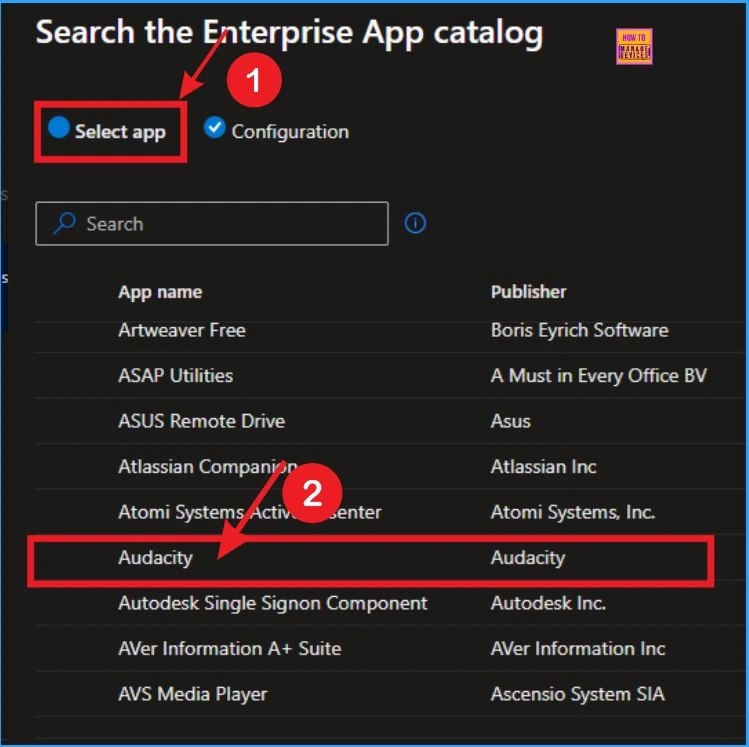
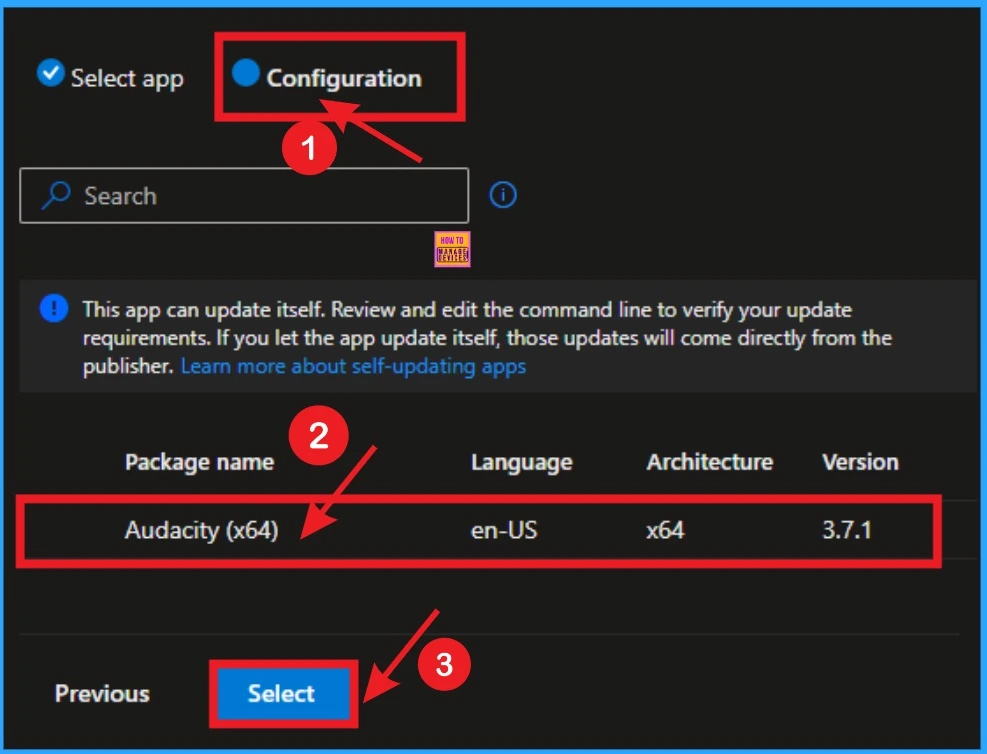
Then you will get a window to select your. Here I’m going to select Audacity App. In this window you can also see 2 tabs such as select app and configuration. Here we select the app from the Select app tab.
Go to the configuration tab, and it shows configuration details of the selected app (Audacity). Click on the select button and continue.
| Package Name | Language | Architecture | Version |
|---|---|---|---|
| Audacity(x64) | en-US | x64 | 3.7.1 |
on this window you can see the app informations such as Name, Description, Publisher, App version etc. This informations are automatically generated.
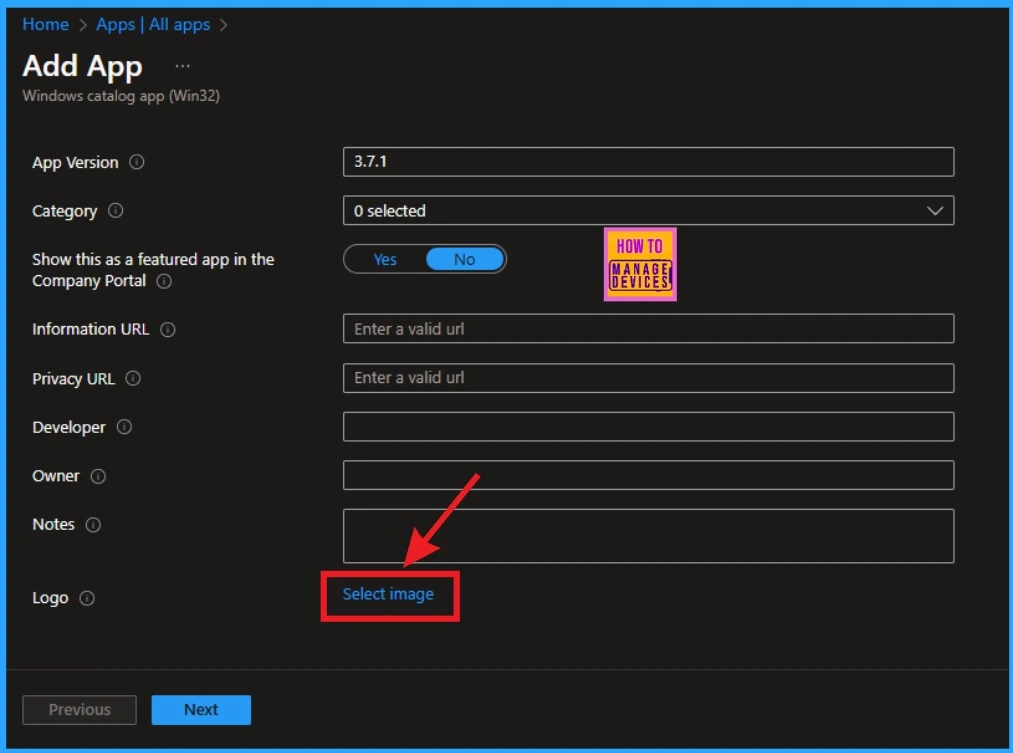
Adding Logo
To add a logo of the Audacity app scroll down then you can see the Select image hyperlink. Click on the hyperlink.
After that click on the File Explorer icon and select the logo saved on your desktop. Then you will get a notification that shows Upload Completed. Then you can see the logo here, then click on the OK button you will get a Success message.
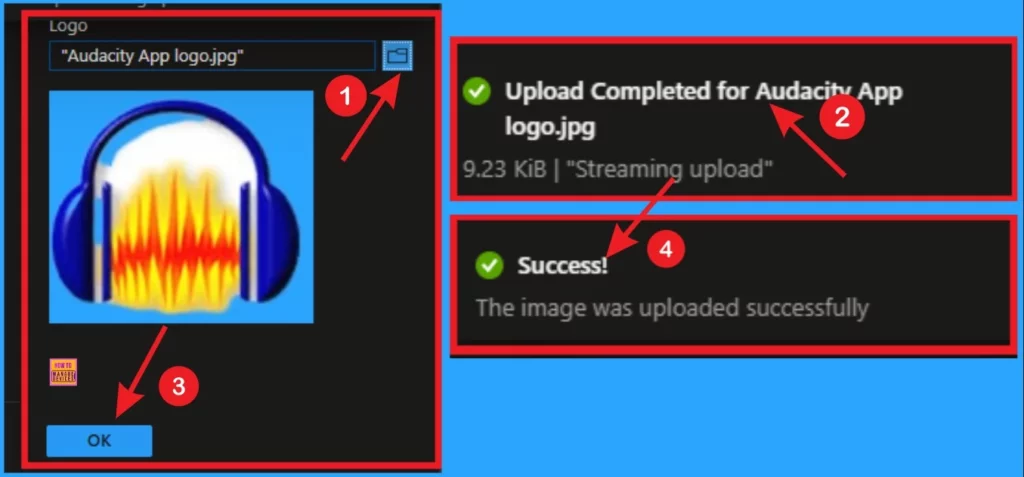
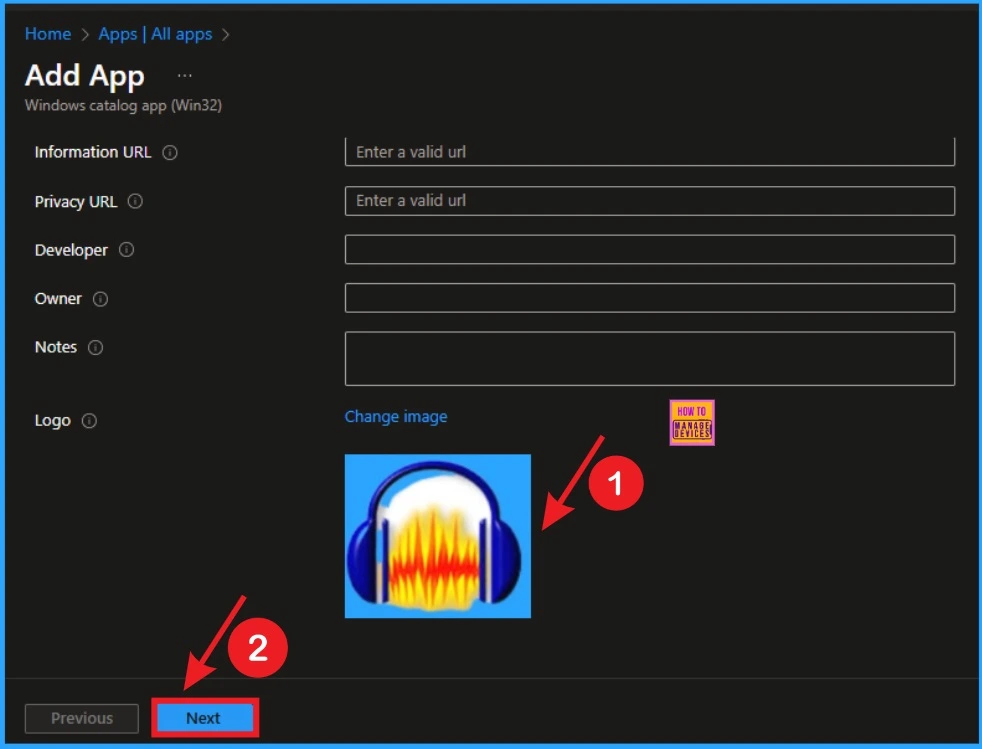
On the App Information you see the logo is shown and you can also change the logo from this window. Click on the Next button to continue.
Program
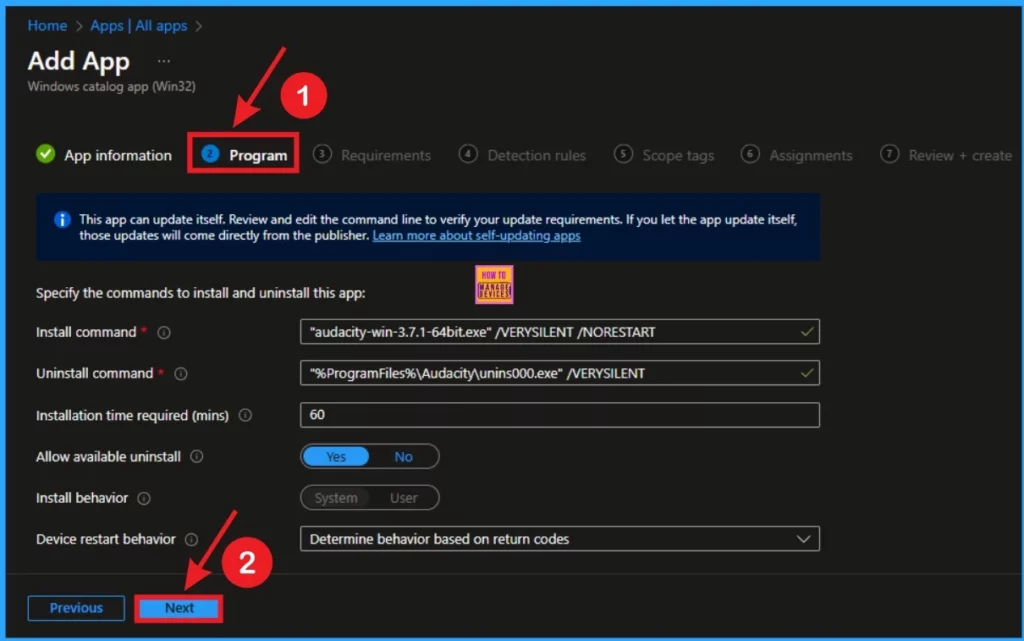
Next is the Progrm tab, that shows the some program details such as install command, uninstall command etc. You can enable or disable the Allow avaialble uninstall from this window. Click on the Next button.
Requirements
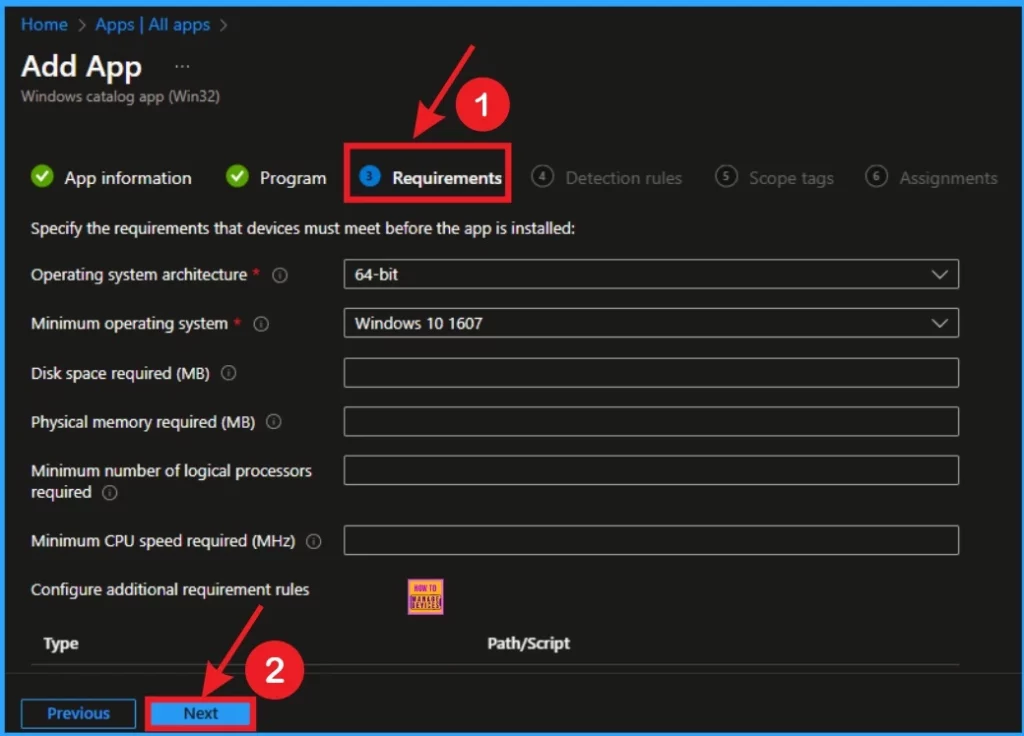
The Requirement tab is used to specify the requirements that devices must meet before installing the app. The requirements are, Operating system architecture and a Minimum operating system. Click on the Next button to continue.
Detection Rules
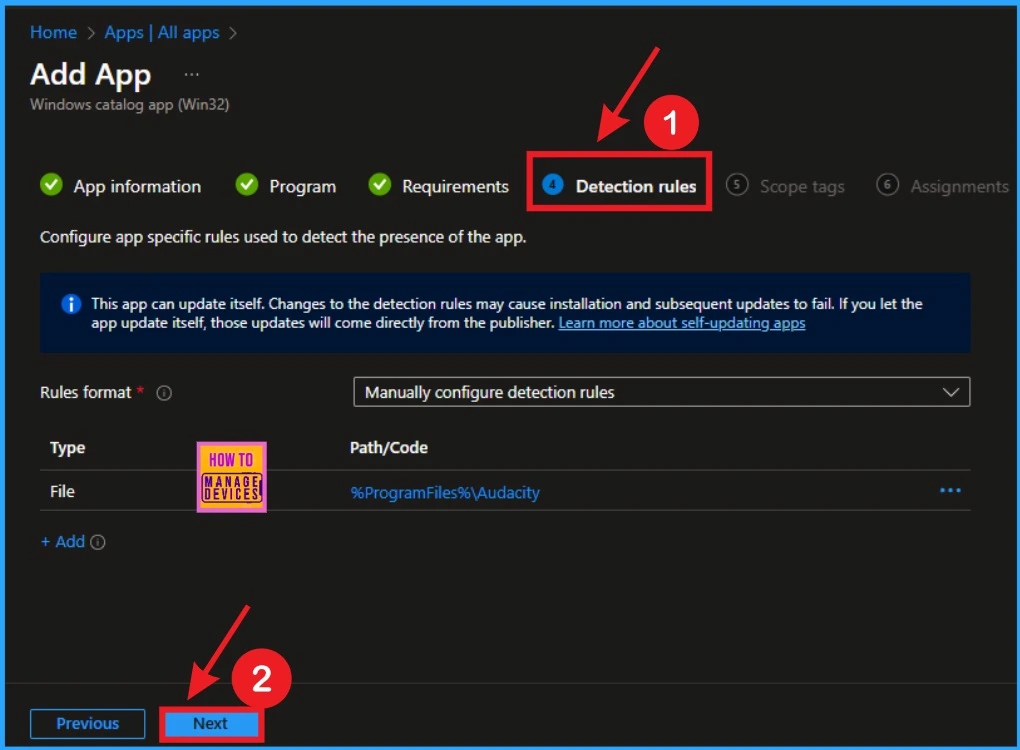
The Detection Rule helps you to configure app-specific rules to detect the app’s presence. You can continue the installation and there is no need to bring changes. Click on the Next button.
Scope Tags
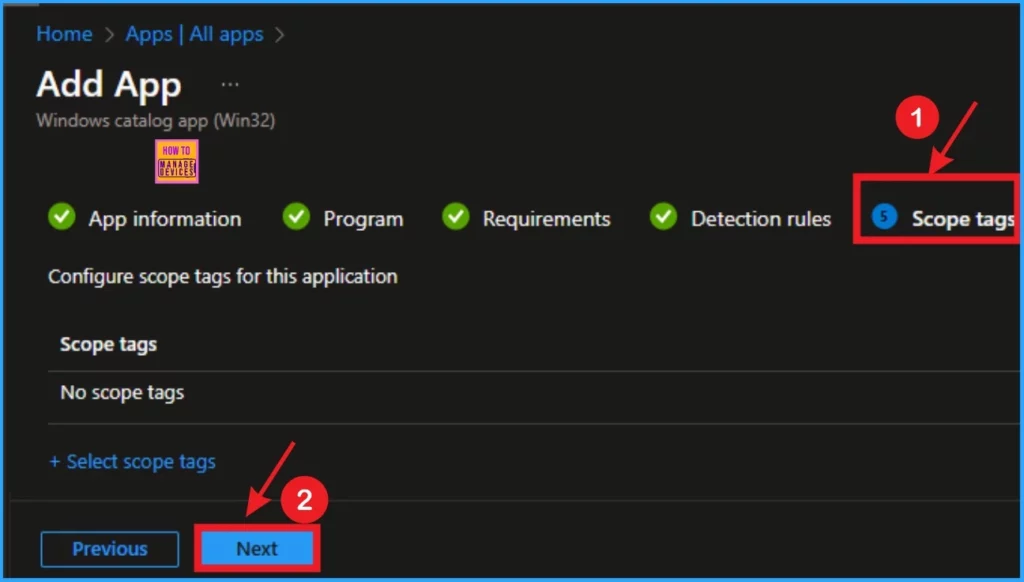
On the Scope tag page, there is no need to add scope tags. You can skip this section. Click on the Next button to continue installation.
Assignments
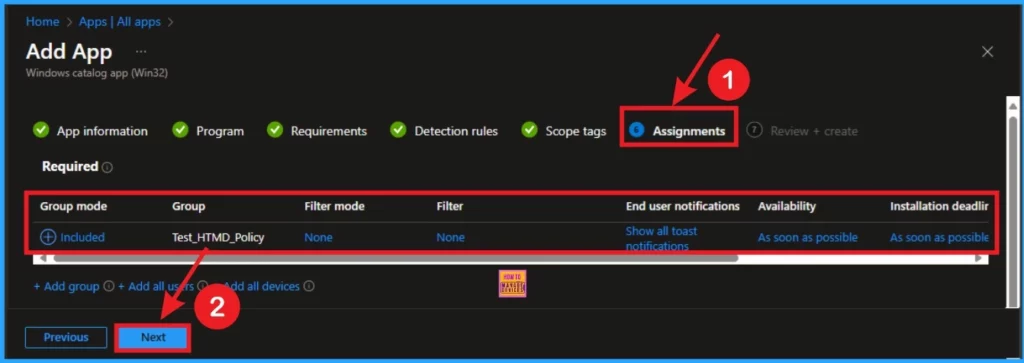
Assignments tab is very important and you can select specific groups to install the Audacity App. Click on the Add group and select group or groups. Then click on the Select button to add a group to the Assignment. Then we can see the selected group is shown on the Assignment tab.
- Click on the Next button.
Review+Create
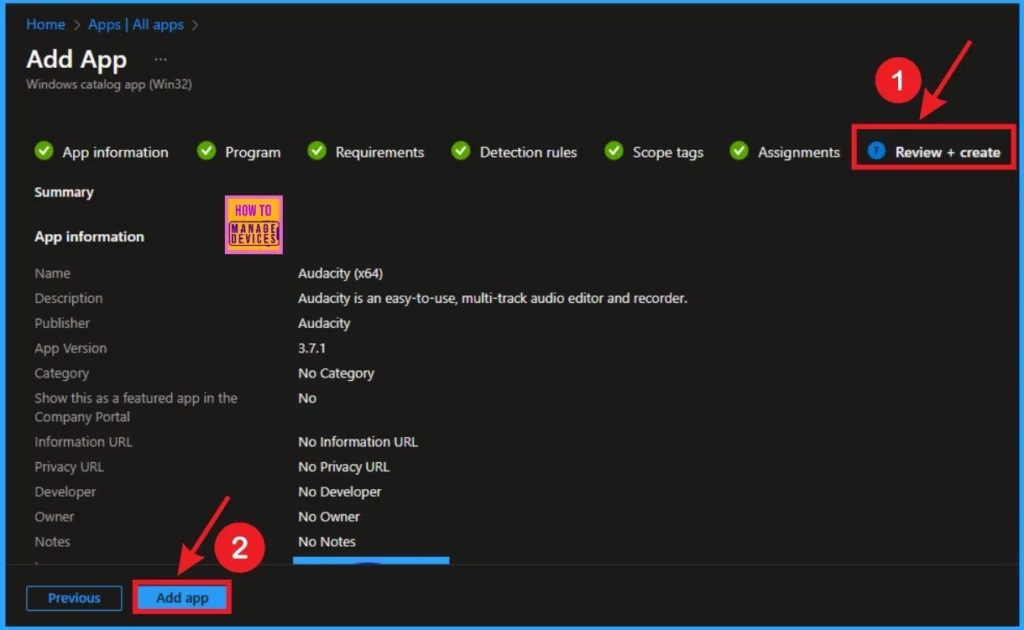
Review+Create button is helps to varify the above tabs and you can bring any changes. After the verification you can click on the click on the Review+Create button. Then you will get a notification that the installation is success.
Monitoring Status of Audacity App
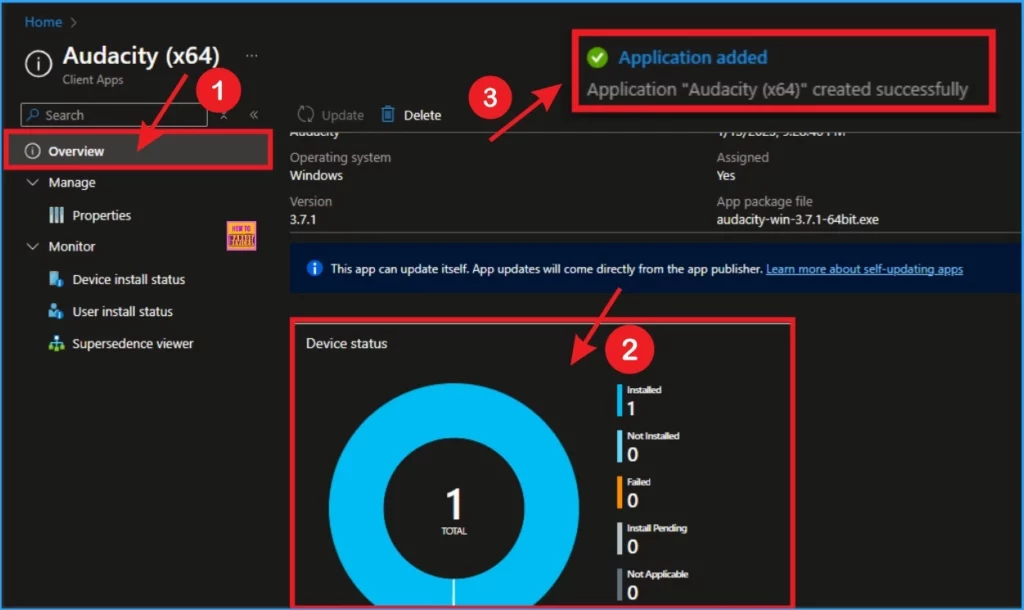
To check the Monitoring Status of Audacity app go to Apps > All Apps and Double-click on the installed app from the App Apps page. Here the you can see the 1 App installed.
End User Experience
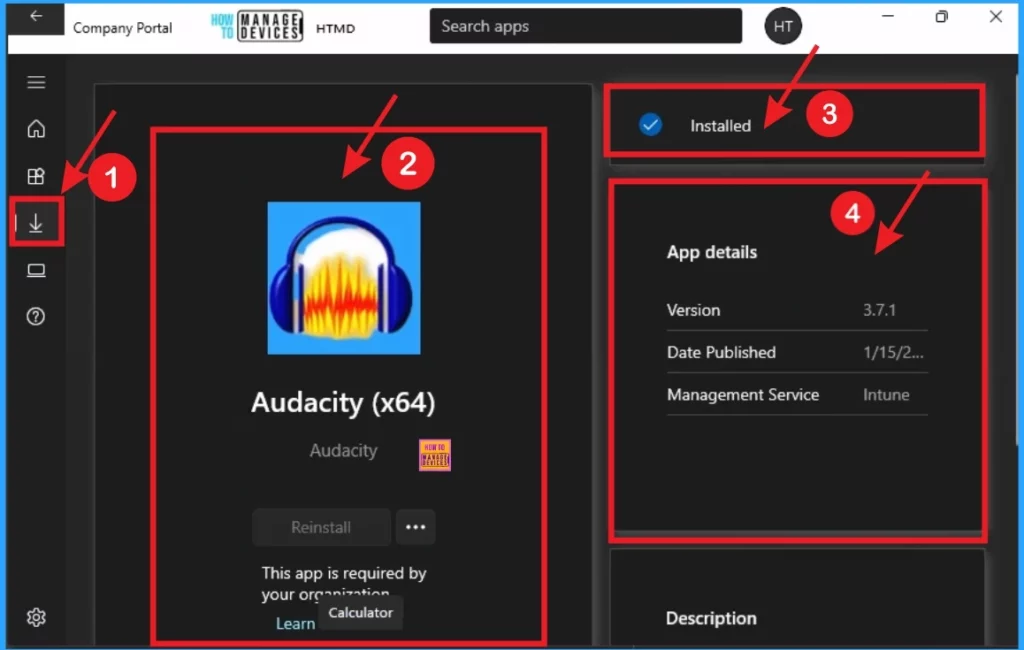
When the Audacity Installed it will be automatically installed on the workstations. You can check it on the Workstation. To verify the installation, open the Company Portal on the workstation, go to Downloads & Updates, and check if the Audacity application appears as installed.
Need Further Assistance or Have Technical Questions?
Join the LinkedIn Page and Telegram group to get the latest step-by-step guides and news updates. Join our Meetup Page to participate in User group meetings. Also, Join the WhatsApp Community to get the latest news on Microsoft Technologies. We are there on Reddit as well.
Author
Anoop C Nair has been Microsoft MVP from 2015 onwards for 10 consecutive years! He is a Workplace Solution Architect with more than 22+ years of experience in Workplace technologies. He is also a Blogger, Speaker, and Local User Group Community leader. His primary focus is on Device Management technologies like SCCM and Intune. He writes about technologies like Intune, SCCM, Windows, Cloud PC, Windows, Entra, Microsoft Security, Career, etc.


Discussion