






Best way to Deploy AnyDesk using Intune Application Model
Let’s discuss best way to Deploy AnyDesk using Intune Application Model through Enterprise Catalog App. As you may know, AnyDesk is a completely safe remote desktop application. It is one of the most popular remote desktop tools, allowing users to access and control computers from a distance.
The application is protected by encryption using TLS 1.2 technology, which ensures data safety. It should be downloaded through the enterprise app catalog via Intune. This application is designed to enhance user quality and productivity, which is why many organizations prefer to use it.
The setting catalog makes it easy for administrators to deploy app installations across the organization. The enterprise app catalogue is well-known for its prepackaged settings, which are incredibly helpful for admins looking to reduce their workload.
It suits remote support, online collaboration, and remote work. As technology advances, tools like AnyDesk help smooth and efficient remote interactions. In this post, we will explore how to install this app through the Enterprise app catalog app via Intune.

Table of Contents
What are the Benefits of AnyDesk Application?
Deploy AnyDesk using Intune Application Model
The above discussion covered installing the AnyDesk app through the enterprise catalog app and its uses and benefits. Now, let’s look at installing it using the Intune admin center. First, sign in to the Microsoft Intune Admin Center with your credentials.
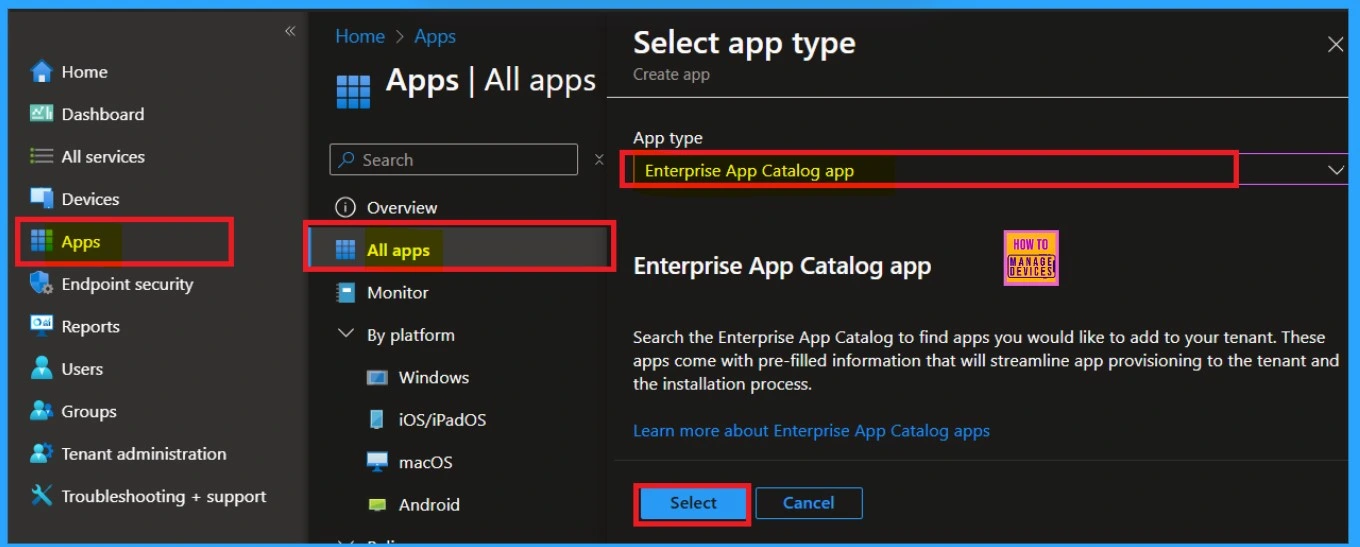
Next navigate to the Apps and select All Apps. When you click on All Apps, a window will appear to Select App Type. Microsoft provides various app types here. You need to select the “Enterprise Catalog app type, and then click on Select.
- How to Install Google Backup and Sync App with Intune Using Enterprise App Catalog App
- Google Chrome for Business Deployment using Intune Enterprise App Catalog App
- Deploy Windows Catalog App type using Intune Enterprise Application Catalog.
App Information
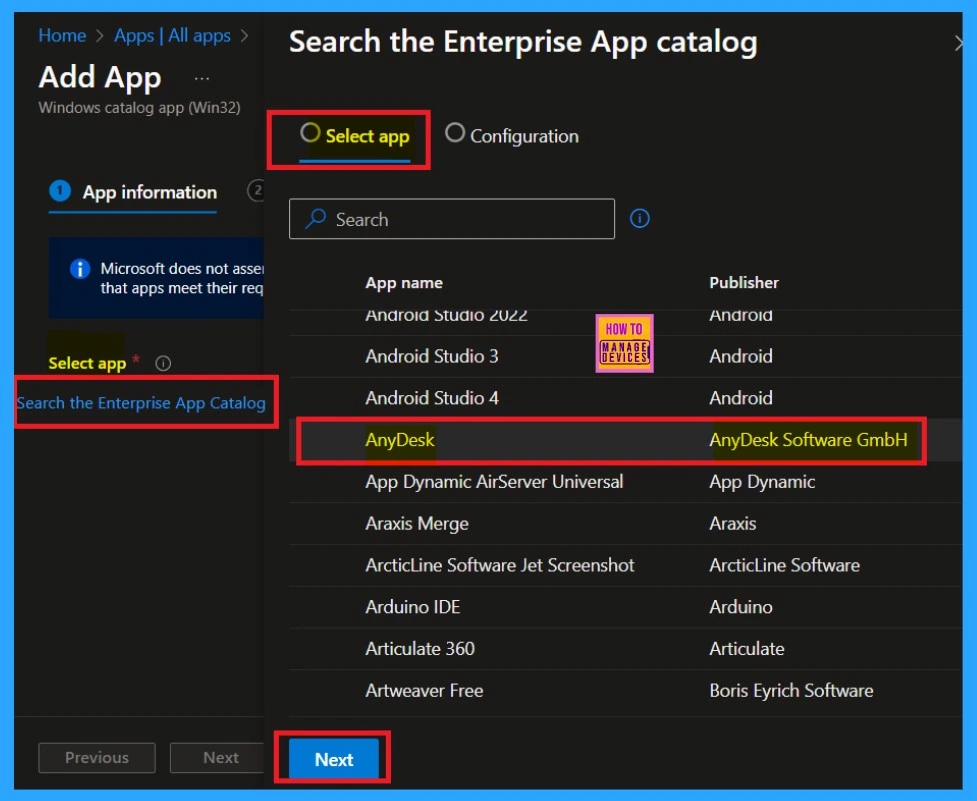
After selecting the app type, you will be on the App Information page. This is the first session you need to deal with. Here, you can select your app. Look for the option Select App near Search the Enterprise App Catalog on the app information page.
- Click on that hyperlink.
- When you click on that, a list of available apps will appear.
- Search for “AnyDesk then select the desired app and click Next.
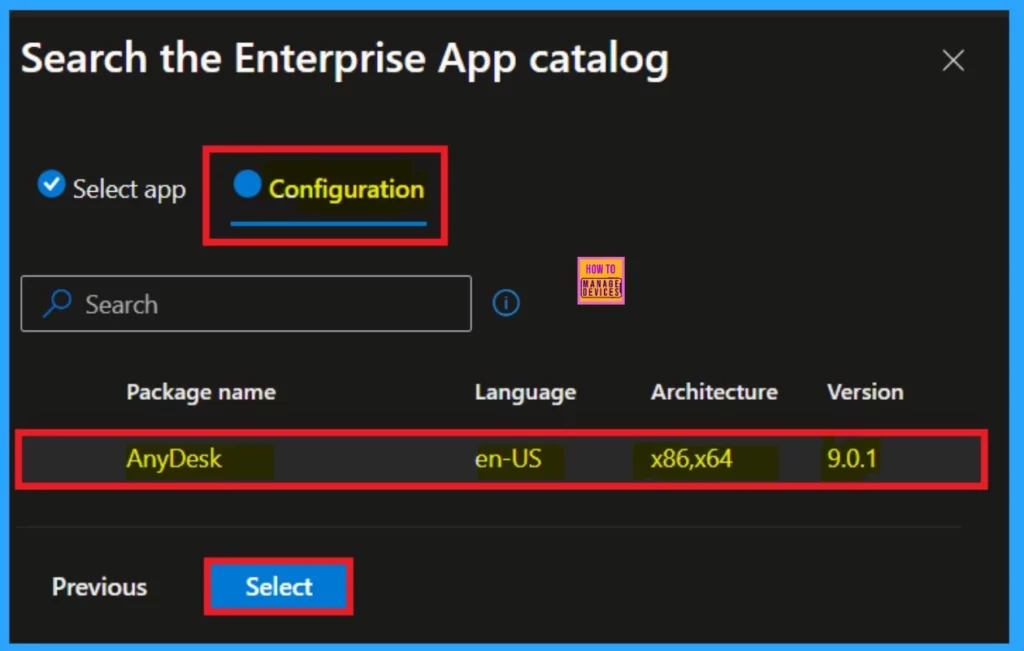
After selecting the Anydesk app, you will now be on the configuration tab. In this tab, you can choose the versions available, select it. However, in some apps, may display multiple versions, while others may only show one. If only one app version is available, select that version and then click on Select.
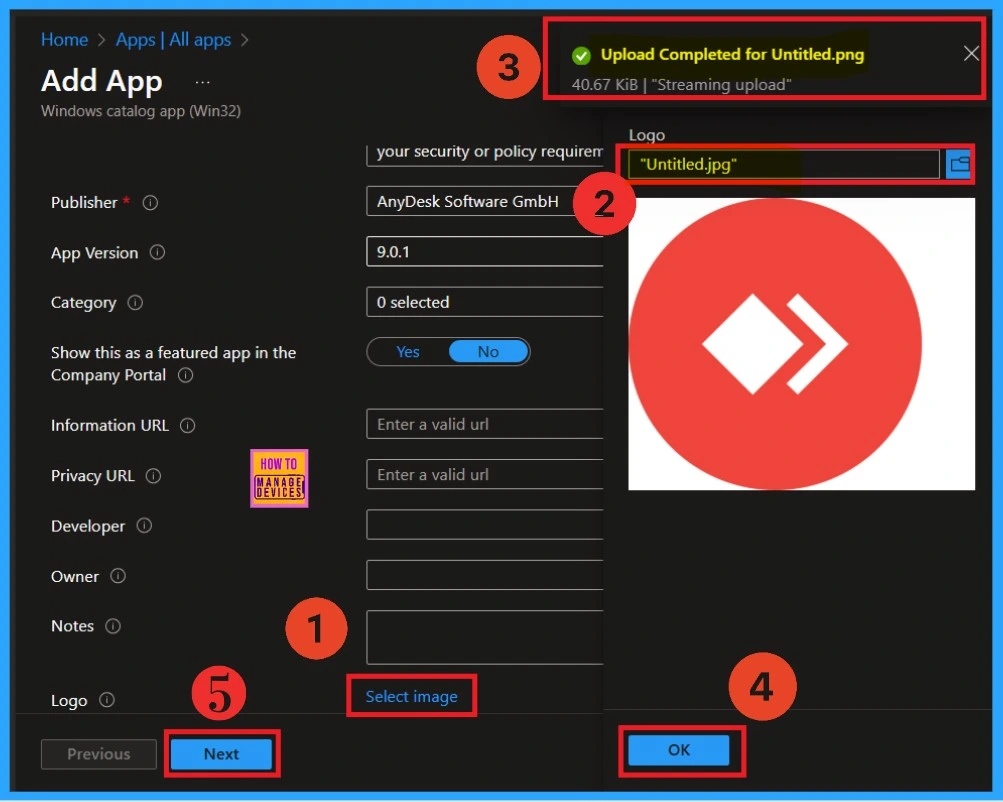
After selecting the version, you will now on to the app information page. On this page, you can view the publisher details and app version information. As you scroll down, you will see an option Select Image, which is in a hyperlink that allows you to add a logo for the app deployment.
I had previously downloaded the logo to my files, so I clicked on Select Image and uploaded the logo to the app information page. Once the upload was complete, you will receive a notification confirming that the logo has been successfully uploaded.
- After clicking Ok, you will see the app logo displayed on the app information page.
- You can then proceed by clicking on “Next.”
Program
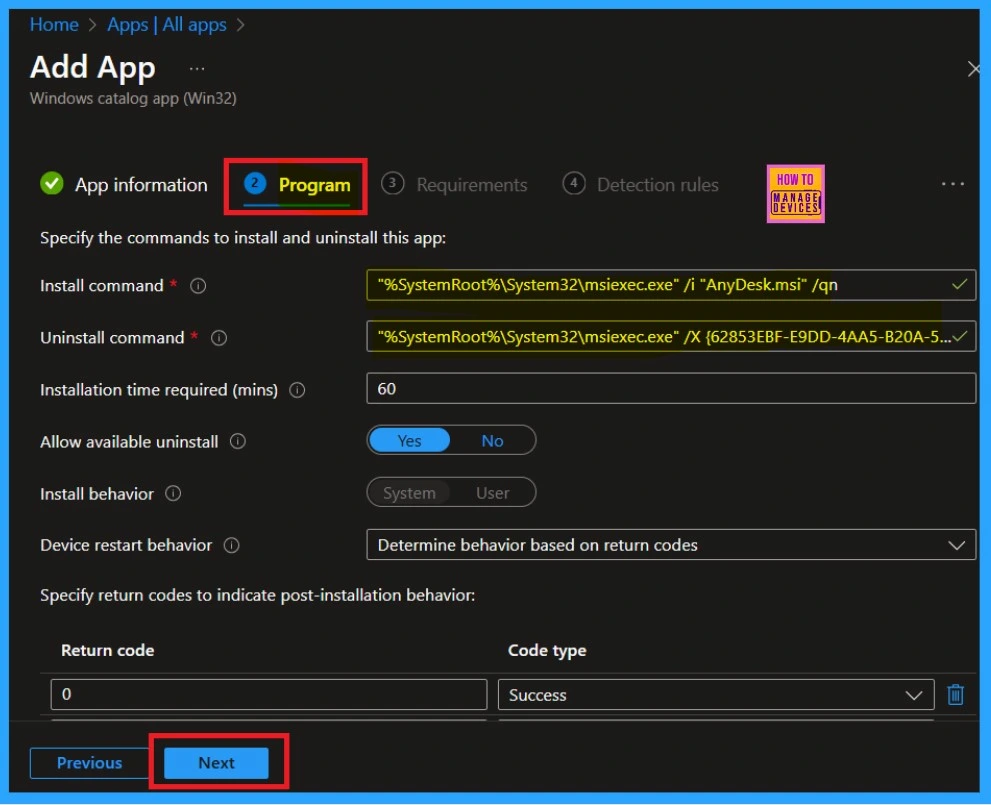
Next, you are on the Program tab. Here, you will find information about the install and uninstall commands, as well as some basic details such as install behavior and restart behavior. You don’t need to do anything special because of the enterprise app catalog policies nature. Simply click Next to proceed further.
Requirements
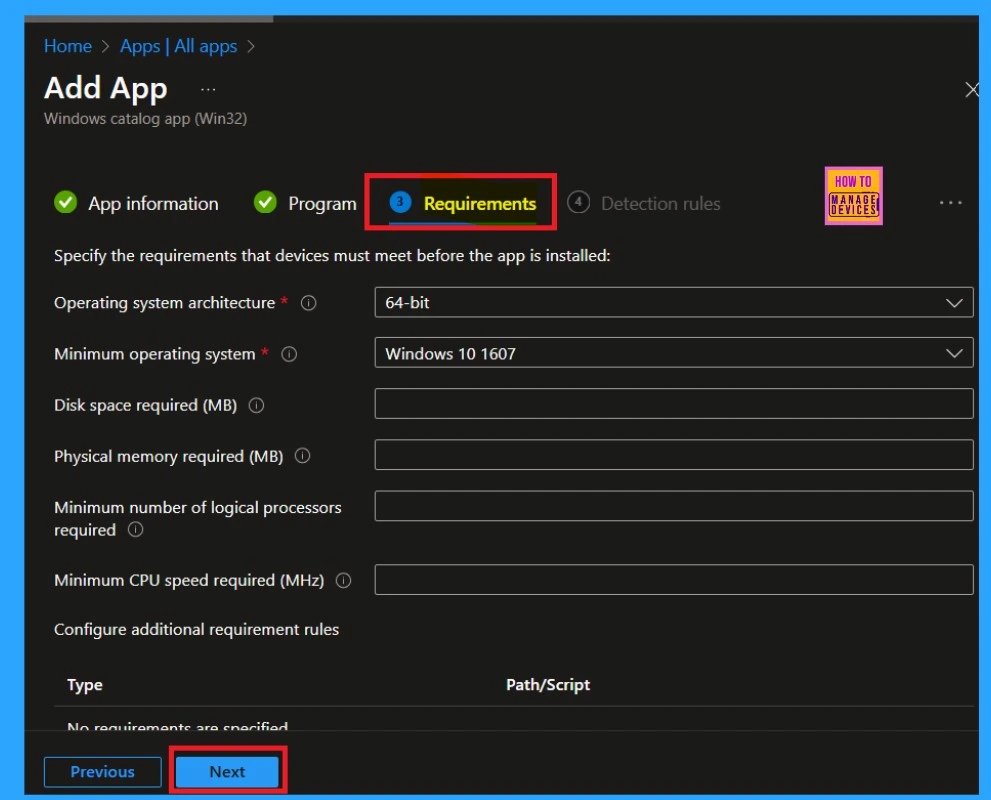
You are now on the Requirements tab. This page functions like a program tabs, providing important information about the operating system architecture, the required storage space, the physical memory needed, and more. Once you check the details, click on the next button.
Detection Rules
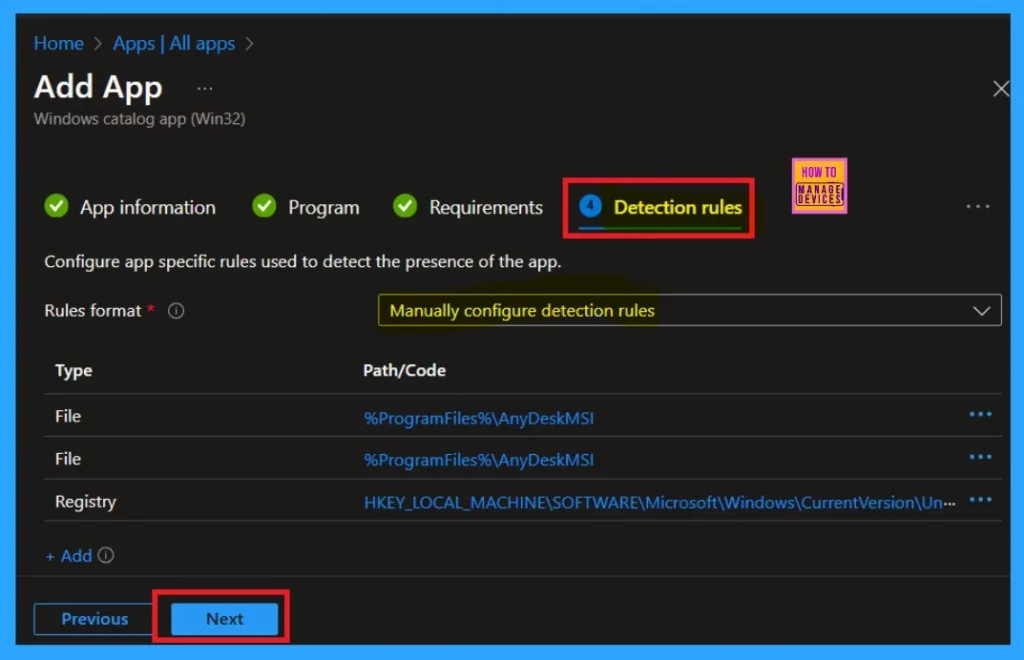
You are now following the Detection rules here. You can access information about rule formats and paths, such as file paths and registry paths. This section already contains the necessary information, so you don’t need to do anything special.
- Please keep this section, and then click on the Next.
Scope tags
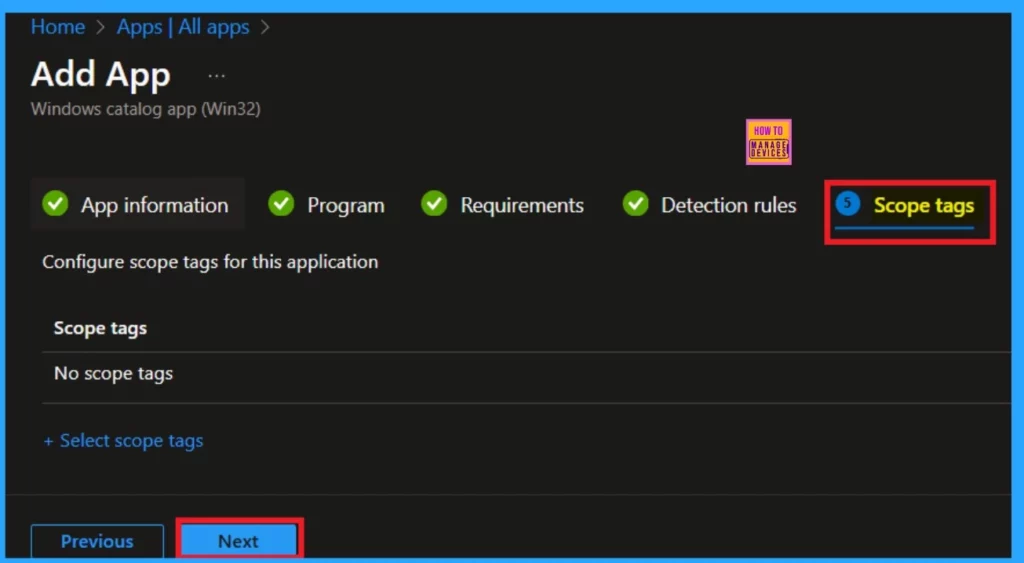
Next, we have the option for Scop tags. You can add scope tags to the policy deployment by clicking on the “Select Scope Tag” option. This will allow you to choose the scope type for the App deployment. I will skip this step and click on “Next.” Because its mandatory one.
Assignments
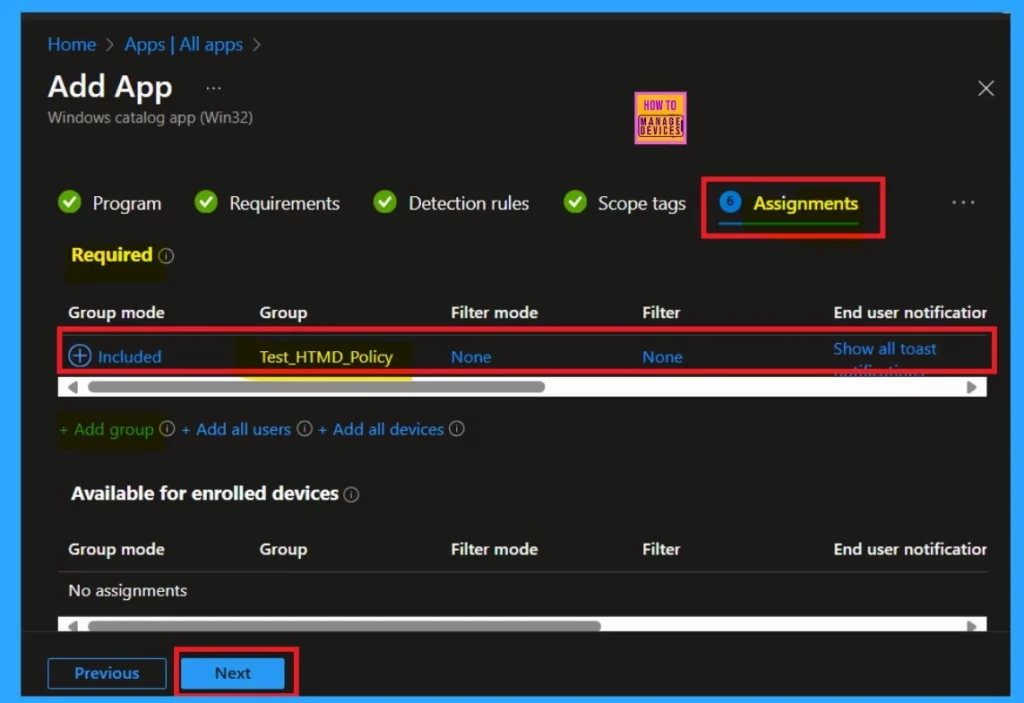
The next step is managing Assignments section. You can add groups to the policy here. The assignment tab is crucial process. Under the required options, you’ll find an “Add Group” option; click on that. This will allow you to choose the specific group you want to add. After making your selections, click Next to proceed further.
Review + Create
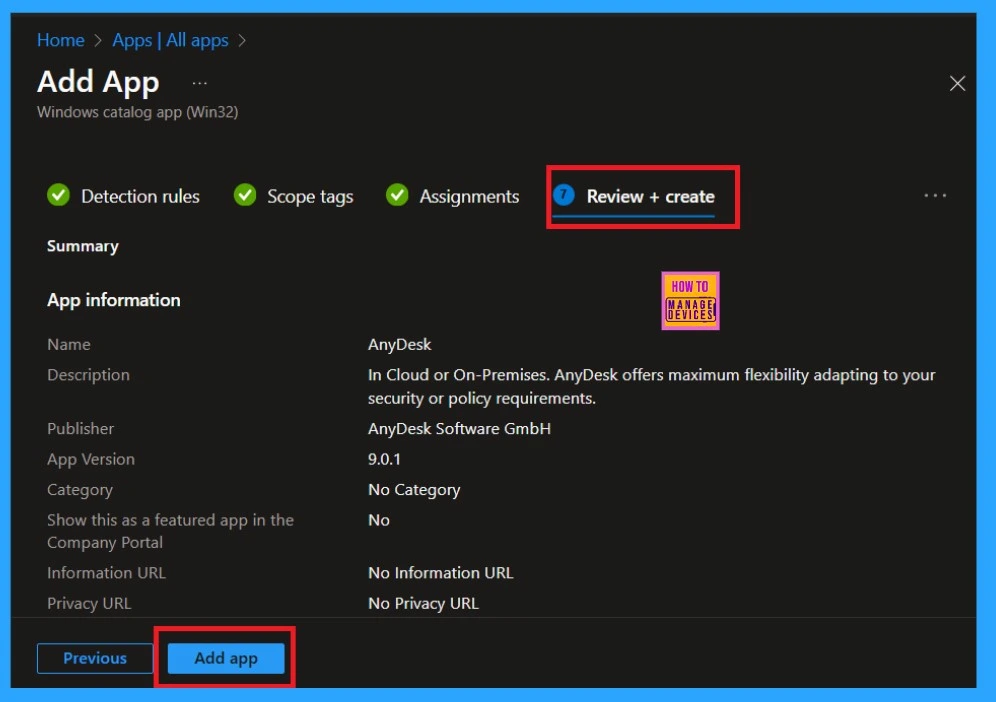
The “Review + Create” option is the final step in the process. This is a summary page provides all the details related to the app deployment. It displays the information you have entered, such as the name, description, publisher, version, and any other details. After verifying that all the information’s, click on the Add Appoption, which will allow you to install the app.
Monitor Status
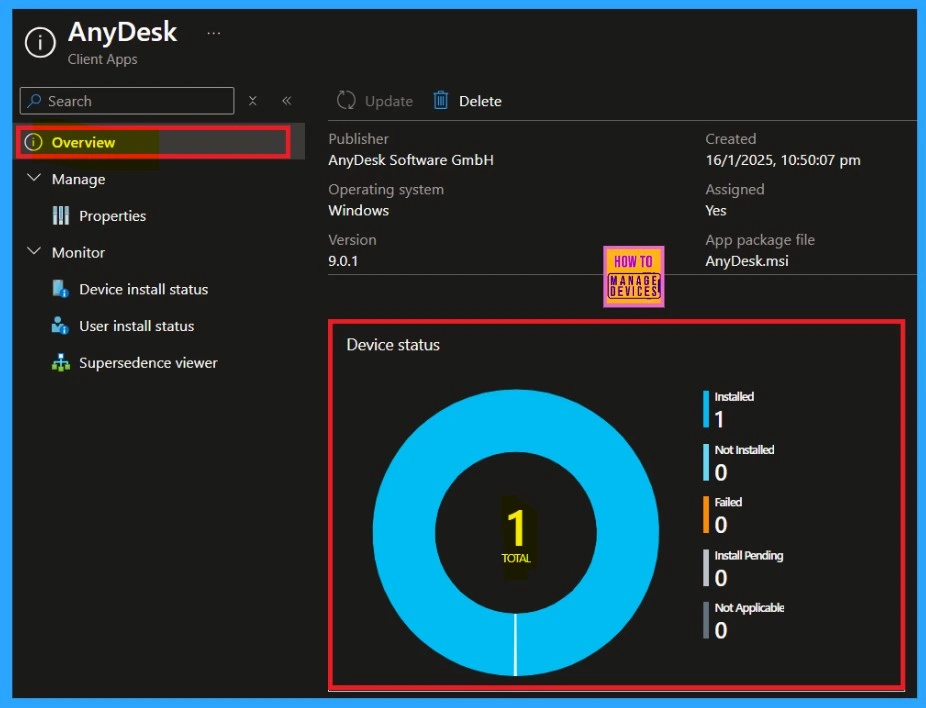
After deploying the app, the next step is to check the monitor status. This will confirm whether your policy has been successfully created. To check the monitor status, go to Apps and then select All Apps. Here, you’ll find a search option where you can look for the AnyDesk app that you created. Click on it, and you will see an overview of the policy and the app deployment status.
Please note that policy creation can take up to 8 hours. After this waiting period, check the status again. If you check before the 8 hours, the status may not show any useful information.
Note: You can use the company portals Sync option to reduce the Waiting period
End User Result
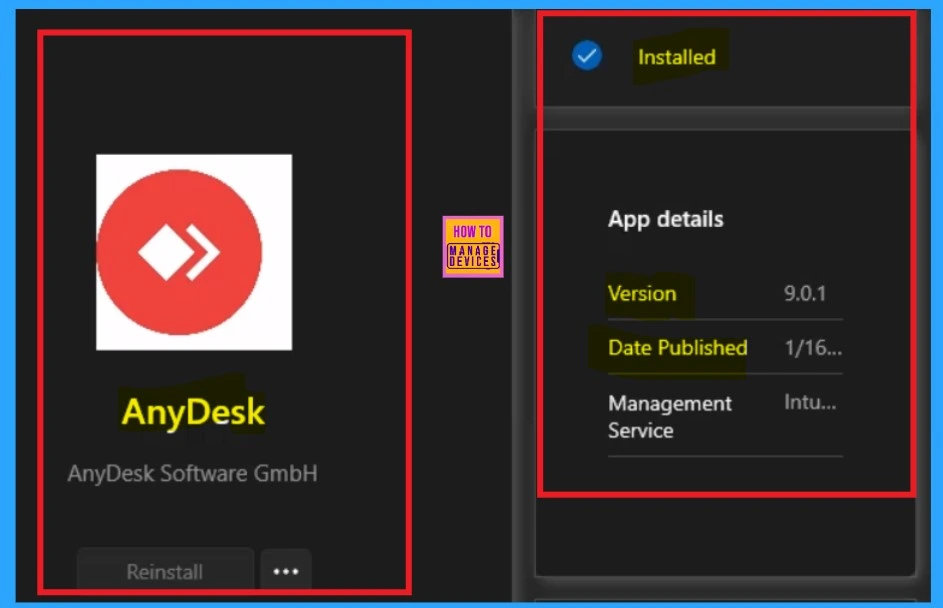
You can check the end user results for by checking the company portal. Click on Downloads and Update option to see a list of apps installed in your organization. You can search for any test app. However, please remember that the AnyDesk app will only appear after the policy deployment time of 8 hours.
Need Further Assistance or Have Technical Questions?
Join the LinkedIn Page and Telegram group to get the latest step-by-step guides and news updates. Join our Meetup Page to participate in User group meetings. Also, Join the WhatsApp Community to get the latest news on Microsoft Technologies. We are there on Reddit as well.
Author
Anoop C Nair has been Microsoft MVP from 2015 onwards for 10 consecutive years! He is a Workplace Solution Architect with more than 22+ years of experience in Workplace technologies. He is also a Blogger, Speaker, and Local User Group Community leader. His primary focus is on Device Management technologies like SCCM and Intune. He writes about technologies like Intune, SCCM, Windows, Cloud PC, Windows, Entra, Microsoft Security, Career, etc.


Discussion