






How to Allow or Block Edge Swipe Policy under Lock Down using Intune Settings Catalog
Let’s discuss how to Allow or Block Edge Swipe Policy under Lock down using the Intune Settings Catalog. If you turn off this policy, users cannot open any system features by swiping from the edges of the screen. If you turn on or leave the policy as is, users can open system features by swiping from the edges.
To check if the policy is applied, restart your device or the Explorer process, then try swiping from the right edge. The Action Center should not open. You can also switch to tablet mode and try swiping from the top to rearrange windows—this should also be disabled.
In this post, you will find all the details on how to Allow or Block the Edge Swipe Policy under the Lock Down section using the Intune Settings Catalog. The details are explained below.
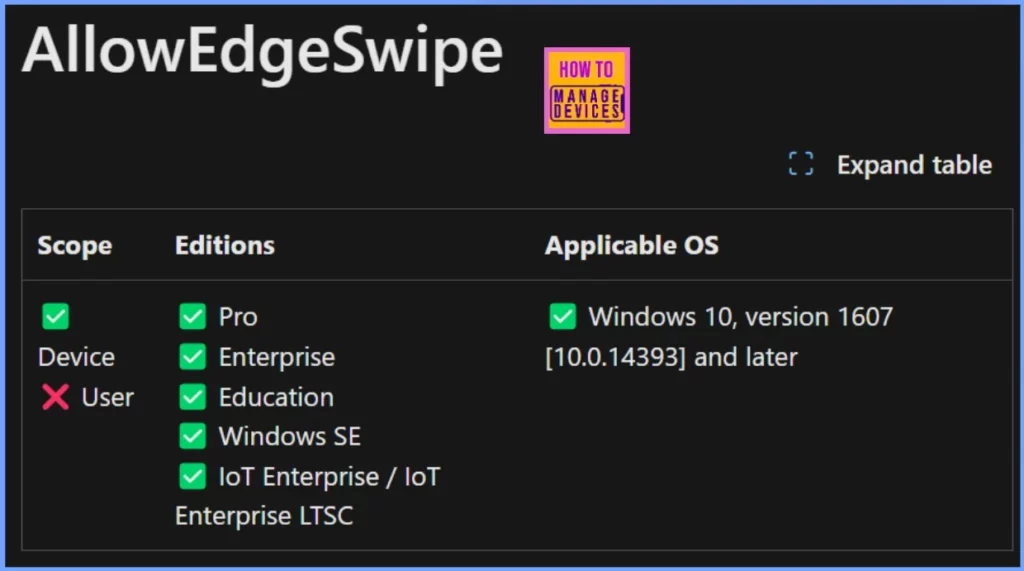
This Policy setting applies to devices and is available on the following Windows editions: Pro, Enterprise, Education, Windows SE, and IoT Enterprise (including IoT Enterprise LTSC). It works on Windows 10 version 1607 (build 10.0.14393) and later.

Table of Contents
Policy CSP – LockDown
In Windows, the CSP policy enables the configuration of various settings on devices running Windows 10 and newer versions. These policies can be managed through mobile device management (MDM) tools, such as Intune, and are implemented using OMA-URI settings
./Device/Vendor/MSFT/Policy/Config/LockDown/AllowEdgeSwipe
| Scope | Editions | Applicable OS |
|---|---|---|
| ✅ Device ❌ User | ✅ Pro ✅ Enterprise ✅ Education ✅ Windows SE ✅ IoT Enterprise / IoT Enterprise LTSC | ✅ Windows 10, version 1607 [10.0.14393] and later |
- Step-by-Step Guide to Enable Widgets on Windows Machines with Intune Policy
- New Widget Updates in Windows 11 Moment 5 Review
Allow or Block Edge Swipe Policy under Lock Down using Intune Settings Catalog
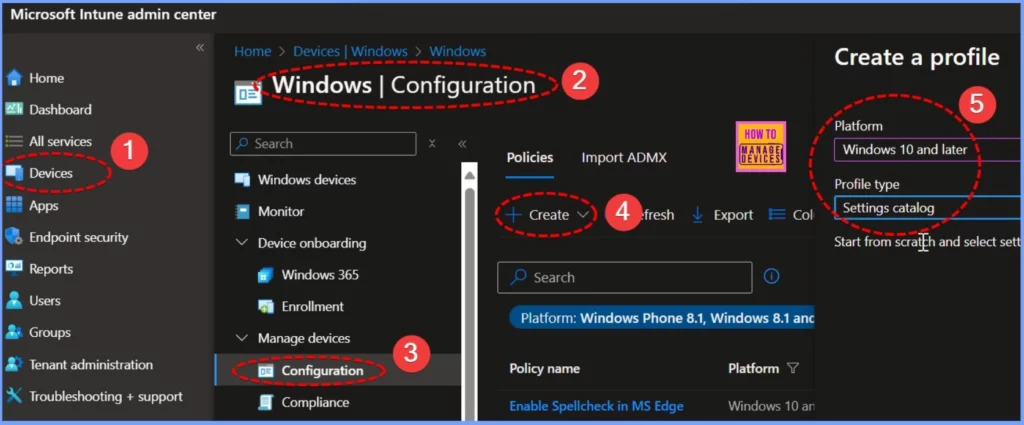
To create a configuration policy for the Edge Swipe Policy using Microsoft Intune, Sign in to the Microsoft Intune Admin Center with your admin account. Go to Devices > Windows > Configuration. Click on +Create and select +New Policy.
| Platform | Profile Type |
|---|---|
| Windows 10 and later | Settings Catalog |
Allow Edge Swipe
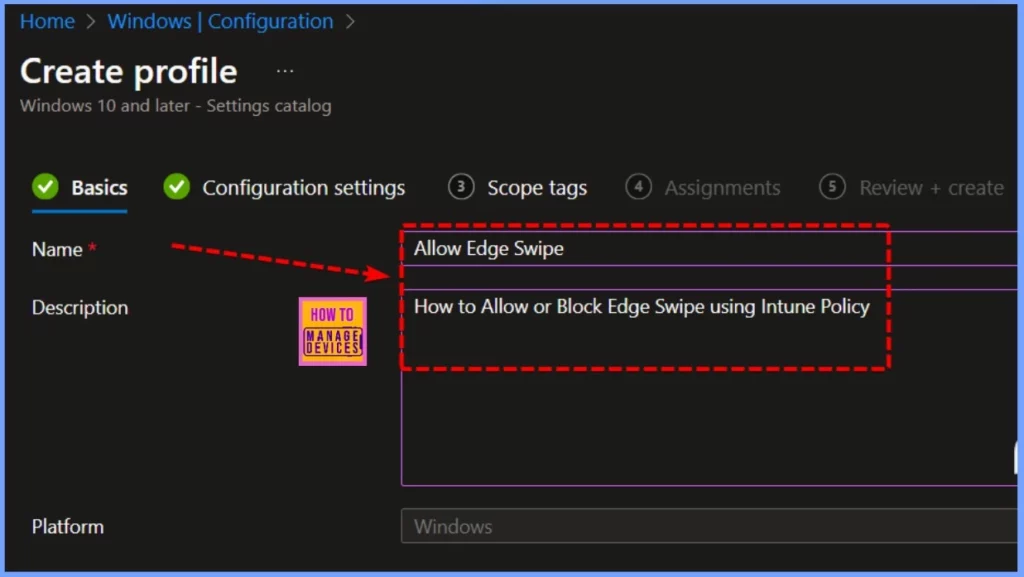
In the Basics section, set the Name to “Allow Edge Swipe” and add a Description like “How to Allow or Block Edge Swipe using Intune Policy.” Click Next to proceed.
Lock Down
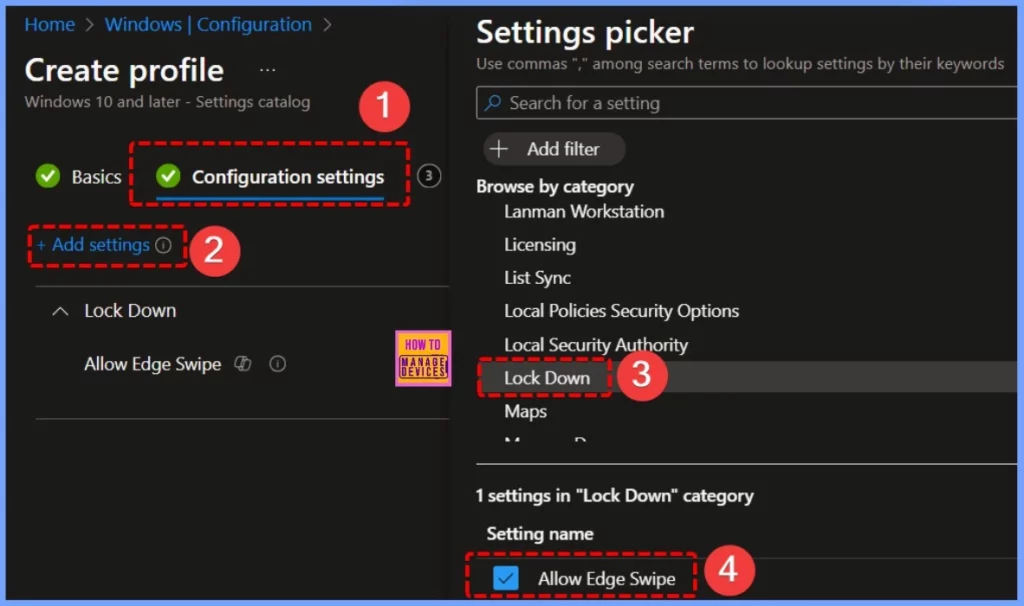
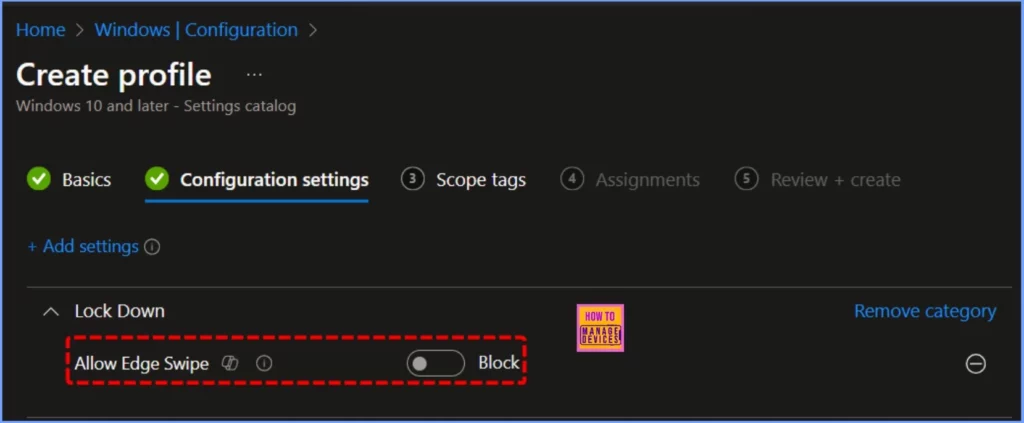
In the Configuration settings section, click on + Add settings. From the settings picker, choose Lock Down and then enable the Allow Edge Swipe option. Refer to the screenshot below for more details.
Block Edge Swipe Policy
It lets users invoke any system interface by swiping in from any screen edge using touch. The easiest way to verify the policy is to restart the explorer process or to reboot after the policy is applied. Then, try to swipe from the right edge of the screen.
The desired result is for the Action Center not to be invoked by the swipe. You can also enter tablet mode and attempt to swipe from the top of the screen to rearrange, but that will also be disabled.
| Policy Name | Allow | Block |
|---|---|---|
| Allow Edge Swipe | Toggle the pane to the Right side | Toggle the pane to the Left side |
Scope Tags
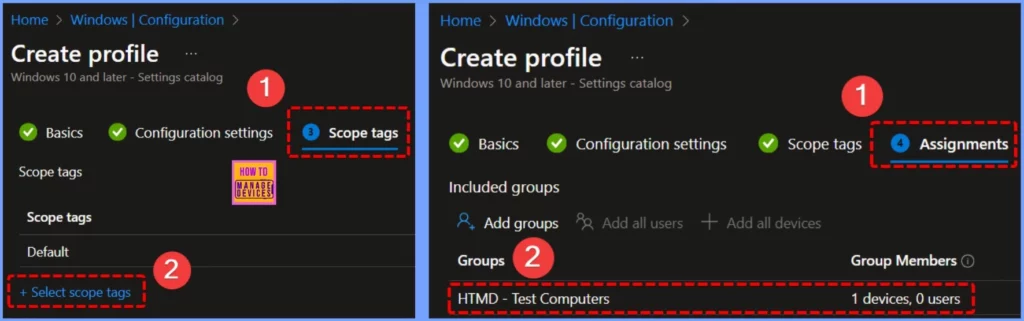
On the next page, leave the Scope tags as Default. If your tenant has custom scope tags, select them based on your policy requirements. Then, click Next to continue. I am assigning the configuration policy to the HTMD – Test Computers Device Groups. To do this, click Add Groups and choose the desired device group under the Included Groups section.
- Windows 11 Search Widget in the Taskbar New Microsoft Experiment
- Add Custom Widgets to Windows 11 Desktop Screen
Review + Create
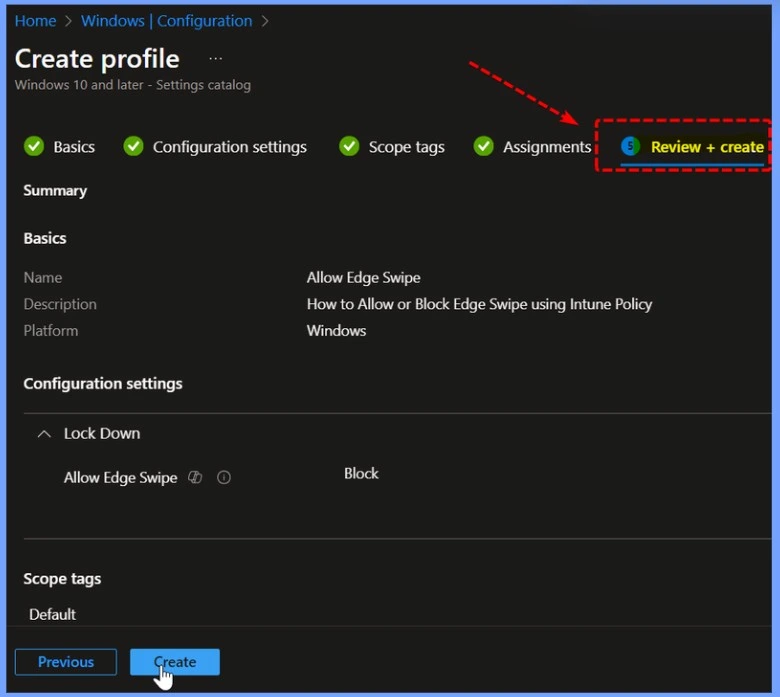
After assigning the policy to the desired device group, click Review + Create. This will allow you to review all your settings and configurations. The below screenshot provides more details.
Monitoring Status
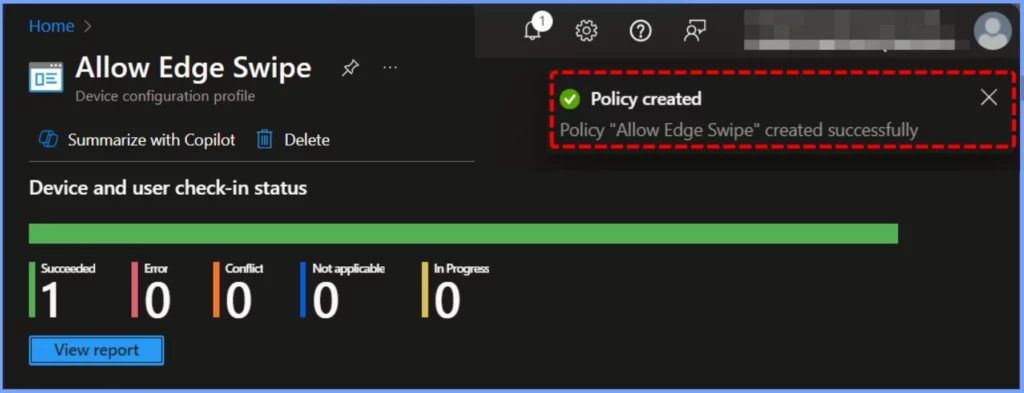
Once the devices are synced, the policy will be applied immediately. Follow the steps below to check the policy’s deployment status in the Intune portal. Navigate to Devices > Windows > Configuration > Search for the “Allow Edge Swipe” configuration policy. The policy’s deployment status will appear under the Device and user check-in status.
Client Side Verification
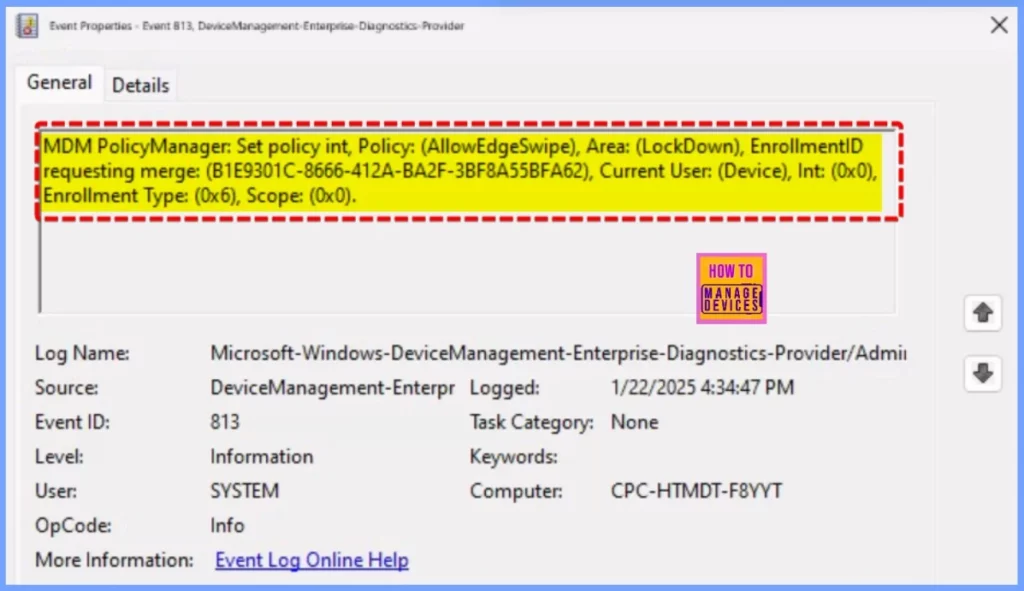
The MDM Policy Manager is setting the AllowEdgeSwipe policy under the LockDown area. EnrollmentID requests a merge, and the current user is set to Device. To confirm this, you can check the event log by following this path: Applications and Services Logs > Microsoft > Windows > Devicemanagement-Enterprise-Diagnostics-Provider > Admin.
MDM PolicyManager: Set policy int, Policy: (AllowEdgeSwipe), Area: (LockDown), EnrollmentID requesting merge: (B1E9301C-8666-412A-BA2F-3BF8A55BFA62), Current User: (Device), Int: (0x0), Enrollment Type: (0x6), Scope: (0x0).
Need Further Assistance or Have Technical Questions?
Join the LinkedIn Page and Telegram group to get the latest step-by-step guides and news updates. Join our Meetup Page to participate in User group meetings. Also, Join the WhatsApp Community to get the latest news on Microsoft Technologies. We are there on Reddit as well.
Author
Anoop C Nair has been Microsoft MVP from 2015 onwards for 10 consecutive years! He is a Workplace Solution Architect with more than 22+ years of experience in Workplace technologies. He is also a Blogger, Speaker, and leader of the Local User Group Community. His primary focus is on Device Management technologies like SCCM and Intune. He writes about technologies like Intune, SCCM, Windows, Cloud PC, Windows, Entra, Microsoft Security, Career, etc.


Discussion