






Edge Browser Security Latest Best Practices Released by Microsoft
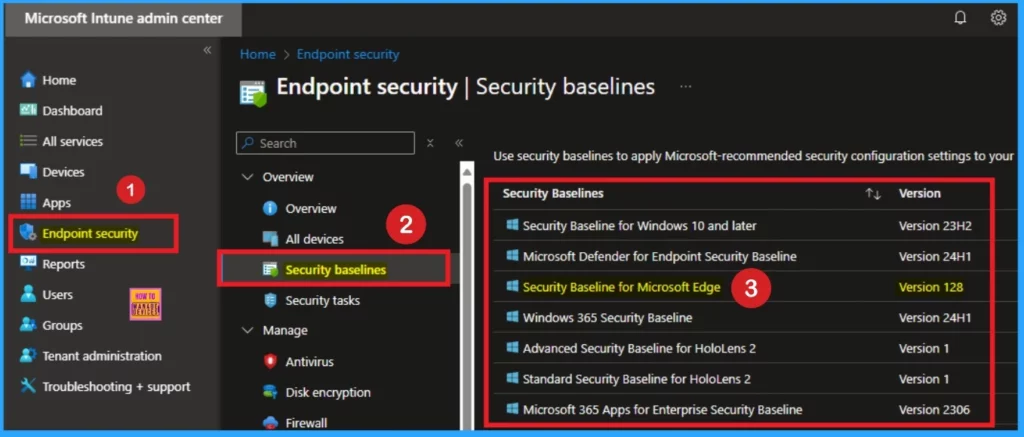
Let’s discuss the Edge Browser Security Latest Best Practices Released by Microsoft. Microsoft introduced an updated version of the Edge Security Baseline, version 128, available on the Microsoft Intune Console.
The new security baseline includes security settings, improvements, and optimizations to help organizations better secure their Windows devices. Moreover, Microsoft introduced 2 new HoloLens Baselines. You can check this on the Console.
To secure and Protect your users’ devices, you can rapidly deploy a recommended security posture to your managed Windows devices for Windows security baselines. The security Baselines of Intune help you with this.
Many organizations seek guidance to navigate the many controls over their security configurations. Intune Security Baseline is a guide that allows users to increase their control. In this blog, I will help you learn more about Security Baselines in Microsoft Intune.


Table of Contents
Edge Browser Security Latest Best Practices Released by Microsoft
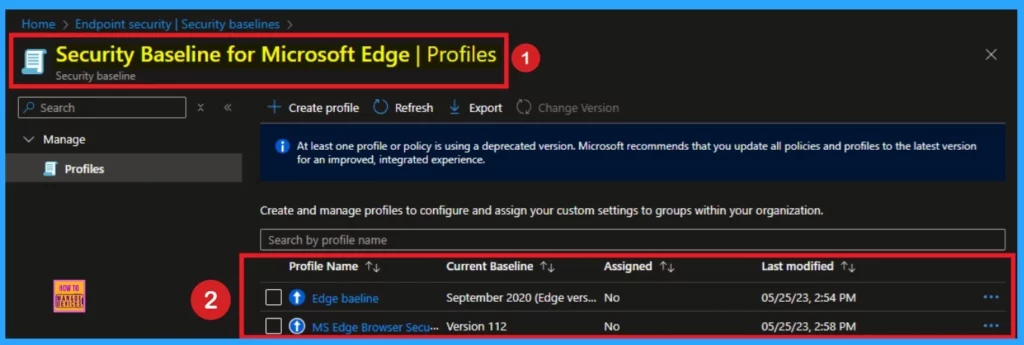
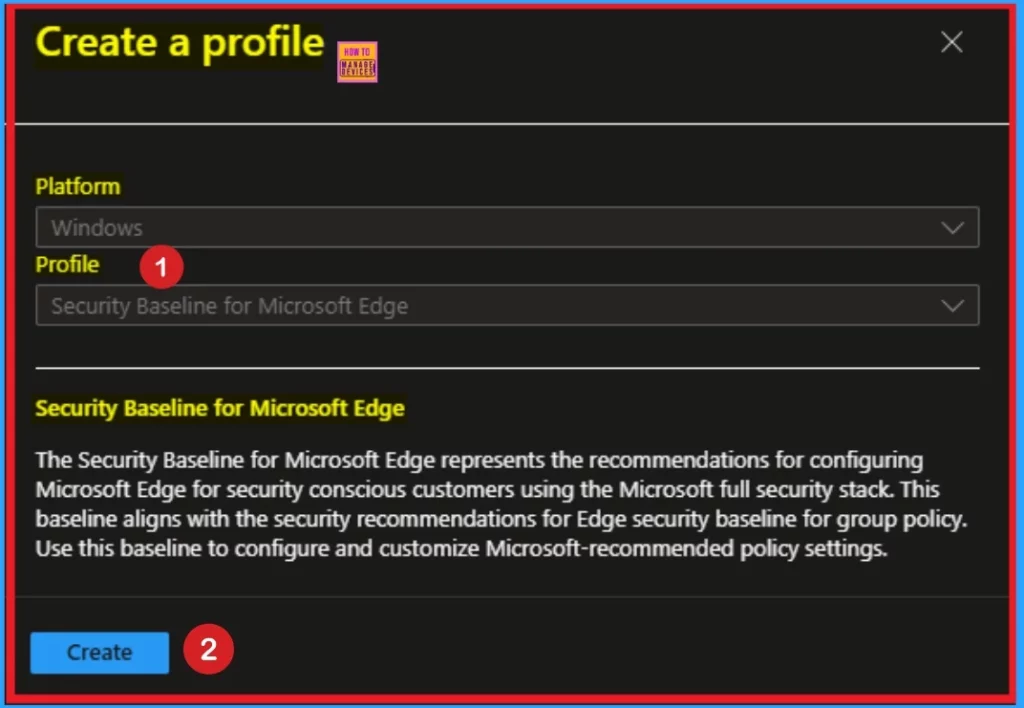
Microsoft has some changes in Microsoft Edge version 128. 2 settings are added, and 2 settings are removed on the Edge Security Baseline version 128. You can customize each deployment baseline to enforce only the required settings and values.
- Intune Security Baselines Policies for Windows 10 or Windows 11 Deployment Guide
- Secure Microsoft Edge Browser using Intune Security Policies
- Best Method to Enable Virtualization Based Security Using Microsoft Intune
Edge Security Baseline Version 128
Microsoft Edge baseline version 128 includes many features and will be available starting January 2025. Although the 128 version baseline may not be available through Intune, you can download the Microsoft Security Compliance Toolkit from the Microsoft Download Center.
| Features in Security Baseline | Details |
|---|---|
| Allow unconfigured sites to be reloaded in Internet Explorer mode | By default, it is Disabled |
| Allow users to proceed from the HTTPS warning page | By default, it is Disabled |
| Automatically open downloaded MHT or MHTML files from the web in Internet Explorer mode | By default, it is Disabled |
| Dynamic Code Settings | By default, it is Disabled |
| Enable Application Bound Encryption | By default it, is Enabled |
| Enable browser legacy extension point blocking | By default, it is Enabled |
| Enable site isolation for every site | By default, it is Enabled |
| Show the Reload in Internet Explorer mode button in the toolbar | Disabled by default |
| Specifies whether SharedArrayBuffers can be used in a non cross-origin-isolated context | Disabled by Default |
Other Security Baseline in Edge Version 128
Microsoft Edge Version 128 also offers some other security baselines, including Extensions, HTTP authentication, Native Messaging, Private Network Request Settings, SmartScreen settings, and Typosquatting Checker settings. The table below provides more details.
| New Features | Available Setting | Details |
|---|---|---|
| Extensions | Control which extensions cannot be installed | Enabled by default |
| Extension IDs the user should be prevented from installing (or * for all) (Device) | By Default, * | |
| HTTP authentication | Allow Basic authentication for HTTP | Disabled by Default |
| Supported authentication schemes | Enabled by Default | |
| Supported authentication schemes (Device) | By default, ntlm,negotiate | |
| Native Messaging | Allow user-level native messaging hosts (installed without admin permissions) | By default, Disabled |
| Private Network Request Settings | Specifies whether to allow insecure websites to make requests to more-private network endpoints | Disabled by Default |
| SmartScreen settings | Configure Microsoft Defender SmartScreen | By default it is enabled |
| Configure Microsoft Defender SmartScreen to block potentially unwanted apps | By default it is enabled | |
| Prevent bypassing Microsoft Defender SmartScreen prompts for sites | By default it is enabled | |
| Prevent bypassing of Microsoft Defender SmartScreen warnings about downloads | By default it is enabled | |
| Typosquatting Checker settings | Configure Edge Typo Protection | By default it is enabled |
Need Further Assistance or Have Technical Questions?
Join the LinkedIn Page and Telegram group to get the latest step-by-step guides and news updates. Join our Meetup Page to participate in User group meetings. Also, Join the WhatsApp Community to get the latest news on Microsoft Technologies. We are there on Reddit as well.
Resource
Use security baselines to help secure Windows devices you manage with Microsoft Intune
Author
Anoop C Nair has been Microsoft MVP for 10 consecutive years from 2015 onwards. He is a Workplace Solution Architect with more than 22+ years of experience in Workplace technologies. He is a Blogger, Speaker, and Local User Group Community leader. His primary focus is on Device Management technologies like SCCM and Intune. He writes about technologies like Intune, SCCM, Windows, Cloud PC, Windows, Entra, Microsoft Security, Career, etc.


Discussion