






SCCM Driver Import Driver Package Creation Process Guide
Hello folks, In this blog post, I will try to share my experience importing SCCM Driver Import and creating a driver package in SCCM. It also includes how to integrate into the SCCM task sequence.
I hope this will help streamline many SCCM admins during OSD/Task Sequence/Image creation activities.
Do you know what is drivers, and why do you need to install drivers? Refer to the following post, “What are Drivers and Why do we need Drivers?.”
| Index |
|---|
| How to SCCM Driver Import |
| Download the Drivers |
| Clean-up Driver Folders |
| Import Drivers to SCCM |
| How to Create Driver Package in SCCM |
| Integrate Driver package into Task Sequence |
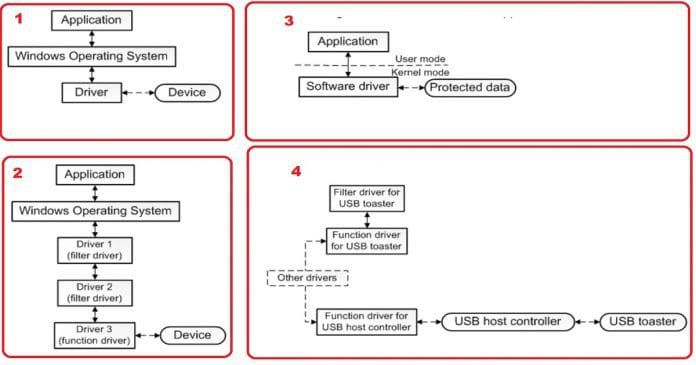
Let’s jump into the topics we will cover in this post.

- How to import Drivers
- How to create a driver package
- Integrate Driver package into Task Sequence
How to SCCM Driver Import
Before importing the Driver into SCCM, let’s download the required drivers from the vendor site and keep them in the package network.
When you download drivers, you might notice that some of the driver paths are very long, which can create a problem when they are imported.
Download the Drivers
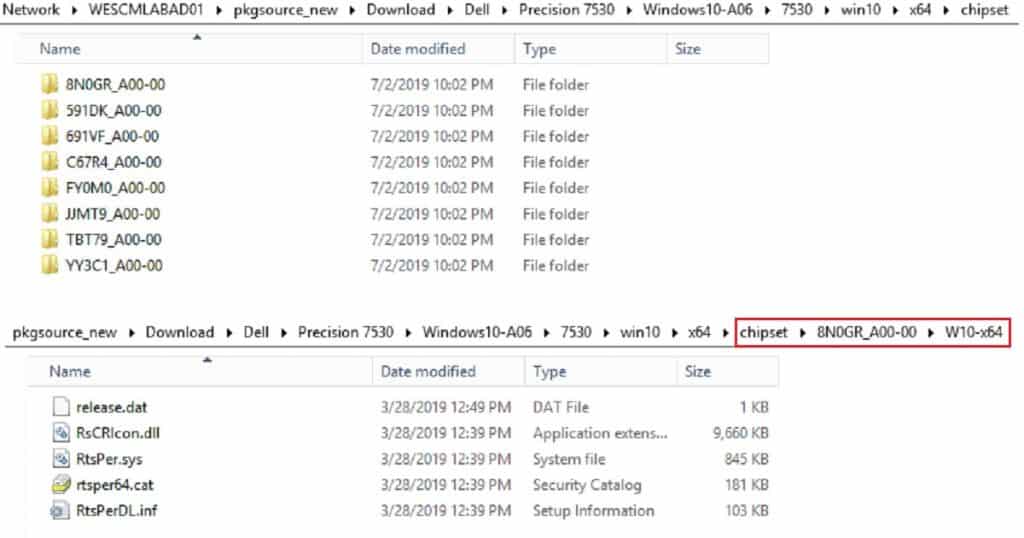
For example, the Dell 7530 chipset driver source below has many folders. I’ll go to one of the folders, like 8N0GR_A00-00. It has another folder called W10-x64, which is not required.
So I’ll go inside the W10-x64 folder, cut out all the content, and paste it into the 8N0GR_A00-00 folder.
Clean-up Driver Folders
NOTE! I suggest removing the unwanted folder (wisely:)) from the driver source. But make sure that when you find any .inf file inside a particular folder, you do not remove the folder. Because a folder reference will exist inside the .inf file, removing the folder will create a problem for driver package creation.
If you want to download the drivers automatically, click on the below link to have the tool download the Driver automatically from SCConfigMgr.
https://gallery.technet.microsoft.com/scriptcenter/Driver-Tool-Automate-9ddcc010
Import Drivers to SCCM
Once the Driver is downloaded and the required validation is completed, copy the driver source to the network location where it will be imported.
- Open the SCCM console.
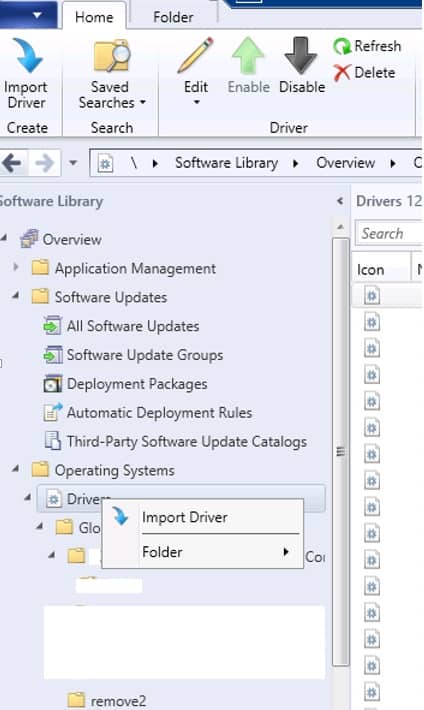
- Navigate to “\Software Library\Overview\Operating Systems\Drivers” and right-click select “Import Driver.”
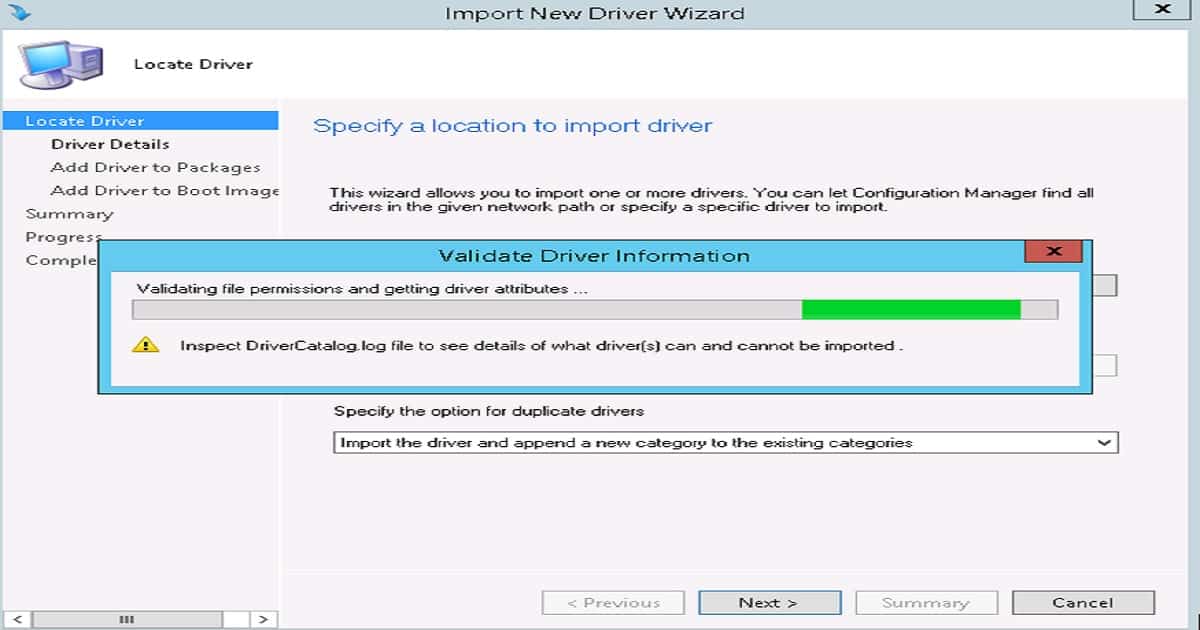
- Browse the network in the source folder where the driver source is available.
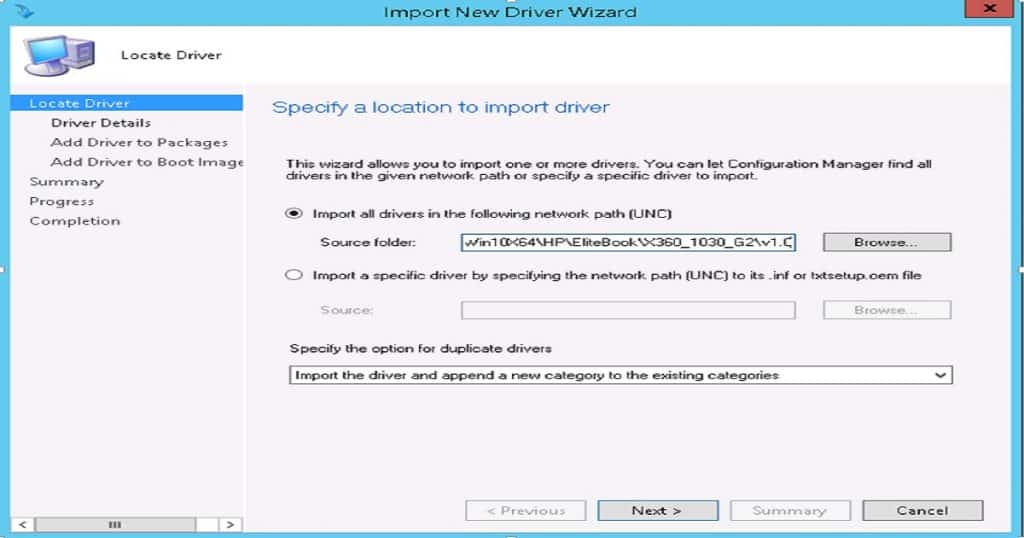
- Click on Next to proceed for driver import into SCCM. This will take a few minutes to validate and import the drivers (depending on the size of the Driver).
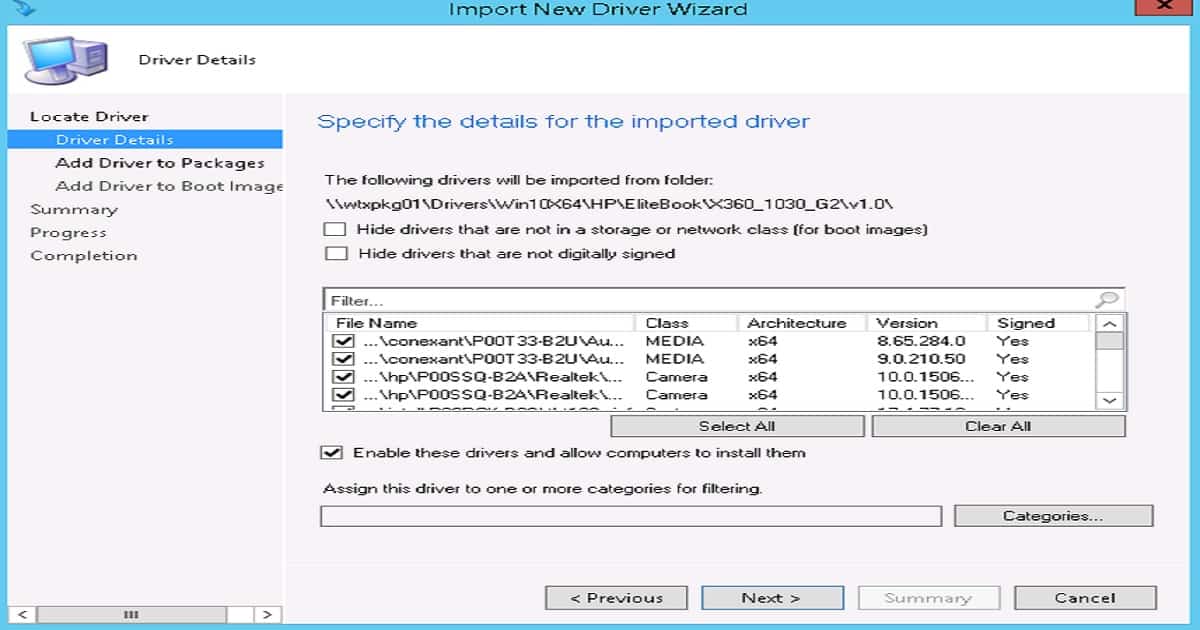
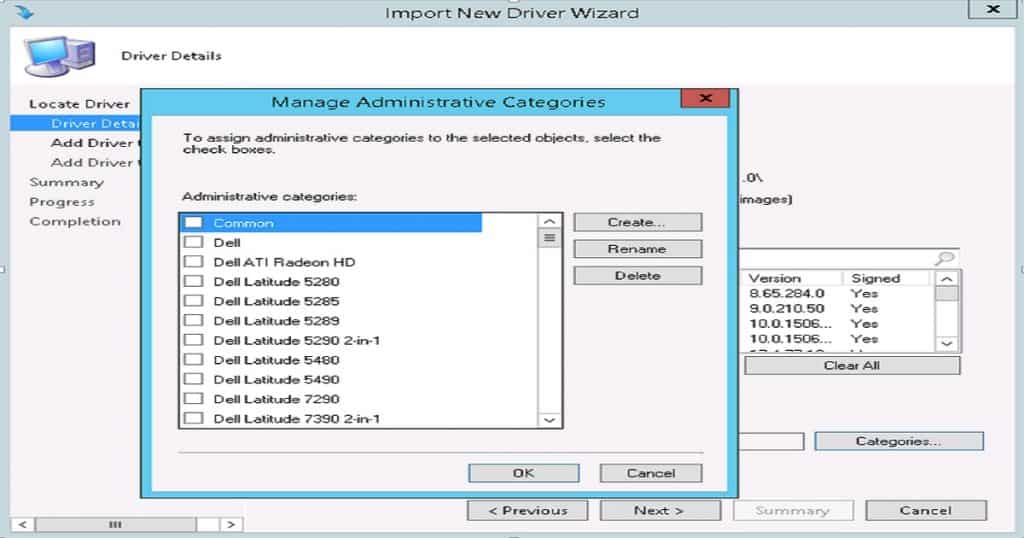
- Once all drivers are imported, specify/create the driver’s categories. Click “Categories” to create, delete, and rename any categories.
NOTE! – Now, options are available below to create or update a new category.
- Click on “Create” if importing new device drivers. Alternatively, choose the categories from the existing ones, press “OK,” and click on “Next.”
How to Create Driver Package in SCCM
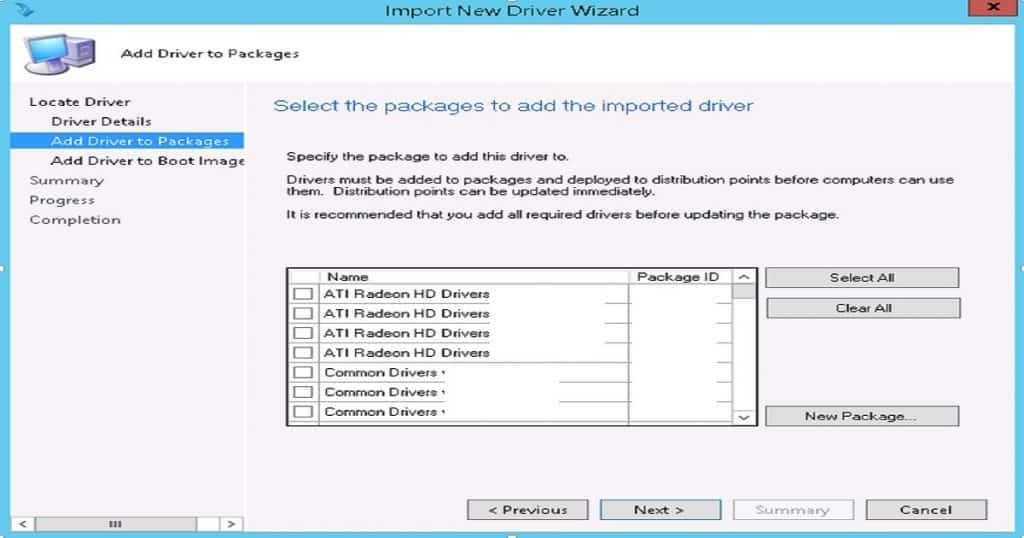
- Now click on “New Package” to create a new driver package.
NOTE! – Do not select any existing driver else. It will inject all the new imported drivers into the driver package, creating a problem for the current OSD deployment.
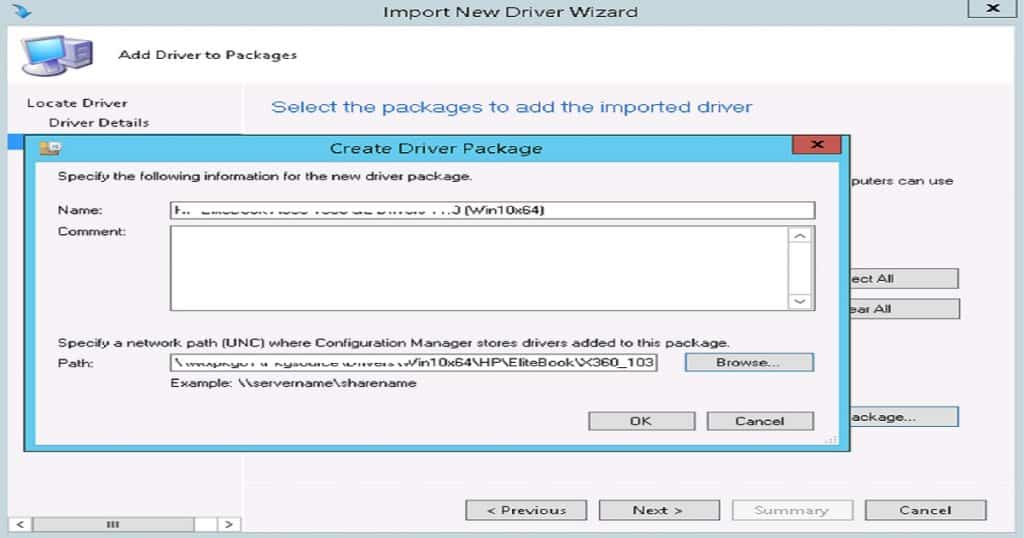
- Specify the Driver’s package name.
- Choose the Driver package network path where the package source (Driver package Source) can be saved or available for distribution.
NOTE! Do not confuse the driver and package sources here. The driver source differs from where we can import the Driver into the SCCM console. Once the import is completed successfully, we can create the driver package, and it will ask us to specify the location where the driver package will be stored.
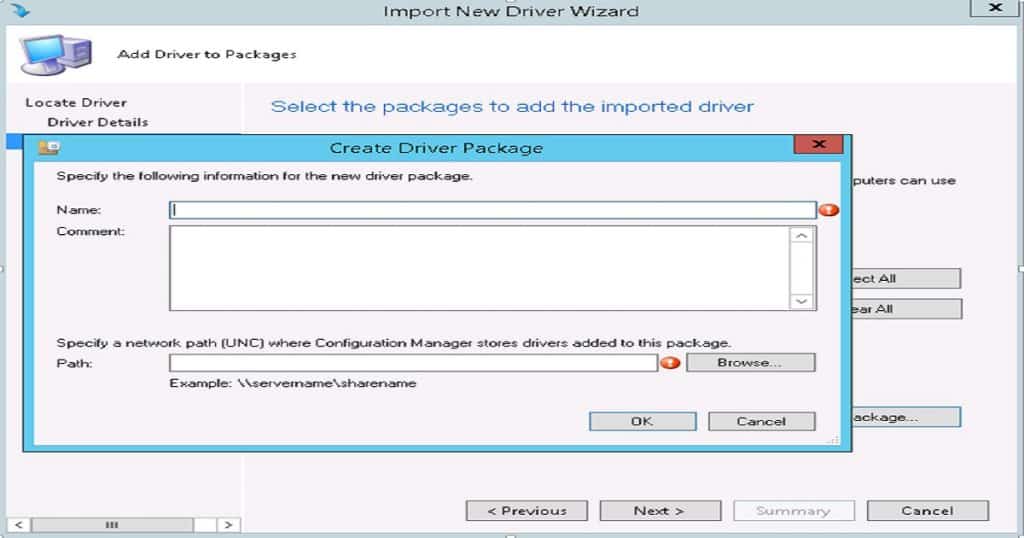
- After specifying the package name and path, click on “OK” to proceed with package creation.
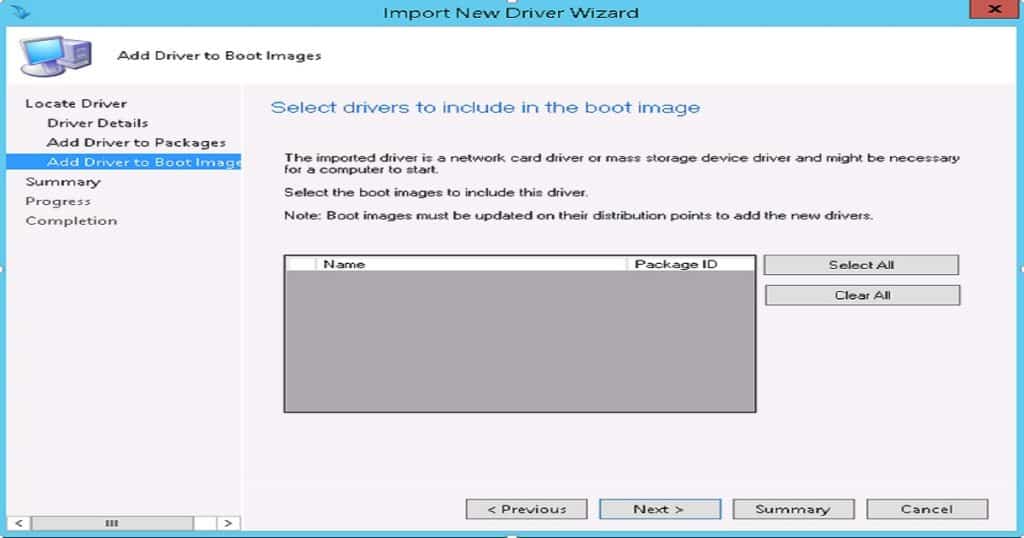
- Click on “Next” to proceed.
NOTE! – Do not select any boot image package. If any boot images are selected, it injects all the drivers into the image.
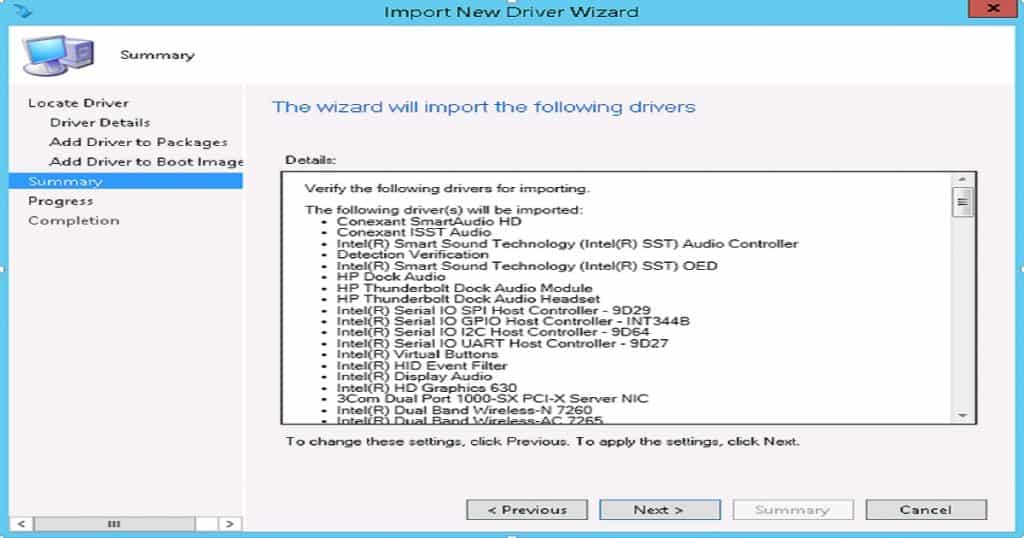
- Verify the details in the Summary section and click “Next” to proceed.
- As the next step, click “Next,” that package will be created in the destination folder.
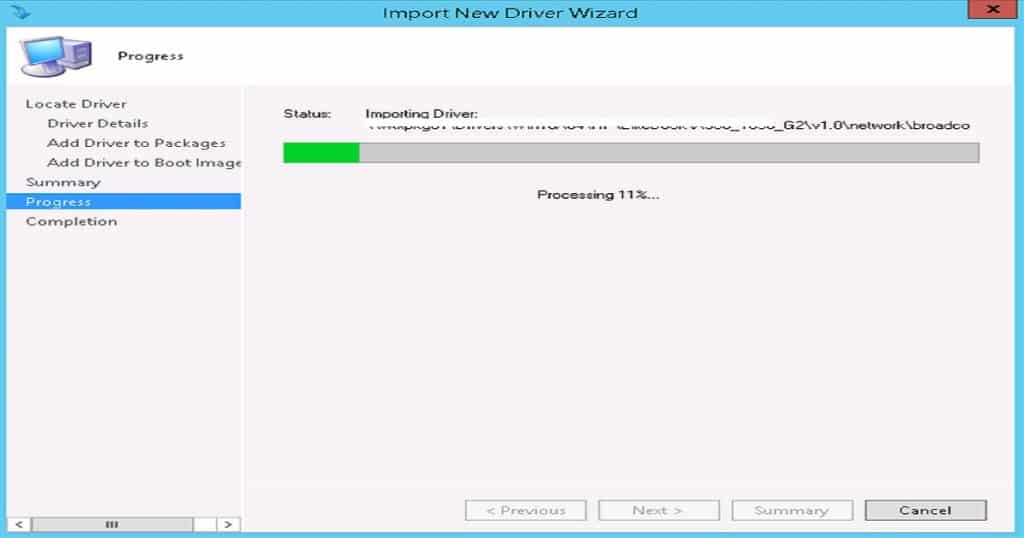
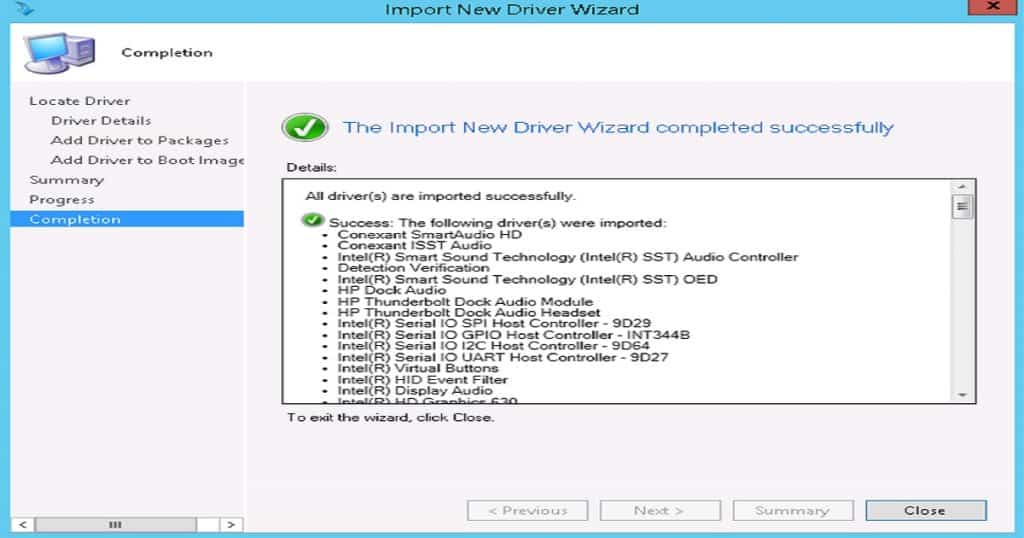
- Once completed, click on the “Close” option to complete the process
- Verify the from the following Driver package location in the SCCM console root location -\Software Library\Overview\Operating Systems\Driver Packages
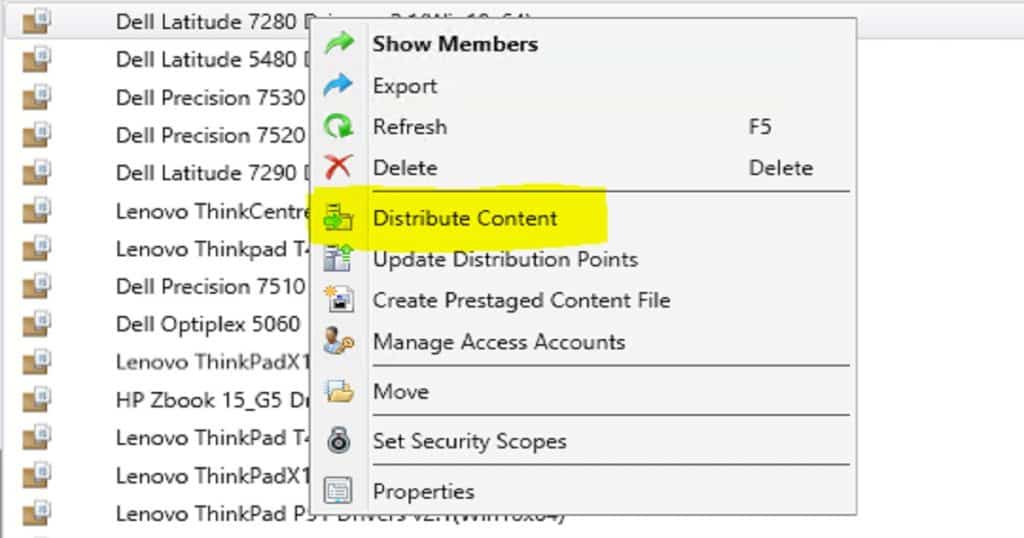
- As with any package/application created in the SCCM console, ensure the content is available on the distribution points.
NOTE! To ensure the content is distributed, use the monitoring option to verify the content has been distributed properly.
Integrate Driver package into Task Sequence
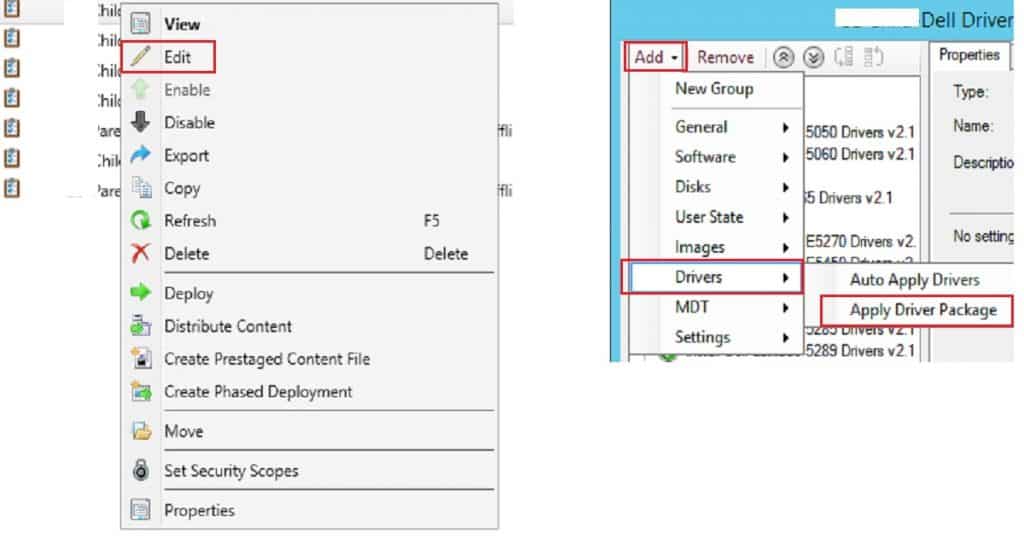
- To integrate the driver package into the task sequence, “edit” the task sequence according to the requirement and go to the driver installation step.
- Go to “Add” -> “Drivers” -> “Apply Driver Package”
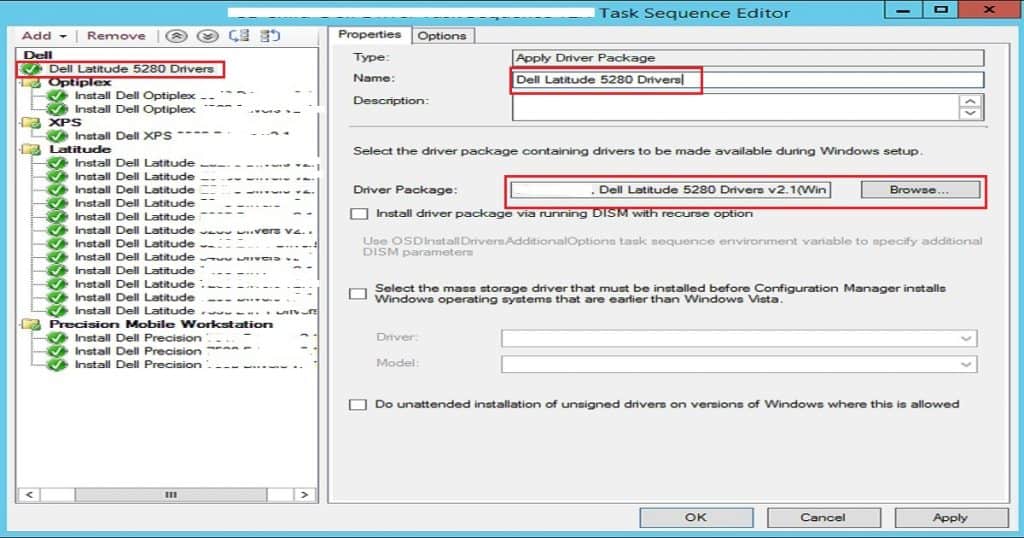
- Specify the task sequence step name of the driver package created in the console so that it will quickly identify the task sequence and click on “Browse” to select the package.
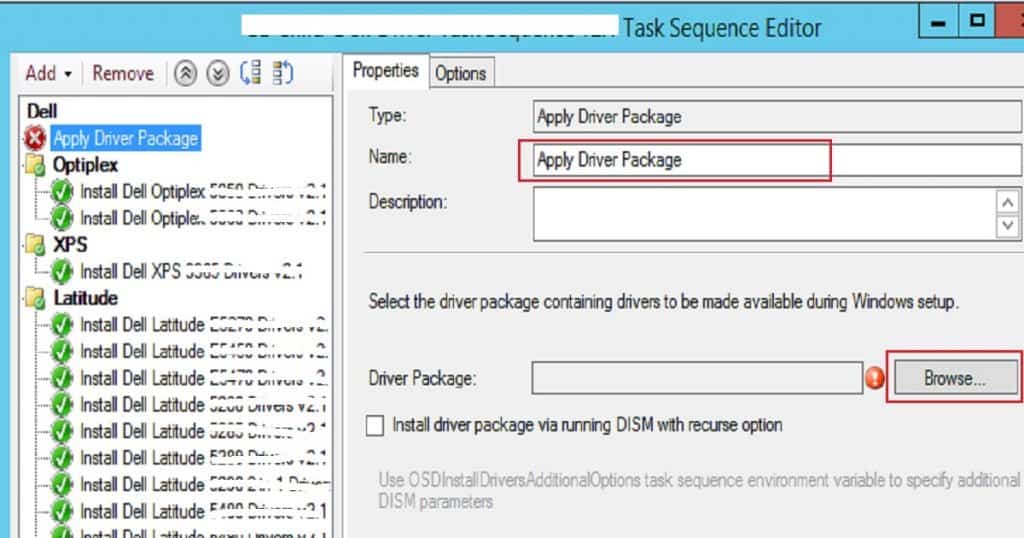
- Once all the required full-filled task sequences are shown below, go to the next step.
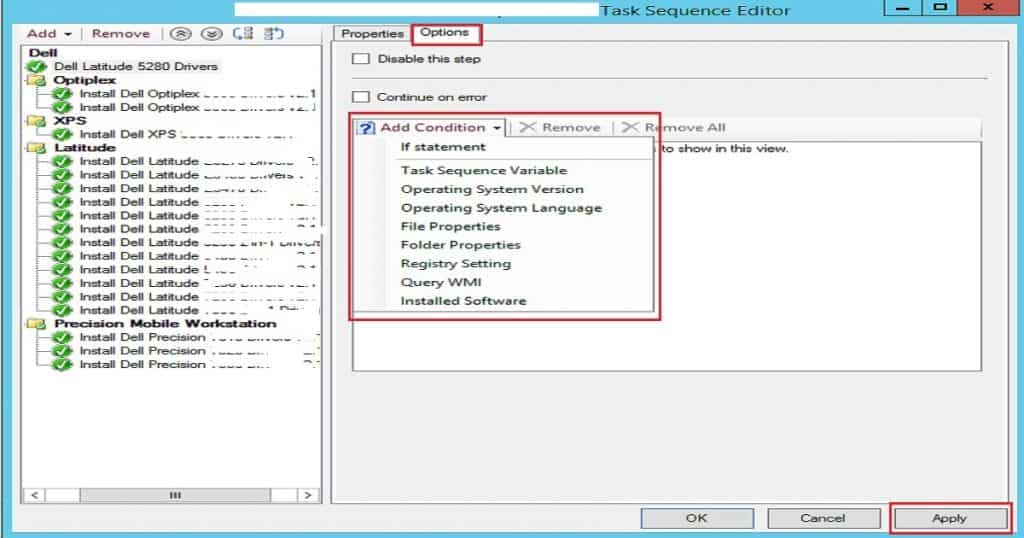
- The next step is to go to the “Option” tab and select the condition to satisfy to start the installation of the driver package. Here, we can customize the state according to our requirements.
- Post that, click on the “Apply” button to prepare that task sequence for deployment.
Resources
- SCCM Driver Management Guide Best Practices
- Driver Issues How to Start Safe Mode on Windows 10 Machine
We are on WhatsApp. To get the latest step-by-step guides and news updates, Join our Channel. Click here –HTMD WhatsApp.
Author
Debabrata Pati has more than 8+ years of experience in IT. Skilled in MEMCM, Azure, and Powershell. More than Six (6) years of experience in MEMCM (SCCM) administration, OSD, and Troubleshooting for the environment with more than 100K client devices.




Hi Sir,
After following steps which I have done before successfully many times with other Dell Cabinets, I have trouble with a new set of Dell 7420 drivers. I do what I always do, but nothing ends up in the folder they are normally places as expected and at completion of import I always get this message below. So when I check folder it is empty each time. I remove everything and try again, same results.
Error: All drivers(s) are imported successfully. Drivers cannont be added to some driver packages(s).
Then below that you can see
Success: The following drivers(s) were imported.
List of drivers follows this message.
Any ideas?
Thanks, Kevin
For the 7420 I am starting a new approach.
-Create a package with the .cab, no program or deployment.
-In TS, download the package to %OSDisk%\Drivers
-Powershell:
$TSEnv = New-Object -COMObject Microsoft.SMS.TSEnvironment
$OSDisk = $TSEnv.Value(‘OSDisk’)
if (!(Test-Path $OSDisk\Drivers)){
New-Item -Path $OSDisk\Drivers -ItemType Directory
}
$OSDisk
cd $OSDisk\Drivers
Get-ChildItem .cab -recurse | ForEach-Object {expand.exe $($_.fullname) -F: $OSDisk\Drivers}
-CMD:
DISM.exe /Image:%OSDTargetSystemDrive%\ /Add-Driver /Driver:%OSDisk%\Drivers /Recurse /logpath:%_SMSTSLogPath%\dism.log
-CMD:
cmd.exe /c rd %OSDisk%\Drivers /s /q
Hi Kevin,
I believe you get this message when the drivers are already imported.
Check in Software Library > Operating Systems > Drivers.
See if they are all listed in there.
Hi,
They are not listed, however the package has created…