






Best way to Install CutePDF Writer using Intune Application Model
Let’s discuss the best way to install CutePDF Writer using Intune Application Model. Within the Enterprise App Catalog, you’ll find a selection of Win32 applications provided by Microsoft that are optimized for use with Intune. Using the Enterprise App Catalog app, Intune app deployment is straightforward.
CutePDF, created by Acro Software, allows you to create and edit PDF files on Windows easily. It includes CutePDF Writer and Form Filler for making PDFs and filling out simple forms without expensive software. CutePDF works like a printer, converting documents, images, and text into PDFs.
CutePDF Writer offers a straightforward way to create PDF files. It is a virtual printer that integrates with applications that have a print function. This free tool is the best solution for quickly converting various document types into a widely compatible PDF format. CutePDF Writer gives password protection to keep your documents secure.
This app updates itself directly from the publisher. Because it’s a self-updating app, Intune only checks that the installed version is at or above a minimum target version and reports the detected version. Updates are handled by the vendor’s process, which may require specific network rules to allow these updates.

Table of Contents
What are the Key Benefits of CutePDF Writer?
CutePDF Writer is a simple tool for creating PDF files. It easily converts any printable document into a professional-quality PDF without extra software like Adobe Acrobat.
It works well with web browsers, word processors, spreadsheets, and graphic design programs. Additionally, you can protect your files from being printed, copied, or edited.
Install CutePDF Writer using Intune Enterprise App Catalog App.
CutePDF Writer is a complete solution for handling PDF files. It enables easy editing, creation, conversion, and security of PDFs. You can effortlessly edit text and images and convert files to Word, PowerPoint, and Excel formats. While it is mainly for Windows, you can also access online services for the latest features. Now, let’s start installing CutePDF Writer using the Intune Enterprise App Catalog app.
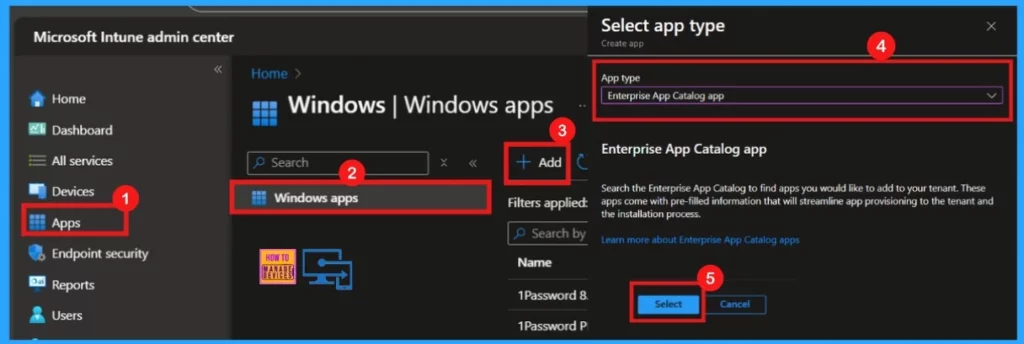
- Sign in to the Microsoft Intune Admin portal.
- Select Apps > Windows Apps> Add
- Select App Type (Enterprise App Catalog App) from the dropdown arrow
- Click Select
- Intune Win32 App Troubleshooting Client Side Deep Dive
- How To Install And Use Adobe Acrobat Reader DC
- Open PDF Files With Microsoft Edge Browser On Android Device With Built-in PDF Viewer
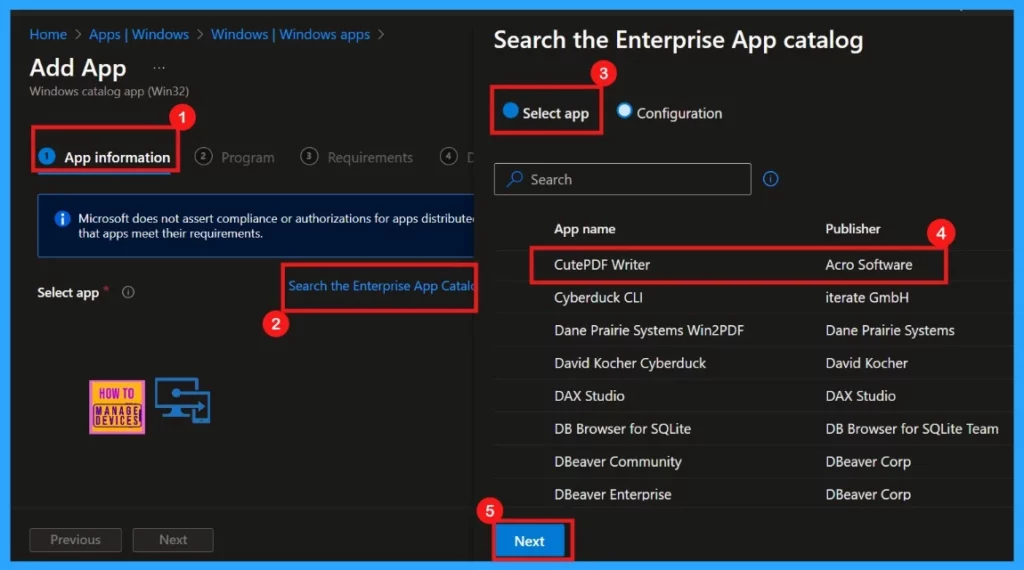
To deploy an application on Windows, start by accessing the Enterprise App Catalog. Click on Search the Enterprise App Catalog, and a search bar will open. Enter the name of the application you want, such as CutePDF Writer. Once you find and select the application, click Next to continue the deployment process.
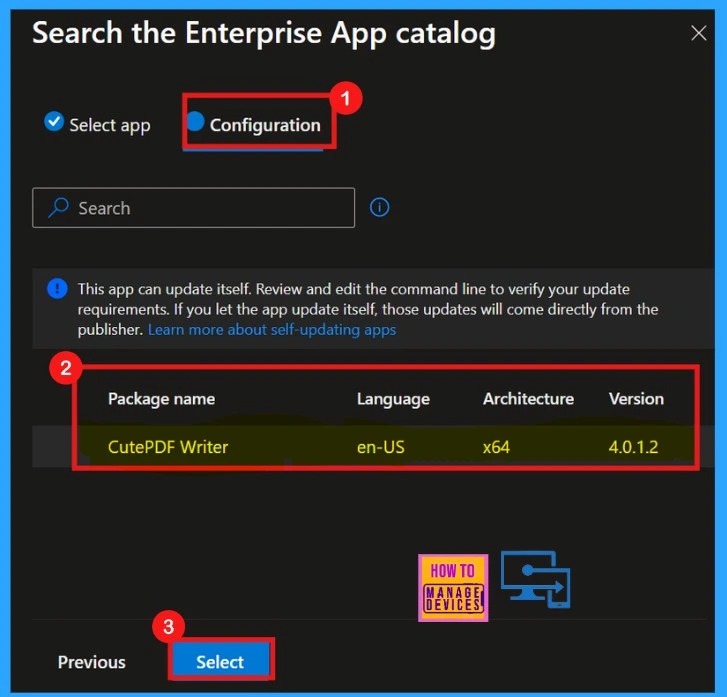
Once you click Next, you will be directed to the next page, the Configuration. Here, you can see the primary details of the selected App, such as Package Name, Language, Architecture, Version, etc. The following table will show the details of the CutePDF Writer app.
| Package Name | Language | Architecture | Version |
|---|---|---|---|
| CutePDF Writer | en-US | x64 | 4.0.1.2 |
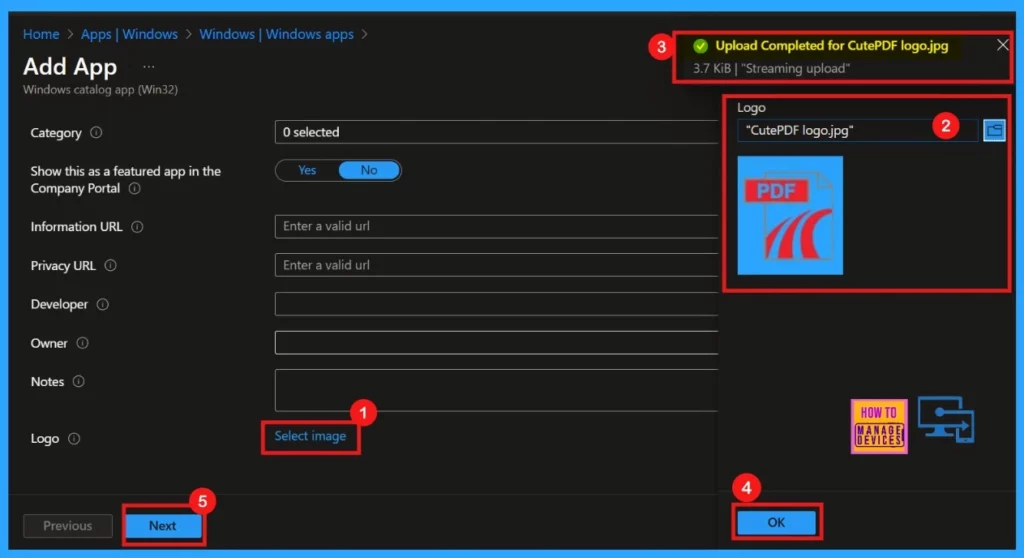
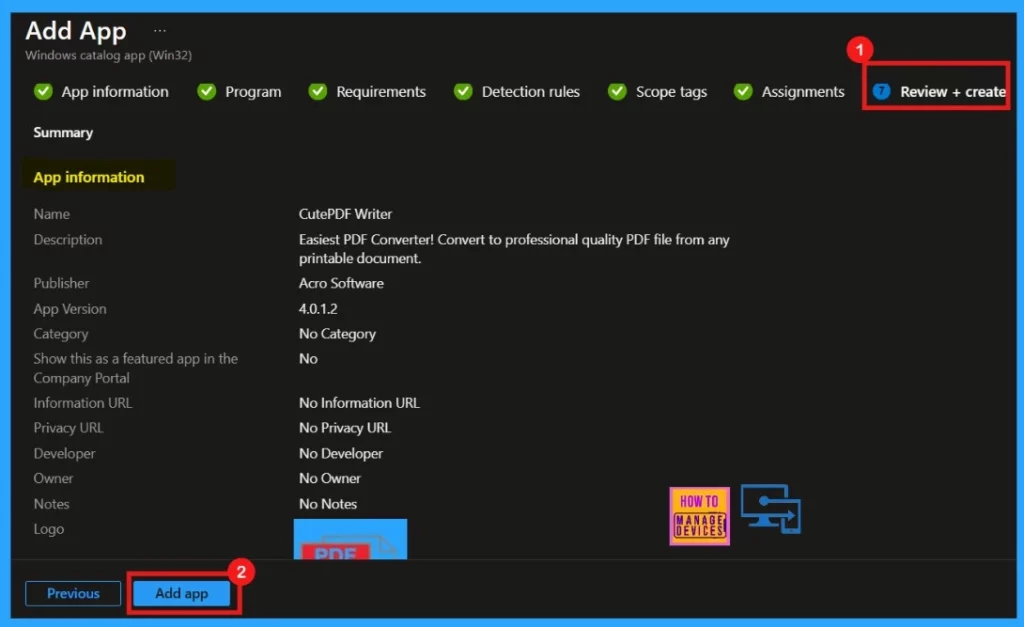
After selecting the App, you will see the App Information page. This page shows key details like the app’s name, description, publisher, and version. You can also add a logo to enhance the app’s appearance. Review the information, and if you want, add a logo. Then click Next to continue to the next step.
The following table shows the App Information page details of the CutePDF Writer App.
| App Details | Description |
|---|---|
| Name | CutePDF Writer |
| Description | Easiest PDF Converter! Convert to professional quality PDF file from any printable document. |
| Publisher | Acro Software |
| App Version | 4.0.1.2 |
The Program tab provides essential details about CutePDF Writer, including installation and uninstallation commands, duration, and options. It also displays return codes indicating post-installation results. While you can modify these commands and codes, keeping the Microsoft-tested commands for a stable deployment is best.
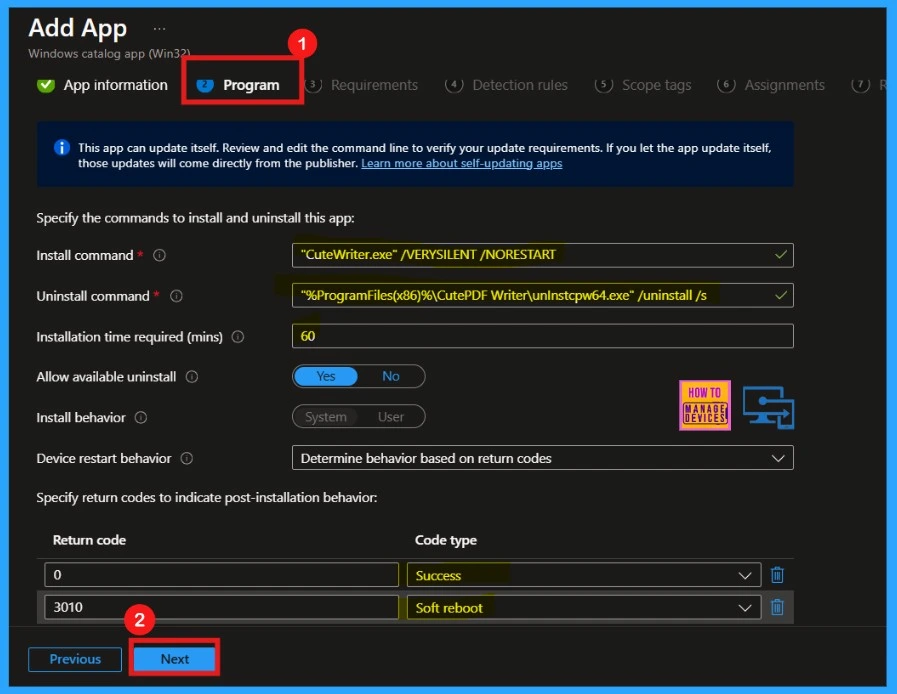
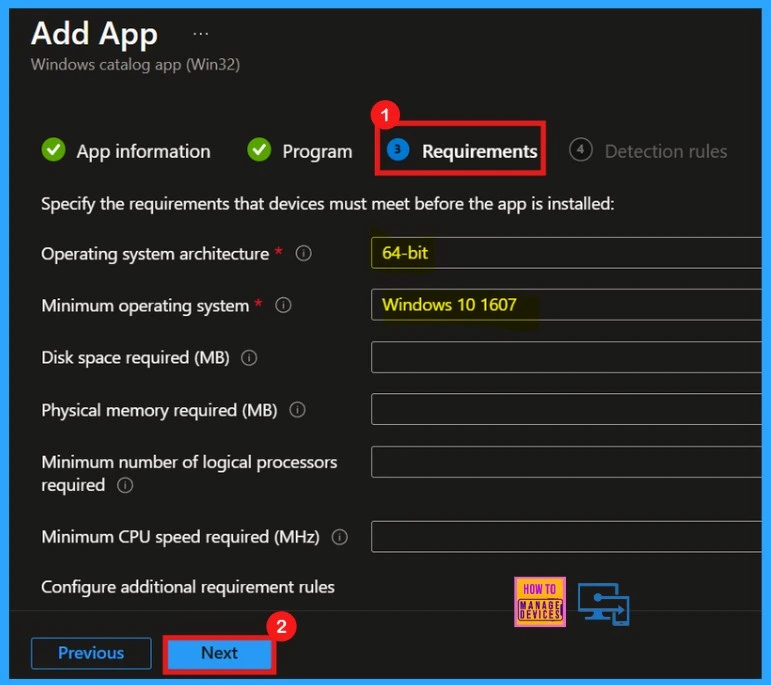
After the Program tab, we will go to the next window to set the device Requirements for app installation. I will keep the default settings. Click Next to continue.
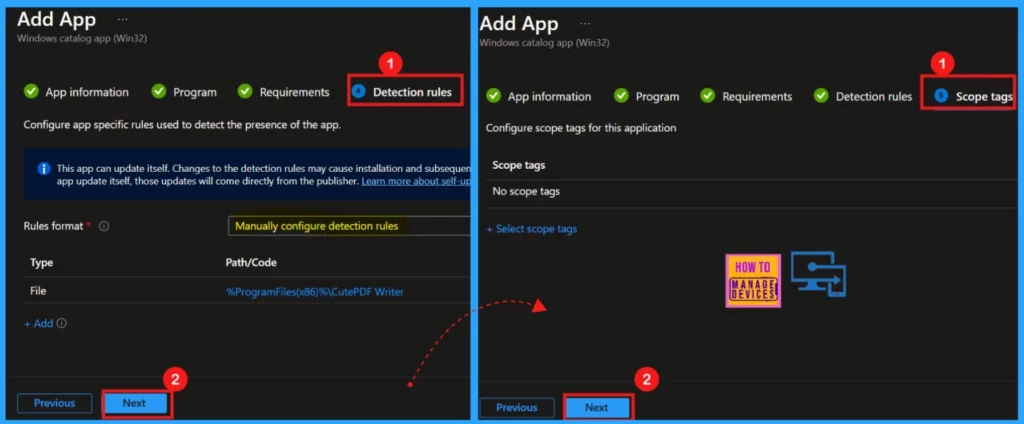
We can go to the Detection Rules tab and use the default settings for Enterprise Application Catalog apps. Next, check the Scope Tags page and add tags if needed. Then, click Next to move on to the next step.
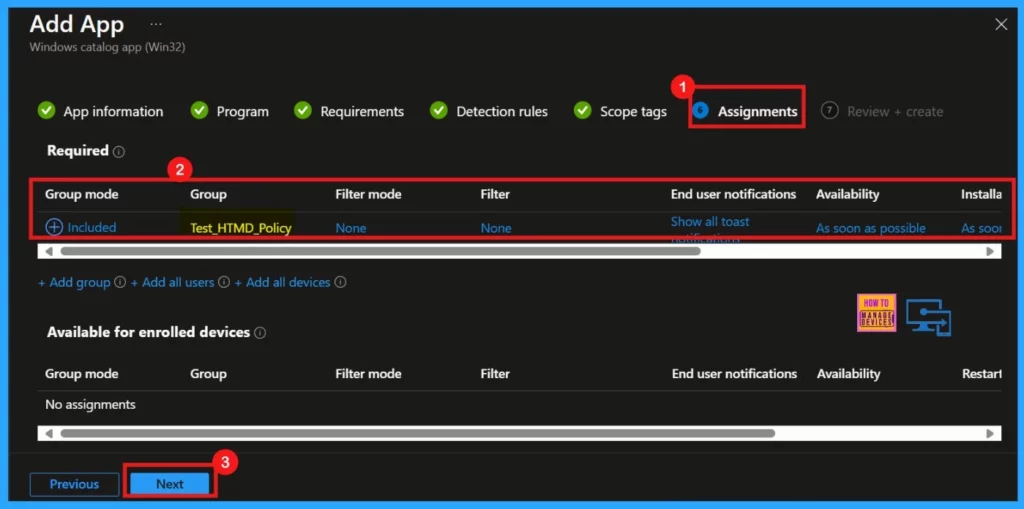
Next is the Assignments section. Click Add group and select the group from the default group list for app installation. The chosen group will then be listed in the included section. Click Next to proceed.
The Review + Create section shows all the details we provided in the last steps. A thorough review is crucial before proceeding. Once you’ve confirmed the settings, click Add Apps to finalize the process.
- You will then receive a notification confirming the application has been successfully added.
Monitoring Status of CutePDF Writer App Deployment
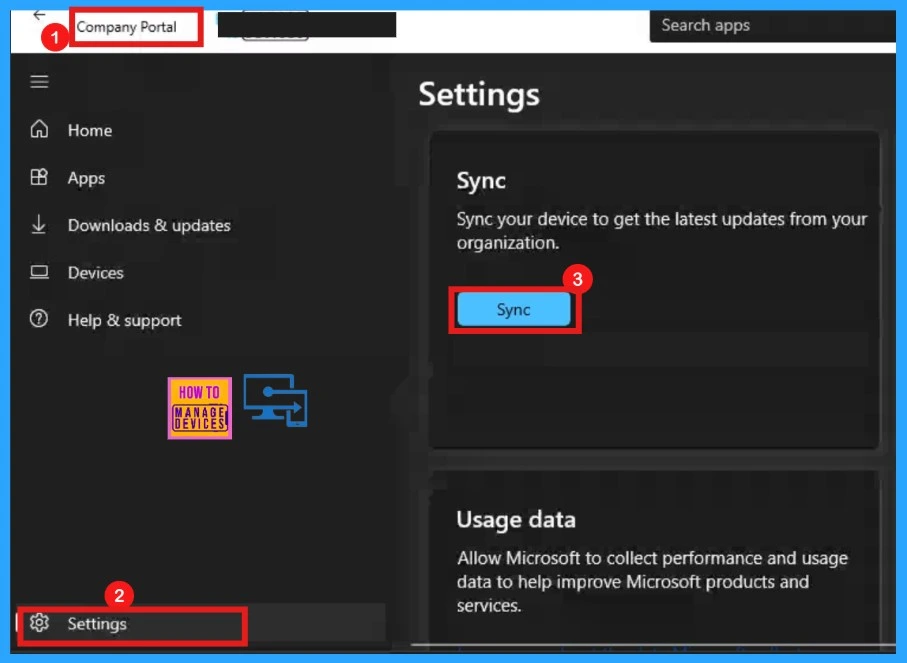
After the application is added, the monitoring status will show the installation details, including whether it was successful or failed. It usually takes up to 8 hours for the installation status to appear on devices. To expedite this process, you can manually sync through the company portal.
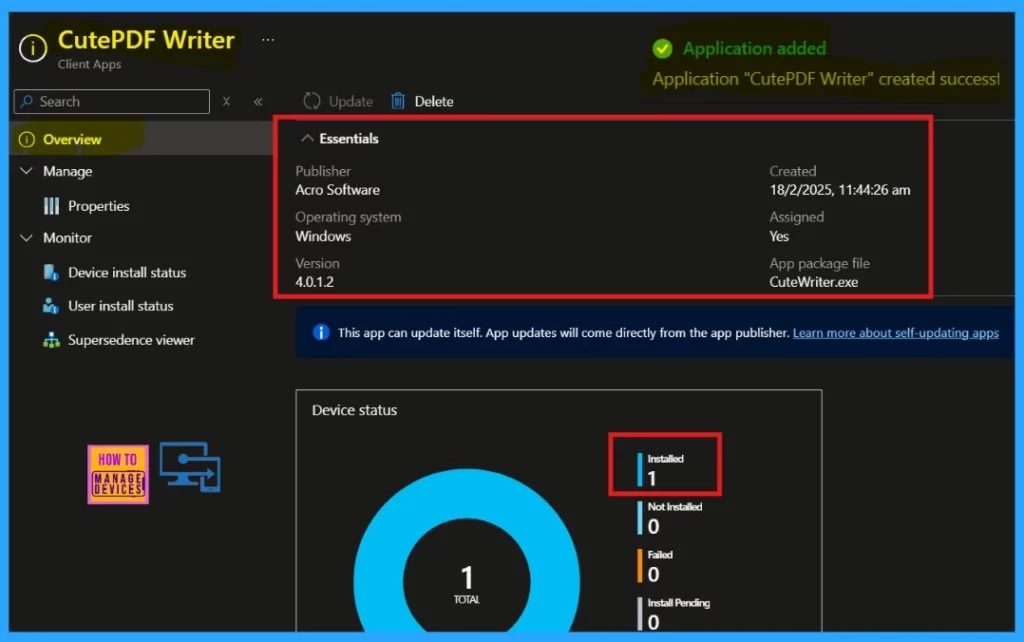
The Intune portal will display the newly created application. You can verify this by navigating to Select Apps > All Apps > Enter the name of the deployed app in the search bar. Once you find the application, click on it. This will take you to a new window labelled Overview, which provides detailed reports on the deployed app.
- The screenshot below shows the Deployment status of the CutePDF Writer App
End User Experience
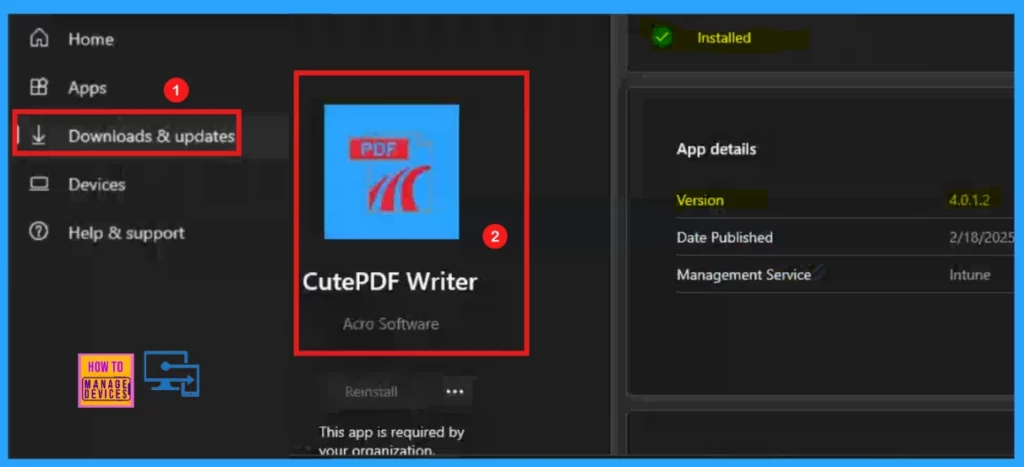
To verify the installation, open the company portal and select Download and Update. Search for the installed app, in this case, CutePDF Writer. The search results will display details about the app, including its version, published date, and management service.
Need Further Assistance or Have Technical Questions?
Join the LinkedIn Page and Telegram group to get the latest step-by-step guides and news updates. Join our Meetup Page to participate in User group meetings. Also, Join the WhatsApp Community to get the latest news on Microsoft Technologies. We are there on Reddit as well.
Author
Anoop C Nair has been Microsoft MVP for 10 consecutive years from 2015 onwards. He is a Workplace Solution Architect with more than 22+ years of experience in Workplace technologies. He is a Blogger, Speaker, and Local User Group Community leader. His primary focus is on Device Management technologies like SCCM and Intune. He writes about technologies like Intune, SCCM, Windows, Cloud PC, Windows, Entra, Microsoft Security, Career, etc.


Discussion