






Easy way to Install Araxis Merge using Intune Application Model
Let’s Discuss an Easy Way to Install Araxis Merge through the Intune Enterprise App Catalog. As you all know, Microsoft Intune is a cloud-based service that offers numerous features for IT administrators. Microsoft Intune has the Enterprise App Catalog feature, which allows organizations to install applications and provides a single platform for IT administrators to manage all enterprise applications.
We recently shared various app installations through the Enterprise App Catalog. In this post, we will guide you on installing the Araxis Merge app, one of the top merging and folder synchronization applications.
This app allows users to compare and merge changes between different versions of text files, including source code, HTML, XML, and other text formats. It is beneficial for both professional and personal use and provides an excellent user experience for easily comparing, merging, and synchronizing folders.
The tool enables pixel-level comparison for images and byte-level comparison for binary files. This post will explain how to install the Araxis Merge application through the Microsoft Intune admin center.

Table of Contents
What is the Benefit of Araxis Merge App?
Araxis Merge is a powerful tool for comparing and merging files, supporting text formats like source code, HTML, and XML, as well as Microsoft Word, Excel, ODF, PDF, and RTF. Also, it is Available for both Windows and macOS.
Install Araxis Merge through Intune Enterprise App Catalog App
We previously discussed the Araxis Merge app, and the enterprise app catalog app. Now, let’s talk about how to install these apps through the Microsoft Intune admin center. First, sign in to the Microsoft Intune admin center using your credentials.
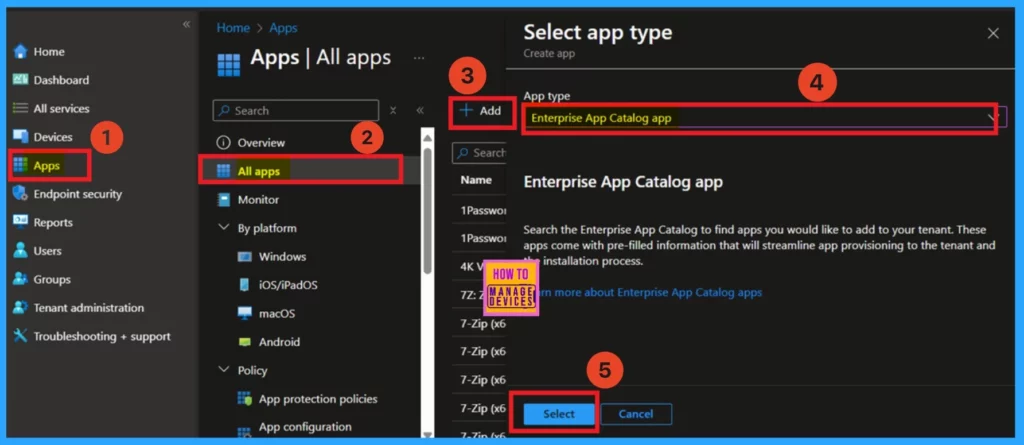
Next, navigate to the “Apps> All apps” in the All Apps window, you will see +Add.” Click on that, then select the app type as “Enterprise Catalog” and click on “Select.”
- How to Install Frame App using Intune Enterprise App Catalog App
- How to Install Bria Enterprise App through Intune Enterprise App Catalog App
- PDF24 Creator Deployment using Intune Enterprise App Catalog App
App Information
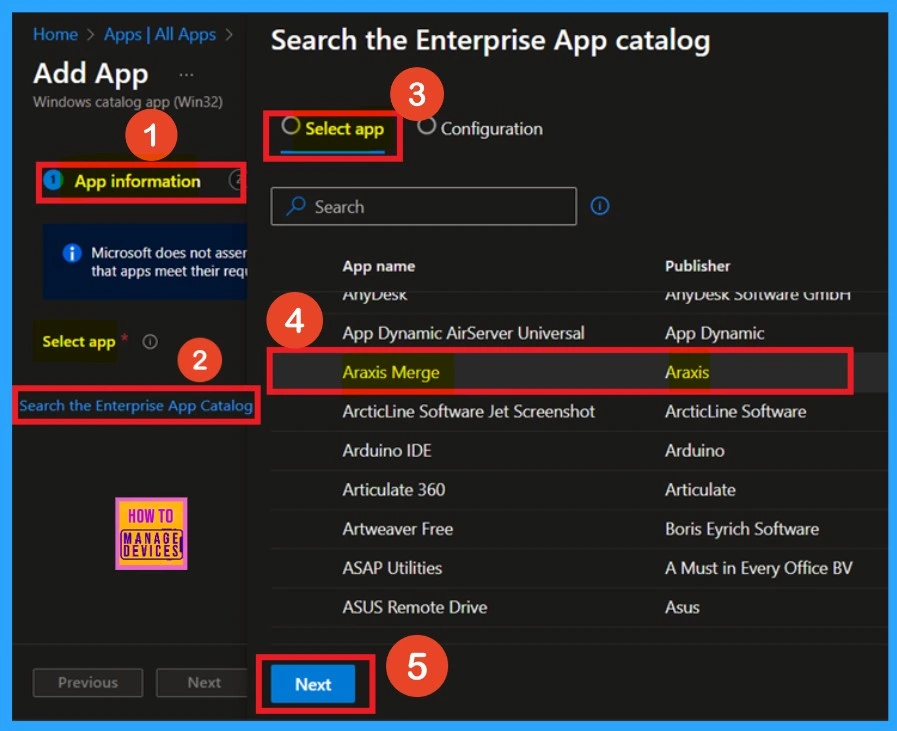
You are now on the App information page. Here, you will find an option called “Search the Enterprise App Catalogue.” When you click on it, a new window will open. In the “Select App” tab, you can choose from different types of apps that you want to install. Look for the “Araxis Merge” app, click on it, and click “Next.”
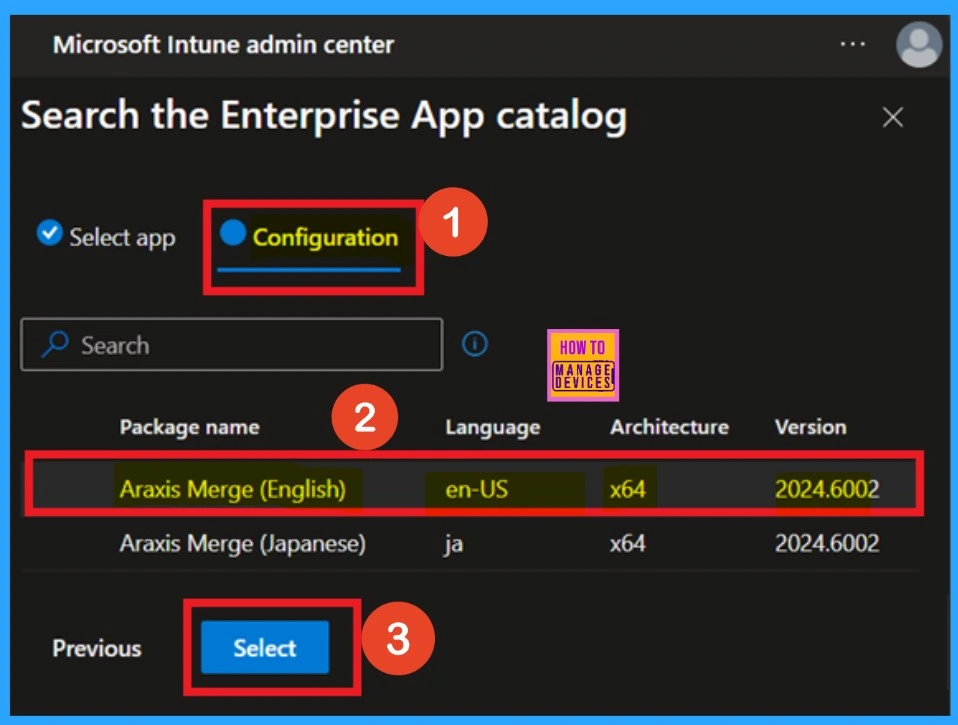
Now, you are on the configuration tab. Here, you can see the two versions of the Araxis Merge. Here, I selected access Araxis MergeEnglish version; then I clicked on the select.
Add a Logo
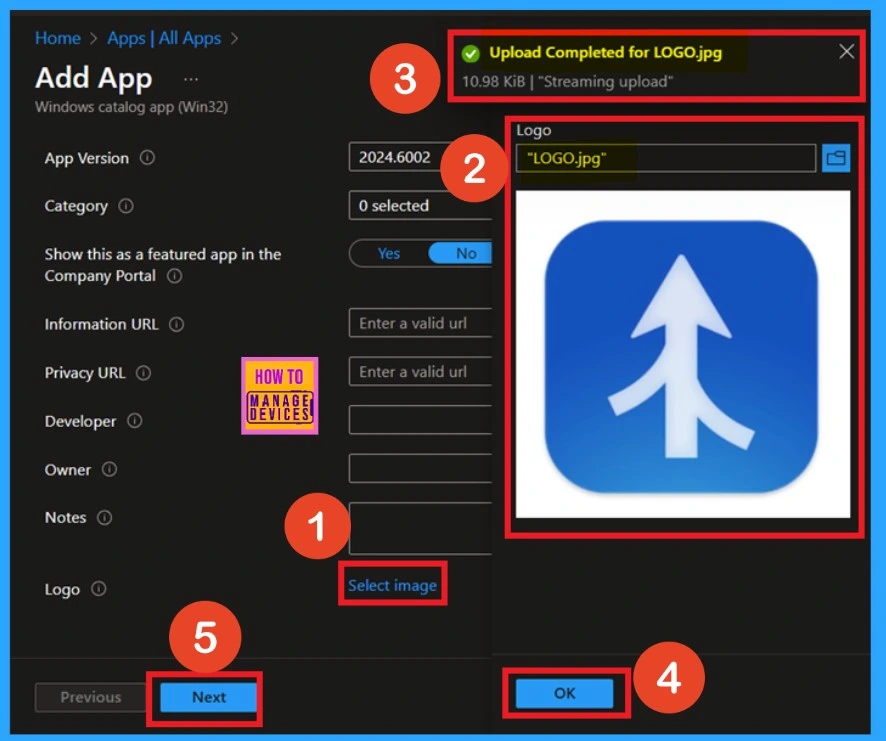
You can add a logo for the app on the app information page. To find this option, scroll down the page until you see a hyperlink labelled “Select Image.” Click on the hyperlink, and a file upload option will appear.
Here, you can upload the logo you downloaded for the app. Once the logo is successfully uploaded, you will receive a notification confirming that the upload is complete. Click OK to see the logo on your app information page. After this, click “Next” to continue.
Program
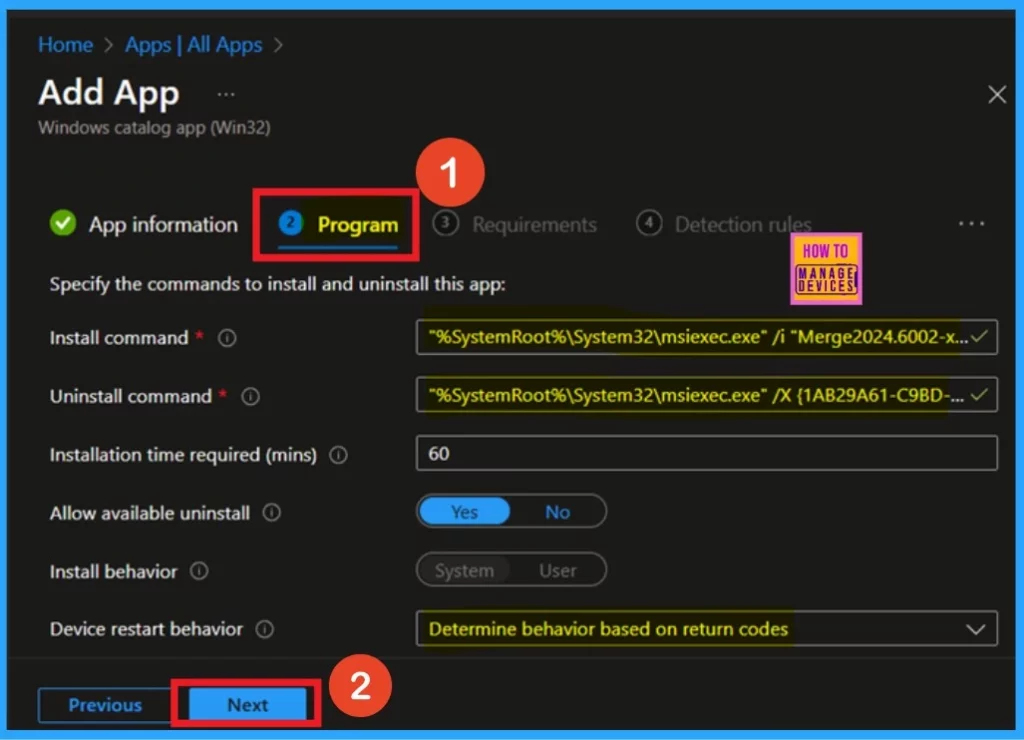
Once you have reviewed the app information, you will move on to the program page. Here, you can find the installation command and its details. You don’t need to take any action in this section. You click “Next” to proceed.
Requirements
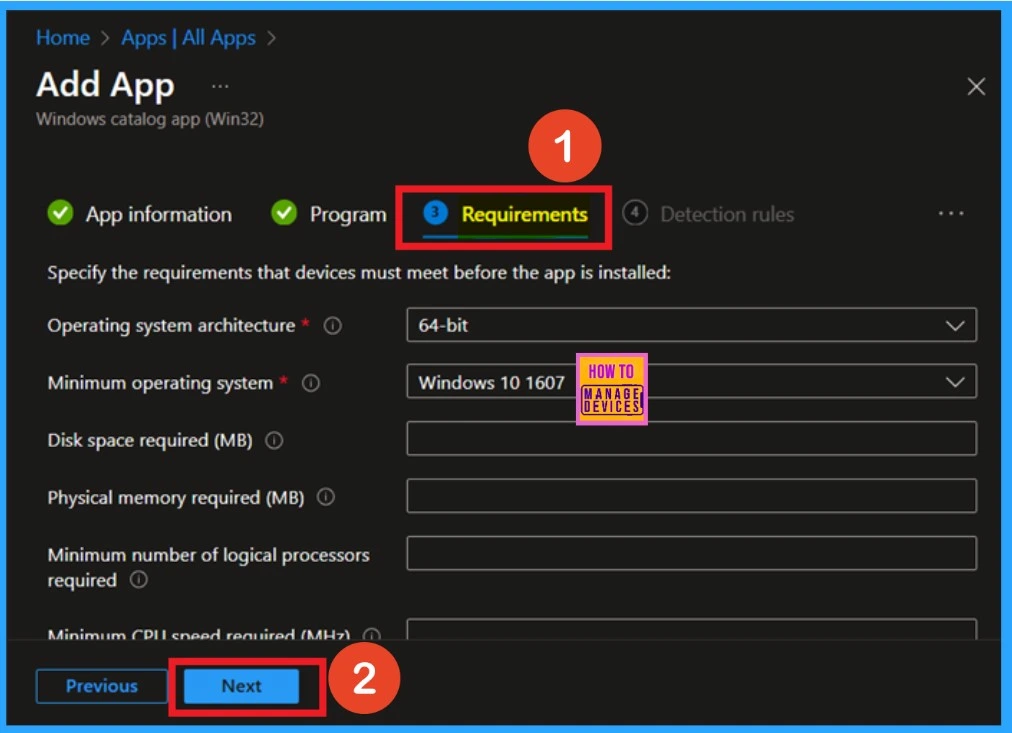
On the requirements page, you will find the operating system architecture and the minimum operating system details, which are not mandatory. You may skip this section if you want. The below screenshot shows the requirement details.
Detection Rule
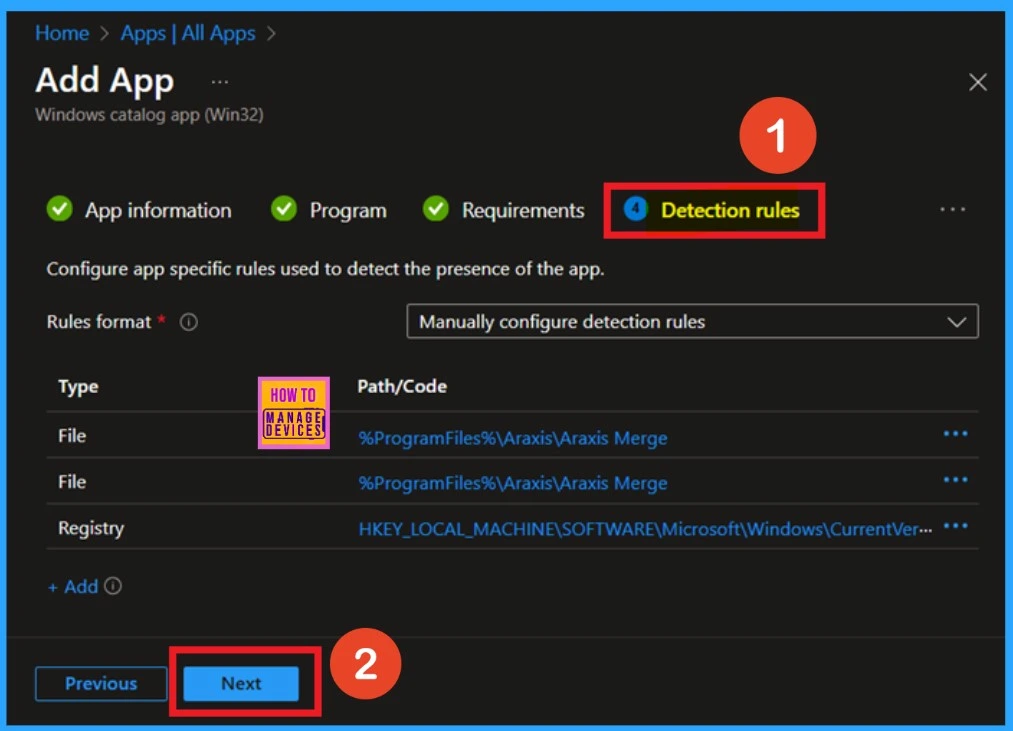
The next tab is the Detection Rule. This section displays the format for detection rules, which can be manually configured. You will also see the file path and registry path details listed. Click on the next button; you don’t need to make any changes here, as the information has already been filled in according to the nature of the enterprise application catalog policy.
- Click on Next.
Scope Tags
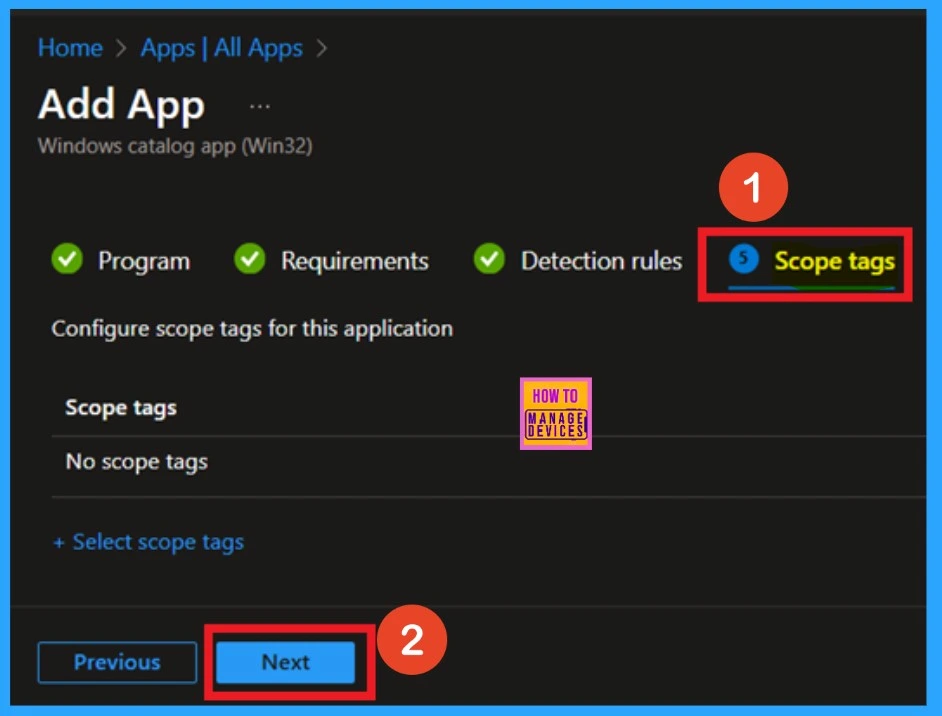
You are now in the Scope section. Adding a scope tag to the policy is optional, but it can be beneficial for organizing and managing your policy deployments. To add a scope tag, click on the “Select Scope Tag” hyperlink.
- Here I skipped this section by clicking on the Next.
Assignments
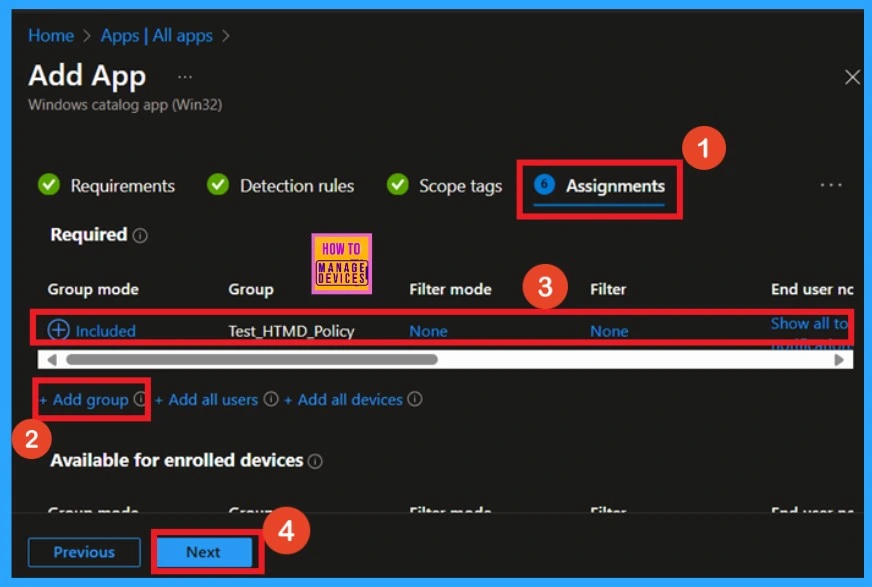
You are currently in the Assignment section, which is very important. To install the app for a specific group, start by clicking on the “Add Group” option. Select the group for which you want to install the app. Once selected, the group will appear in the Included section. Finally, click Next to proceed.
Review + Create
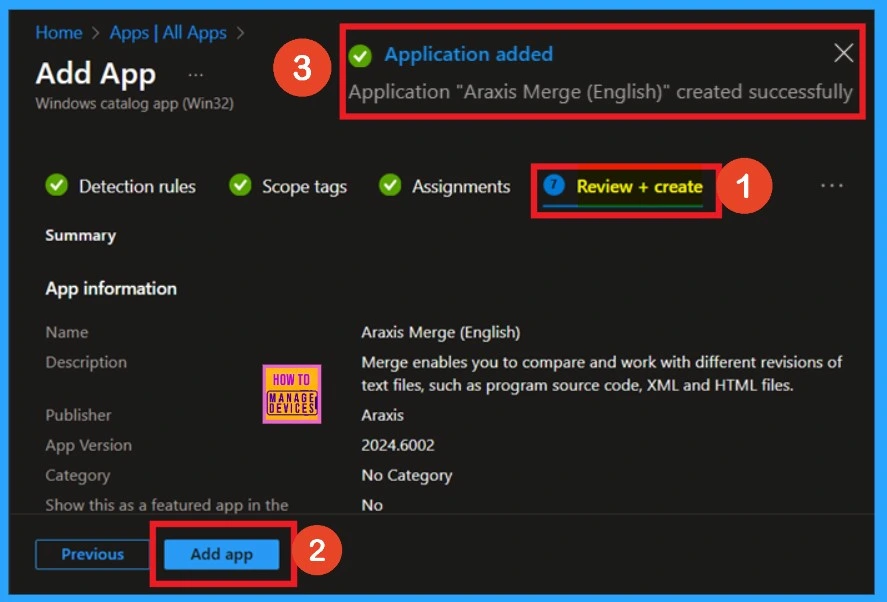
In the next section, “Review + Create,” you will find a detailed application summary. This page provides an overview of essential information, including the installation process and specific details about the application, such as its program name, publisher, and version.
- After reviewing the information and confirming everything is correct, click Add App.
- You will then receive a notification confirming that your Araxis Merge app was created successfully.
Monitor Status
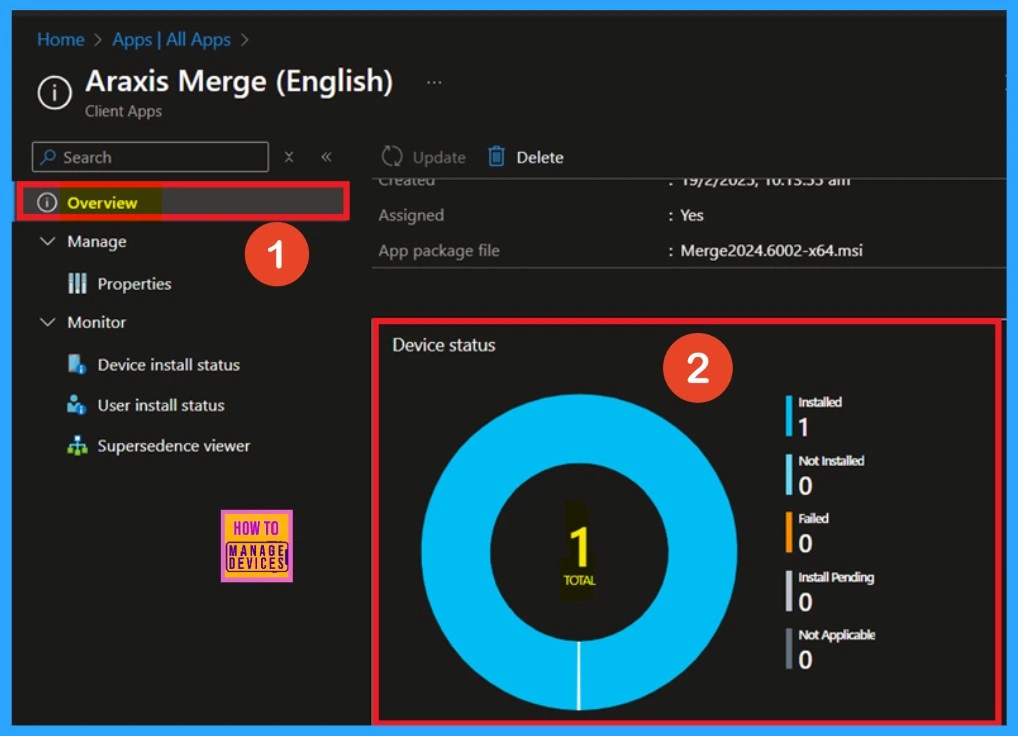
Now that your app has been successfully created, verifying the device status is important to ensure the installation was completed correctly. To do this, first navigate to Apps > All Apps. Then, Type “ Araxis Merge“ in the search bar to locate your app. Once you find Araxis Merge, click on the app to open its details.
- This will redirect you to the Overview page, where you can review the device status.
End User Experiance
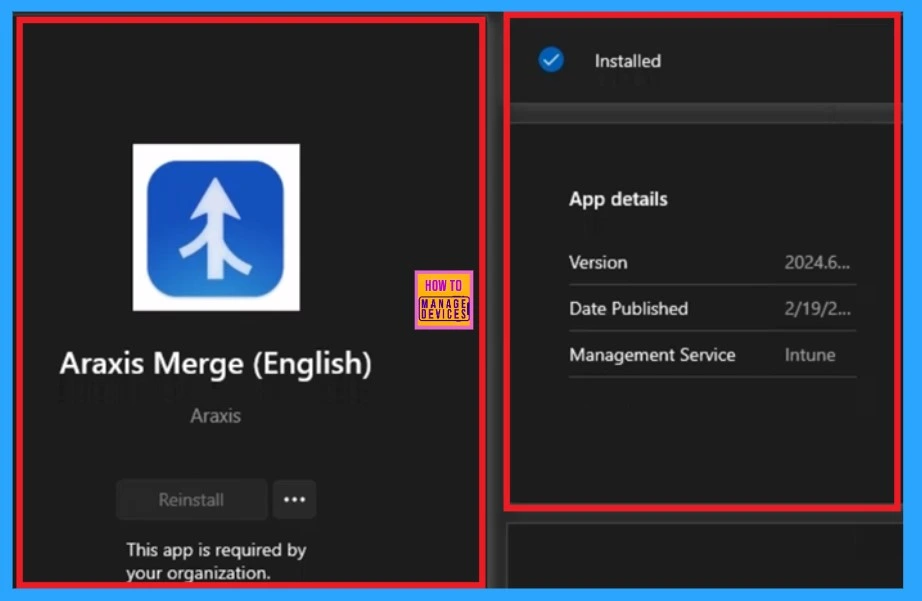
You can view the end-user experience results by checking the Company Portal. Navigate to the “Downloads and Updates” section, where you will find a list of apps installed in your organization. You can search for a specific app, but please note that the Araxis Merge app will only appear after the policy deployment period of 8 hours.
Need Further Assistance or Have Technical Questions?
Join the LinkedIn Page and Telegram group to get the latest step-by-step guides and news updates. Join our Meetup Page to participate in User group meetings. Also, Join the WhatsApp Community to get the latest news on Microsoft Technologies. We are there on Reddit as well.
Author
Anoop C Nair has been Microsoft MVP for 10 consecutive years from 2015 onwards. He is a Workplace Solution Architect with more than 22+ years of experience in Workplace technologies. He is a Blogger, Speaker, and Local User Group Community leader. His primary focus is on Device Management technologies like SCCM and Intune. He writes about technologies like Intune, SCCM, Windows, Cloud PC, Windows, Entra, Microsoft Security, Career, etc.


Discussion