






Enable or Disable Folder Locations in File Explorer using Intune Policy
Hi, let’s discuss Setting Allowed Folder Locations for File Explorer through Intune’s Setting Catalog Policy. The setting catalog in Intune is a highly effective feature that works smoothly across all devices and organizations. You can create and manage settings for devices such as Windows, iOS/iPadOS, and macOS.
The Settings Catalog offers a detailed list of all available settings for administrators to configure. Configuring allowed folder locations for File Explorer using the Intune Settings Catalog Policy is very effective for organizations.
This setting allows administrators to select which folders users can access in File Explorer. By using this option, administrators can ensure that users only open approved folders and cannot access unauthorized ones on their devices. Lso this policy helps to Limiting access to certain folders boosts security by stopping unauthorized access to sensitive data.
Administrators can manage folder access from a centralized location, ensuring consistent permissions across all devices .Restricting access to just needed folders helps users focus and lowers the risk of accidental data leaks. So let’s look how the policy deployemt is works on MS Intune.

Table of Contents
What is the Purpose of this Policy?
Enable or Disable Folder Locations in File Explorer – CSP Details
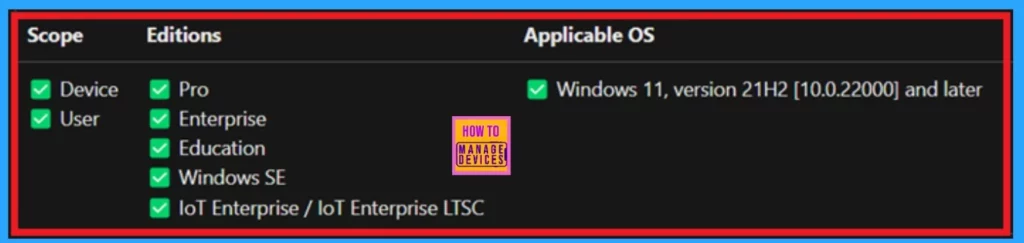
We previously discussed the general folder location for File Explorer. Now, let’s focus on the details of the CSP (configuration and service providers) for policy creation. The CSP details are crucial for effective policy development, and you can find the detailed information in the table and screenshot provided below.
| Scope | Editions | Applicable OS |
|---|---|---|
| Device | Pro | Windows 11, version 21H2 [10.0.22000] and later |
| User | Enterprise | |
| Education | ||
| Windows SE | ||
| loT Enterprise / loT Enterprise LTSC |
- Exclude Files or Folders from Microsoft Defender Scan using Intune
- Do not Delete Temp Folders upon Exit Security Policy using Intune
- Windows 11 New File Explorer Experience New Features Design Details
Create a Profile
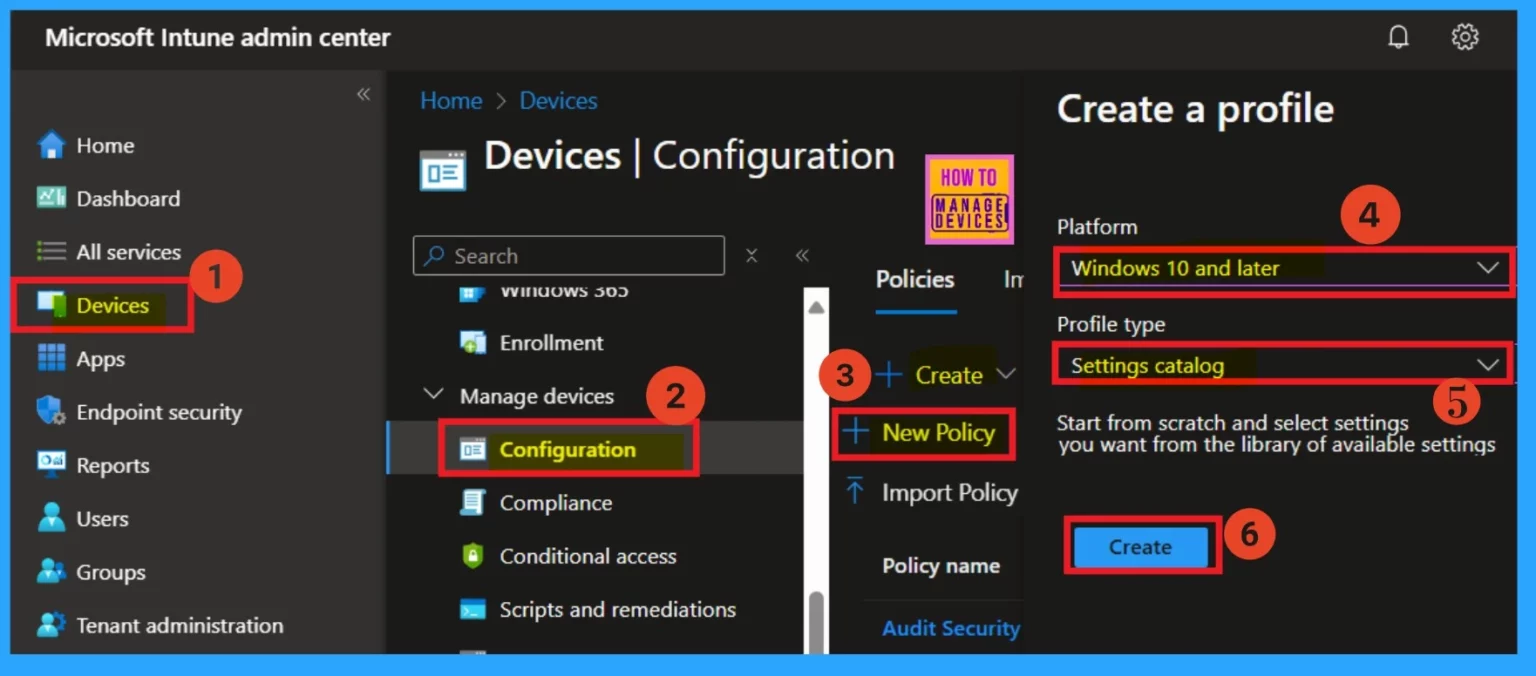
First, log in to the Microsoft Intune admin center to create a profile. Once you’re signed in, navigate to Devices> Configurations > Create > New Policy. This will open a new window called “Create a Profile.” You can select the platform in this window, which should be Windows 10 and later. Choose the profile type as Settings Catalog.
- Finally, you can create the profile by clicking the “Create” option.
Configuration Settings – Settings Picker
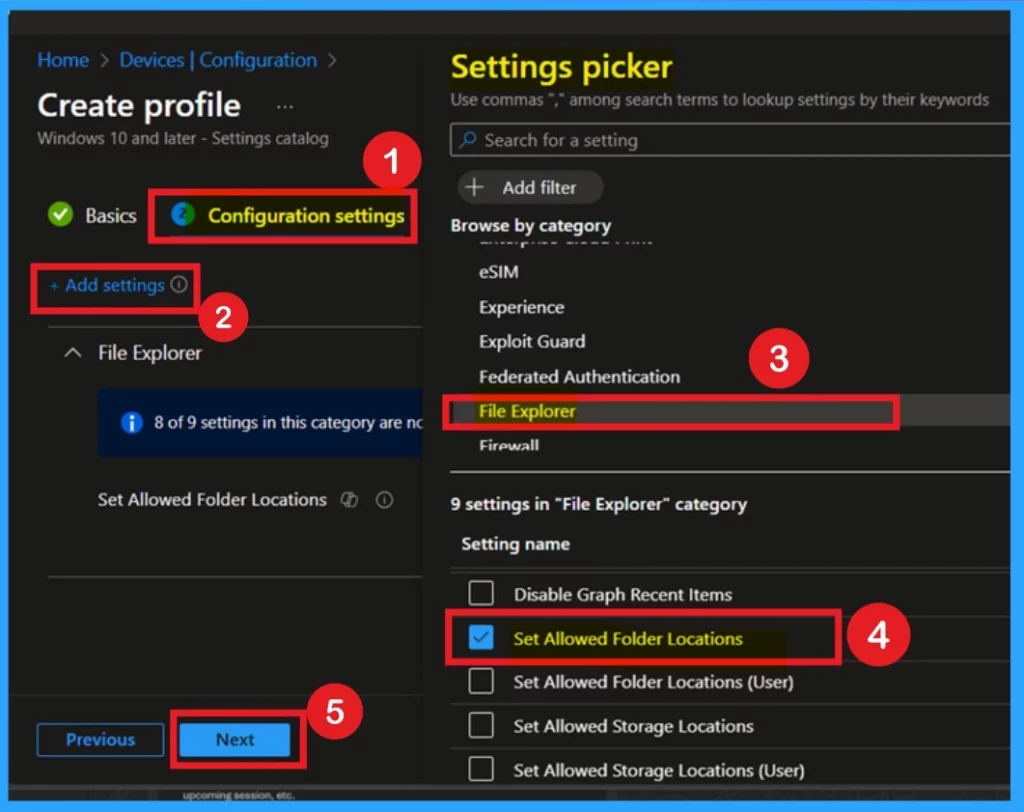
After covering the basics, you’ll move to the Configuration tab settings, an important section. Here, you can add settings to the policy. Look for a hyperlink labelled “Add Settings” and click on it. This action will open a new window called “Settings Picker.” In the Settings Picker window, scroll down to the category labelled File Explorer.
- When you click on File Explorer, you will see various settings. You need to select “Set Allowed Folder Locations.”
- After making your selection, close the Settings Picker.
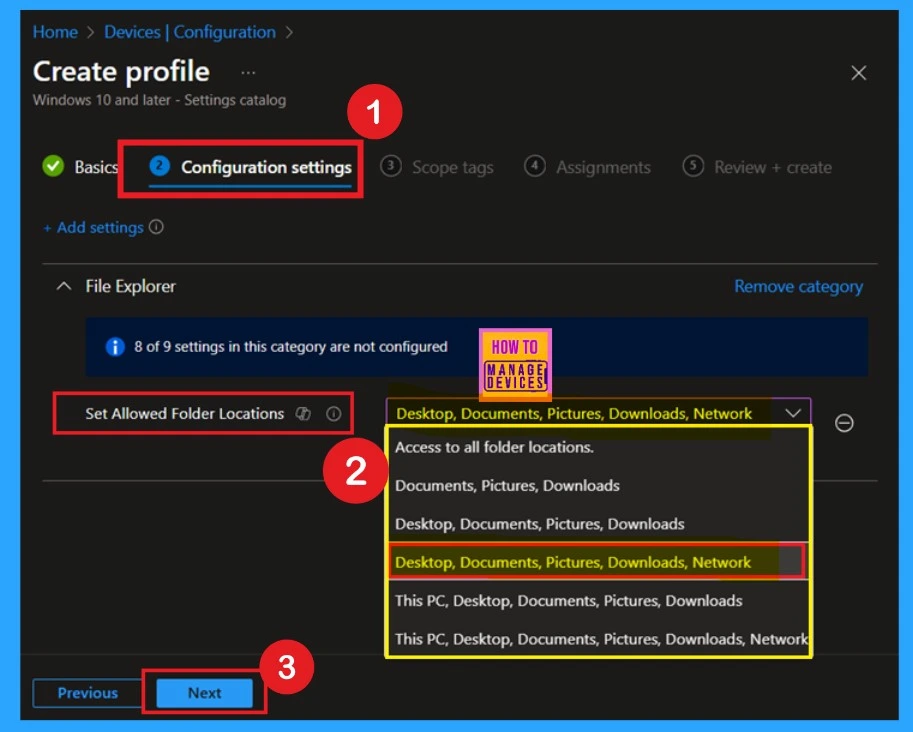
Now, go back to the configuration settings page. Here, you will see the allowed folder locations displayed. In the configuration settings window, you have six options to set up the folder locations. I have selected desktop, documents, pictures, downloads,network options. I want to configure the allowed folder locations for this category.
- Click on the Next.
Scope Tags
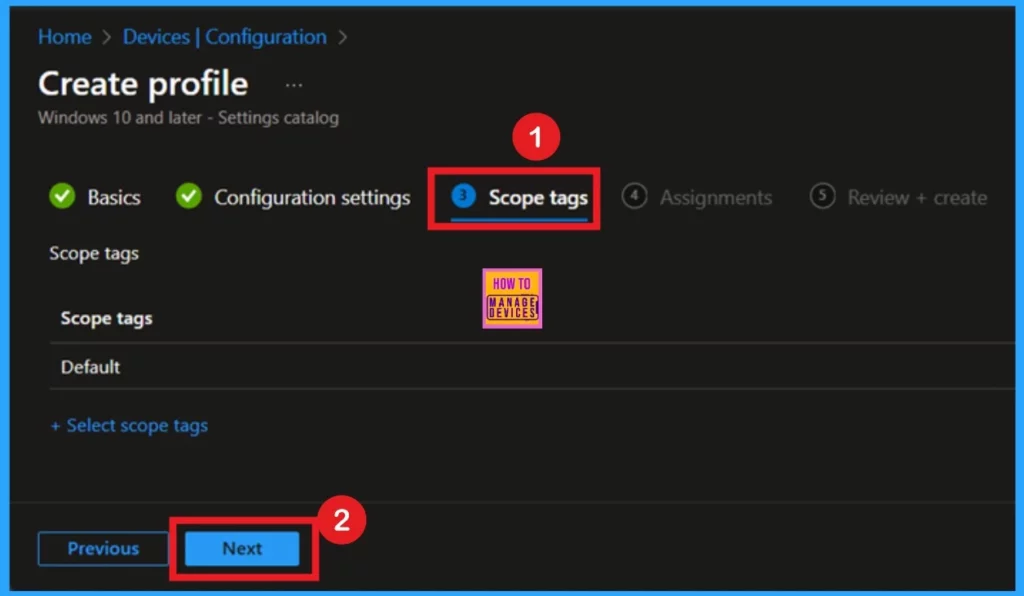
The next step is to add scope tags to the policy. A hyperlink labeled “Select Scope Tags” will appear. When you click on it, you can choose all the relevant scope tags to include in the policy. I decided to skip this section and clicked on “Next.”
Assignments
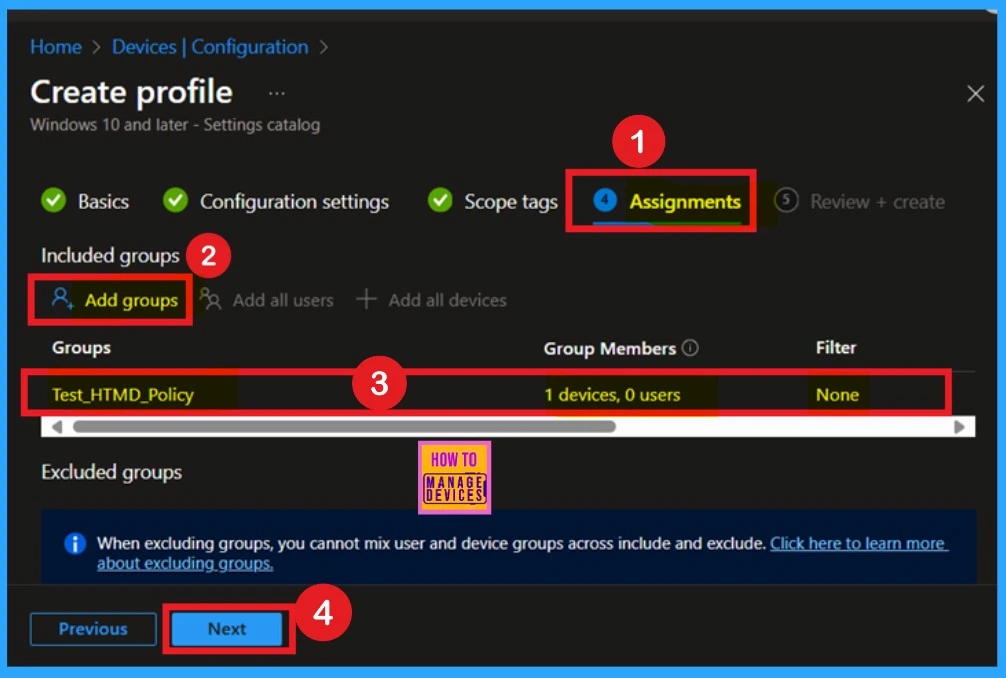
The next tab is “Assignments.” This section is crucial, like the configuration settings. Here, you can assign specific groups to the policy you are creating. To do this, click “Add Groups” under the Include section, then select the group the policy applies to. After choosing the group for the policy deployment, click Next.
Review + Created
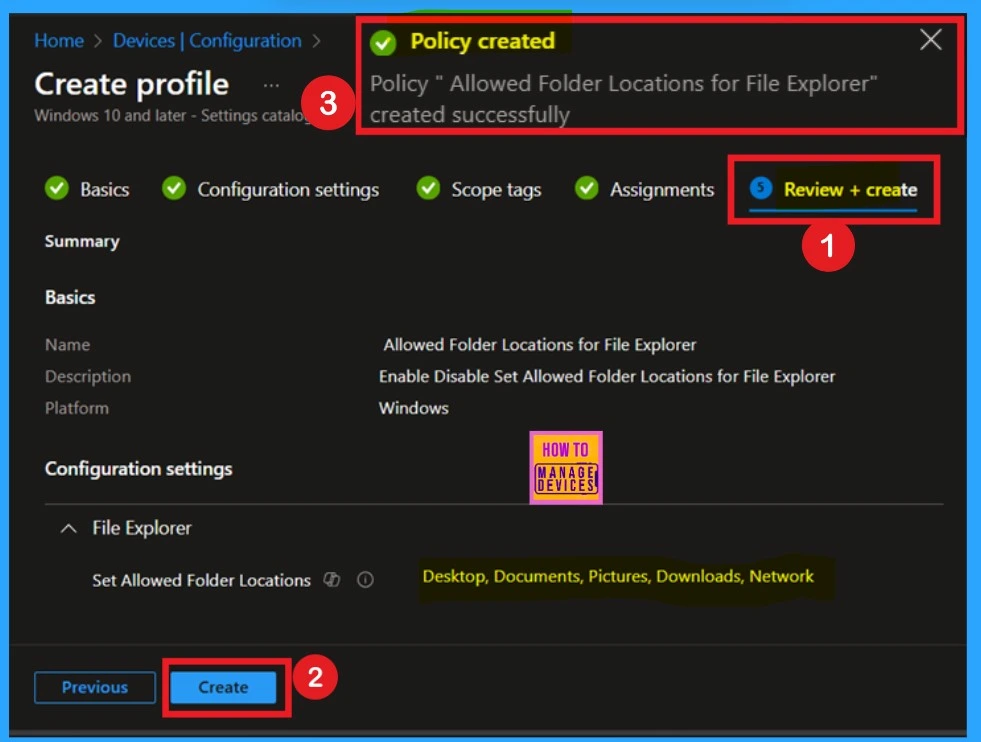
The final step in creating a policy in this section is the “Review + Create” phase. You don’t need to take any action at this point; it is simply a summary page that displays the basic details of the policy and the configuration settings.
If you need to make any changes, you can easily return to the previous tab to edit them. Once you’re satisfied with everything, click the “Create” option. After doing so, you will receive a notification confirming the policy for the specified location has been created successfully.
Monitoring Status
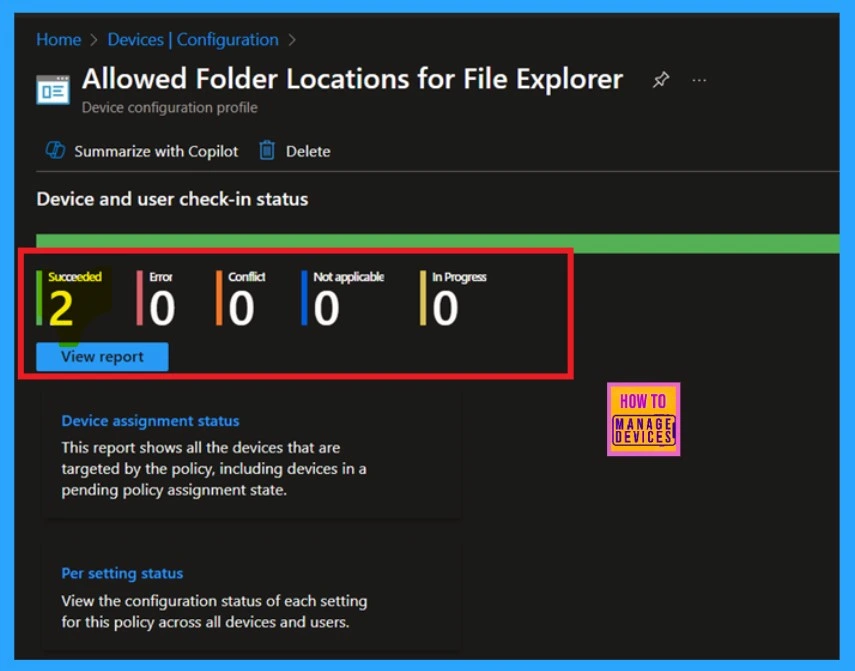
Monitoring the status is very important section, as it will inform you whether your policy has actually been created. As you may know, the process of creating a policy typically takes an 8 hour waiting period. You can use the Company portal Sync option to reduce the waiting period.
- After using the Sync option, you should check the monitoring status again.
- To do this, navigate to Device > Configuration and search for the policy name
Client Side Verification
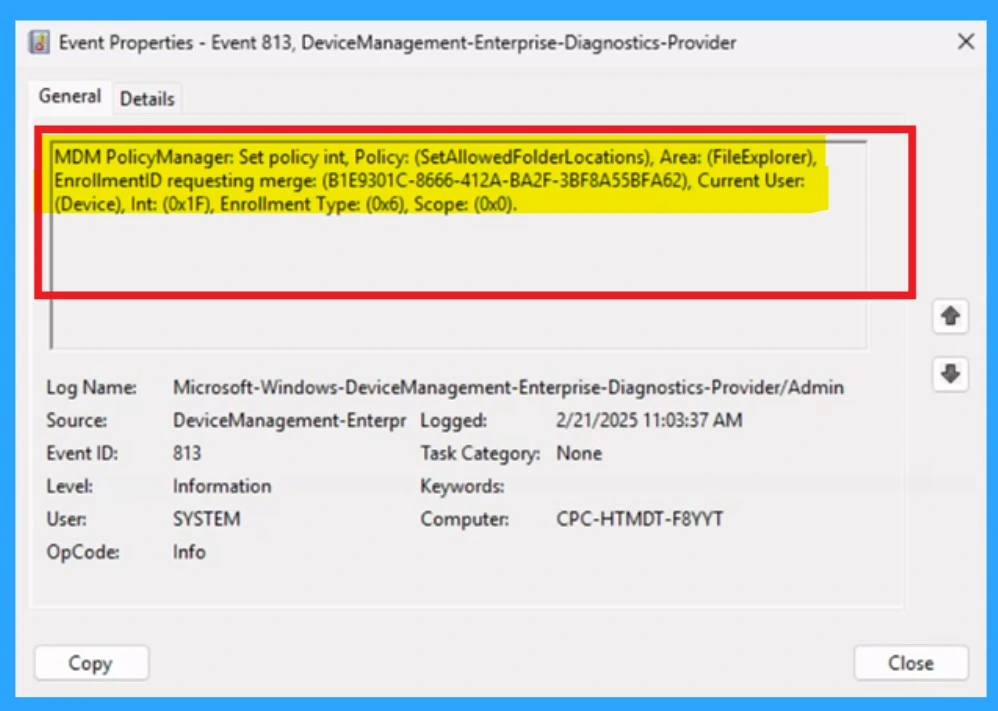
The next step is client-side verification, which can be done using the Event Viewer. To navigate through the Event Viewer, follow this path: Applications and Services Logs > Microsoft > Windows > Device Management > Enterprise Diagnostic Provider > Admin.
Here, you will find a list of policies. Locating the specific result you need can be challenging, so I recommend using the “Filter Current Log” option in the right pane.
| Policy Details |
|---|
| MDM PolicyManager: Set policy int, Policy: (SetAllowedFolderLocations), Area: (FileExplorer), EnrollmentiD requesting merge: (B1E9301C-8666-412A-BA2F-3BF8A55BFA62), Current User: (Device), Int: (0x1F), Enrollment Type: (0x6), Scope: (0x0). |
Need Further Assistance or Have Technical Questions?
Join the LinkedIn Page and Telegram group to get the latest step-by-step guides and news updates. Join our Meetup Page to participate in User group meetings. Also, Join the WhatsApp Community to get the latest news on Microsoft Technologies. We are there on Reddit as well.
Author
Anoop C Nair has been Microsoft MVP for 10 consecutive years from 2015 onwards. He is a Workplace Solution Architect with more than 22+ years of experience in Workplace technologies. He is a Blogger, Speaker, and Local User Group Community leader. His primary focus is on Device Management technologies like SCCM and Intune. He writes about technologies like Intune, SCCM, Windows, Cloud PC, Windows, Entra,


Discussion