






Allow or Disallow Network Connectivity Active Tests using Intune Setting Catalog
Hey there, Let’s discuss whether to allow or disallow Network Connectivity Active Tests using the Intune Setting Catalog. The Setting Catalog is considered one of Intune’s most valuable features. It provides a comprehensive list of all configurable settings in a centralised location.
This functionality streamlines the policy creation process and allows users to view and access all available settings easily, enhancing the overall management experience. The Network Location Awareness (NLA) service determines the type of network connectivity Windows has.
This policy configuration turns off the dynamic assessments that the Windows Network Connectivity Status Indicator (NCSI) conducts. These assessments are designed to evaluate our computer’s connection status, determining whether it is linked to the vast expanse of the Internet or merely tethered to a more restricted network environment.
The following steps outline how to deploy the policy. Our main purpose in writing this post is to help you acquire knowledge of how to allow or Disallow Network Connectivity Active Tests using the Intune Setting Catalog.

Table of Contents
What is Network Connectivity Active Tests?
Active network monitoring is a real-time testing technique conducted by software agents or hardware sensors on network infrastructure and applications to ensure their availability and performance.
Disallow Network Connectivity Active Tests Using Intune Setting Catalog
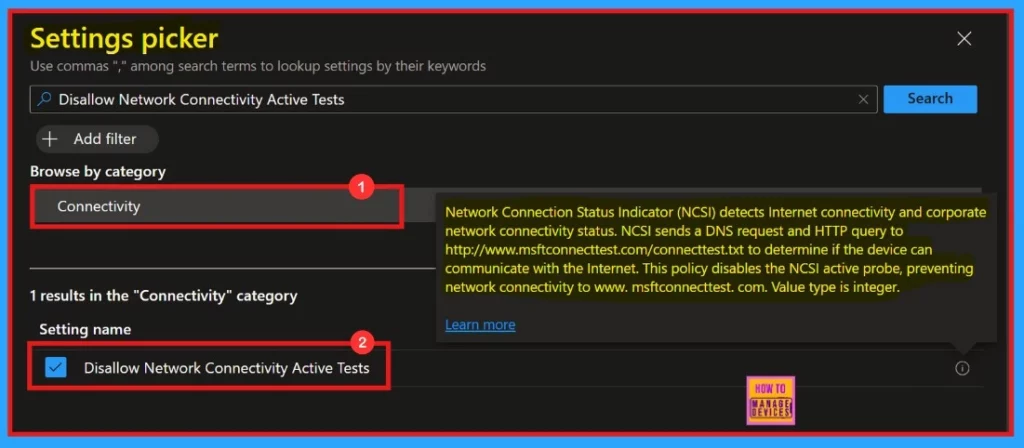
Network Connection Status Indicator (NCSI) detects Internet connectivity and corporate network connectivity status. NCSI sends a DNS request and HTTP query to http://www.msftconnecttest.com/connecttest.txt to determine if the device can communicate with the Internet. This policy disables the NCSI active probe, preventing network connectivity to www.msftconnecttest.com.
- How to Find Network Adapter Connection Speed in Windows 11
- Managing Network Drive Mappings with Intune
- Azure Networking Services Training | Azure Tips
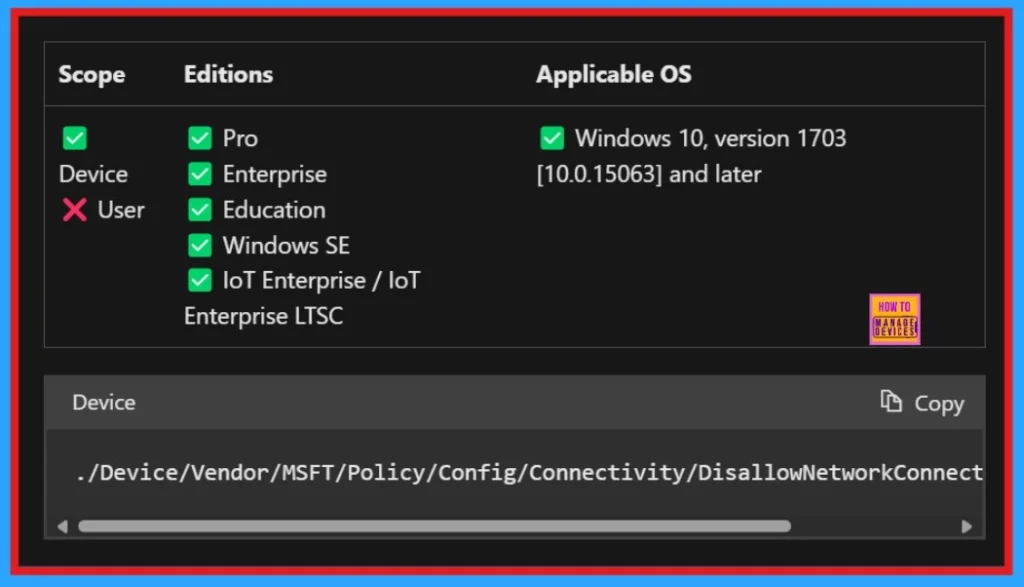
Windows CSP Details
The Content Security Policy (CSP) is a standard included in an HTTP response header that helps prevent cross-site scripting attacks (XSS), clickjacking, packet sniffing, and the injection of malicious content on the client side of a web page.
./Device/Vendor/MSFT/Policy/Config/Connectivity/DisallowNetworkConnectivityActiveTests
Creating a Profile
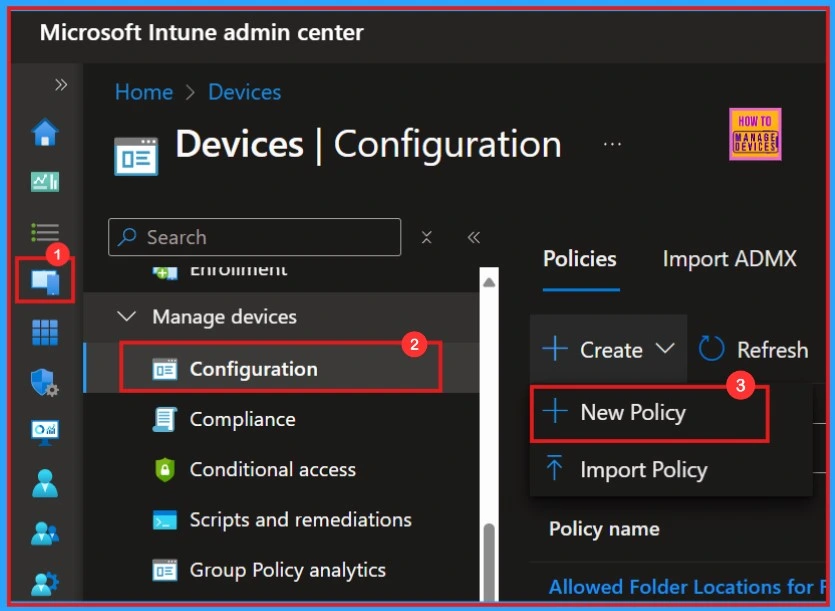
We need to login to Microsoft Intune admin center with our credentials for deploying the Intune policy. The first step is to create a profile. We need to open the Device section, then click Configurations then click create a new policy.
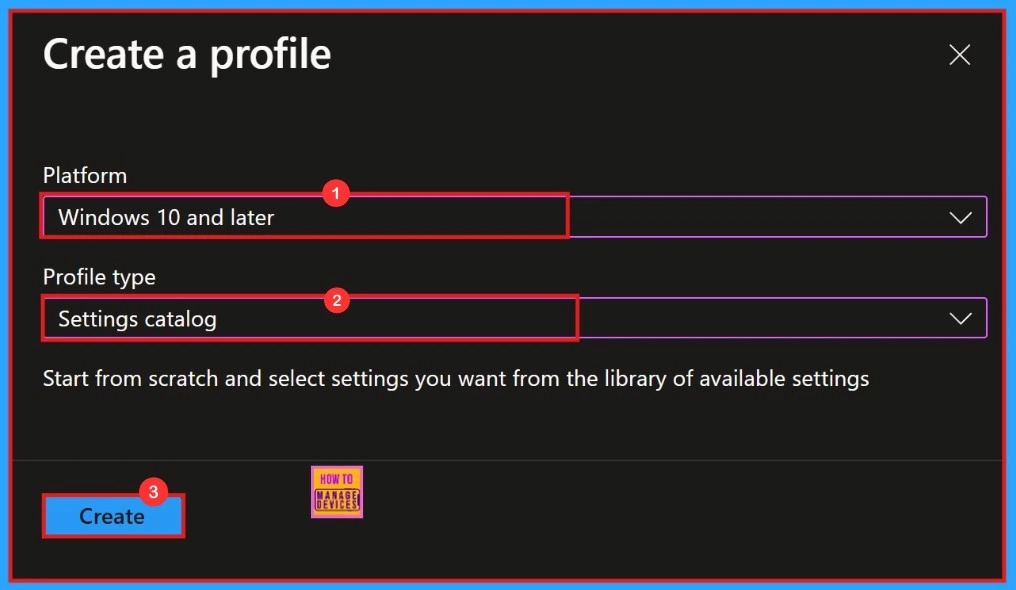
In this section, we need to select the platform. Here we can choose “Windows 10 and Later.” Then we must select the profile type as “Settings Catalog” from the list. Finally, click on the “Create” option.
Basics
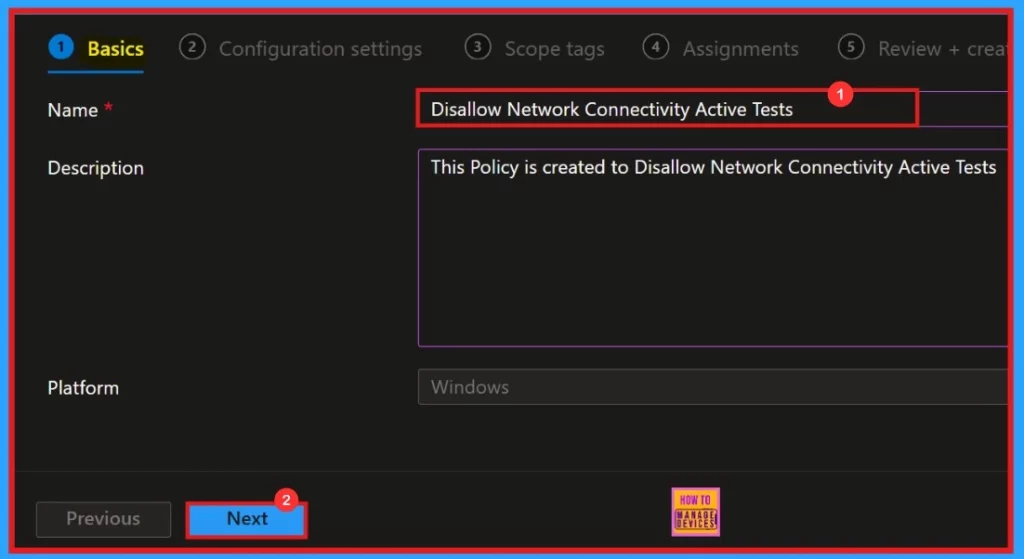
In this part, we need to add the desired policy name in the given space. If we need to add a description, we can add that, too, because it will help us know for what purpose we created that policy. The platform is always Windows by default.
| Name | Description |
|---|---|
| Disallow Network Connectivity Active Tests | This policy is created to Disallow Network Connectivity Active Tests |
Configuration Settings
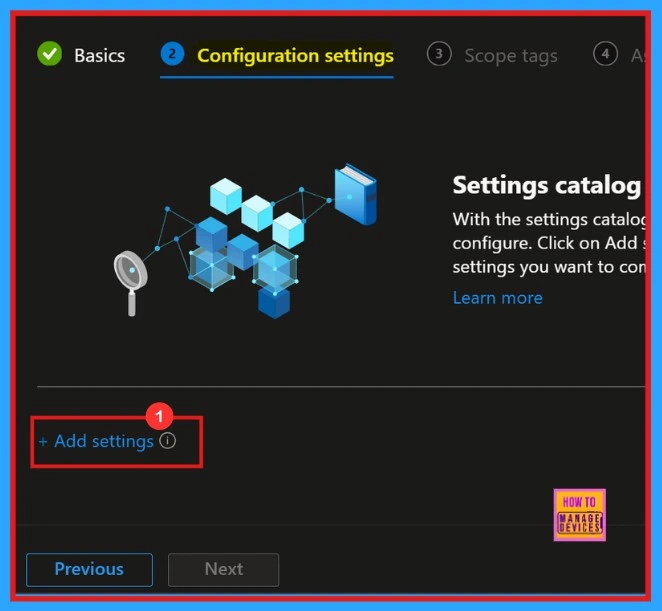
Next, to the Configuration settings section. Select +Add settings and continue creating the profile. This section allows us to choose the settings you wish to configure. This section is required and must be completed.
Settings Picker
The Settings Picker window allow us to search for our policy. We can put the keyword “Disallow Network Connectivity Active Tests.” Click the Search button to proceed. Afterwards, we can browse by category and select “Connectivity” In that category, we can find “Disallow Network Connectivity Active Tests.”
- Allow Network Connectivity During Connected-Standby Policy using Intune
- Total Number of Setting Catalog Policies for Windows Apple and Linux
- Best way to Enable Per Process Dpi for Display Policy using Intune Setting Catalog
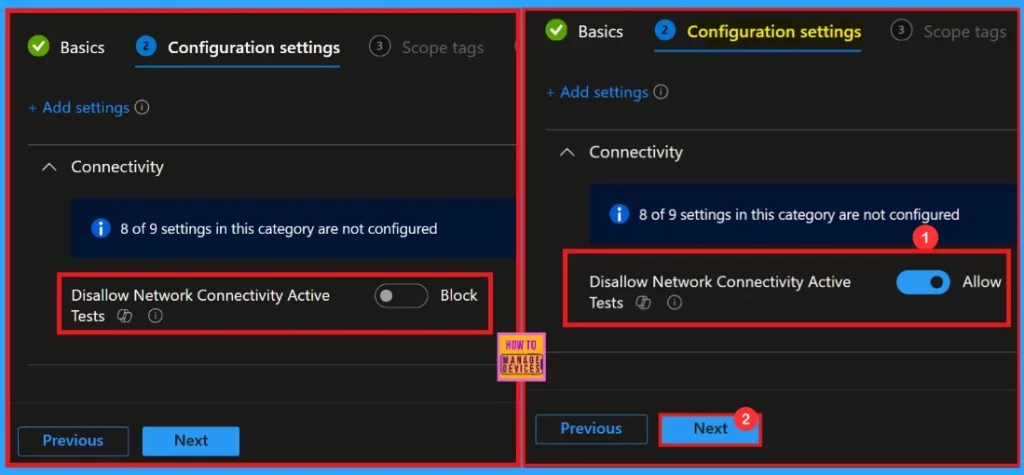
After selecting the settings, we can close the settings picker window. Then we will be in the configuration settings. We can block or allow the policy here. He we select allow for ‘Disallow Network Connectivity Active Tests ‘ policy.
Scope Tags
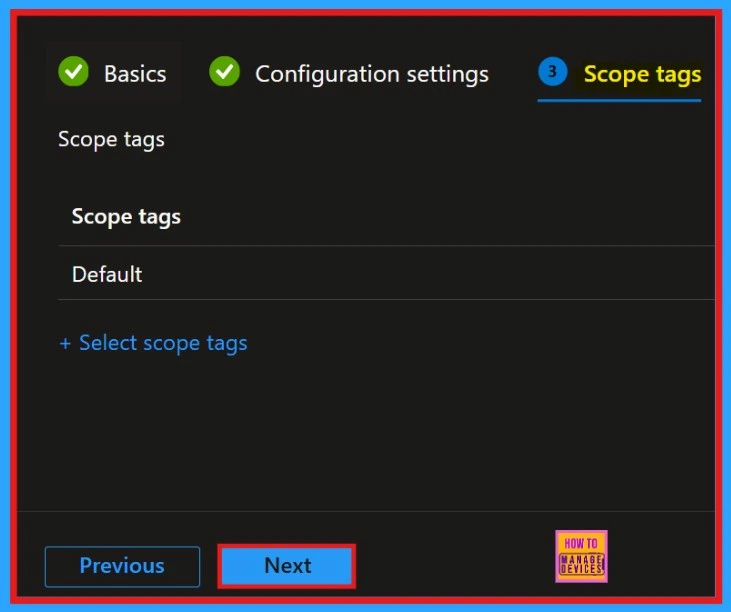
After the configuration settings, we enter the Scope tags window. We can skip this section because it is not mandatory for our policy. So, we need to click the next button to proceed.
Assignments
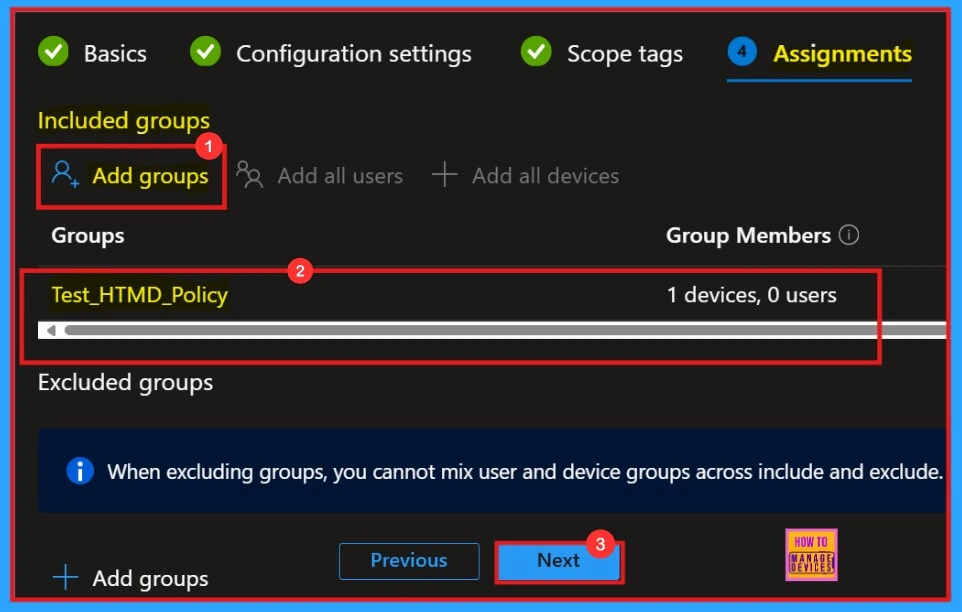
We must add a group (Included group) in the Assignments section. The policy will be deployed in the selected group. If we miss this process, the policy deployment will fail. After selecting the group, click Next.
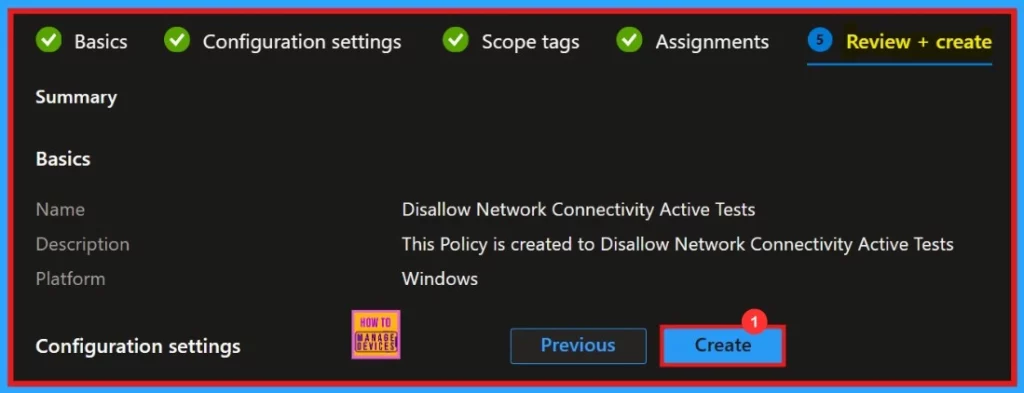
Review + Create
“Review + Create” is the final step in the policy creation process. It is a summary of the policy we are deploying, including the policy name, descriptions, platform, and other details.
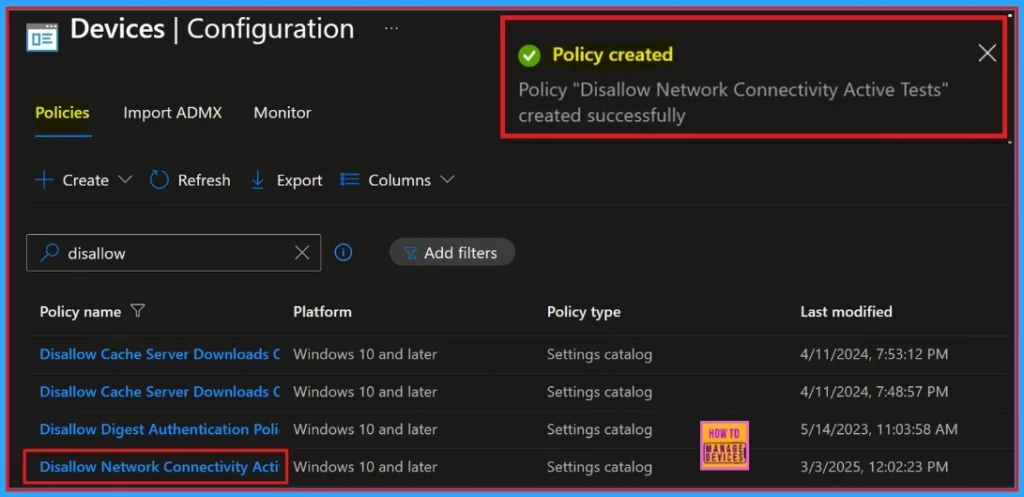
When we click the Create button, we will be notified with a pop up message, shows “Disallow Network Connectivity Active Tests″ has been “created successfully“. We can check the created policy in the Intune Portal.
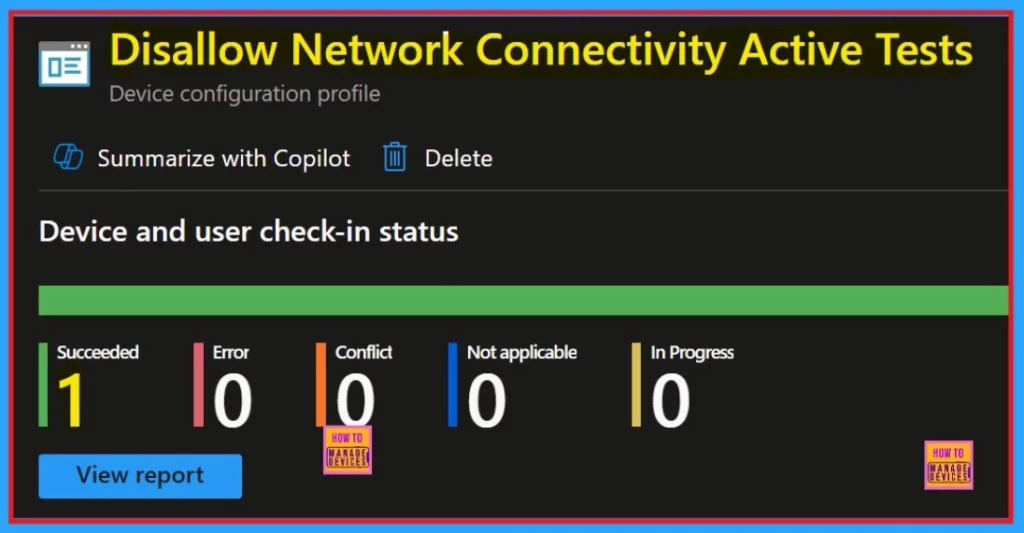
Device and User Check-in Status
When we click on the policy, we can see whether it was successful. Once we create a policy, verifying whether it has been successfully implemented is essential. To check the monitoring status, navigate to the device configuration and search for the policy you created.
Client Side Verification
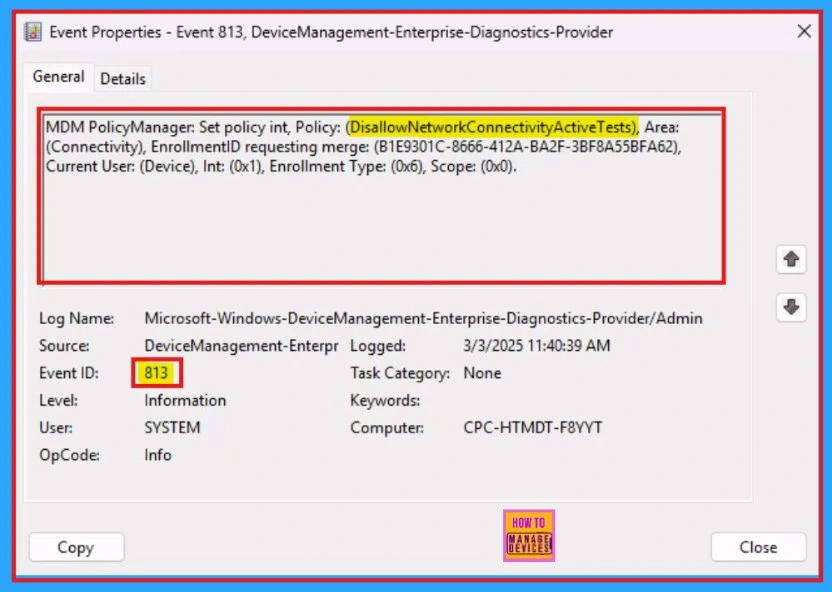
To check the Client Side Verification, we can use the Event Viewer. The event ID 813 confirms that a string policy is applied to Windows 11 or 10 devices.
- Go to Applications and Services Logs > Microsoft > Windows > Devicemanagement-Enterprise-Diagnostics-Provider > Admin to open it
Need Further Assistance or Have Technical Questions?
Join the LinkedIn Page and Telegram group to get the latest step-by-step guides and news updates. Join our Meetup Page to participate in User group meetings. Also, Join the WhatsApp Community to get the latest news on Microsoft Technologies. We are there on Reddit as well.
Author
Anoop C Nair has been Microsoft MVP for 10 consecutive years from 2015 onwards. He is a Workplace Solution Architect with more than 22+ years of experience in Workplace technologies. He is a Blogger, Speaker, and Local User Group Community leader. His primary focus is on Device Management technologies like SCCM and Intune. He writes about technologies like Intune, SCCM, Windows, Cloud PC, Windows, Entra, Microsoft Security, Career, etc.


Discussion