






How to Configure Home Button and Load Start Page using Intune Policy
Today I will discuss how to configure Home Button and Load Start Page using Intune Policy. Setting Catalog is a key feature, offering a single, organized place to find and manage all available configuration settings. It’s a central hub for controlling every aspect of device settings within Intune.
Configure Home Button policy gives control over the Home button’s function. The Home button in your browser can be customized to open different pages. By default, it loads the standard Start page. However, an administrator can use policy settings to change this to a new tab or a specific website.
Our blog post explains how to manage the Microsoft Edge Home button through the Microsoft 365 Admin Center. This feature provides direct access to your homepage, simplifying your browsing and enhancing productivity.
By default, this policy is disabled or not configured and clicking the home button loads the default Start page. When enabled, the home button is locked down, preventing your users from making changes in Microsoft Edge’s UI settings.

Table of Contents
How Do Admins Set and Unlock the Edge Home Button?
If the “Set Home Button URL” policy is enabled, it forces the Home button to load the specific URL defined in that policy. Because the “Unlock Home Button” policy is not enabled, the user will be unable to change the Home button’s behavior through the Microsoft Edge UI settings.
The administrator has locked the Home button to that specific website, preventing users from customizing it.
Configure Home Button and Load Start Page
This policy enables administrators or users to choose where the Home button leads: the browser’s default start page, a blank new tab, or a specific website address. This customization ensures a consistent and controlled browsing experience, whether for individual preferences or organizational requirements.
Enabling the Set Home Button URL policy locks down the Home button, preventing users from changing it. To allow users to customize their Home button again, the Unlock Home Button policy must be enabled.
- Allow Or Disallow Network Connectivity Active Tests Using Intune Setting Catalog
- Enable Or Disable App Install Control Policy Using Intune Setting Catalog
- How to Allow Direct Memory Access for Data Protection Through Intune Settings Catalog
Windows – CSP Details
Understanding Configuration Service Provider (CSP) details is essential for successful policy deployments. CSPs ensure policy compatibility by detailing OS version support. Configure (enable or disable) Home Button policy is in under the Browser settings category.
| Property Name | Property Value |
|---|---|
| Format | (int) |
| Access Type | Add, Delete, Get, Replace |
| Default Value | 0 |
- Allowed values:
- 0 (Default) : Show home button and load the Start page.
- 1: Show the home button and load the New tab page.
- 2: Enable the Home button and set it to the custom URL specified in the policy.
- 3: Hide home button
./User/Vendor/MSFT/Policy/Config/Browser/ConfigureHomeButton

./Device/Vendor/MSFT/Policy/Config/Browser/ConfigureHomeButton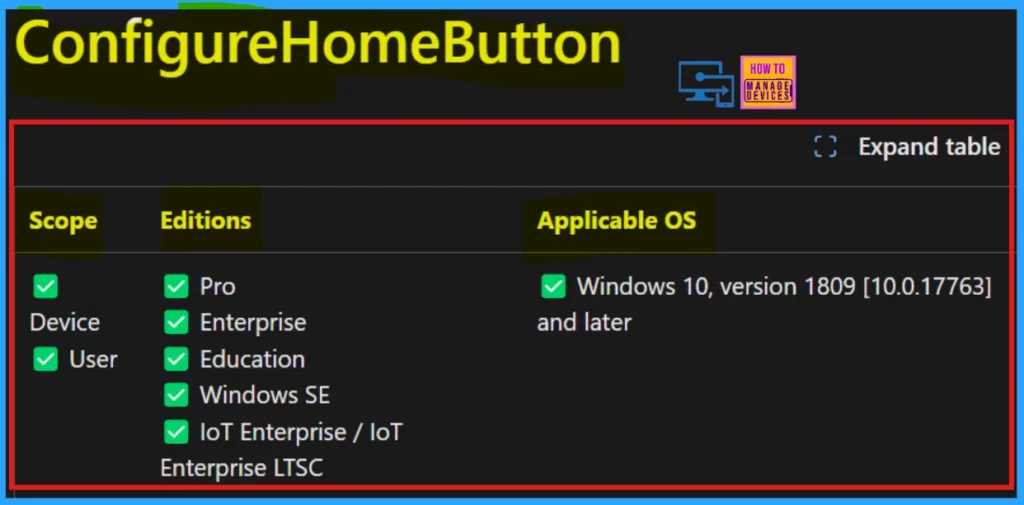
Deploy the Policy through Microsoft Intune
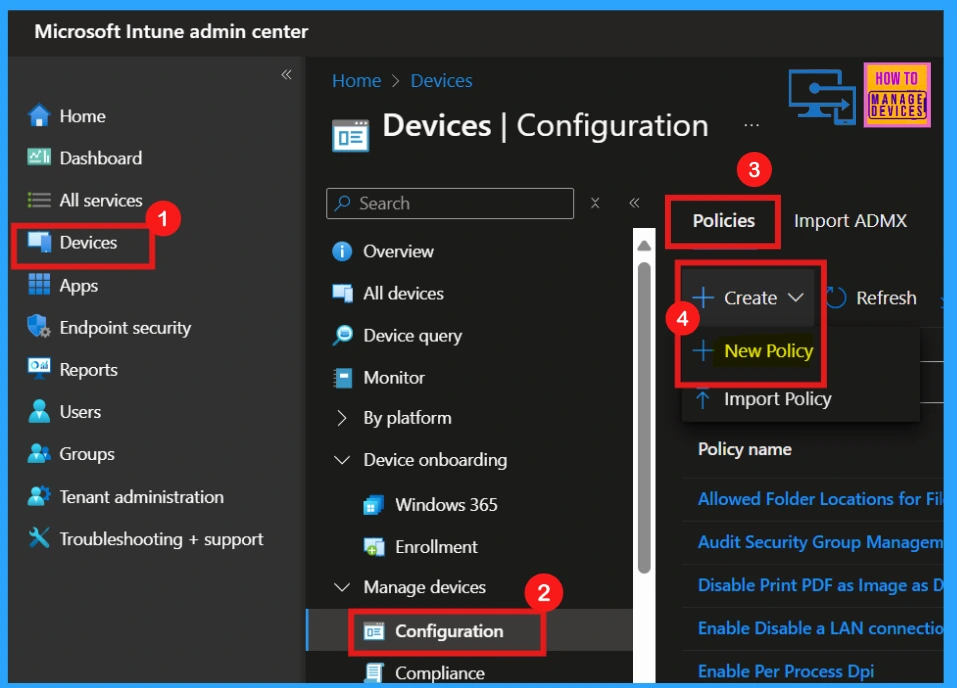
To deploy this policy through Microsoft Intune, begin by accessing the Microsoft Intune admin center. Once logged in, proceed to the Devices section, followed by Configurations. On the right-hand side of the screen, you’ll find a +Create button. Click this button and then select the New policy option from the dropdown menu.
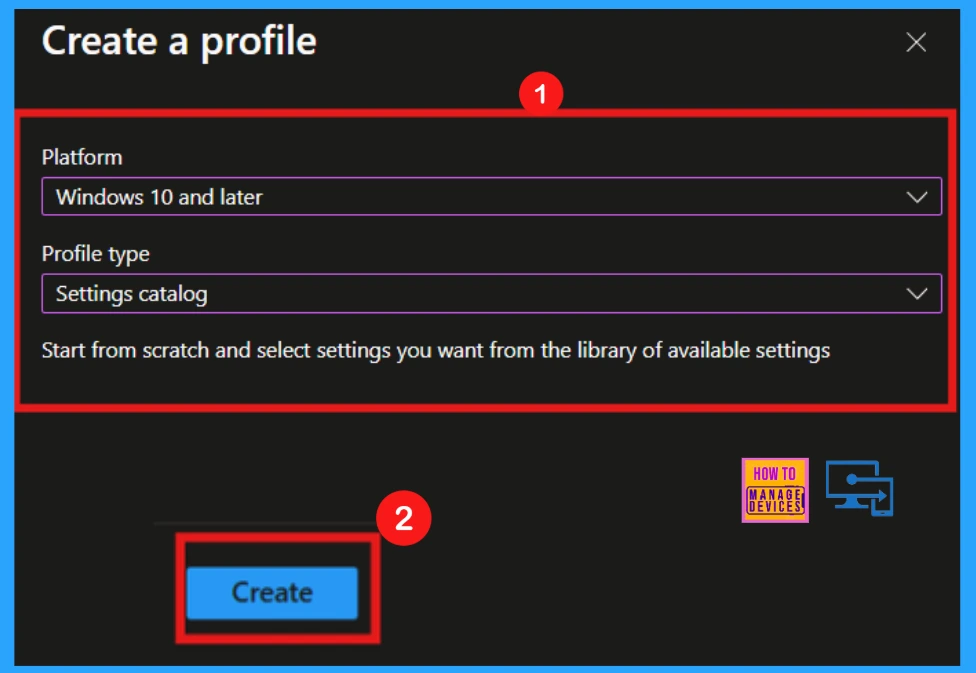
To configure settings via Intune’s Setting catalog for Windows devices, begin with specifying the platform as Windows 10 and later and select Setting catalog as the profile type. After making these selections, proceed by clicking the Create option, which initiates the process of configuration profile.
Basics
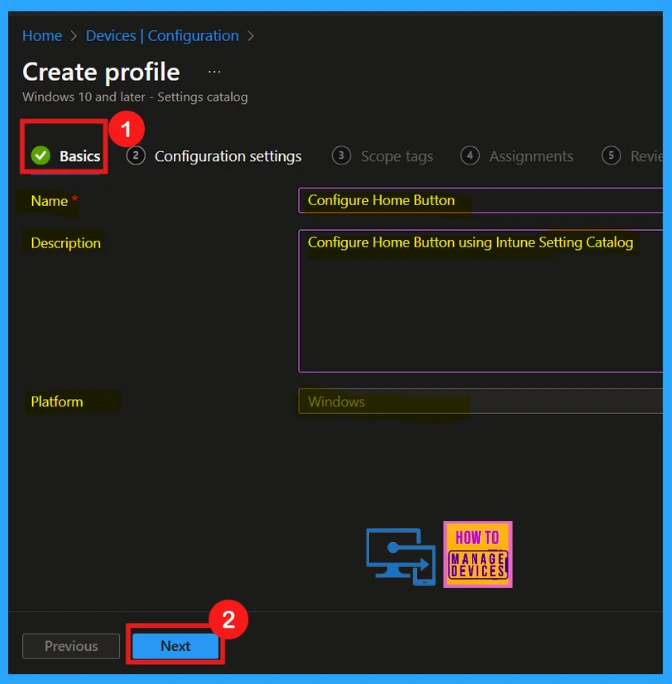
When configuring a new policy, the Basics section is where we can define its fundamental information. We will assign a descriptive Name to the policy, allowing for easy identification and management. Adding an optional Description is highly recommended, as it provides the policy’s intended function for future reference.
Since we already selected Windows as the platform in a previous step, that field will be defaulted. Once completed these basic details, simply click Next to move on to the next stage of the policy configuration process.
- Name: Configure Home Button
- Description: Configure Home Button using Intune Settings catalog
Configuration – Settings Picker
When configuring settings, the Settings Picker provides a user-friendly way to select specific policies. After navigating to the configuration settings page and clicking + Add Settings, a window appears, allowing you to choose a category. Here I select Browser (as a category), which reveals a list of relevant settings, like Configure Home Button.
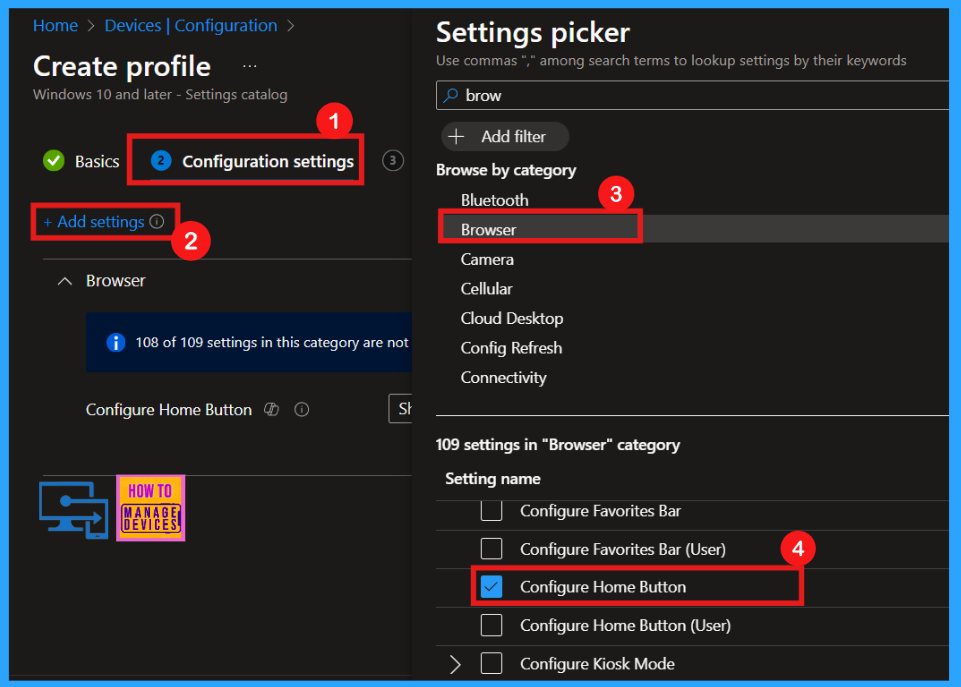
Configure Home Button
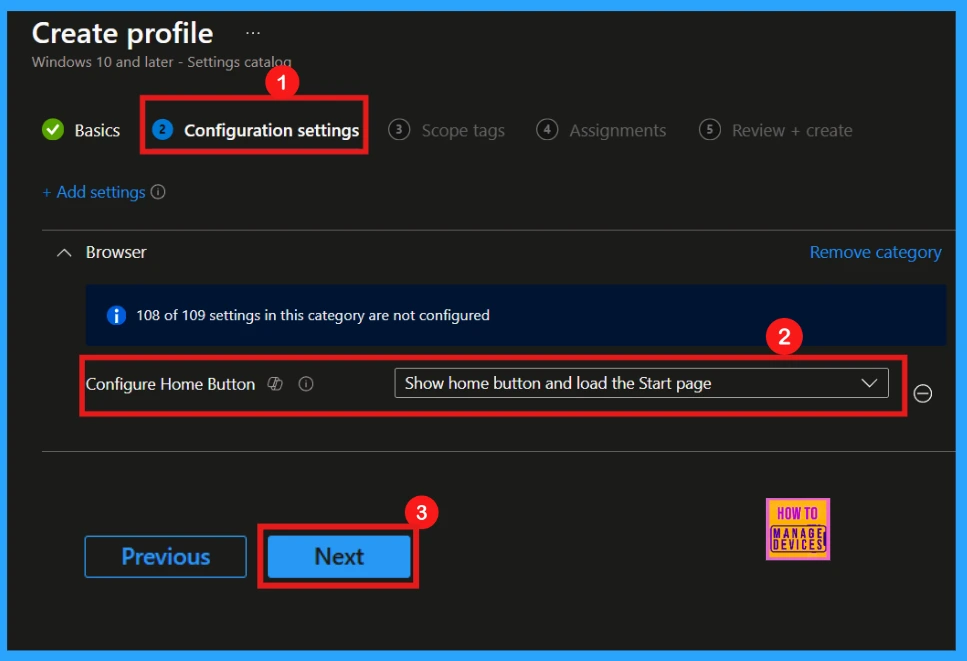
Once a setting like Configure Home Button is chosen from the Settings Picker and the window closed, we are returned to the main Configuration page. The selected setting, Configure Home button, now appears with a drop-down menu allowing you to specify its behavior.
In this case, selecting Show home button and load the Start page sets the home button to display and directs it to the browser’s default start page. After confirming this choice, clicking Next proceeds with the policy configuration.
Other Settings Also Available
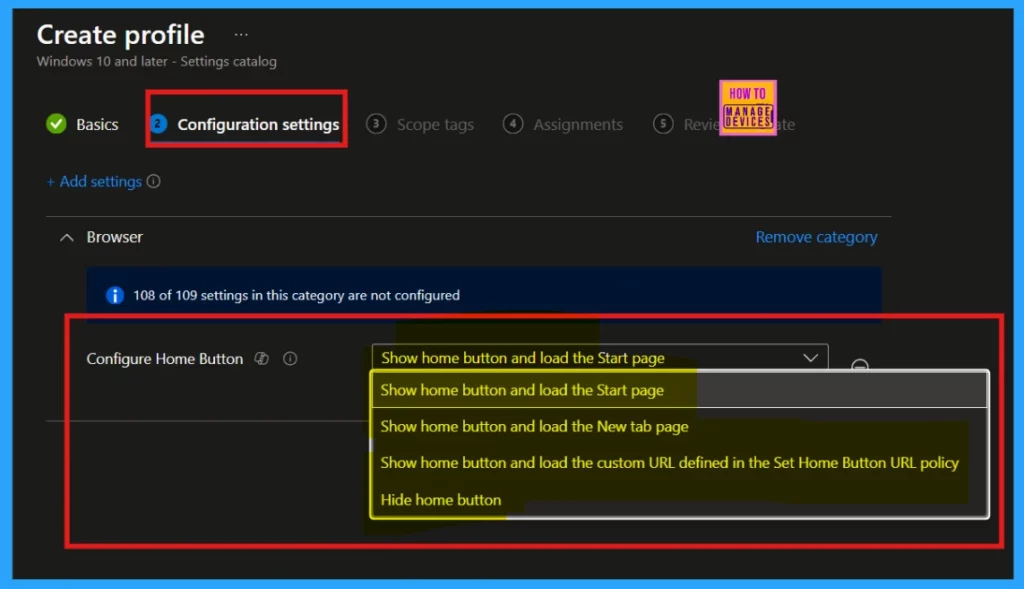
Within the configuration settings, there are additional options accessible through a drop-down list. This allows for further customization of the policy by selecting from a variety of available settings. The other settings are given below:
- Show home button and load the Start page (default)
- Show home button and load the New tab page
- Show home button and load the custom URL defined in the Set Home Button URL policy
- Hide home button
Scope Tags
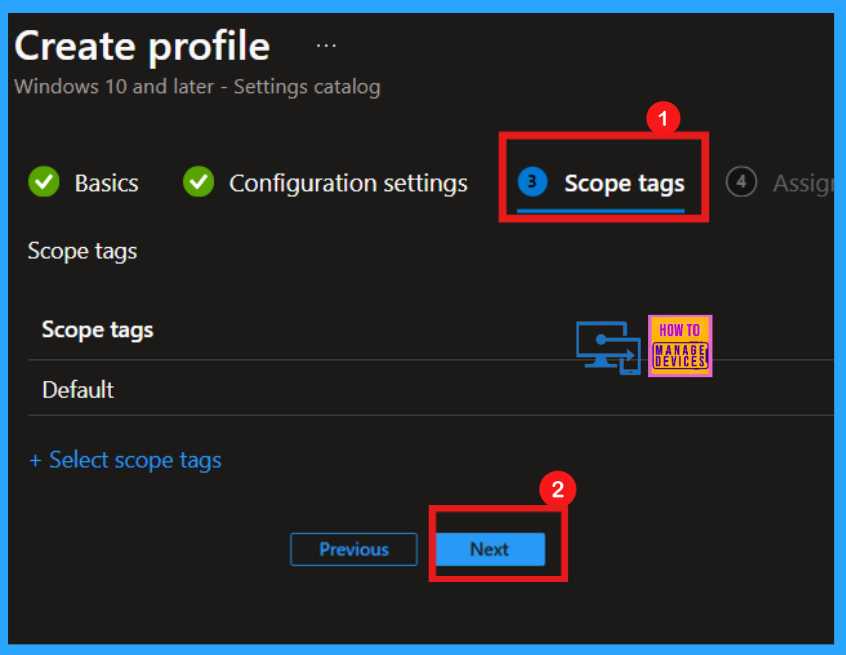
Scope tags helps to organize policies by their intended use or target environment and categorize policies for easy management. While adding a tag is an option, skipping them is fine.
- Click Next to proceed
Assignments
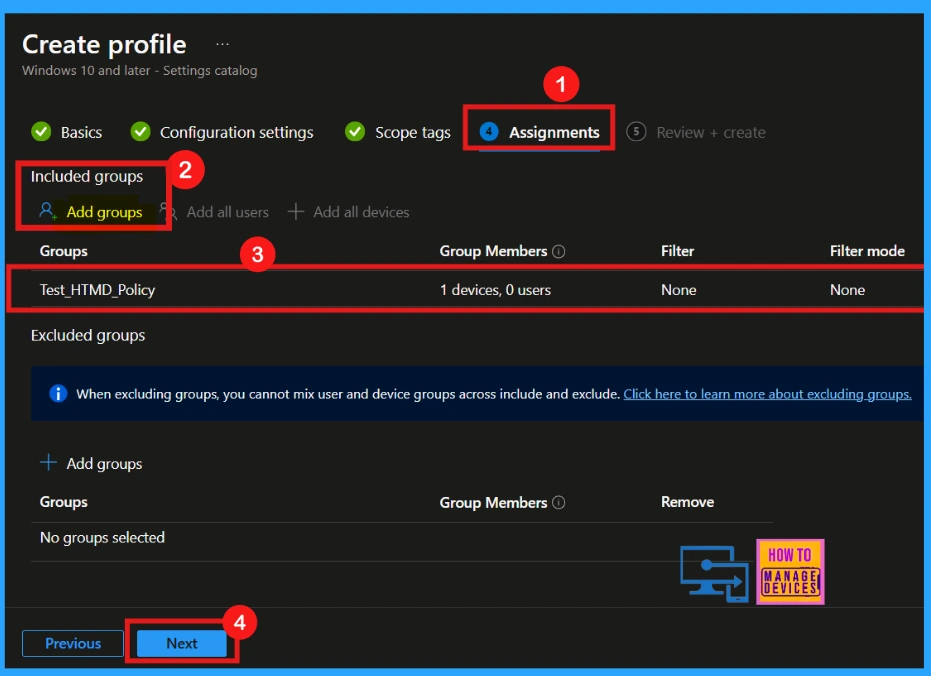
The Assignments tab defines which groups receive the policy. By clicking Add Groups, we can select the target device or users, ensuring the settings are applied correctly. Once the group is chosen, proceeding to the Next step finalizes the deployment process.
- I select Test_HTMD_Policy group
Review + Create
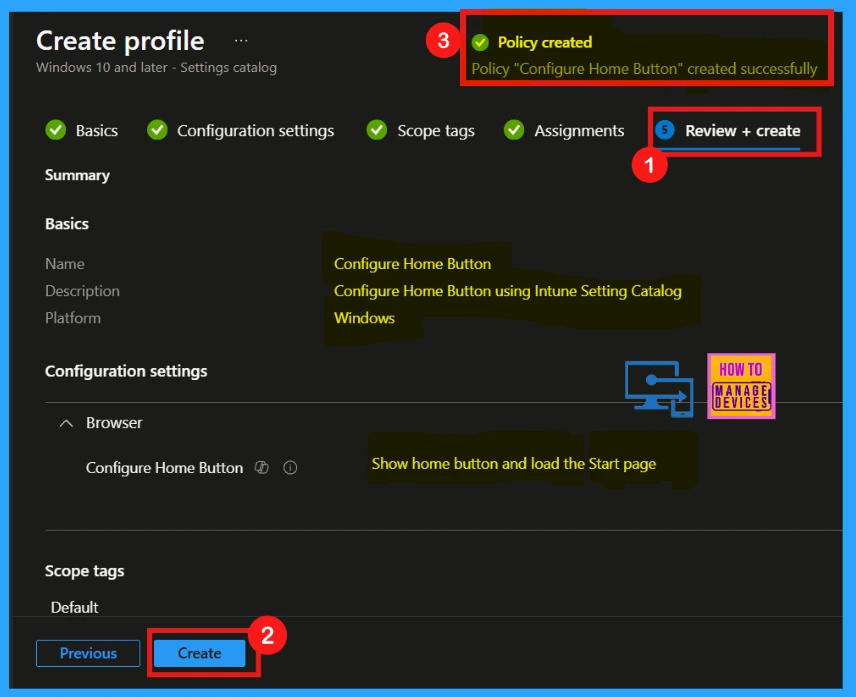
The Review + Create stage is the final step, providing a comprehensive summary of the policy’s settings and assignments. After verifying all details, clicking Create deploys the policy.
- Upon clicking Create, a notification will received saying that the Configure Home Button policy was created successfully.
Device and User Check-in Status
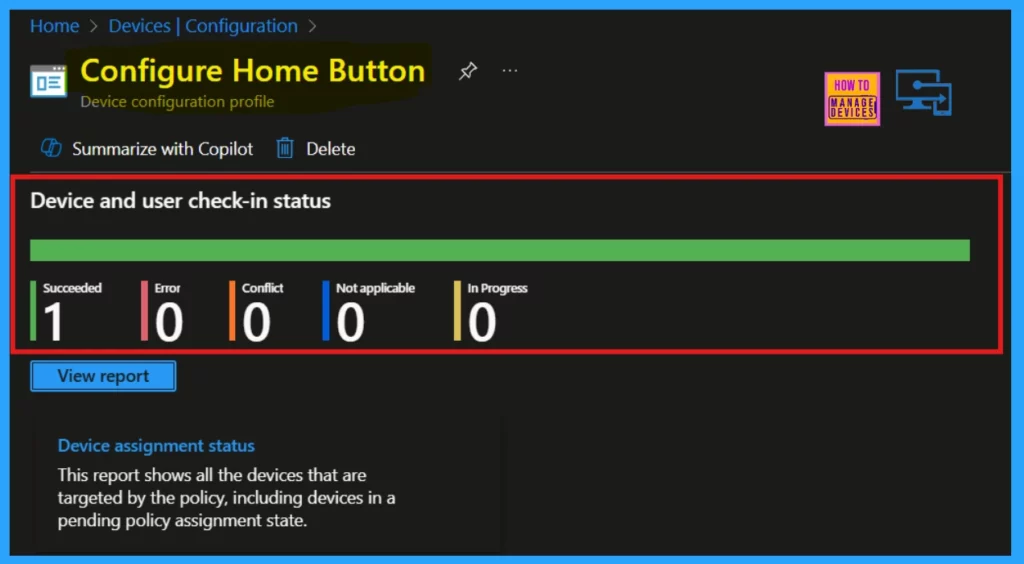
While new device policies typically apply within eight hours, immediate implementation is possible through manual synchronization. You can then confirm the policy’s successful application by examining its status within the Intune device configuration settings.
- To do this, navigate to Device > Configuration and select the policy.
Client Side Verification
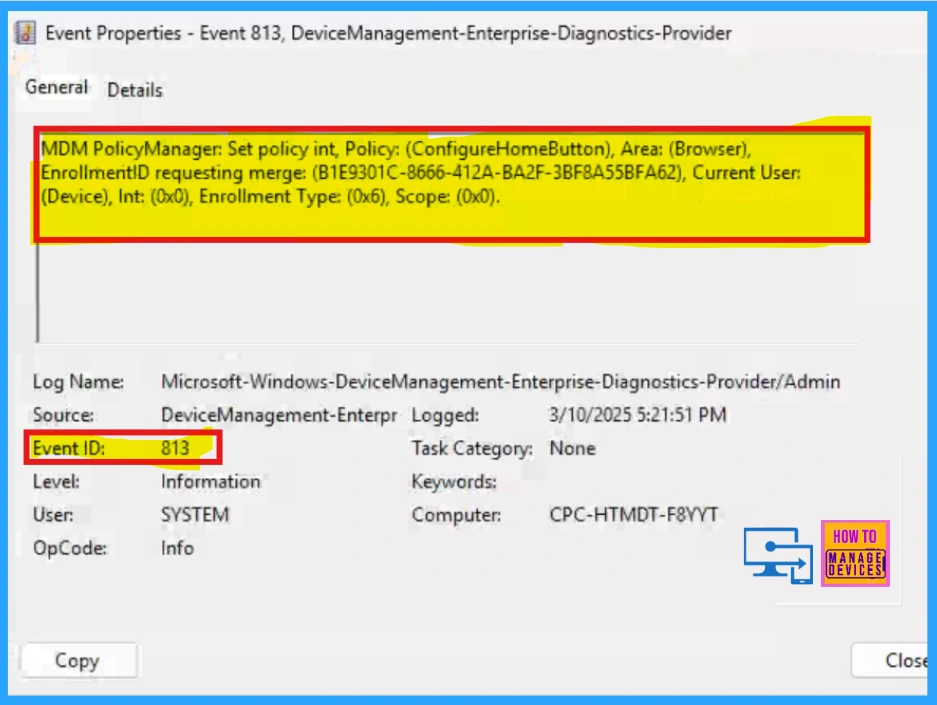
Client-side verification of Intune policy application can be done through Event Viewer. By navigating to Application and Services Logs > Microsoft > Windows > DeviceManagement-Enterprise-Diagnostics-Provider > Admin and filtering for Event ID 813, you can monitor the status of policy deployment on the device itself.
| Policy Details |
|---|
| MDM PolicyManager: Set policy int, Policy: (ConfigureHomeButton), Area: (Browser), EnrollmentID requesting merge: (B1E9301C-8666-412A-BA2F-3BF8A55BFA62), Current User: (Device), Int: (0x0), Enrollment Type: (0x6), Scope: (0x0). |
Need Further Assistance or Have Technical Questions?
Join the LinkedIn Page and Telegram group to get the latest step-by-step guides and news updates. Join our Meetup Page to participate in User group meetings. Also, Join the WhatsApp Community to get the latest news on Microsoft Technologies. We are there on Reddit as well.
Author
Anoop C Nair has been Microsoft MVP for 10 consecutive years from 2015 onwards. He is a Workplace Solution Architect with more than 22+ years of experience in Workplace technologies. He is a Blogger, Speaker, and Local User Group Community leader. His primary focus is on Device Management technologies like SCCM and Intune. He writes about technologies like Intune, SCCM, Windows, Cloud PC, Windows, Entra, Microsoft Security, Career, etc.


Hi, is this policy only applicable for edge and chrome or any other browsers present in device?
What’s the difference between
Configure Home Button
Configure Home Button (User)
Best regards