Skip to content
Windows 10 Shortcut Keys Keyboard Shortcuts

Windows 10 Shortcut Keys Keyboard Shortcuts

Written By Anoop C Nair
Last Updated July 10, 2024
Posted In Windows 10
SHARE

Many Windows 10 Shortcut Keys Options Available in Windows 10. You can find out more details about Windows Key shortcuts in this post. More details about the keys are below.

You can get more details on updated Windows 11 keyboard shortcuts from the New Windows 11 Keyboard Shortcuts Updated List.

Index
Windows logo key  + period (.) or semicolon (;)
Windows Key + A
Windows Key + B
Windows Key + C
Windows Key + D
Windows Key + E
Windows Key + F
Windows Key + G
Windows Key + H
Windows Key + I
Windows Key + J
Windows Key + K
Windows Key + L
Windows Key + M
Windows Key + N
Windows Key + O
Windows Key + P
Windows Key + Q
Windows Key + R
Windows Key + S
Windows Key + T
Windows Key + U
Windows Key + V
Windows Key + W
Windows Key + X
Windows Key + Y
Windows Key + Z
Windows Key Shortcut – Windows Key + 1 to 0
Windows Key + =
Windows 10 Shortcut Keys Keyboard Shortcuts – Table.1

Related Post – Windows 10 Version Numbers & Build Numbers Major Minor Build Rev & Windows 10 Product Key Change Home to Professional Upgrade | Activate

Windows logo key  + period (.) or semicolon (;)

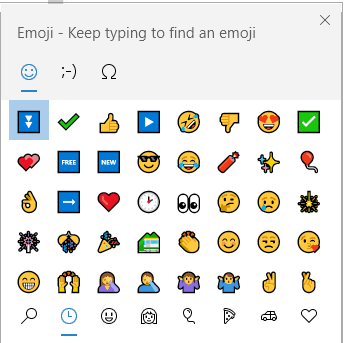
Windows logo key  + period (.) or semicolon (;) – Opens up Emoji Window.

Patch My PC
Shortcuts - Fig.1
Windows 10 Shortcut Keys Keyboard Shortcuts – Fig.1

Windows Key + A

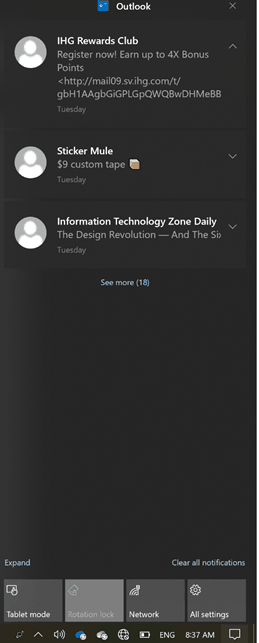
  • Windows Key + A is to be used to open up the Notifications window.
Windows 10 Shortcut Keys Keyboard Shortcuts - Fig.2
Windows 10 Shortcut Keys Keyboard Shortcuts – Fig.2

Windows Key + B

  • Windows Key + B = Set focus to the notification area. Select the first option shown in the screenshot, “Show Hidden Icons.”

Windows 10 Shortcut Keys Keyboard Shortcuts - Fig.3
Windows 10 Shortcut Keys Keyboard Shortcuts – Fig.3

Windows Key + C

  • Windows Key + C – ?? Open Cortana in listening mode.

Windows Key + D

  • Windows Key + D – Minimize the Windows and Maximize the Windows.

Windows Key + E

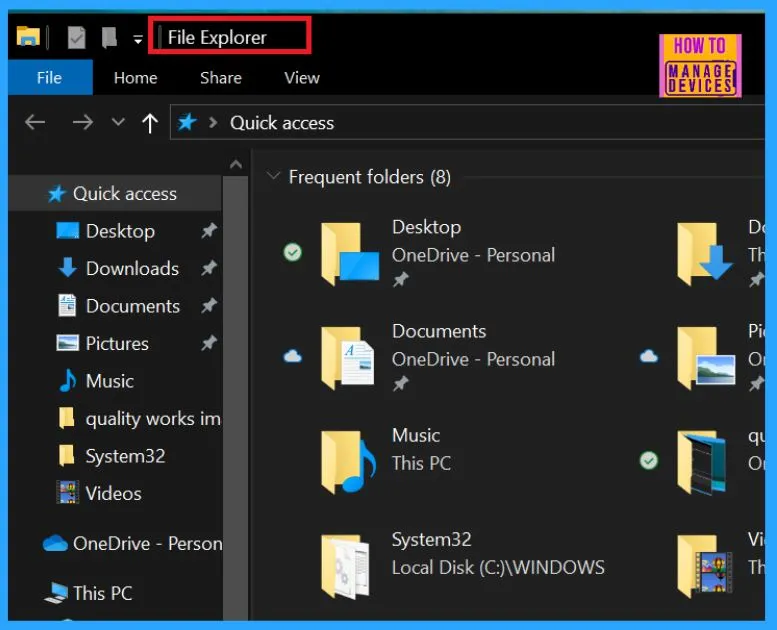
  • Windows Key + E – Opens Windows File Explorer.
Windows 10 Shortcut Keys Keyboard Shortcuts - Fig.4
Windows 10 Shortcut Keys Keyboard Shortcuts – Fig.4

Windows Key + F

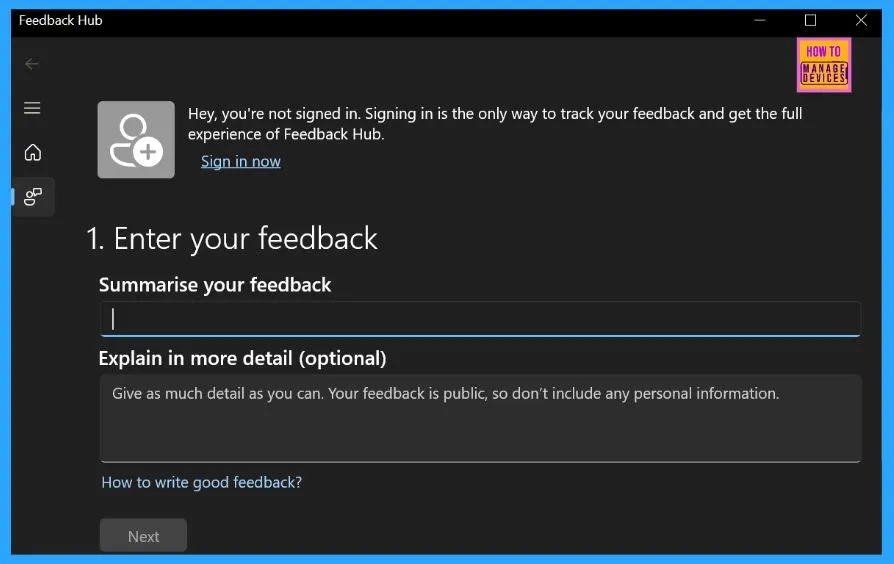
  • Windows Key + F: Windows 10 Feedback Hub
Windows 10 Shortcut Keys Keyboard Shortcuts - Fig.5
Windows 10 Shortcut Keys Keyboard Shortcuts – Fig.5

Windows Key + G

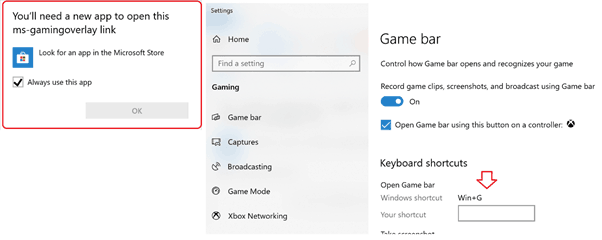
  • Windows Key + G – The shortcut key to open up Game Bar if you have the Xbox app installed.
Windows 10 Shortcut Keys Keyboard Shortcuts - Fig.6
Windows 10 Shortcut Keys Keyboard Shortcuts – Fig.6

Windows Key + H

  • Windows Key + H – Start dictation ….Speak to your computer.

Windows 10 Shortcut Keys Keyboard Shortcuts - Fig.7
Windows 10 Shortcut Keys Keyboard Shortcuts – Fig.7

Windows Key + I

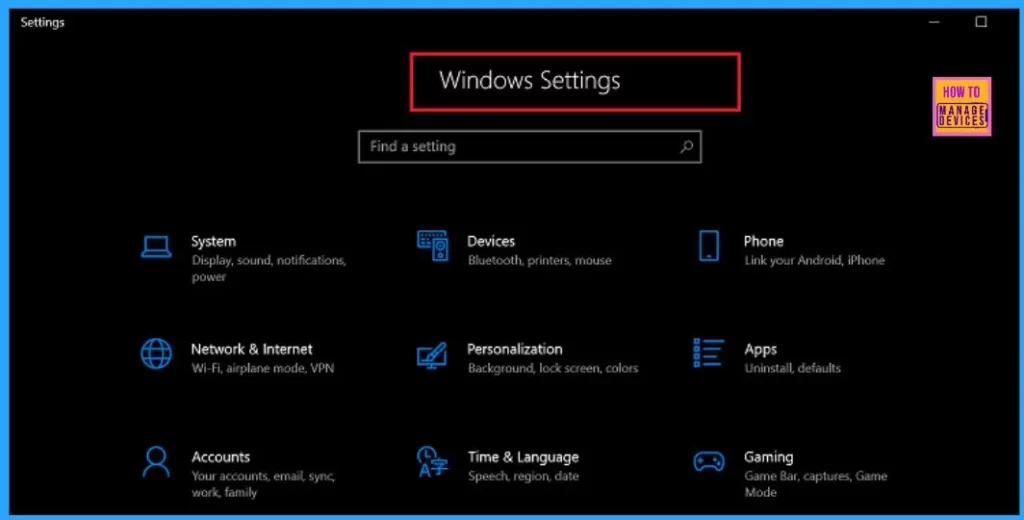
  • Windows Key + I – Shortcut key to open Windows 10 settings app/menu
Windows 10 Shortcut Keys Keyboard Shortcuts - Fig.8
Windows 10 Shortcut Keys Keyboard Shortcuts – Fig.8

Windows Key + J

  • Windows Key + J

??? Set focus to a Windows tip when one is available.

Windows Key + K

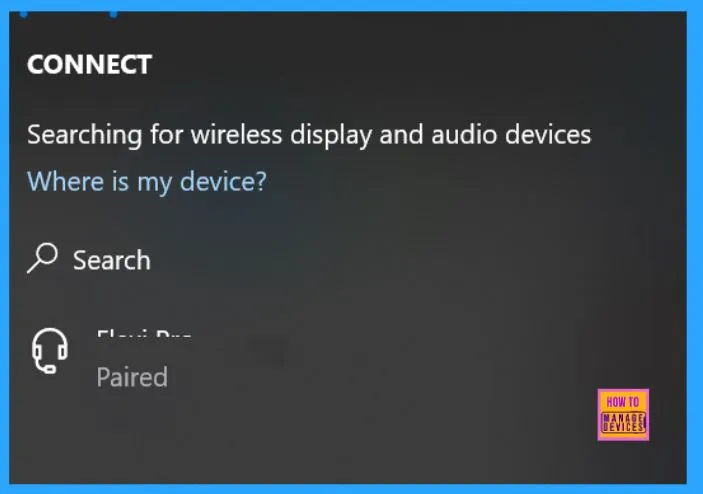
  • Windows Key + K – Shortcut key to connect to wireless display and audio devices.
Windows 10 Shortcut Keys Keyboard Shortcuts - Fig.9
Windows 10 Shortcut Keys Keyboard Shortcuts – Fig.9

Windows Key + L

  • Windows Key + L – Shortcut Key to LOCK THE WINDOWS 10 DEVICE.

Windows Key + M

  • Windows Key + M – Shortcut Key similar to Windows Key + D. Minimize all windows.

Windows Key + N

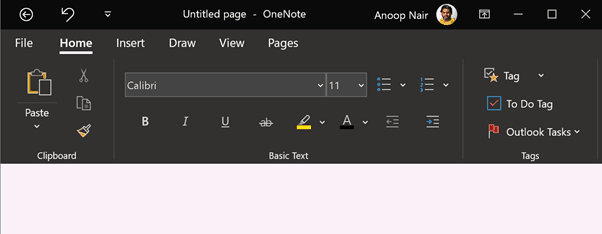
  • Windows Key + N – Shortcut key to open Microsoft OneNote
Windows 10 Shortcut Keys Keyboard Shortcuts - Fig.10
Windows 10 Shortcut Keys Keyboard Shortcuts – Fig.10

Windows Key + O

  • Windows Key + O – Lock device orientation. ????

Windows Key + P

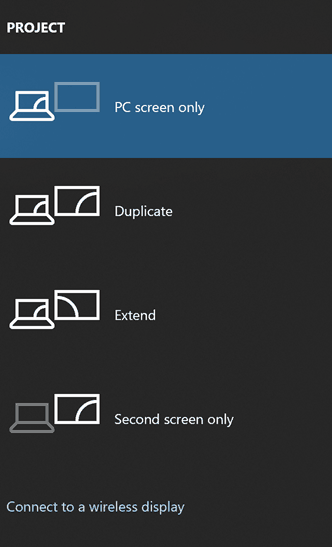
  • Windows Key + P – Shortcut key to open presentation display mode and project the screen.
Windows 10 Shortcut Keys Keyboard Shortcuts - Fig.11
Windows 10 Shortcut Keys Keyboard Shortcuts – Fig.11

Windows Key + Q

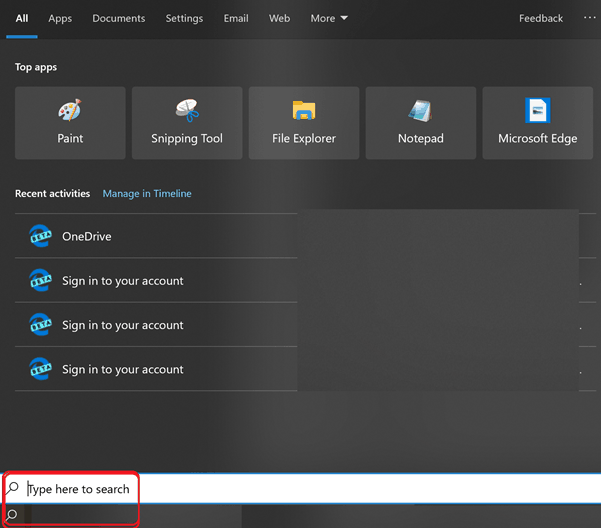
  • Windows Key + Q – Shortcut key to Windows Search/Microsoft Search.
Windows 10 Shortcut Keys Keyboard Shortcuts - Fig.12
Windows 10 Shortcut Keys Keyboard Shortcuts – Fig.12

Windows Key + R

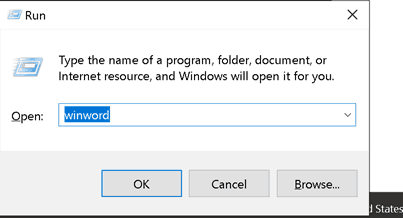
  • Windows Key + R – Shortcut key to open the RUN windows, as shown in the screenshot below.
Windows 10 Shortcut Keys Keyboard Shortcuts - Fig.13
Windows 10 Shortcut Keys Keyboard Shortcuts – Fig.13

Windows Key + S

  • Windows Key + S – Similar to Windows Key + Q, type search here.
Windows 10 Shortcut Keys Keyboard Shortcuts - Fig.14
Windows 10 Shortcut Keys Keyboard Shortcuts – Fig.14

Windows Key + T

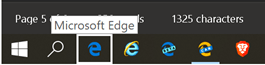
  • Windows Key + T – Shortcut Key to point the cursor to the first pinned icon in the taskbar
Windows 10 Shortcut Keys Keyboard Shortcuts - Fig.15
Windows 10 Shortcut Keys Keyboard Shortcuts – Fig.15

Windows Key + U

  • Windows Key + U – Shortcut key to open Display settings within the settings menu. Access Center.
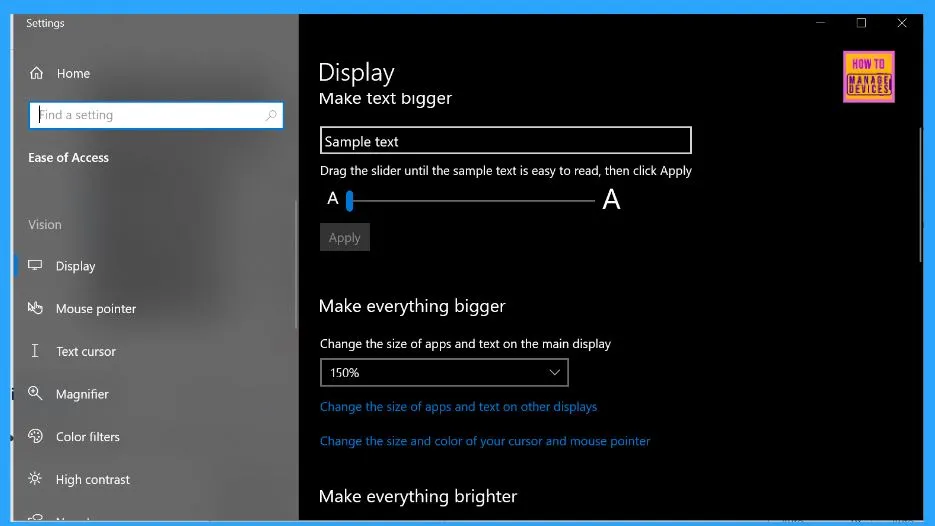
Windows 10 Shortcut Keys Keyboard Shortcuts - Fig.16
Windows 10 Shortcut Keys Keyboard Shortcuts – Fig.16

Windows Key + V

  • Windows Key + V – Shortcut key to open CLIPBOARD window.

Windows 10 Shortcut Keys Keyboard Shortcuts - Fig.17
Windows 10 Shortcut Keys Keyboard Shortcuts – Fig.17

Windows Key + W

  • Windows Key + W – Shortcut key to open Whiteboard/Full-Screen snip option.

Windows 10 Shortcut Keys Keyboard Shortcuts - Fig.18
Windows 10 Shortcut Keys Keyboard Shortcuts – Fig.18

Windows Key + X

  • Windows Key + X, Shortcut key to open the Start menu. Right-click options as shown in the screenshot below.
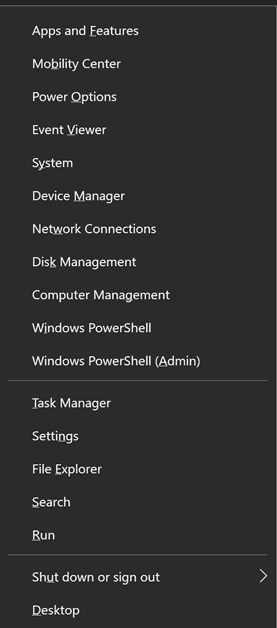
Windows 10 Shortcut Keys Keyboard Shortcuts - Fig.19
Windows 10 Shortcut Keys Keyboard Shortcuts – Fig.19

Windows Key + Y

  • Windows Key + Y – ???? Switch input between Windows Mixed Reality and your desktop.

Windows Key + Z

  • Windows Key + Z – ???? – Show the commands available in an app in full-screen mode.

Windows Key ShortcutWindows Key + 1 to 0

  • Windows Key + 1 – Shortcut key to open the first pinned application from the taskbar. Suppose it’s not already open. If the first pinned app in the toolbar is already available, it will present that application above all the opened applications.
  • Windows Key + 2 – Shortcut key to open the second pinned application from the taskbar.
  • Windows Key + 3 – Shortcut key to open the third pinned application from the taskbar.
  • Windows Key + 4 – Shortcut key to open four pinned applications from the taskbar.
  • Windows Key + 5 – Shortcut key to open five pinned applications from the taskbar.
  • Windows Key + 6 – Shortcut key to open six pinned applications from the taskbar.
  • Windows Key + 7 – Shortcut key to open seven pinned applications from the taskbar.
  • Windows Key + 8 – Shortcut key to open eight pinned applications from the taskbar.
  • Windows Key + 9 – Shortcut key to open nine pinned applications from the taskbar.
  • Windows Key + 0 – Shortcut key to open the tenth (10th) pinned application from the taskbar

Windows Key + =

  • Windows Key + = – Shortcut key to open MAGNIFIER application.
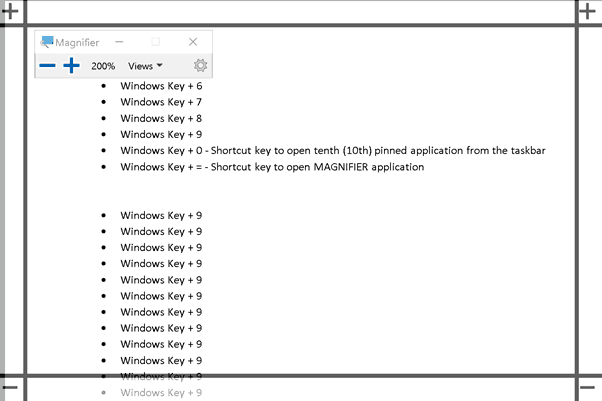
Windows 10 Shortcut Keys Keyboard Shortcuts - Fig.20
Windows 10 Shortcut Keys Keyboard Shortcuts – Fig.20

Resources – Windows 10 Shortcut Keys Keyboard Shortcuts

We are on WhatsApp. To get the latest step-by-step guides and news updates, Join our Channel. Click here –HTMD WhatsApp.

Author

Anoop C Nair is Microsoft MVP! He is a Device Management Admin with more than 20 years of experience (calculation done in 2021) in IT. He is a Blogger, Speaker, and Local User Group HTMD Community leader. His main focus is on Device Management technologies like SCCM 2012, Current Branch, and Intune. He writes about ConfigMgr, Windows 11, Windows 10, Azure AD, Microsoft Intune, Windows 365, AVD, etc.

Written by

Anoop C Nair is Workplace Technology solution architect with 25+ years of experience in global enterprise organizations such as JP Morgan, Capgemini, etc. Microsoft Certified Trainer. Microsoft MVP from 2015 onwards for consecutive 11+ years! He also conducts Intune and modern workplace tech training for enterprise organizations. He is Blogger, Speaker, and Founder of HTMD Community and HTMD Conference. His main focus is on Device Management technologies like Intune, Windows, Cloud PC. He writes about technologies like Intune, SCCM, Windows, Cloud PC, Windows, Entra, Microsoft Security.

Discussion · 6 comments

Join the discussion

Your email address will not be published. Required fields are marked *

Related guides

Windows 10

New Snipping Tool Vulnerability in Windows can Leak NTLMv2 Hashes over Network

Key Takeaways Hey, let’s discuss about New Snipping Tool Vulnerability in Windows can Leak NTLMv2 Hashes over Network. Microsoft Windows Snipping Tool has a newly disclosed spoofing vulnerability, tracked as CVE-2026-33829, which could allow an unauthenticated attacker to capture a user’s NTLMv2 hash over a network. The issue was made public on April 14, 2026, […]

AC Anoop C Nair 4 min read
Windows 10

Unsupported Windows 10 Devices in Intune may Experience Limited or Unreliable Functionality

Let’s discuss Unsupported Windows 10 Devices in Intune may Experience Limited or Unreliable Functionality. Microsoft Announce the Official end of support announcement of Windows 10 free support on October 14, 2025. There is no more free security updates or non-security fixes via Windows Update for Windows 10 Home and Pro editions. Microsoft announced that, Windows 10 […]

AC Anoop C Nair 4 min read
Intune

Last Patch for Windows 10 with KB5066791 and 5 Zero Day Vulnerabilities and 118 Flaws

Let’s discuss Last Patch for Windows 10 with KB5066791 and 5 Zero Day Vulnerabilities and 118 Flaws. Microsoft Released last Patch Tuesday Updates for Windows 10 on October 2025. After October 14 2025, Microsoft will no longer provide free software updates from Windows Update, technical assistance, or security fixes for Windows 10. As you know […]

AC Anoop C Nair 6 min read
Intune

2025 September KB5065429 Windows 10 Patch | 2 Zero Day Vulnerabilities and 81 Flaws

Let’s discuss 2025 September KB5065429 Windows 10 Patch | 2 Zero Day Vulnerability and 81 Flaws. Microsoft addressed various security fixes and improvements on September 2025 Patch Tuesday of Windows 10 KB5065429. There are many security benefits can be accessed with parch tuesday update. Microsoft dedicated to provides patch Tuesday updates on Windows 11. Mainly […]

AC Anoop C Nair 7 min read