


Skip to content
How to use New Draw and Hold Feature in Snipping Tool to Improve the Inking Markup Experience in Windows 11

How to use New Draw and Hold Feature in Snipping Tool to Improve the Inking Markup Experience in Windows 11

Written By Anoop C Nair
Last Updated March 17, 2025
Posted In Windows 11
SHARE

Let’s discuss Snipping Tool New Draw and Hold to Improve Inking Markup Experience in Windows 11. Microsoft introduced new functionality in Snipping tool called Draw and Hold. This features is rollout started on Windows Insiders in the Canary and Dev Channels on Windows 11.

With the New feature you can effortlessly draw neat lines with Snipping Tool. As you know that, before this update we can draw neat line only using straight lines in Snipping tool. By using this feature drawing neat lines is simple.

Snipping tool is enhanced with innovative features by Last few months. Microsoft dedicated to bring new functionalities in Snipping tool, because it is a prominent tool for Windows 11 users. We have Snipping tool related post to know more about the recent enhancements.

In this blog post i will help you to know more about Snipping Tool New Draw and Hold to Improve Inking Markup Experience in Windows 11. I will also show how to use New Draw and Hold feature on Snipping tool on your Windows 11 PC.

Patch My PC
Snipping Tool New Draw and Hold to Improve Inking Markup Experience in Windows 11 - Fig.1
Snipping Tool New Draw and Hold to Improve Inking Markup Experience in Windows 11 – Fig.1

Snipping Tool New Draw and Hold to Improve Inking Markup Experience in Windows 11

As mentioned above this new feature is available on Windows Insiders in the Canary and Dev Channels. Snipping tool version 11.2502.18.0 has this feature. More than this Microsoft also launched Protocol Launch feature on Snipping Tool. The table below shows the features of Protocol Launch.

Features of Protocol Launch
App callers can now customize which Snipping Tool capture features are shown when invoked from their experience
The protocol is designed to offer improved flexibility, security, and ease of use, aligning closely with familiar HTTP-based interactions. 
Snipping Tool New Draw and Hold to Improve Inking Markup Experience in Windows 11 – Table.1

How to Use Draw and Hold Rectangle Shape in Snipping Tool

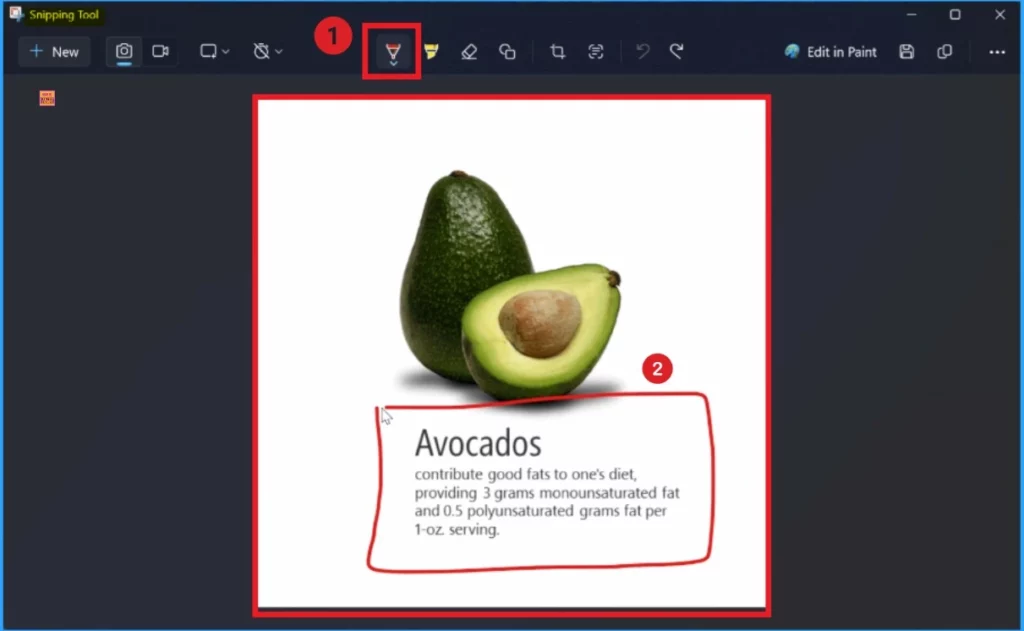
To access this feature, Open the Snipping Tool and capture a screenshot of any content on your screen. If the image does not automatically open in the app, click on the toast notification to “Mark up and share” it. After that, you can use any pen and draw options like line, arrow, rectangle, or oval over the image.
How to use New Draw and Hold Feature in Snipping Tool to Improve the Inking Markup Experience in Windows 11 - Fig.2 - Creds to MS
How to use New Draw and Hold Feature in Snipping Tool to Improve the Inking Markup Experience in Windows 11 – Fig.2 – Creds to MS

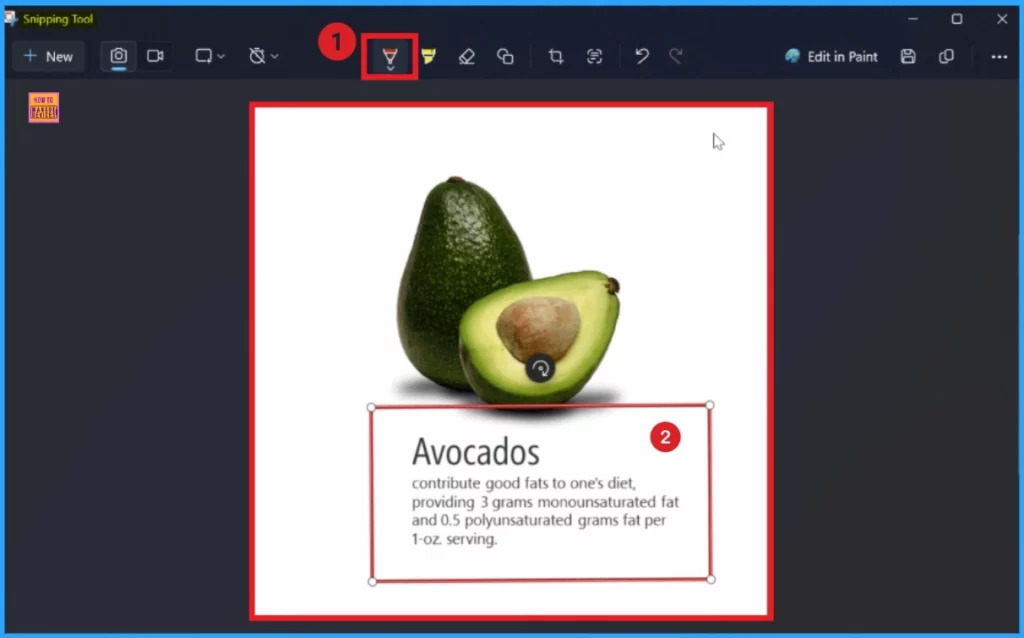
Before letting go of the shape, hold your cursor or pen still for a moment to convert your stroke into a well-formed shape. in this below window i am going to draw a rectangle over the image. I hold the cursor still for a moment to convert, my image turn into a well formed rectangle Shape.
How to use New Draw and Hold Feature in Snipping Tool to Improve the Inking Markup Experience in Windows 11 - Fig.3 - Creds to MS
How to use New Draw and Hold Feature in Snipping Tool to Improve the Inking Markup Experience in Windows 11 – Fig.3 – Creds to MS

How to Use Draw and Hold Rectangle Shape in Snipping Tool

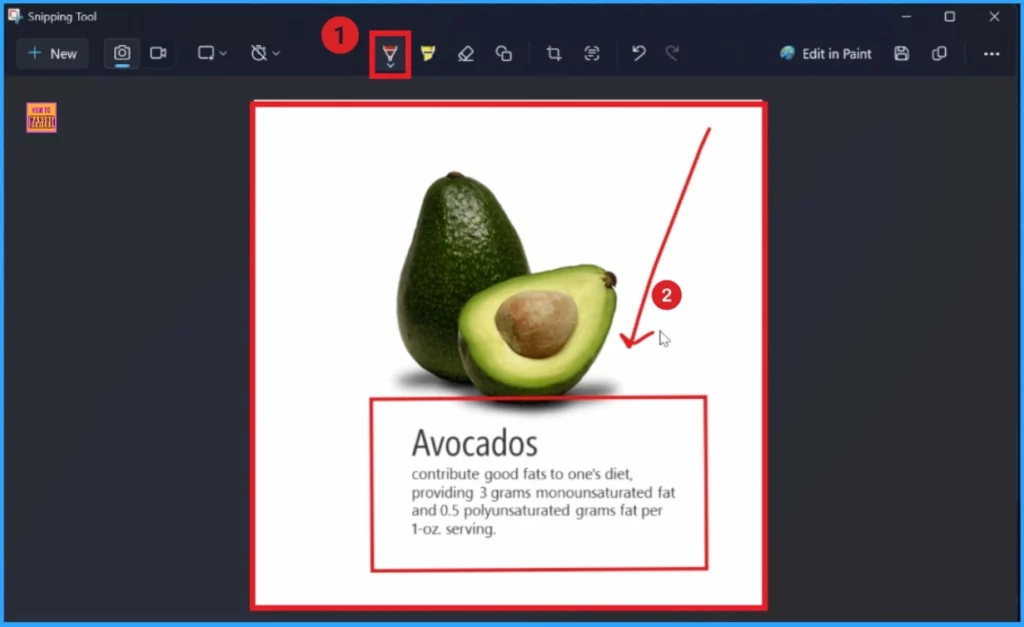
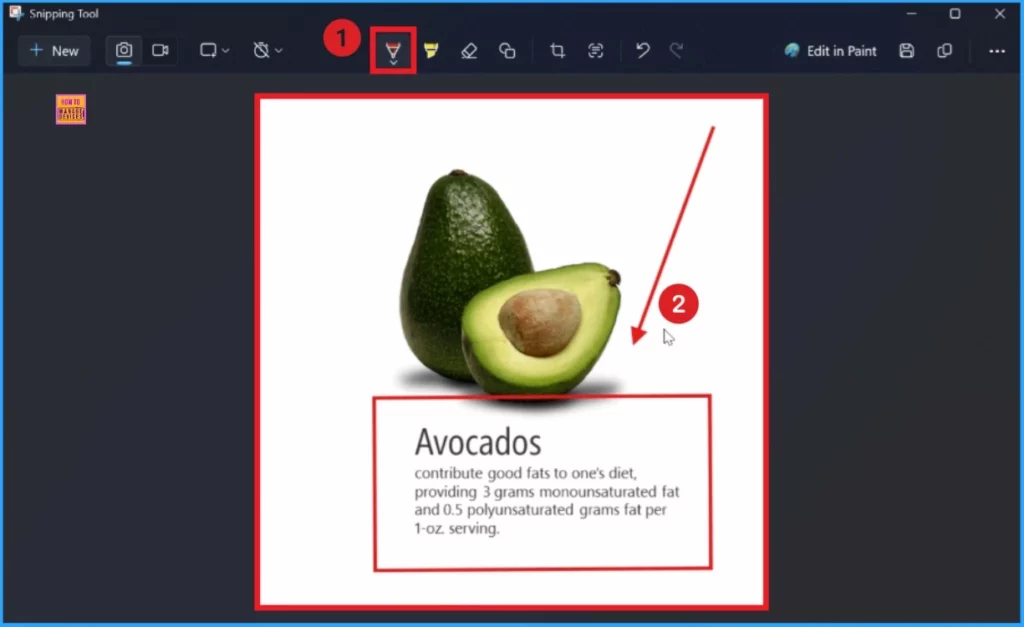
Using above mentioned steps you can easily, draw an arrow in the image. To draw the arrow draw a line and a point like the image shows. Here i use red color pen for this.
How to use New Draw and Hold Feature in Snipping Tool to Improve the Inking Markup Experience in Windows 11 - Fig.4 - Creds to MS
How to use New Draw and Hold Feature in Snipping Tool to Improve the Inking Markup Experience in Windows 11 – Fig.4 – Creds to MS

After that i hold the cursor for a moment and the arrow changed to a well-formed shape. You can resize, move, or adjust your shape as needed before clicking away to let the ink dry. Look at the below screenshot.
How to use New Draw and Hold Feature in Snipping Tool to Improve the Inking Markup Experience in Windows 11 - Fig.5 - Creds to MS
How to use New Draw and Hold Feature in Snipping Tool to Improve the Inking Markup Experience in Windows 11 – Fig.5 – Creds to MS

Need Further Assistance or Have Technical Questions?

Join the LinkedIn Page and Telegram group to get the latest step-by-step guides and news updates. Join our Meetup Page to participate in User group meetings. Also, Join the WhatsApp Community to get the latest news on Microsoft Technologies. We are there on Reddit as well.   

Resource

Snipping Tool and Notepad app updates begin rolling out to Windows Insiders

Author

Anoop C Nair has been Microsoft MVP for 10 consecutive years from 2015 onwards. He is a Workplace Solution Architect with more than 22+ years of experience in Workplace technologies. He is a Blogger, Speaker, and Local User Group Community leader. His primary focus is on Device Management technologies like SCCM and Intune. He writes about technologies like Intune, SCCM, Windows, Cloud PC, Windows, Entra, Microsoft Security, Career, etc.

Written by

Anoop C Nair is Workplace Technology solution architect with 25+ years of experience in global enterprise organizations such as JP Morgan, Capgemini, etc. Microsoft Certified Trainer. Microsoft MVP from 2015 onwards for consecutive 11+ years! He also conducts Intune and modern workplace tech training for enterprise organizations. He is Blogger, Speaker, and Founder of HTMD Community and HTMD Conference. His main focus is on Device Management technologies like Intune, Windows, Cloud PC. He writes about technologies like Intune, SCCM, Windows, Cloud PC, Windows, Entra, Microsoft Security.

Discussion

Join the discussion

Your email address will not be published. Required fields are marked *

Related guides

Security

Microsoft Fixes 570 Security Vulnerabilities and 3 Zero-Day Vulnerabilities in July 2026 Patch Tuesday

Key Takeaways Microsoft Fixes 570 Security Vulnerabilities and 3 Zero-Day Vulnerabilities in July 2026 Patch Tuesday! Microsoft fixed 3 zero-day vulnerabilities as part of the July 2026 Patch Tuesday updates. Two of them, CVE-2026-56164 (Microsoft SharePoint Server Elevation of Privilege) and CVE-2026-56155 (Active Directory Federation Services Elevation of Privilege), were actively exploited before the security […]

AC Anoop C Nair 29 min read
Intune

Windows 11 KB5101650 KB5099414 July 2026 Patch and 3 Zero Day Vulnerabilities and 570 Flaws

Key Takeaways Windows 11 KB5101650 KB5099414 July 2026 Patch and 3 Zero Day Vulnerabilities and 570 Flaws! In the July 2026 Patch, Microsoft introduced new features designed to improve the overall Windows experience. The update adds enhancements to Windows Update for more flexible update management and introduces Point-in-Time Restore, providing an additional recovery option for […]

AC Anoop C Nair 9 min read
Windows 11

Boost Productivity with Zoom Workplace on Windows 11 | Setup Guide for Meetings Chat Calls and Collaboration

Key Takeaways Hey, let’s learn about Boost Productivity with Zoom Workplace on Windows 11 | Setup Guide for Meetings Chat Calls and Collaboration. Zoom workplace is an AI-powered collaboration app used for online meetings, team collaboration, and video calls. This application helps to conduct meetings Including chat and messaging, screen sharing and Calendar Integration. Boost […]

AC Anoop C Nair 35 min read
Windows 11

13 Windows AI Features to Turn Off for Better Privacy

Key takeaways Hey, let’s discuss about 13 Windows AI features to turn off for better privacy. AI is widely used in modern systems such as Windows 11 to automate tasks, improve productivity, and enhance user experience. However, AI also has several disadvantages. It may raise privacy concerns because personal data can be collected and analysed […]

AC Anoop C Nair 15 min read


