


Skip to content
Learn How to Delete or Remove App Assignment from Intune using Step by Step Guide

Learn How to Delete or Remove App Assignment from Intune using Step by Step Guide

Written By Anoop C Nair
Last Updated March 27, 2025
Posted In Intune
SHARE

Let’s discuss Learn How to Delete or Remove App Assignment from Intune using Step by Step Guide. Microsoft Intune allows you to remove assigned group from an Enterprise App Catalog App. To remove a group you can access Assignment tab on Intune.

For many reasons Intune Admins forced to remove Assigned group from Enterprise App in Microsoft Intune. Admins should deploy an app in Intune on appropriate group type. Sometimes Admins may deploy app on wrong group type.

For any reason assigned group removal is easy with Intune. In this blog post, i would like to remove Assigned group from AVS Media Player App. AVS Media player is a free application that can be customize. It provide many facilities for you.

AVS Media Player is one of the famous Media Palyer which is hepful for your personal and professional life. In this blog post i will help you to remove Assigned Group from AVS Media Player App in Intune with step by step guidance.

Patch My PC
Learn How to Delete or Remove App Assignment from Intune using Step by Step Guide - Fig.1
Learn How to Delete or Remove App Assignment from Intune using Step by Step Guide – Fig.1

How to Remove Assigned Group from AVS Media Player App in Intune

There are many reasons forced by admins to remove assigned group. The app might no longer be required for the assigned group due to changes in workflows or the introduction of alternative tools.

Reasons
Reorganization of Groups
Security and Compliances
Testing and Piloting
Learn How to Delete or Remove App Assignment from Intune using Step by Step Guide – Table.1

Steps to Remove Assigned Group from AVS Media Player

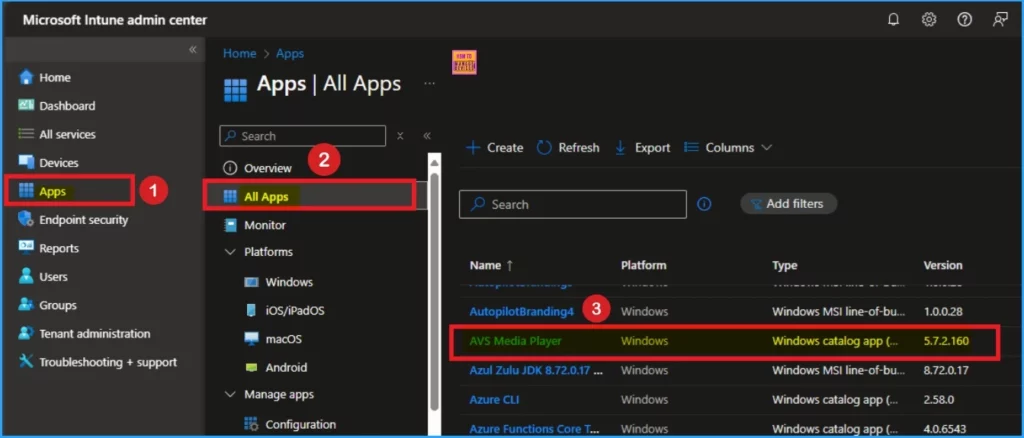
From the Intune portal, you can easily remove the assigned group from AVS Media Player App. To start this, Open Intune admin center and go to Apps > All Apps. Then open the AVS Media Player app which you already installed.
Learn How to Delete or Remove App Assignment from Intune using Step by Step Guide - Fig.2
Learn How to Delete or Remove App Assignment from Intune using Step by Step Guide – Fig.2

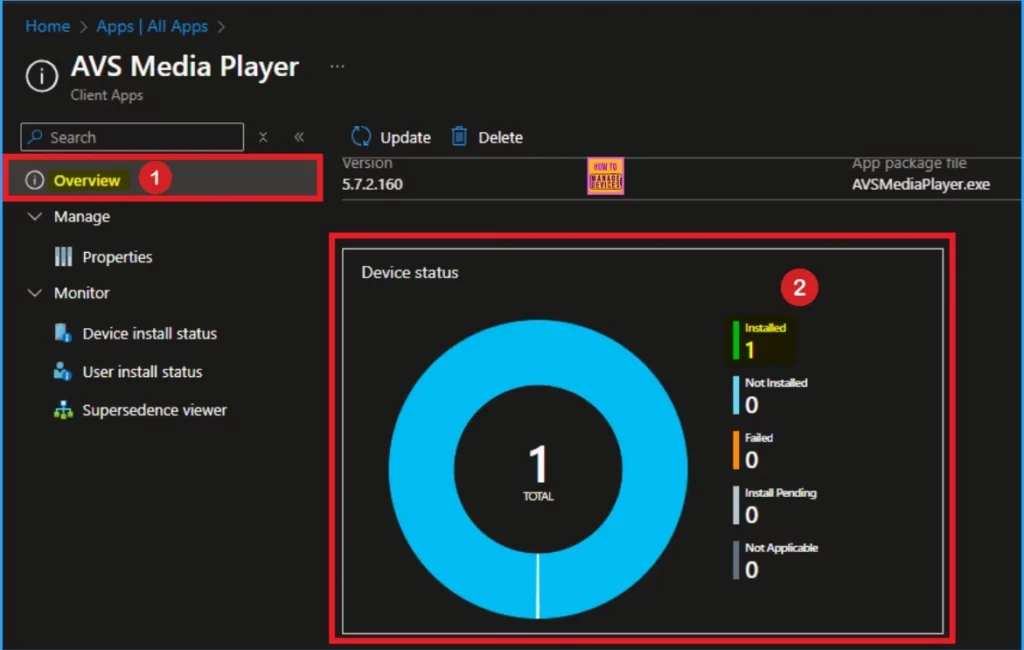
After opening the AVS Media Player app, you can see the App installed as 1 on the Overview page. Here AVS Media Player Installed on 1 Device. Look at the below screenshot.
Learn How to Delete or Remove App Assignment from Intune using Step by Step Guide - Fig.3
Learn How to Delete or Remove App Assignment from Intune using Step by Step Guide – Fig.3

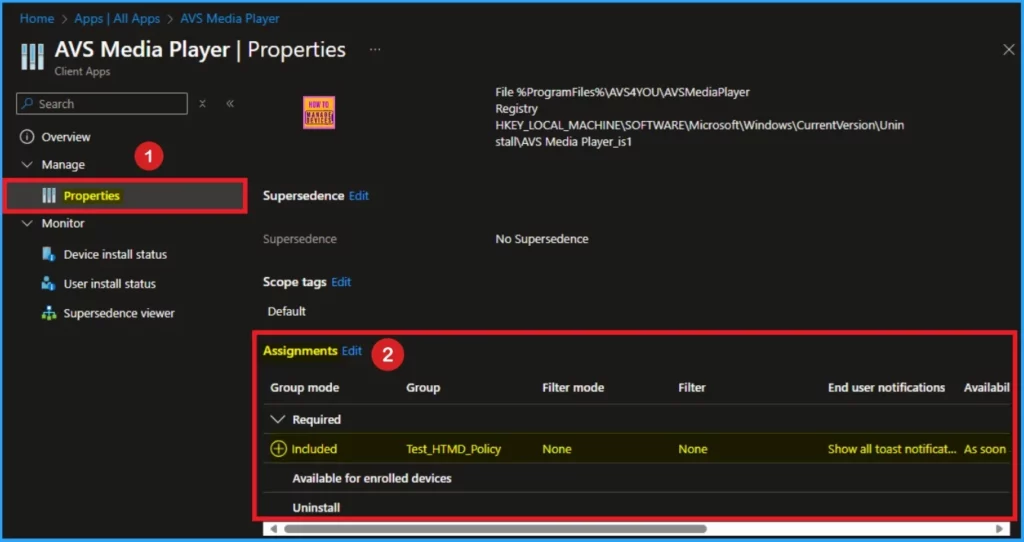
To remove the assigned group you have to open the Properties page. Select Properties and you can see Edit options near each tab. Scroll down the page and click on the Edit button near Assignments tab.
Learn How to Delete or Remove App Assignment from Intune using Step by Step Guide - Fig.4
Learn How to Delete or Remove App Assignment from Intune using Step by Step Guide – Fig.4

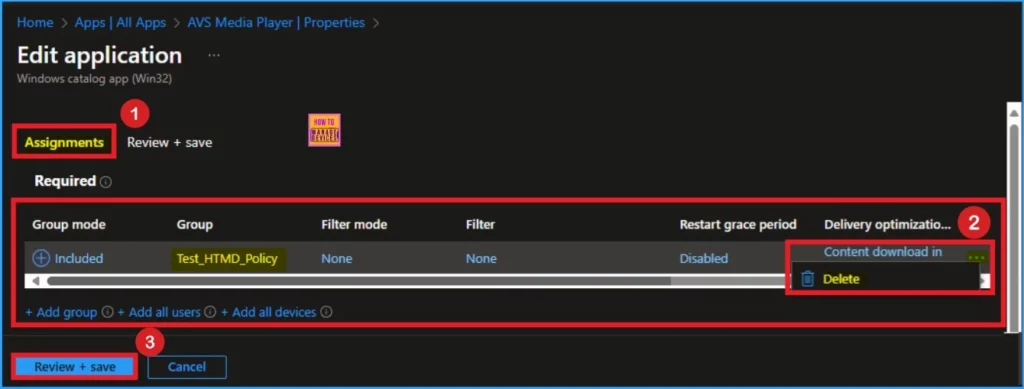
After clicking on the Edit button you can edit the Assigned group for AVS Media Player. On the below screenshot you can see one group is showing. Scroll the bar to the right side and you can see the 3 dot option. Click on the 3 dot option and you will get Delete button.

  • Click on the Delete button.
  • Then click on the Review + Save button
Learn How to Delete or Remove App Assignment from Intune using Step by Step Guide - Fig.5
Learn How to Delete or Remove App Assignment from Intune using Step by Step Guide – Fig.5

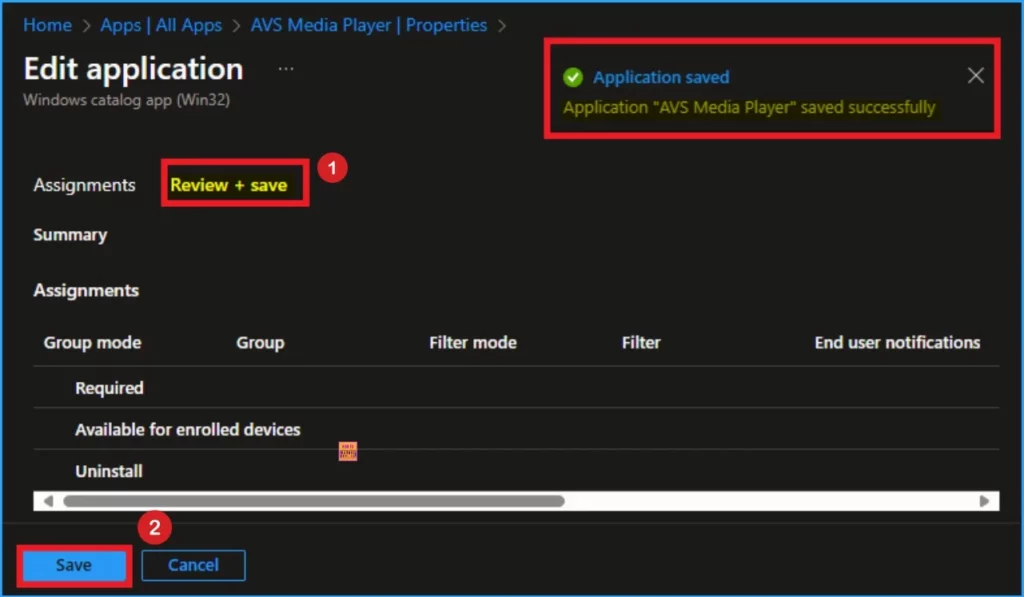
Review + Save

On the Review + Save tab you can see the you can the Assignment tab not shows any group. After review this tab then click on the Save button. Then you will get the success notification.
Learn How to Delete or Remove App Assignment from Intune using Step by Step Guide - Fig.6
Learn How to Delete or Remove App Assignment from Intune using Step by Step Guide – Fig.6

Syncing App on Company Portal

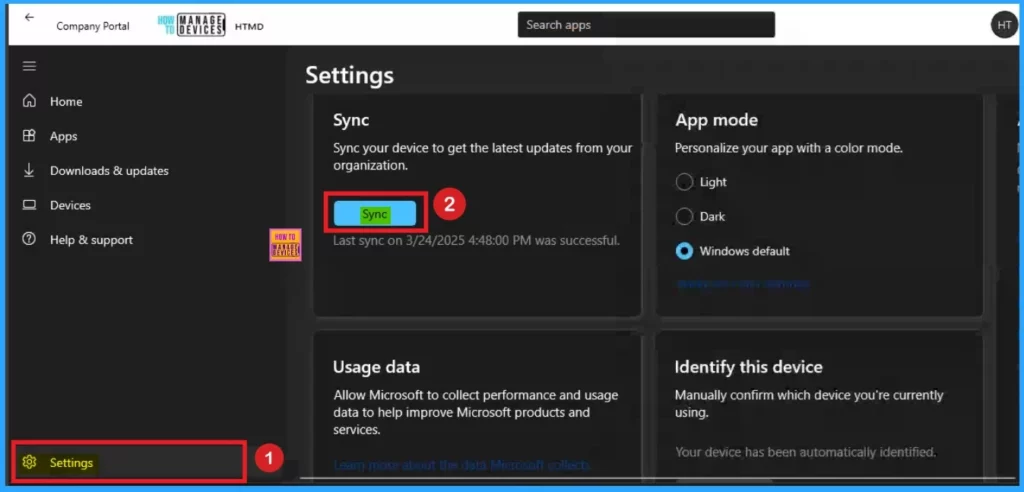
After the Application saved successfully, you can sync the removed group on the Company Portal. For manual syncing open the Company Portal and Click on the Settings button. Click on the Sync button.
Learn How to Delete or Remove App Assignment from Intune using Step by Step Guide - Fig.7
Learn How to Delete or Remove App Assignment from Intune using Step by Step Guide – Fig.7

End Result

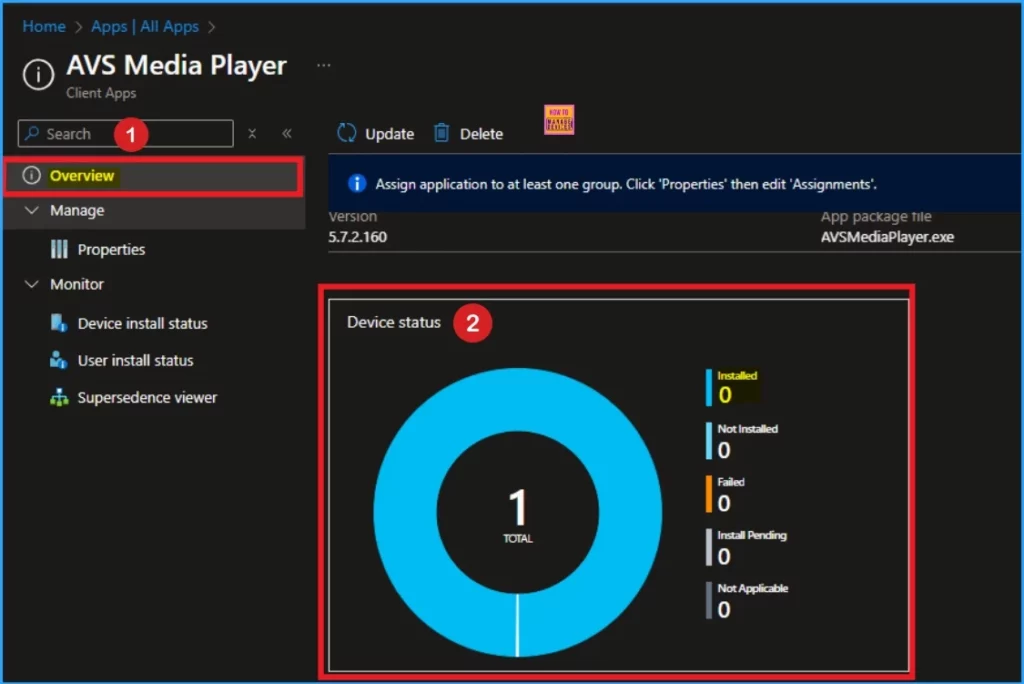
After the syncing completed you can check the App deployment status on the Overview Page. Here the App Installed shows as 0. It means that assigned group is successfully removed.
How to Remove Assigned Group from AVS Media Player App in Intune - Fig.8
How to Remove Assigned Group from AVS Media Player App in Intune – Fig.8

Need Further Assistance or Have Technical Questions?

Join the LinkedIn Page and Telegram group to get the latest step-by-step guides and news updates. Join our Meetup Page to participate in User group meetings. Also, Join the WhatsApp Community to get the latest news on Microsoft Technologies. We are there on Reddit as well. 

Author

Anoop C Nair has been a Microsoft MVP for 10 consecutive years from 2015 onwards. He is a Workplace Solution Architect with more than 22+ years of experience in Workplace technologies. He is a Blogger, Speaker, and Local User Group Community leader. His primary focus is on Device Management technologies like SCCM and Intune. He writes about technologies like Intune, SCCM, Windows, Cloud PC, Windows, Entra, Microsoft Security, Career, etc.

Written by

Anoop C Nair is Workplace Technology solution architect with 25+ years of experience in global enterprise organizations such as JP Morgan, Capgemini, etc. Microsoft Certified Trainer. Microsoft MVP from 2015 onwards for consecutive 11+ years! He also conducts Intune and modern workplace tech training for enterprise organizations. He is Blogger, Speaker, and Founder of HTMD Community and HTMD Conference. His main focus is on Device Management technologies like Intune, Windows, Cloud PC. He writes about technologies like Intune, SCCM, Windows, Cloud PC, Windows, Entra, Microsoft Security.

Discussion

Join the discussion

Your email address will not be published. Required fields are marked *

Related guides

Intune

Simplify Windows Devices to Run Only the Required Applications using Intune

Key Takeaways Hey, let’s learn about Simplify Windows Devices to Run Only the Required Applications using Intune. This policy lets administrators replace the default windows shell with a custom or lightweight shell. it improves performance by using system resources and is useful for devices that run a dedicated application. If the policy is disabled or […]

AC Anoop C Nair 8 min read
Intune

Enhance macOS Compliance with Custom Security and Compliance Checks to Improve Device Security using Microsoft Intune

Key Takeaways In this post we are discussing about Enhance macOS Compliance with Custom Security and Compliance Checks to Improve Device Security using Microsoft Intune. Microsoft has announced the general availability of Custom Compliance Settings for macOS in Microsoft Intune. The feature helps organizations strengthen security controls while supporting many types of macOS management scenarios. […]

AC Anoop C Nair 4 min read
Intune

Manage Samsung Galaxy Firmware Versions to Improve Security and Compliance using Microsoft Intune

Key Takeaways In this post we are discussing Manage Samsung Galaxy Firmware Versions to Improve Security and Compliance using Microsoft Intune. Microsoft Intune has received a new update that expands firmware management capabilities for Samsung Galaxy devices through Firmware Versionsintegration. This enhancement gives IT administrators more control over firmware and operating system updates, helping them […]

AC Anoop C Nair 4 min read
Intune

MS Intune Adds Windows Registry Data Collection to Device Inventory for Single Values All Key Values and Subkeys

Key Takeaways Microsoft Intune 2607 introduces Windows Registry Data collection in Device Inventory, allowing IT admins to verify actual device configurations without relying on custom discovery or remediation scripts. Using the Properties Catalog, admins can collect registry information through Single Value, All Values Under a Key (Non-Recursive), or Same Value Across Subkeys. MS Intune Adds […]

AC Anoop C Nair 5 min read