






Step by Step Process of Remove or Uninstall App using Intune
Let’s discuss the Step by Step Process of Remove or Uninstall App using Intune. Uninstalling apps with Microsoft Intune is a straightforward process. The Enterprise App Catalog allows administrators to deploy applications based on organizational requirements.
However, under certain circumstances, admins may need to uninstall apps using Intune, such as when a device is retired or removed from the organization. Uninstalling unnecessary apps helps optimize storage and reduce data usage.
In this guide, we will walk through the step-by-step process of uninstalling an app using Intune. For demonstration, we’ll use the Egnyte WebEdit App, which enables users to open files from Egnyte’s Web UI in their native applications (such as Microsoft Word or Excel) for editing.
Here, I will provide a step-by-step guide on how to uninstall the Egnyte WebEdit App using Intune. Removing unnecessary apps from your organization helps optimize storage, reduce data usage, and streamline device management. Let’s go through the uninstallation process in detail.

Table of Contents
Step by Step Process of Remove or Uninstall App using Intune
As mentioned above app uninstallation is necessary in some situations. If compliance issues arise by an app or it affecting data privacy, we should uninstall the App. For any reason uninstallation is simple with Intune.
| Advantages of Uninstalling App |
|---|
| Improved Performance |
| Storage Optimization |
| Increase Battery Life |
| Simplified User Experience |
- How to Delete Allow Clipboard History Policy in Intune Step by Step Guide
- Learn How to Delete or Remove App Assignment from Intune using Step by Step Guide
- How to Remove Assigned Group from Energy Saver Battery Threshold Policy in Intune Settings Catalog
Steps to Uninstalling the Egnyte WebEdit App
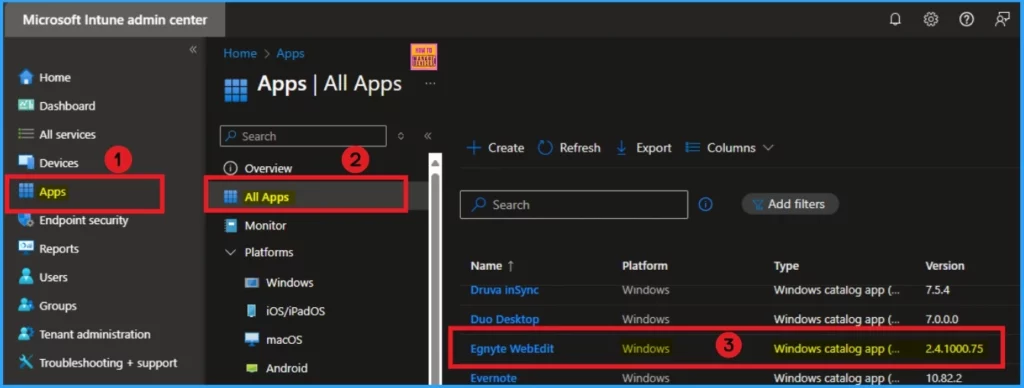
To start the Uninstallation of Egnyte WebEdit App, Open the Microsoft Intune admin center. Then, Go to Apps and select All Apps from Apps Blade. Select Egnyte WebEdit App which is already Installed.
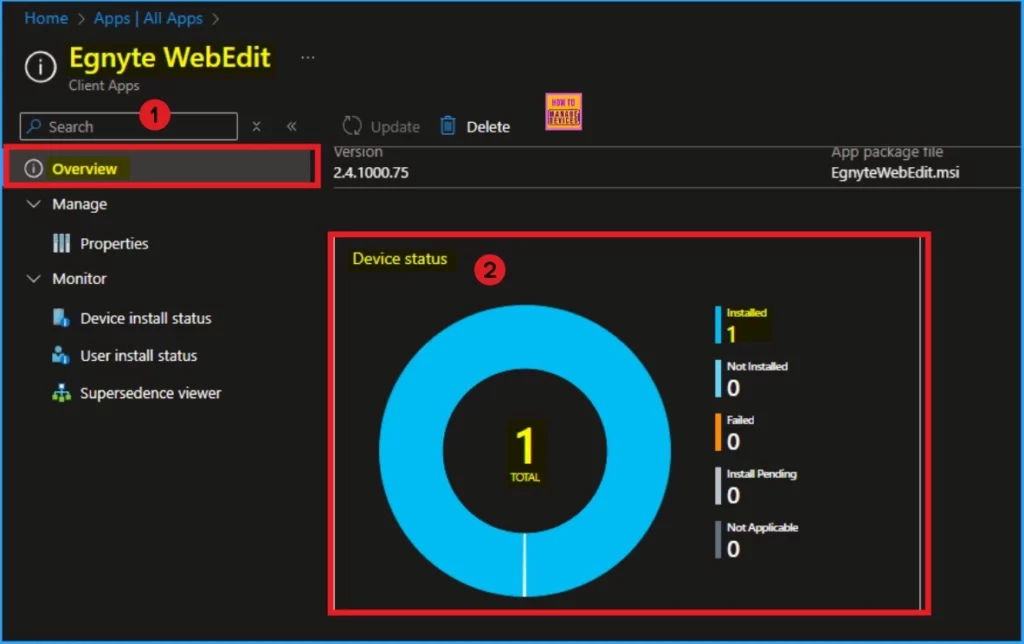
After opening the Egnyte WebEdit App, you will enter the Overview page. It shows device status and user status of the Egnyte WebEdit App. Here device status is 1.
Select the Properties option under Manage. Here you can see the Edit option near each Tab. Slightly scroll down this page, and you can see the Assignments section of the Egnyte WebEdit App. Click on the Edit button.
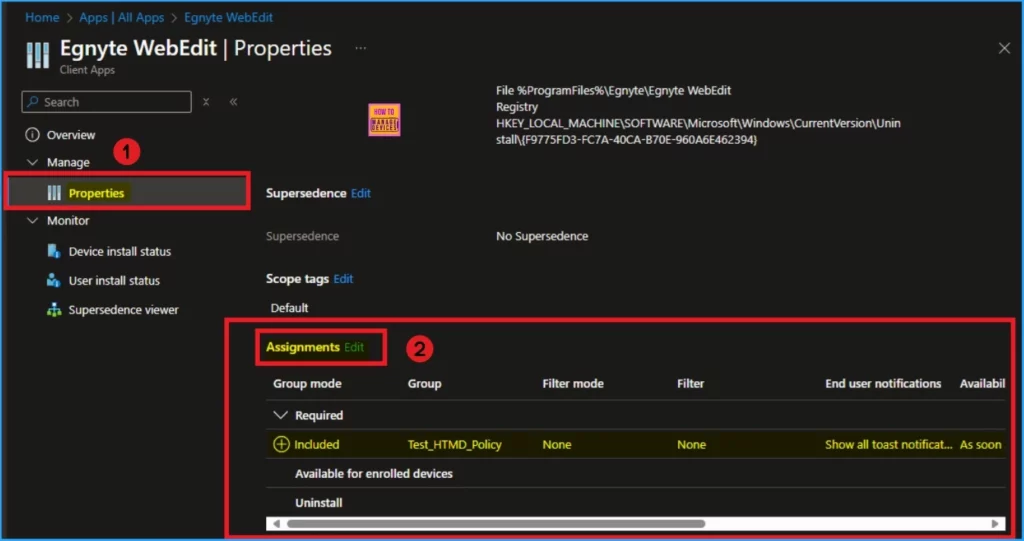
After clicking the Edit button, you can modify the Assignment details of the Egnyte WebEdit App. In this case, a specific group was selected during the app installation, as shown in the screenshot below.
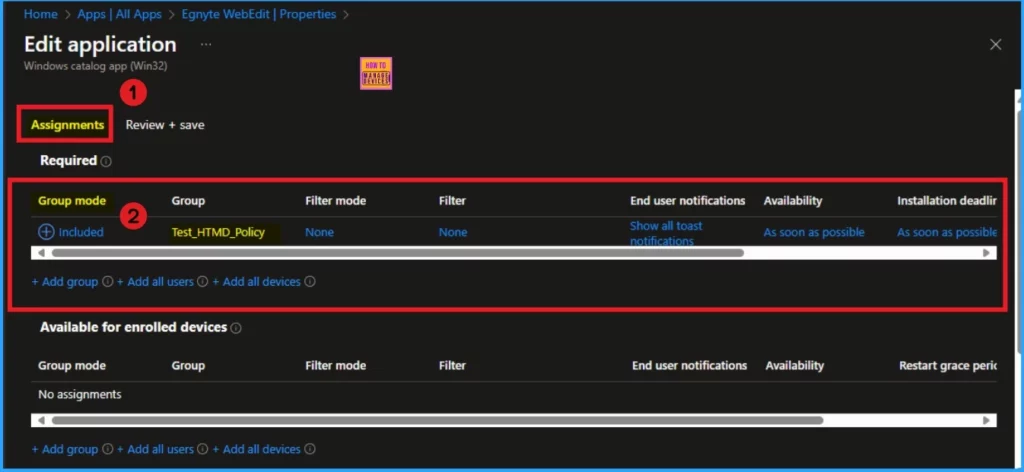
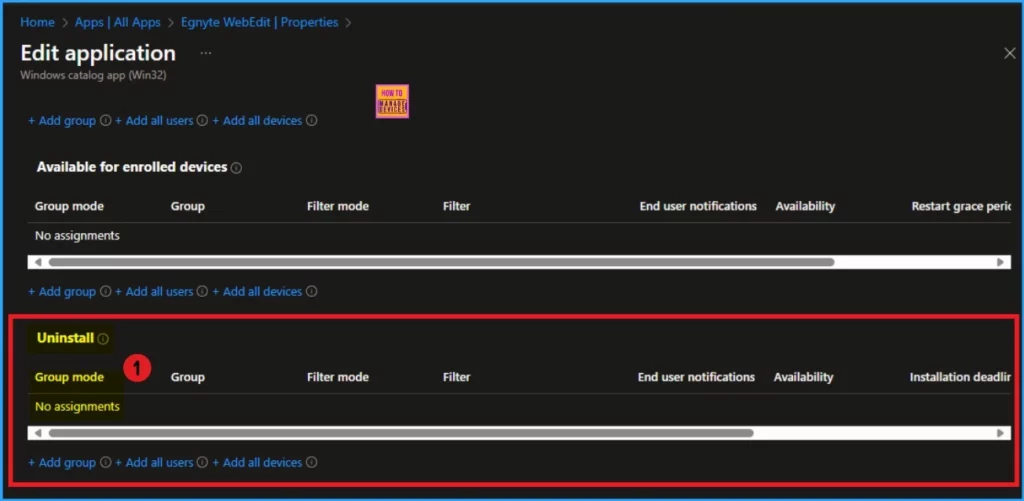
We have to unistall Egnyte WebEdit App from the device which is shown on the above screenshot. Scroll down the Assignment tab and you can see Uninstall option. Select the groups for which you want to uninstall the app.
Apps with this assignment are uninstalled from managed devices in the selected groups if Intune has previously installed the application onto the device via an “Available for enrolled devices” or “Required” assignment on the same deployment.
- Click on the Add group button under Uninstall
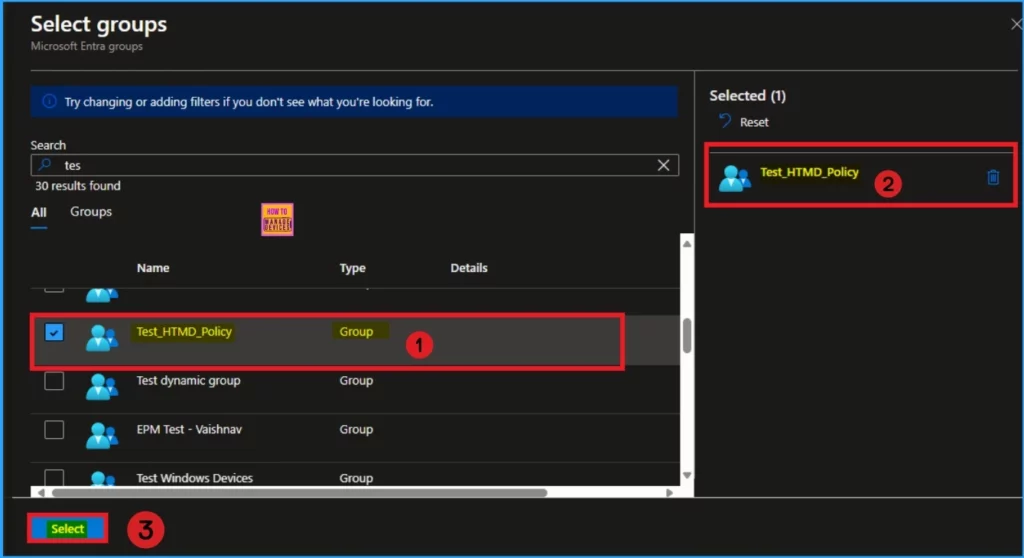
After clicking on the Add group button, you will get the Select groups window. Select the group from this window. Here i choose Test_HTMD_Policy group. Click on the Select button.
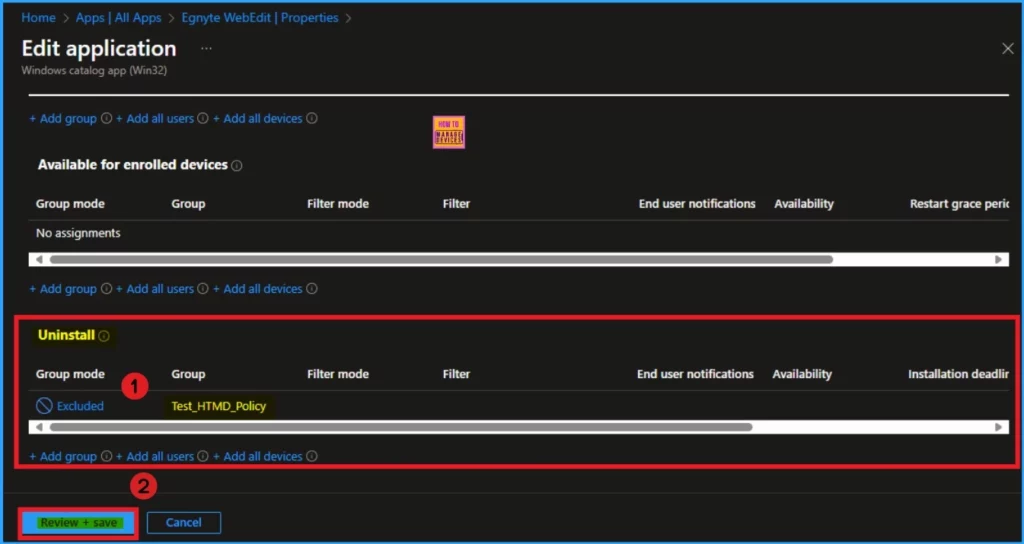
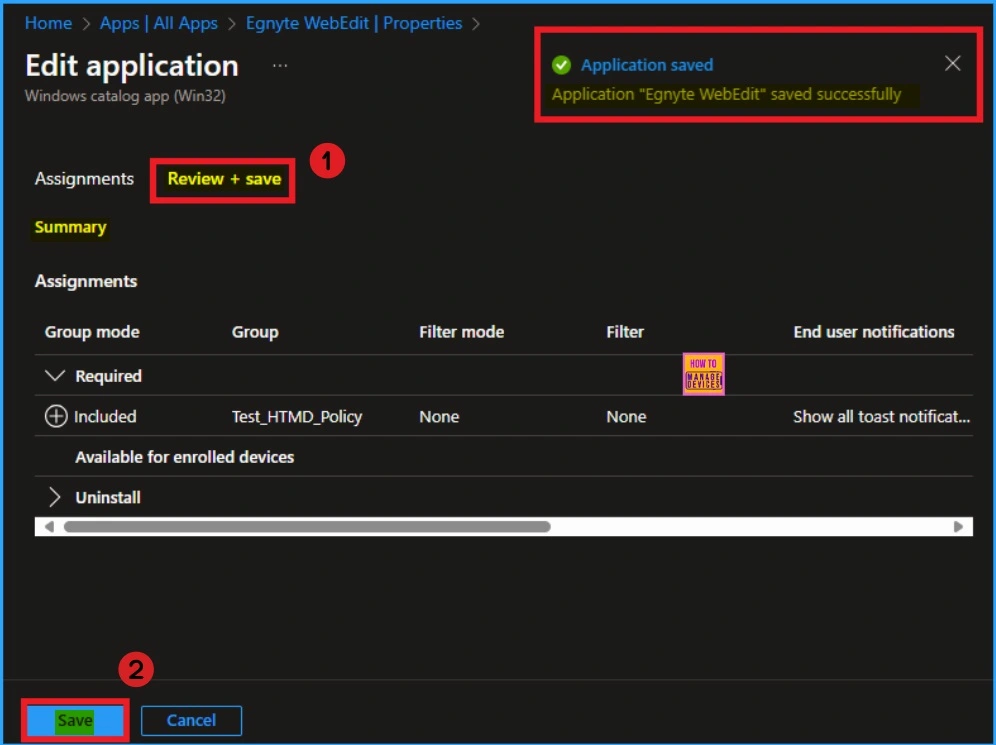
After that, the selected group is shown on the Assignment tab. Then you can continue the uninstallation by clicking on the Review + Save button. Follow the screenshot below.
After clicking on the Review + Save button, you can see the Summary of the Assignment tab. Here you can check the Summary and continue by clicking on the Save button. Then you will get the Success Notification.
Sync the Device on the Company Portal
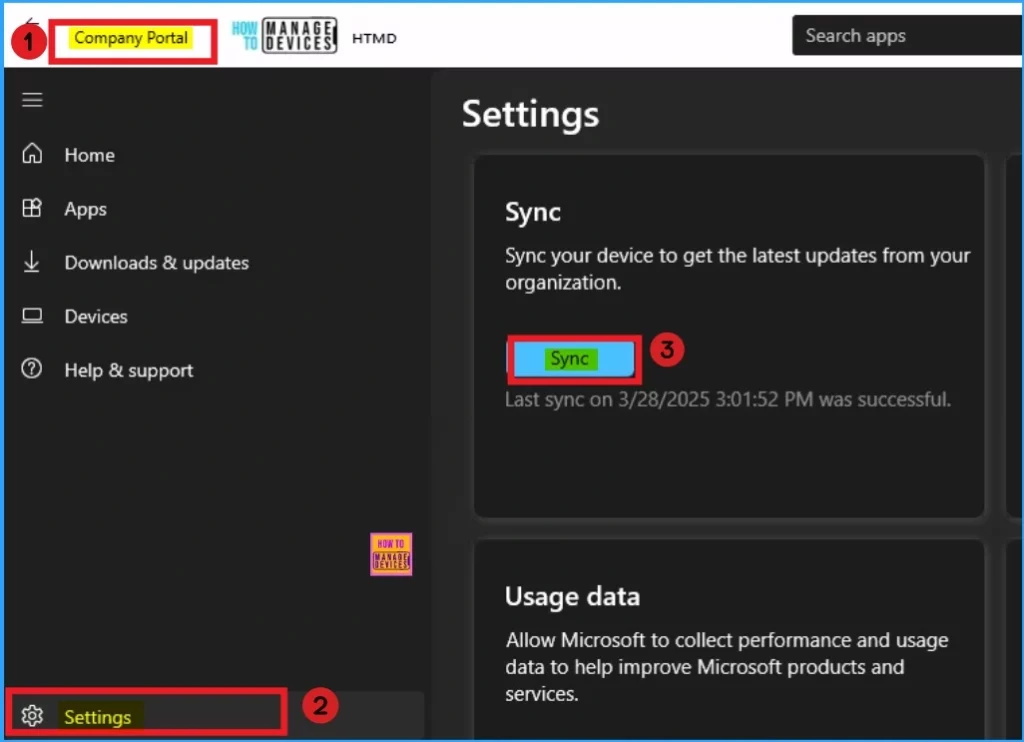
After the success message, you can sync the device on the Company Portal. It helps you to uninstall the device fastly from the enrolled device. Open the Company Portal and go to Settings. Click on the Sync button to sync the Device.
End Result
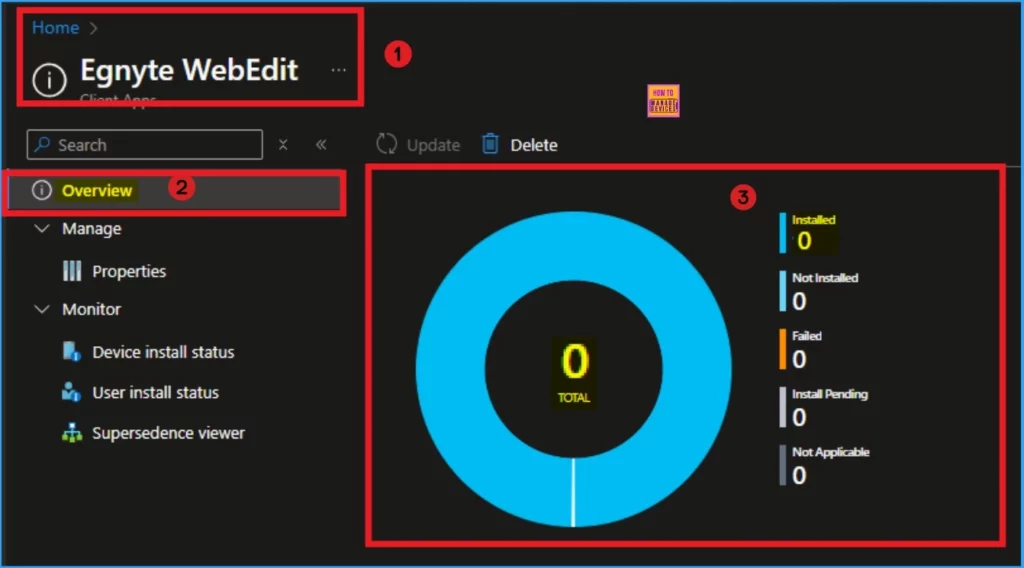
After the syncing is completed, you can check the device status on the Intune Portal. Open the Portal and go to Apps > All Apps and open the Egnyte WebEdit App. Here, Device Status shows as 0 which means App uninstalled successfully.
Need Further Assistance or Have Technical Questions?
Join the LinkedIn Page and Telegram group to get the latest step-by-step guides and news updates. Join our Meetup Page to participate in User group meetings. Also, Join the WhatsApp Community to get the latest news on Microsoft Technologies. We are there on Reddit as well.
Author
Anoop C Nair has been Microsoft MVP for 10 consecutive years from 2015 onwards. He is a Workplace Solution Architect with more than 22+ years of experience in Workplace technologies. He is a Blogger, Speaker, and Local User Group Community leader. His primary focus is on Device Management technologies like SCCM and Intune. He writes about technologies like Intune, SCCM, Windows, Cloud PC, Windows, Entra, Microsoft Security, Career, etc.


What about apps that were not originally installed using Company Portal? Can you just go ahead and add the application into Intune in the normal way and then just assign the uninstall?