






Allow or Block VPN Roaming Over Cellular in Connectivity using Intune Policy
Hey there, let’s discuss about Allow or Block VPN Roaming Over Cellular in Connectivity using Intune Policy. A VPN is powerful equipment that empowers online privacy, protects sensitive data, and enables secure access to the internet. In today’s world, online privacy and data security are more important than ever.
Allow VPN Roaming Over Cellular is a setting that allows VPN to stay connected even when switching from Wi-Fi to mobile data or between different cellular networks. This ensures that we get uninterrupted privacy and security while on the move.
This feature helps us in many ways; without this feature, the VPN might disconnect when leaving a Wi-Fi network, exposing our data briefly before reconnecting. Enabling this option is especially useful for travelers, remote workers, or anyone frequently switching networks, as it maintains a secure connection at all times.
Block VPN Roaming Over Cellular is a security or network management feature that prevents a VPN from automatically reconnecting when switching from Wi-Fi to mobile data. Here we are going to deploy a policy that helps us allow or block VPN roaming over cellular using Intune Settings Catalog.

Table of Contents
What is a VPN?
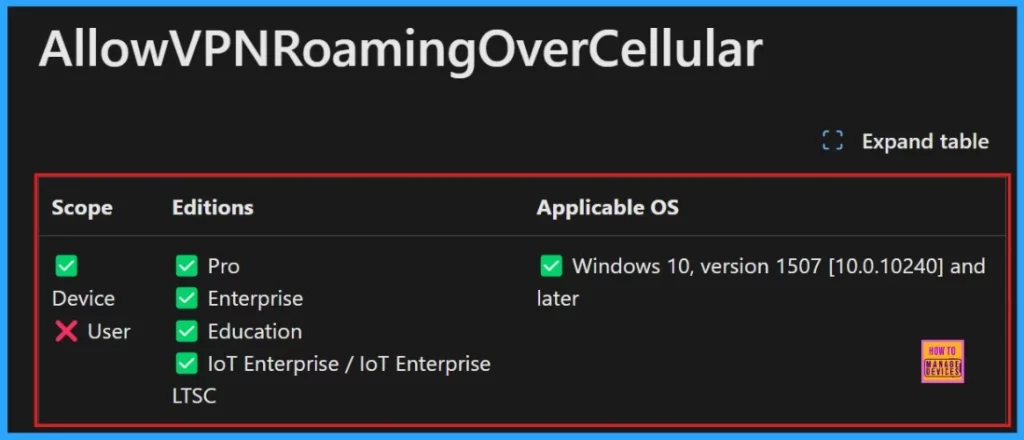
VPN Roaming Over Cellular in Connectivity using Intune Policy – Windows CSP Details
If we want to block VPN roaming over cellular, organizations or network administrators may enforce this restriction to reduce unnecessary data usage, enforce compliance, or prevent unauthorized access over cellular networks. Now we will see the Windows CSP details of the preferred policy.
| Property Name | Property value |
|---|---|
| Format | int |
| Access Type | Add, Delete, Get, Replace |
| Default Value | 1 |
We can also see the allowed values for the policy “Allow or Block VPN Roaming Over Cellular”. Allowed values are the directives and sources we can specify to control which resources can be loaded on a web page.
./Device/Vendor/MSFT/Policy/Config/Connectivity/AllowVPNRoamingOverCellular
| Allowed Values | Description |
|---|---|
| 0 | Not allowed |
| 1 (Default) | Allowed |
- Easy Guide to Deploy Azure VPN Client Microsoft Store App using Intune
- Disallow Cache Server Downloads On VPN in Windows Settings Catalog
- ConfigMgr VPN Boundary Setup Process Explained | SCCM
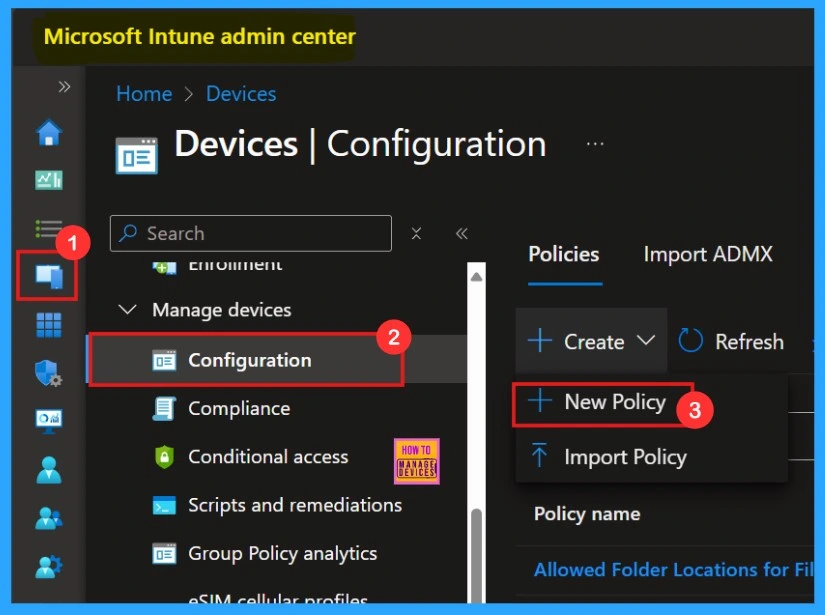
To create a policy, we need to sign in to the Intune admin center. after signing in, click on Devices >Configuration > Create > New policy.
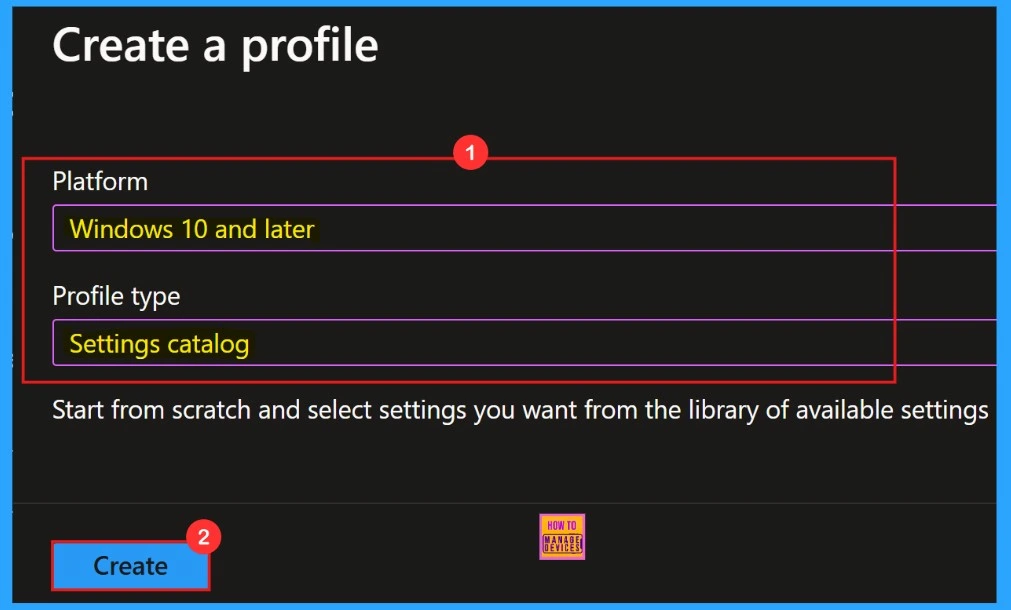
After creating a new policy, we need to select the platform in which our policy needs to deploy. Here, we select the platform as Windows 10 and later. Then, select the profile type as the setting catalog.
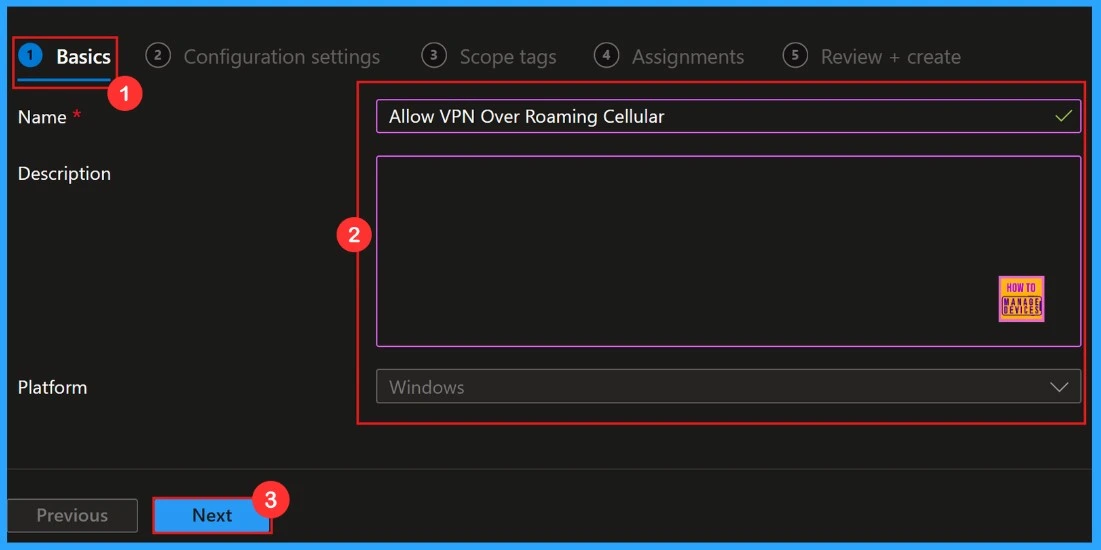
Basics
Basic tab is the very first step for creating a policy. In this section we can add the basic informations about the policy. That is Name of the policy (Mandatory), Description of the policy (optional). We already selected Platform section, so it will come as default.
Configuration Settings
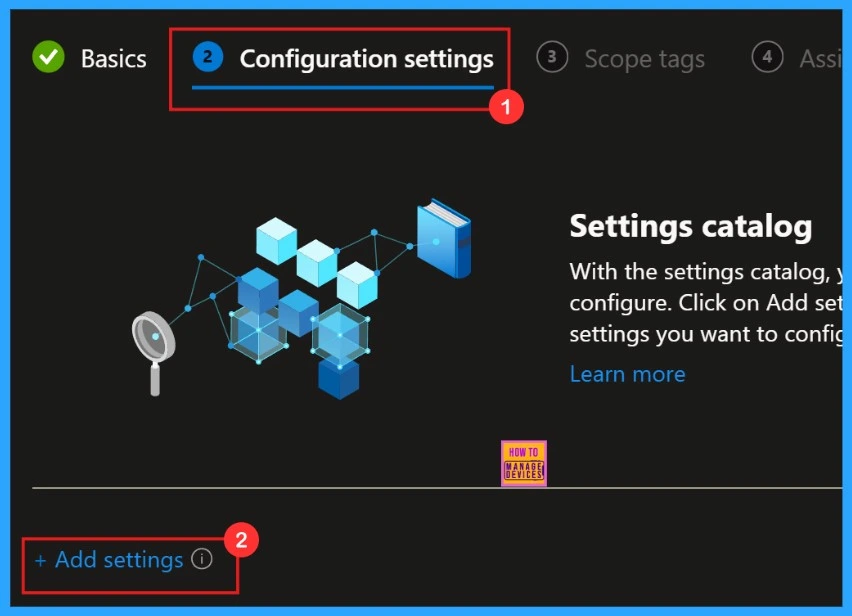
In configuration settings, we can add settings. To create a policy add configuration settings is important. When opening the configuration settings page, we can see “Add Settings” label. We need to click on that.
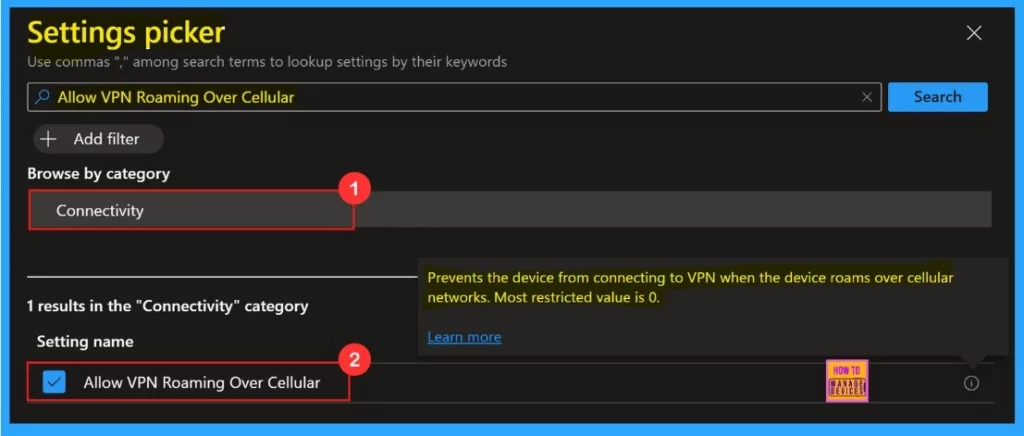
Settings Picker
When we click on “Add settings”, and a window titled Settings Picker will appear. In this window, we can select a category. Our policy Allow VPN Roaming over cellular lies under Connectivity category.
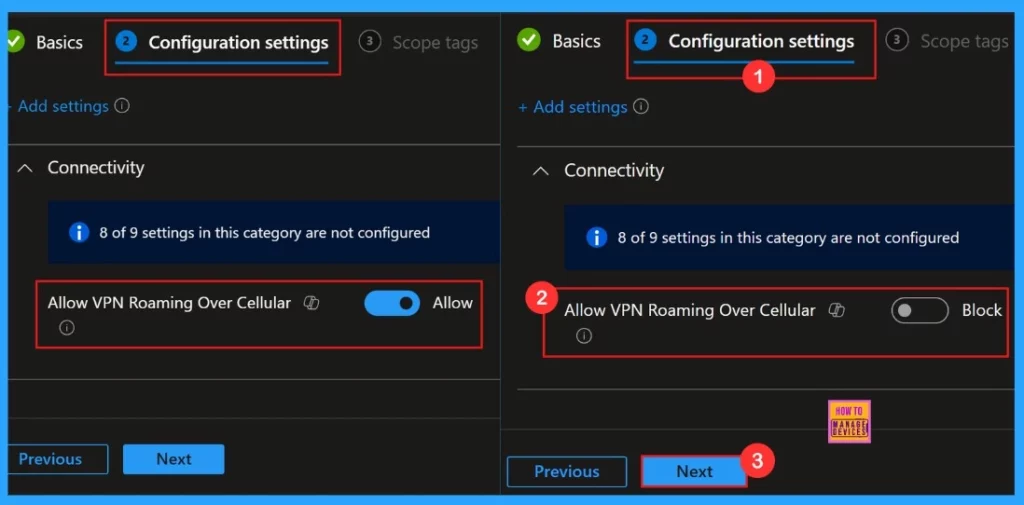
After selecting the settings, we can close the settings picker window. Then we will be in the configuration settings. We can Allow or Block the policy here. Here the default setting is “Allow”, but we are going to “block” Allow VPN roaming over cellular.
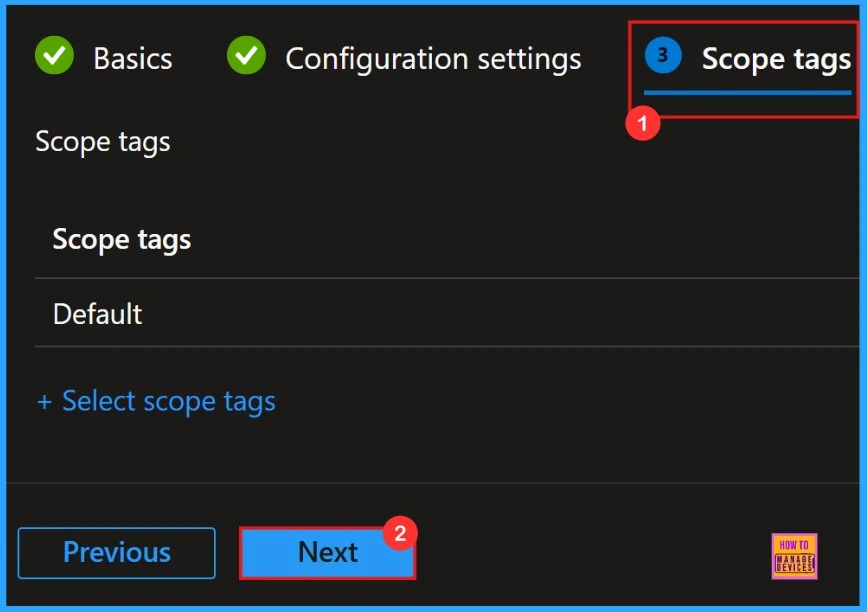
Scope Tags
Next is the Scope Tag, The scope tag is a part of the policy creation process, allowing us to set the scope tag for the policy, this option is not mandatory for our policy, so we are going to skip this step.
- Click Next
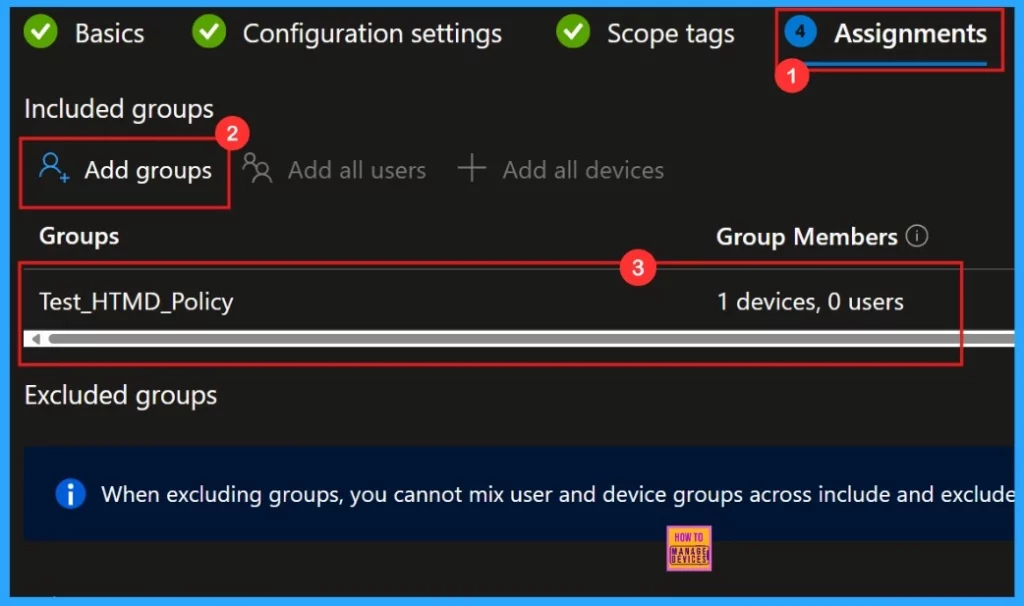
Assignments
We need to add a group in the Assignments section ie, Included group. The policy will deployed in the selected group. If we missed this process, the policy deployment will be a failure. After selecting the group, click Next.
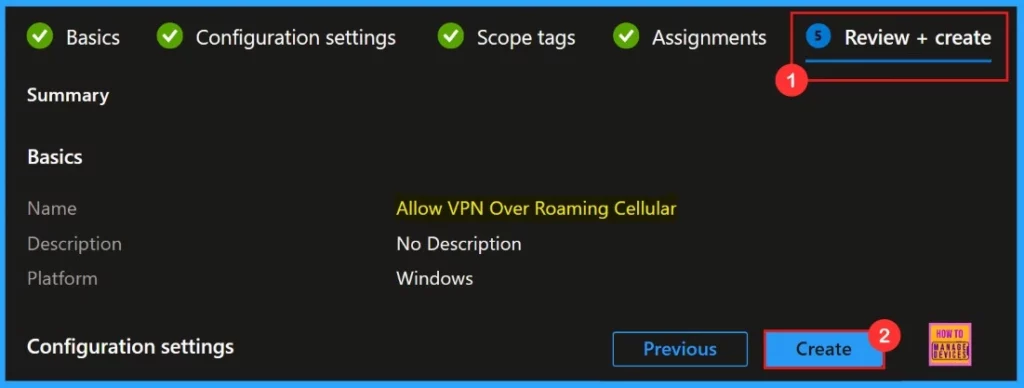
Review + Create
“Review + Create” is the last step in the policy deployment process. It gives us a summary of the policy we are deploying, including the policy name, descriptions, platform, and other details.
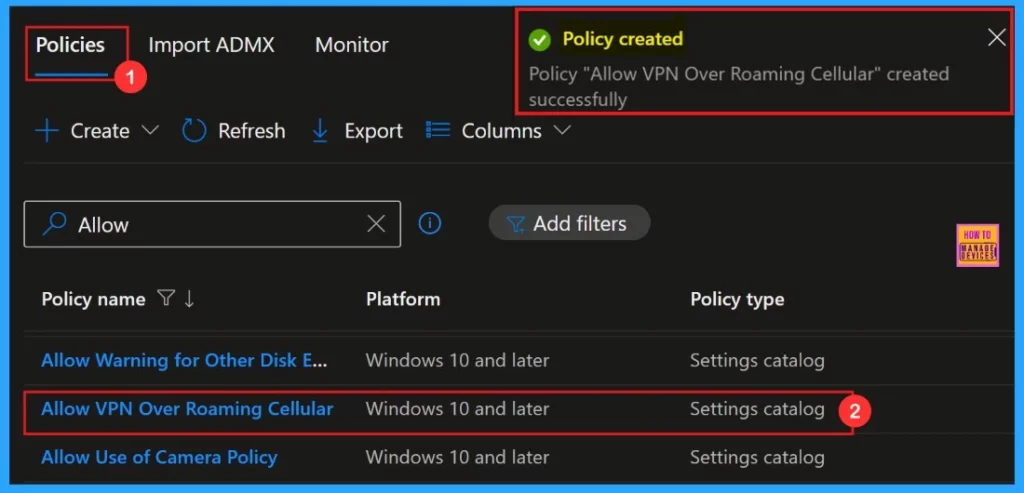
After clicking the Create button, we will be notified with a pop up message “Allow VPN Roaming Over Cellular″ has been “created successfully“. We can check the created policy in the Intune Portal.
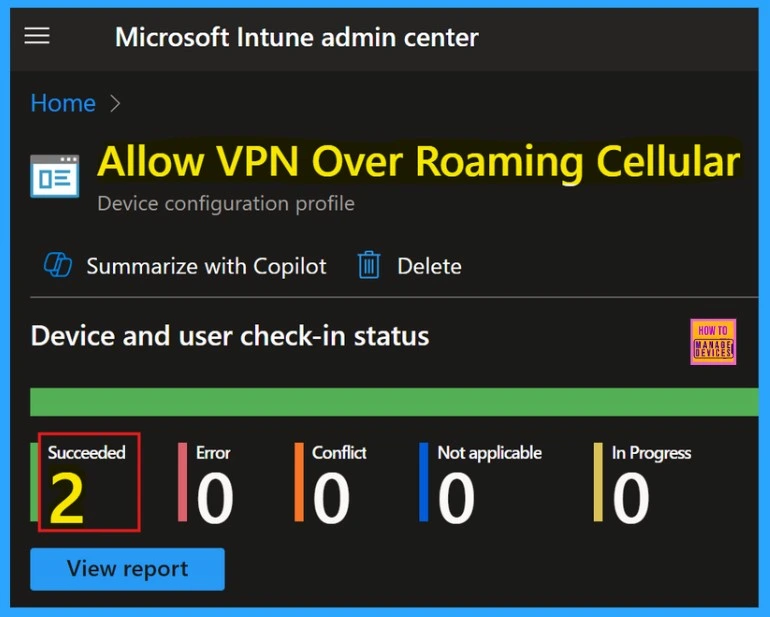
Device and User Check-in Status
Here, we can check whether the deployment of the policy succeded or not. To check the monitoring status we need to go to the device configuration profile and search for the policy we created.
Client-Side Verification
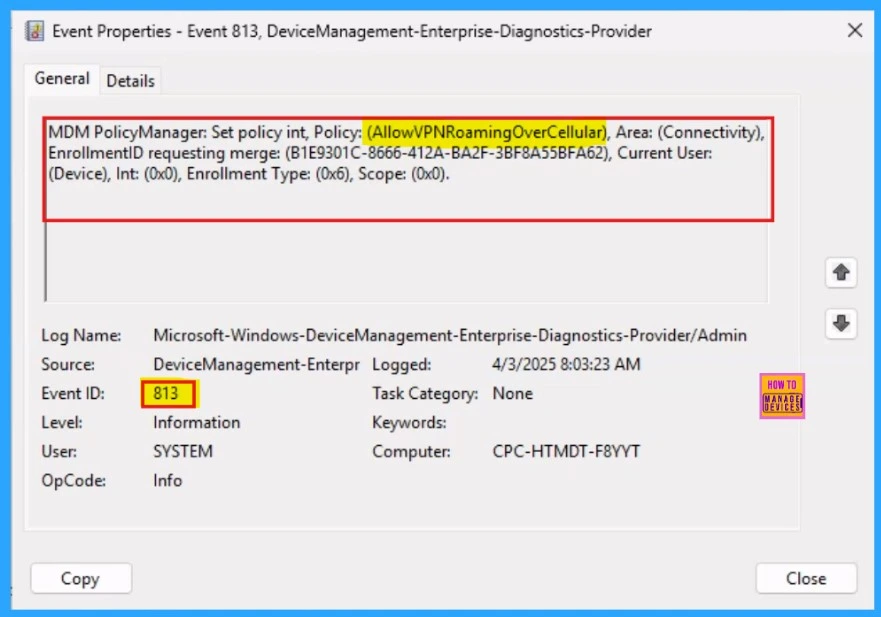
Client-side verification refers to the process of validating user input, here we can see the status of our policy. The event ID 813 or 814 confirms that a string policy is applied to Windows 11 or 10 devices. For this we need to go, to Applications and Services Logs > Microsoft > Windows > Devicemanagement-Enterprise-Diagnostics-Provider > Admin.
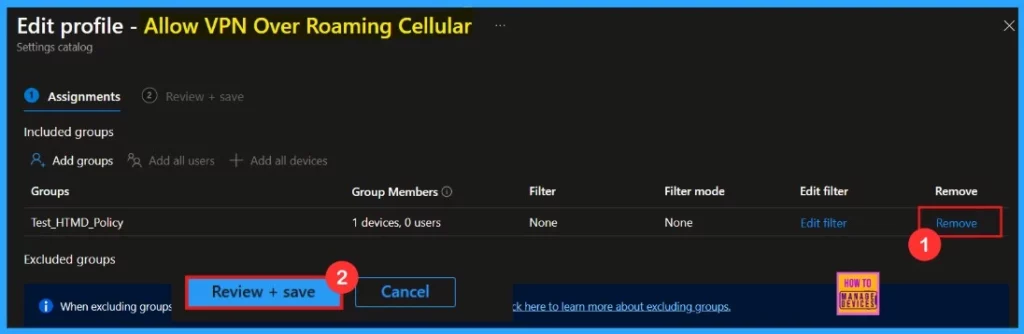
Remove Assigned Group
Removing an assigned group from a policy is often necessary for security, compliance, or operational efficiency. The below screenshot shows how we can remove an assigned group from the policy. After the removal we need to click Review + Save.
For detailed information you can refer our previous post – Learn How to Delete or Remove App Assignment from Intune using Step by Step Guide
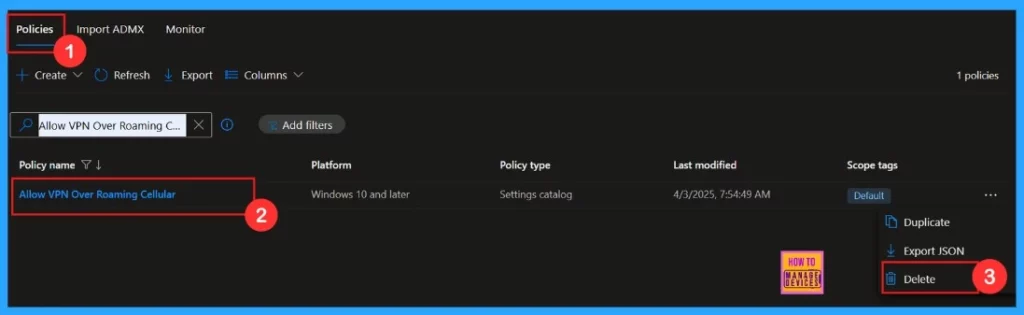
Deleting a Policy From Intune
Deleting a policy in Microsoft Intune is sometimes necessary for security, compliance, or operational efficiency. Here we are going to see the steps for deleting a policy. The below screenshot shows how we can delete the policy.
For detailed information you can refer our previous post – How to Delete Allow Clipboard History Policy in Intune Step by Step Guide
Need Further Assistance or Have Technical Questions?
Join the LinkedIn Page and Telegram group to get the latest step-by-step guides and news updates. Join our Meetup Page to participate in User group meetings. Also, Join the WhatsApp Community to get the latest news on Microsoft Technologies. We are there on Reddit as well.
Author
Anoop C Nair has been Microsoft MVP for 10 consecutive years from 2015 onwards. He is a Workplace Solution Architect with more than 22+ years of experience in Workplace technologies. He is a Blogger, Speaker, and Local User Group Community leader. His primary focus is on Device Management technologies like SCCM and Intune. He writes about technologies like Intune, SCCM, Windows, Cloud PC, Windows, Entra, Microsoft Security, Career, etc.


Discussion