






How to Enable or Disable Users From Turning on Browser Syncing Policy using Intune
Let’s discuss how to enable or disable Users From Turning On Browser Syncing Policy using Intune. Microsoft allows Intune admins to restrict the users from enabling browser syncing. Using Intune Configuration policy, you can easily create a policy for this.
As you know that, Browser syncing allows users to synchronise their settings, bookmarks, passwords, and other data across devices. By enabling this policy, administrators can ensure that users cannot turn on syncing, which can be useful for maintaining security.
By restricting users from browser syncing, admins can ensure that, organization’s data within the approved devices and doesn’t inadvertently get synced to personal or unauthorized devices. This policy helps you to prevent the syncing of sensitive data.
You can enable or disable this policy according to the organizational needs. By enabling this policy browser syncing can be controlled and ensure the security. In this blog post I will help you to enable or disable Prevent Users From Turning On Browser Syncing Policy.

Table of Contents
How This Policy Affect Users?
How to Enable or Disable Users From Turning on Browser Syncing Policy using Intune
This policy may impact the end user experience. Because Data like saved passwords won’t be accessible on other devices. However this policy maintain organization security standards by preventing risk of unauthorized access.
- Allow Or Block Apps From Sharing User Activity To Activity Feed Using Intune
- Force Sync of Browser Data without Consent Policy using Intune
- Restrict Microsoft Edge Personal Accounts Sync Using Intune
- Best Guide to Enable Disable Edge Browser Auto Sign-in and Sync with Intune
Windows CSP Details
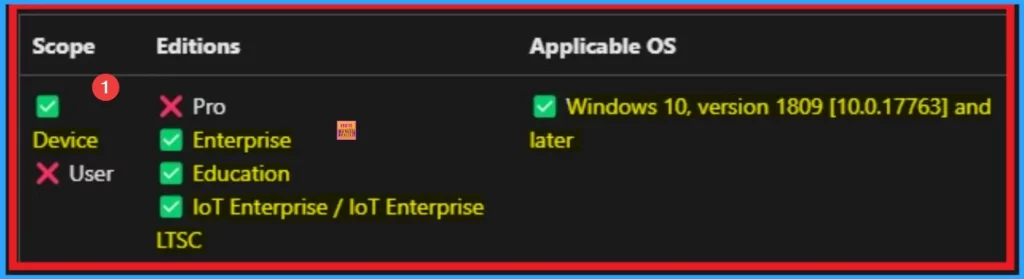
The CSP details shows the information the Prevent Users From Turning On Browser Syncing policy in Intune. By checking the CSP details you can configure the policy according to the applicable OS, scope and edtions.
./Device/Vendor/MSFT/Policy/Config/Experience/PreventUsersFromTurningOnBrowserSyncing
Description Framework Properties
The following are the Description Framework Properties of Prevent Users From Turning On Browser Syncing. The following table shows the attributes and behaviours of this policy.
| Property Name | Property Value |
|---|---|
| Format | int |
| Access Type | Add, Delete, Get, Replace |
| Default Value | 1 |
Allowed Values
The table below shows the allowed values of Prevent Users From Turning On Browser Syncing. You can refer the table below before configuring the policy in your tenant.
| Value | Description |
|---|---|
| 0 | Allowed/turned on. Users can sync the browser settings. |
| 1(Default Value) | Prevented/turned off. |
Steps to Configure Policy
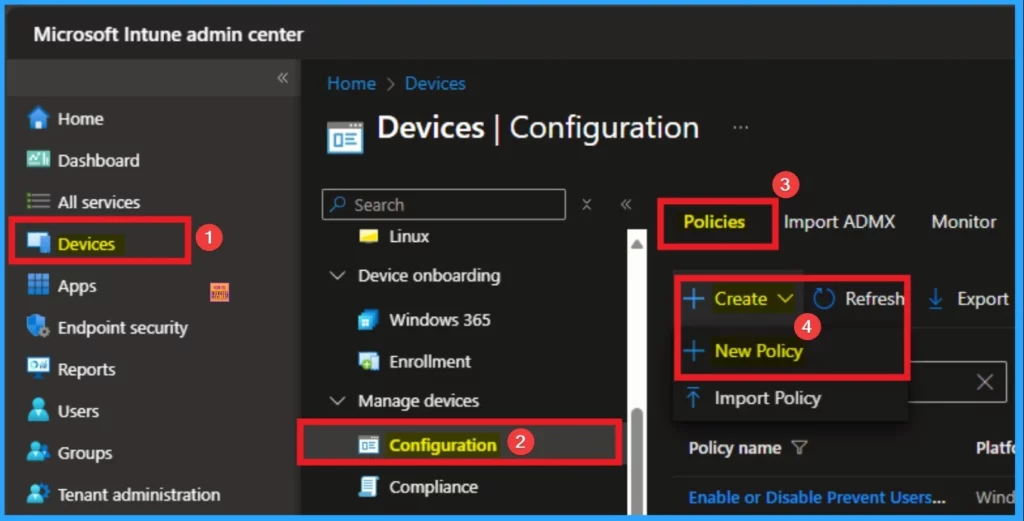
Prevent users from Turning On Browser Syncing policy can be easily configured from Intune admin Center. To do this, Open the Microsoft Intune admin center. Open the Intune admin center and go to Devices > Configuration > Create > + New Policies.
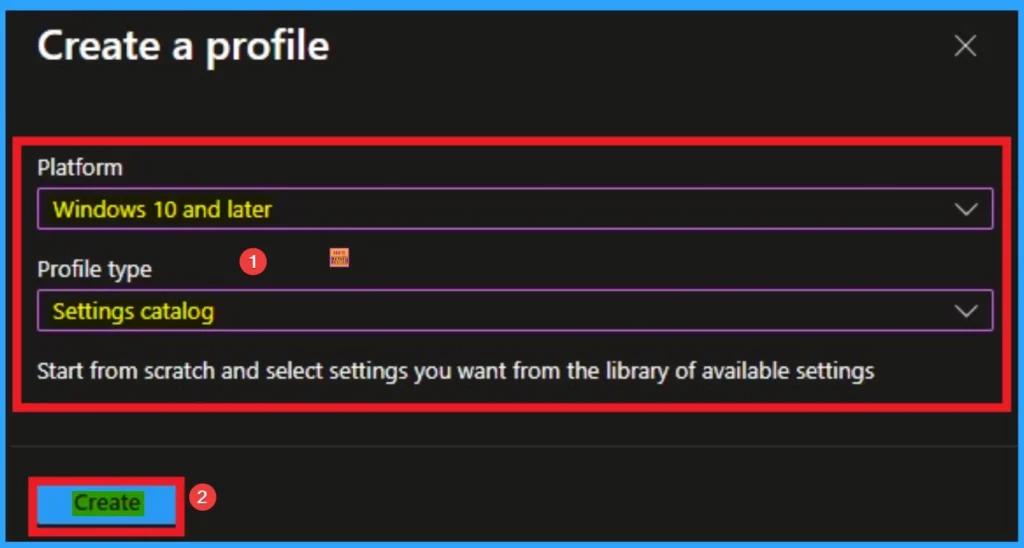
After that, you can easily create a policy by selecting platform and profile type. Here I choose Windows 10 and later as platform and Settings Catalog as profile type. Click on the Create button to continue.
Basic Tab
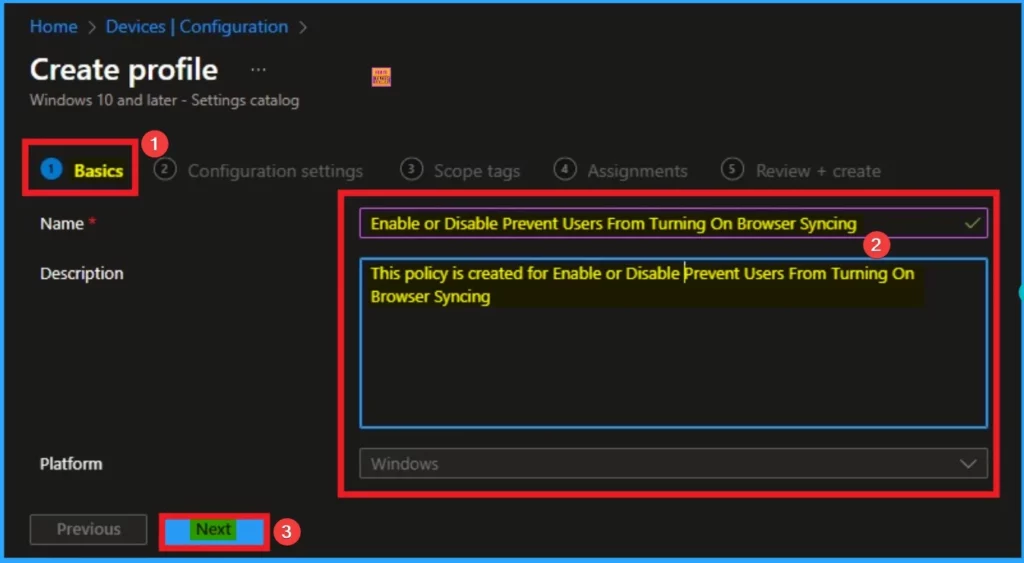
The Basic tab, allows you to add a name and description for the configuration policy. The Name is the mandatory field that helps you to recognise the policy. The description is not compulsory but it is good to add a description to identify the details of the policy. After adding this click on the create button.
Configuration Settings Tab
Configuration Settings Tab allows you to easily access various settings to manage your device. Click on the +Add settings hyperlink. Select Experience Category and select Prevent Users From Turning On Browser Syncing settings. Then you can close the Settings Picker window.
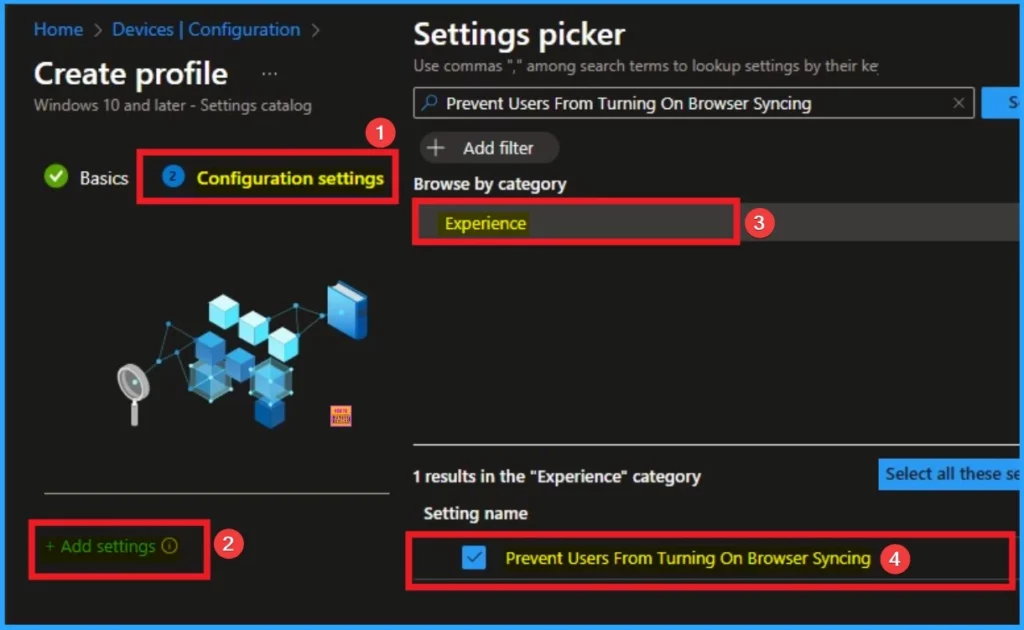
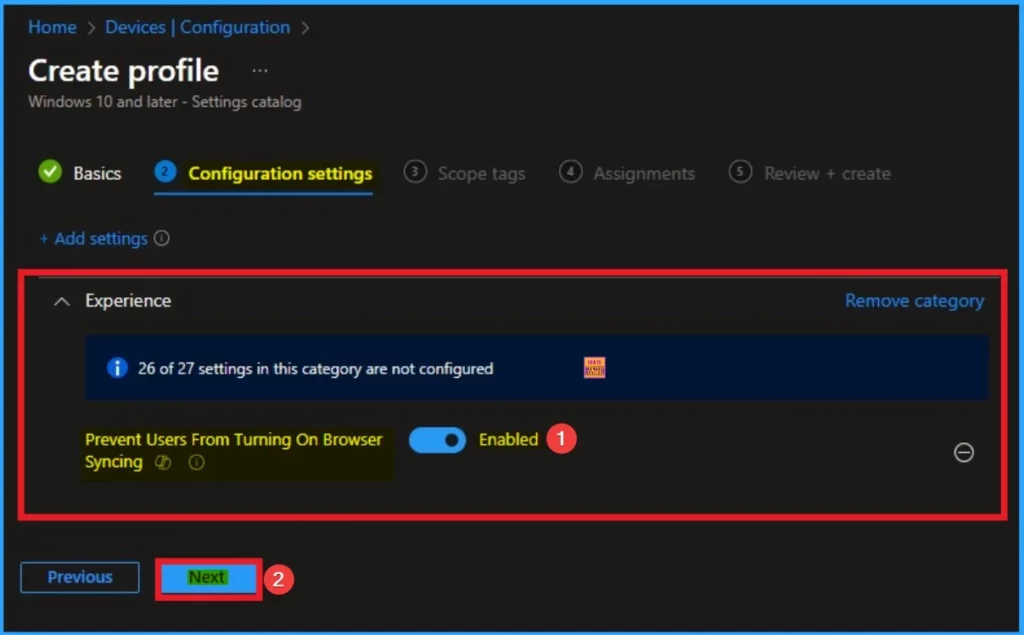
After selecting the policy settings, you can close the settings picker. The policy is shown on the Configuration settings page and you can select the value. By default Enable value is active. If you want to enable this policy go with it and click on the Create button.
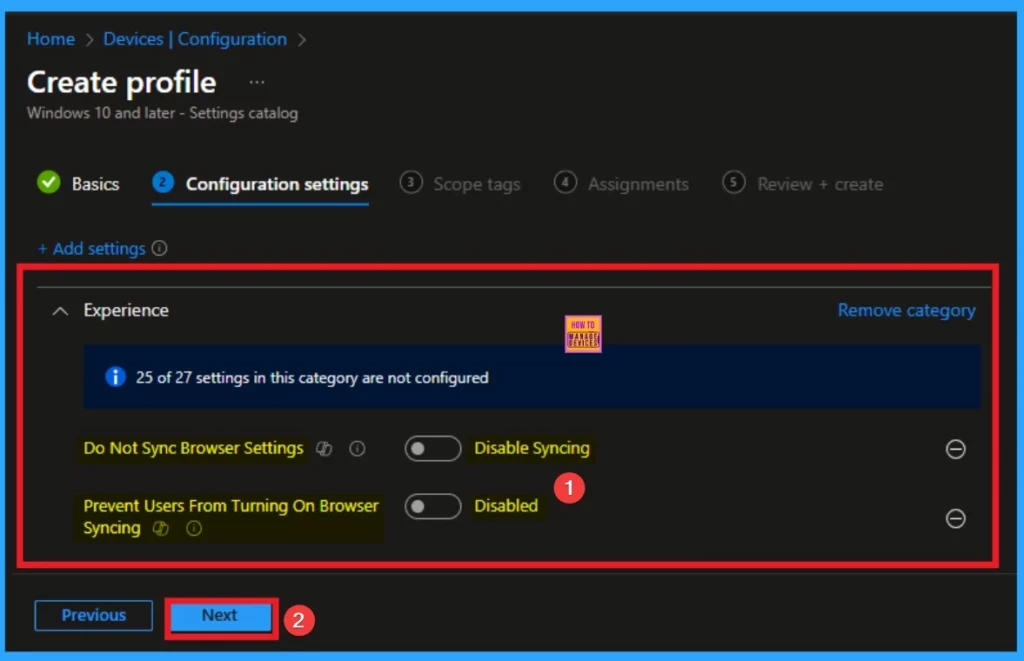
Here I would like to disable this policy so turned off (disable) the toggle to the left side. If you want syncing turned off by default but not disabled, select the Allow syncing option in the DoNotSyncBrowserSettings. Click on the Create button.
- How to Enable or Disable Region Settings Policy using Intune
- Enable or Disable No Pinning to Taskbar Policy using Intune
- How to Configure Do not Show Feedback Notifications using Intune Policy Settings
Scope Tags
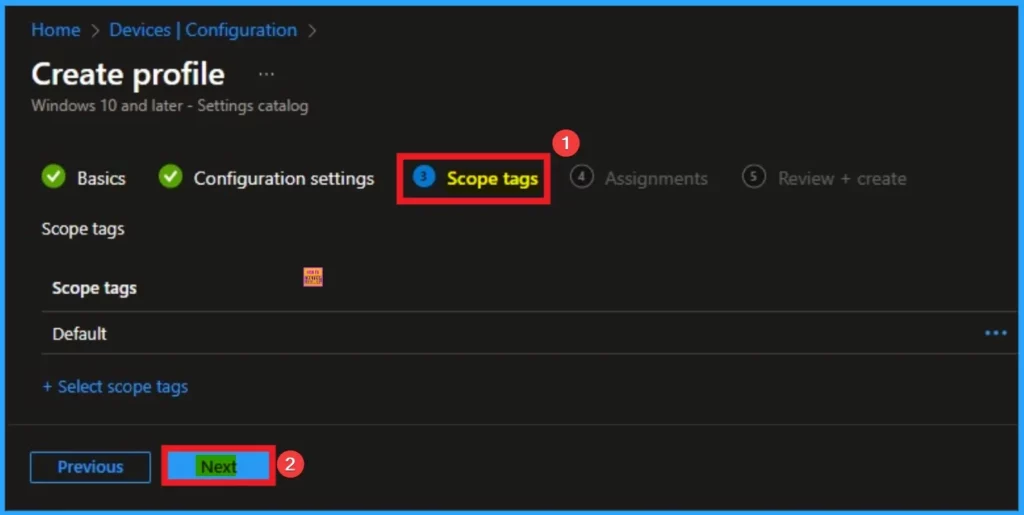
Scope tags is not a mandatory field, its help you to manage specific policies in Intune. Here i am going to skip this section and continue with policy creation. Click on the Next button. The below screenshot will help you.
Assignments
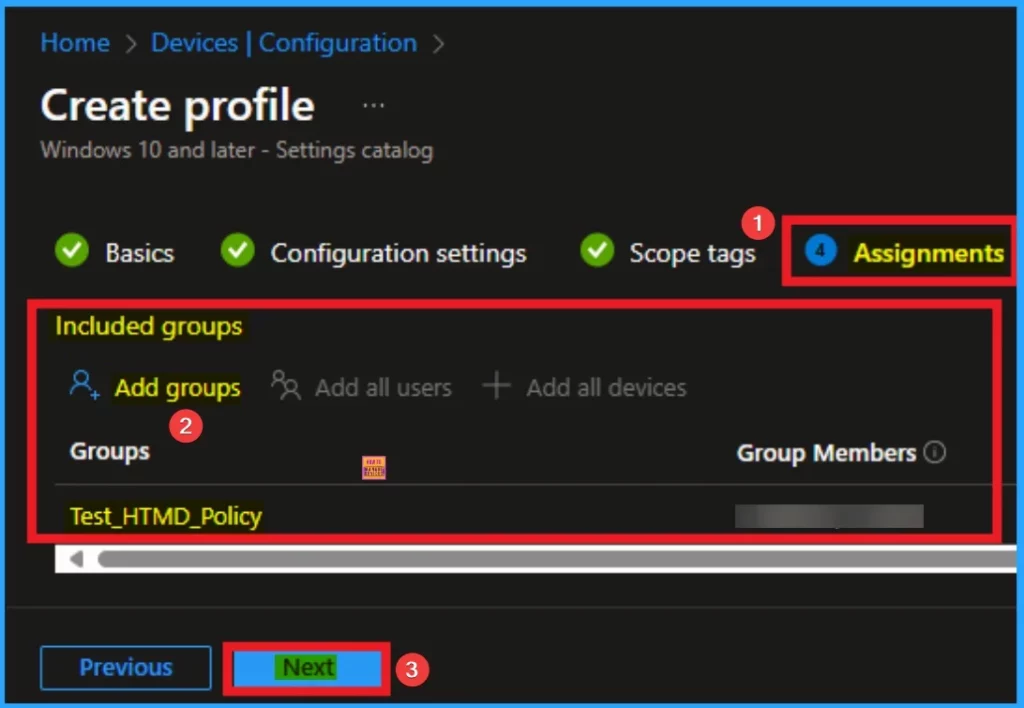
Assignments tab helps you to select specific groups to configure the Prevent Users From Turning On Browser Syncing Policy. Click on the +Add groups option under included groups. Select the group from the list of groups on your tenant.
Click on the Select button. And you can see the selected group on the Assignment tab. Click on the Next button from the below window.
Review + Create Tab
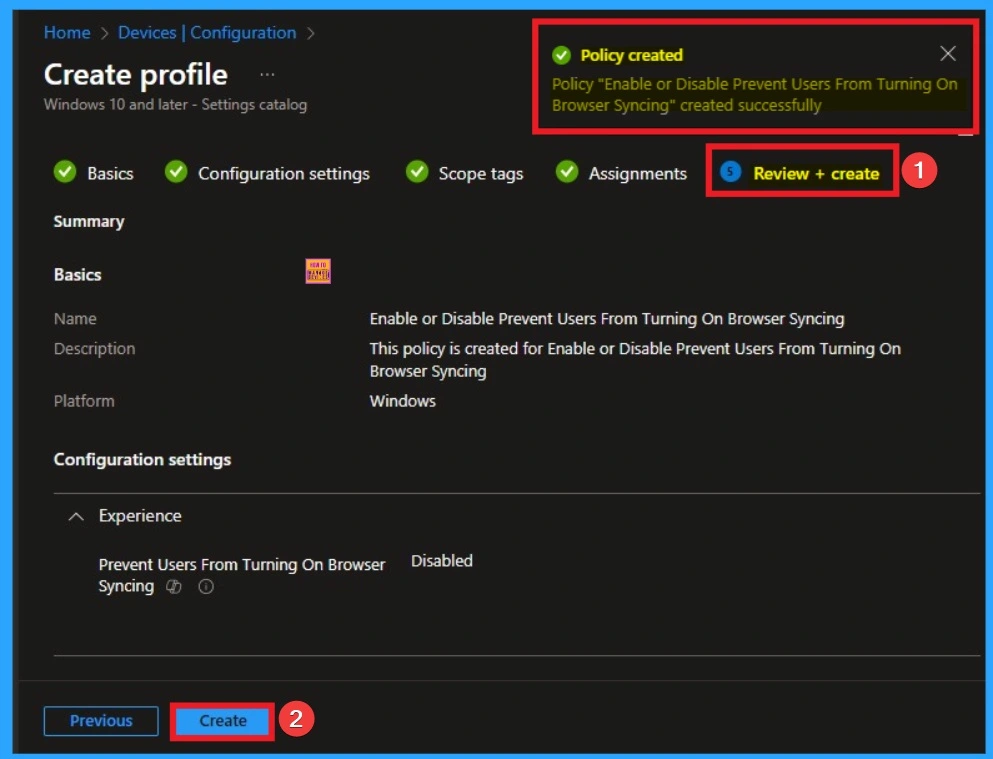
This section allows you to complete the policy creation. You can verify the details on this page. If you can agree with the details click on the Create button. And you will get the success Message.
Device and User Check-in Status
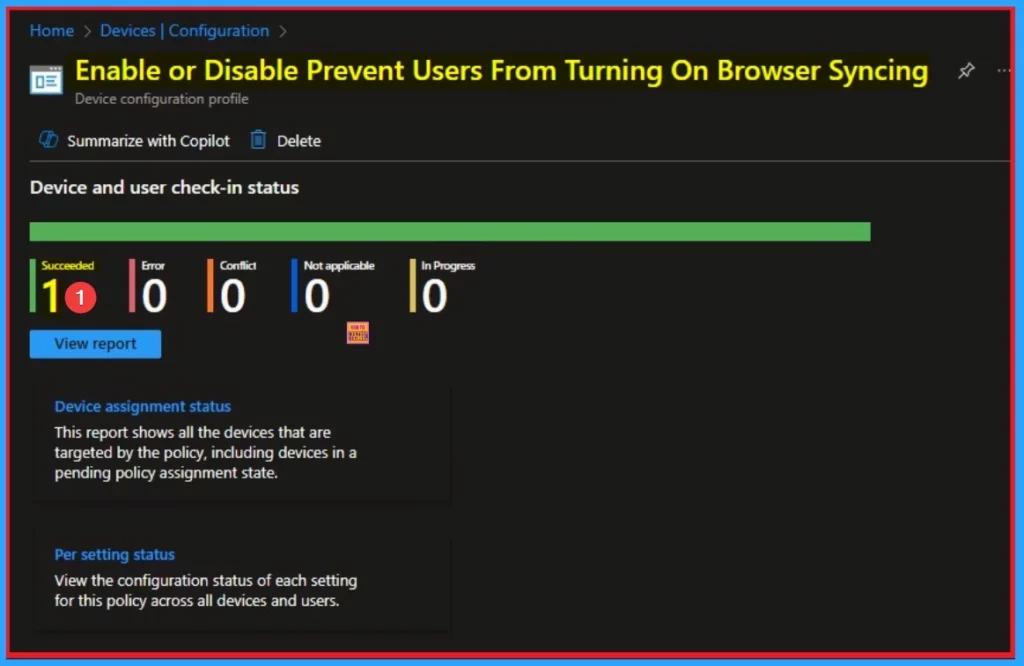
After the policy created, you can sync the device on the company portal for faster deployment. After that, you can check the monitoring status on the Company Portal. Here the Status shows succeeded as 1.
Client Side Verification – Event Viewer
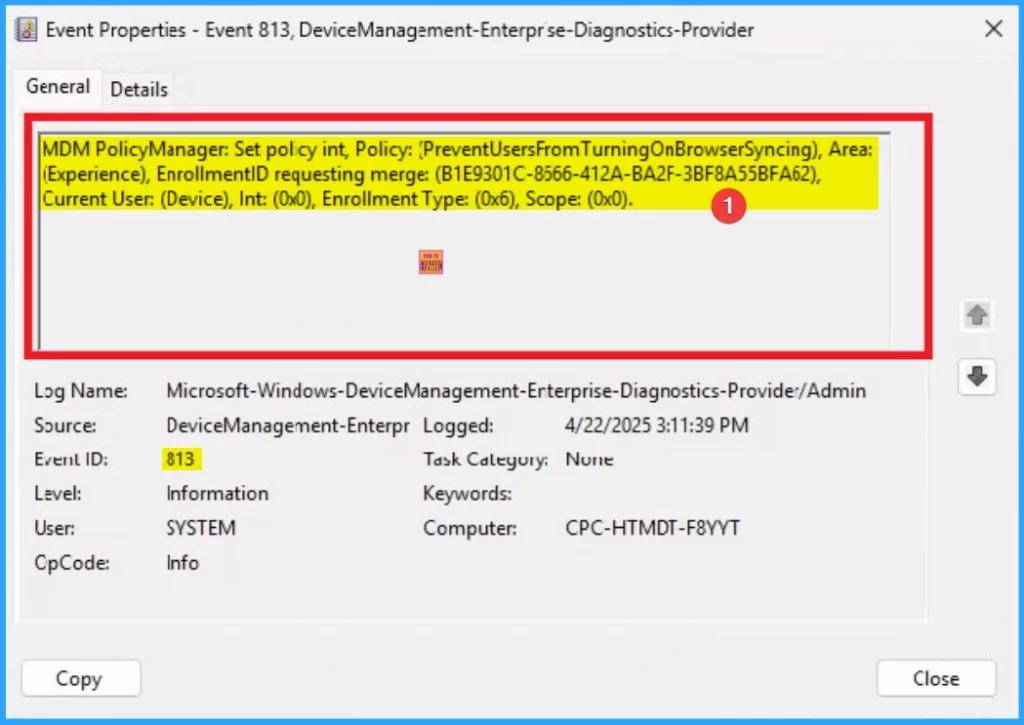
Event viewer helps you to easily complete the Client Side verification. Open the Event Viewer and navigate to Application and Services Logs > Microsoft > Windows > DeviceManagement–Enterprise–Diagnostics–Provider > Admin. The below screenshot shows the Event details of Prevent Users From Turning on Browser Policy.
MDM PolicyManager: Set pol cy int, Policy: [PreventUsersFrom TurningOnBrowserSyncing), Area:
(Experience), EnrollmentID requesting merge: (B1E9301C-8566-412A-BA2F-3BF8A55BFA62),
Current User: (Device), Int: (0x0), Enrollment Type: (0x6), Scope: (0x0).
How to Remove Assigned Group from Prevent Users From Turning on Browser Policy
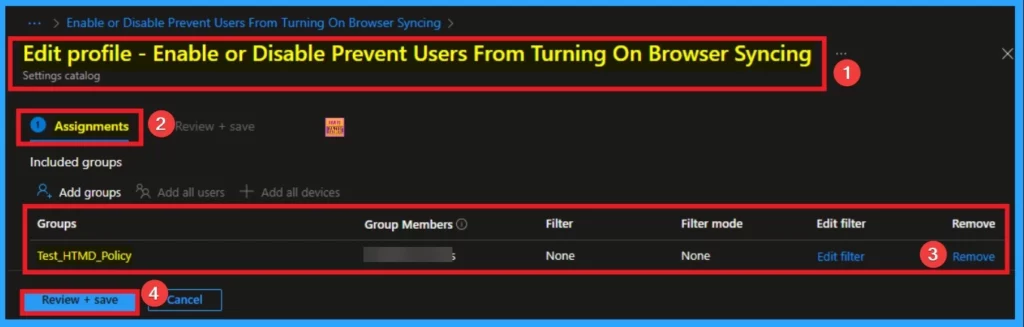
You can easily remove the assigned group from the Prevent Users From Turning On Browser Syncing Policy. Open the Policy, go the Assignment tab and you can Edit the policy. The more details can be found from the below post.
For detailed information you can refer our previous post – Learn How to Delete or Remove App Assignment from Intune using Step by Step Guide
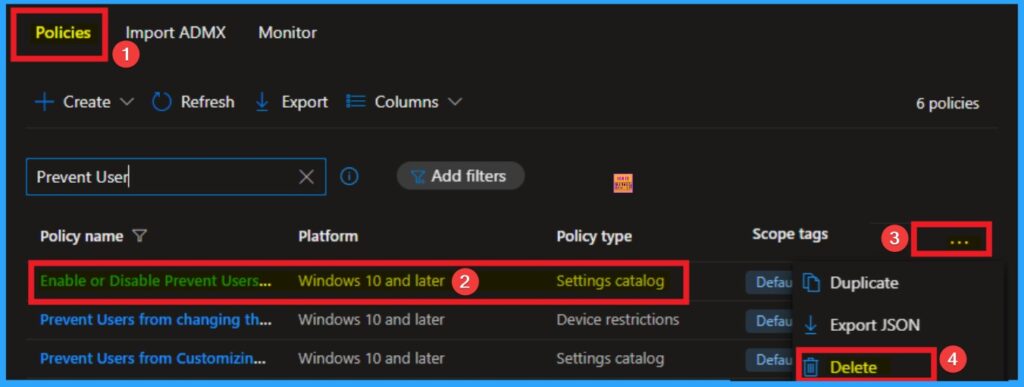
Delete Prevent Users From Turning on Browser Policy
You can easily delete the Prevent Users From Turning on Browser Policy Policy from Intune. Using some simple steps you can easily delete the policy from Intune Portal.
For detailed information you can refer our previous post – How to Delete Allow Clipboard History Policy in Intune Step by Step Guide
Need Further Assistance or Have Technical Questions?
Join the LinkedIn Page and Telegram group to get the latest step-by-step guides and news updates. Join our Meetup Page to participate in User group meetings. Also, Join the WhatsApp Community to get the latest news on Microsoft Technologies. We are there on Reddit as well.
Author
Anoop C Nair has been Microsoft MVP for 10 consecutive years from 2015 onwards. He is a Workplace Solution Architect with more than 22+ years of experience in Workplace technologies. He is a Blogger, Speaker, and Local User Group Community leader. His primary focus is on Device Management technologies like SCCM and Intune. He writes about technologies like Intune, SCCM, Windows, Cloud PC, Windows, Entra, Microsoft Security, Career, etc.


Discussion