






How to Configure Generative AI Local Foundational Model Settings in MS Edge Browser using M365 Admin Center
Hey there, let’s discuss on the topic how to Configure Generative AI Local Foundational Model Settings in MS Edge Browser using M365 Admin Center. Generative AI, or GenAI, is a part of artificial intelligence that uses generative models to create new content like text, images, videos, and more.
It usually goes through three main phases. First, training to develop a foundational model, then tuning to adjust that model for specific applications, and finally, generating to produce and evaluate the outputs. Generative AI local foundational model settings refer to the configurations and parameters used to deploy and run large-scale AI models.
GenAI is changing quickly and transforming industries, but it also brings up some big questions about how we should regulate it and use it responsibly. The AIGenThemesEnabled policy empowers users to personalize their browser experience in Edge through AI-generated themes. It lets admins to control when this feature is available.
When the policy is set to allowed or not set, the model is downloaded automatically, and used for inference. When the policy is set to disabled, the model will not be downloaded. Proper configuration ensures efficient performance, balancing speed, memory usage, and output quality.

Table of Contents
What are the Benefits of Generative AI?
How to Configure Generative AI Local Foundational Model Settings in MS Edge Browser using M365 Admin Center
This blog post will give detail on how to configure the GenAI Local Foundational Model Settings in the MS Edge browser using the Microsoft 365 Admin Center. Configure how Microsoft Edge downloads the foundational GenAl model and uses it for inference locally.
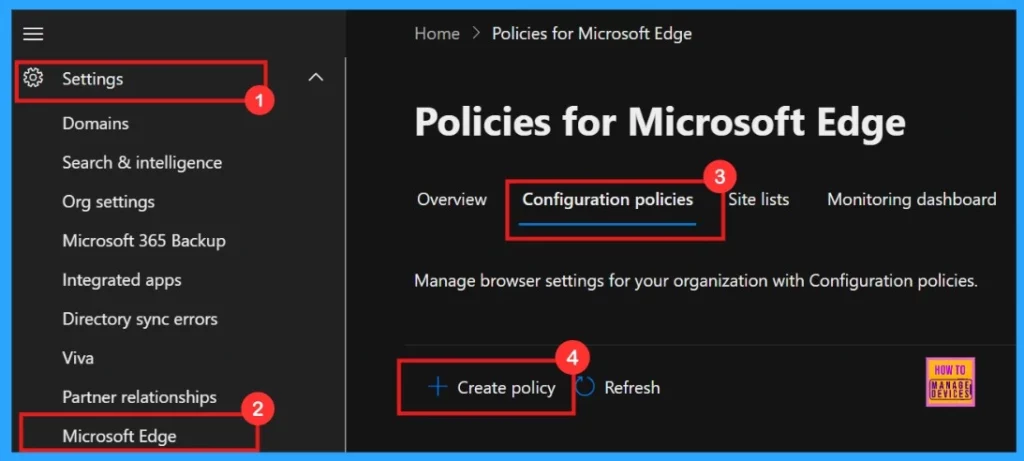
- Microsoft 365 Admin Center > Settings > Microsoft Edge > Configuration Policies > Create policy.
- How To Configure Google Gemini Integration Settings Using Microsoft Intune
- How to Configure Friendly URL Format Policy in MS Edge Browser using M365 Admin Center
- Enable or Disable PDF Secure Mode Policy in MS Edge Browser using M365 Admin Center
- Enable or Disable PDF Secure Mode Policy in MS Edge Browser using M365 Admin Center
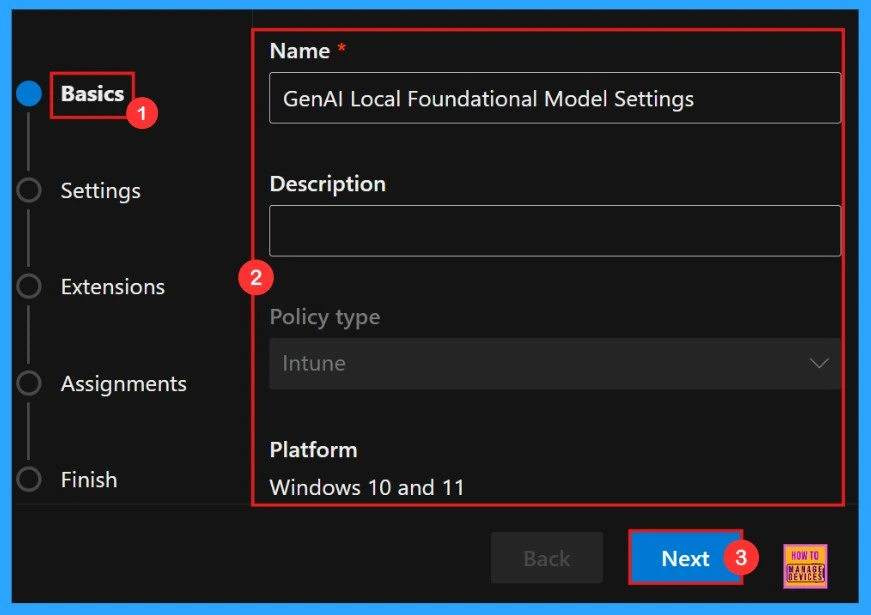
Basics
When configuring policies the first step is the Basics section, it’s important to assign the policy name. Here policy name is “GenAI Local Foundational Model Settings”, and if need we can give a description to the policy for easily identifying.
| Name | Description | Policy Type | Platform |
|---|---|---|---|
| GenAI Local Foundational Model Settings | No description given | Intune | WIndows 10 and 11 |
Settings
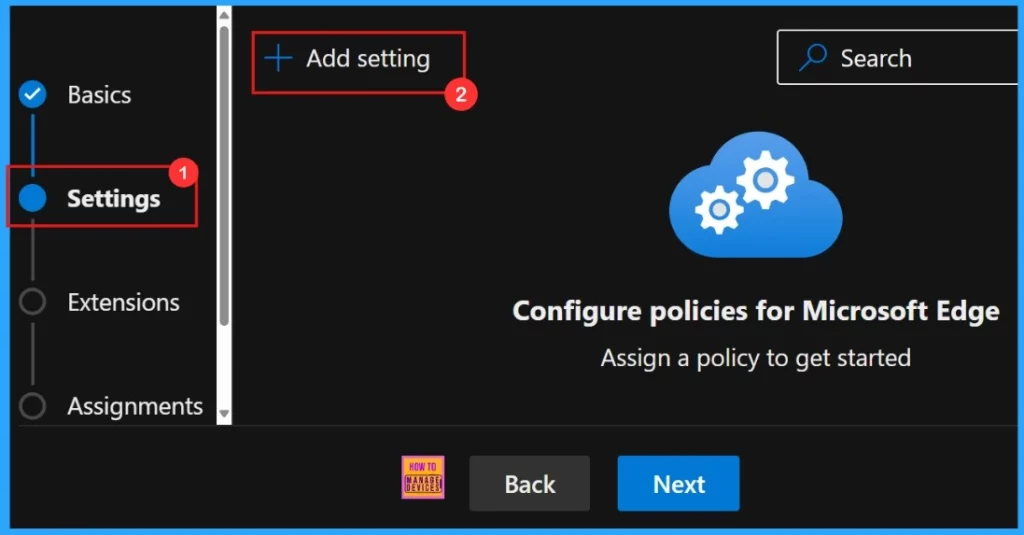
In the Settings tab of our policy configuration, need to click “Add settings“. Then we need to search for the policy we want to deploy from Additional settings.
- Click +Add Setting to Proceed
Configure a Setting
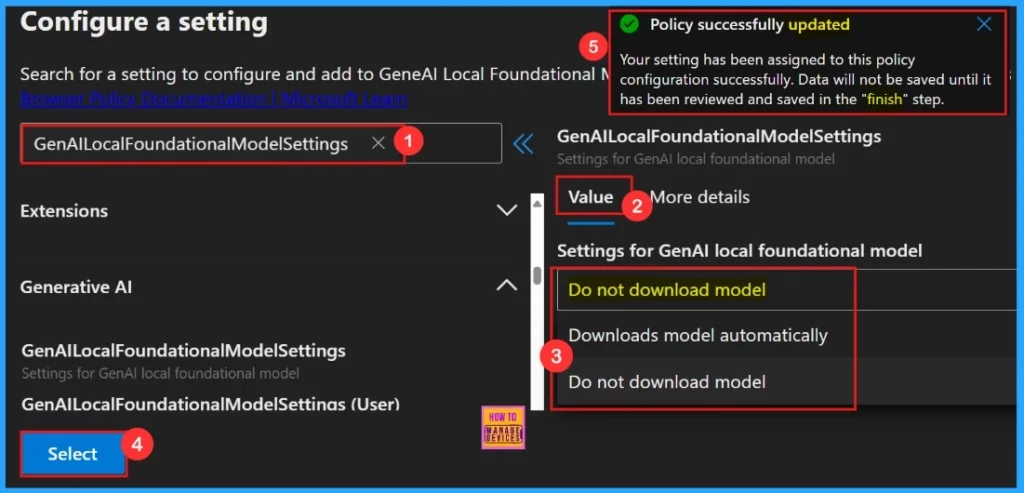
To configure the policy, search for the policy by name. Then Value tab will open where we can select between Downloads model Automatically and Do not download model options. Here, we choose do not download model.
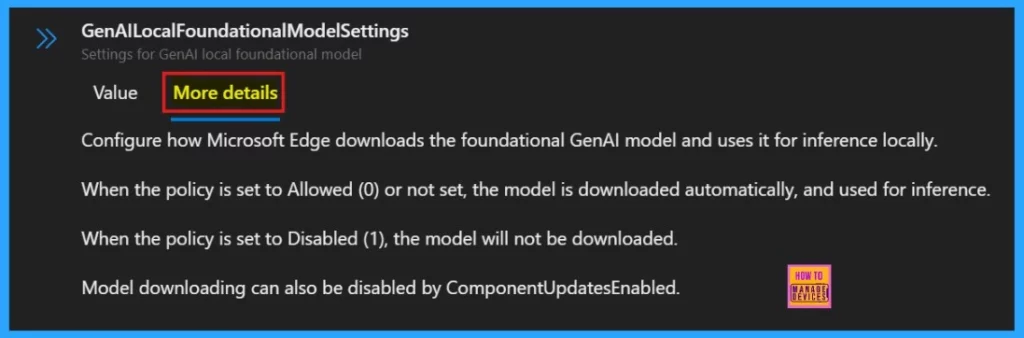
More Details
More details is for better understand the policy’s purpose and functionality, click “More Details” to view its complete description, including technical specifications and implementation guidance. After understanding the details we can choose whether the policy need to be enabled or disabled.
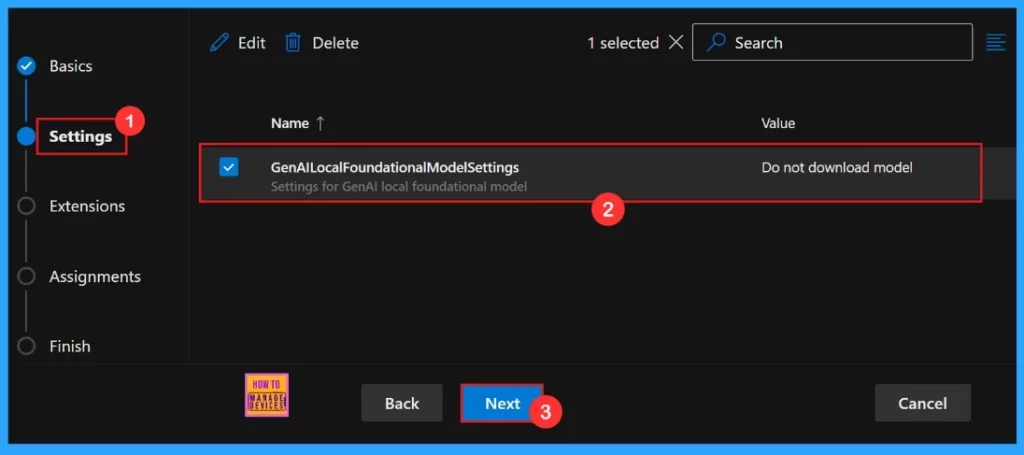
To enable the policy, we need to tick the check box beside its name in the list, then click Next to continue with the configuration process. This action confirms our selection and moves us forward in the policy setup workflow.
Extensions
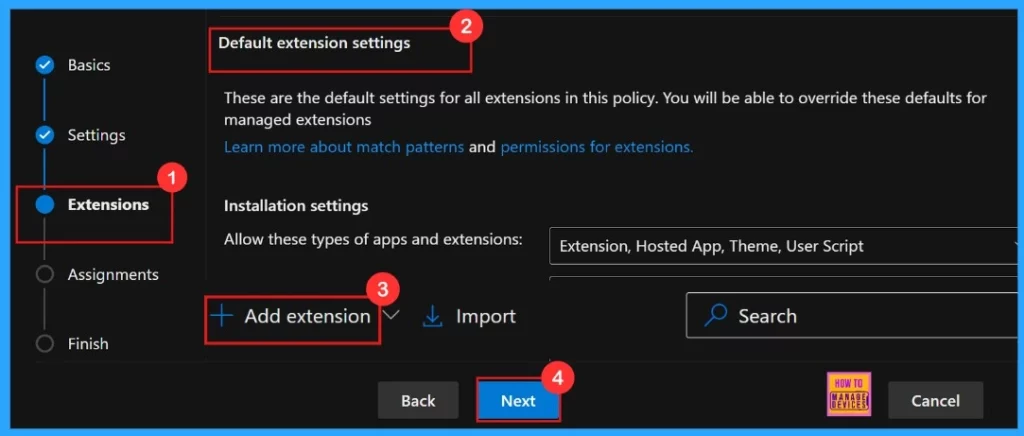
If the policy requires additional functionality, we can add extensions by clicking + Add extension. The Extensions section allows us to customize the policy by adding specific extensions, which include settings for installation, permissions, and URLs. However, if no extensions are needed, we can simply skip this section.
Assignments
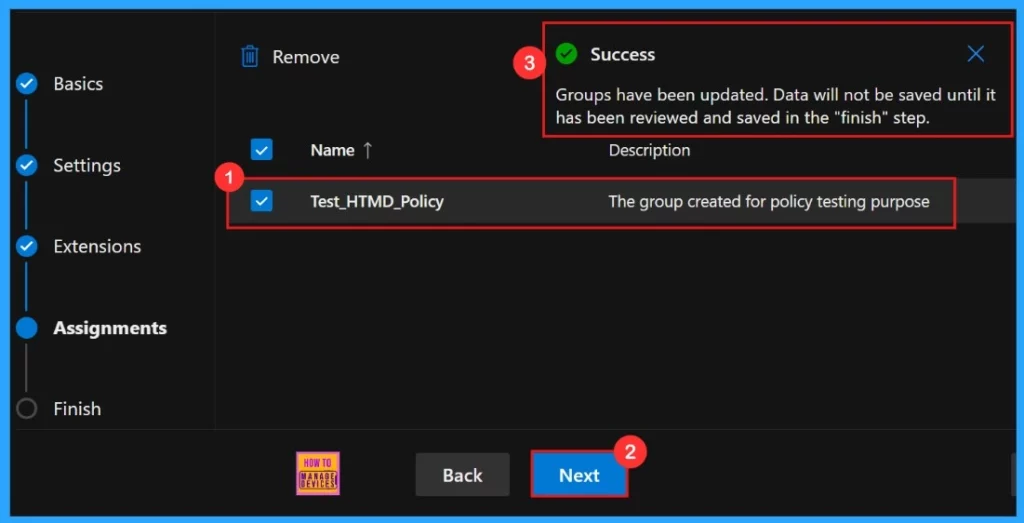
By selecting a group, we can limit the policy’s application to only those users. The Assignments tab acts as the control center for policy deployment. Here we assigned the group Test_HTMD_Policy, and the method is
- Assignments > Select group > Enter a Group Name > Click Select
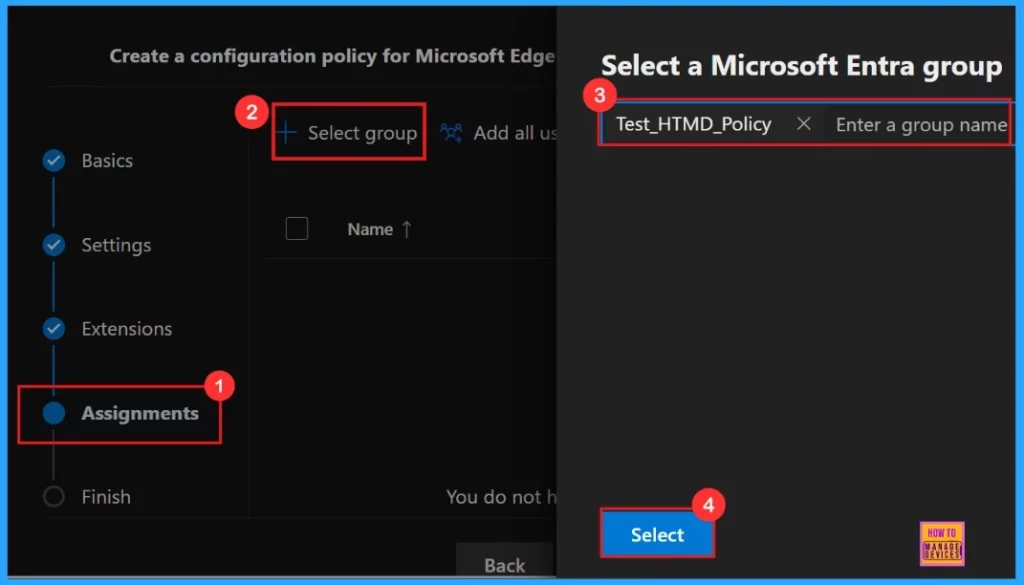
After the selection of the group from the Microsoft Entra groups, a notification will appear on the page confirming that the group has been updated.
Groups have been updated. Data will not be saved until it has been reviewed and saved in the “Finish” step
Finish
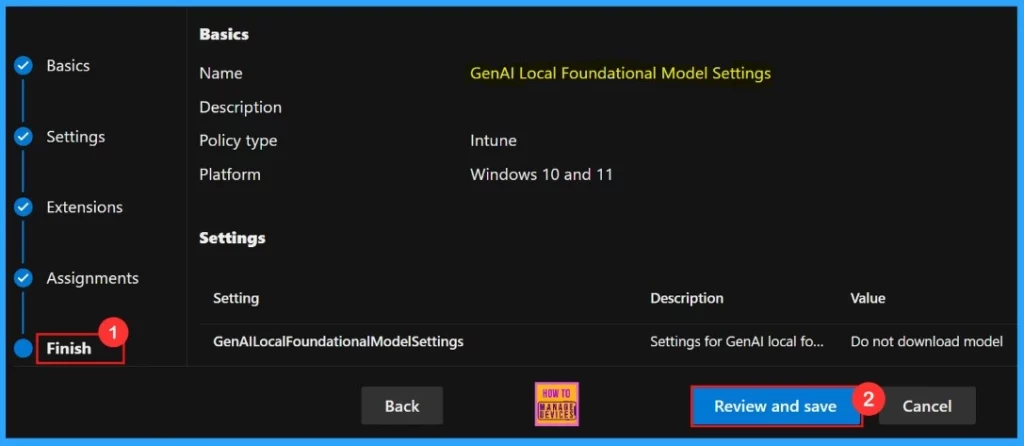
This is the final step to setting up of the policy. We can check all our settings before going to deploy it. The tab shows all the settings we have configured, like assignments, rules, and exceptions, here we can do a final quality check. After checking all the information given, click Review + Create.
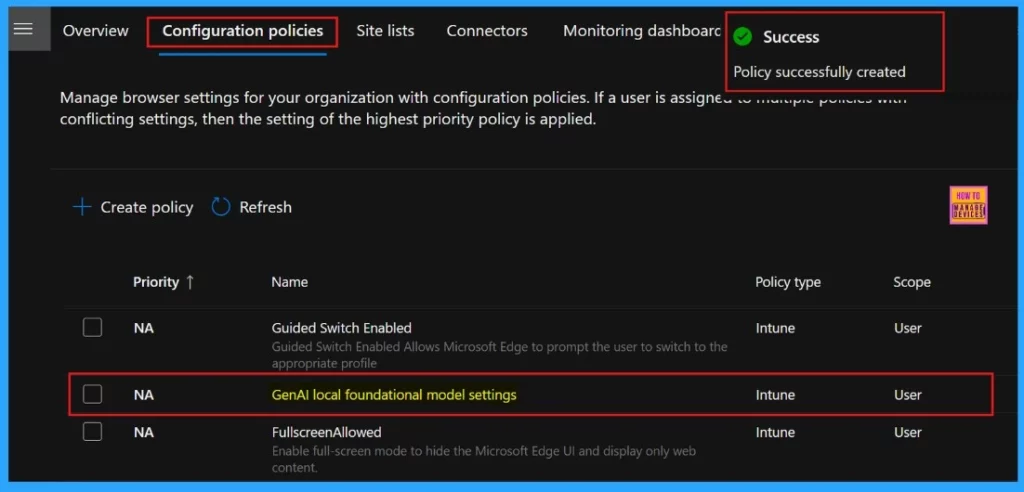
After you click on Review and Create, the portal will display a success message confirming that the policy has been created successfully. The new policy will then be visible in the Configuration Policies section. We can click on it and see the details of policy configuration.
Client-Side Verification through Event Viewer
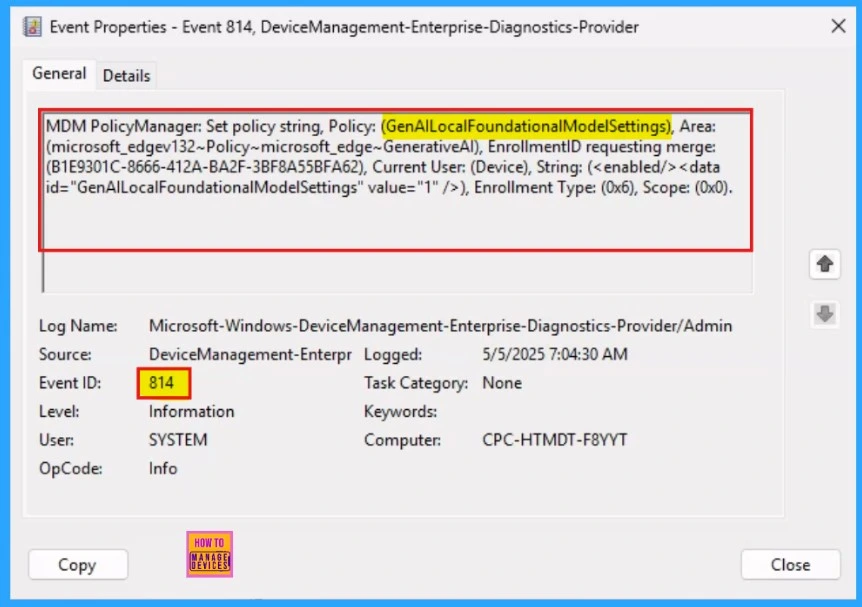
After creating the policy, we need to complete the client-side Verification section. Client-side verification offers real-time monitoring of policy through the Event Viewer. Navigate to Applications and Services Logs > Microsoft > Windows > DeviceManagement-Enterprise-Diagnostics-Provider > Admin and filter for Event ID 814.
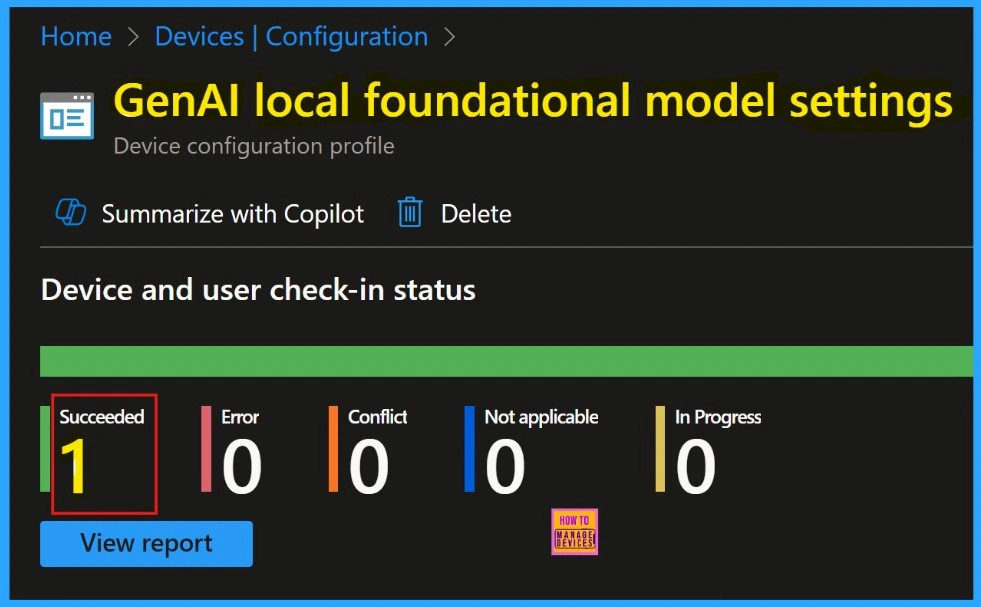
Device and User Check-in Status
After the manual sync on the Company Portal, we can confirm the successful deployment of the policy within the Intune Portal. To verify the policy status in Intune portal we need to follow the steps –
- Navigate to Devices > Configuration >Policies >Status > 1 succeeded.
Need Further Assistance or Have Technical Questions?
Join the LinkedIn Page and Telegram group to get the latest step-by-step guides and news updates. Join our Meetup Page to participate in User group meetings. Also, Join the WhatsApp Community to get the latest news on Microsoft Technologies. We are there on Reddit as well.
Author
Anoop C Nair has been Microsoft MVP for 10 consecutive years from 2015 onwards. He is a Workplace Solution Architect with more than 22+ years of experience in Workplace technologies. He is a Blogger, Speaker, and Local User Group Community leader. His primary focus is on Device Management technologies like SCCM and Intune. He writes about technologies like Intune, SCCM, Windows, Cloud PC, Windows, Entra, Microsoft Security, Career, etc.




Discussion