






How to Configure Allow Projection to PC Policy in Wireless Display using Intune
Let’s discuss How to Configure Allow Projection to PC Policy in Wireless Display using Intune. Microsoft Intune allows admins to configure policy to efficiently manage settings related to wireless display projection. It includes policies that control how devices discover and connect to wireless displays.
Today we are going to dive deep into Projection To PC policy settings which is available on the Intune Portal. As an Intune admin you can configure this policy for your organization to smoothly manage wireless display projection settings on devices.
Projection To PC policy setting in Windows that controls whether a PC can be projected to by other devices. Projected means that the ability to display one device’s screen on another device remotely. This process, often called wireless display projection, allows a PC, tablet, or smartphone to share its screen with a receiver device.
This settings useful in meetings, presentations, and classrooms where multiple users can share their screens easily. You can Enable or Disable Projection To PC according to the organizational settings. In this blog post I will help you to know more about Enable or Disable Projection To PC Policy Using Intune.

Table of Contents
What are the Benefits of Projection To PC policy in Intune?
1. Provide Security Control
2. It improves collaboration
3. Multi-Device Support
4. Enhanced Security
How to Configure Allow Projection to PC Policy in Wireless Display using Intune
Projection To PC policy Controls whether a PC can be projected to. If enabled, the PC can receive screen mirroring requests from other devices. This policy determine how a Windows device can be used a wireless display receiver for other devices.
- How to Control User Input from the Wireless Display Receiver using Intune Policy
- How to Disable Wireless Display Multicast DNS Advertisement Using Intune Policy
- Enable or Disable Hotspot Authentication in Networks using Intune Policy
CSP Details of Projection to PC Policy
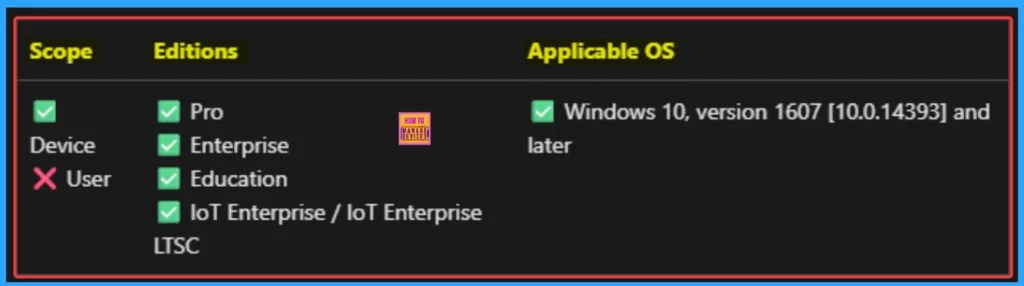
This policy setting allows you to turn off projection to a PC. If you turn it on, your PC isn’t discoverable and can’t be projected to except if the user manually launches the Wireless Display app. By checking the CSP details, you can successfully configure the policy on applicable devices. You can check the screenshot to know the Applicable OS, Scope and editions.
Framework Properties
The table below shows the technical attributes and behaviour of the Publish User Activity. It includes Property Name and Property Value.
| Property Name | Property Value |
|---|---|
| Format | int |
| Access Type | Add, Delete, Get, Replace |
| Default Value | 1 |
Allowed Values in Projection To PC Policy
These values help organisations determine which value is suitable for each device. You can refer to he following table to understand the values.
| Name | Value |
|---|---|
| 0 | Projection to PC isn’t allowed. Always off and the user can’t enable it. |
| 1 (Default) | Projection to PC is allowed. Enabled only above the lock screen. |
Steps to Configure Projection To PC Policy
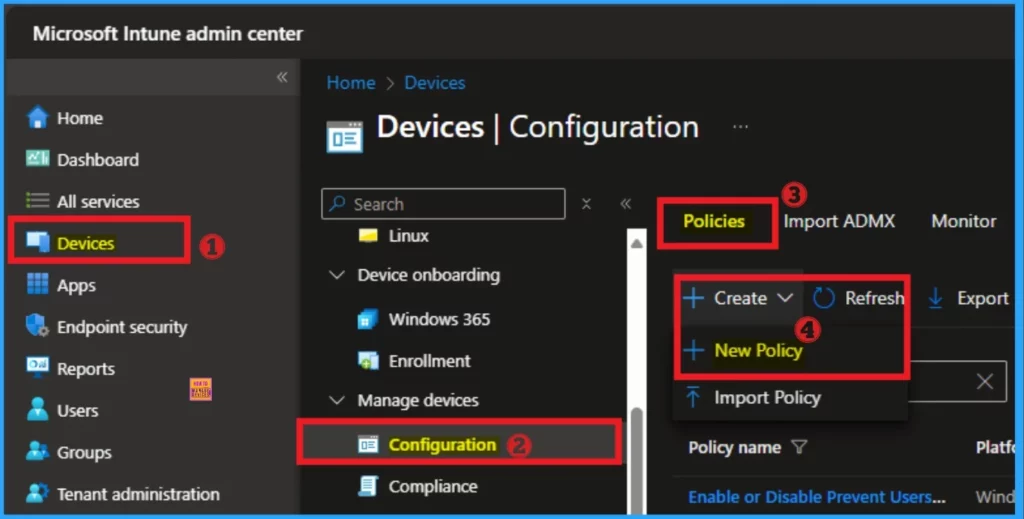
You can easily create Projection To PC settings using Intune. The Publish User Activity Policy is a setting that allows Windows to track and store user activities across devices. To start configuring this policy, open Microsoft Intune admin center.
- Go to Devices > Configuration
- From Policies, click on the + Create button and select +New Policy
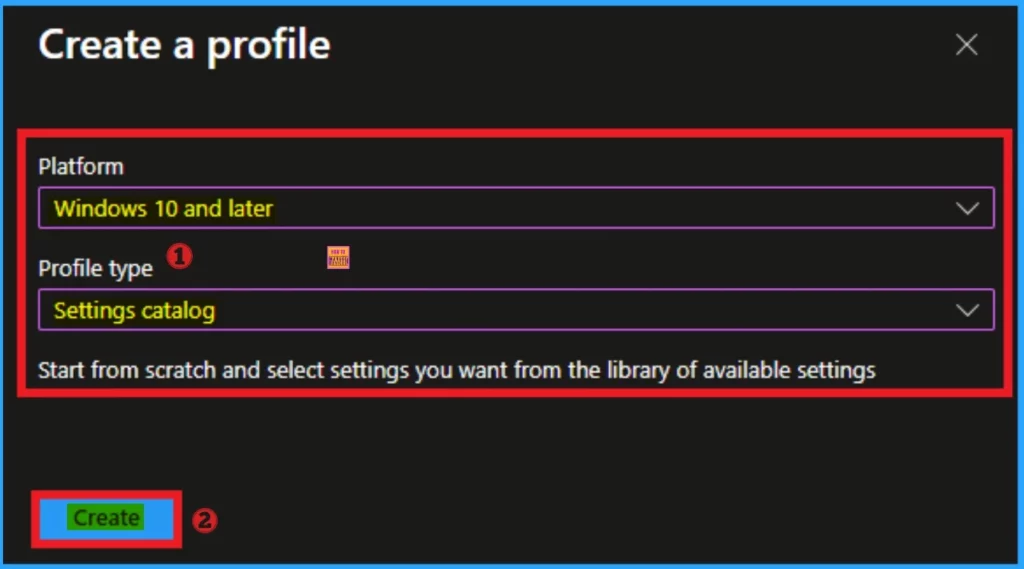
To create a policy you have to specify profile type and Platform. From this window you can select that. Here, I choose Windows 10 and later as Platform and Profile type as Settings catalog. Then click on the Next button.
Basic Tab
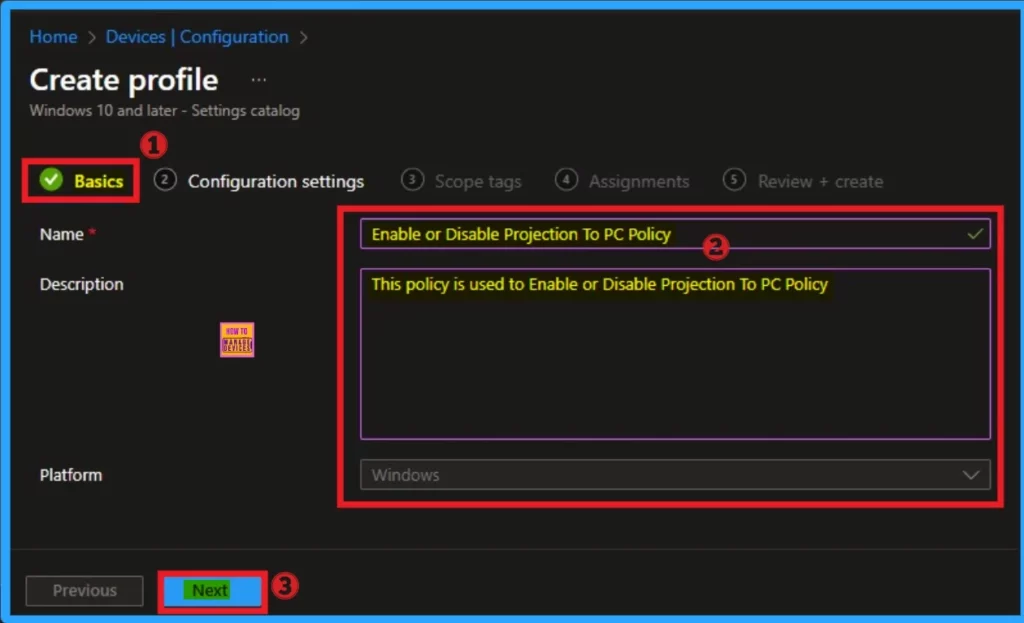
Basic tab, helps you to add the Name and Description for the policy that you want to create. The Name is the Mandatory file, and you must enter the Name here. The Description is optional,and it is better to give the Description.
- Name – Enable or Disable Projection To PC Policy
- Description – This policy is used to Enable or Disable Projection To PC Policy
- Click on the Next button
Configuration Settings Tab
The Configuration tab is very crucial it helps you to select a specific setting. On the Configuration tab, click on the +Add settings hyperlink, and then you will get the Settings Picker. From the Settings Picker, you can choose settings quickly by browse by category or Search bar.
- Choose the Wireless Display Settings category
- Select Allow Projection To PC
- Then close the Settings Picker window
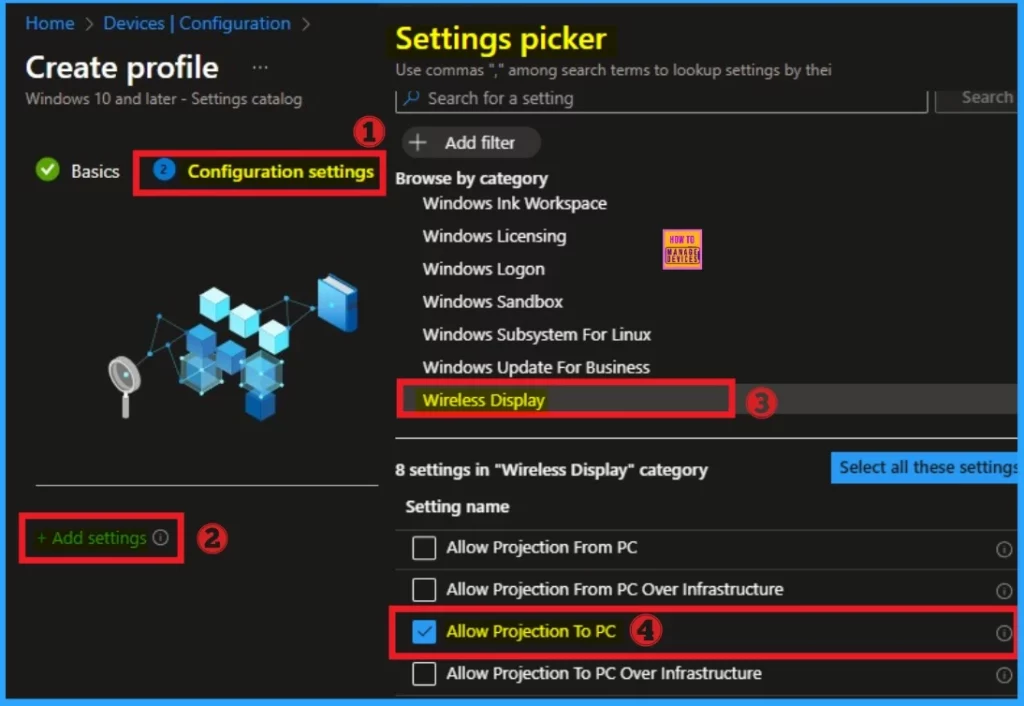
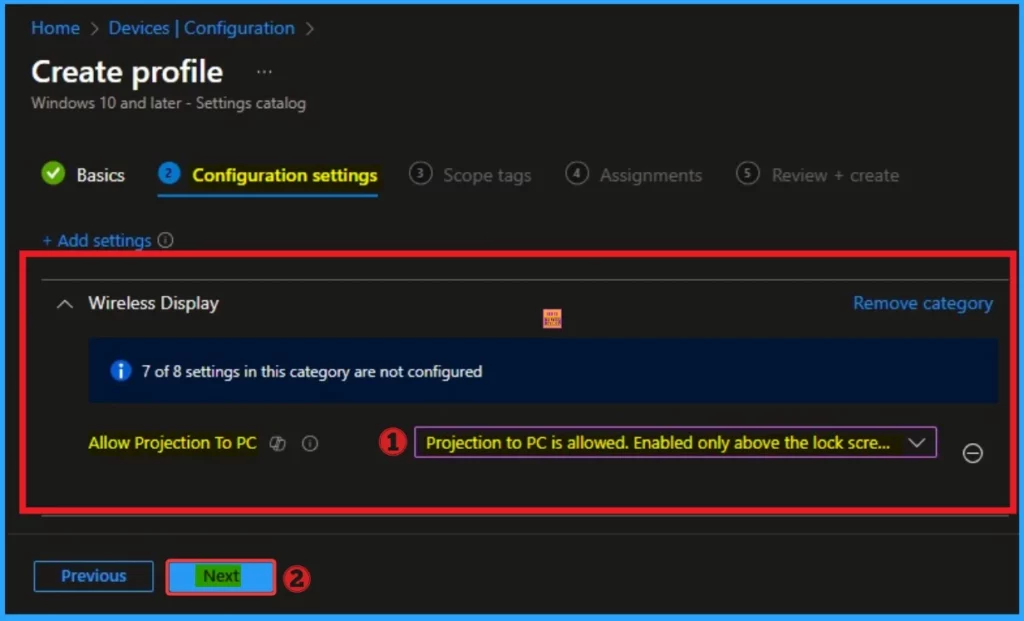
Enable Projection To PC
After choosing the policy, the settings will be shown on the Configuration Settings tab. By default, this policy is enabled. If you want to allow these settings, continue with the default value. Then click on the Next button.
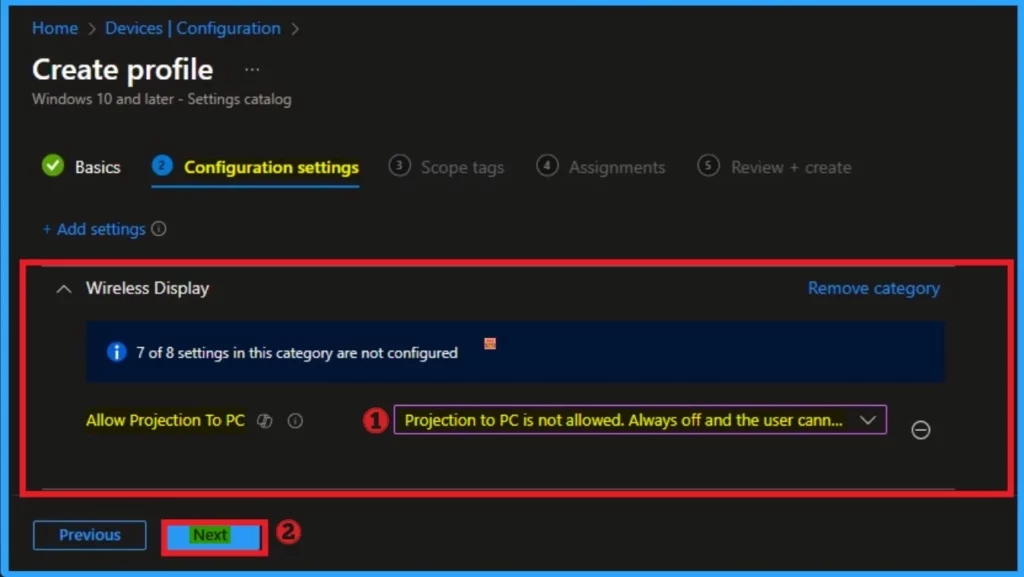
Disable Projection To PC
Here I would like to disable this policy, so I toggle the pane to the left to Disable Projection To PC Policy. If you disable it, your PC is discoverable and can be projected to above lock screen only. The user has an option to turn it always on or off except for manual launch, too. Click on the Next button.
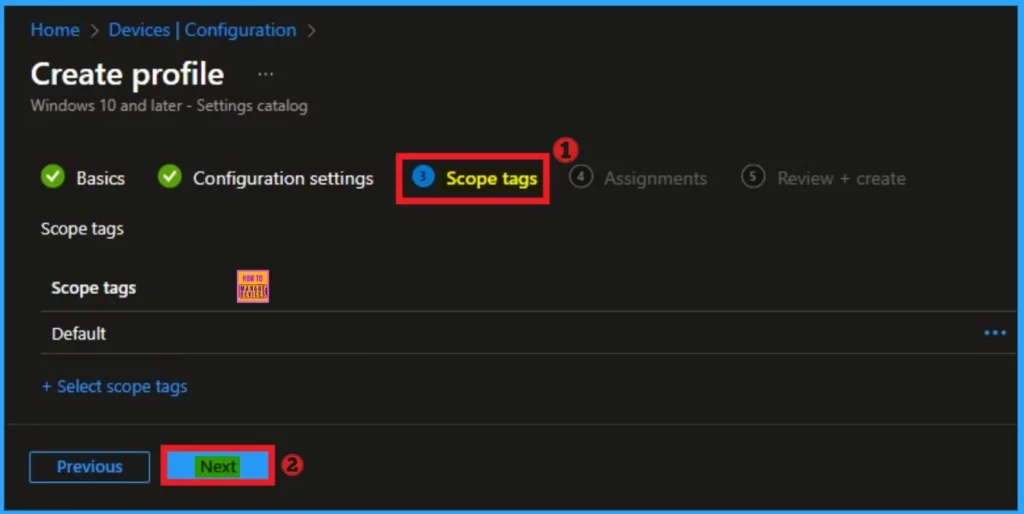
Scope Tags
On the scope tag, you can add the scope tag so simply skip this section. This is not a mandatory tab, and this is completely up to your choice. Here I skip this section. So click on the Next button.
Assignments Tab
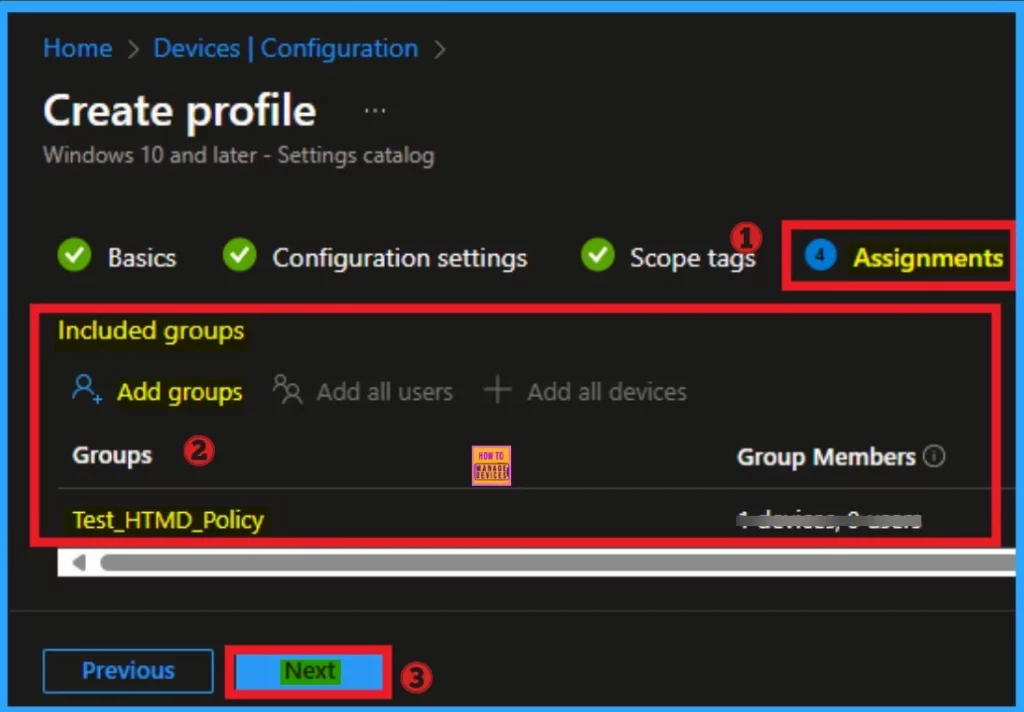
The Assignment tab is a very crucial section that determines which groups can be choose to assign the Internet Sharing Policy. Click on the +Add groups option under Included groups. Select the group from the list of groups and click on the Select button. Then the selected group is shown on the Assignment tab.
- Click on the Next button
Review + Create Tab
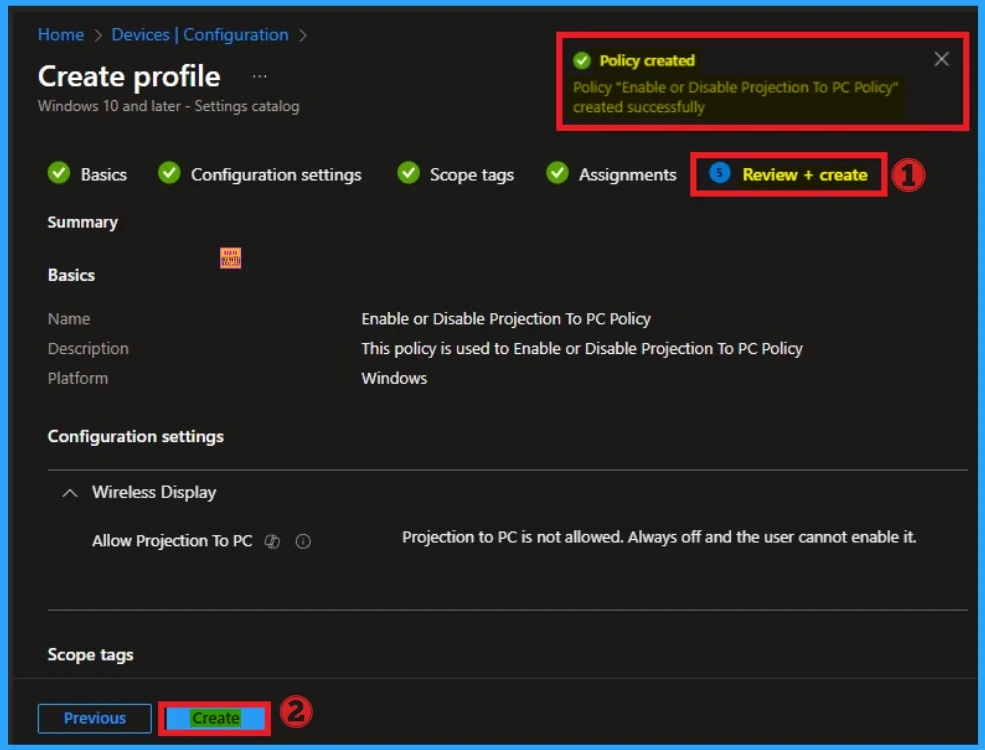
The Review + Create tab is the last stage of the policy creation. On this tab, you can verify the details and continue. If you want to make any changes, click on the previous button. Otherwise, click on the Create button. Then you will get the success notification.
Device Check-in Status
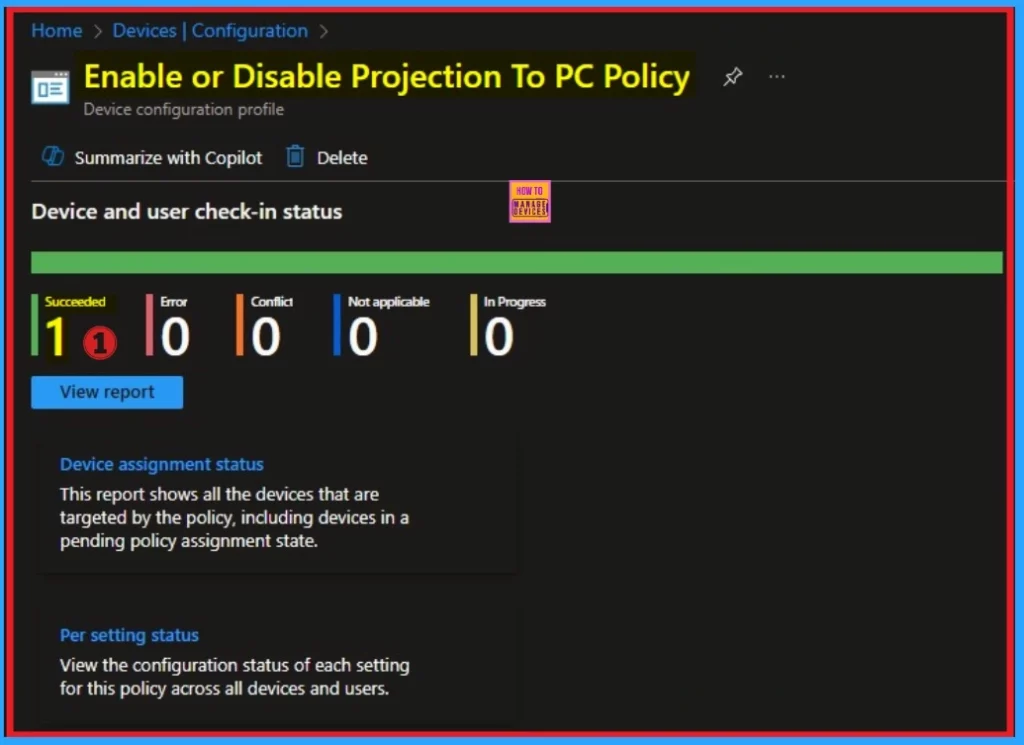
When the policy is created successfully, you can sync the device on the Company portal for faster deployment. After syncing is completed, you can check the status on the Intune Portal. Go to Devices > Configuration and search for the policy.
- Here the Policy succeeded as 1
Client-Side Verification – Event Viewer
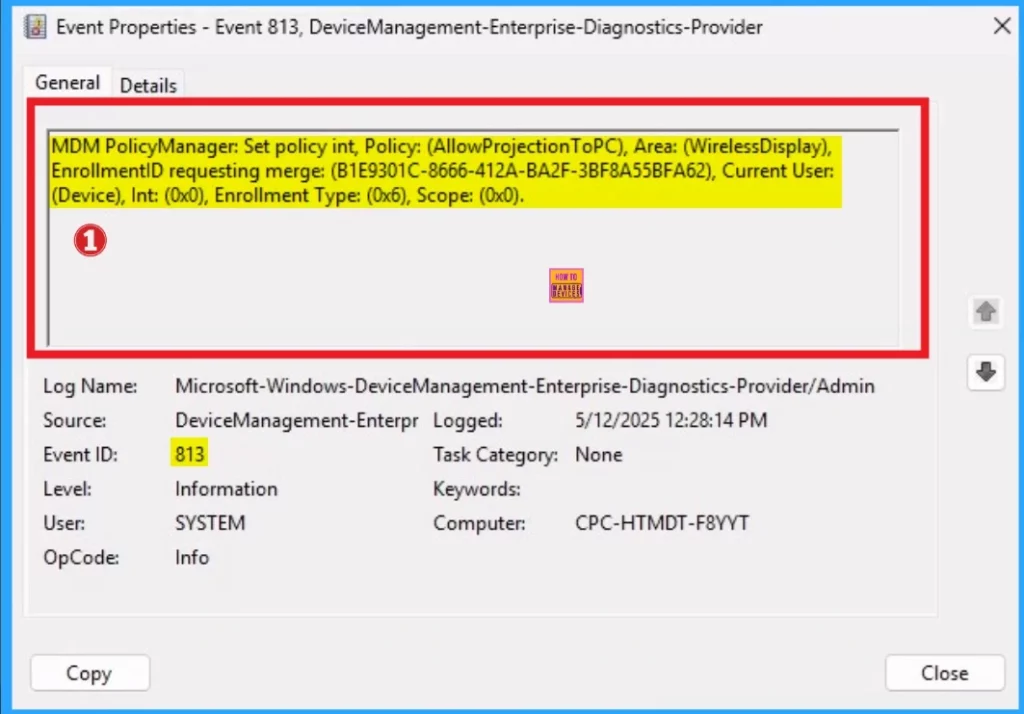
Event Viewer helps you to check if the policy suceeded or not. Event Viewer can be used as a client side verification. Here first go to the Event Viewer and check the Event ID that is usually in 813 or 814. Navigate to Applications and Services Logs > Microsoft > Windows > Device Management > Enterprise Diagnostic Provider > Admin.
| Event ID Details of Projection To PC |
|---|
| MDM PolicyManager: Set policy int, Policy: (AllowProjectionToPC), Area: (WirelessDisplay), EnrollmentID requesting merge: (B1E9301C-8666-412A-BA2F-3BF8A55BFA62), Current User: (Device), Int: (0x0), Enrollment Type: (0x6), Scope: (0x0). |
How to Remove Projection to PC Policy
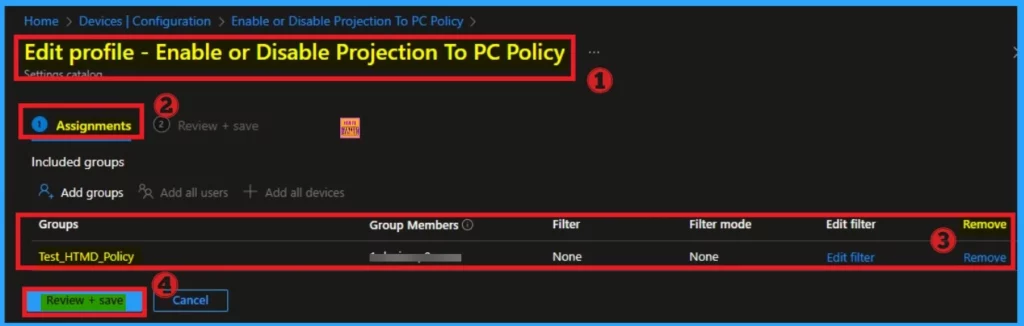
If you want to remove the Projection To PC policy on the Intune portal, it is a very easy process. To do this, open the policy from the Configuration tab., and click on the Edit button on the Assignment tab. Click on the Remove button on this section to remove the policy.
For more detailed information, you can check our previous post – Learn How to Delete or Remove App Assignment from Intune using by Step-by-Step Guide.
How to Delete Projection to PC Policy
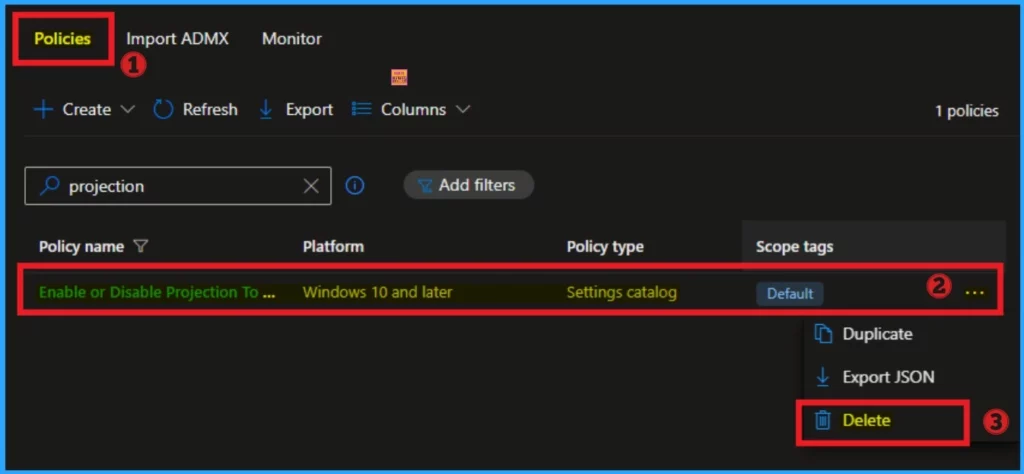
Intune allows you to easily delete a policy within the Intune Portal. Policy deletion is necessary in an organization due to different reasons. To delete the policy, click on the 3-dot option and then click on the Delete button.
For more information, you can refer to our previous post – How to Delete Allow Clipboard History Policy in Intune Step by Step Guide.
Need Further Assistance or Have Technical Questions?
Join the LinkedIn Page and Telegram group to get the latest step-by-step guides and news updates. Join our Meetup Page to participate in User group meetings. Also, Join the WhatsApp Community to get the latest news on Microsoft Technologies. We are there on Reddit as well.
Author
Anoop C Nair has been Microsoft MVP for 10 consecutive years from 2015 onwards. He is a Workplace Solution Architect with more than 22+ years of experience in Workplace technologies. He is a Blogger, Speaker, and Local User Group Community leader. His primary focus is on Device Management technologies like SCCM and Intune. He writes about technologies like Intune, SCCM, Windows, Cloud PC, Windows, Entra, Microsoft Security, Career, etc.


Discussion