






Enable or Disable Mobile App Management Policy in MS Edge Browser using M365 Admin Center
Today, I would like to explore how to enable or disable the Mobile App Management policy in MS Edge Browser using M365 Admin Center. The Microsoft 365 admin center is a central hub where we can easily handle common administrative tasks like user accounts, billing, activity reports, and Microsoft 365 groups.
Intune Mobile Application Management (MAM) offers tools to control, secure, and update mobile apps for users. This is particularly for personal devices used at work (BYOD), without managing the entire personal phone.
Mobile App Management Enabled policy allows Microsoft Edge to get and apply management settings from Intune to user profiles. If this policy is enabled or left unconfigured, Mobile App Management (MAM) Policies will be applied.
Disabling this policy prevents Microsoft Edge from contacting Intune for MAM policies. In this blog post, I will explain how to enable Mobile App Management policy in MS Edge Browser using M365 Admin Center with a step-by-step demonstration.

Table of Contents
Mobile App Management Enabled Policy in MS Edge
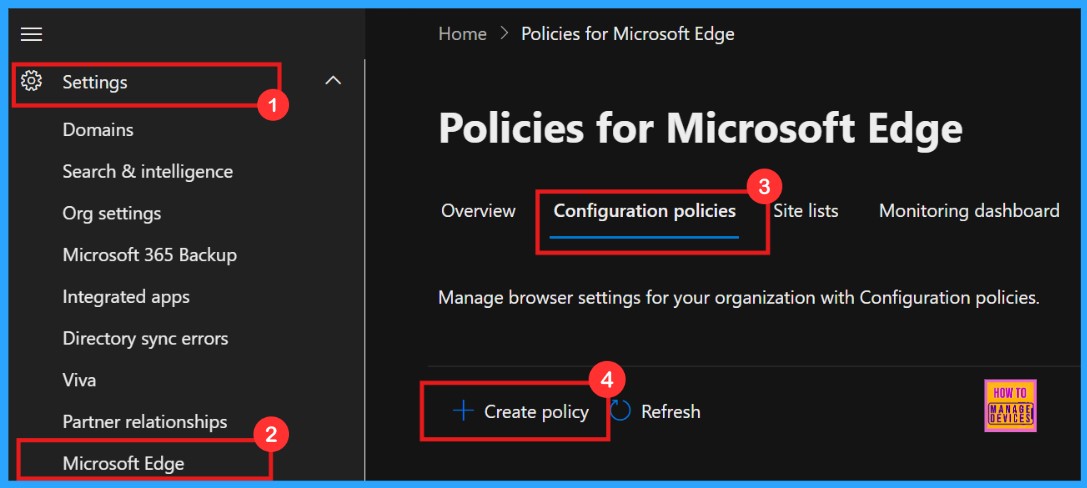
To enable Mobile App Management policy in MS Edge boruwser, first we need to log in to the Microsoft 365 Admin Center. Then navigate to Settings > Microsoft Edge > Configuration Policies > Create policy.
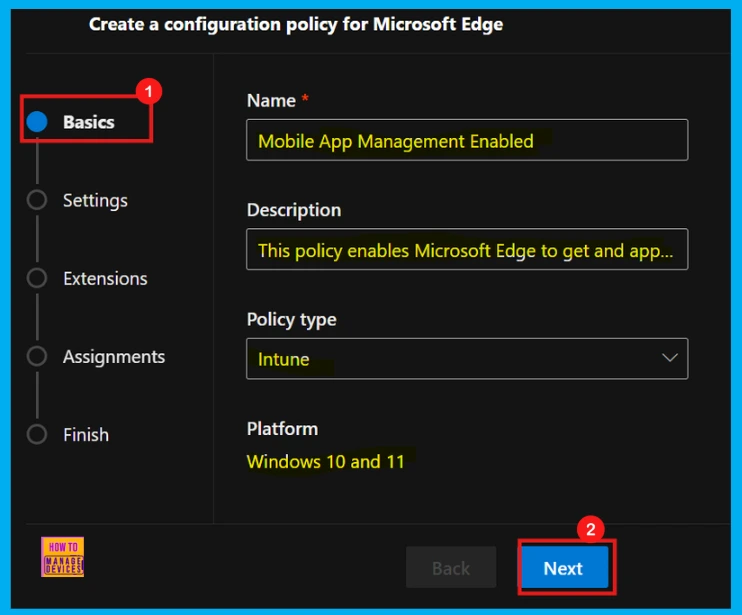
When we are setting up a policy, it is very important to give it a name. Although adding a detailed description is not required, having a descriptive name for the policy is essential.
| Name | Description | Platform | Policy Type |
|---|---|---|---|
| Mobile App Management Enabed (MAMEnabled) | This policy enables Microsoft Edge to get and apply management settings from Intune to user profiles. | Windows 10 and 11 | Intune |
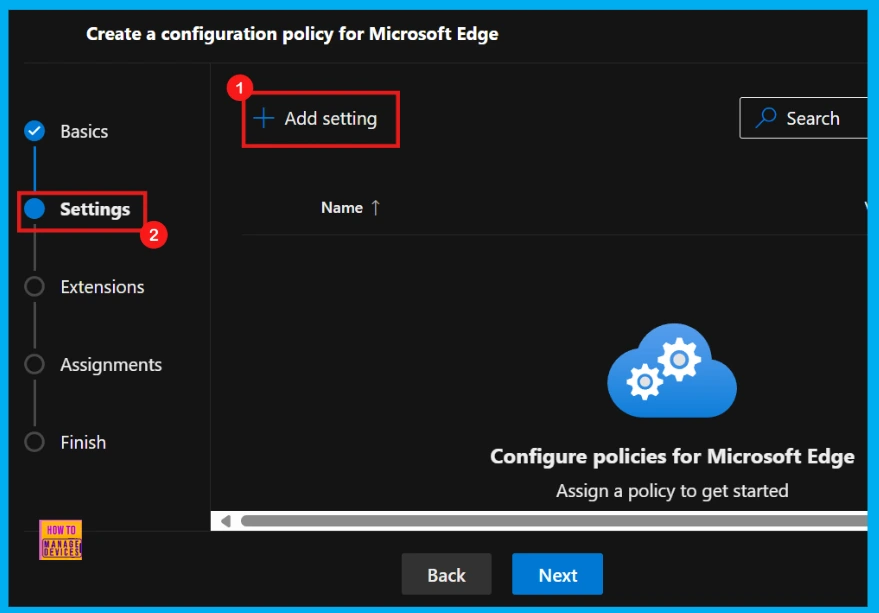
Add Settings under Settings
In the Microsoft 365 Admin Center, the second step to configure a policy is found under the Settings tab, where we will see the Add settings option. This is where we can select the specific configuration settings for our policy.
- Click Add Settings
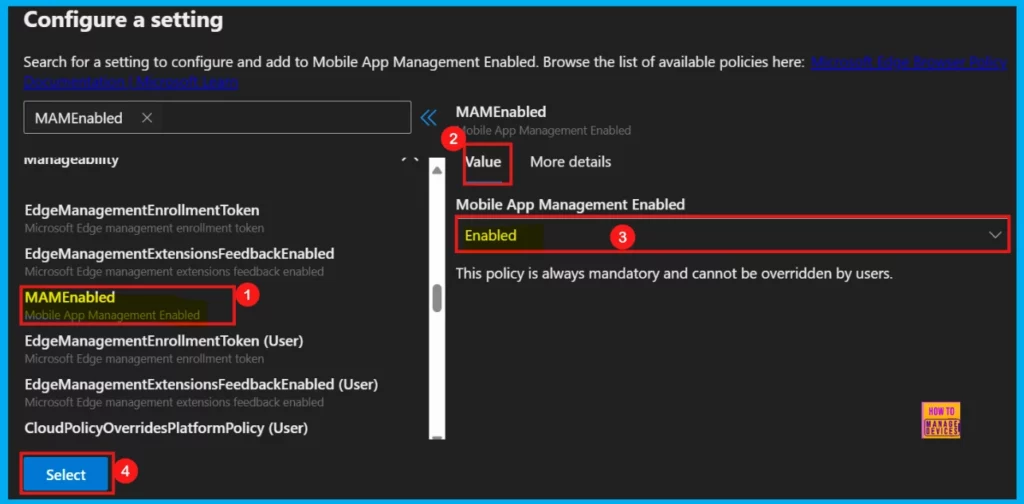
By clicking Add settings, we can search and choose from various types of available settings, including Additional settings, Application Guard settings, Manageability and others, to deploy the policy we want. Here, I choose the MAMEnabled policy under Manageability settings to deploy.
Once selected a policy, we will see it displayed in the left pane. Each policy is generally divided into two main sections: one for adjusting its Value setting and another for providing More details.
- Select the value from the dropdown arrow.
- I select Enabled as this policy value.
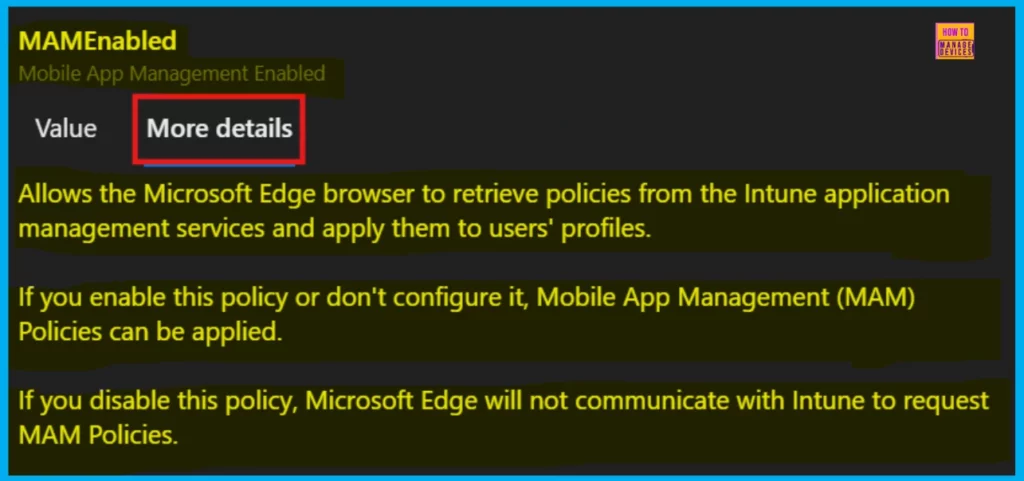
The More Details tab tells us what the policy does and how it works. Click it to see the full description, including technical information and how to use it. This is where we will find all the important elements about the policy. The following screenshot shows all about the MAMEnabled policy.
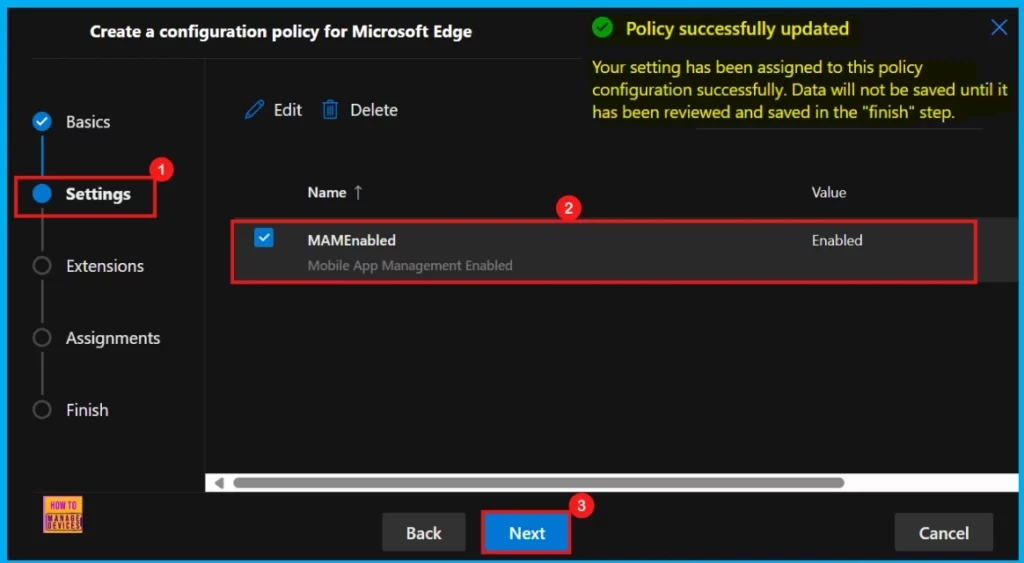
After selecting the policy from the settings section, click Select to configure the policy. Now we will receive a notification saying that the MAMEnabed policy is successfully updated. But the data will not be saved until it has been reviewed and saved in the Finish step.
- To enable the policy, check the box next to its name and click Next to proceed with configuration.
Extensions
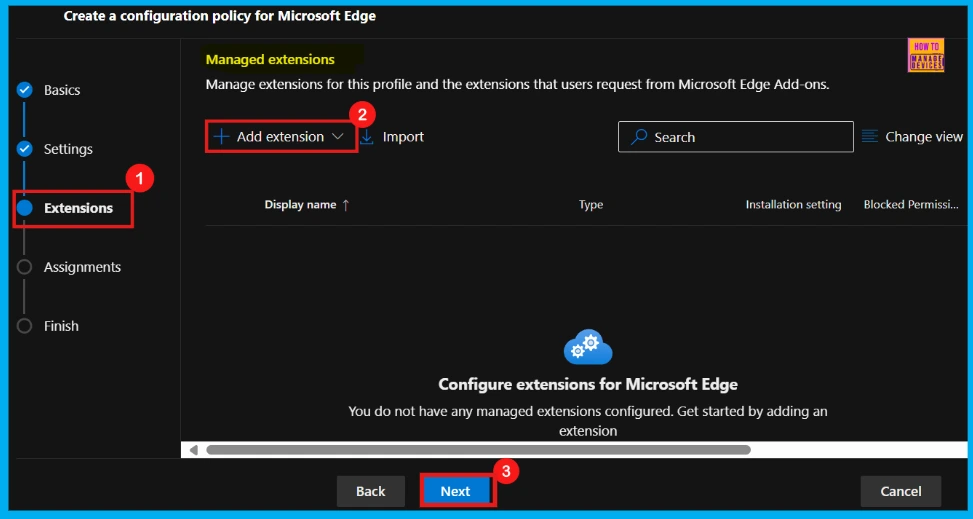
In the Extensions section, we can manage how extensions customize using various policies, like installation settings, permissions, and URLs. If we want more features, click + Add extension. Otherwise, we can just proceed with the default extensions.
Assignments
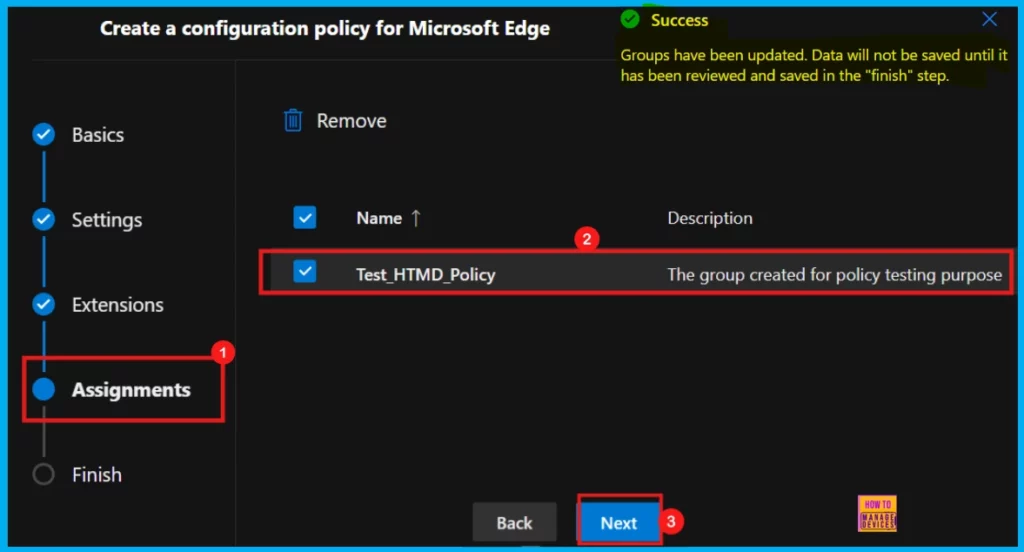
Next up is Assignments, where we can decide who gets this policy. To assign it, just click + Select group and pick the group from the available Microsoft Entra groups.
- I select Test_HTMD_Policy as the group for this policy.
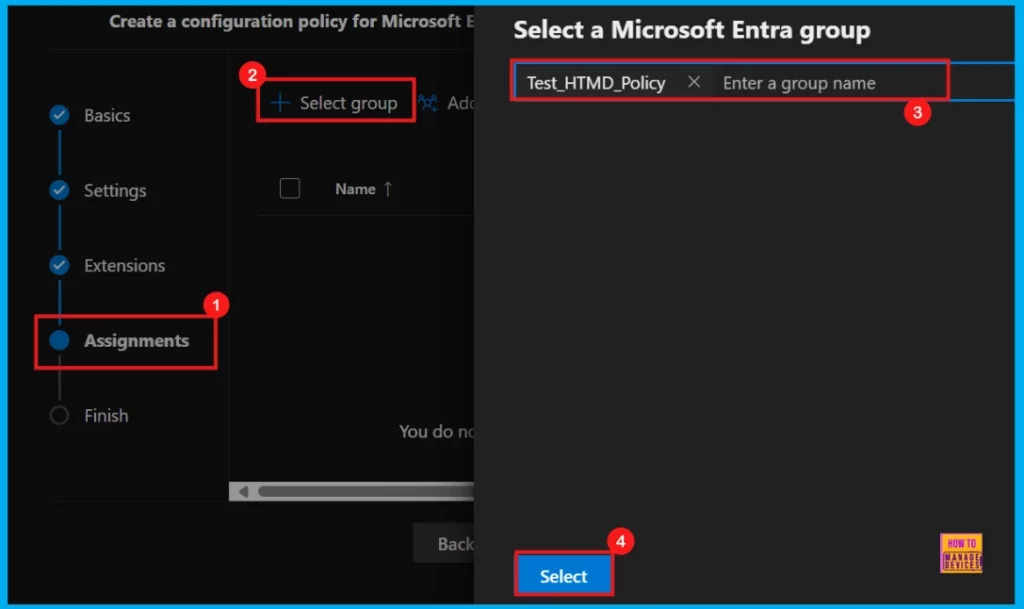
Upon choosing a group from the Microsoft Entra groups, a pop-up notification will indicating that the group has bee updated. The data will not be saved auntil it has been reviewed and saved in the Finish stage.
Finish
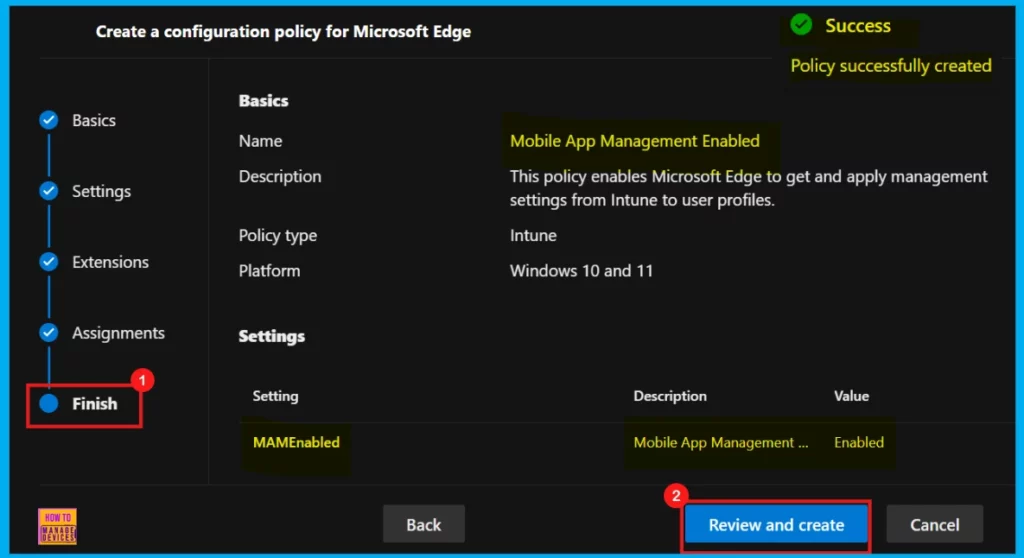
Finish the final step in setting up the policy. Here, we will review all the configurations like assignments, rules and any exceptions, before it’s finalized. Once ensure that everything is correct, click Review + Create. We will then see a success message confirming our policy has been created.
Device and User Check-in Status
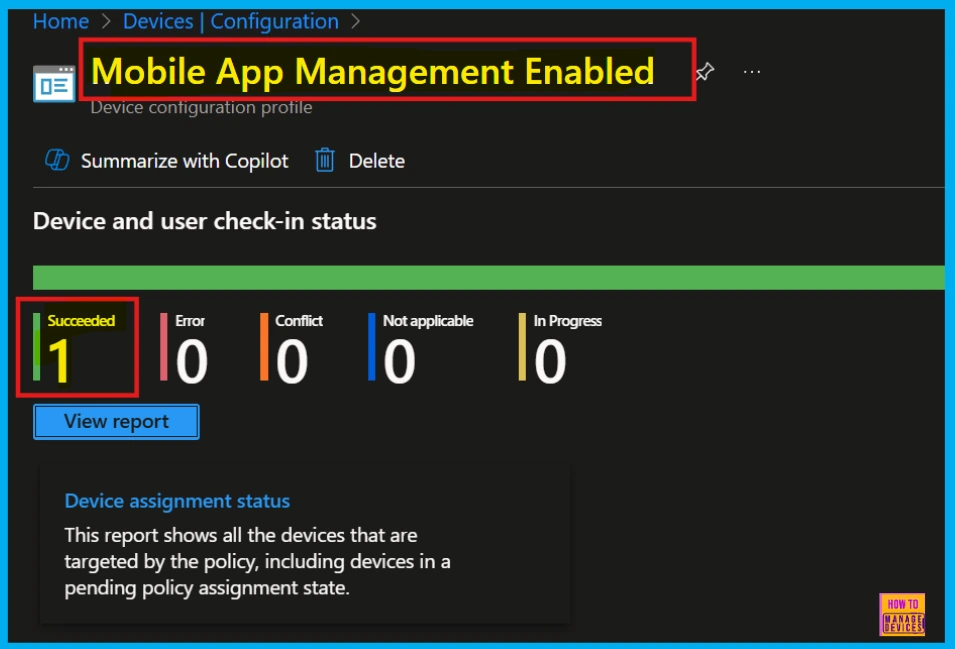
To ensure the ur new policy applies to devices, we will need to manually sync through the Company Portal. Once synced, the policy will appear in Microsoft Intune. To verify it installed successfully, check the policy’s status in the Intune Portal.
- Navigate to Devices > Configuration, find the policy under the Policies tab, and confirm it shows a succeeded (1) status.
Client-Side Verification
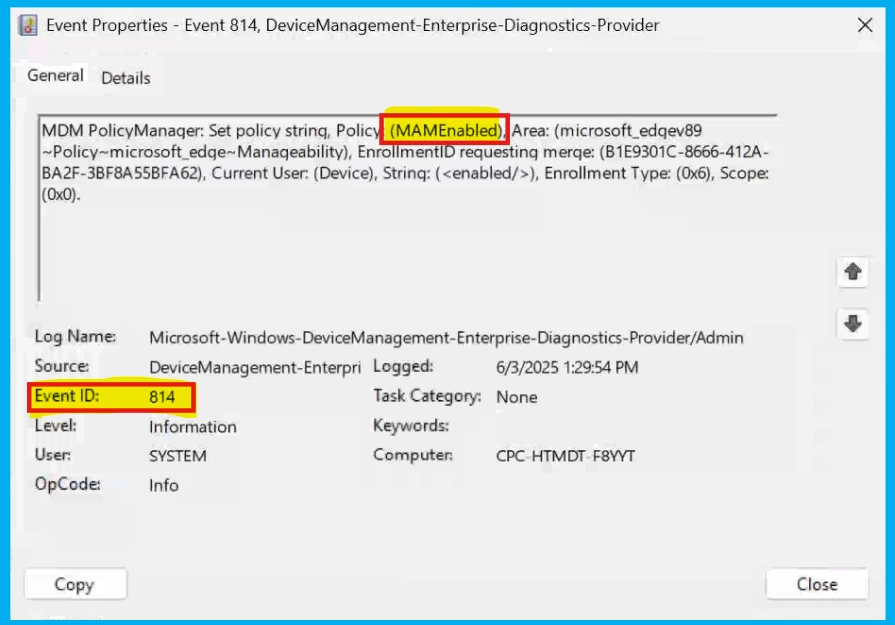
After creating the policy, we will need to perform a client-side verification. This lets us monitor the policy in real-time using the Event Viewer. To do this, go to Applications and Services Logs > Microsoft > Windows > DeviceManagement-Enterprise-Diagnostics-Provider > Admin, then filter for Event ID 814
MDM PolicyManager: Set policy string, Policy: (MAMEnabled), Area: (microsoft_edqev94~Policy~microsoft_edqe~Manageability), EnrollmentlD requestinq merqe: (B1E9301C-8666-412A-BA2F-3BF8A55BFA62), Current User: (Device), String: (<enabled/>), Enrollment Type: (0x6), Scope: (0x0).
Need Further Assistance or Have Technical Questions?
Join the LinkedIn Page and Telegram group to get the latest step-by-step guides and news updates. Join our Meetup Page to participate in User group meetings. Also, Join the WhatsApp Community to get the latest news on Microsoft Technologies. We are there on Reddit as well.
Author
Anoop C Nair has been Microsoft MVP for 10 consecutive years from 2015 onwards. He is a Workplace Solution Architect with more than 22+ years of experience in Workplace technologies. He is a Blogger, Speaker, and Local User Group Community leader. His primary focus is on Device Management technologies like SCCM and Intune. He writes about technologies like Intune, SCCM, Windows, Cloud PC, Windows, Entra, Microsoft Security, Career, etc.




Discussion