






How to Stop Bluetooth and Cloud Device Sync using CDP Policy in Intune
Hey, let’s learn how to How to Stop Bluetooth and Cloud Device Sync using CDP Policy in Intune. The Connected Devices Policy in Intune helps manage how Windows devices interact with other devices and services. It is mainly used to control features like cross-device sharing, clipboard sync, app messaging, and remote actions.
The Connected Devices Policy in Intune helps manage how Windows devices interact with other devices and services. It is mainly used to control features like cross-device sharing, clipboard sync, app messaging, and remote actions.
This policy is especially useful in organisations that want to maintain control over user activity and data sharing while still offering modern cross-device capabilities. It is configured through Intune’s Settings Catalog. We have a related post about the Total Number of SCCM Managed Non-Cloud Connected Windows Devices. Check this for more details.
This blog post provides complete guidance on managing the Allow Connected Devices Policy. It’s a step-by-step instruction on how to Enable or Disable Connected Devices using Intune Policy, monitor its status, and client-side verification.

Table of Contents
What are the Benefits of Enabling Connected Devices Policy in Intune?
1. Improved cross-device collaboration
2. Seamless experience for shared devices
3. Better device management and visibility
4. Support for features like Nearby Sharing and Phone Link
5. Enhanced user productivity and workflow continuity
How to Stop Bluetooth and Cloud Device Sync using CDP Policy in Intune
The Connected Devices policy can be easily configured on Windows devices using either Microsoft Intune or by setting a custom OMA-URI (Open Mobile Alliance Uniform Resource Identifier). This blog post will detail both methods.
- How to Identify Devices Connected via SCCM CMG | ConfigMgr | Custom Report
- Fix Issue on USB Connected Dual-Mode Printers on Windows Client
- Enhance Windows Autopilot Bandwidth Efficiency with Connected
Create a Profile
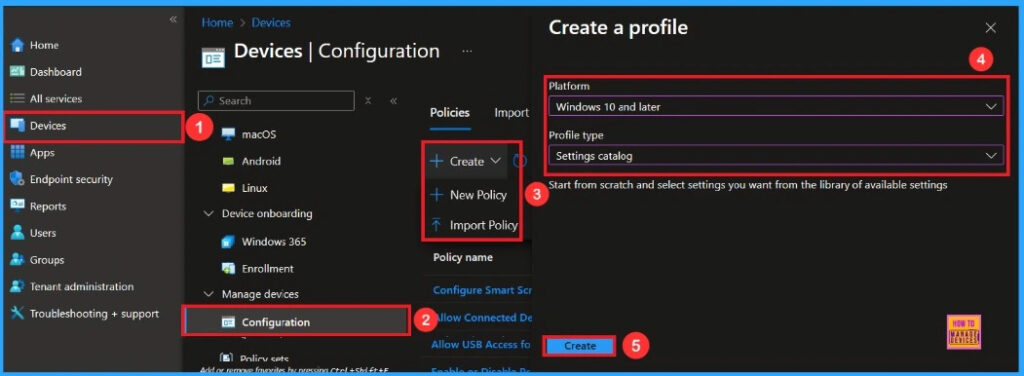
To start deploying a policy in Intune, sign in to the Microsoft Intune Admin Center. Then, go to Devices > Configuration profiles > Create New Policy. In the Create a Profile window, select Platform Windows 10 and later, Profile type is Settings catalog. Then click the Create button to continue.
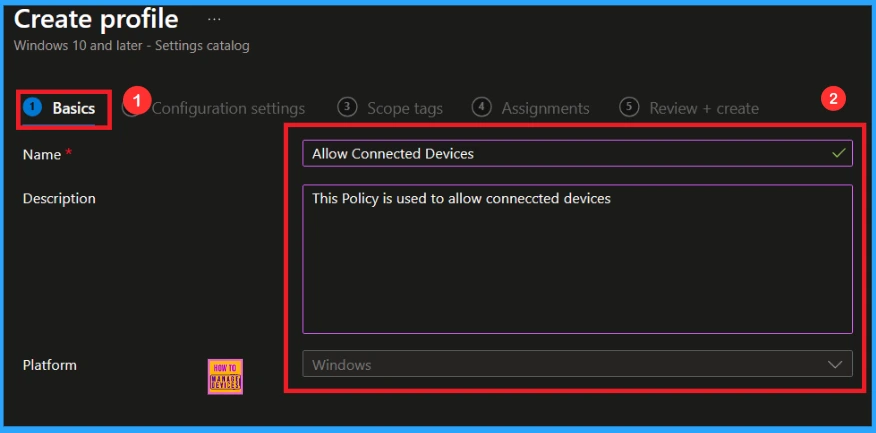
Basic Step
Here, we can add the name (e.g Allow Connected Devices) of the policy and give a brief description (e.g This policy is used to allow connected Devices). Then click the Next button.
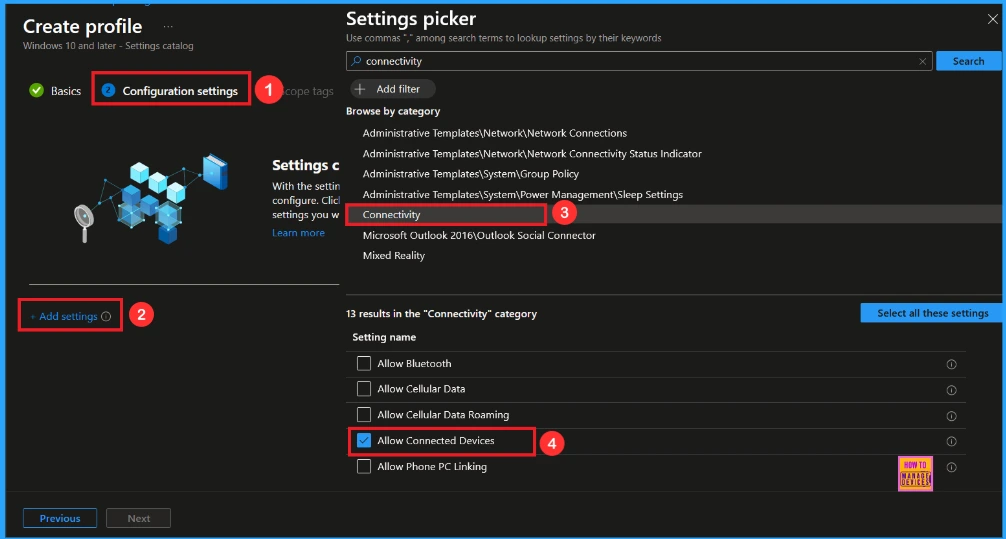
Configuration Settings Tag
Now, for Configuration Settings, we can define this policy’s exact function. Click Add Settings to open the Settings Picker.
- In the search bar, type Connectivity as a category
- Select Allow Connected Devices to configure.
- Close the Settings Picker window.
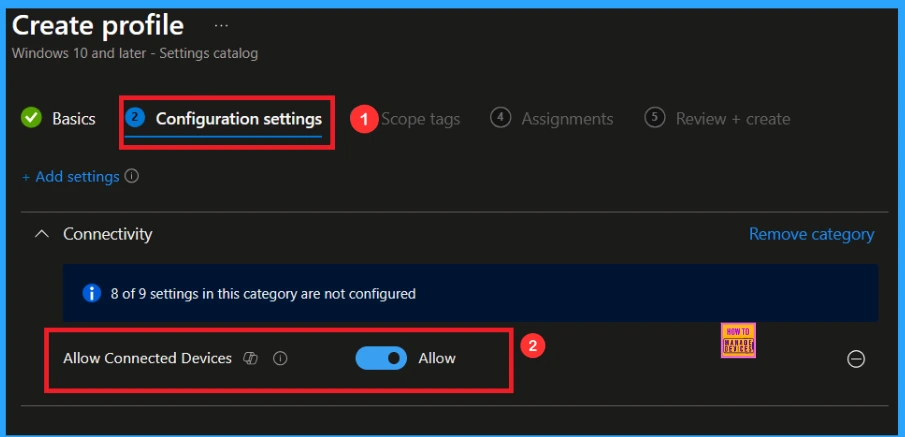
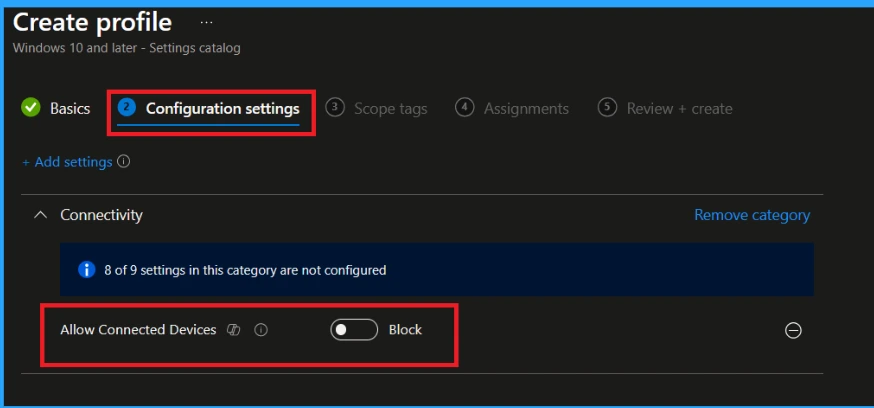
You will see it on the Configuration page. Here we have only two settings: Allow or Block. By default, Allow Connected Devices will be set to Allow.
Block Connected Devices Policy
You can block the Connected Devices Policy by toggling the switch. After reviewing or adding more settings, you can click the Next button to proceed.
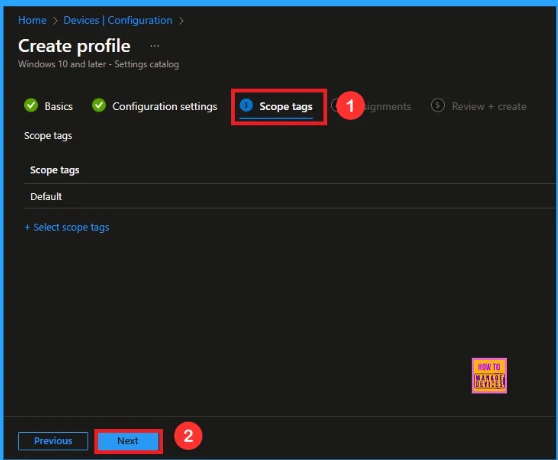
Scope Tag
Scope Tags are used to control who can view and modify a policy. It is serving as an organisational and access management tool. However, assigning them is optional; if not needed for the current setup, click Next.
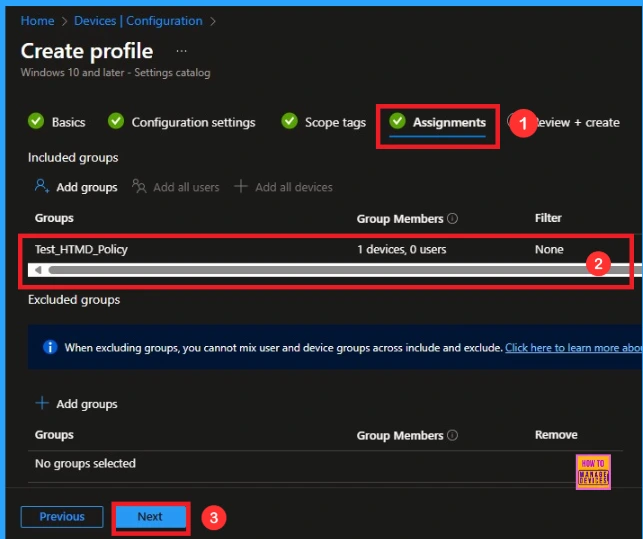
Assigned Group for Connected Devices Policy
You can see Add groups under the included group section. From the list, select the group that we want to target (e.g., Test_HTMD_Policy). Then click Next to move on.
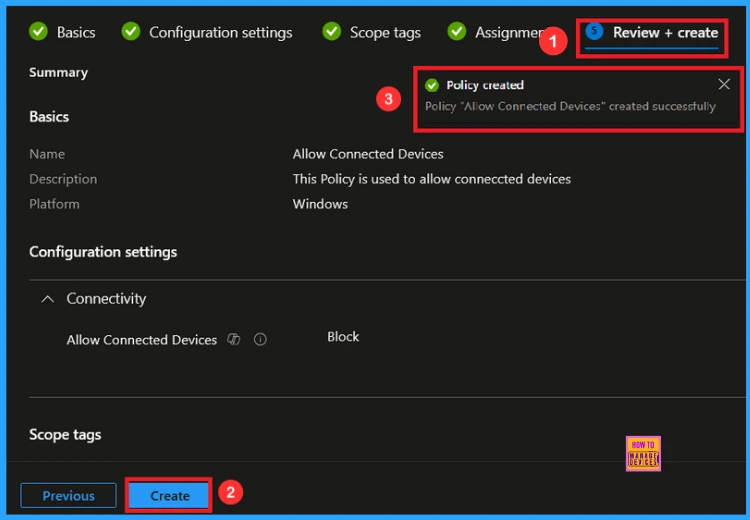
Review + Create Tag
Now we have reached the final Review + Create step. We can review every detail, and if needed to make changes, just click Previous to go back. Once it is completed, click Create to finalise the profile. Then you can see a notification( Allow Connected Devices created successfully).
Device and User Check-in Status
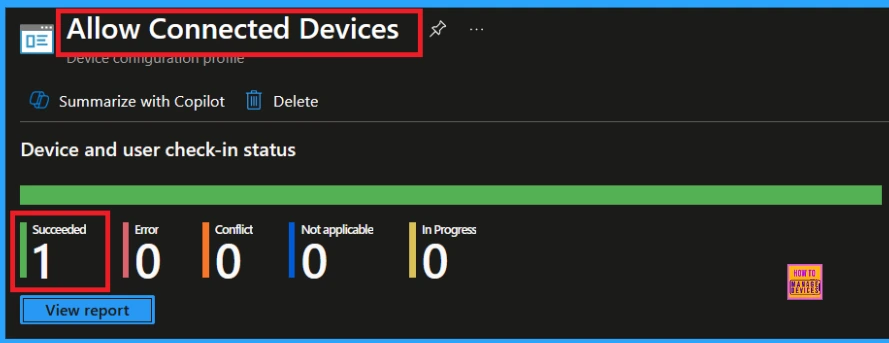
To view a policy’s status, go to Devices > Configuration in the Intune portal, select the policy (like Allow Connected Devices), and check that the status shows Succeeded (1). Use the manual sync option to reduce the configuration delay in the Company Portal app on the device.
Client Side Verification
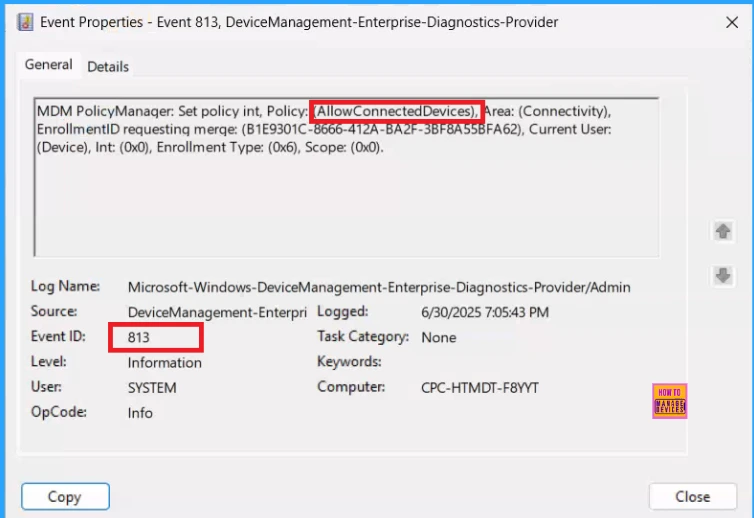
To confirm if a policy has been applied, use the Event Viewer on the client device. Go to Applications and Services Logs > Microsoft > Windows > Device Management > Enterprise Diagnostic Provider > Admin. From the list of policies, use the Filter Current Log option and search for Intune event 813.
MDM PolicyManaqer: Set policy int, Policy: AllowConnectedDevices), Area: (Connectivity),
EnrollmentID requestinq merqe: (B1E9301C-8666-412A-BA2F-3BF8A55BFA62), Current User:
(Device), Int: (0x0), Enrollment Type: (0x6), Scope: (0x0).
Removing the Assigned Group from the Allow Connected Devices Policy
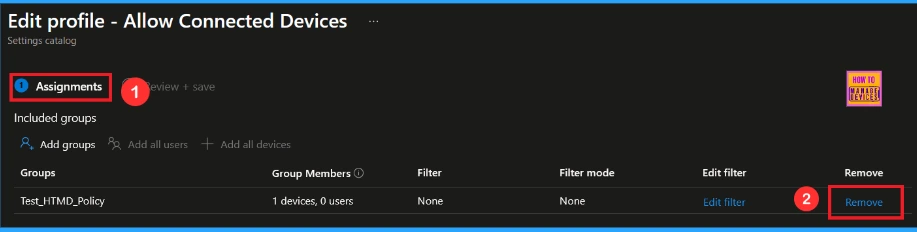
Sometimes, we need to remove a group from a policy assignment for security updates. First, go to Devices > Configuration policies. In the Configuration policy section, search and select the policy, for example, Allow Connected Devices. In the Assignment section, you will find an Edit option and click Remove option. Click Review + Save after making the change.
For detailed information, you can refer to our previous post – Learn How to Delete or Remove App Assignment from Intune using by Step-by-Step Guide.
How to Delete Connected Devices Policy from Intune
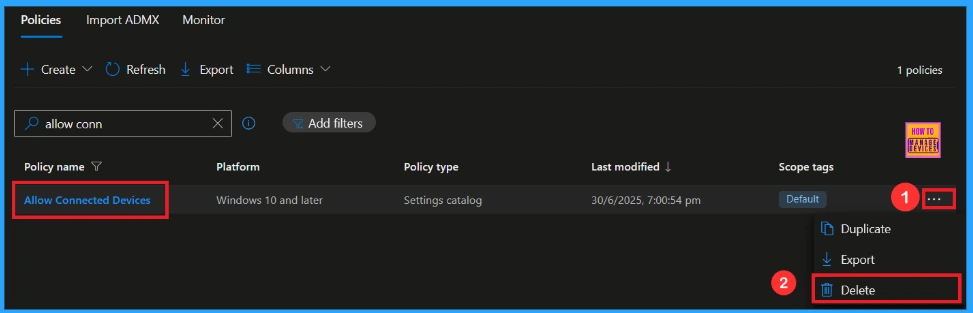
If we need to delete an Intune policy for security or operational reasons, there is a simple method to do it. Click the three dots, and then you can see the option Delete.
Windows Configuration Service Provider (CSP)
The policy Configuration Service Provider (CSP) is a tool for businesses to manage settings on Windows 10 and 11 devices. It details each policy’s function (Description Framework Properties), available choices (Allowed Values).
Description framework properties
| Property Name | Property Value |
|---|---|
| Format | Int |
| Access Type | Add, Delete, Get, Replace |
| Default Value | 1 |
Assigned Value
| Value | Description |
|---|---|
| 0 | Disable (CDP service not available) |
| 1(Default) | Allow (CDP service available) |
./Device/Vendor/MSFT/Policy/Config/Connectivity/AllowConnectedDevices
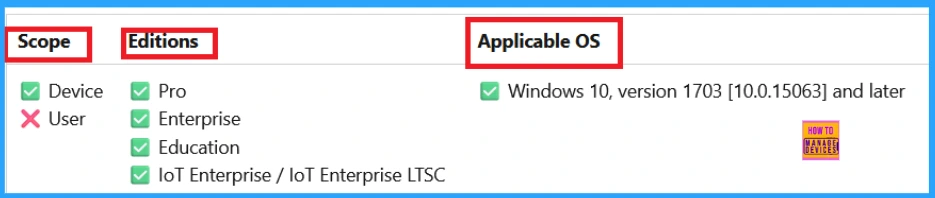
OMA-URI Settings to Allow Connected Devices
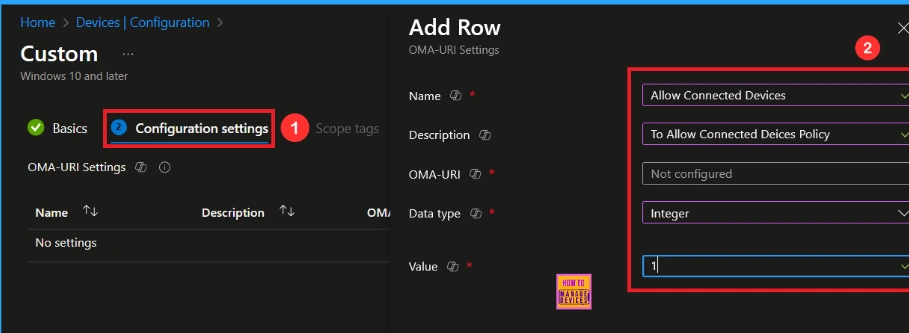
An OMA-URI is a unique address that points to a specific setting controlled by a Configuration Service Provider (CSP). It is a text string that sets custom configurations on Windows 10 and 11 devices, and its format depends on the CSP itself. Here’s a step-by-step guide.
- Sign in to Microsoft Intune
- Go to Devices > Configuration
- Click Create, and then the new policy.
- Choose the platform as Windows 10 or later.
- For Profile type, select Templates and then choose Custom.
- Provide a Name: Allow Connected Devices
- Add a Description( e.g This Policy is used to allow connected devices)
- Click on + Add under OMA-URI Settings to configure the specific setting.
- To Configure the OMA-URI Setting, do the following
- Enter a name, such as Allow Connected Device.
- Description: To allow Connected Devices
- Enter the following OMA-URI path: ./Device/Vendor/MSFT/Policy/Config/Connectivity/AllowConnectedDevices
- Set the Data type to Integer.
- Enter the value
- 1. To Allow Connected Devices
- 0 To Block Connected Devices
- After entering the above details, click the Save button
Need Further Assistance or Have Technical Questions?
Join the LinkedIn Page and Telegram group to get the latest step-by-step guides and news updates. Join our Meetup Page to participate in User group meetings. Also, Join the WhatsApp Community to get the latest news on Microsoft Technologies. We are there on Reddit as well.
Author
Anoop C Nair has been Microsoft MVP from 2015 onwards for 10 consecutive years! He is a Workplace Solution Architect with more than 22+ years of experience in Workplace technologies. He is also a Blogger, Speaker, and Local User Group Community leader. His primary focus is on Device Management technologies like SCCM and Intune. He writes about technologies like Intune, SCCM, Windows, Cloud PC, Windows, Entra, Microsoft Security, Career, etc


Discussion