






How to Fix Greyed Out Locate Device Option for Corporate Android Devices in Intune
Let’s discuss how to Fix Greyed Out Locate Device Option for Corporate Android Devices in Intune. If the “Locate device” option is greyed out for your corporate Android devices in Intune, it usually points to a configuration or permission-related issue.
Even if your Android devices are enrolled in Intune, turned on, and connected to the internet, some features like “Locate device” might still not work. This is because these features need specific settings and permissions to be turned on.
One of our post highlighted a common issue in Android app deployment using Intune, the installation error 0xC7D14FB2. This error usually occurs when there is a problem during the app download process on a managed Android device.
In this post, you will find all the details on how to fix the greyed-out “Locate device” option for corporate Android devices in Intune. We explain why the option might not be available, even if the device is online and enrolled.

Table of Contents
Fix Greyed Out Locate Device Option for Corporate Android Devices in Intune – Check Device Enrollment Type in Intune
To use the Locate Device feature in Microsoft Intune, the device must be enrolled with the correct ownership type. Personally-owned (BYOD) devices are not supported for this functionality. Ensure the device is enrolled as one of the following.
- Dedicated device
- Fully managed device
- Corporate-owned device
Note! – Locate Device is not available for personally-owned (BYOD) enrollments.

- Samsung Knox API Deprecation Impacts Intune Settings for Android Device Administrator Managed Devices
- Intune End of Support for Android Device Administrator
- How to Detect Android Enterprise Rooted Devices using Intune Compliance Polic
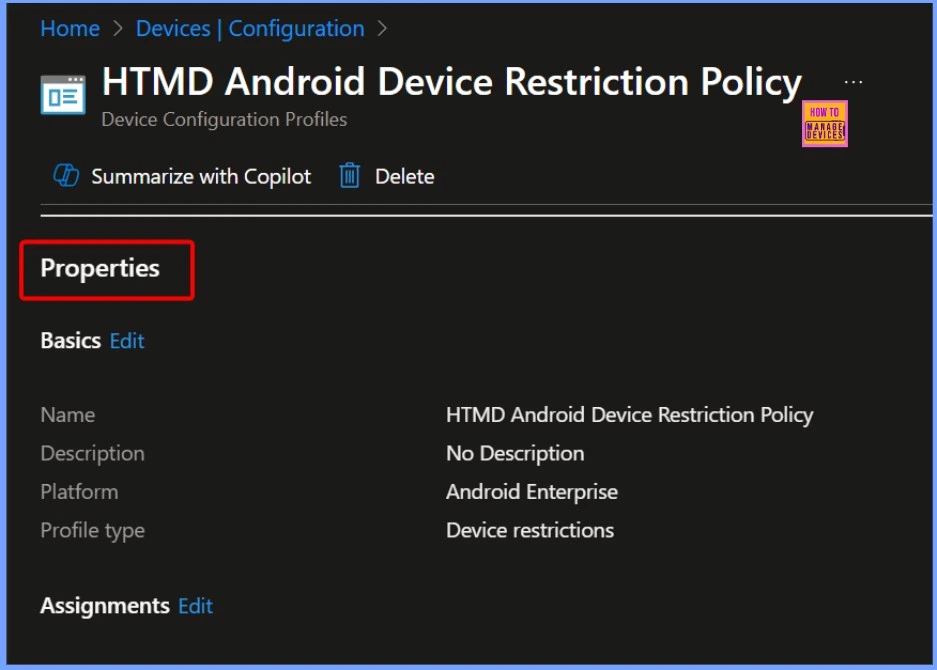
How to Fix the Ownership Type
If the device is already enrolled as Personal, follow these steps to change it to Corporate. Once updated, the device will support location-based actions like Locate Device, provided other prerequisites are also met.
| How to Fix the Ownership Type |
|---|
| Go to Intune Admin Center. |
| Navigate to Devices and select the affected device. |
| Open the Properties blade. |
| Locate the Ownership field. |
| Change it from Personal to Corporate. |
| Save the changes. |
Enable Location Services
For the “Locate device” feature to work, location services must be turned on at the device level. If the user has manually disabled location or if a Device Restrictions policy in Intune blocks location access, the feature will remain greyed out.

Fix – Check if your Intune Device Restrictions Policy Disables Location Services
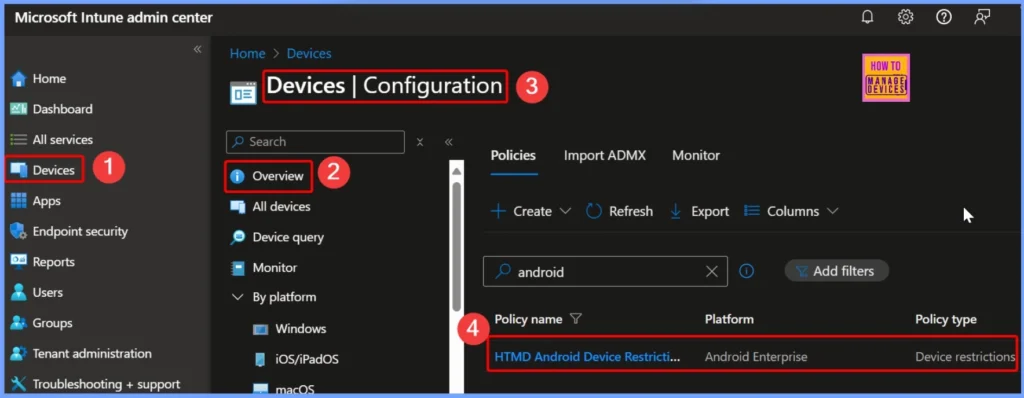
If the Locate Device feature isn’t working, verify that your Intune Device Restrictions policy isn’t blocking location services. Go to:Intune Admin Center > Devices > Android > Configuration profiles > Device Restrictions.
In the settings, check the Location services section and ensure it is not set to “Block.” If it’s disabled, the device won’t be able to share its location with Intune, preventing the locate feature from functioning.

Device Not Synced Recently
If the device hasn’t synced with Intune in a while, the “Locate device” option may appear greyed out. Intune needs up-to-date information from the device to enable certain actions like location tracking.
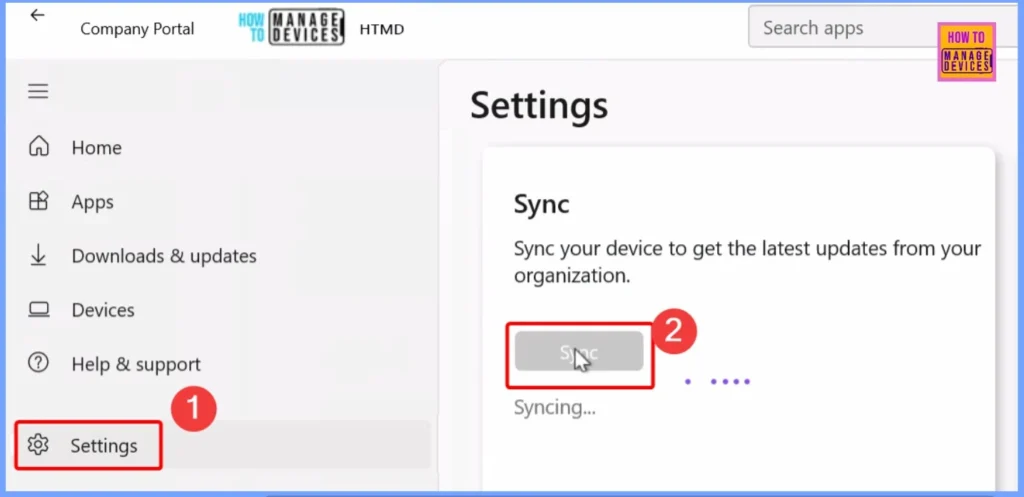
Fix – Ask the user to open the Company Portal app on their device, go to Settings, and tap Sync. This forces the device to check in with Intune and can help restore missing features.
Validate Configuration Profile Status in Intune
To ensure the “Locate device” feature works correctly, it’s important to verify that the device has received and applied all relevant configuration profiles. In the Intune portal, go to the device’s overview and check the Device configuration section.
Need Further Assistance or Have Technical Questions?
Join the LinkedIn Page and Telegram group to get the latest step-by-step guides and news updates. Join our Meetup Page to participate in User group meetings. Also, join the WhatsApp Community to get the latest news on Microsoft Technologies. We are there on Reddit as well.
Need Further Assistance or Have Technical Questions?
Join the LinkedIn Page and Telegram group to get the latest step-by-step guides and news updates. Join our Meetup Page to participate in User group meetings. Also, join the WhatsApp Community to get the latest news on Microsoft Technologies. We are there on Reddit as well.
Resources
Android Corp Devices Locate Device Greyed Out | Microsoft Community Hub
Author
Anoop C Nair has been Microsoft MVP for 10 consecutive years from 2015 onwards. He is a Workplace Solution Architect with more than 22+ years of experience in Workplace technologies. He is a Blogger, Speaker, and Local User Group Community leader. His primary focus is on Device Management technologies like SCCM and Intune. He writes about technologies like Intune, SCCM, Windows, Cloud PC, Windows, Entra, Microsoft Security, Career, etc.


Discussion