






How to use Intune Inventory to Query Network Adapters on Windows Devices
Let’s discuss how to use Intune inventory to Query Network Adapters on Windows Devices. The Network Adapter section in Intune gives important details about the network hardware used on a Windows device. This feature is mainly used for inventory and device management.
It allows administrators to check which network adapters are installed and whether they are active or disabled. This helps in troubleshooting connectivity issues and tracking the types of connections used across all devices in an organization.
The Network Adapter data in Intune supports two key functions: Inventory and Device query for multiple devices. The Inventory feature collects and stores detailed network adapter information over time. It helping with long-term tracking and reporting.
On the other hand, the Device query option enables IT teams to retrieve network data from multiple devices at once, making it easier to perform bulk assessments and monitor network health across the organization efficiently.

Table of Contents
How to use Intune Inventory to Query Network Adapters on Windows Devices
The NetworkAdapter section in Intune includes several useful properties that give clear details about each network adapter. The Identifier is a unique string that helps distinguish one adapter from another on the same device. The MacAddress is a special hardware ID used to identify devices on a network, and it’s available across platforms like Android, iOS, iPadOS, and macOS.
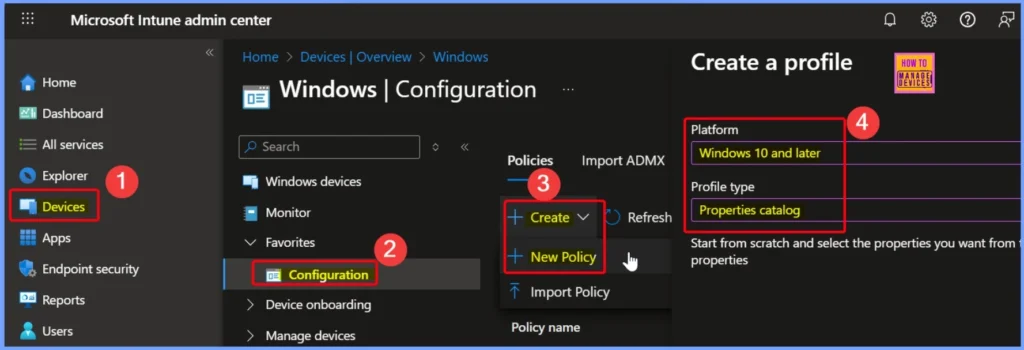
- To get started, sign in to the Microsoft Intune admin center.
- Devices > Manage devices and choose Configuration.
- Next, click Create, and select New Policy to start setting up your profile.
- Select the Platform as Windows 10 and later.
- Seletc the Profile Type as Properties catalog.
| Property | Description | Supported platforms |
|---|---|---|
| Identifier – String | Unique identifier of the adapter from other devices on the system. | Windows |
| MacAddress– String | Hardware identification number that uniquely identifies each device on a network. | Android, iOS, iPadOS, macOS |
| Manufacturer – String | Name of the network adapter’s manufacturer. | Windows |
| Type – String | Network medium in use. | Windows |
- Enable or Disable Hotspot Authentication in Networks using Intune Policy
- How to Configure Allow Projection to PC Policy in Wireless Display using Intune
- Enable or Disable Hotspot Authentication in Networks using Intune Policy
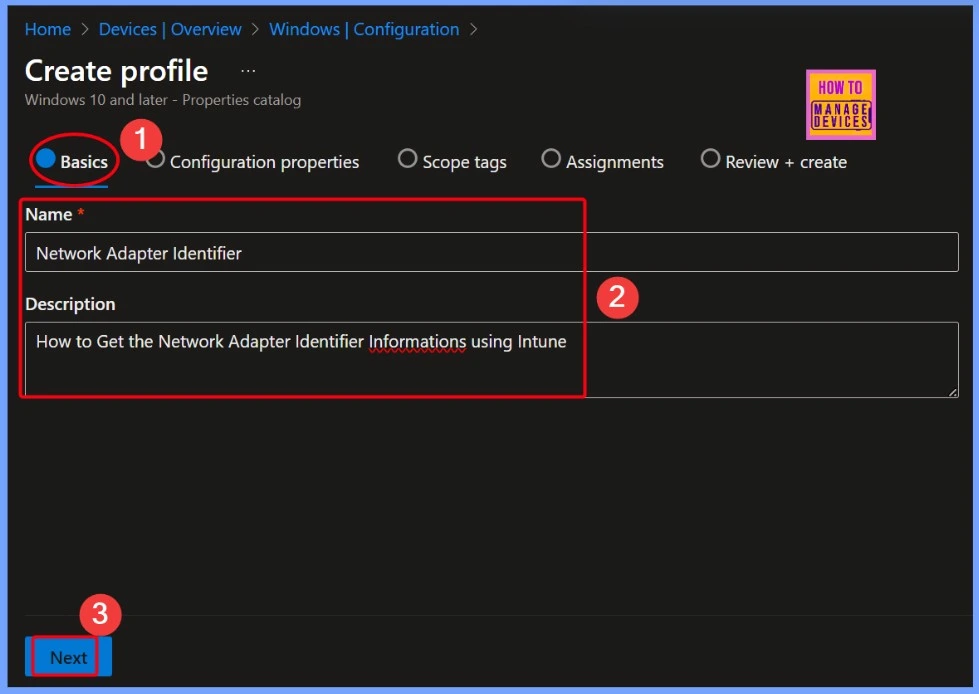
Network Adapter Identifier
The Manufacturer section of Network Adapter shows the name of the company that made the network adapter, while the Type tells you what kind of network connection is being used, such as wired or wireless. These details are especially helpful for managing and monitoring network hardware in your organization.
| Name | Description |
|---|---|
| Network Adapter Identifier | How to Get the Network Adapter Identifier Informations using Intune |
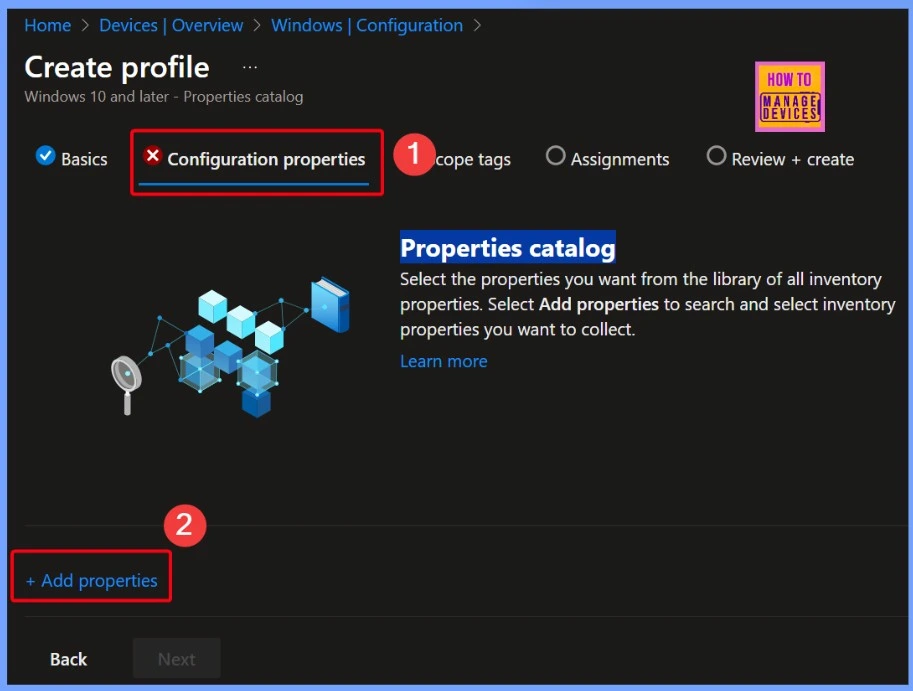
+Add Properties Link
In the context of Microsoft Intune, the NetworkAdapter section provides basic information about these adapters on Windows devices. This includes details like the adapter’s name, MAC address, manufacturer, type, and more.
- Select the +Add properties link from the below window.
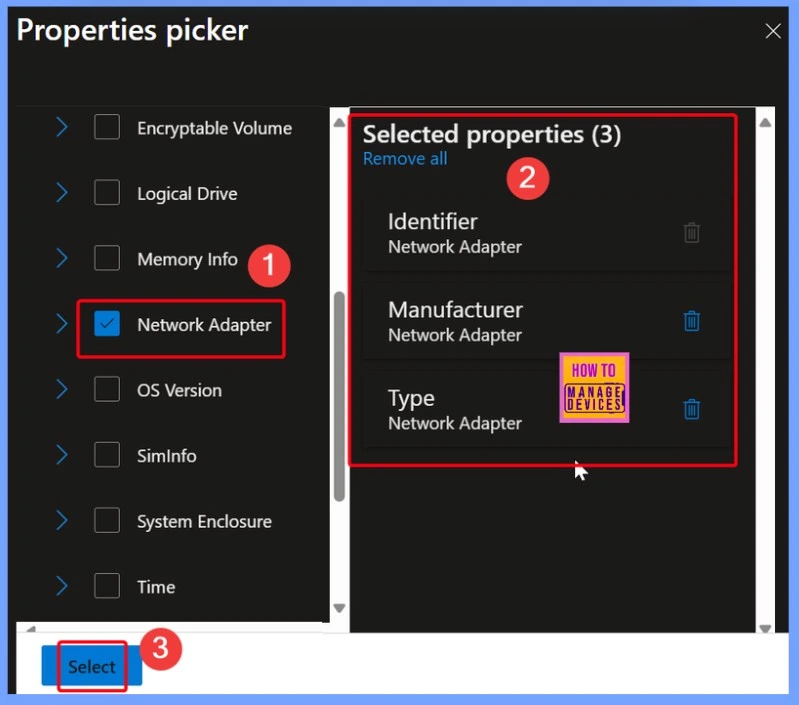
Intune Properties Picker
In Intune’s Properties picker, you can select different details related to the Network Adapter. Some of the common properties include Manufacturer, which shows who made the adapter; Type, which tells whether it’s a wired or wireless connection; and Identifier, a unique ID used to tell one adapter apart from another. These options help IT teams quickly gather the right network information from devices.
- Manufacturer
- Network Adapter
- Type
- Network Adapter
- Identifier
- Network Adapter
- How to Track Device Battery Information using Intune Property Catalog
- How to Collect Physical and Virtual Memory Information using Intune Properties Catalog
- Intune Managing OneDrive File Downloads for Low Disk Space
Configuration Properties
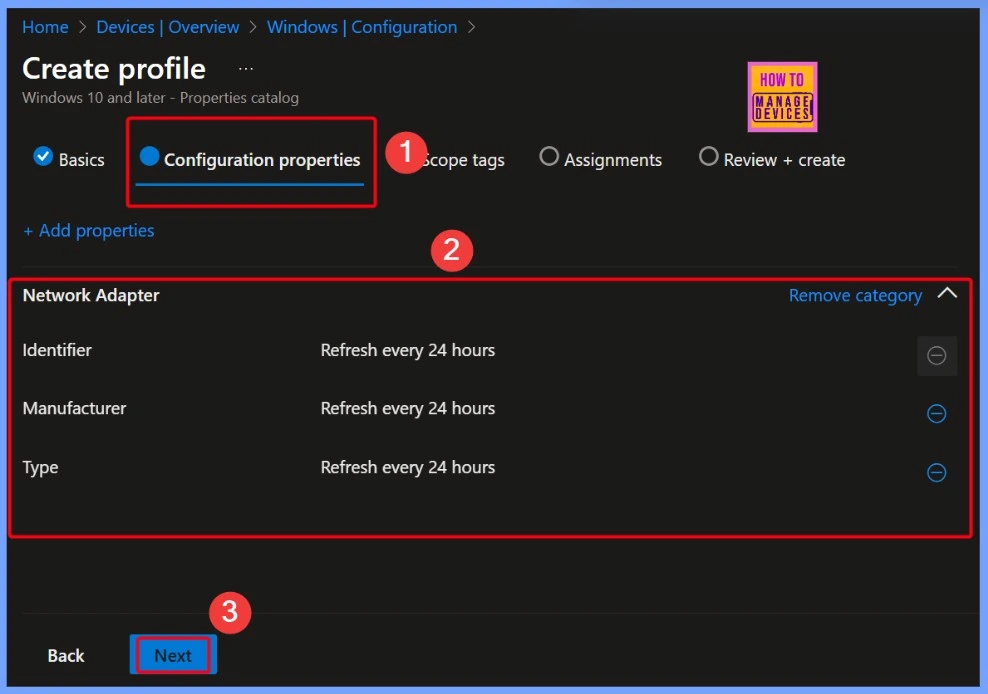
In the Configuration properties for Network Adapter in Intune, you can view important details like Identifier, Manufacturer, and Type. These properties are automatically updated every 24 hours, so you always get the latest information. This regular refresh helps IT teams keep track of any changes in the network setup and manage devices more efficiently. After setting these options, you can click Next to continue with the configuration process.
- Identifier Refresh every 24 hours
- Manufacturer Refresh every 24 hours
- Type Refresh every 24 hours
Hardware Component in a Device
A network adapter (also called a NIC or network interface controller) is a hardware component in a device. It acts as a link between the device and the network, handling data transmission, managing network protocols, and ensuring smooth and reliable communication.
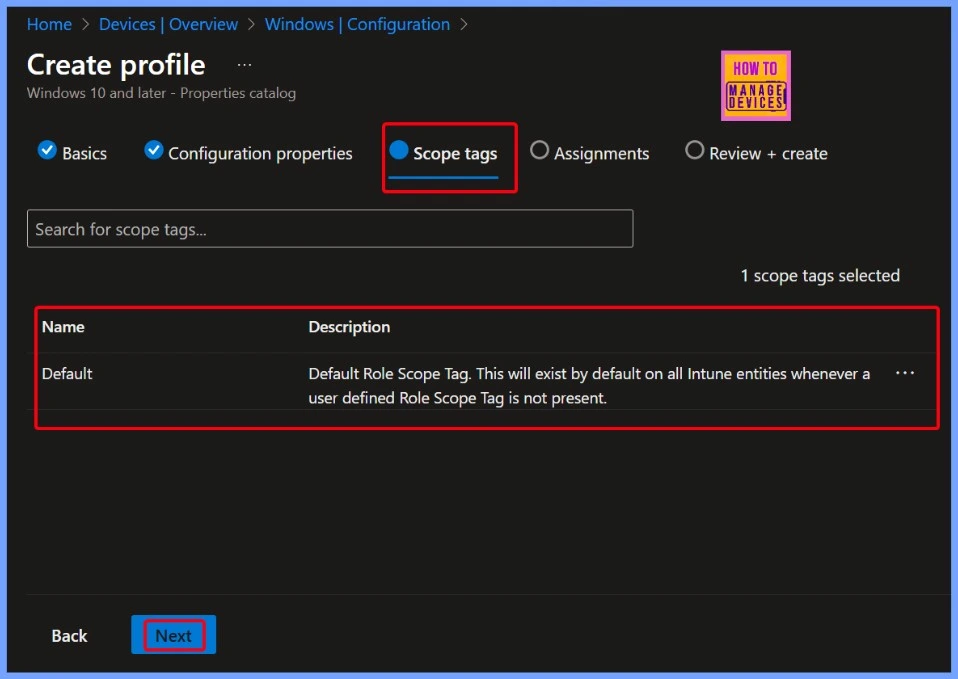
- Default Role Scope Tag. This will exist by default on all Intune entities whenever a user defined Role Scope Tag is not present.
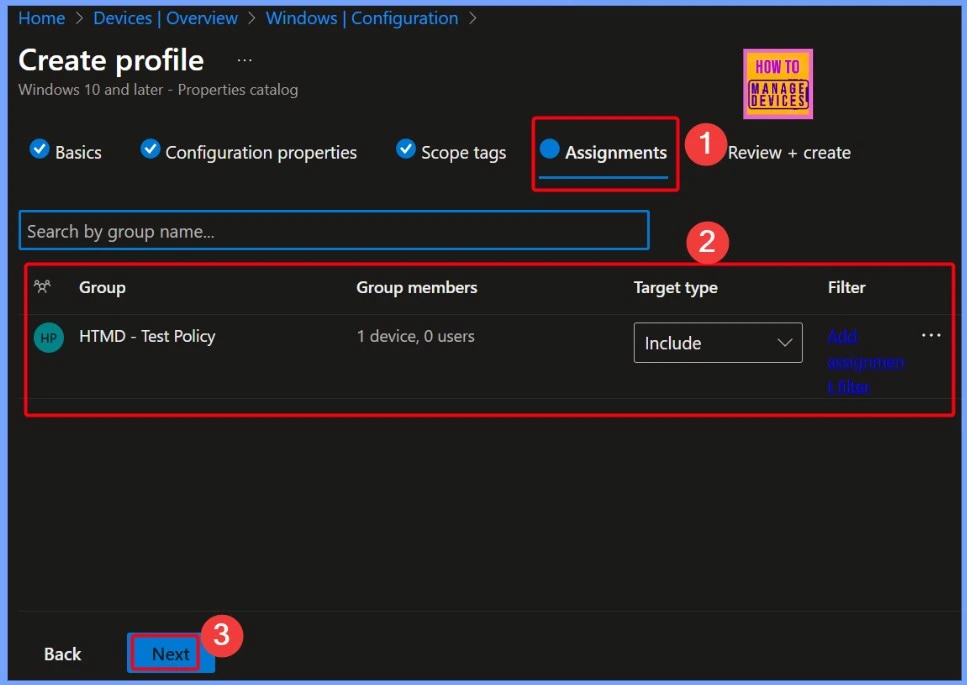
Intune Assignments
Intune assignments refer to the process of targeting policies, apps, configuration profiles, or compliance rules to specific users or devices within your organization. Here in the below screenshot you can see that the HTMD Test policy is selected as included group.
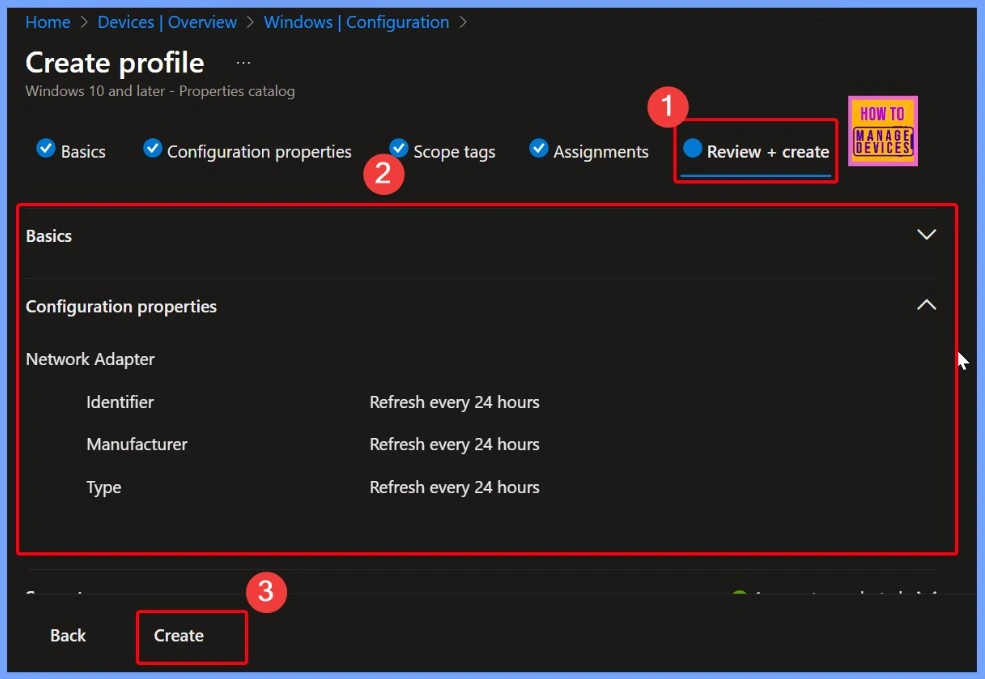
Review + Create Page
The Review + Create page shows a summary of everything you have configured. It allows you to: Review all chosen settings, Check for errors or missing info, Confirm your choices before finalizing. The below window helps you to show more details.
Notifications
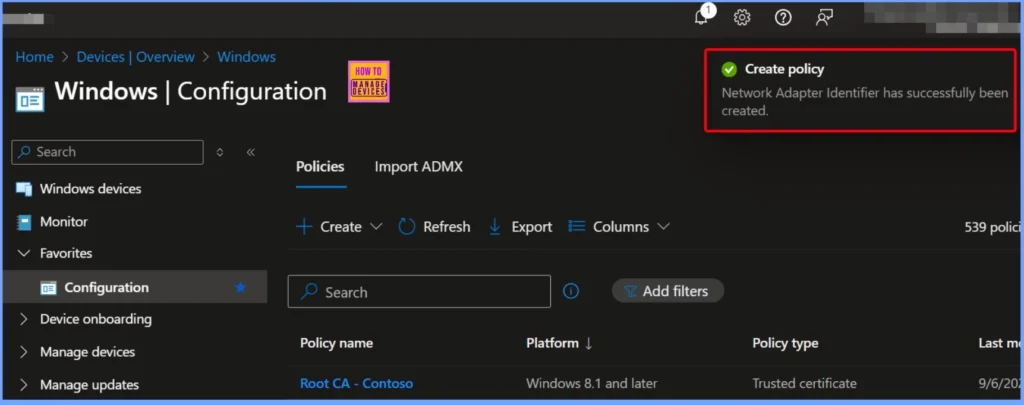
Once the policy is created, a confirmation notification appears, indicating that the setup was successful. This alert confirms that all the settings you’ve chosen have been saved properly, and the policy is now active and ready to be pushed to the targeted devices.
End Result
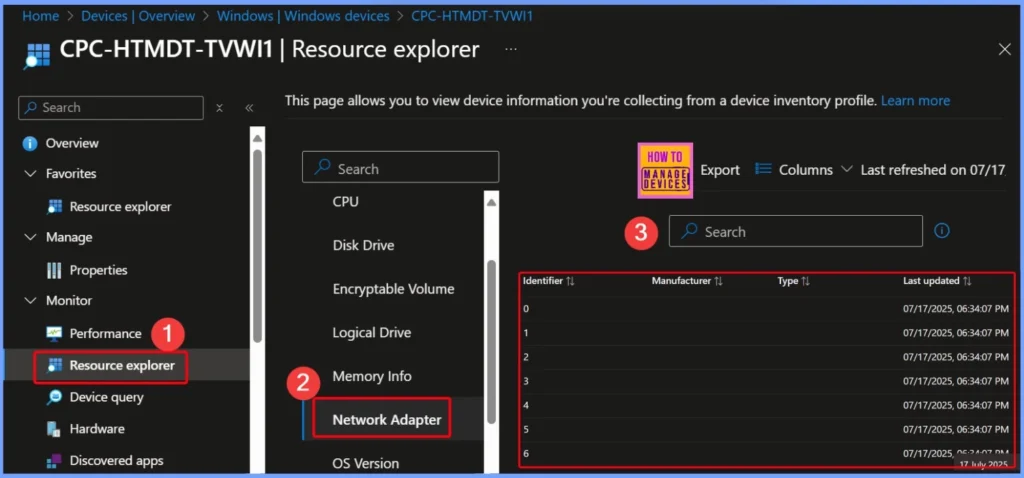
The end result displays a list of network adapter identifiers, each labeled from 0 to 6, along with the last updated timestamp for each entry. This output helps verify that Intune is successfully retrieving and recording network adapter details from the device, giving IT teams clear visibility into the system’s network configuration.
Starting with Intune’s September 2509 release, the Resource explorer pane will be renamed to Device inventory. The new name will appear under Devices > select a platform > select a device > Monitor, and will be visible if you have at least one corporate-owned or Windows device targeted by a properties catalog policy.
Need Further Assistance or Have Technical Questions?
Join the LinkedIn Page and Telegram group to get the latest step-by-step guides and news updates. Join our Meetup Page to participate in User group meetings. Also, join the WhatsApp Community to get the latest news on Microsoft Technologies. We are there on Reddit as well.
Author
Anoop C Nair has been Microsoft MVP for 10 consecutive years from 2015 onwards. He is a Workplace Solution Architect with more than 22+ years of experience in Workplace technologies. He is a Blogger, Speaker, and Local User Group Community leader. His primary focus is on Device Management technologies like SCCM and Intune. He writes about technologies like Intune, SCCM, Windows, Cloud PC, Windows, Entra, Microsoft Security, Career, etc.


Discussion