Skip to content
How to Change Two New Display Language Packs for Windows 365 Cloud PCs using Intune

How to Change Two New Display Language Packs for Windows 365 Cloud PCs using Intune

Written By Vaishnav K
Last Updated July 29, 2025
Posted In Intune
SHARE

In this article, we can check how to change two new display language packs for Windows 365 Cloud PCs using Microsoft Intune. As per Windows 365 Service release 2506 two new display language packs have been added for Cloud PCs. You can now use English (Ireland) and English (Australia) language packs in provisioning policies to set the default display language on Cloud PCs.

These can be added through provisioning policies in Microsoft Intune, making it easier to customize the user experience based on regional preferences. With this update, IT admins can now configure Cloud PCs to launch with a default display language that matches the user’s locale. This helps ensure a consistent and familiar experience, especially for users in Ireland and Australia.

Adding regional language packs at the provisioning stage reduces the need for post-deployment configuration. It streamlines setup, improves productivity, and supports a more personalized Cloud PC environment. Currently, a total of 41 different languages are available in Windows 365, which also includes 5 English languages available in different regions.

If you have Cloud PCs deployed across different regions, you can create distinct provisioning policies for each region. Additionally, use the “Apply this configuration” option to implement this configuration on existing Cloud PC setups.

Patch My PC
How to Change Two New Display Language Packs for Windows 365 Cloud PCs using Intune. Fig. 1

Use the Provisioning Policy to Set up a Default Display Language on Cloud PCs

To change the new display language packs for Windows 365 Cloud PCs, follow these steps: First, sign in to the Microsoft Intune Admin Center using your administrator credentials.

  • Navigate to > Devices > Device onbording > Windows 365
  • Click on Provisioning policies > Windows 365 CPC- Windows 11 24H2
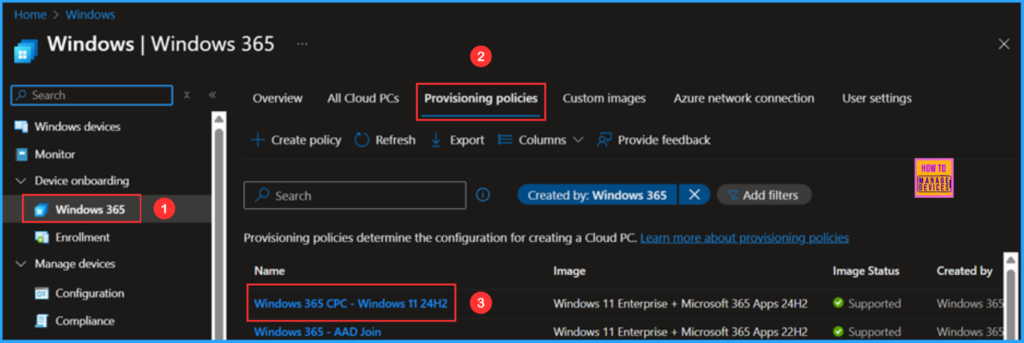
How to Change Two New Display Language Packs for Windows 365 Cloud PCs using Intune. Fig. 2

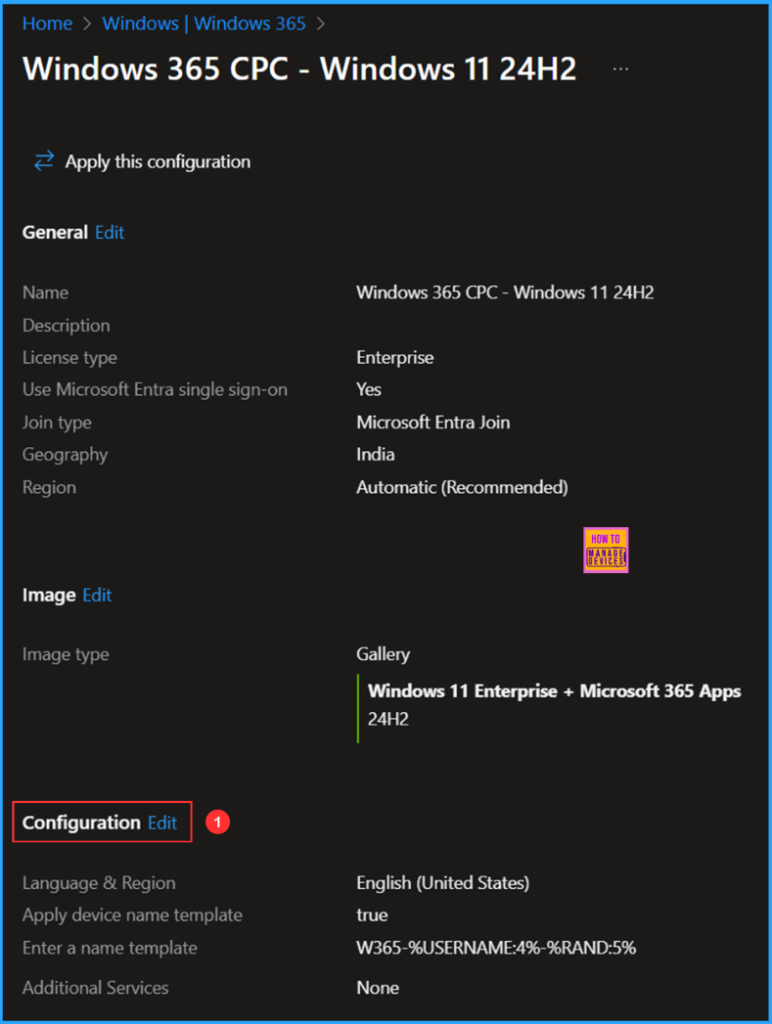
On this page, you have the opportunity to customize your Language & Region settings for a more personalized experience. Simply click on the Edit Configuration option to get started!

How to Change Two New Display Language Packs for Windows 365 Cloud PCs using Intune. Fig. 3

In Windows settings, you can find the Language & Region option. Here, you can select your preferred language and region for your Cloud PCs. This selection will be applied to your current and any future Cloud PCs. In the drop-down menu, you can now find the new languages available: English (Australia) and English (Ireland).
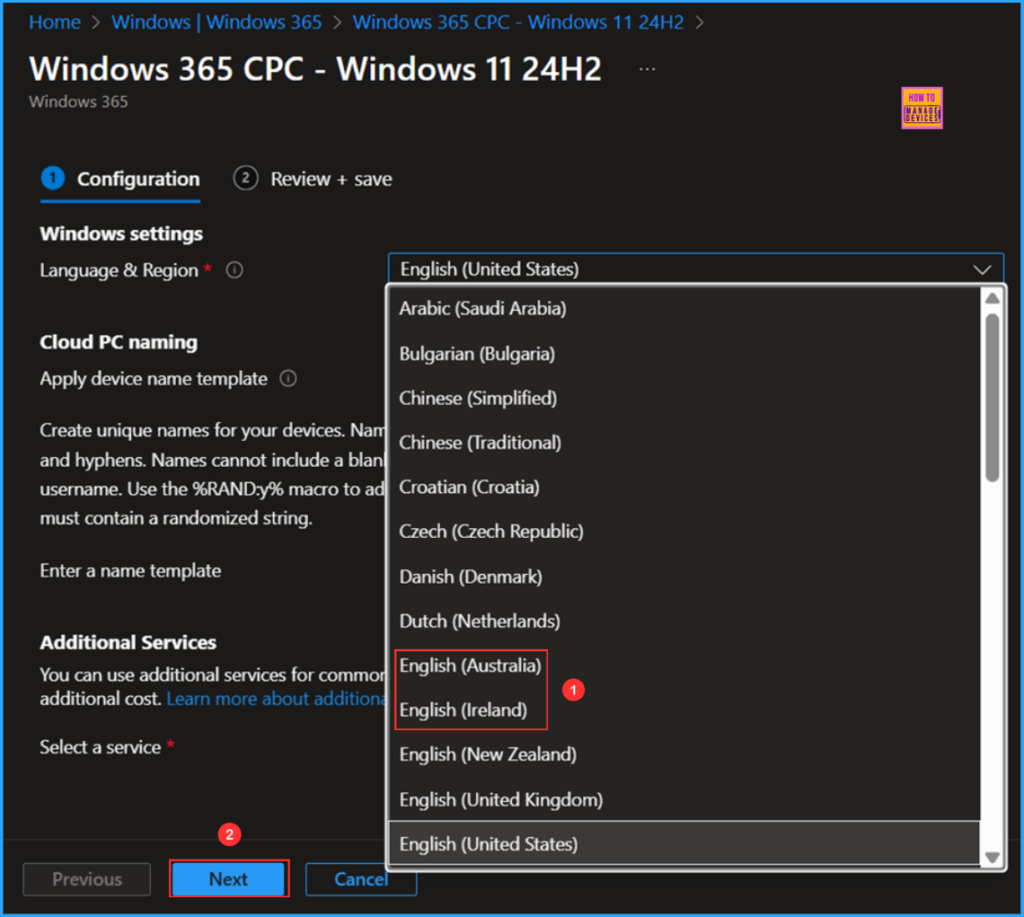
How to Change Two New Display Language Packs for Windows 365 Cloud PCs using Intune. Fig. 4

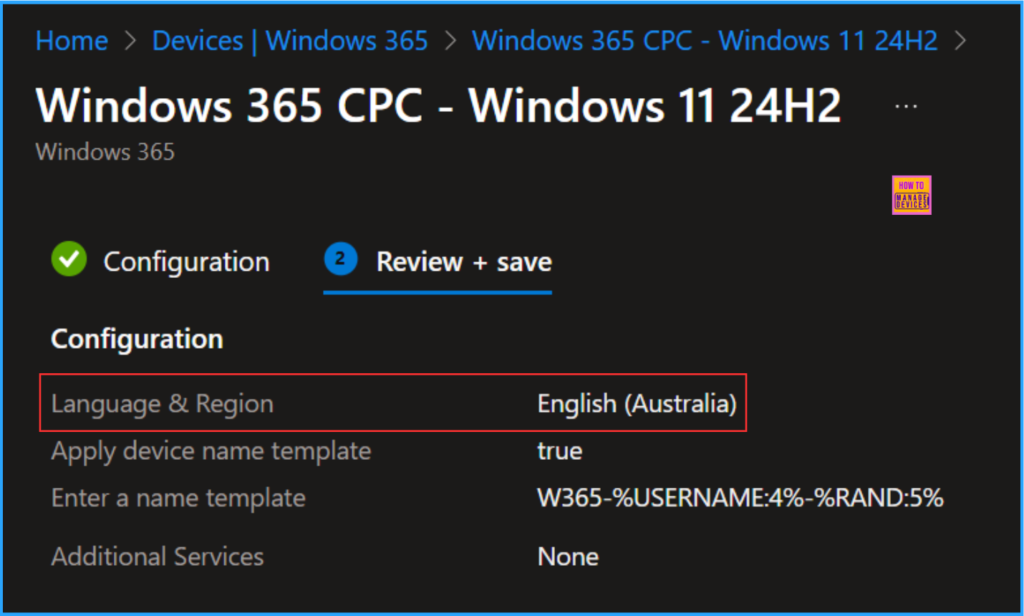
Click on Next. In the Review + save tab, ensure the Language & Region is changed to English (Australia) or English (Ireland), then click on Update.
How to Change Two New Display Language Packs for Windows 365 Cloud PCs using Intune. Fig. 5

Need Further Assistance or Have Technical Questions?

Join the LinkedIn Page and Telegram group to get the latest step-by-step guides and news updates. Join our Meetup Page to participate in User group meetings. Also, Join the WhatsApp Community to get the latest news on Microsoft Technologies. We are there on Reddit as well.

Author

Vaishnav K has over 11 years of experience in SCCM, Device Management, and Automation Solutions. Writes and imparts knowledge about Microsoft Intune,  Azure, PowerShell scripting, and automation. Check out my profile on LinkedIn.

Written by

Vaishnav K has over 12+ years of experience in SCCM, Modern Device Management, and Automation Solutions. He writes and imparts his knowledge about Microsoft Intune, Windows 365, Azure, PowerShell scripting and automations. LinkedIn Profile : https://www.linkedin.com/in/vaishnav-k-957b0589/

Discussion

Join the discussion

Your email address will not be published. Required fields are marked *

Related guides

Intune

Simplify Windows Devices to Run Only the Required Applications using Intune

Key Takeaways Hey, let’s learn about Simplify Windows Devices to Run Only the Required Applications using Intune. This policy lets administrators replace the default windows shell with a custom or lightweight shell. it improves performance by using system resources and is useful for devices that run a dedicated application. If the policy is disabled or […]

AC Anoop C Nair 8 min read
Intune

Enhance macOS Compliance with Custom Security and Compliance Checks to Improve Device Security using Microsoft Intune

Key Takeaways In this post we are discussing about Enhance macOS Compliance with Custom Security and Compliance Checks to Improve Device Security using Microsoft Intune. Microsoft has announced the general availability of Custom Compliance Settings for macOS in Microsoft Intune. The feature helps organizations strengthen security controls while supporting many types of macOS management scenarios. […]

AC Anoop C Nair 4 min read
Intune

Manage Samsung Galaxy Firmware Versions to Improve Security and Compliance using Microsoft Intune

Key Takeaways In this post we are discussing Manage Samsung Galaxy Firmware Versions to Improve Security and Compliance using Microsoft Intune. Microsoft Intune has received a new update that expands firmware management capabilities for Samsung Galaxy devices through Firmware Versionsintegration. This enhancement gives IT administrators more control over firmware and operating system updates, helping them […]

AC Anoop C Nair 4 min read
Intune

MS Intune Adds Windows Registry Data Collection to Device Inventory for Single Values All Key Values and Subkeys

Key Takeaways Microsoft Intune 2607 introduces Windows Registry Data collection in Device Inventory, allowing IT admins to verify actual device configurations without relying on custom discovery or remediation scripts. Using the Properties Catalog, admins can collect registry information through Single Value, All Values Under a Key (Non-Recursive), or Same Value Across Subkeys. MS Intune Adds […]

AC Anoop C Nair 5 min read