






Enable or Disable Insecure Download Warning Policy for Microsoft Edge using Intune
Let’s discuss Enable or Disable Insecure Download Warning Policy for Microsoft Edge using Intune. The Insecure Download Warning is a policy that is available on Microsoft Intune to protect and improve the security of the Microsoft Edge Browser.
As you know, Microsoft Edge is the most secure Browser that provides unique features. To ensure the security of your organisation, you can configure the Insecure Download Warning policy. To bring a safer browsing practice, in your organisation, you can prefer this policy.
Basically Insecure Download Warning Policy is used to provide warnings when potentially dangerous content is downloaded over HTTP. The cyber attacks are increasing and users many download insecure files from unauthorized websites.
By deploying this policy you can boost the security of your organisation. To avoid this issue in your organisation, this policy will definitely helps you. In this blog post, I would like to share more about, Insecure Download Warning Policy.


Table of Contents
Enable or Disable Insecure Download Warning Policy for Microsoft Edge using Intune
Microsoft Edge is more powerful browser that enhance the overall security. To protect against threats and detect threats this policy can be used. As mentioned, this policy warning potentially dangerous content is downloaded over HTTP. The HTTP is unencrypted and vulnerable.
Let me explain this with an example. If you are working on IT firm, as IT Admin and one of your employee clicks a link in an email and lands on a third-party vendor’s outdated website. The site uses HTTP instead of HTTPS, making any downloads risky. The File May contain embedded malware. The file reaches the device and silently trigger your sensitive date.
- Customize Windows Search Indexing Behavior Using Intune’s Backoff Policy
- Troubleshoot Microsoft Edge Security Policy Deployment issues with Intune
- How to Check and Manage Enhanced Security Mode for a Site in MS Edge Browser
- Secure Microsoft Edge Browser using Intune Security Policies
How this Policy Helps the Organisation, Admin and User
This policy is one of the important policy that, beneficial for Organization, Admin and User. If you are enable this policy, when a user tries to download potentially dangerous content from an HTTP site, the user will receive a UI warning, such as “Insecure download blocked.” The user will still have an option to proceed and download the item. The following are the benefits.
| Organization | Admin | User |
|---|---|---|
| Protection of Sensitive Data | Risk Management is improved | Safer Browsing |
| Improved Security Posture | Simplifies compliance | Informed Decisions |
Steps to Configure Insecure Download Warning Policy
By signing in Microsoft Intune Portal, you can quickly configure this policy. For this, you must have an authorized Microsoft Account. After opening the Intune Portal, go to Devices > Configuration > + create > New policy.
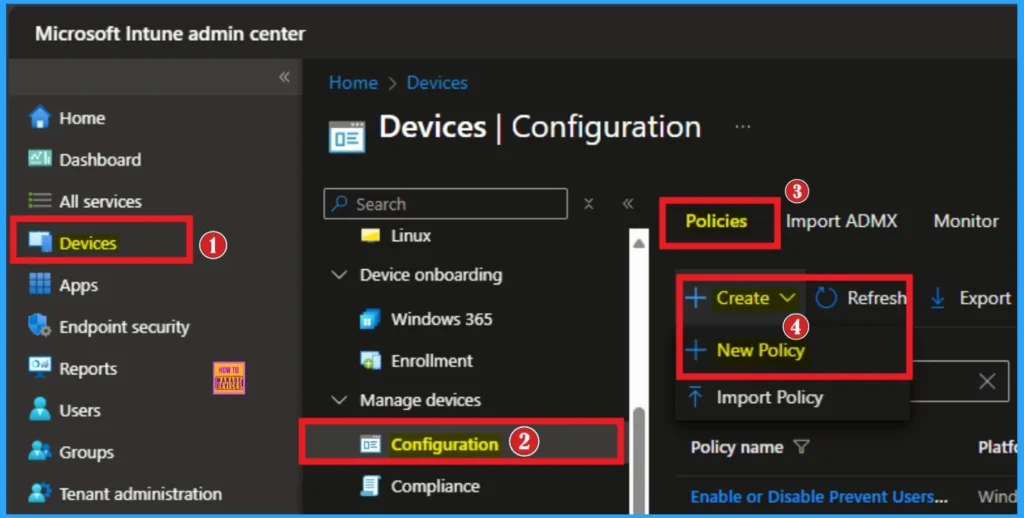
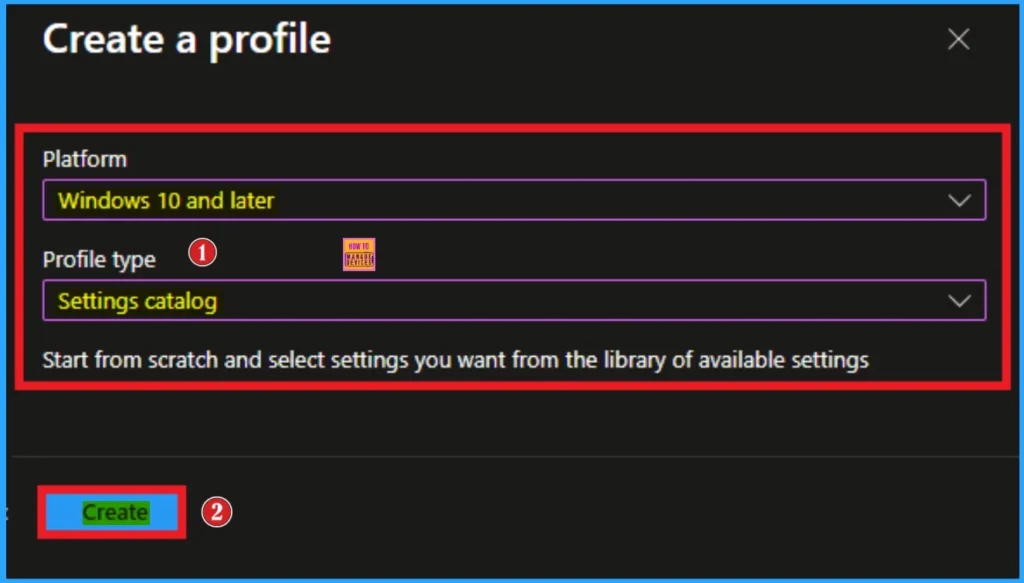
Profile Creation for Policy
After that, you have to create a profile for the policy. On this window, you have to select the platform and profile type. First of all, you select the platform, and then you can select the profile type. Select Windows 10 and later as a platform, and select settings catalog as profile type. Click on the create button.
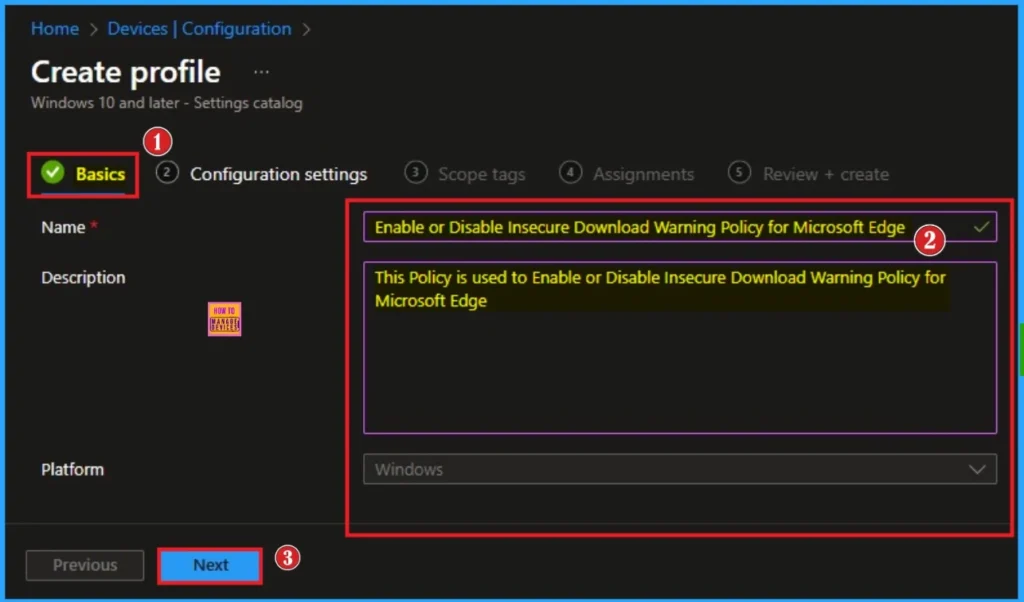
Basic Step for Policy Creation
The basic tab is the starting stage of policy creation. On this tab, you have to give a name for the policy that you want to create. The name field is mandatory. Without giving a name, you can’t create a policy on the basic tab. You can also give a description for the policy the description not compulsory. Click on the next button.
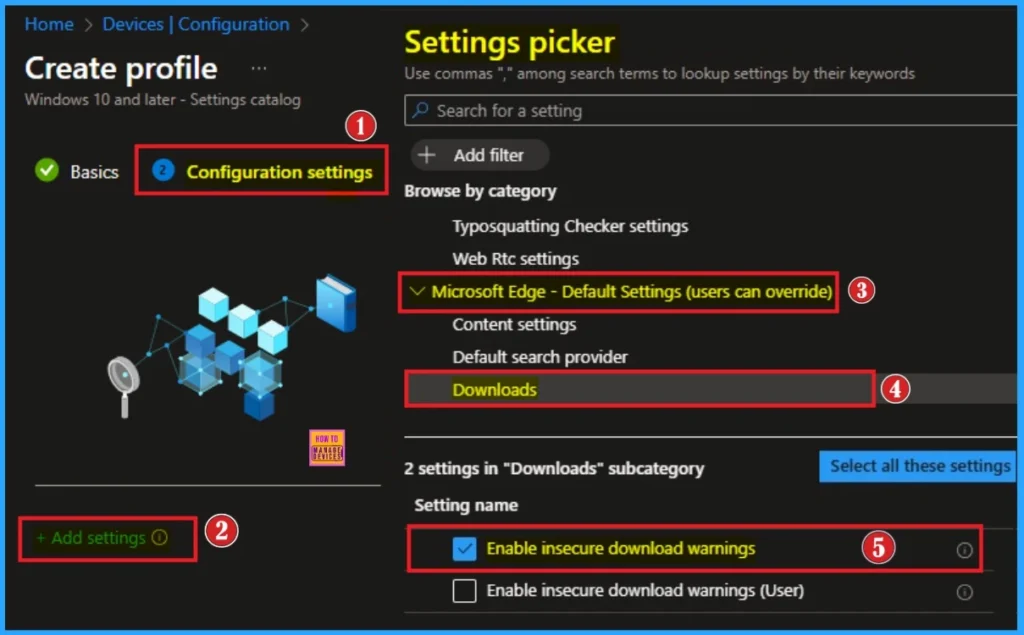
Configure the Settings through Settings Picker
To configure a policy, you have to select particular settings. The Configuration settings tab helps you choose a specific policy. To get the settings, click on the +Add Settings hyperlink, and you will get the Settings Picker. It belongs lot of categories with many settings. Here, I choose Microsoft Edge – Default Settings (users can override) Category.
And select Enable insecure download warnings settings from the Downloads subcategory. After selecting these settings, you can close Settings Picker.
Disable Insecure Download Warning Policy (Default)
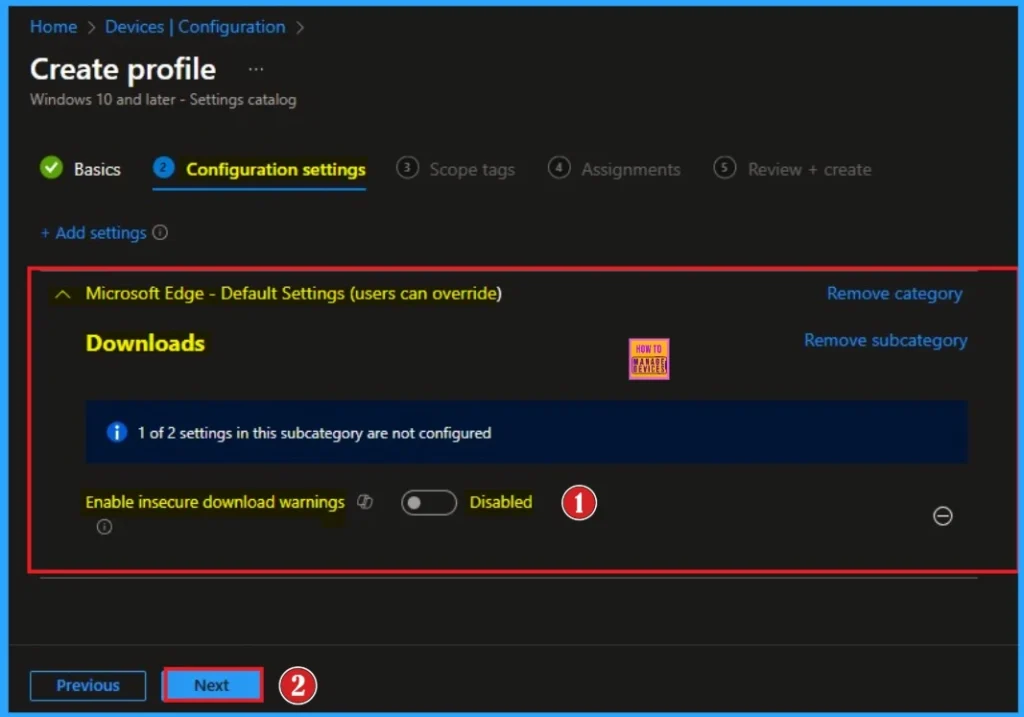
If you disable this policy, the warnings for insecure downloads will be suppressed. By disabling this policy, your organisation’s security will be vulnerable. If you want to go with this default value, click on the Next Button.
Enable Insecure Download Warning Policy
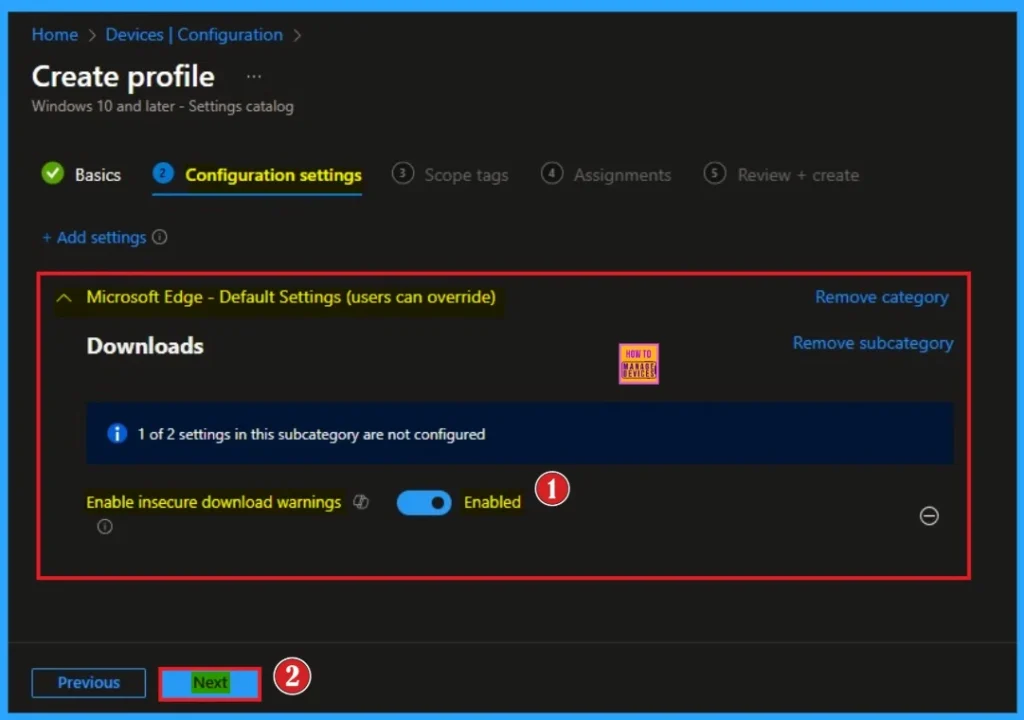
By enabling this policy, Microsoft Edge warns users when they try to download files from websites that are not secure. This warning message will give an Alert to the user. Here, I would like to choose the Enable value. Click on the Next Button.
Scope Tags
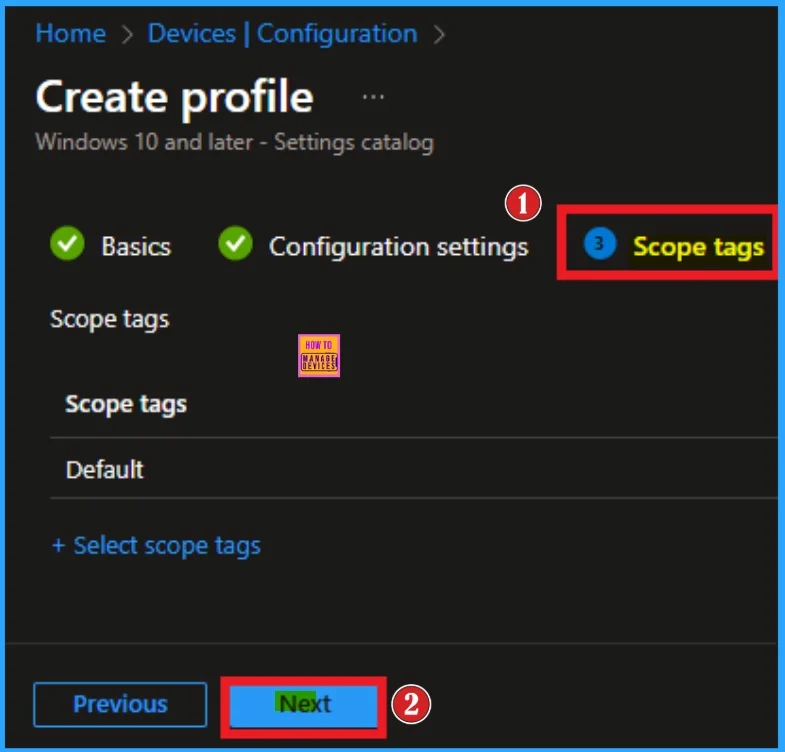
The next section is the scope tag and which is not a compulsory step. Here, I skip the section and click on the next button. If you want to add Scope tags, click on the +Select Scope tags option. Otherwise, you can continue.
Assign the Policy to Specific Groups
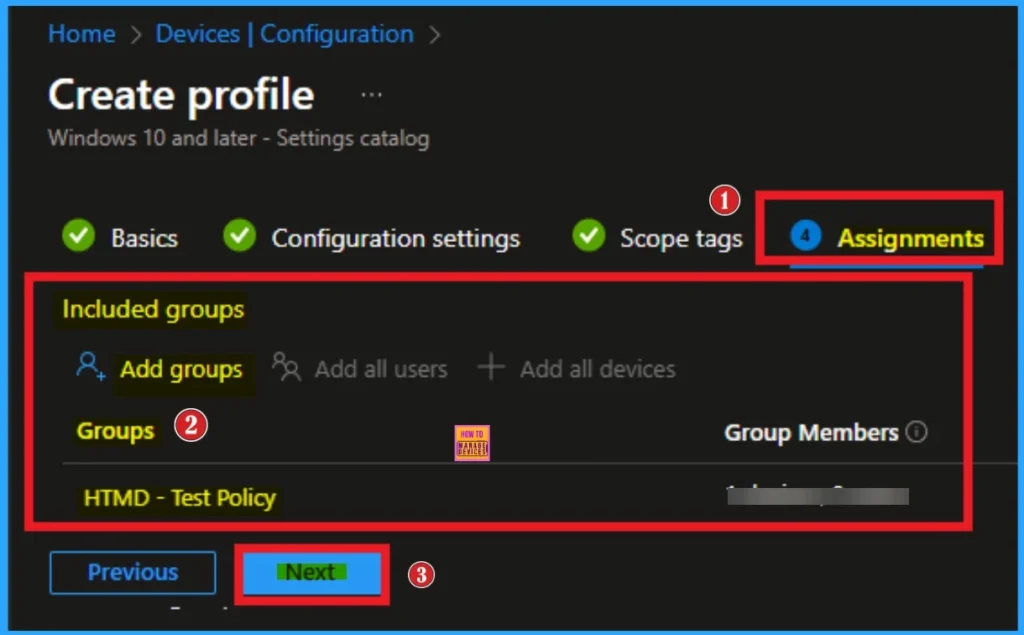
The assignment tab is the crucial step that determine which are the groups can be selected to assign the policy. On this page I click on the +Add groups option under Included groups. Then i choose one of the group and click on the Select button. Click on the Next Button.
Completing Policy Creation through Review + Create Tab
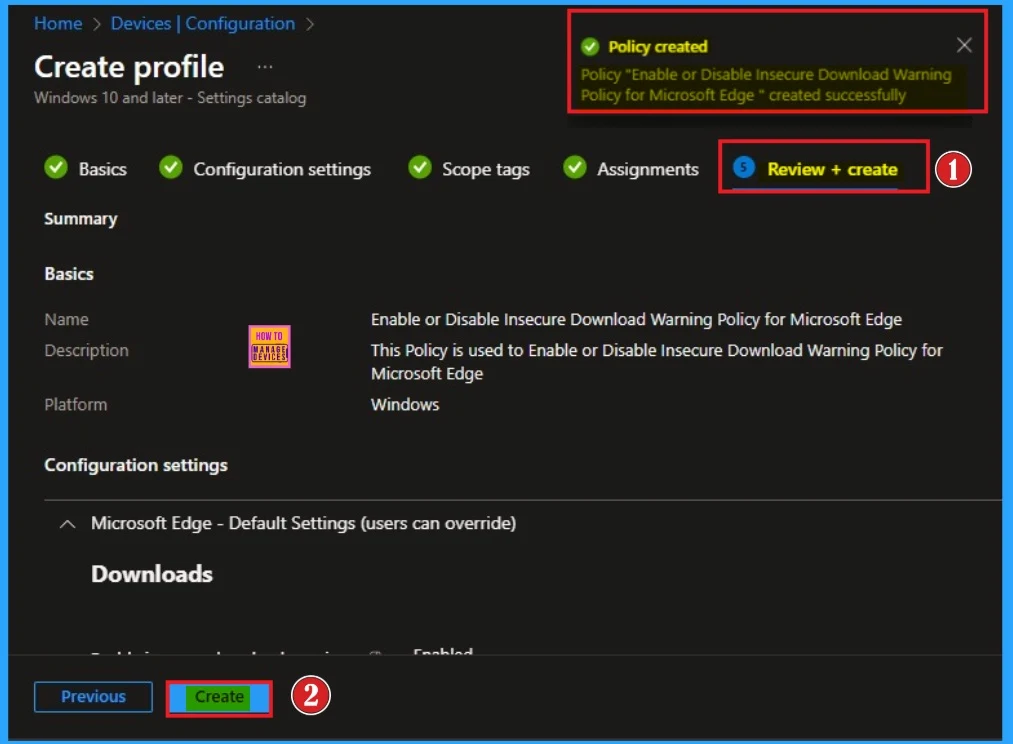
The Review + Create tab is the final stage of policy creation. On this tab, you can verify each and every detail of the policy which are added on the previous steps (basic configuration settings, scope tag assignments s etc. If you want to make any changes, click on the previous button; otherwise, you can click on the create button. Then you will get a success message.
Monitoring Status
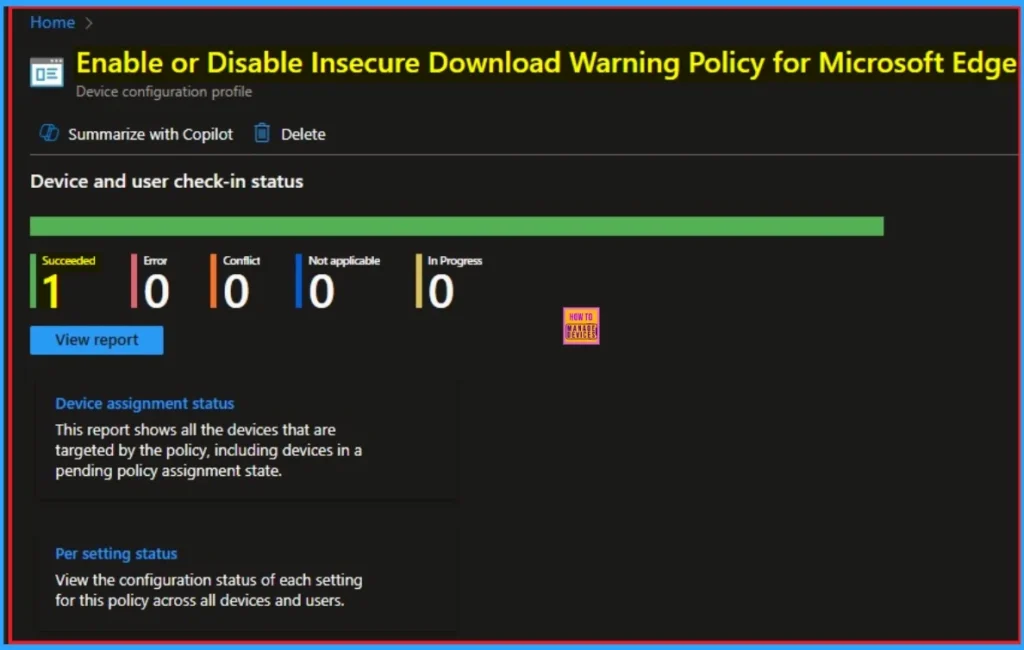
To know whether the Policy succeeded or not, you can view a policy’s status on the Intune Portal. Go to Devices > Configuration in the Intune portal, select the policy (like Enable or Disable Power Sleep setting), and check that the status shows Succeeded (1). Use manual sync in the Company Portal for faster deployment.
Client Side Verification
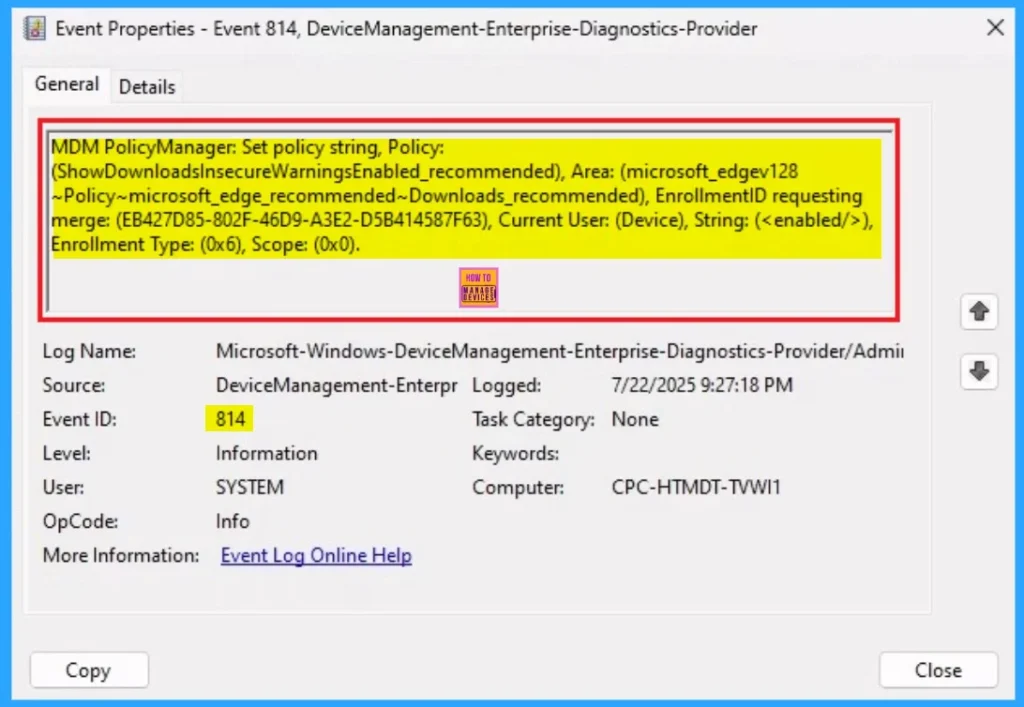
To get a verfication from Client side you can use Event Viwer. It helps to ensure the policy is deployed to client device. Go to Applications and Services Logs > Microsoft > Windows > Device Management > Enterprise Diagnostic Provider > Admin. From the list of policies, use the Filter Current Log option and search for Intune event 814.
MDM PolicyManager: Set policy string, Policy:
(ShowDownloadsInsecureWarningsEnabled_recommended), Area: (microsoft_edgev128
~Policy~microsoft_edge_recommended~Downloads_recommended), EnrollmentID requesting
merge: (EB427D85-802F-46D9-A3E2-D5B414587F63), Current User: (Device), String: (),
Enrollment Type: (0x6), Scope: (0x0).
Remove Insecure Download Warnings Policy from Assigned Group
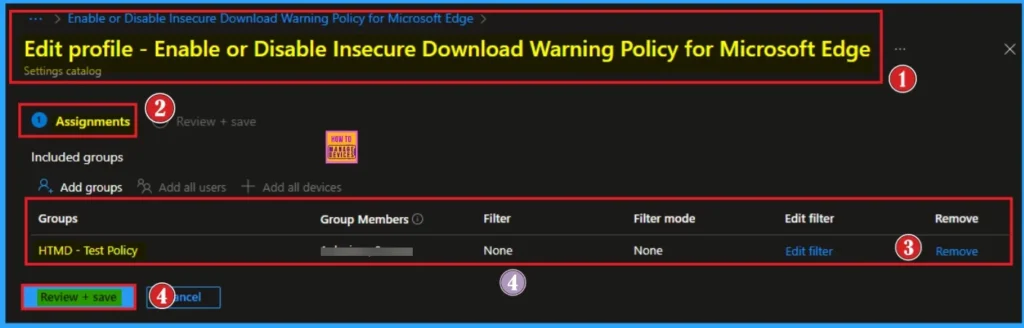
Sometimes, we need to remove a group from a policy assignment for security updates. The following image shows the process of unassigning a group. Click Review + Save after making the change.
For detailed information, you can refer to our previous post – Learn How to Delete or Remove App Assignment from Intune using by Step-by-Step Guide
Delete Insecure Download Warnings Policy
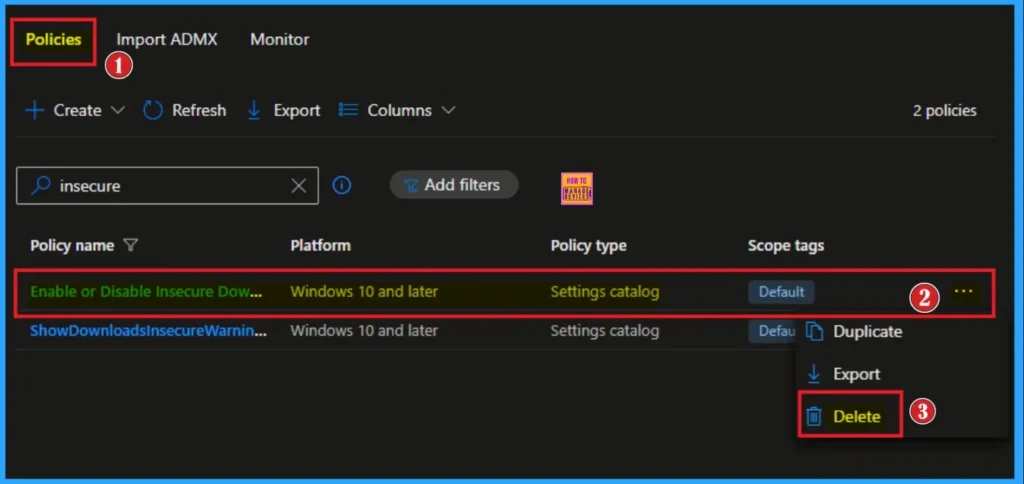
To delete an Intune policy for security or operational reasons. It is simple to do it. I will demonstrate how to delete an Intune policy through theInsecure Download Warnings policy.
For detailed information, you can refer to our previous post – How to Delete Allow Clipboard History Policy in Intune Step by Step Guide.
Need Further Assistance or Have Technical Questions?
Join the LinkedIn Page and Telegram group to get the latest step-by-step guides and news updates. Join our Meetup Page to participate in User group meetings. Also, Join the WhatsApp Community to get the latest news on Microsoft Technologies. We are there on Reddit as well.
Author
Anoop C Nair has been a Microsoft MVP for 10 consecutive years from 2015 onwards. He is a Workplace Solution Architect with more than 22+ years of experience in Workplace technologies. He is a Blogger, Speaker, and Local User Group Community leader. His primary focus is on Device Management technologies like SCCM and Intune. He writes about technologies like Intune, SCCM, Windows, Cloud PC, Windows, Entra, Microsoft Security, Career, etc.


Discussion