






Windows 365 Reserve Get Up to 10 Days of Cloud PC Access During Laptop Downtime
Hi, let’s discuss Windows 365 Reserve Get Up to 10 Days of Cloud PC Access During Laptop Downtime. Microsoft has officially launched the limited public preview of Windows 365 Reserve, a new feature designed to enhance business. It offers secured Cloud PC access when an employee’s primary device becomes unavailable.
Windows 365 Reserve allows organizations to provide temporary Cloud PCs that are pre-configured with all apps, settings, and security policies, so employees can continue working immediately. This makes it easier for IT teams to manage resources while ensuring employees remain productive.
Each Reserve Cloud PC comes with a 10-day usage window, giving employees enough time to work while IT repairs or replaces their main device. The setup ensures that corporate security policies remain enforced, even when employees access their Cloud PC from a personal device.
Organizations no longer need to maintain large inventories of backup laptops, update them regularly, or spend hours configuring devices. Reserve Cloud PCs are ready to provision on-demand, saving both time and cost while increasing efficiency.

Is the Windows 365 Reserve being Available or Still in Preview?
Windows 365 Reserve is now generally available, which means all organizations can use it, not just in preview. Businesses can now plan deployments, assign licenses, and give employees access to temporary Cloud PCs when their main devices fail.
Windows 365 Reserve Get Up to 10 Days of Cloud PC Access During Laptop Downtime
Above we discussed a lot of things about Microsofts new launch Windows 365 Reserve. Windows 365 Reserve is a new version of Windows 365 that gives employees a safe, temporary Cloud PC when their main computer is not working. It allows up to 10 days of use each year, so work can continue without big delays.
- If an employee’s laptop stops working, they can get a temporary Cloud PC in minutes.
- This way, they don’t lose time and can continue working without waiting for a replacement device.
| Windows 365 Reserve Importance | Info |
|---|---|
| Restore productivity fast | Quickly deploy fully configured Cloud PCs so users can resume work with minimal downtime |
| Better IT Management | Manage Cloud PCs through Intune with easy policies, automated setup, and flexible 10-day annual access. |
| More Secure | Uses Zero Trust security, applies default protections, and allows quick access revocation. |

- How to Create Entra Joined Azure Network Connection for Windows 365 Cloud PCs in Intune
- How to Deprovision Windows 365 Cloud PC in Intune When they are in Grace Period Status
- How to Create Autopilot Device Preparation Policy for Windows 365 Frontline Devices using Intune
Setup Windows 365 Reserve
Windows 365 Reserve is designed to be quick and easy to set up, so creating Cloud PCs later is faster. After buying licenses, admins make a simple setup plan that decides where the Cloud PCs will be, which user groups will get them. When an employee’s laptop suddenly stops working, the employs will have to find another device, set it up, install the apps, and make sure it’s secure and That takes time.
So that the provisioning a Reserve Cloud PC through Intune lets the admin help the employee get back to work fast. In Intune, Go to Devices and Open the Windows 365 section and create a provisioning policy.
- Navigation Path > Devices> Windows 365 > Provisioning Policy >+ Create Policy
- Give the policy a name, description, and select the appropriate geography.
- Enable Single Sign-On.
- To save time and work well during big disruptions, Windows 365 Reserve automatically picks the Cloud PC size, chooses the best region based on space, uses Microsoft’s own network (no custom networks), and installs the latest supported image.
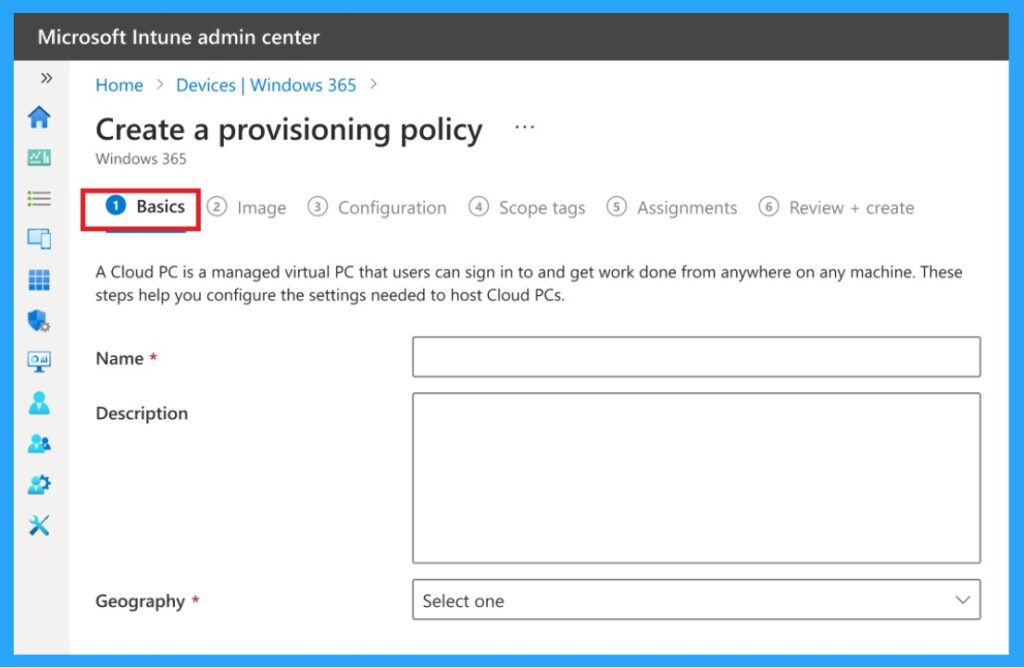
Configure optional settings such as language packs, naming templates, and scope tags. Assign eligible user groups who will have access to temporary Cloud PCs. then click on the review+ Create.
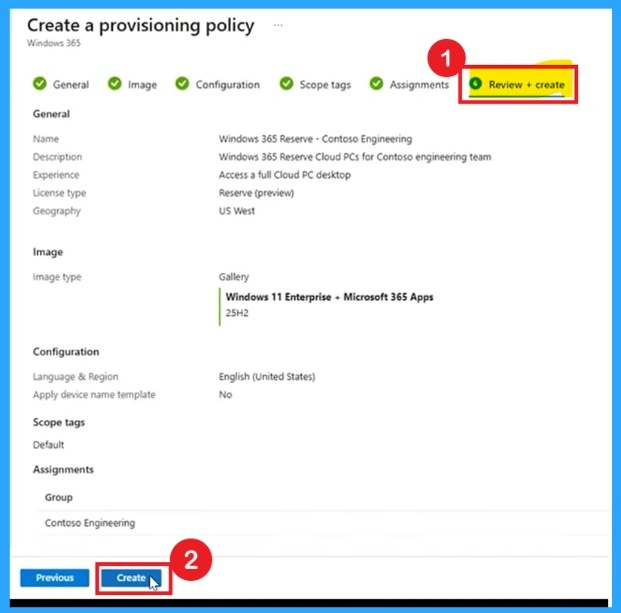
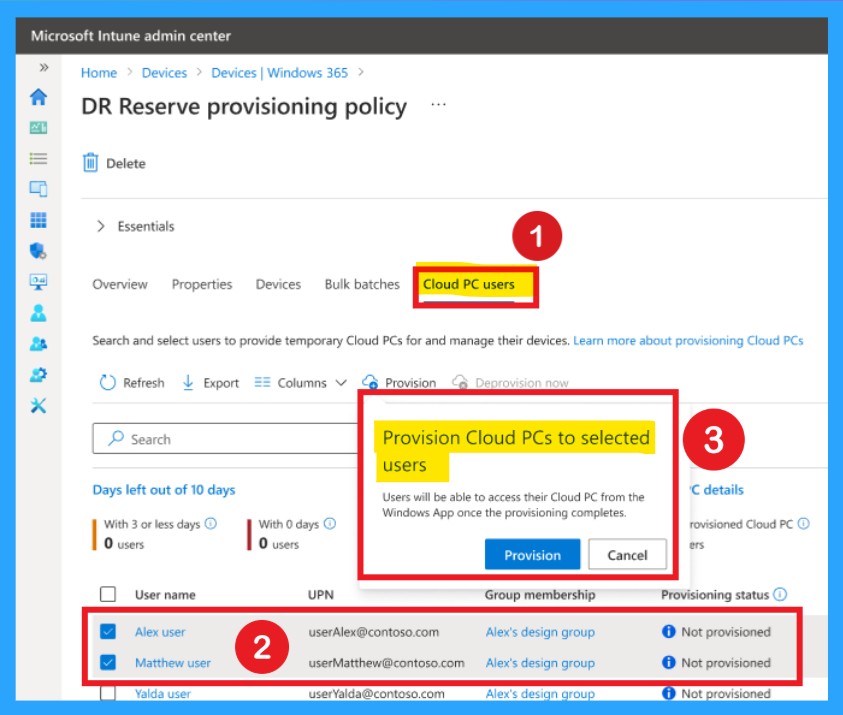
Windows 365 Reserve requires admins to set policies and user groups 7 days before Cloud PCs can be deployed. These Cloud PCs aren’t auto-created but can be provisioned anytime later through Intune, preloaded with necessary apps and settings for quick user productivity during device issues.
- Provision Cloud PCs to selected users, means that admin to create temporary Reserve Cloud PCs for those selected users so they can access them via the Windows App once ready.
| Features | Info |
|---|---|
| Fast Recovery | Employees can access a temporary Cloud PC in minutes if their primary device fails, minimizing downtime. |
| Restores productivity fast | Quick access to a dedicated Cloud PC from any device, anywhere |
| Simplifies IT management | Centralized Microsoft Intune control with easy setup |
| Secured by design | Security policies enforcement, data protection and secure access |
| Cost Efficiency | Only provisions Cloud PCs when needed, reducing unnecessary hardware and operational costs. |
| Security and Compliance | Corporate security policies are enforced on temporary Cloud PCs, even on personal devices |
End-user Experience
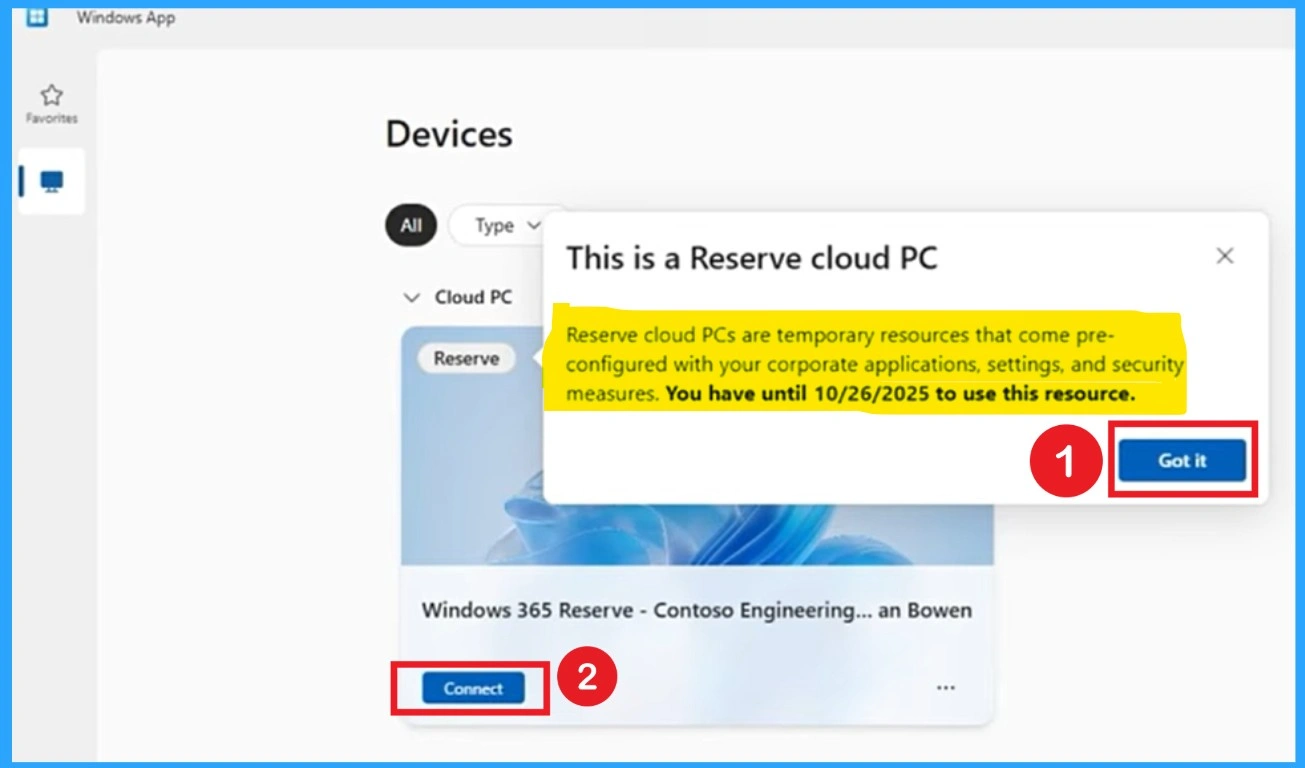
End users can access their temporary Windows 365 Reserve Cloud PC from any device via web or Windows App, based on organization policy. Clear instructions and the Cloud PC’s expiration date are provided to the user. Users can securely connect and get a full desktop with their organization’s resources.
Administrators no longer need to maintain, update, and troubleshoot physical backup devices. Policies and settings are automatically applied to the Cloud PC, ensuring consistency and compliance. After that the employee can sign in to the Cloud PC with credentials.
- The system sends expiration warnings as access time nears its limit.
- Users can deprovision the Cloud PC from the Windows App to save unused access time for later.
- users can sign in from a personal device, and all her apps, files, and settings are ready.
Need Further Assistance or Have Technical Questions?
Join the LinkedIn Page and Telegram group to get the step-by-step guides and news updates. Join our Meetup Page to participate in User group meetings. Also, Join the WhatsApp Community to get the latest news on Microsoft Technologies. We are there on Reddit as well.
Author
Anoop C Nair has been Microsoft MVP for 10 consecutive years from 2015 onwards. He is a Workplace Solution Architect with more than 22+ years of experience in Workplace technologies. He is a Blogger, Speaker, and Local User Group Community leader. His primary focus is on Device Management technologies like SCCM and Intune. He writes about technologies like Intune, SCCM, Windows, Cloud PC, Windows, Entra, Microsoft Security, Career, etc.




Discussion