






Intune Learn to Deploy Windows 10 Language Pack Step by Step | Windows 11
Let’s see how to deploy Windows 10 language packs with Endpoint Manager Intune. There are several methods to deploy Windows 10 language packs with Intune. Let’s examine one of them in detail. This method is also applicable for Windows 11 Language pack deployments.
You must also manage many other regional settings, such as keyboard layout and international settings, to improve the end-user experience with Cloud PC, Aure Virtual Desktop, or physical Windows 11 devices.
The following are some of the settings explained in the below section of this post.
- Windows System Locale en-GB
- Culture en-GB
- Windows Home Location ID – 242
- Windows User Language List en-GB
Intune Learn to Deploy Windows 10 Language Pack
Recently, many discussions have been about Language Packs (LPs) vs. Language Interface Packs (LIPs) vs. Local Experience Packs (LXPs) in the Windows 10 device management world. I feel Microsoft can confuse most IT admins with recent changes to LXPs, LPs, and LIPs.

- LXPs ==> Local Experience Packs are AppX packages delivered via the Microsoft Store (automatically updated?)
- With the introduction of LXPs, Microsoft started to retire LIPs.
- LPs ==> Provide a translated version of all (?) Windows Dialog Boxes, Menu items, and help content
- LIPs ==> Provide a translated version of most common Dialog boxes, and menu items and help content
NOTE! – More detailed explanations about LXPs and LPs are available 1. Adding Local Experience Packs to your Windows image 2. Local Experience Packs: What are they and when should you use them?
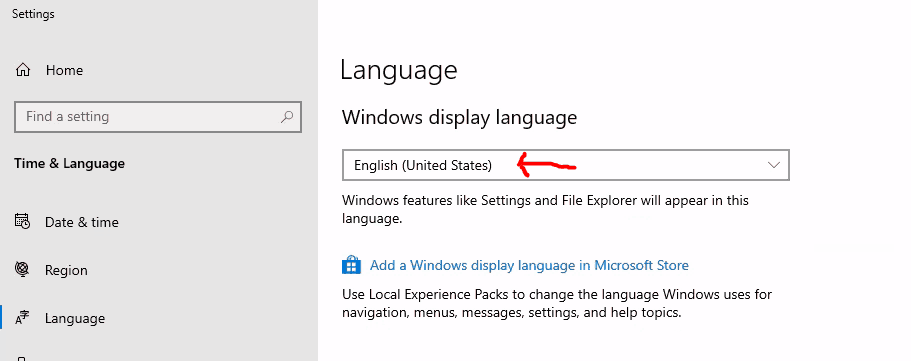
Deploy Windows 10 Language Pack
I don’t know which is the best option to deploy language packs and LXPs with Intune in a modern management world. Depending on the use case and your organization’s policies, you can select either option#1 or Option#2.
**Option#2 (Intune Win32 App model) will be explained in a separate post soon.
NOTE! – I’m not going to cover Windows Autopilot kind of scenarios in this post as that is a different scenario better explained by Michael Niehaus.
Deploy LXPs from Windows Store for Business
Microsoft recommends deploying the Language Experience Packs directly from the Microsoft Store for Business. The links I shared in the “Introduction” section above support this recommendation.
Get the Windows Language Pack App
Log in to Microsoft Store for Business with the user account that has appropriate access rights. For Windows 11 devices, you can also try using the Windows Package Manager deployment method.
https://businessstore.microsoft.com/
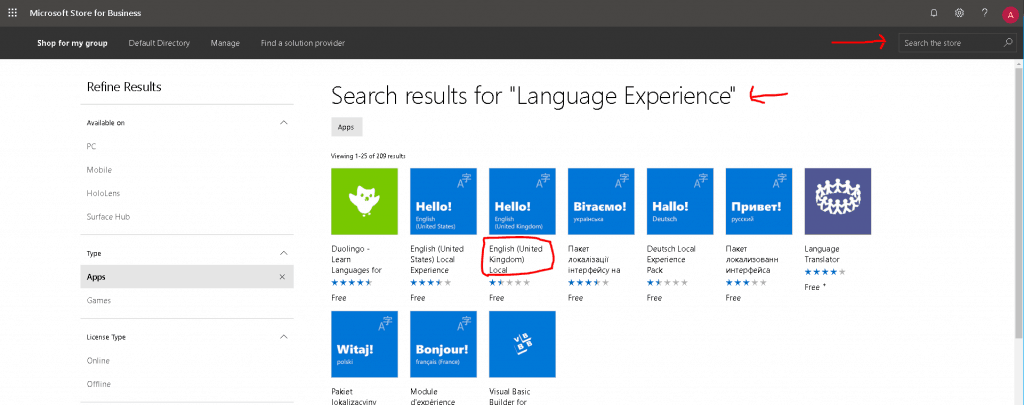
Search for “Language Experience” from the Microsoft Store for the business home page. Select the Language you want to Install (en-GB) English United Kingdom is the one I selected.
Click on the English (United Kingdom) Local Experience Pack.
Click on the Get the App icon
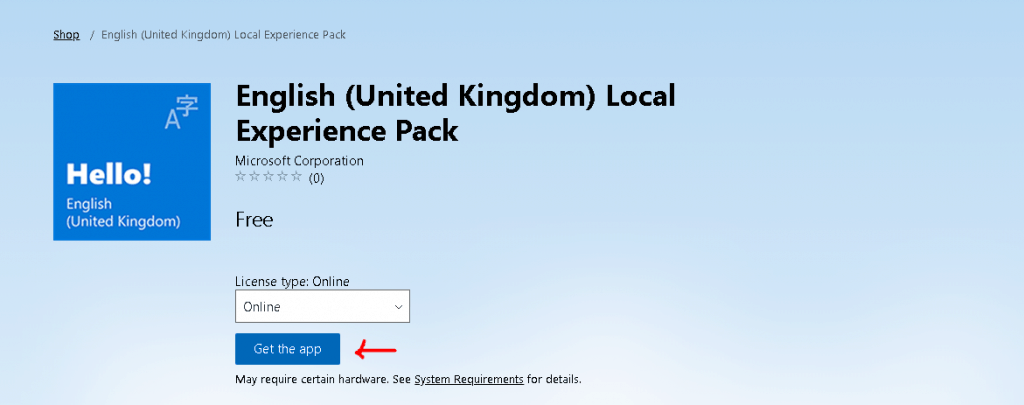
Click on the CLOSE button when you get the following message. English (United Kingdom) Local Experience Pack has been purchased and added to your inventory.
Sync WSfB and Intune
NOTE! – Prerequisites of the next step are explained in the following document – Associate your Microsoft Store for Business account with Intune.
Log in to the Intune device management portal at https://endpoint.microsoft.com/. Navigate to Tenant admin and then select Connectors and tokens—Microsoft Store for Business.
Click on the SYNC button to make the newly added application “English (United Kingdom) Local Experience Pack” available in Intune Windows Apps node
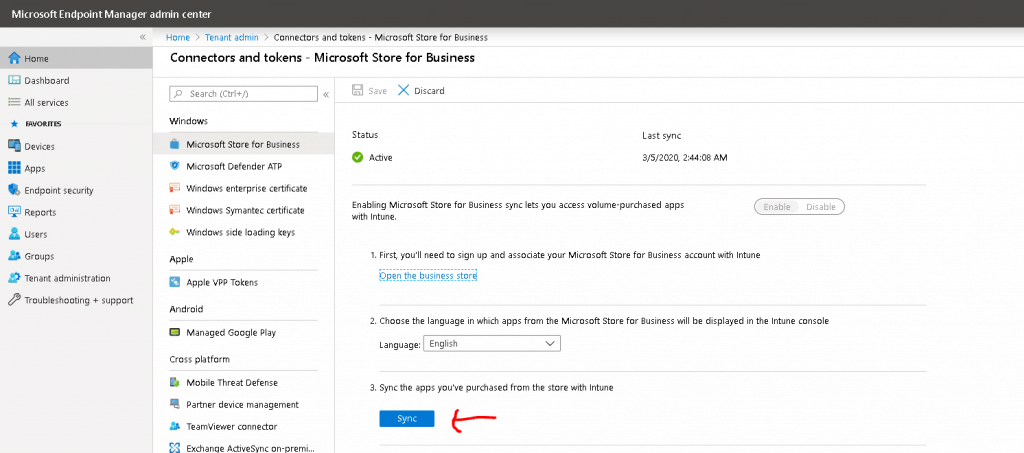
Deploy Language Pack Microsoft Store for Business Application
Wait until the Sync between Intune and Microsoft store business is completed. Once the sync is successfully completed.
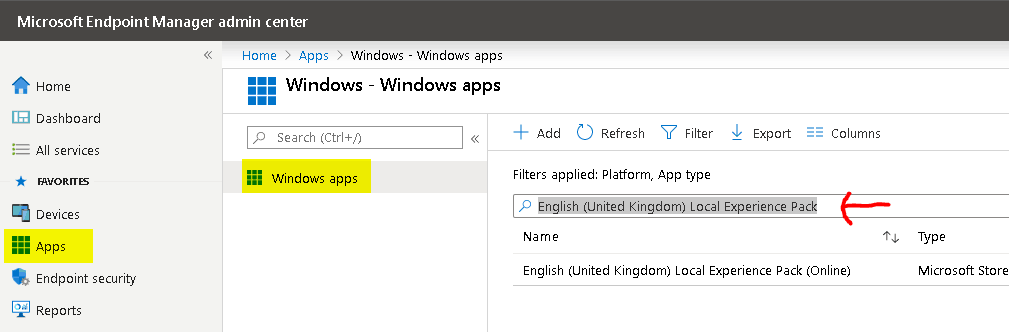
Navigate to Intune – Apps – Windows Apps. Search “English (United Kingdom) Local Experience Pack.”
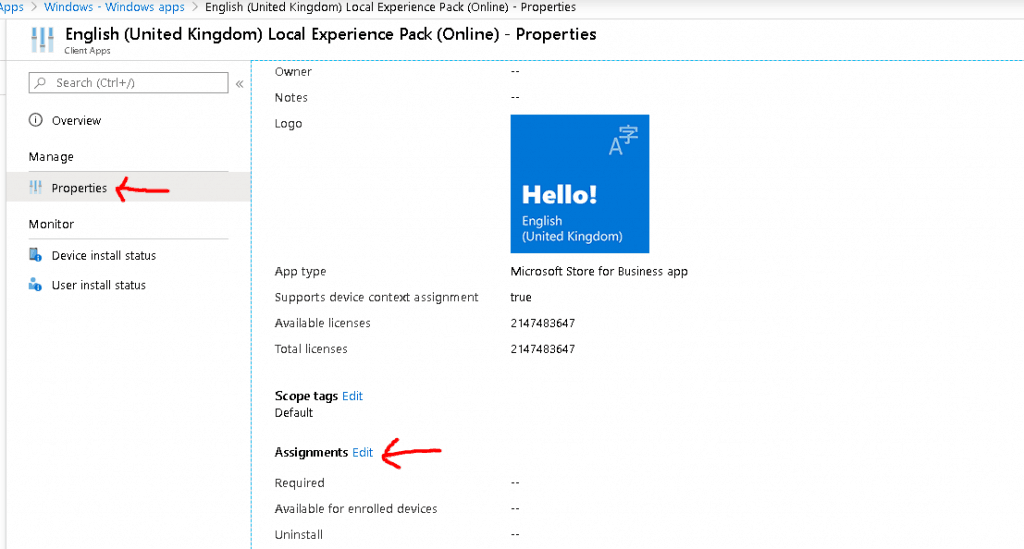
Click on the Properties of English (United Kingdom) Local Experience Pack (Online) application. Click on EDIT from the Assignment section.
- Click on EDIT from the Assignment section.
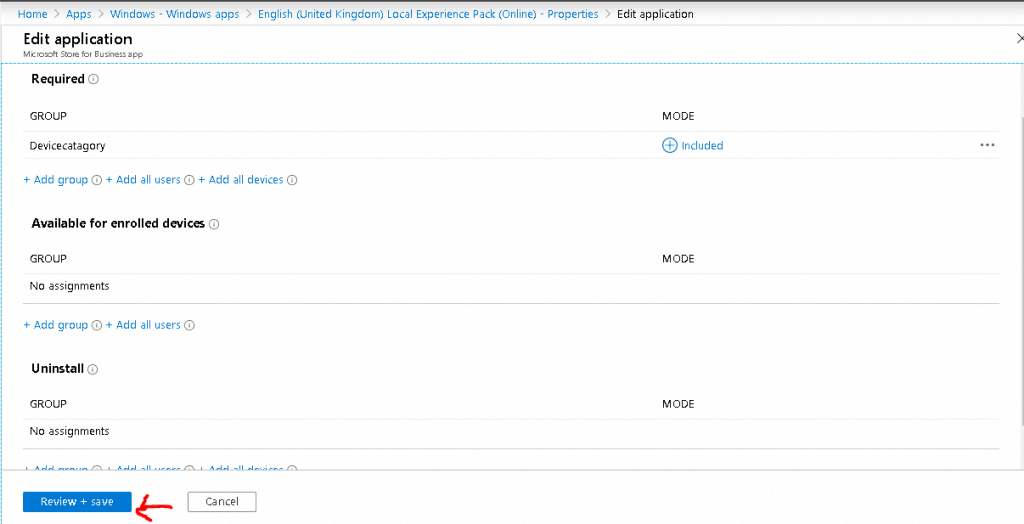
Click on the Review & Save button to continue. Click on SAVE to complete the deployment.
Tips – Deploy Windows 10 Language Pack Step by Step | Windows 11 using Intune
NOTE! – As per my testing, you need to run the following PowerShell command after installing the language pack! The user also needs to restart the device to complete the changes.
- Run the following PS commands with user context to complete the process
- Set-WinSystemLocale en-GB
- Set-Culture en-GB
- Set-WinHomeLocation -GeoId 242
- Set-WinUserLanguageList en-GB -Force
NOTE! – Can you use Intune PowerShell script options to achieve this in an automated way?
Confirmation Regional Settings Change
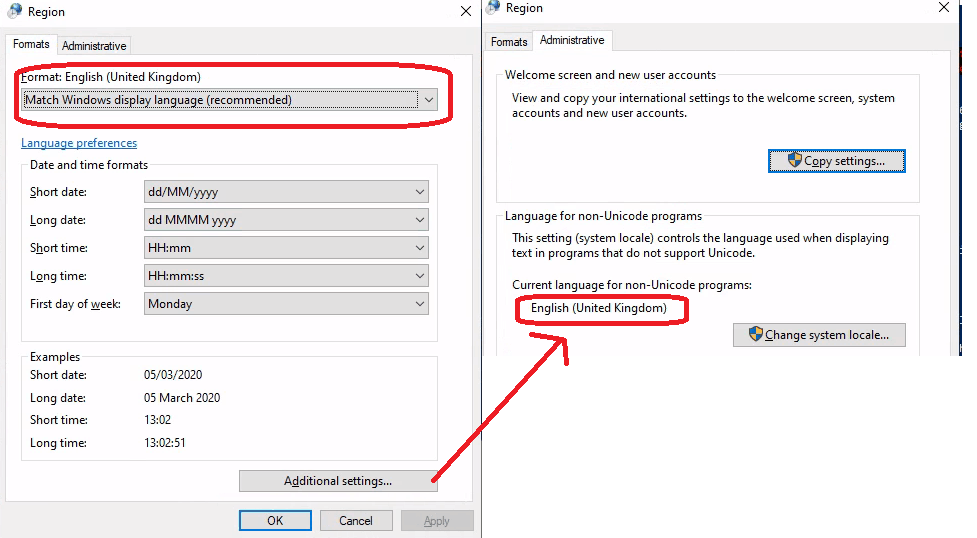
Run intl.cpl to check International Settings Or Try the Get-Culture PowerShell command.
Results
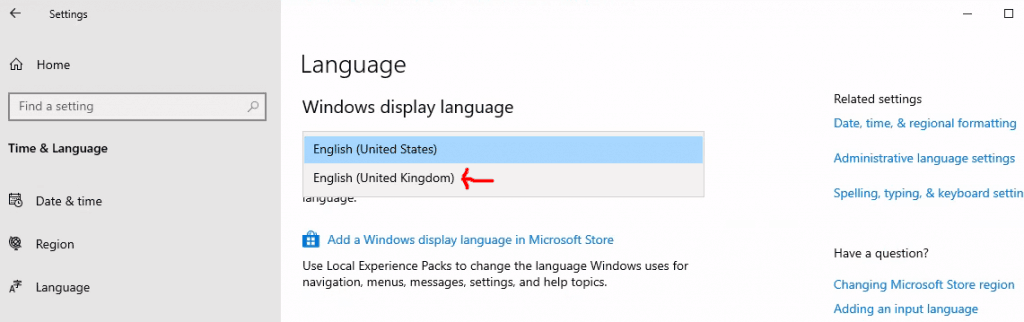
As you can see below the UK language settings are applied. You need to Restart or Logoff Computer to take the changes to take effect.
We are on WhatsApp. To get the latest step-by-step guides and news updates, Join our Channel. Click here –HTMD WhatsApp.
Author
Anoop C Nair is Microsoft MVP! He is a Device Management Admin with more than 20 years of experience (calculation done in 2021) in IT. He is a Blogger, Speaker, and Local User Group HTMD Community leader. His main focus is on Device Management technologies like SCCM 2012, Current Branch, and Intune. He writes about ConfigMgr, Windows 11, Windows 10, Azure AD, Microsoft Intune, Windows 365, AVD, etc.


Hello Anoop, another great article, thank you for that! I have been struggling with this for the past few weeks, so perfect timing as well. Small problem, though… I am not fining “English (Canada)” in the business/education store… Do you know why?
StaffI see only en-US, en-UK…even in the ISO. Do you see this language in ISO? Even English Australia is also not available.
I’m not sure about the ISO, I can check, but this is one of the languages available for the user to pick when adding languages in Windows settings: Time & Language > Language > Add preferred language. Once “English (Canada)” is added, and language pack downloaded/installed, then we can also select it in Windows Display Language drop-down. This in turn sets “Regional format” under Region to “Recommended [English (Canada)]”, which is exactly what we need. It’s a lot of work having to do this manually on each computer; need to figure out how to do this with Intune.
StaffI couldn’t find English Canada CAB and APPX files. I could see only Inuktitut (Latin, Canada) and French (Canada) See https://docs.microsoft.com/en-us/windows-hardware/manufacture/desktop/available-language-packs-for-windows
I do English Australia all the time, it’s bundled in the English UK LXP I imagine Canada is the same. Install the LXP and just use the powershell commands to set based on your language name e.g. I use en-AU. More annoying is that the LXPs lack the FODs required for speach so Cortana if installed will cause UAC prompts when using the above deployment method. Reportedly patched in Win 10 2004.
Hi Anoop,
Great article,
I am facing an interesting situation. The organisation Requires to install English New Zealand but with Maori Keyboard instead of English New Zealand keyboard.
I tried deploying the Maori language pack from store separately but it would mean every time user needs to type in Maori they had to switch language.
Please note Maori Keyboard is also English but will come with Macrons for Maori Language. They had to still use English New Zealand because of office applications will have to continue spell check with English words typed with Maori Keyboard.
Please help with this requirement.
StaffHello Ramki – Have you tried the PowerShell methods mentioned in the post to set the required language as the default one? Does that help?
Set-WinSystemLocale en-GB
Set-Culture en-GB
Set-WinHomeLocation -GeoId 242
Set-WinUserLanguageList en-GB -Force
Get-Culture
Hi Anoop,
Do I have to wait for the language pack to show up under language before I run the powershell script?
AutoPilot process has completed and pack is not showing up.
StaffHi Alex – I don’t think for Autopilot you will need to use this solution. I use this solution only for AVD scenarios without autopilot. Why do we need to deploy language pack in Autopilot scenario?
We want to force French Canada display language on some of the machine we build with AutoPilot. It’s the law here so we need to force it! Most of the computer we get from vendor comes with Win10 English version without the French language pack.
From my research there is no way to force a display language during the AutoPilot process so we need a solution to force it post-AutoPilot.
Essentially we need to install language pack and force it.
The pack actually install properly but the powershell script seems to be executed too soon in the process and since there is no option to re-run it I need to find a more efficient way to actually apply the language pack.
StaffWould the remediation script option help there https://www.anoopcnair.com/intune-proactive-remediation-scripts-powershell/?
Hi, great article.
May I ask how did you setup the Powershell to run after the Microsoft Store for Business app (En-GB)?
I tried via creating a powershell App, but because the Language Experience is a Microsoft Store for Business app. I am unable to setup as a dependency.
Your assistance is much appreciated.
Thanks
Hi Anoop,
Does this also effect keyboard layouts?
Hi Anup,
The task is deploying 17 windows a language packs though Intune and the system should automatically pick up the language based on the region. Windows version is LTSC 2024 build. How to deploy language packs though Intune. should we use PowerShell script or should we package language cab files in win32 format and deploy?
Regards,
Siva Reddy