






How to Resolve Windows 365 Provisioning Policy Unsupported Image Status in Intune
In this article, let’s check how to reslove the Windows 365 provisioning policy’s unsupported image status in Microsoft Intune. When creating a Windows 365 provisioning policy in Intune, administrators may encounter the Unsupported Image Status error. This typically occurs when the selected image does not meet the requirements for Windows 365 Cloud PCs.
Unsupported images can stem from several reasons, such as choosing an image that isn’t optimized for Windows 365, using an image that is no longer available in the Microsoft-provided gallery, or referencing a custom image that lacks necessary configurations for Cloud PC provisioning. In most cases, Microsoft recommends using gallery images provided directly within Intune, as they are pre-validated and maintained for compatibility with Windows 365.
Custom images, though supported, must adhere to specific guidelines, such as using Windows 11 Enterprise multi-session or Enterprise editions, ensuring sysprep is properly applied, and meeting disk, memory, and licensing requirements. If these conditions are not met, Intune will flag the provisioning policy with an Unsupported Image Status, preventing successful Cloud PC assignment.
To resolve this issue, administrators should first review the image type selected in the provisioning policy. If it’s a gallery image, verify that the image is still available and hasn’t been deprecated. For custom images, revalidate the image preparation steps, ensuring compliance with Windows 365 prerequisites. In some scenarios, recreating the provisioning policy with a supported gallery image may be the fastest solution.

Table of Contents
Windows 365 Cloud PC Image Gallery
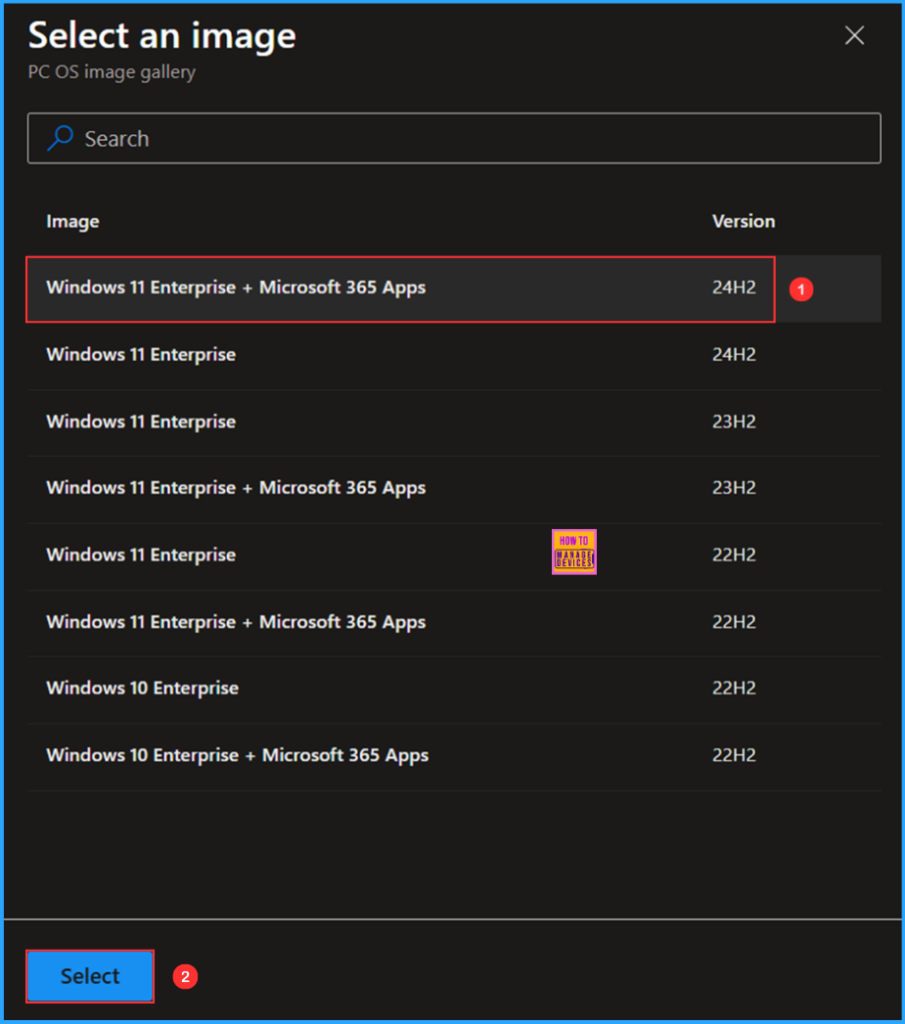
Here’s a summary table of the Windows 365 Cloud PC Image Gallery available in Intune. This table highlights the main options you will encounter when creating a provisioning policy in Intune. Keeping your images updated and in line with Microsoft’s Cloud PC requirements is essential for ensuring smooth provisioning and avoiding Unsupported Image Status errors in Intune.
| Image | Version |
|---|---|
| Windows 11 Enterprise + Microsoft 365 Apps | 24H2 |
| Windows 11 Enterprise | 24H2 |
| Windows 11 Enterprise | 23H2 |
| Windows 11 Enterprise + Microsoft 365 Apps | 23H2 |
| Windows 11 Enterprise | 22H2 |
| Windows 11 Enterprise + Microsoft 365 Apps | 22H2 |
| Windows 10 Enterprise | 22H2 |
| Windows 10 Enterprise + Microsoft 365 Apps | 22H2 |
- Windows 365 Reserve Get Up to 10 Days of Cloud PC Access During Laptop Downtime
- Windows 365 Cloud PC Deployment Expands to Japan West
- How to use New Multi-Monitor and Display Features in Windows 365 Link
Identify Windows 365 Provisioning Policy’s Unsupported Image Status in Intune
To determine the Unsupported Image Status of the Windows 365 Provisioning Policy, log in to the Microsoft Intune Admin Center with your administrator credentials.
- Navigate to > Devices > Device onboarding > Windows 365
- Click on Provisioning policies > and locate the Provisioning Policy that has an “Unsupported Image” status.
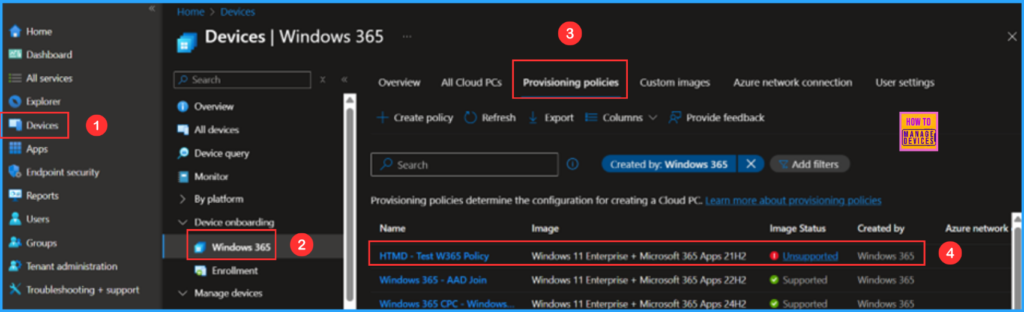
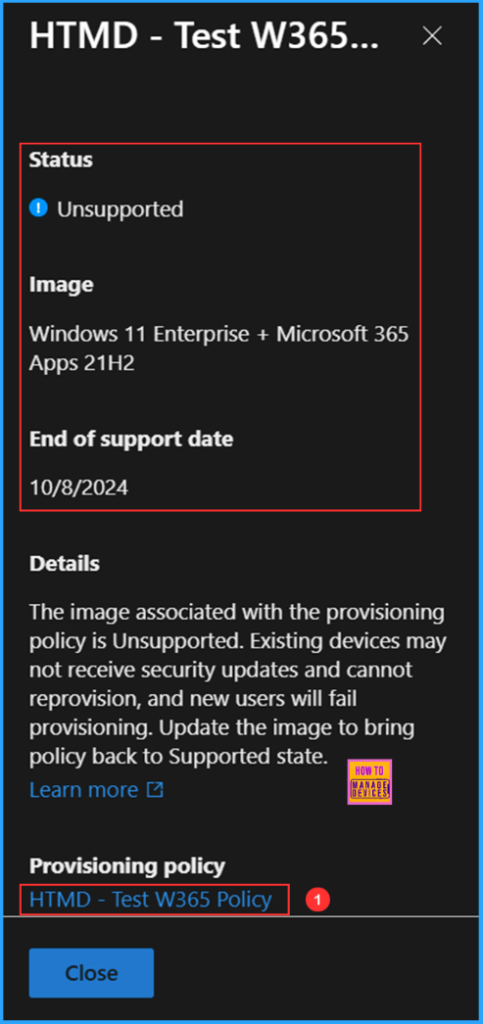
Click on the Unsupported Image Status link to view the detailed status description pane, which includes the Status, Image, End of support date, Details, and Provisioning policy used. Then, click on the HTMD – Test W365 policy.
Note : The image associated with the provisioning policy is Unsupported. Existing devices may not receive security updates and cannot reprovision, and new users will fail provisioning. Update the image to bring policy back to Supported state. Learn more
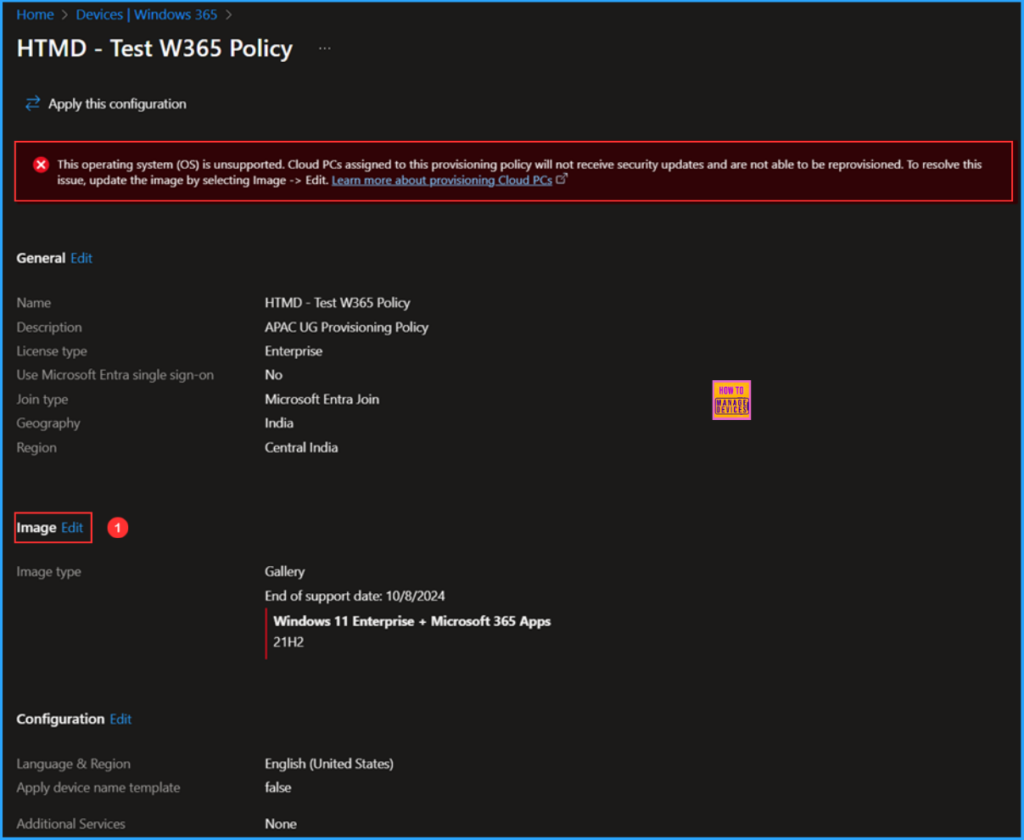
This will open the HTMD – Test W365 Policy. We can see that the selected image, Windows 11 Enterprise + Microsoft 365 Apps 21H2, reaches its end of support on October 8, 2024. There is also a warning notification on this page indicating that this operating system (OS) is unsupported. Please click on the Image Edit option.
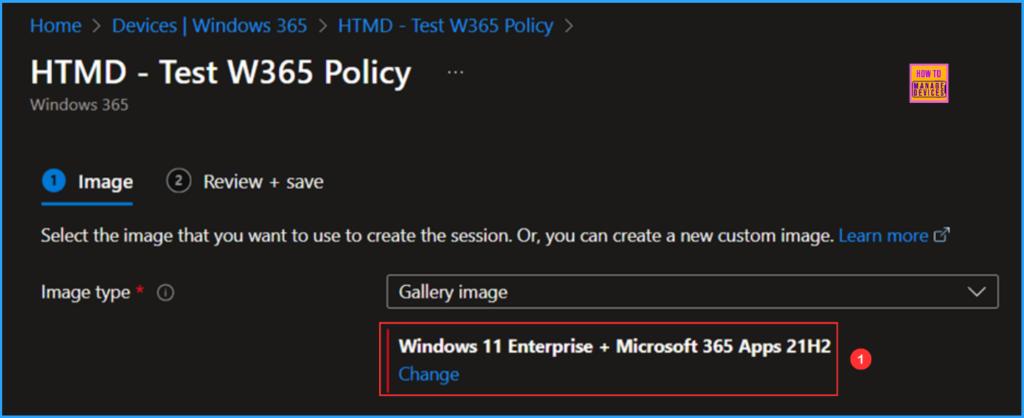
We can select the image we want to use to create the session, or we can create a new custom image. The image type is a Gallery image. To change it, click on the Change option under Windows 11 Enterprise + Microsoft 365 Apps 21H2.
Now, I will select an image from the Windows 365 PC image gallery. There are a total of eight image varieties available here. I will choose the Windows 11 Enterprise with Microsoft 365 Apps image, and the version is 24H2.
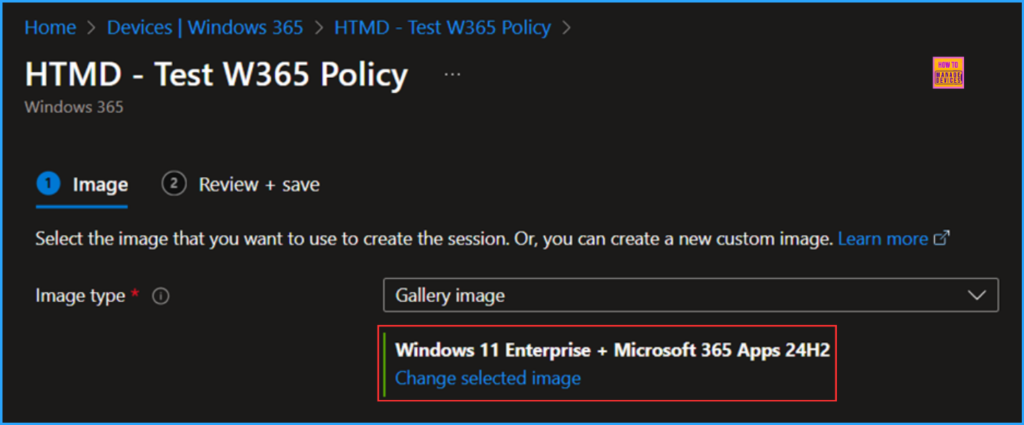
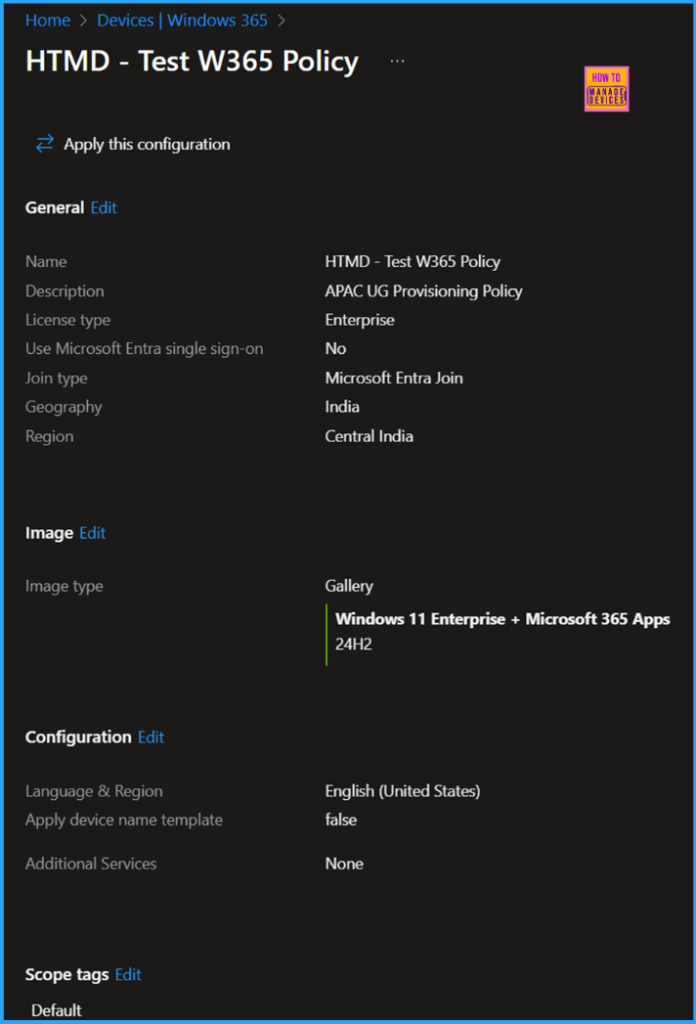
The selected image in the Image tab has been updated to Windows 11 Enterprise + Microsoft 365 Apps 24H2, with an end of support date set for October 12, 2027.
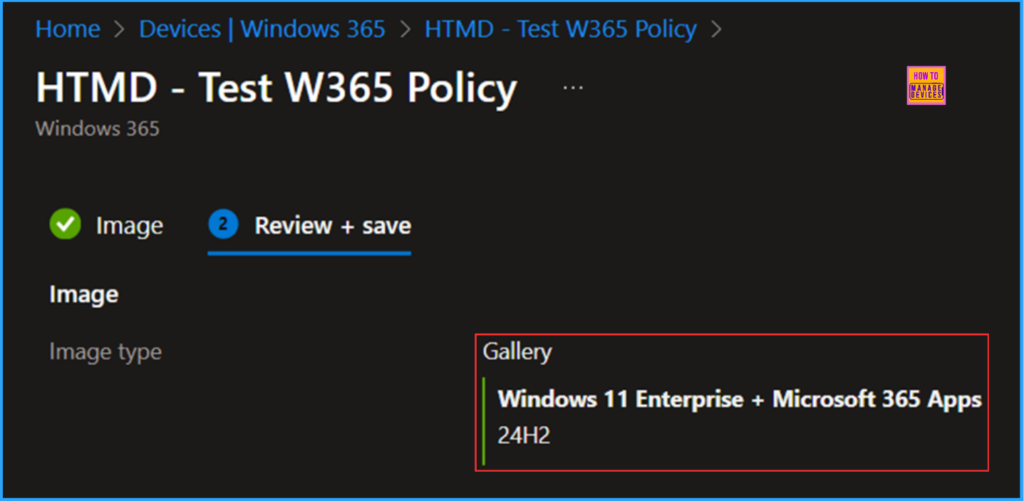
Click on Next under the Review + save tab. Review the changes, and note the green vertical line next to the selected image, which indicates it is supported. Now, click on the Update option at the bottom of the screen.
- How to Create a Device Filter for Windows 365 Link Device using Intune
- How to Create Entra Joined Azure Network Connection for Windows 365 Cloud PCs in Intune
- How to Change Two New Display Language Packs for Windows 365 Cloud PCs using Intune
Once the configuration is successfully updated, it will immediately open the provisioning policy’s (HTMD – Test W365 Policy) configuration screen. If you still need to edit any settings, you can do that.
End Result
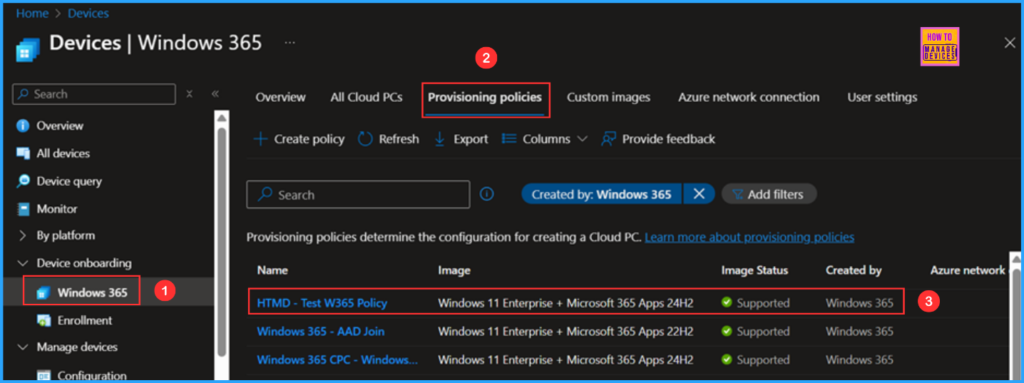
It’s time to check whether the Unsupported Image Status in our Windows 365 Provisioning Policy has been resolved. Follow the path below in the Intune Admin Center to confirm this.
- Navigate to > Devices > Device onboarding > Windows 365
- Click on Provisioning policies > Search for find the HTMD – Test W365 Policy (In my example case)
The image has been updated to Windows 11 Enterprise with Microsoft 365 Apps 24H2, and its status has been changed to Supported. Moving forward, we can use this policy for provisioning new Cloud PCs. There will be no failures in Cloud PC provisioning due to unsupported images.
Need Further Assistance or Have Technical Questions?
Join the LinkedIn Page and Telegram group to get the latest step-by-step guides and news updates. Join our Meetup Page to participate in User group meetings. Also, Join the WhatsApp Community to get the latest news on Microsoft Technologies. We are there on Reddit as well.
Author
Vaishnav K has over 11 years of experience in SCCM, Device Management, and Automation Solutions. Writes and imparts knowledge about Microsoft Intune, Azure, PowerShell scripting, and automation. Check out my profile on LinkedIn.


Discussion