






How to Fix Windows 365 Inactive Azure Network Connection in Intune
In this article, let’s learn how to fix Windows 365 inactive Azure network connection in Microsoft Intune. When a Windows 365 Azure Network Connection (ANC) shows as Inactive in Intune, it usually points to issues with permissions, networking, or resource availability in Azure. The ANC is critical for Cloud PC provisioning because it ensures connectivity between Microsoft’s Windows 365 service and your Azure environment.
An inactive status may occur due to expired or disabled Azure subscriptions, deleted or misconfigured VNets or subnets, or missing RBAC role assignments for the Windows 365 service account. To fix this, start by running a connection health check in Intune under Devices > Windows 365 > Azure network connections. This check provides detailed diagnostics across DNS, domain join, permissions, and subnet availability.
Common fixes include reassigning the Network Contributor or Contributor role on the target VNet or resource group, verifying that the linked subnet still exists and has enough free IP addresses, and ensuring DNS or Active Directory connectivity if hybrid join is in use. If domain controllers or DNS servers are unreachable, provisioning will fail until these paths are restored.
If the ANC cannot be recovered such as when a subnet has been permanently removed, the best approach is to create a new Azure Network Connection, link it to a healthy VNet and subnet, and then update provisioning policies in Intune to point to this new ANC. Once reconfigured, rerun the health check to confirm a Healthy status. Maintaining proactive monitoring of ANC health in Intune and regularly auditing permissions in Azure will help prevent future inactive connection issues.


Table of Contents
HTMD AADJ Windows 365 Azure Network Connection Details
An Azure network connection (ANC) enables the creation of Cloud PCs within your organization’s Azure Virtual Network. Refer to the table below for more details on ANC – HTMD AADJ.
| Name | Virtual network | Statas | Created by | Join type | Subcription | Domain |
|---|---|---|---|---|---|---|
| HTMD AADJ | MECMNet | Inactive (Current Status) | Windows 365 | Microsoft Entra Join | Microsoft Azure Sponsorship | NA |
- How to Deprovision Windows 365 Cloud PC in Intune When they are in Grace Period Status
- How to Fix Windows 365 Cloud PCs Provisioned with Warning Issue in Intune
- Windows 365 Reserve Get Up to 10 Days of Cloud PC Access During Laptop Downtime
Identify Windows 365 Inactive Azure Network Connection in Intune
To assess the status of Windows 365 Inactive Azure Network Connection, you must log in to the Microsoft Intune Admin Center using your administrator credentials.
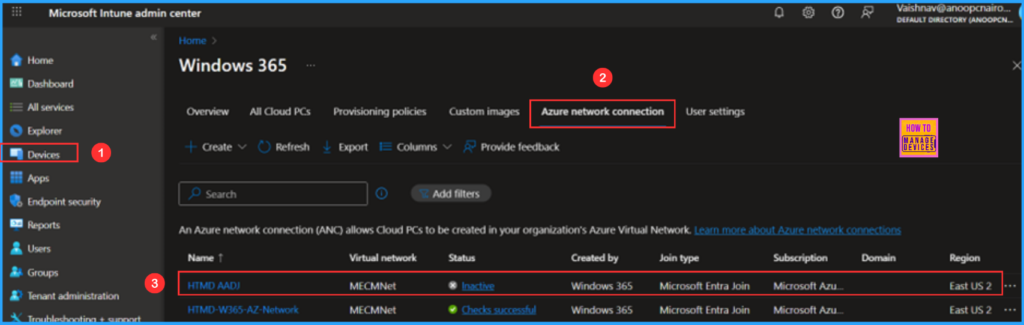
- Navigate to > Devices > Device onboarding > Windows 365
- Click on Azure network connection > Find the ANC having Inactive status. Here it is HTMD AADJ
Click on the Inactive status link to open the Overview and Properties page for the HTMD AADJ Azure network connection. The status of all checks is currently showing as Paused due to inactivity on this Azure network connection. To resume, select the Reactivate option on the top left.
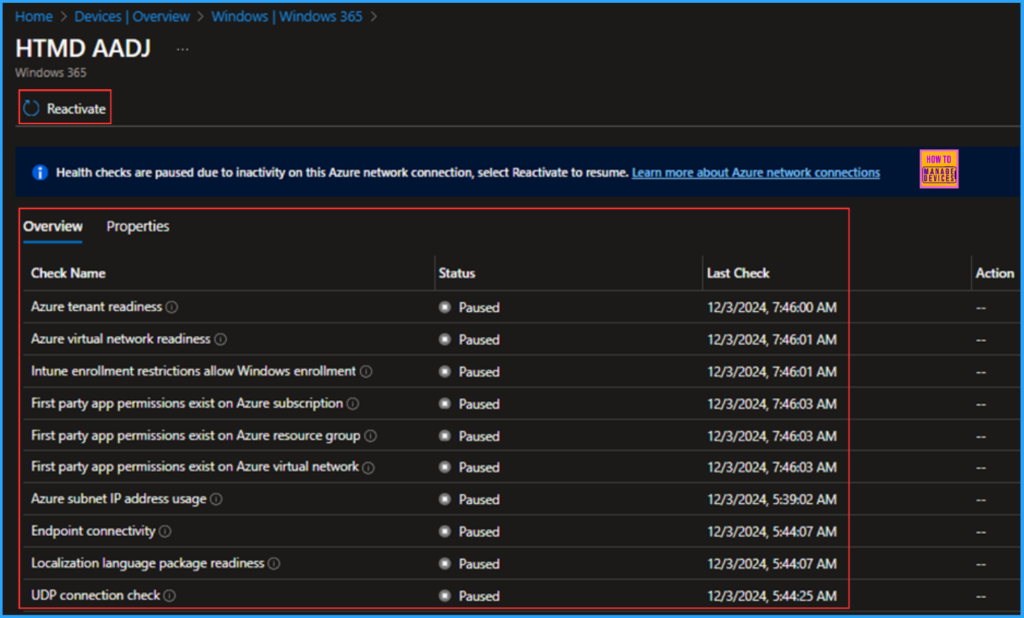
You can verify the Properties of the HTMD AADJ ANC by clicking on that tab. However, I’m satisfied with the configured properties, so I will click on the Reactivate option. It will immediately show a message stating “Reactivation successful” in the Intune Notifications bar.
- How to Create Autopilot Device Preparation Policy for Windows 365 Frontline Devices using Intune
- How to use New Multi-Monitor and Display Features in Windows 365 Link
- Explore Microsoft Intune Multi Admin Approval MAA Scenarios | What is MAA in Intune?

End Results
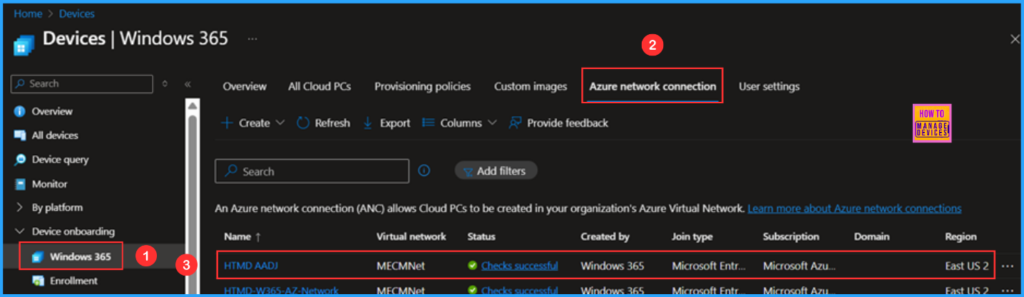
Now, the checks will begin. During this time, we will not be able to access the specific Azure network connection. This process will take a few minutes to complete, provided there are no other issues. After some time, the status will change to “Checks successful“. To verify this, please follow the steps outlined below.
- Navigate to Devices > Device onboarding > Windows 365 > Azure network connection > In the search box, type the name “HTMD AADJ” If you have a limited number of Azure network connections available, you should be able to find it easily.
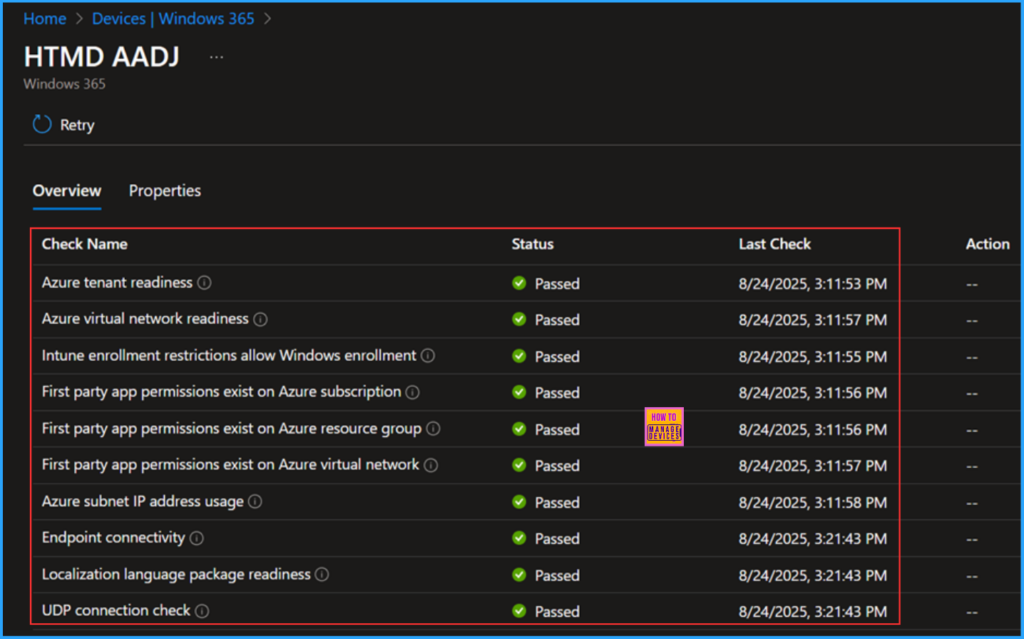
Overview of the HTMD AADJ Azure Network Connection
To access the Overview of the HTMD AADJ Entra Joined Azure Network Connection (ANC), click on the Check Successful link. This will take you to the Overview screen, where you can see that all 10 different checks have changed their status from Paused to Passed. The Last Check date and time are also displayed here. No action is required from the admin’s end.
Note : In this example, there were no issues with the ANC’s settings and configuration, so we were able to fix it easily. However, if you have other issues as mentioned at the beginning of this article, we need to address and resolve them accordingly.
Need Further Assistance or Have Technical Questions?
Join the LinkedIn Page and Telegram group to get the latest step-by-step guides and news updates. Join our Meetup Page to participate in User group meetings. Also, Join the WhatsApp Community to get the latest news on Microsoft Technologies. We are there on Reddit as well.
Author
Vaishnav K has 12 years of experience in SCCM, Intune, Modern Device Management, and Automation Solutions. He writes and shares knowledge about Microsoft Intune, Windows 365, Azure, Entra, PowerShell Scripting, and Automation. Check out his profile on LinkedIn.


Discussion