






Enforce Automatic HTTPS Upgrades Policy for Microsoft Edge for Secure Connections using Intune
Let’s discuss Enforce Automatic HTTPS Upgrades Policy for Microsoft Edge for Secure Connections using Intune. Automatic HTTPS Upgrades Policy in Microsoft Intune help to Microsoft Edge tries to upgrade HTTP navigations to HTTPS whenever possible to improve security.
This policy is as of Microsoft Edge version 120. Navigations to captive portals, IP addresses, and non-unique hostnames are excluded from automatic upgrades. As you know that HTTPS encrypts data transferred between the user’s browser and the web server.
HTTPS prevents attackers from snooping on sensitive information like login credentials, personal data, or financial details. Enabling this policy significantly reduces the risk of Man-in-the-Middle (MitM) Attacks. For example, when a user is on an insecure public Wi-Fi network (e.g., in a café or airport), this policy is particularly critical.
With this policy, Admins can centrally manage and enforce a higher level of security across all corporate devices using Intune. Admins have full control over the organisation’s Microsoft browser. The policy provides a balance of security and usability.

Table of Contents
Enforce Automatic HTTPS Upgrades Policy for Microsoft Edge for Secure Connections using Intune
Admins can easily configure this policy to protect the organisation from various cyber threats, including man-in-the-middle attacks, credential theft, and data leakage, which can result in financial loss and reputational damage.
- Enable HTTPS Warning Page Policy for MS Edge Browser to Control User Access from SSL Errors using Intune
- Enable Automatic HTTPS Policy to Switch Connections from HTTP to HTTPS using Intune
- Enable Disable Secure DNS over HTTPS in Microsoft Edge
Automatic HTTPS Upgrades Policy
By signing in Microsoft Intune admin center, you can start configuring HTTPS Warning Page Policy. Open the Microsoft Intune Admin center. Go to Devices > Configuration > +Create >+ New Policy.

Selecting Profile and Platform
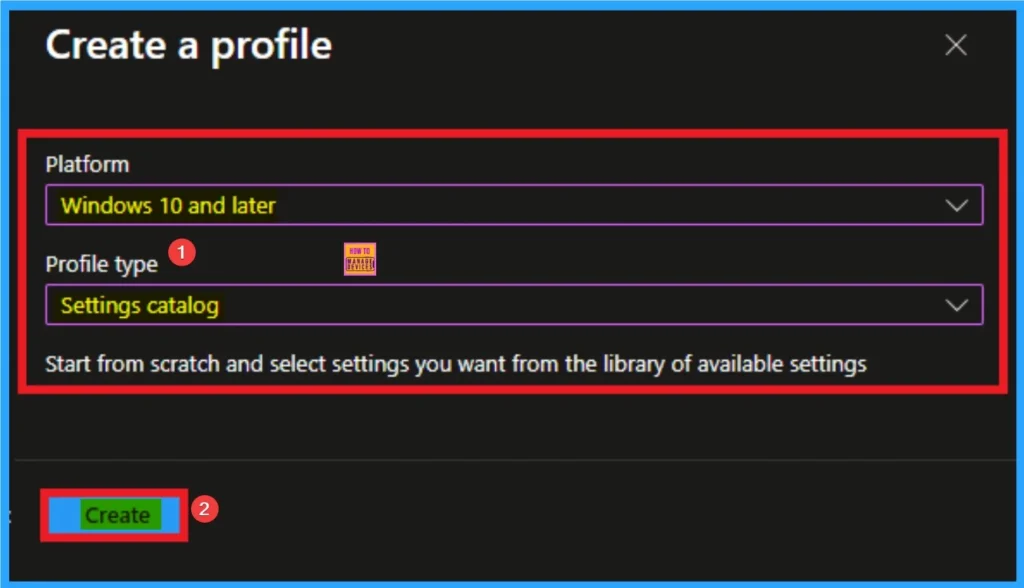
After that, you have to select platform and profile. It is important to select the platform and profile before configuring the policy. Here, I selected Windows 10 and later as the Platform and Settings catalog as the profile type. Then click on the Create button. Then you will get the basic tab.
Basic Details
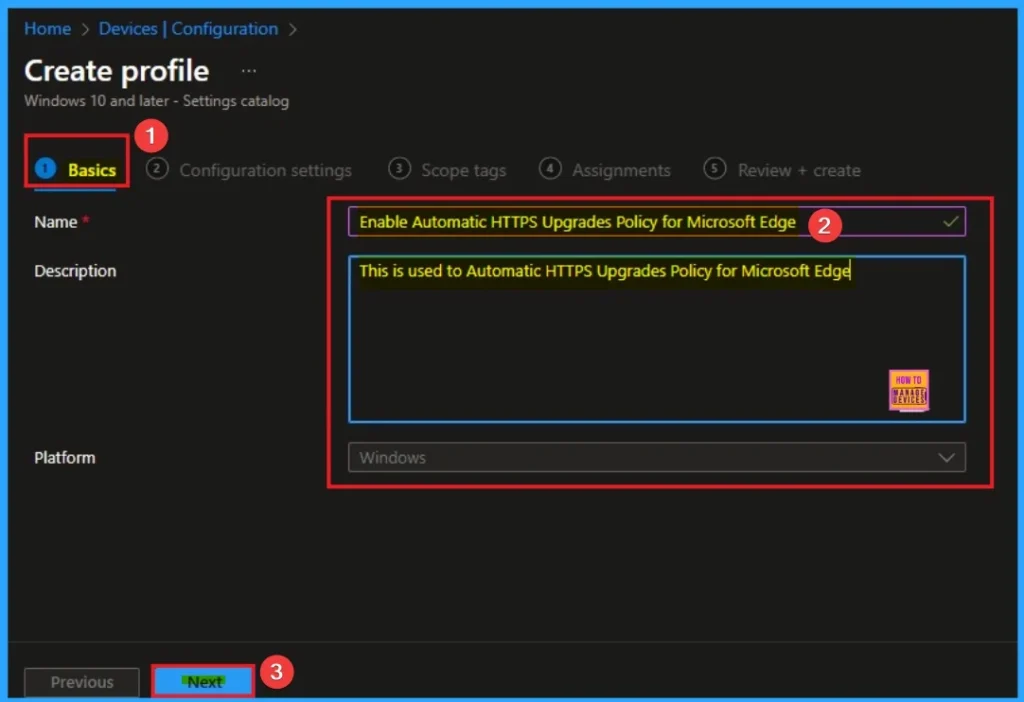
Adding basic details is necessary and important in policy creation. It gives an identity for the settings you will select to create the policy. The policy name and description is useful for identifying the policy purpose. After adding this, click on the Next button.
Configure the settings from Settings Picker
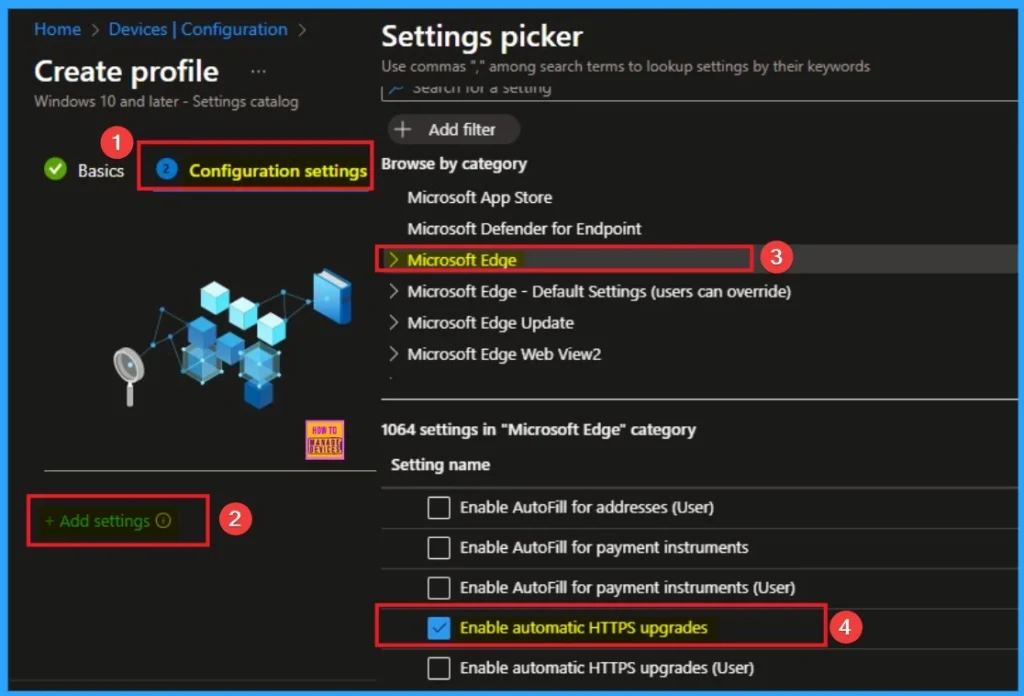
Using the configuration settings tab, you can access the specific settings. For this you have to click on the +Add settings hyperlink to get the settings picker. From the Settings Picker, I choose Microsoft Edge category and select Allow users to proceed from the HTTPS warning page settings. Then you can close settings picker.
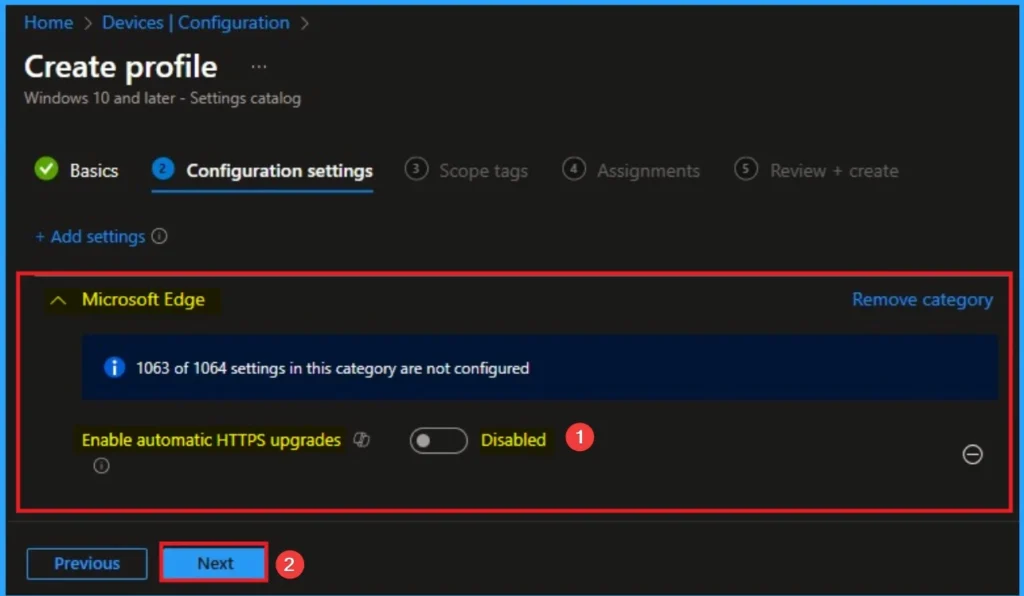
Disable Automatic HTTPS Upgrades Policy
Some organisations still use older internal web applications or services that only support HTTP. Forcing an HTTPS upgrade on these applications would cause them to fail or become inaccessible, disrupting business operations.
Enable Automatic HTTPS Upgrades Policy
This policy helps to protect against Man-in-the-Middle (MitM) Attacks and improve security. Enabling automatic upgrades ensures that users are always using the most secure connection available. If you want to disable the Click on the Next button.

Scope Tags for Policy
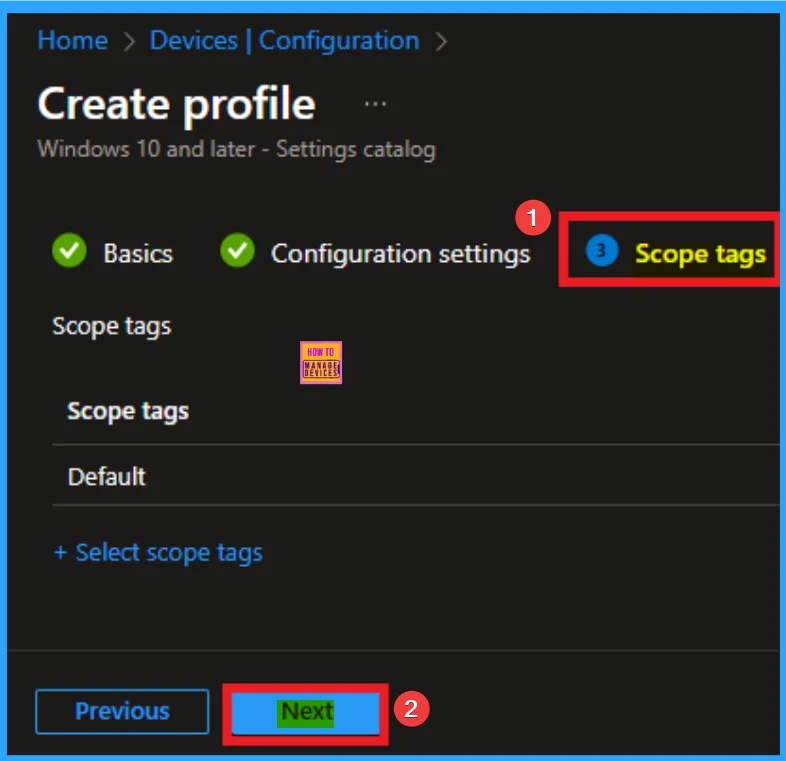
With scope tags, you create a restriction to the visibility of the HTTPS Warning Page. It also helps to organise resources. Here, I would like to skip this section, because it is not mandatory. Click on the Next button.
Assigning Specific Groups
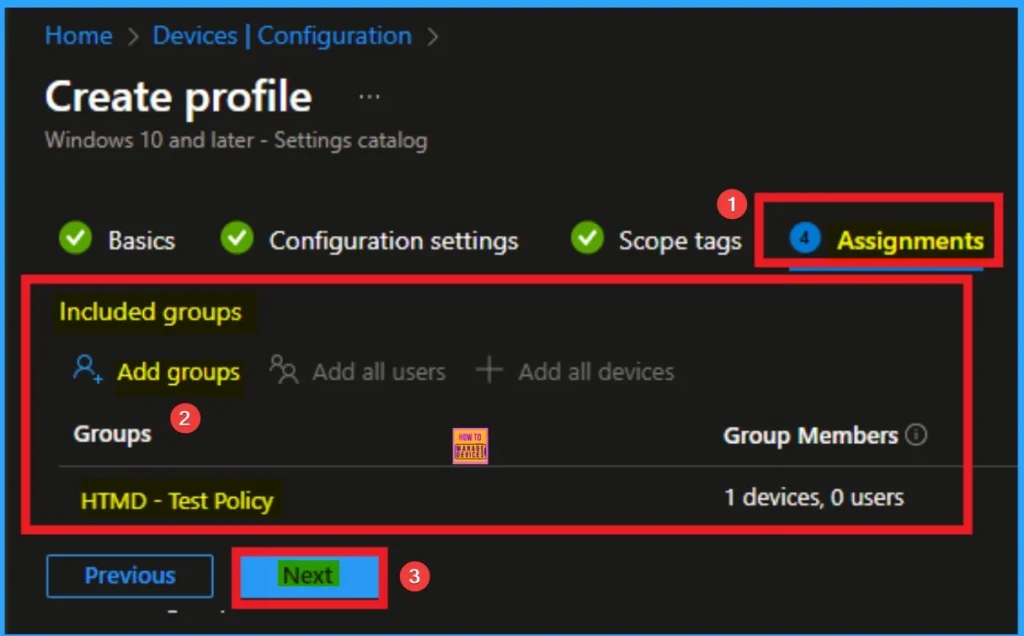
To assign the policy to specific groups, you can use the Assignment Tab. Here I click, +Add groups option under Included groups. I choose a group from the list of groups and click on the Select button. Again, I click on the Select button to continue.
Review + Create Tab for Policy Creation
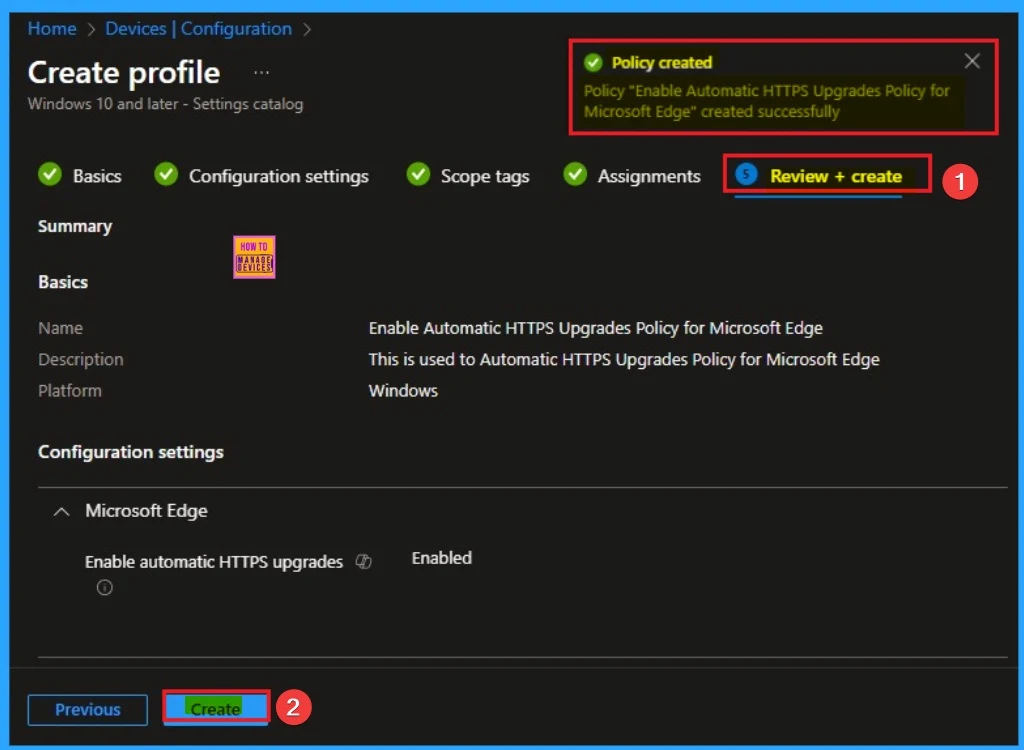
Review + Create Tab helps you recheck all the details of the policy you entered on all the tabs. After verifying all the details, click on the Create Button. After creating the policy, you will get a success message.
Monitoring Status
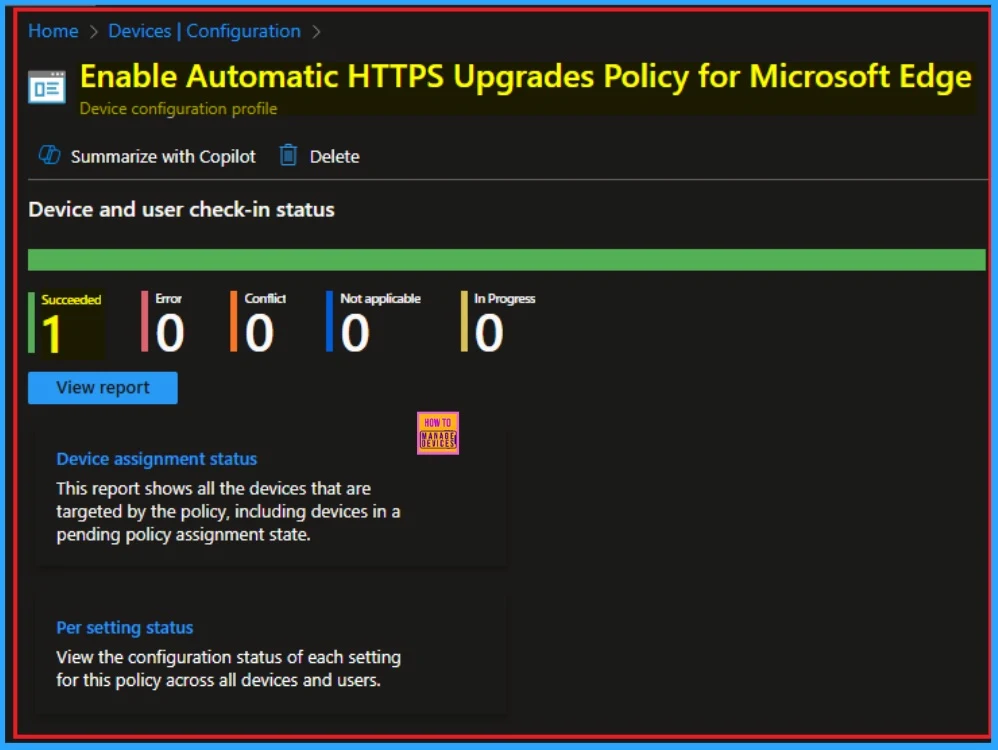
After the policy is created, you can check the status of the policy on the Intune Portal. This status shows the policy succeeded or not. Open the Intune Portal. Go to Devices > Configuration > Search for the Policy. Here, the policy shows as successful.
Event Viewer Details
Event Viewer helps you check the client side and verify the policy status. Open the Client device and open the Event Viewer. Go to Start > Event Viewer. Navigate to Logs: In the left pane, go to Application and Services Logs > Microsoft > Windows > DeviceManagement-Enterprise-Diagnostics-Provider > Admin
- Filter for Event ID 814: This will help you quickly find the relevant logs.
| Event ID Details |
|---|
| MDM PolicyManager: Set policy string, Policy: (HttpsUpgradesEnabled), Area: (microsoft_edgev136~Policy~microsoft_edge), EnrollmentID requesting merge: (EB427D85-802F-46D9-A3E2-D5B414587F63), Current User: (Device), String: (), Enrollment Type: (0x6), Scope: (0x0). |

Removing the Assigned Group from these Settings
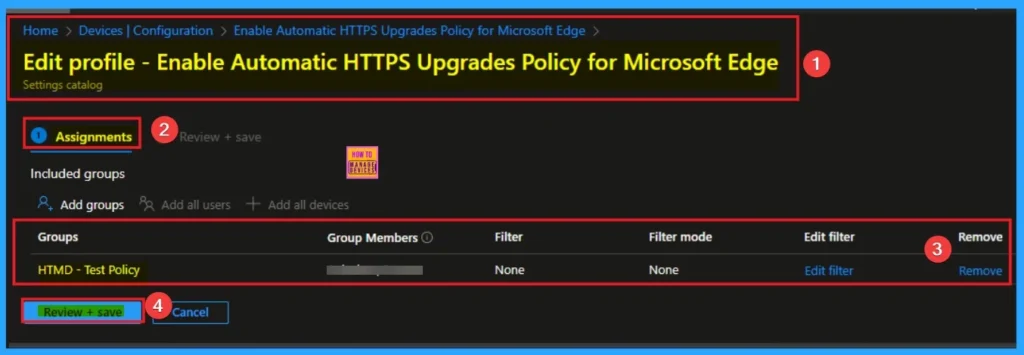
If you want to remove the Assigned group from the policy, it is possible from the Intune Portal. To do this, open the Policy on Intune Portal and edit the Assignments tab and the Remove Policy.
To get more detailed information, you can refer to our previous post – Learn How to Delete or Remove App Assignment from Intune using by Step-by-Step Guide.
How to Delete HTTPS Warning Page Policy
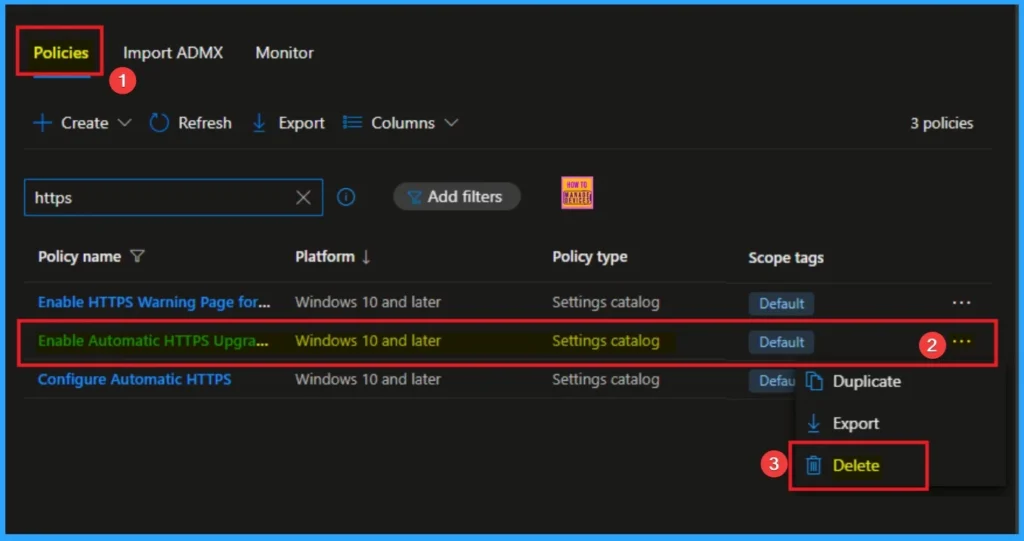
You can easily delete the Policy from the Intune Portal. From the Configuration section, you can delete the policy. It will completely remove it from the client devices.
For detailed information, you can refer to our previous post – How to Delete Allow Clipboard History Policy in Intune Step by Step Guide.
Need Further Assistance or Have Technical Questions?
Join the LinkedIn Page and Telegram group to get the step-by-step guides and news updates. Join our Meetup Page to participate in User group meetings. Also, Join the WhatsApp Community to get the latest news on Microsoft Technologies. We are there on Reddit as well.
Author
Anoop C Nair has been Microsoft MVP for 10 consecutive years from 2015 onwards. He is a Workplace Solution Architect with more than 22+ years of experience in Workplace technologies. He is a Blogger, Speaker, and Local User Group Community leader. His primary focus is on Device Management technologies like SCCM and Intune. He writes about technologies like Intune, SCCM, Windows, Cloud PC, Windows, Entra, Microsoft Security, Career, etc.


Discussion