






Manage Third-Party Cookies in MS Edge with Related Websites Sets Policy using Intune
Hey, let’s discuss about how to Manage Third-Party Cookies in MS Edge with Related Websites Sets Policy using Intune. The Related Website Sets (RWS) policy is important because it helps organisations control how related websites share limited third-party cookies in Microsoft Edge.
This ensures that essential services work smoothly without exposing unnecessary data. It provides a balance between user privacy and website functionality. This policy is mainly used in Microsoft Edge browsers within organisations and enterprises. It is applied when multiple connected sites need to communicate and share data in a controlled way.
For organisations, the policy reduces login issues and improves access to related services. It helps employees work more efficiently by avoiding repeated authentication requests. For users, it provides a secure and seamless browsing experience.
For example, it helps when company portals, apps, and services are linked together. A real-world example is a bank with different websites for banking, investments, and customer support. When the RWS policy is enabled, customers can log in once and access all related sites without re-entering credentials. This saves time, improves security, and makes online services easier to use.

Table of Contents
What are the Benefits of enabling Related Website Sets Policy using Intune?
1. Helps link related websites for smooth access
2. Reduces login interruptions for users
3. Improves productivity with fewer authentication steps
4. Balances privacy and functionality effectively
5. Strengthens security across connected domains
Manage Third-Party Cookies in MS Edge with Related Websites Sets Policy using Intune
Before enabling the policy, users often face repeated login prompts when moving between related websites. This causes delays, confusion, and a poor browsing experience. Organisations struggle with reduced productivity and more support requests.
After enabling the policy, users can seamlessly move between related websites with fewer interruptions. The browsing experience becomes smoother, faster, and more secure. Organisations benefit from improved workflows and stronger trust in their services.
- Disable Automatic Media Playback for Websites Policy in MS Edge Browser using Intune
- How to Configure Web Content Filtering in MS Edge for Business to Block Inappropriate Websites
- How to Enable or Disable Media Autoplay for Websites in Microsoft Edge Browser
Create a Profile
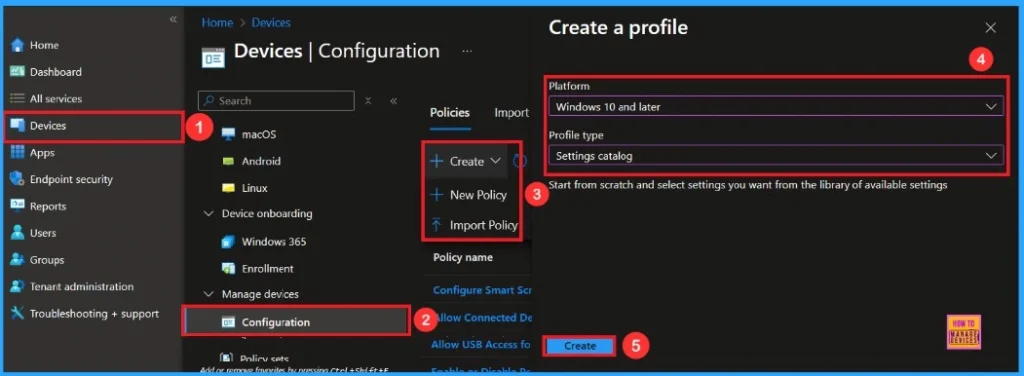
First, log in to the Microsoft Intune admin center. Then, navigate to Devices. Under Devices, go to Configuration. In the Configuration section, you’ll see an option to create a New Policy. Click on that. A new window will appear titled Create Profile. In this section, you need to set the platform to Windows 10 and later, and choose the Profile Type as Settings Catalog. Then, click Create to proceed.
Basic Step
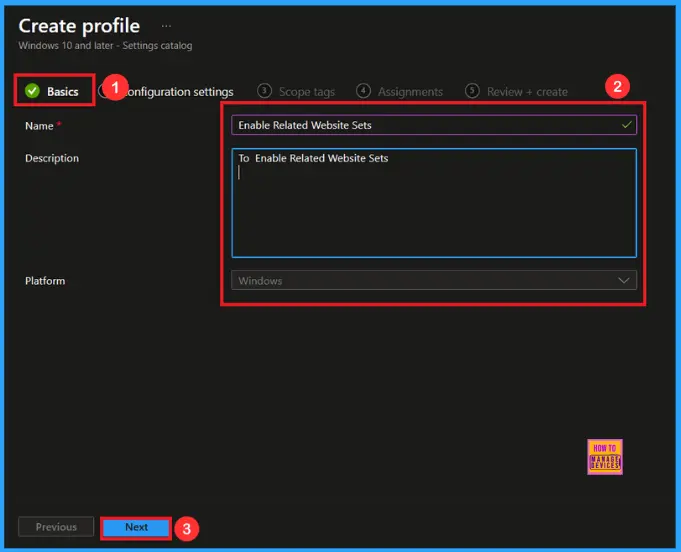
After creating profile, your next step is to fill in the basic details. These usually include the name, description, platform information. we can add the name (e.g Enable Related Website Sets) of the policy and give a brief description (e.g To Enable Related Website Sets). Click Next to continue
Configuration Settings
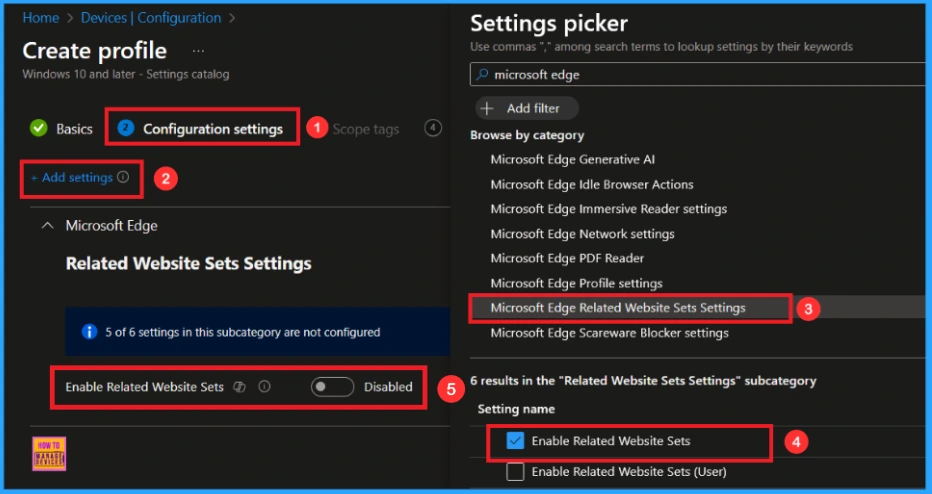
In this tab, you will see an option to Add Settings. Click on it. Once you click, a new window called Settings Picker will appear. In the Settings Picker window, you need to select the Microsoft Edge Related Website Sets Settings category. Under this category, select Enable Related Website Sets.
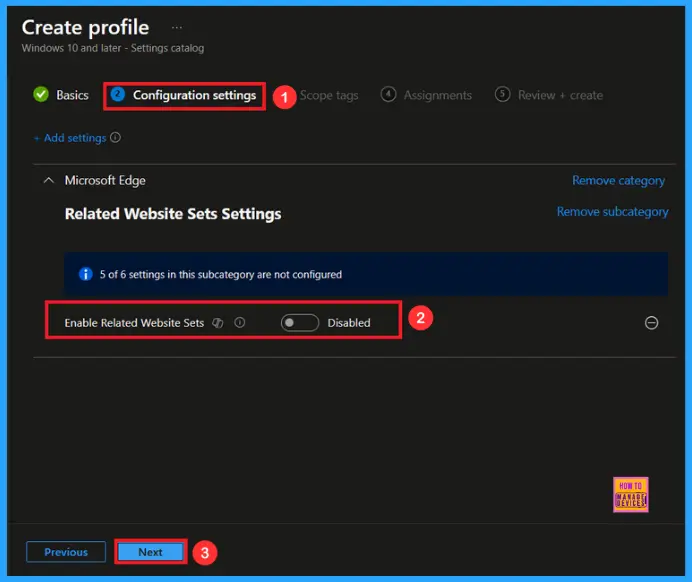
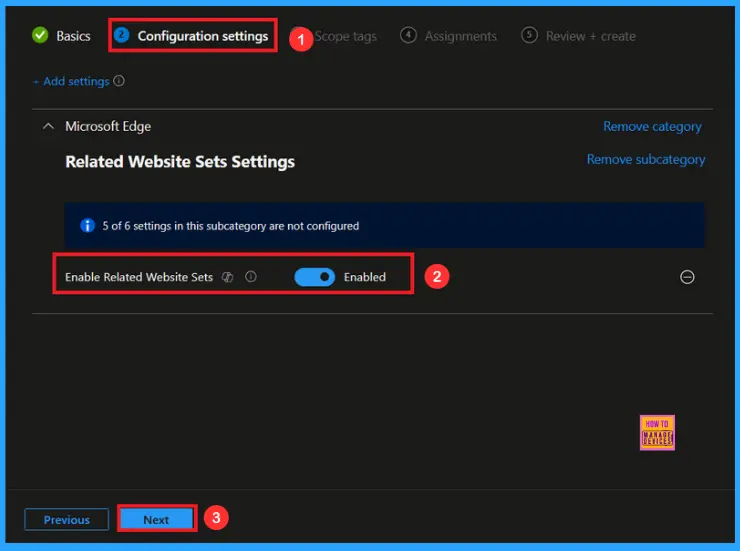
You can close the Settings Picker window. Once you close it, you’ll return to the Configuration Settings page. Here, you’ll notice that the policy is set to Enable or Disable by default. If you want to continue with this setting, click Next to proceed.
Enable Related Website Sets Policy
If you want to enable this policy, look for the toggle switch next to the Enable Related Website Sets setting. By default, this toggle is set to Disable. To enable the policy, you have to move the toggle from left to right. Then click Next to proceed.
Scope Tags
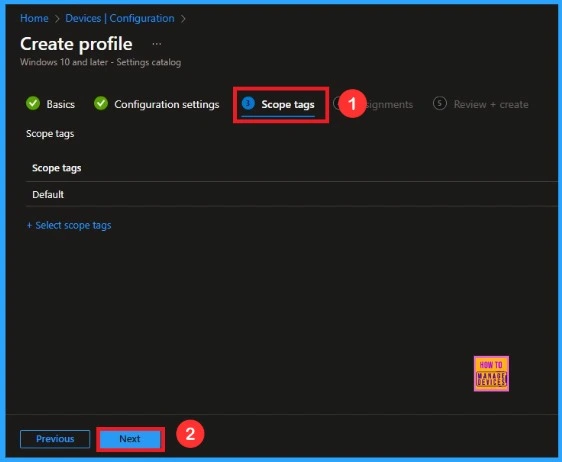
A scope tag is used to assign policies to specific groups within an organisation. The scope tag is not mandatory, so you can skip this section. Click Next if they’re not required for your setup.
Assignments
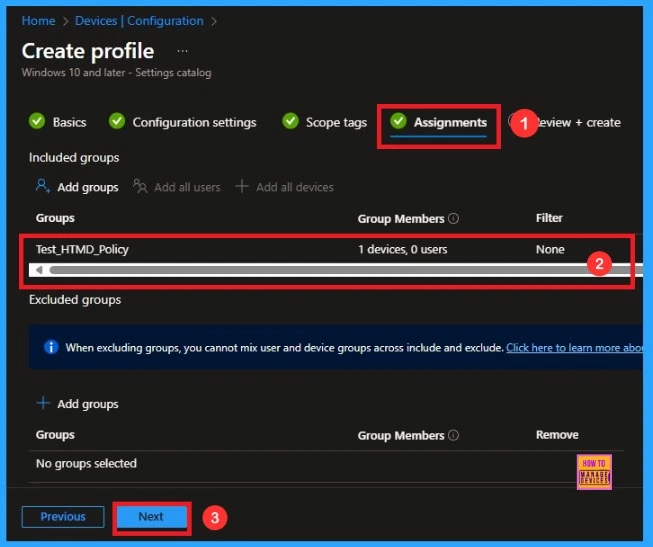
Here, you will see an option called Add Groups under the Include Groups section. Click on it. When you click, a list of available groups will appear. You can search for the group you want (e.g Test_HTMD_Policy). Then click the Next button.
Last Step
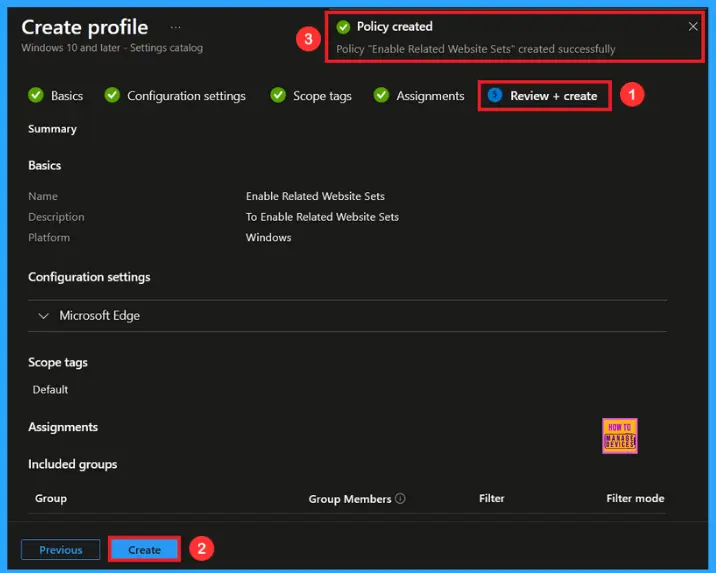
In this section, you can see a summary of everything you entered in the previous steps, such as basic details, configuration settings, assignment details, and more. If you want to change or edit anything, you can easily go back to the previous section. Click Create to finish, and a message will confirm that the “Enable Related Website Sets ccreated succcessfully.
Device and User Check-in Status
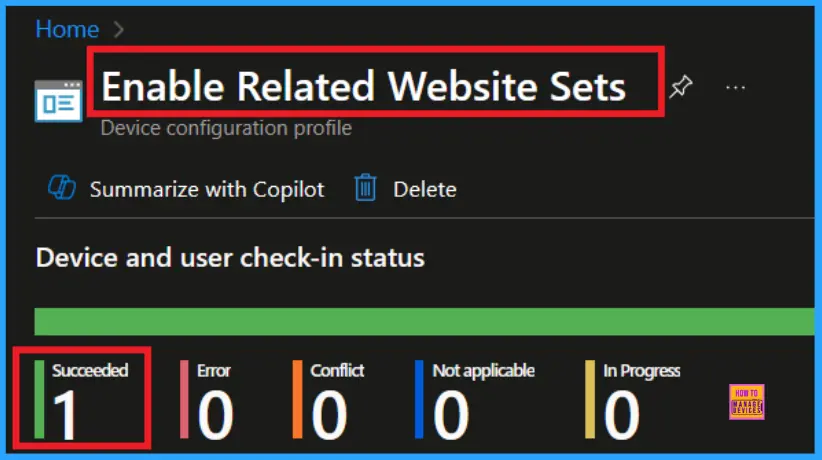
To view a policy’s status, go to Devices > Configuration in the Intune portal, select the policy (like Enable Related Website Sets), and check that the status shows Succeeded (1). Use manual sync in the Company Portal to speed up the process.
Client Side Verification
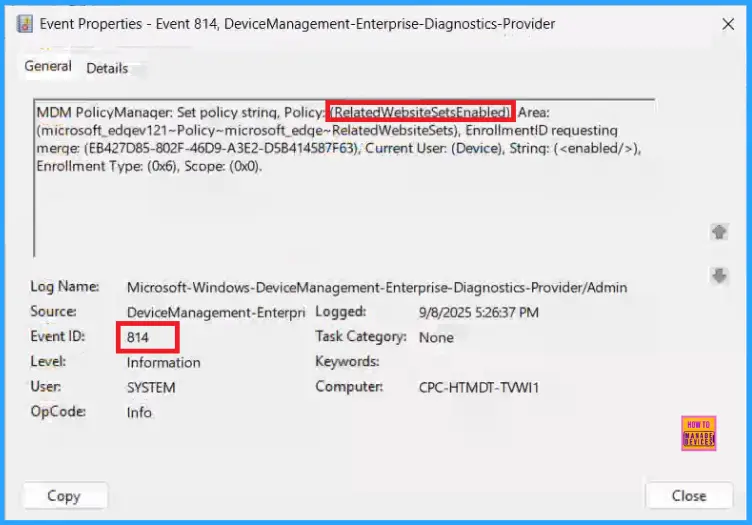
To confirm whether the policy is successful or not, you can use the Event Viewer. First, open Event Viewer and navigate to Applications and Services Logs > Microsoft > Windows > Device Management > Enterprise Diagnostic Provider > Admin. Use Filter Current Log and search the Event ID 814.
MDM PolicyManager: Set policy strinq, Policy: RelatedWebsiteSetsEnabled: Aea
(microsoft_edqev121~Policy~microsoft_edqe~RelatedWebsiteSets), EnrollmentlD requestinq
merqe: (EB427D85-802F-46D9-A3E2-D5B414587F63), Current User: (Device), Strinq: (),
Enrollment Type: (0x6), Scope: (0x0).
How to Remove Assigned Group from Related Website Sets Policy
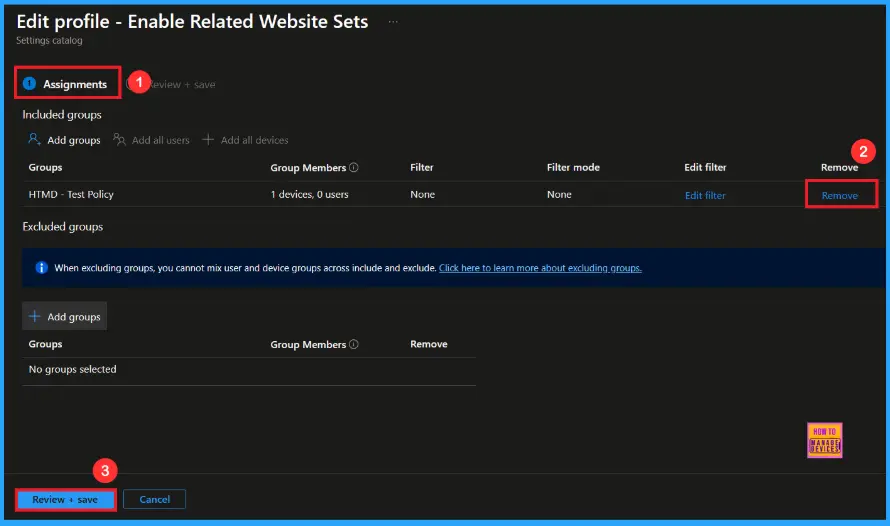
After creating the policy, if you want to remove the specific group that you previously selected, you can easily do that. First, go to Devices > Configuration policies. In the Configuration policy section, search and select the policy. In the Assignment section, you will find an Edit option and click on it. Then, click the Remove option.
For detailed information, you can refer to our previous post – Learn How to Delete or Remove App Assignment from Intune using by Step-by-Step Guide.
How to Delete Related Website Sets Policy from Intune
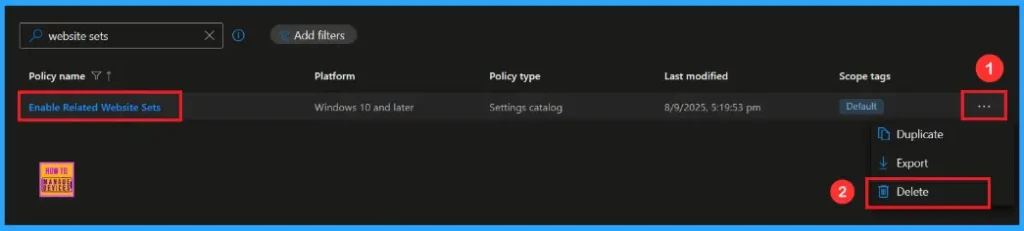
If you want to delete this policy for any reason, you can easily do so. First, search for the policy name in the configuration section. When you find the policy name, you will see a 3-dot menu next to it. Click on the 3 dots, then click the Delete button.
For detailed information, you can refer to our previous post – How to Delete Allow Clipboard History Policy in Intune Step by Step Guide.
Need Further Assistance or Have Technical Questions?
Join the LinkedIn Page and Telegram group to get the latest step-by-step guides and news updates. Join our Meetup Page to participate in User group meetings. Also, Join the WhatsApp Community to get the latest news on Microsoft Technologies. We are there on Reddit as well.
Author
Anoop C Nair has been Microsoft MVP from 2015 onwards for 10 consecutive years! He is a Workplace Solution Architect with more than 22+ years of experience in Workplace technologies. He is also a Blogger, Speaker, and Local User Group Community leader. His primary focus is on Device Management technologies like SCCM and Intune. He writes about technologies like Intune, SCCM, Windows, Cloud PC, Windows, Entra, Microsoft Security, Career, etc.


Discussion