






How to Restrict OneDrive Sync Speed in a Fixed Rate via Intune Policy
Today, we are discussing How to Restrict OneDrive Sync Speed in a Fixed Rate via Intune policy. As we know, Microsoft Intune provides powerful features to manage and secure across an organization. One of these features is the Settings Catalog, which offers a wide range of configuration policies.
Within the Settings Catalog, administrators can deploy various policies to control how OneDrive operates on managed devices. Among these policies is the ability to set a fixed maximum sync speed. This ensures that the OneDrive sync app does not consume excessive network bandwidth, allowing IT teams to maintain better control over overall network performance.
By configuring this policy, organizations can define the exact maximum download rate for the OneDrive sync app. Once applied, the sync speed remains fixed. This rate is a fixed value in kilobytes per second, and applies only to syncing, not to downloading updates.
The lower the rate, the slower files will download. The minimum rate that can be set is 1 KB/s and the maximum rate is 100000 KB/s. Any input lower than 50 KB/s will set the limit to 50 KB/s, even if the UI shows the inputted rate. So let’s look how this policy deployed through Intune Policy.

Table of Contents
What Does this OneDrive Setting Allow you to Configure?
It allows you to configure the maximum download speed of the OneDrive sync app (OneDrive.exe).
How to Restrict OneDrive Sync Speed in a Fixed Rate via Intune
We discussed an overview of the policy now let’s look why organizations want to enable this policy. Organizations enable this policy to control how much network bandwidth the OneDrive sync app can use when downloading files. By setting a fixed maximum speed, IT administrators can prevent OneDrive from consuming too much internet bandwidth.
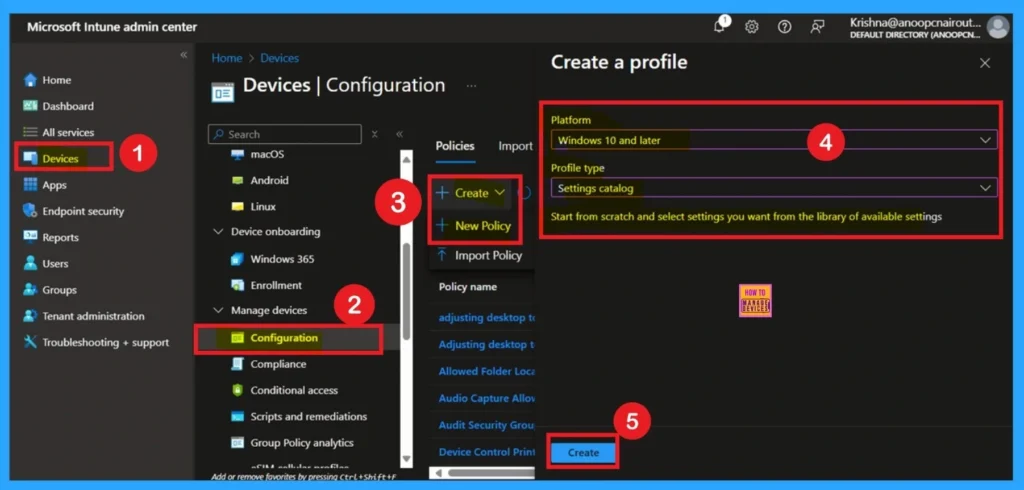
Now, let’s see how this policy can be deployed through the Microsoft Intune Admin Center. First, go to the Devices section. In Devices, select Configurations. In Configurations, click on the + Create policy option.
- Next, fill in the Platform and Profile type details in the Create profile window.
- Set Platform to Windows 10 and later, and set Profile type to Settings catalog.
- Then click Create.
- Prevent users from Moving their Windows Known Folders to OneDrive
- Allow Manual Start of Microsoft Account Sign In Assistant Using Intune Settings Catalog
- How to Allow Direct Memory Access for Data Protection Through Intune Settings Catalog
Know the Basic Tab Importance
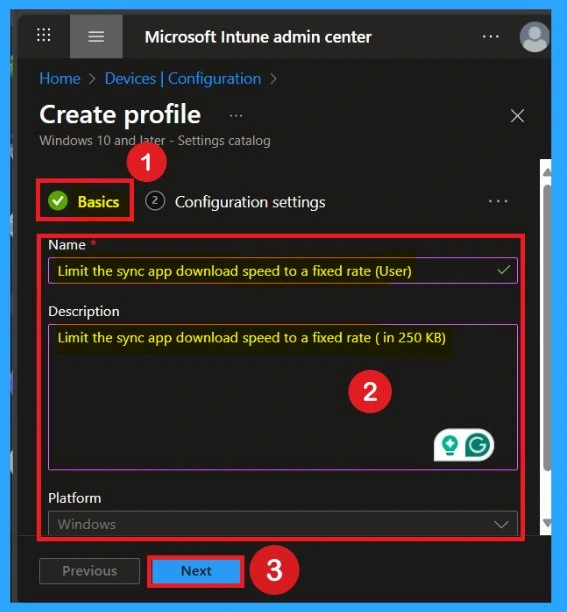
The Basics tab is the easy step. For that, you need to enter the basic details such as the Name, Description, and Platform information. Since the platform is already set to Windows, you only need to provide a specific name and description for the policy, then click Next
Configuration Settings
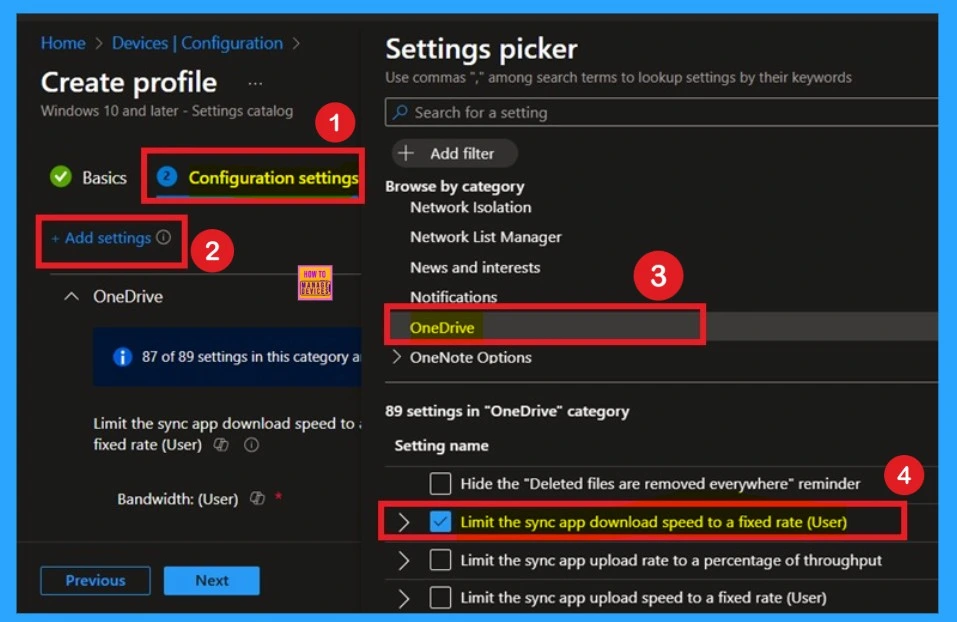
Here in the Configuration settings you can see a hyperlink (Add Settings) click on that. Then you will get the settings Picker Window,here you have to select the OneDrive category and it allows diffrent type of policies. There you have to select the policy Limit the sync app download speed to a fixed rate (User).
- After selecting Policy close the Settings Picker Window.
The Defaulted Mode
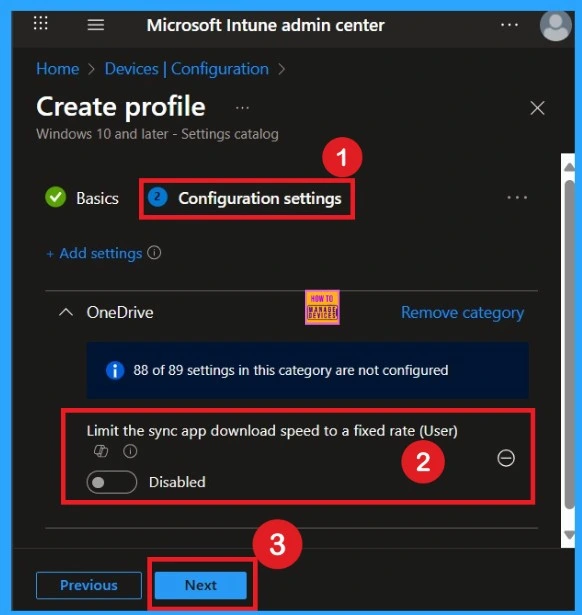
By default, you should understand that a policy can be either enabled or disabled. In this case, the policy is disabled by default. If you want to keep it in the disabled mode, you have to click Next to continue.
Enable the Policy by Your Choice
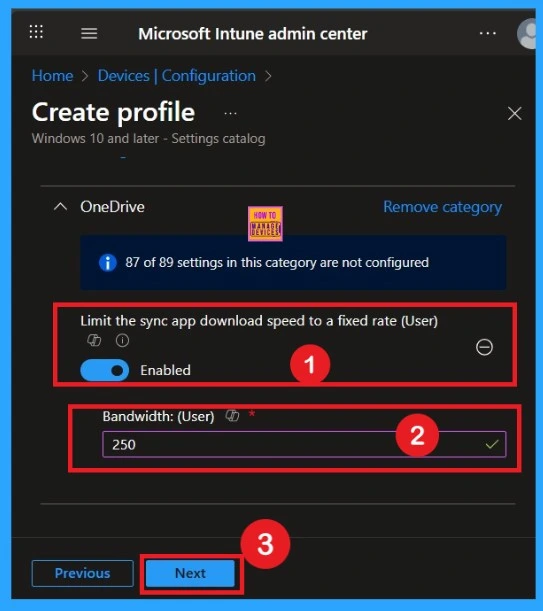
You can also enable a policy that is disabled by default. To do this, toggle the switch from left to right. Once enabled, the switch will turn blue and display the label Enabled. When the policy is enabled, an additional text box will appear. In this text box, you need to enter the Bandwidth as 250 or any value between 50 KB/s and 100000 KB/s.
- I enter the bandwidth as 250
- Then click on the Next.
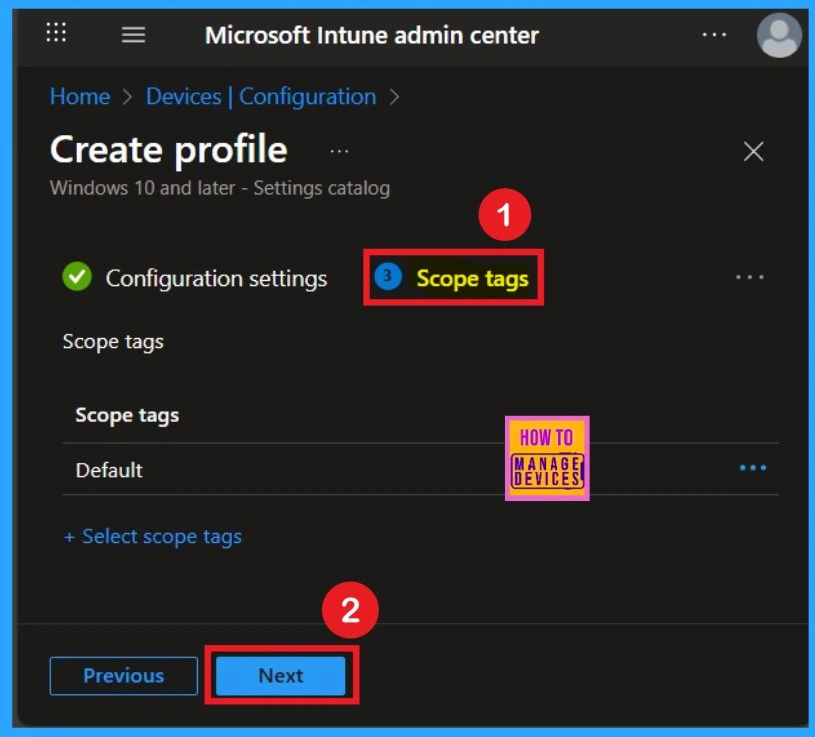
Scope Tags
Now your are on the Scope tags section. Scope tags are used to assign policies to specific admin groups for better management and filtering. If needed, you can add a scope tag here. However, for this policy, I chose to skip this section.
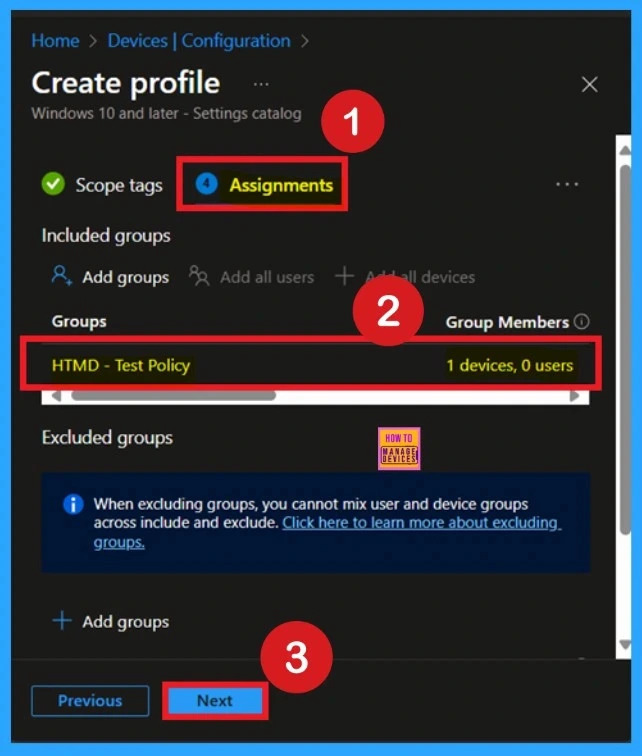
What is Assignments Section in a Deployment
Next, you’ll reach the Assignments section, which is a very important step that you have to do. This is where you decide which user or device groups should receive the policy. In this case, I selected the specific group I wanted to apply the policy to. After selecting the group, click Next to continue.
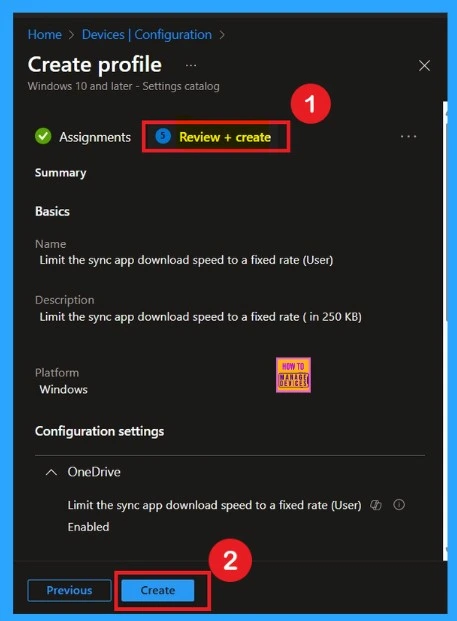
The Summary Tab – Review + Create
The final step is the Review + Create tab, also known as the Summary tab. Here, you’ll find a complete overview of all the details and settings you’ve configured for the policy. Take a moment to review everything carefully. If everything looks fine, click Create.
- After clicking Create, you’ll receive a confirmation notification confirming that the policy has been successfully created.
How to Get Monitoring Status
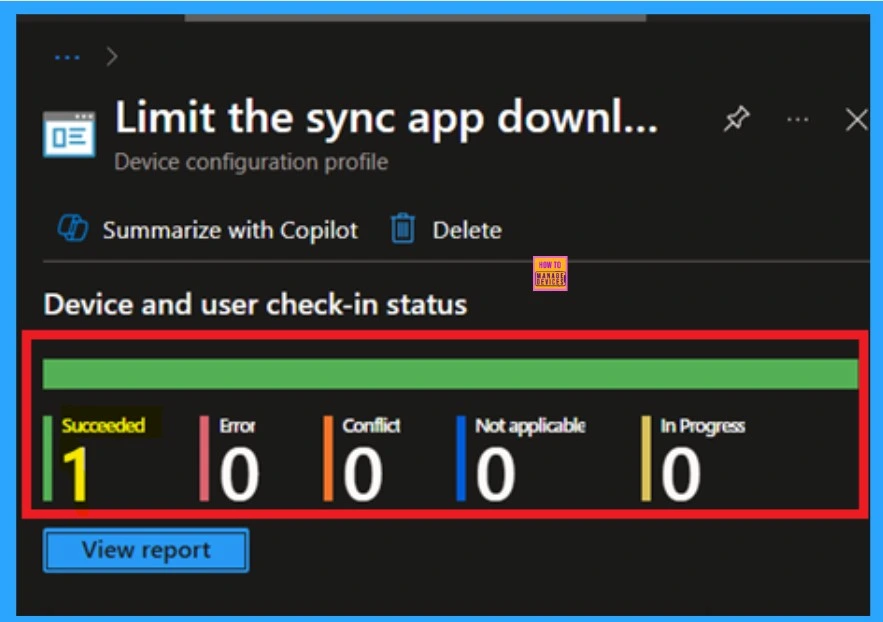
To check the status of a policy that is deployed successfuly or not in the Intune portal, navigate to Devices > Configuration, then select the policy by name. Look for a status of Succeeded 1, which indicates that the deployment was successful. If you want to speed up the update, you can use a manual sync from the Company Portal.
- Keep in mind that the status may not update that time and wait a few minutes for the sync to finish before checking again.
Client Side Verifications
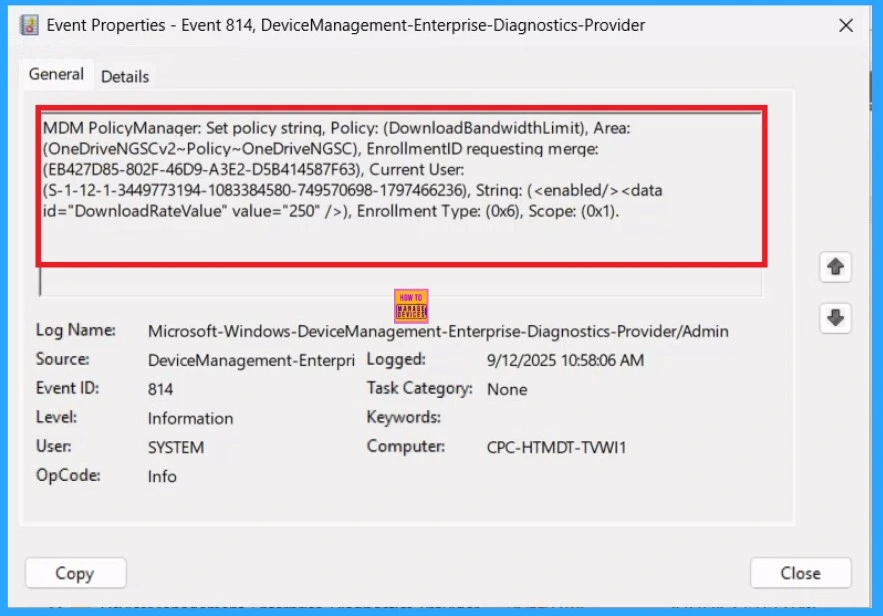
You can verify the confirmation in the Event Viewer by looking for Event ID 813 or 814. To access this, open Event Viewer and navigate to Applications and Services Logs > Microsoft > Windows >Device Management Enterprise Diagnostic Provider > Admin.
- I found the policy details in the Event ID 814
- You can see a list of policy-related events now.
| Policy Details |
|---|
| MDM PolicyManager: Set policy string, Policy: (DownloadBandwidthLimit), Area: (OneDriveNGSCv2~Policy~OneDriveNGSC), EnrollmentID requesting merge: (EB427D85-802F-46D9-A3E2-D5B414587F63), Current User: (S-1-12-1-3449773194-1083384580-749570698-1797466236), String: (), Enrollment Type: (0x6), Scope: (0x1). |
How to Remove a Group From Policy
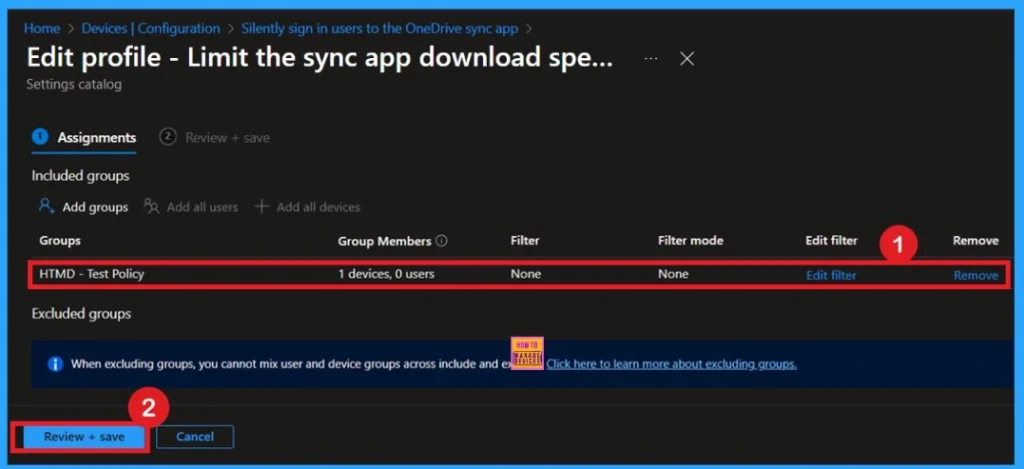
Start by navigating to the Monitoring status page via Devices > Configuration. Search for the policy by name and click on it to open its monitoring details. Scroll down to the Assignments section and click Edit. This will take you back to the policy’s assignment settings. From here, you can remove the group you no longer want the policy to apply to.
- For a view of the process, refer to the screenshot below.
For detailed information, you can refer to our previous post – Learn How to Delete or Remove App Assignment from Intune using by Step-by-Step Guide.
Delete a Policy
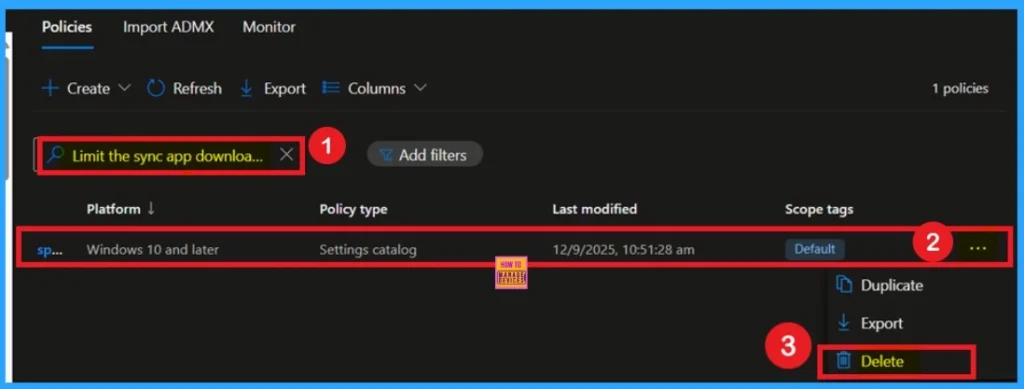
To delete a policy in Microsoft Intune, first sign in to the Microsoft Intune Admin Center. Navigate to Devices and then select Configuration. Locate and select the specific policy you want to remove. Once you’re on the policy details page, click the 3 -dot menu in the top right corner and choose Delete from the available options.
Need Further Assistance or Have Technical Questions?
Join the LinkedIn Page and Telegram group to get the latest step-by-step guides and news updates. Join our Meetup Page to participate in User group meetings. Also, join the WhatsApp Community to get the latest news on Microsoft Technologies. We are there on Reddit as well.
Author
Anoop C Nair has been Microsoft MVP for 10 consecutive years from 2015 onwards. He is a Workplace Solution Architect with more than 22+ years of experience in Workplace technologies. He is a Blogger, Speaker, and Local User Group Community leader. His primary focus is on Device Management technologies like SCCM and Intune. He writes about technologies like Intune, SCCM, Windows, Cloud PC, Windows, Entra, Microsoft Security, Career, etc.


Discussion