






How to Schedule Windows Updates Every First Week of Month using Intune Policy
Let’s discuss how to Schedule Windows Updates Every First Week of the Month using Intune Policy. This policy lets IT administrators decide when updates should be installed on managed devices. By setting it up, updates will run on a fixed schedule during the first week of each month.
This makes update management more consistent and helps avoid unexpected interruptions for users. The policy works with an integer value to help you control scheduling. If set to 0, no updates are scheduled in the first week of the month, and devices will follow their default or manually configured update timelines.
If you set the value to 1, updates will be installed automatically during the first week of every month. This allows organisations to plan their update cycles in line with business needs, making sure important patches are applied on time without causing unnecessary disruption to users.
By using this Intune policy, IT administrators can easily configure devices to install updates automatically during the first week of each month. This helps you to create a predictable update cycle, giving admins more control over when updates are delivered and reducing the risk of unexpected downtime.

Table of Contents
How to Schedule Windows Updates Every First Week of Month using Intune Policy
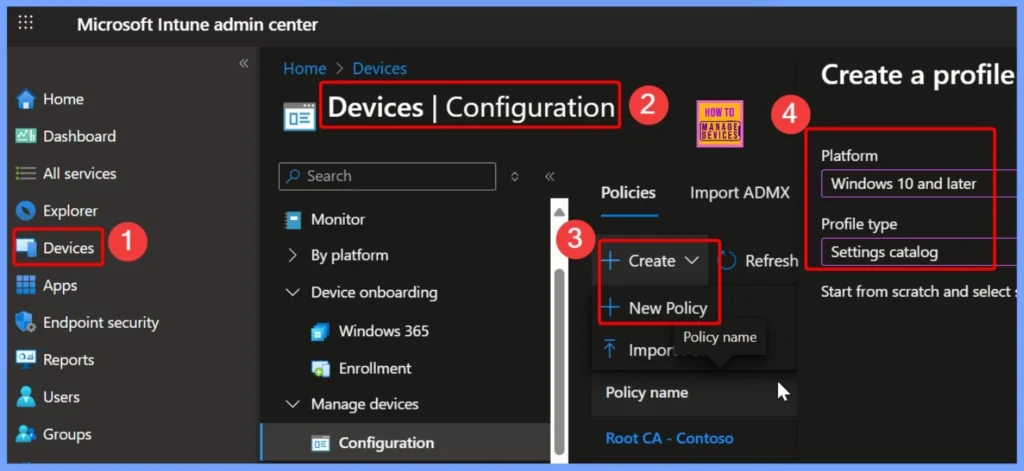
This policy helps IT admins simplify update management. Instead of tracking update times across devices, they can align all installations to a fixed schedule, making monitoring and compliance checks much easier. The below table helps you to show the steps.
- Sign in to Intune Admin Center
- Go to Devices and select Configuration
- Click Create and select New Policy
- Choose Windows 10 and later as the platform
- Select Settings Catalog as the profile type
- How to Set Pause Start Date for Quality Updates using Intune Policy
- How to Configure Engaged Restart Snooze options for End Users during Monthly Patch Cycle using Intune
- Easy way to Block Pause Updates Ability in Windows Update for Business via Intune
- Best way Intune to Stop Sending New Policy Updates to Windows Devices Pause Config Refresh Feature
- Simplifying Windows Update Management Integration of Intune and Autopatch
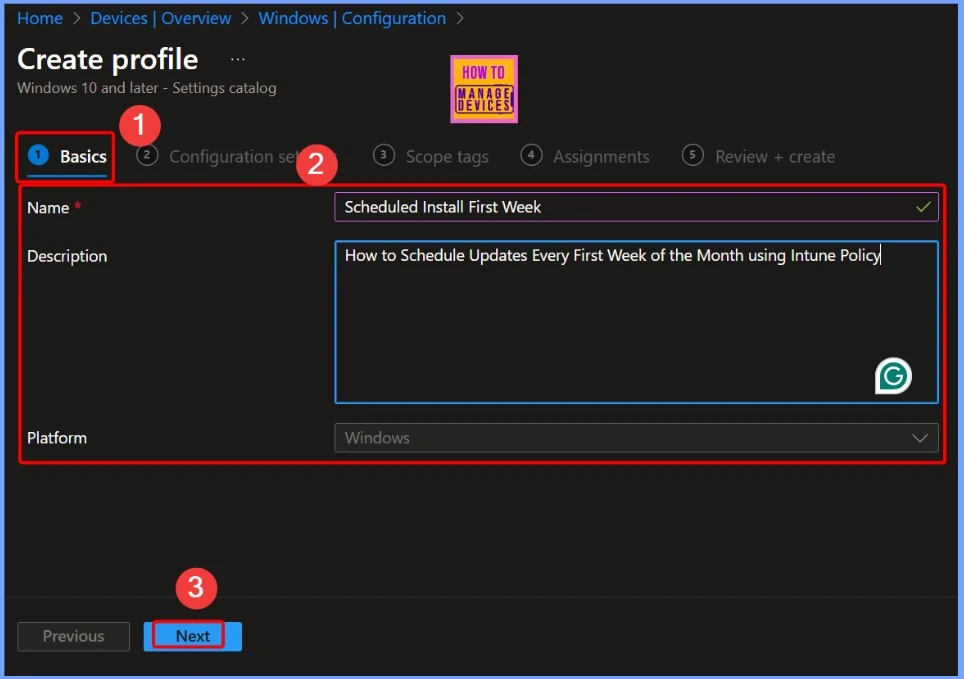
Basics – Schedule Updates in the First Week of the Month
In the Basics section, provide the required details for the policy. Enter a Name (for example, Scheduled Install First Week) and add a Description such as How to Schedule Updates Every First Week of the Month using Intune Policy. For the Platform, select Windows to ensure the policy applies to Windows devices.
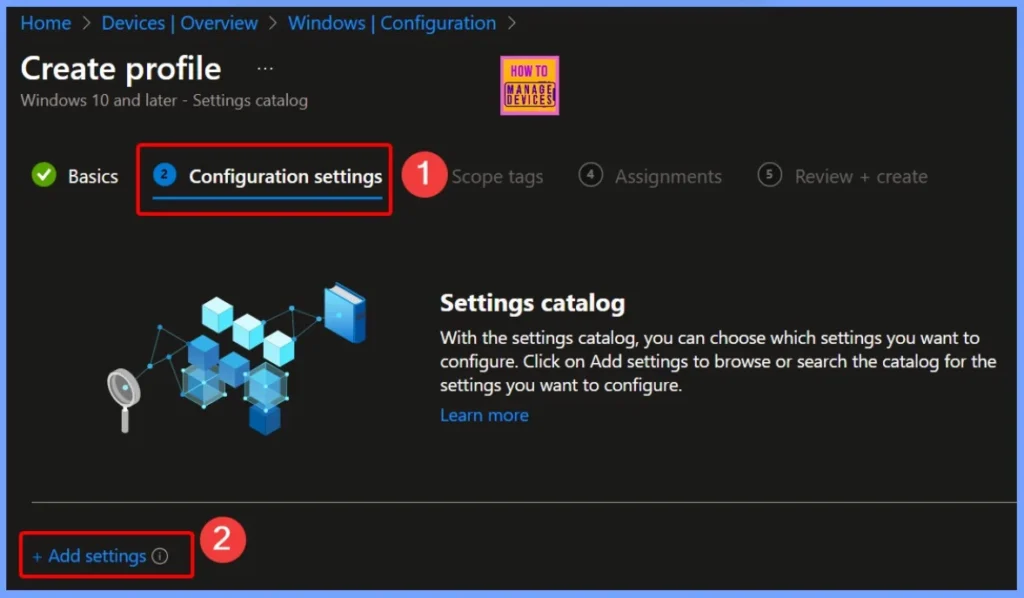
Settings Catalog – Add and Configure Update Settings
The Settings Catalog allows you to pick the exact settings you want to manage. Click Add settings to either browse through the catalog or use the search option to quickly find the setting you need to configure. This makes it easier for IT admins to apply only the required policies without affecting other configurations.
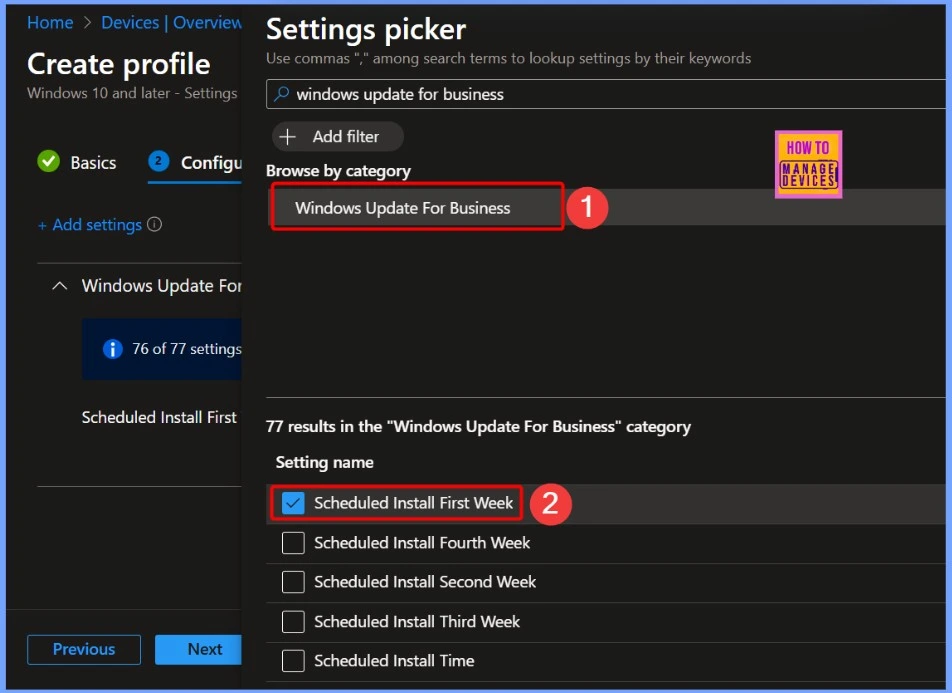
Configuring Scheduled Install First Week Using Intune Settings Picker
The Settings Picker in Intune, available within the Settings Catalog, allows IT administrators to easily locate and configure the required settings. In the Settings Picker window, type the keyword Windows Update for Business in the search bar. From the results, select “Scheduled install first week” to add it to your policy for configuration.
Note: This policy will only take effect if Update → AllowAutoUpdate is set to option 3 or 4 for scheduled installation.
Scheduled Install First Week Default Settings
The “Scheduled Install First Week” setting in Intune uses integer values to define the update schedule. Setting the value to 0 (default) means no updates are scheduled during the first week of the month. Setting the value to 1 schedules updates to occur automatically every first week of the month. make heading
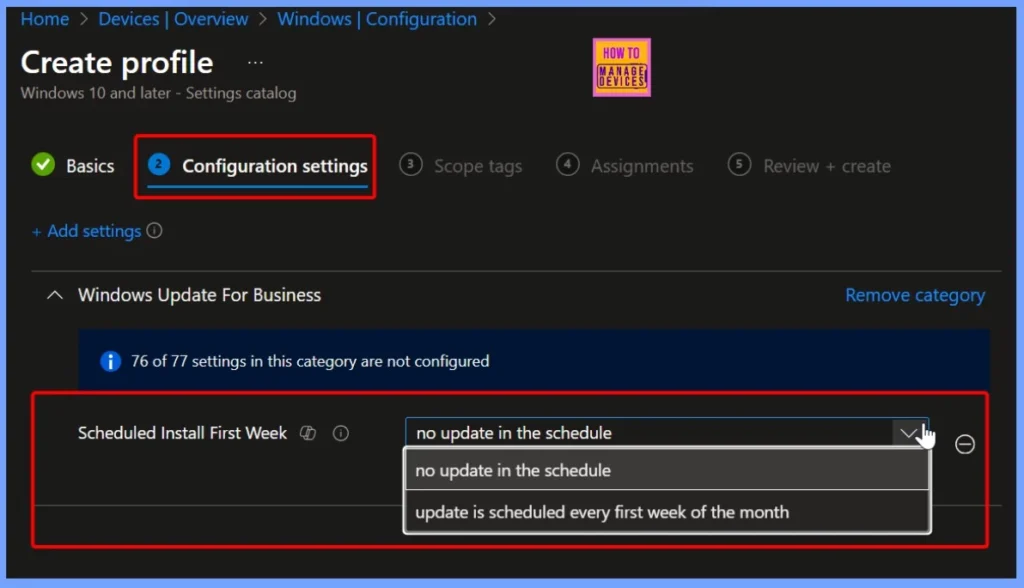
Update is Scheduled Every First Week of the Month
Selecting the option “Update is scheduled every first week of the month” ensures updates are installed on a fixed schedule, helping maintain system security and stability without disrupting users. After selecting the option click Next to proceed.
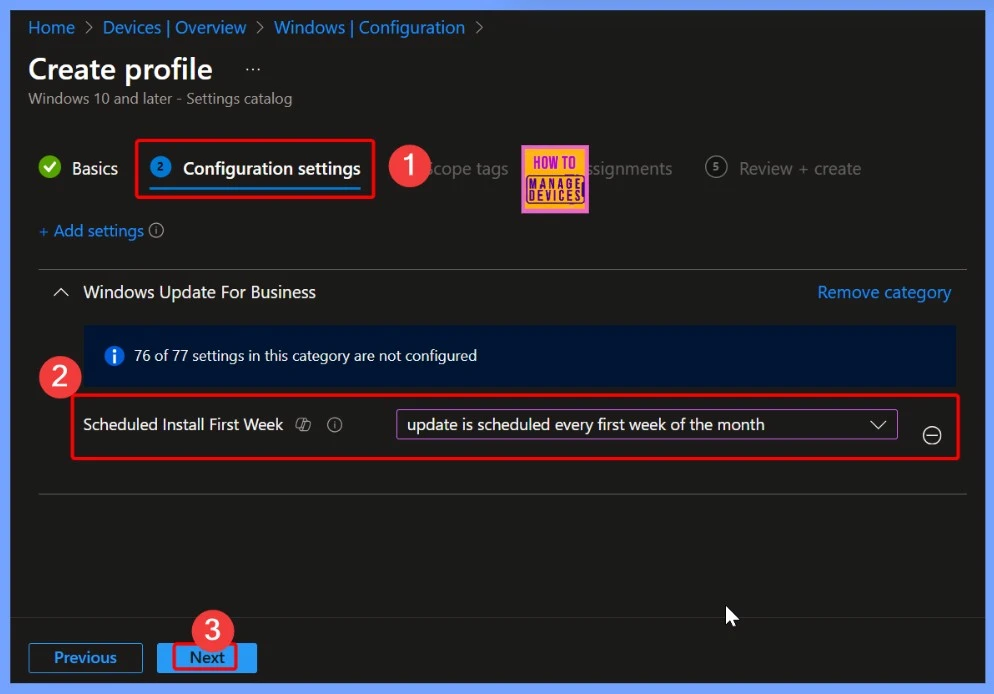
Scope Tags
A scope tag helps you to filter and control access to devices, users, or policies. It helps IT administrators assign management permissions based on groups, regions, departments, or roles. The below screenshots helps you to show more details.
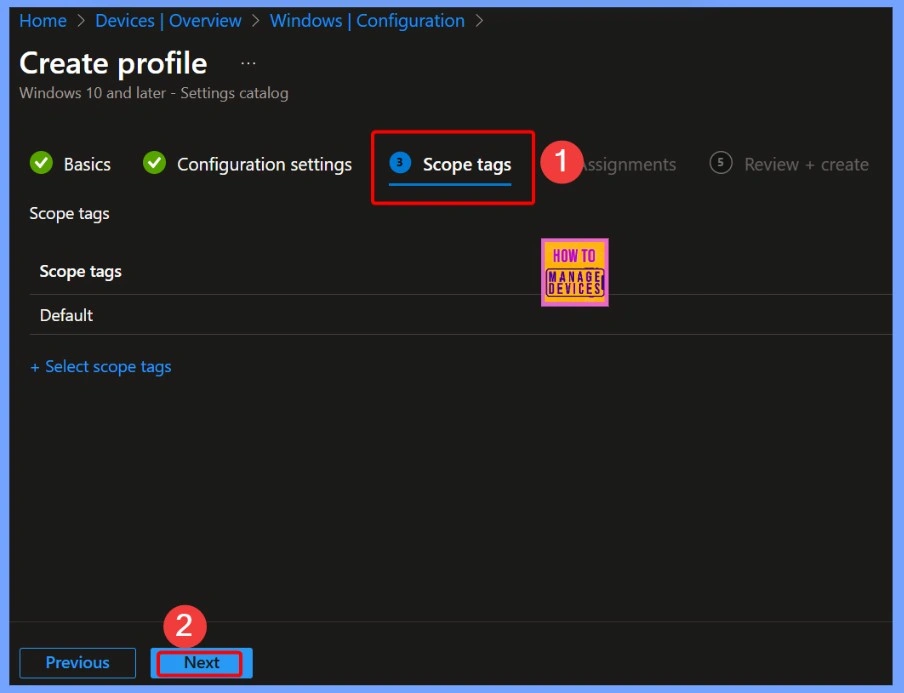
Assigning the Policy to HTMD CPC Test Group
The Assignments tab is the fourth tab in Intune policy deployment. It is an important step because it lets you assign the policy to a specific group of users or devices, ensuring the settings are applied only to the intended targets.
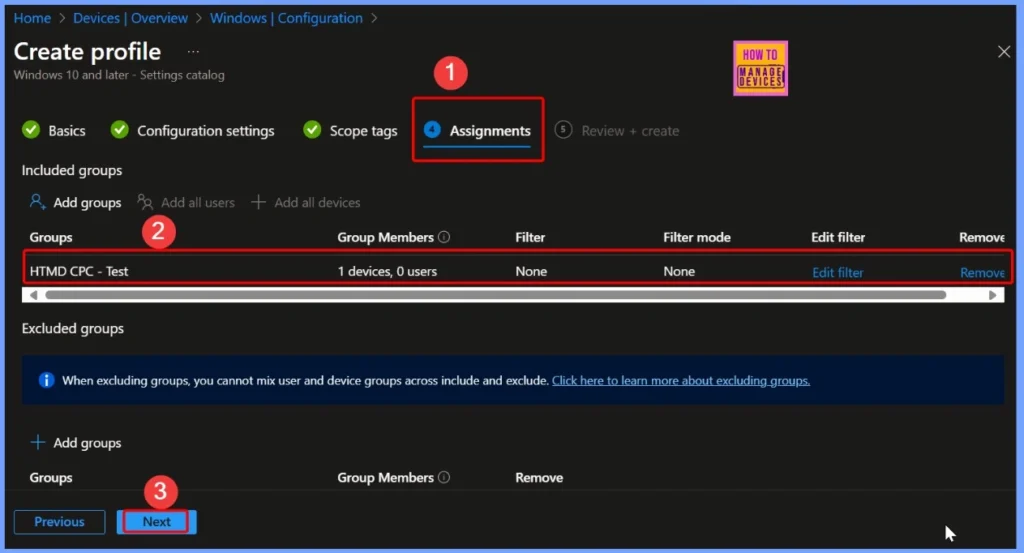
Review Plus Create
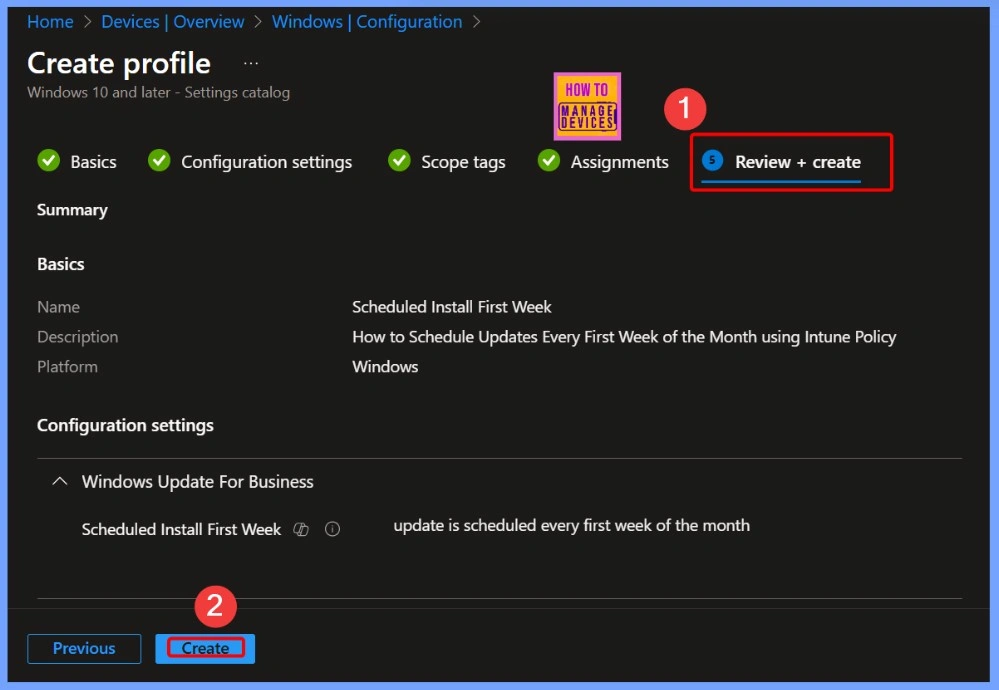
The Review + Create tab in Intune is the final step when creating a policy. It allows IT administrators to review all the settings and configurations before applying the policy. Once everything looks correct, you can click Create to deploy the policy
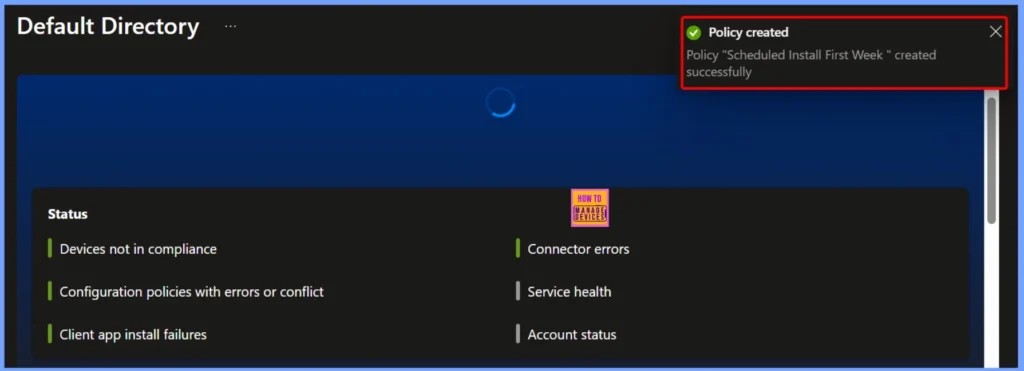
Policy Creation Confirmation – Scheduled Install First Week
After the policy is created, a notification appears confirming that the “Scheduled Install First Week” policy has been successfully created. This lets IT administrators know that the policy is now ready and will be applied to the assigned devices or groups.
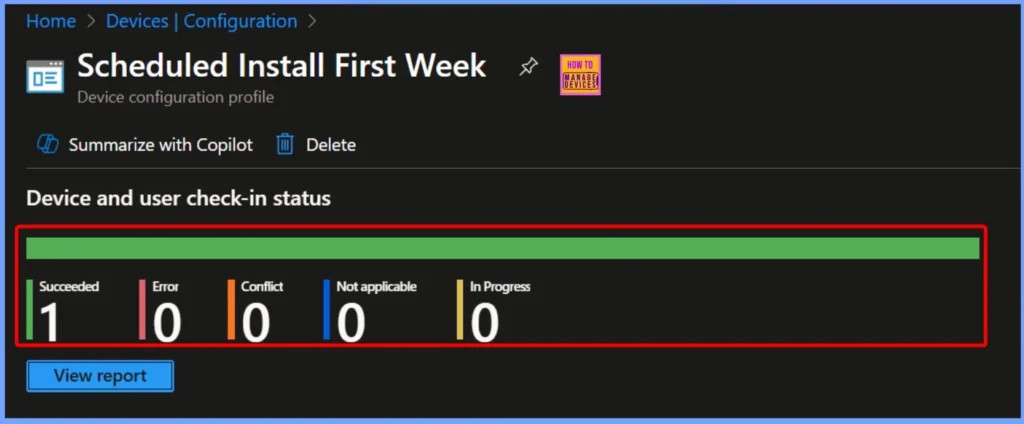
Scheduled Install First Week Policy Status
The Device and User Check-in Status shows the current state of the policy deployment. In this case, 1 device succeeded, while there are no errors, conflicts, or devices in progress, and 0 devices are marked as not applicable. This helps IT administrators quickly see how the policy is being applied.
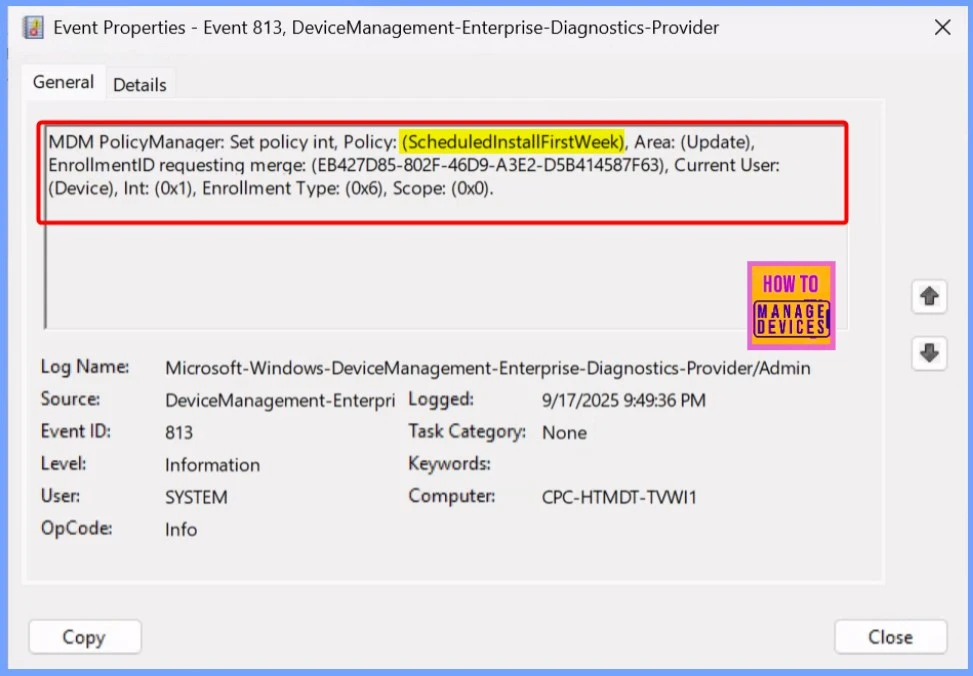
Client Side Verification
The MDM PolicyManager has applied the ScheduledInstallFirstWeek policy in the Update area. The policy is set with a value of 1 for the device associated with the given Enrollment ID. This shows that the update schedule is active, and the policy is applied to the device under the specified enrollment and scope.
- Event Viewer > Applications and Services Logs > Microsoft > Windows > DeviceManagement-Enterprise-Diagnostics-Provider > Admin
- Search for Event ID 813 or 814 for configuration profile status updates.
MDM PolicyManager: Set policy int, Policy: (ScheduledInstallFirstWeek), Area: (Update),
EnrollmentID requesting merge: (EB427D85-802F-46D9-A3E2-D5B414587F63), Current User:
(Device), Int: (0x1), Enrollment Type: (0x6), Scope: (0x0).
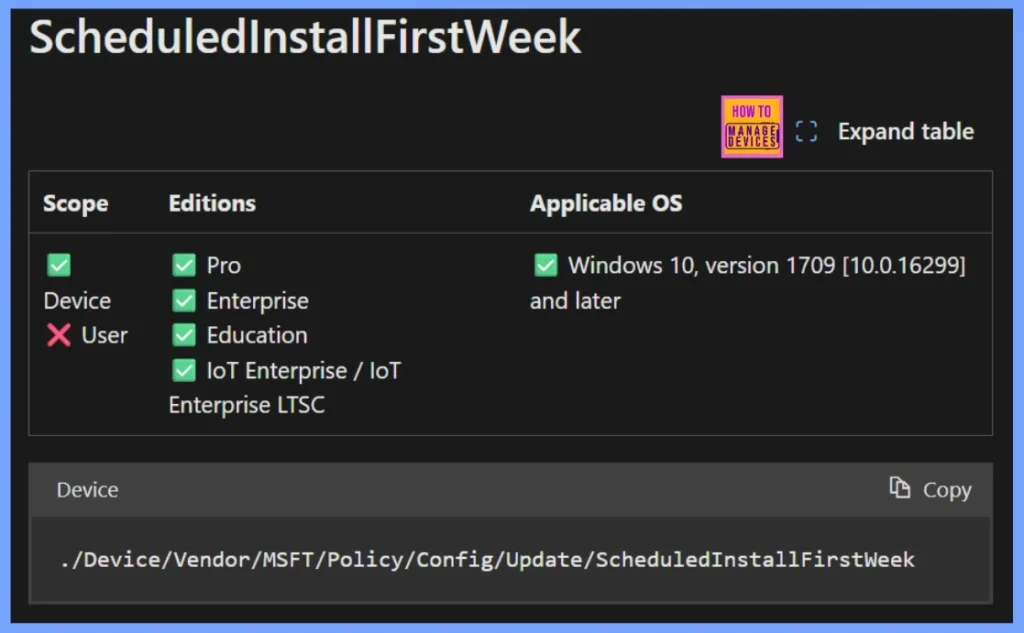
Windows CSP Details Scheduled Install First Week
This policy allows IT administrators to schedule Windows update installations on specific weeks of the month. Each ScheduledInstallWeek policy uses an integer value to define the week for updates, based on numeric days of the month.
| Policy | Days Covered |
|---|---|
| ScheduledInstall | FirstWeek First week (Days 1–7) |
| ScheduledInstall | SecondWeek Second week (Days 8–14) |
| ScheduledInstall | ThirdWeek Third week (Days 15–21) |
| ScheduledInstall | FourthWeek Fourth week (Days 22–31) |
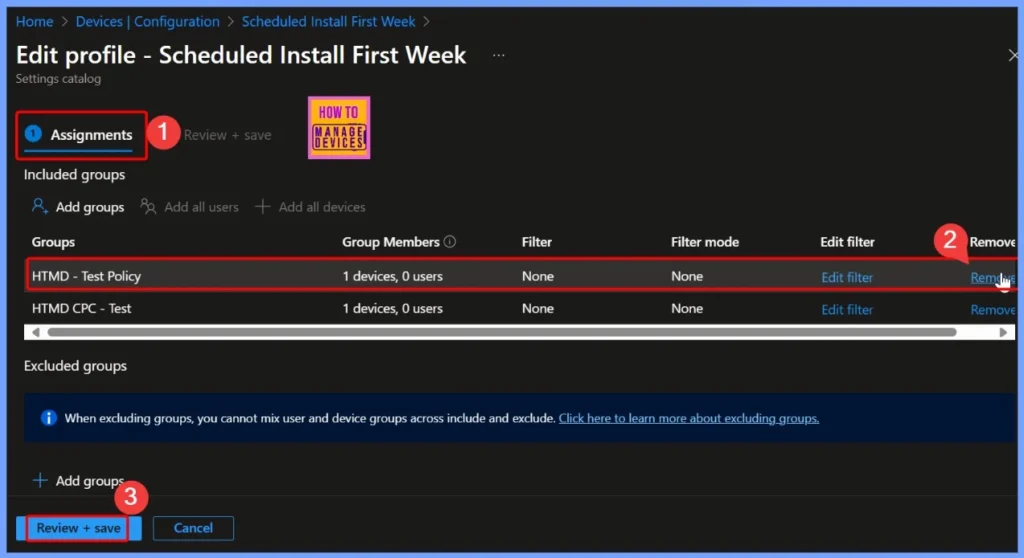
How to Remove the Assigned Group from the Policy
The ScheduledInstallWeek policy lets you choose which week of the month an update should be installed, while the ScheduledInstallDay policy specifies the day of the week for the update (for example, Monday = 1, Tuesday = 2). By combining these two settings, you can schedule updates very easily.
Read more – How to Remove Assigned Group from Energy Saver Battery Threshold Policy in Intune Settings Catalog.
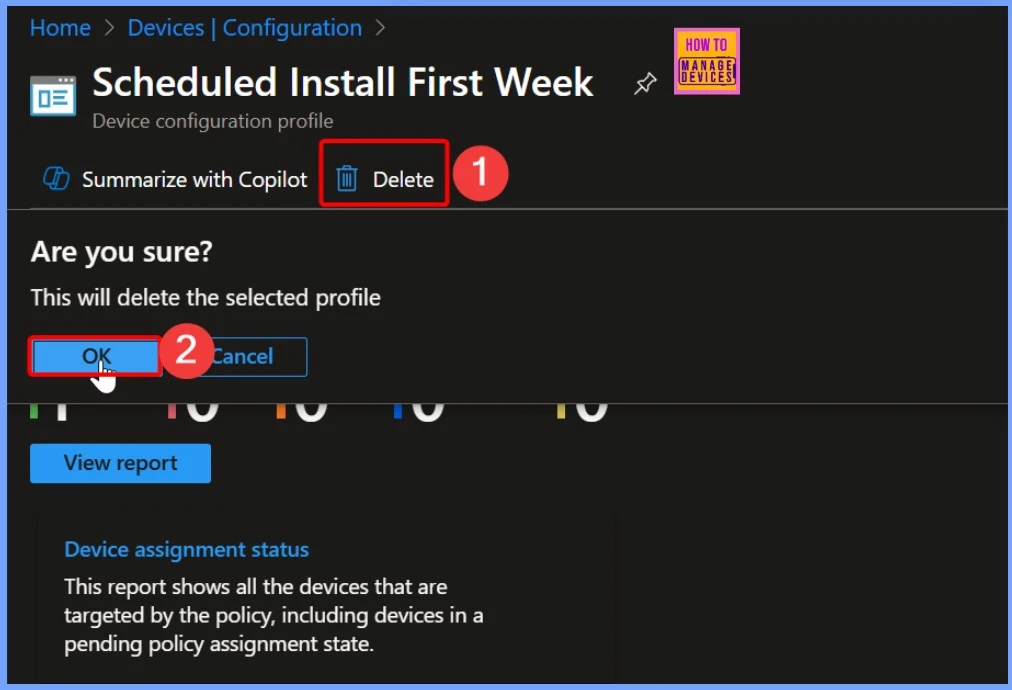
Delete Scheduled Install First Week Policy
If a device is not available at the scheduled time, the installation of updates can be postponed until the next month. This ensures that updates are still applied while minimizing disruptions to users and maintaining system security.
Read more – How to Delete Allow Clipboard History Policy in Intune Step by Step Guide.
Need Further Assistance or Have Technical Questions?
Join the LinkedIn Page and Telegram group to get the latest step-by-step guides and news updates. Join our Meetup Page to participate in User group meetings. Also, Join the WhatsApp Community to get the latest news on Microsoft Technologies. We are there on Reddit as well.
Author
Anoop C Nair has been Microsoft MVP from 2015 onwards for 10 consecutive years! He is a Workplace Solution Architect with more than 22+ years of experience in Workplace technologies. He is also a Blogger, Speaker, and Local User Group Community leader. His primary focus is on Device Management technologies like SCCM and Intune. He writes about technologies like Intune, SCCM, Windows, Cloud PC, Windows, Entra, Microsoft Security, Career, etc.


Discussion