






Enable Super Drag Drop in Microsoft Edge to Control User Navigation and Search using Intune
Let’s discuss Enable Super Drag Drop in Microsoft Edge to Control User Navigation and Search using Intune. Microsoft Edge Super Drag Drop feature allows users to quickly perform two actions by dragging and dropping links or selected text within a webpage.
This feature is beneficial for Opening a URL and Searching for text. If a user drags a link and drops it on the same page, a new tab opens with that URL. If a user drags selected text and drops it, the default search engine is used to search for that text, and the search results are displayed in a new tab.
The primary purpose of this policy is to provide organizations with granular control over a specific browser feature that can impact user experience and workflow. Instead of a multi-step process (right-click, select “Open in new tab” or copy, open new tab, paste, search), it streamlines the workflow to a simple drag-and-drop gesture.
This feature is especially beneficial for users who prefer mouse-based actions over keyboard shortcuts. Organizations can enforce this policy to enhance security, compliance, and productivity goals. You can easily enable or disable this feature according to the preferences.

Table of Contents
Enable Super Drag Drop in Microsoft Edge to Control User Navigation and Search using Intune
For different scenarios, Super Drag Drop in Microsoft Edge applicable. For example, A marketing team at a company is performing competitive analysis. A team member is on a competitor’s website and sees a product name they want to quickly research.
Instead of copying the text, opening a new tab, navigating to a search engine, and pasting the text, they simply drag the product name. A new tab opens with the search results, saving them time and effort.
- Enable Drop Feature in Edge Browser Using Microsoft 365 Admin Center Configuration Policy
- Microsoft Edge Drop to Share files in Windows Android and iOS
- Discover Features in Microsoft Edge Browser
Steps to Configure Policy
By sign in to Microsoft Intune Admin center you can easily configure Super Drag Drop in Microsoft Edge policy. Go to the Intune Admin Center portal. Go to Devices > Windows > Configuration > Create > New Policy.
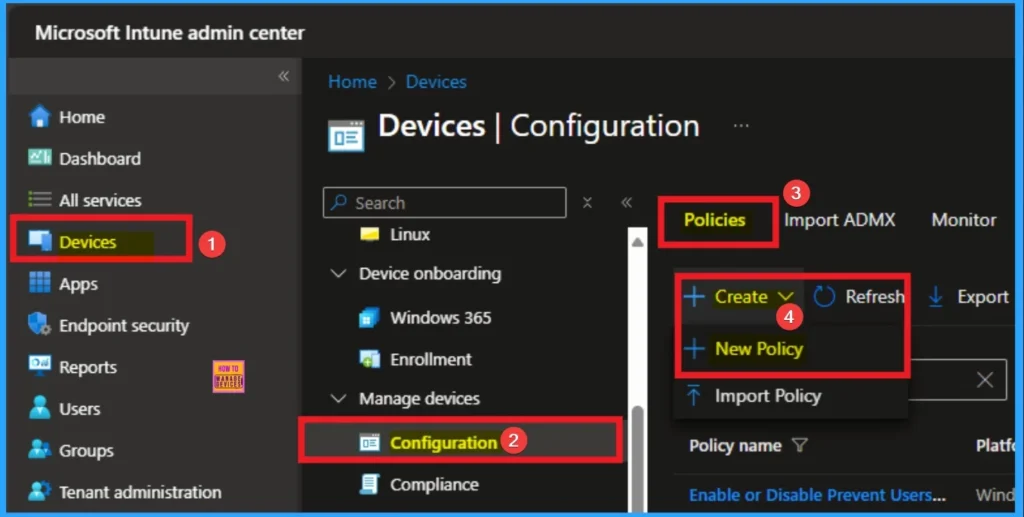
Profile Creation of Policy
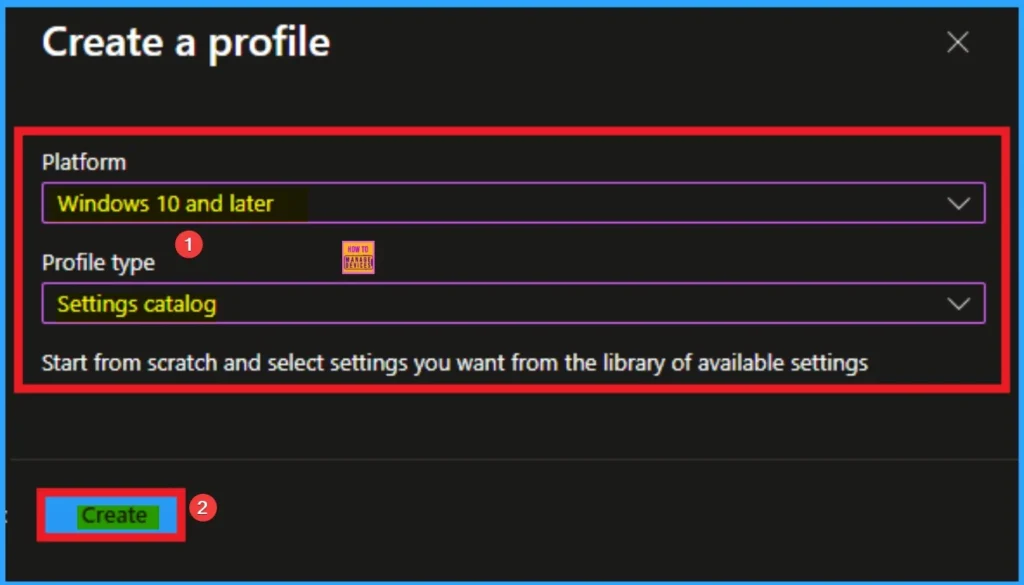
After that, you can Create a Profile for the policy which you want to configure. To create a profile you have to select platform and profile type. Here I selected Windows 10 and later as the Platform and Settings catalog as the profile type. Then click on the Create button.
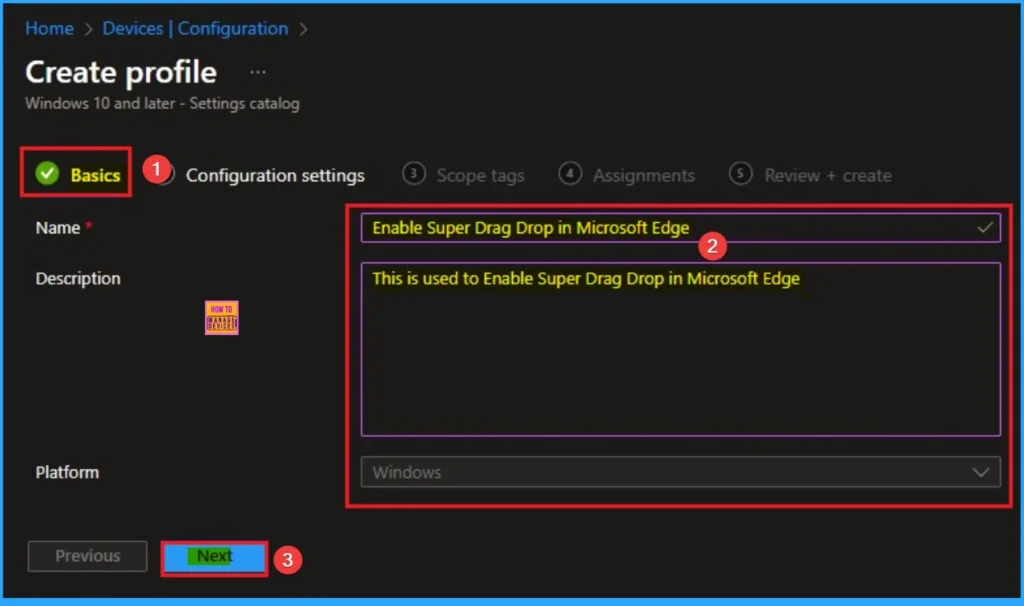
Filling Basic Details
On the Basic tab you can add Name and Description for the policy for further reference. The Name field is necessary to identify the purpose of the policy and description shows more information. The Name is mandatory and if you like to add description you can add. Click on the Next Button.
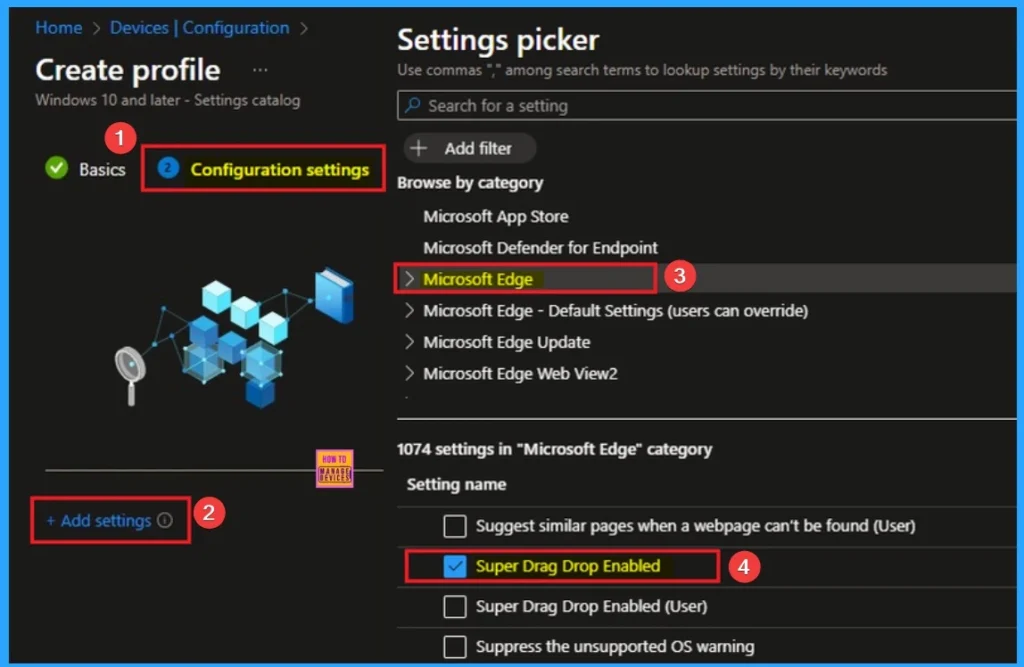
Configure the Super Drag Drop in Microsoft Edge
The Configuration settings page is provided to select the settings to create the policy. The Settings Catalog provides a huge number of settings. To select a settings click on the +Add settings hyperlink. Then you will get Settings Picker. Choose Microsoft Edge and select Super Drag Drop Enabled. Then I close the Settings Picker.
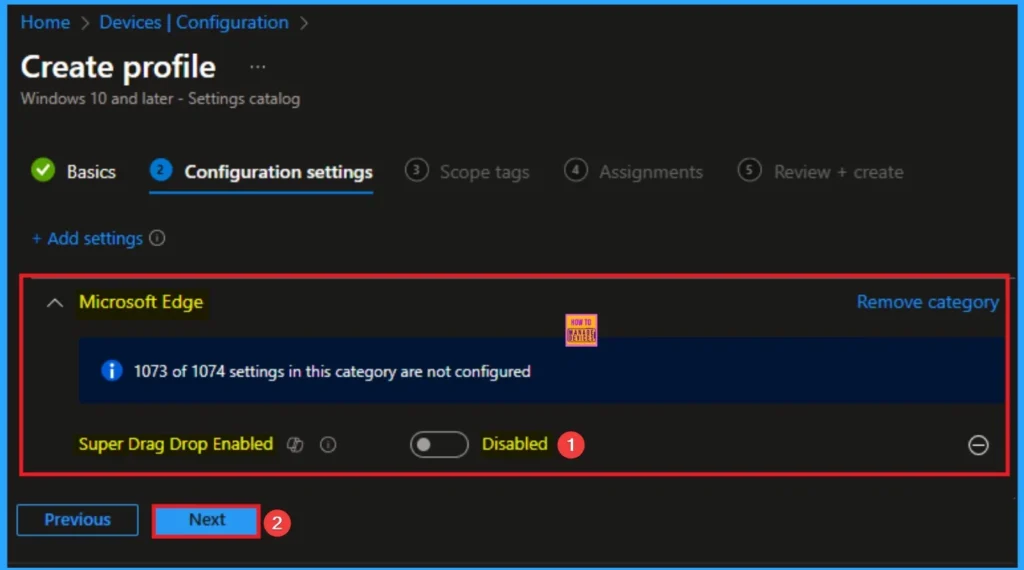
Disable Super Drag Drop for Microsoft Edge
This policy doesn’t address major security vulnerabilities, it can be part of a broader “least privilege” or “minimal feature set” security posture. Disable is the default value of this policy. If you like to go with this value, click on the Next button.
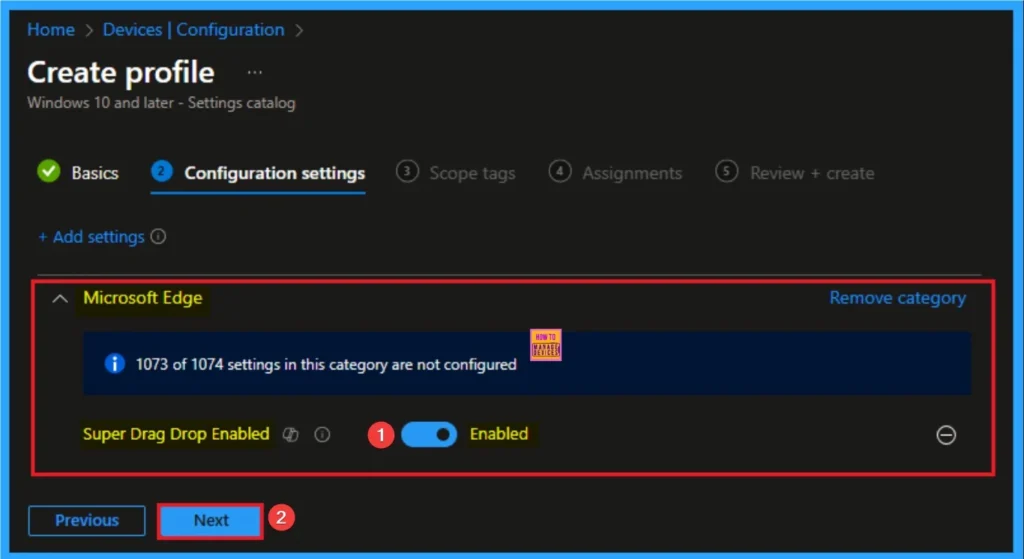
Enable Super Drag Drop for Microsoft Edge
Enabling the policy can be a way to provide a modern, efficient, and user-friendly browser experience. Employees complete tasks faster with this policy. Here i would like to enable the Super Drag Drop for Microsoft Edge.
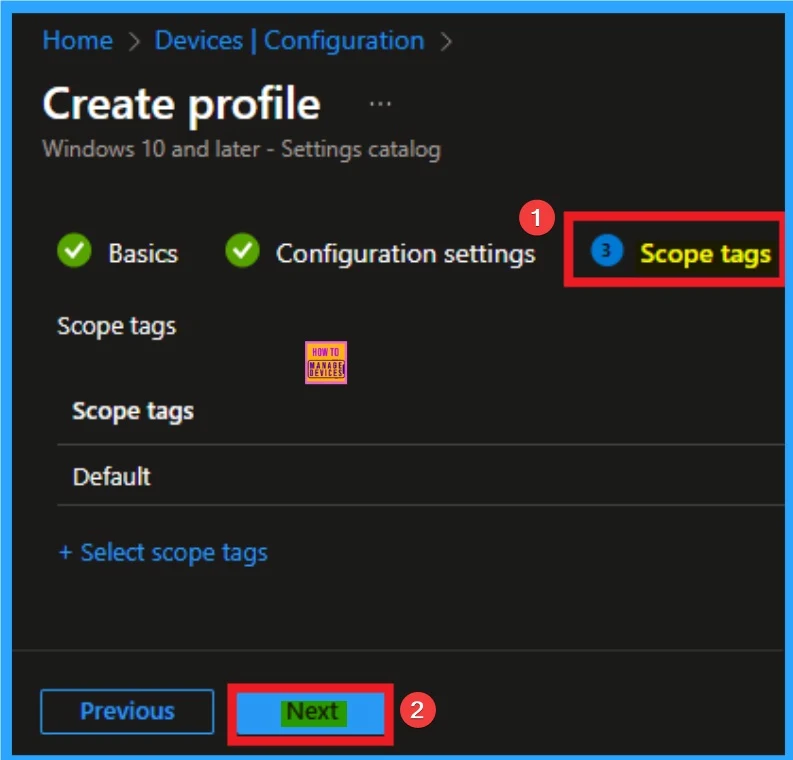
Scope Tags
By using scope tags you can restrict the visiblity of Super Drag Drop for Microsoft Edge Settings. It is helps to organize resources as well. Here I would like to skip this section, because it is not mandatory. Click on the Next button.
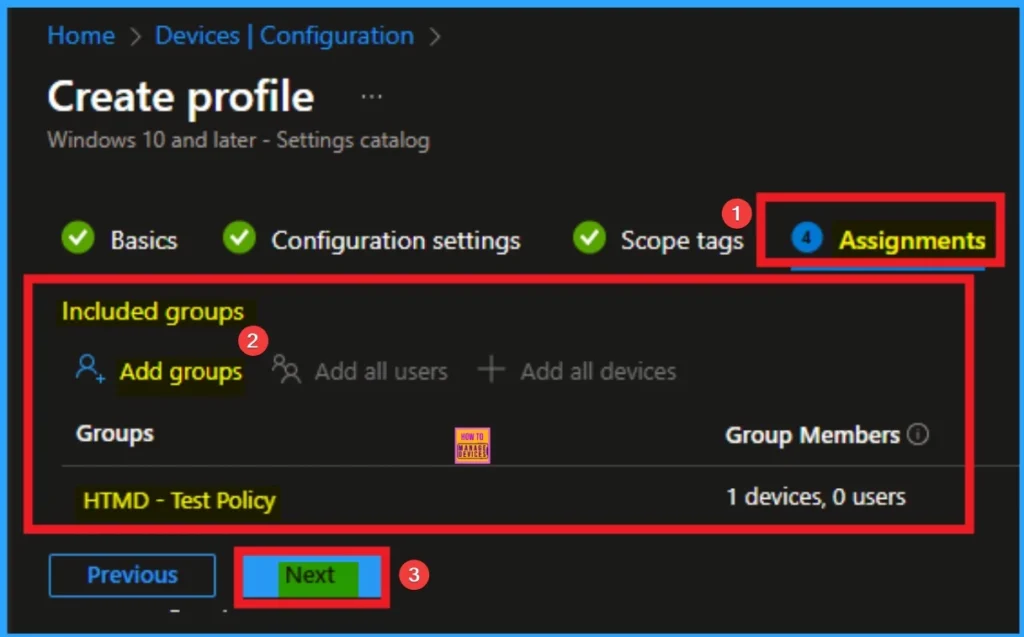
Assign this Policy to Specific Groups
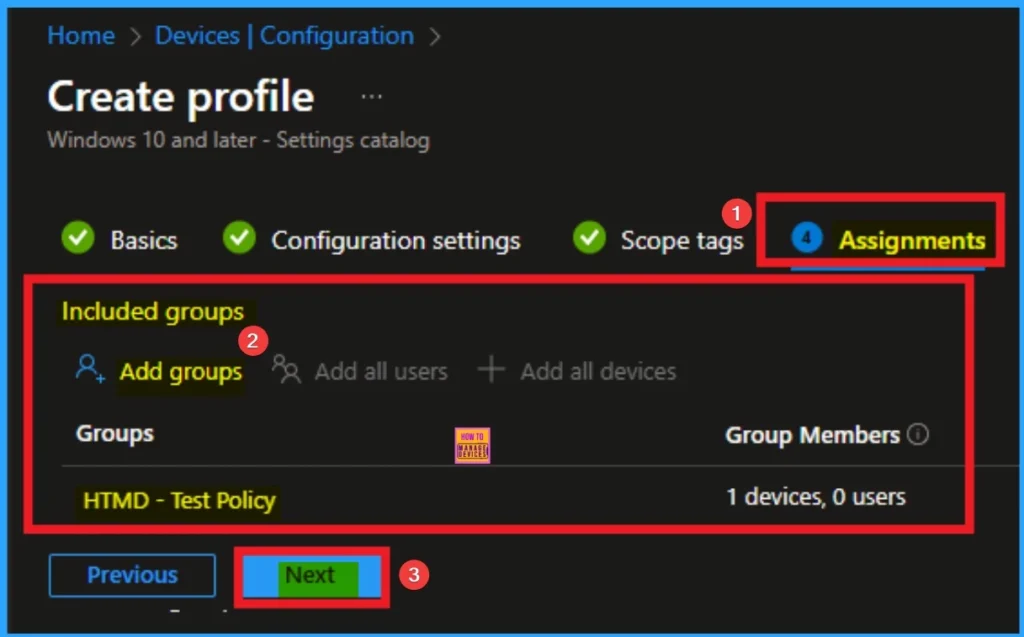
To assign the policy to specific groups you can use Assignment Tab. Here I click, +Add groups option under Included groups. I choose a group from the list of group and Click on the Select button. Again I click on the Select button to continue.
Final Step of Policy Creation
To complete the policy creation you can review all the policy details on the Review + create tab. It helps to avoid mistakes and successfully configure the policy. After varifying all the details click on the Create Button. After creating the policy you will get success message.
Monitoring Status
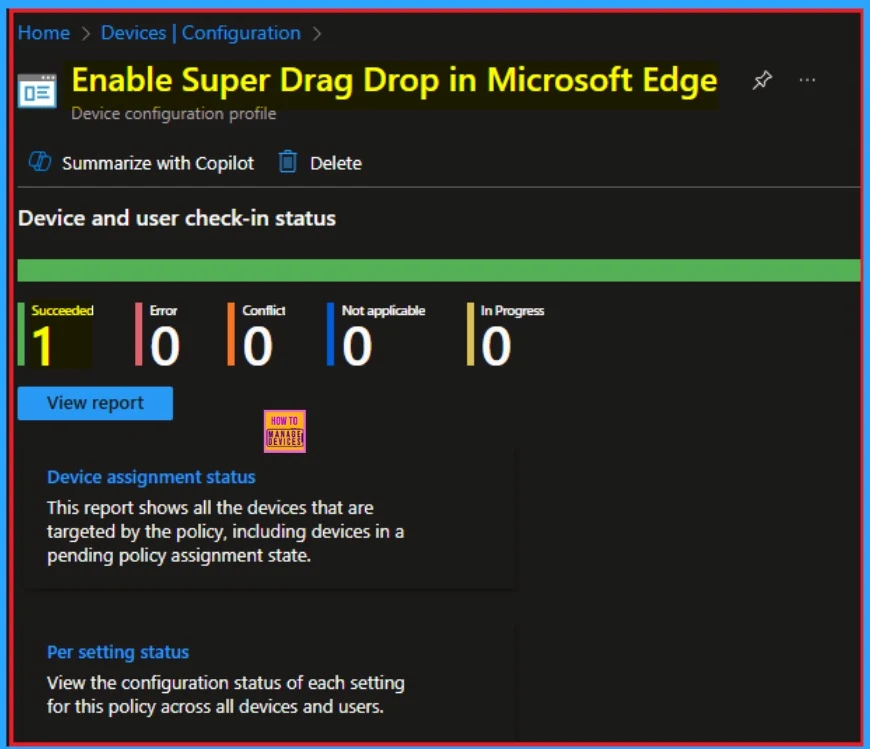
The Monitoring Status page shows whether the policy has succeeded or not. To quickly configure the policy and take advantage of the policy sync, the device on the Company Portal, Open the Intune Portal. Go to Devices > Configuration > Search for the Policy. Here, the policy shows as successful.
Client Side Verification with Event Viewer
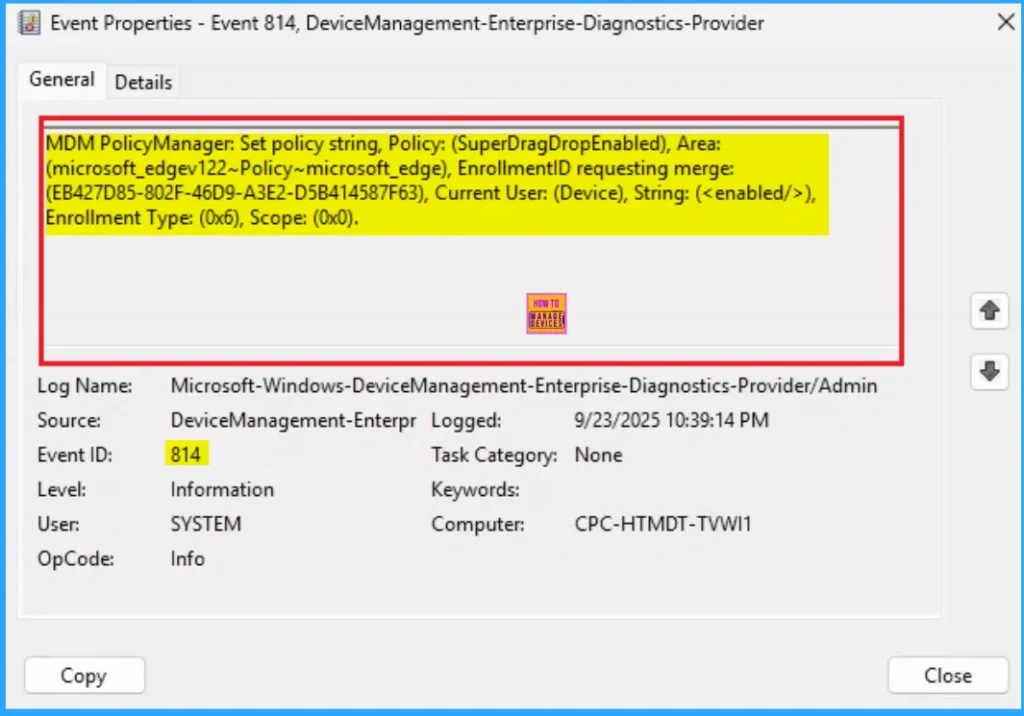
If you get success message, that doesn’t means you will get the policy advanatges. To varify the policy successfully configured to client device check the Event Viwer.
- Open Event Viewer: Go to Start > Event Viewer.
- Navigate to Logs: In the left pane, go to Application and Services Logs > Microsoft > Windows > DeviceManagement-Enterprise-Diagnostics-Provider > Admin.
- Filter for Event ID 814: This will help you quickly find the relevant logs.
| Event ID Details |
|---|
| MDM PolicyManager: Set policy string, Policy: (SuperDragDropEnabled), Area: (microsoft_edgev122~Policy~microsoft_edge), EnrollmentID requesting merge: EB427D85-802F-46D9-A3E2-D5B414587F63), Current User: (Device), String: (), Enrollment Type: (0x6), Scope: (0x0). |
Removing the Assigned Group from Enforce Application Bound Encryption for MS Edge
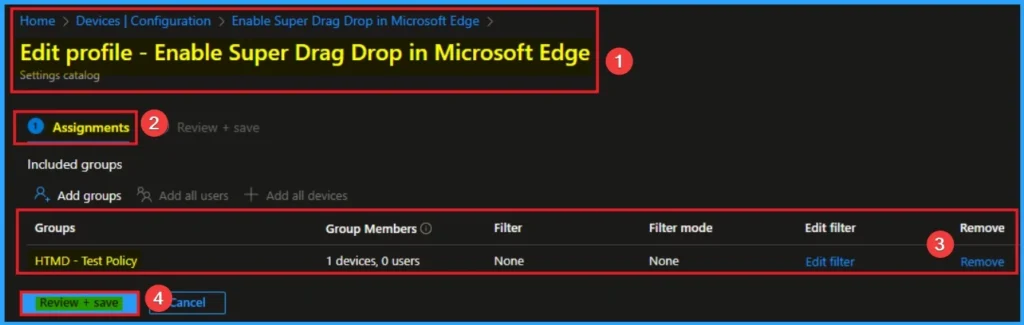
If you want to remove the Assigned group from the policy, it is possible from Intune Portal. To do this open the Policy on Intune Portal and Edit the Assignments tab and Remove the Policy.
To get more detailed information, you can refer to our previous post – Learn How to Delete or Remove App Assignment from Intune using by Step-by-Step Guide.
How to Delete Enforce Application Bound Encryption for MS Edge Settings
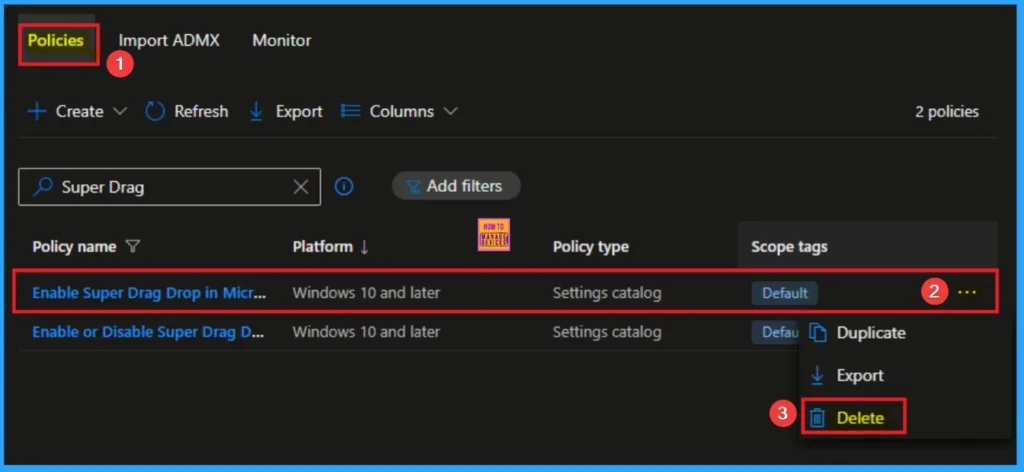
You can easily delete the Policy from Intune Portal From the Configuration section you can delete the policy. It will completely remove from the client devices.
For detailed information, you can refer to our previous post – How to Delete Allow Clipboard History Policy in Intune Step by Step Guide.
Need Further Assistance or Have Technical Questions?
Join the LinkedIn Page and Telegram group to get the step-by-step guides and news updates. Join our Meetup Page to participate in User group meetings. Also, Join the WhatsApp Community to get the latest news on Microsoft Technologies. We are there on Reddit as well.
Author
Anoop C Nair has been Microsoft MVP for 10 consecutive years from 2015 onwards. He is a Workplace Solution Architect with more than 22+ years of experience in Workplace technologies. He is a Blogger, Speaker, and Local User Group Community leader. His primary focus is on Device Management technologies like SCCM and Intune. He writes about technologies like Intune, SCCM, Windows, Cloud PC, Entra, Microsoft Security, Career, etc.


Discussion