






How to Enable Automatic Hosted Cache Discovery by Service Connection Point using Intune Policy
Today, we are discussing How to Enable Automatic Hosted Cache Discovery by Service Connection Point using Intune Policy. This policy helps organizations manage how client computers find and use hosted cache servers through Active Directory.
The main purpose of this setting is to make BranchCache configuration easier and faster without needing manual setup. It helps Windows devices automatically discover hosted cache servers that are available in the same branch network.
When this policy is enabled, client computers automatically search for hosted cache servers by using Active Directory. These servers help store frequently used data, so the next time someone in the same branch requests that data, it loads faster. This saves both time and network bandwidth.
If this policy is enabled along with the “Turn on Service Connection” policy, the client computers will automatically try to find hosted cache servers within the branch. If servers are detected, the system switches to hosted cache mode automatically.

Table of Contents
How this Policy Helpful to the Organization?
This policy is helpful to organizations because it allows client computers to automatically find and use hosted cache servers within their local branch, improving data access speed and reducing network traffic between branches and the main office.
How to Enable Automatic Hosted Cache Discovery by Service Connection Point using Intune Policy
The policy also defines how the client behaves depending on which other BranchCache policies are active. For example, if no other BranchCache mode policy is applied, the client will automatically try to discover hosted cache servers. If servers are found, the system configures itself for hosted cache mode. This makes the process automatic and reduces the need for manual configuration by administrators.
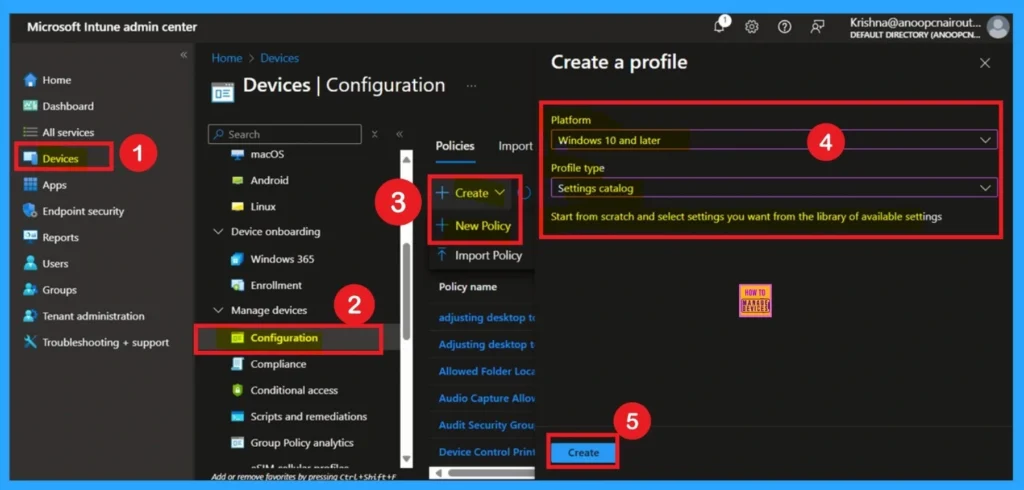
First, you need to configure this policy. Start by signing in to the Microsoft Intune Admin Center. Then, click on Devices. Under the Devices section, go to the Configuration tab, where you will find a + Create option. Click on it, and you will see 2 options, such as the new policy and the Import policy.
- Select New policy, and this will open a new window titled Create a profile.
- Here, you need to enter the Platform and Profile type details.
- After that, click Create.
- Stop User Language Overrides Deploy a Bulletproof Default UI Language on all your Windows Devices using Intune
- How to Set Business Hours to Limit Background Download Bandwidth Policy using Intune
- Enhance Windows Autopilot Bandwidth Efficiency with Connected Cache
What is a Basic Tab
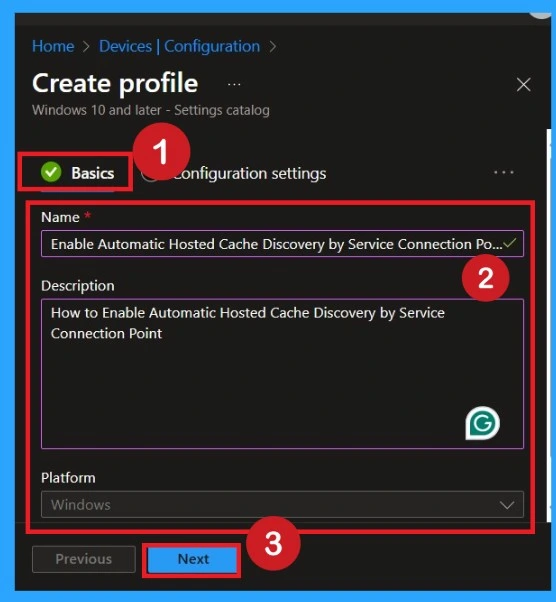
The Basics tab is the quickest step. Here, you need to enter the basic details such as the Name, Description, and Platform information. Since the platform is already set to Windows, you only need to provide a specific name and description for the policy, then click Next.
Know the Settings Picker
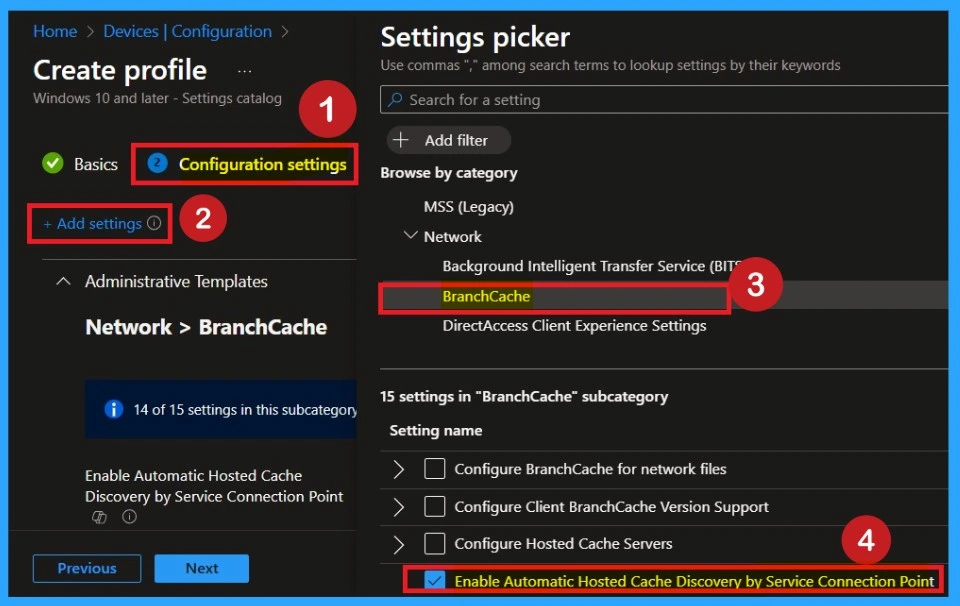
After completing the basic steps, you’ll reach the Configuration Settings page. Here, click on the Add Setting option and this will open the Settings Picker window. From the administrative templates, select Network and then choose BranchCache. Under the BranchCache options, enable Automatic Hosted Cache Discovery by Service Connection Point.
Disabled By Default
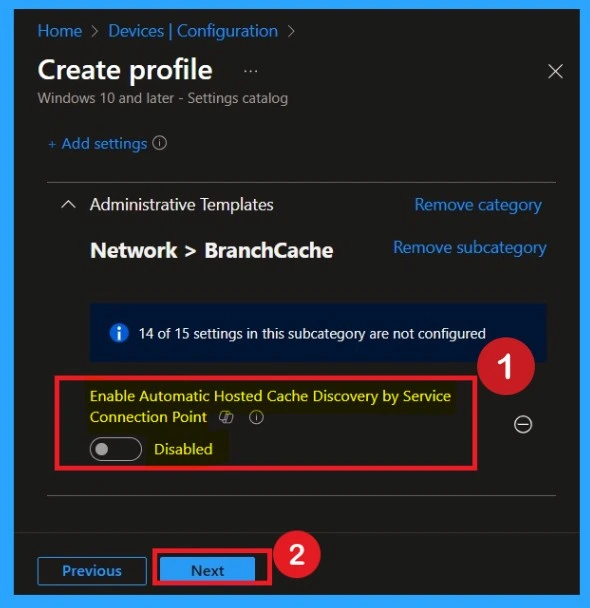
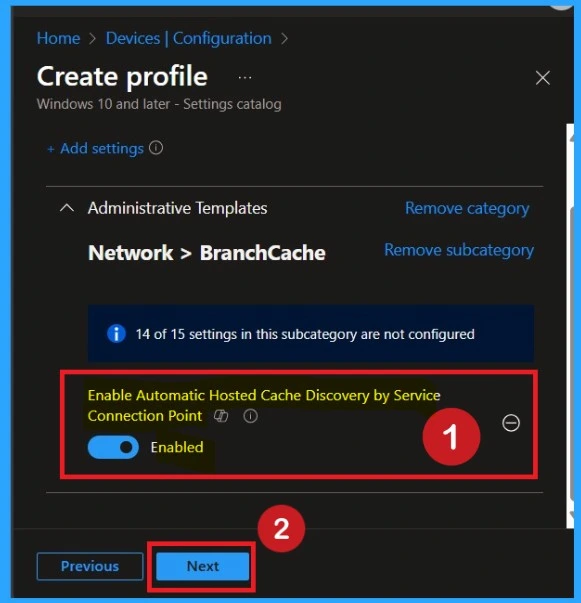
After selecting the settings, close the settings picker window. Now you are on the Configuration Settings main page. You will see that the policy has appeared on your screen. By default, this policy is disabled. If you want to continue with this default setting, you can click Next.
Enabled Mode
You can also enable a policy that is disabled by default. To do this, toggle the switch from left to right. Once enabled, the switch will turn blue and display the label Enabled.
What is Scope Tags
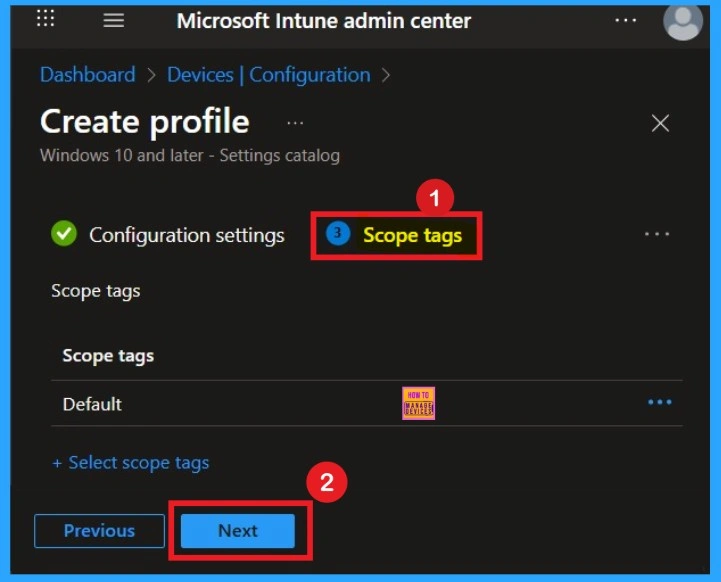
Now your are on the Scope tags section. Scope tags are used to assign policies to specific admin groups for better management and filtering. If needed, you can add a scope tag here. However, for this policy, I chose to skip this section
Assignment for a Policy
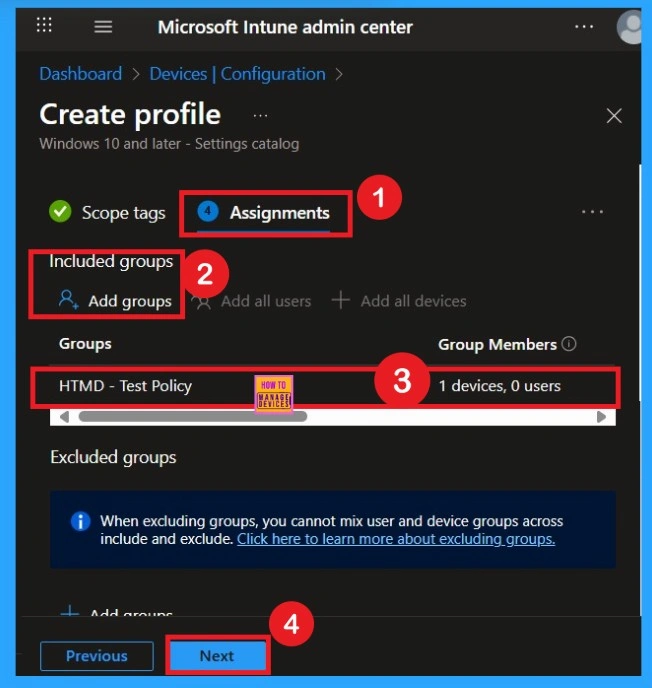
The next step is Assignments. In this section, you can specify which group the policy should be applied to. Our aim is to deploy this policy to a specific group; this step is essential. Look for the Add Groups option under the Include Groups section and click on it.
- A list of available groups will appear and select the group you want to target.
- After selecting the group, click Next to proceed to the next step.
Review + Create
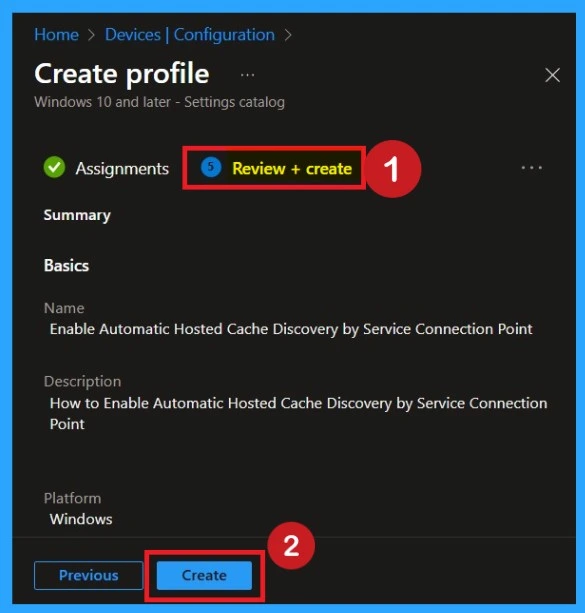
After the Assignments step, you’ll reach the final tab called Review + Create. In this section, you can see a summary of everything you enter in the previous steps such as details configuration assignment details etc. If you don’t need to change anything, just click on the Review + Create.
Monitoring Status
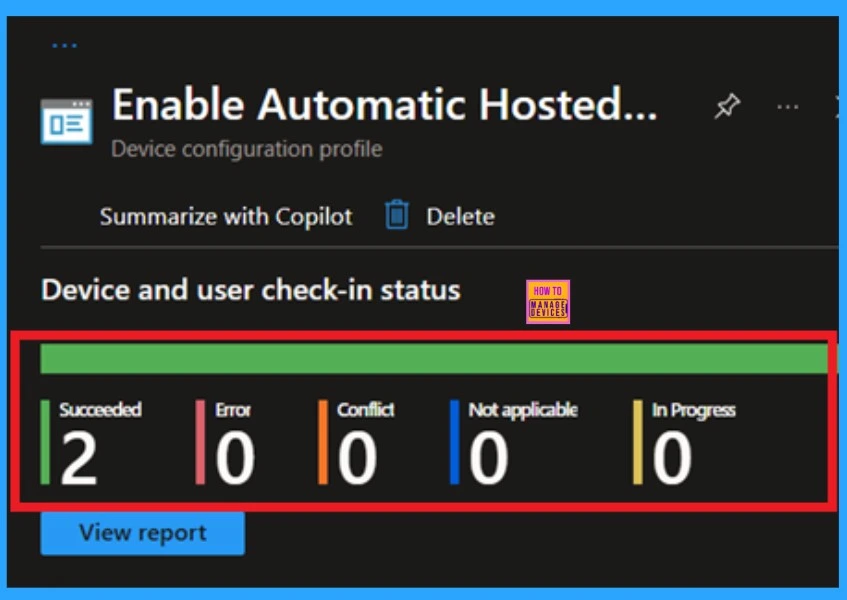
After creating a policy, we have to monitor that whether the policy was created successfully or not. To check this, you can either wait for up to 8 hours for the policy to apply automatically, or you can reduce the waiting time by manually syncing the policy through the Company Portal.
- It will show is thi error successfully deployed or not. After syncing, you can check the policy’s status through the Intune Portal.
- To do this, go to Devices > Configuration Profiles.
- In the Configuration policy section, search for the name of the policy you created.
- Then you can get the details below from that Policy
Client Side Verification
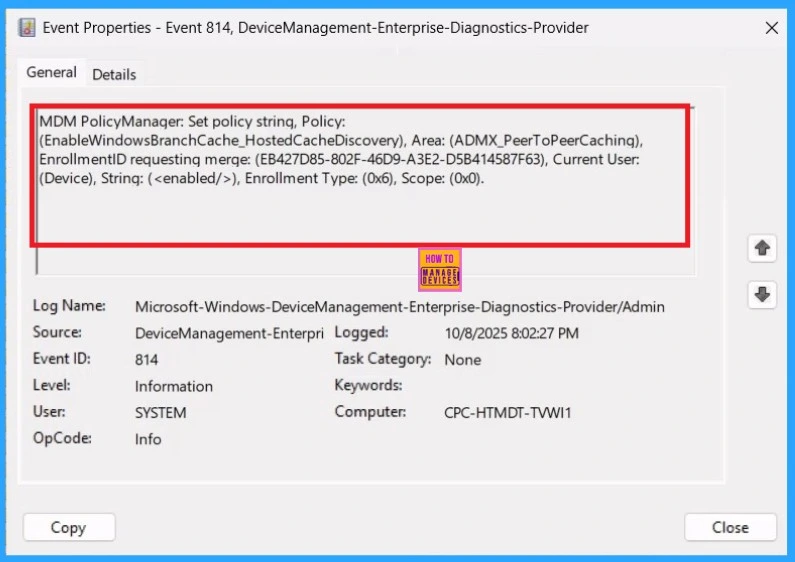
To confirm the policy is successful or not, you can use the Event Viewer. First, open Event Viewer and navigate to Applications and Services Logs > Microsoft > Windows > Device Management > Enterprise Diagnostic Provider > Admin. Look for Event IDs 813 or 814, as these typically contain policy-related information.
How to Delete a Policy Permenantly
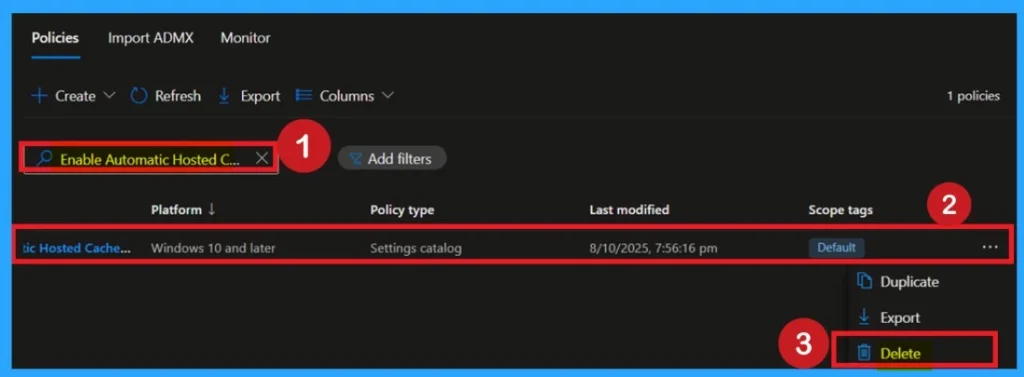
If you want to delete this policy permanantly, you can easily do that. First, search for the policy name in the configuration section. When you find the policy name, you will see a 3-dot menu next to it. Click on the 3 dots to open a menu with 3options such as Duplicate, Export, and Delete.
For detailed information, you can refer to our previous post – How to Delete Allow Clipboard History Policy in Intune Step by Step Guide.
Remove the Assigned Policy Group
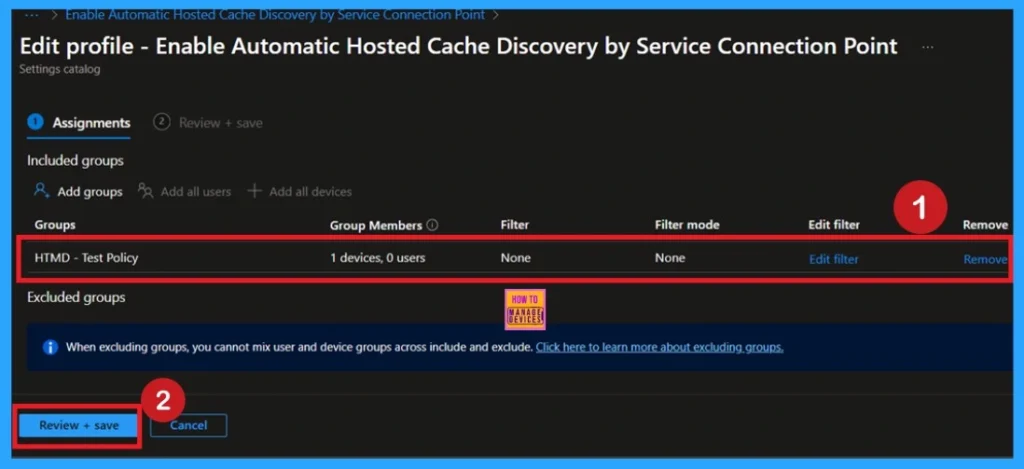
Removing a group from a policy is very simple. First, go to the Monitoring status page and scroll down until you see the Assignments Edit option. Click on it, and you will be taken directly to the Assignments section that you had previously configured. Here, you will find the Remove option.
- Select the group you want to remove, click Remove, and then choose Review + Save to apply the changes.
To get more detailed information, you can refer to our previous post – Learn How to Delete or Remove App Assignment from Intune using by Step-by-Step Guide.
Need Further Assistance or Have Technical Questions?
Join the LinkedIn Page and Telegram group to get the step-by-step guides and news updates. Join our Meetup Page to participate in User group meetings. Also, Join the WhatsApp Community to get the latest news on Microsoft Technologies. We are there on Reddit as well.
Author
Anoop C Nair has been Microsoft MVP for 10 consecutive years from 2015 onwards. He is a Workplace Solution Architect with more than 22+ years of experience in Workplace technologies. He is a Blogger, Speaker, and Local User Group Community leader. His primary focus is on Device Management technologies like SCCM and Intune. He writes about technologies like Intune, SCCM, Windows, Cloud PC, Windows, Entra, Microsoft Security, Career, etc.


Discussion