






Enable Insecure Guest Logon Policy to Find Hidden SMB Security Risks using Intune
Let’s discuss Enable Insecure Guest Logon Policy to Find Hidden SMB Security Risks using Intune. Insecure Guest Logon policy is an audit control purely designed for monitoring. This policy manages the insecure guest logon behavior.
As you know,Insecure Guest Logon primarily refers to a setting in the Server Message Block (SMB) protocol that allows a computer (the client) to access shared network resources (on a server) without requiring a valid username or password.
When a Windows client attempts to connect to an SMB server (like a file server or a Network Attached Storage (NAS) device), the server can respond by allowing the client to log on as an “unauthenticated guest.” For these security reasons, modern versions of Windows disable insecure guest logons by default to protect clients from connecting to vulnerable servers.
The Main function of this policy is to Controls whether an event is logged in the Windows Event Log when the Server Message Block (SMB) client on the device attempts an insecure. Admins can quickly, track down legacy or misconfigured SMB servers tha t are forcing the client to use insecure guest logons, or identify client applications that are explicitly trying to use this insecure method.

Table of Contents
Enable Insecure Guest Logon Policy to Find Hidden SMB Security Risks using Intune
Organizations can configure this policy for several reasons. Organizations primarily want to enable this audit policy to gain visibility, but they generally disable the actual insecure guest logon capability for security reasons.
An organization implements a stringent Intune security baseline that disables the Enable insecure guest logons policy on all corporate laptops (the secure configuration).
- Configure Windows 11 SMB compression improvements to Compress File Aggressively
- Enforce Windows Credential UI for Edge and Negotiate Challenges using Intune
- Allow Basic Authentication for HTTP Using Setting Catalog in Intune
How to Configure Policy from Intune Portal
An organization that has blocked insecure guest logons might enable this audit to identify which endpoints (client machines) are still attempting to use an insecure guest logon (even if the attempt is blocked). To start policy creation, follow below steps.
- Sign in to Microsoft Intune admin center.
- Then go to Devices > Configuration > +Create >+ New Policy.
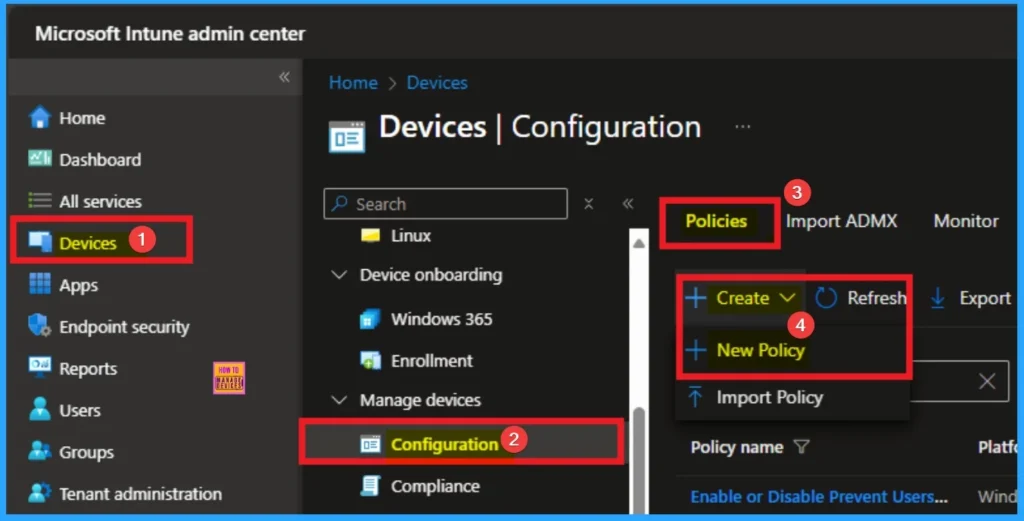
Profile Craetion
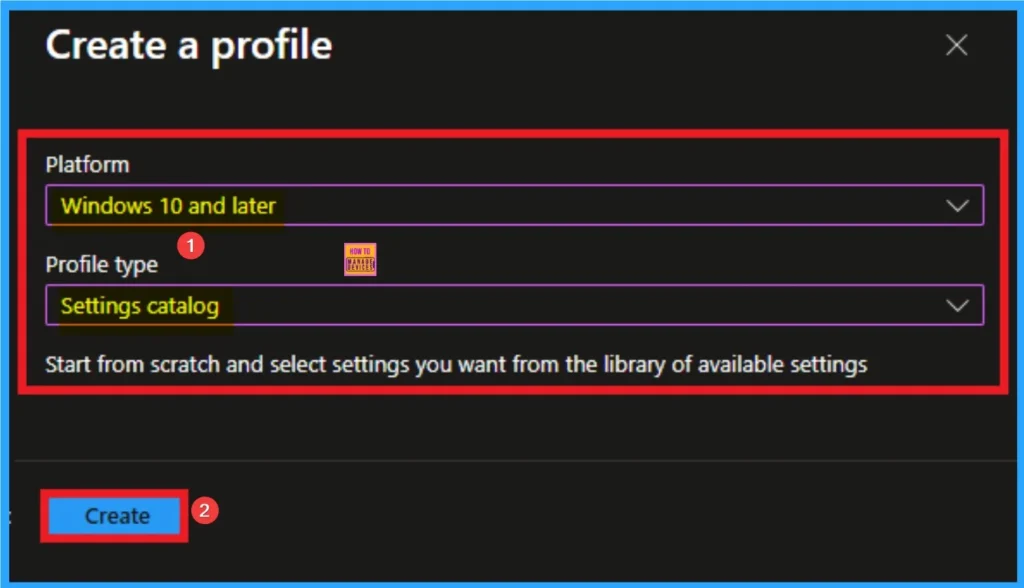
Profile creation is the next step that allows admins to choose specific platform and profile type. This is very essential to apply the policy to appropriate Platform and Profile Type. Here I would like to configure the policy to Windows 10 and later platform and settings catalog profile. Then click on the Create button.
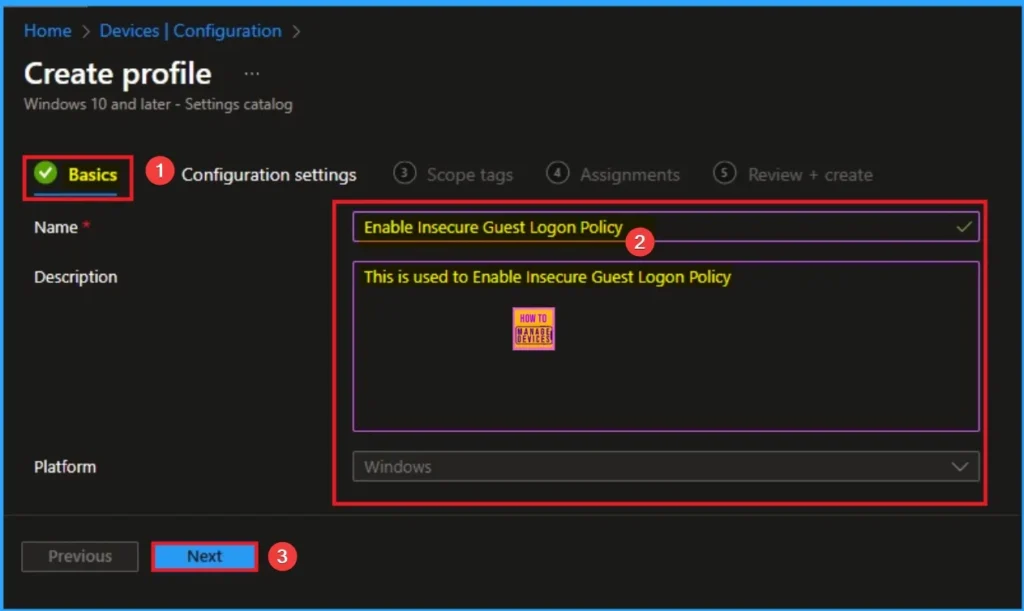
Basics Tab
As per the heading, basic tab is the begging stage that helps you to add basic details like name and description for the policy. Here is Name is mandatory and description is optional. After adding this click on the Next button.
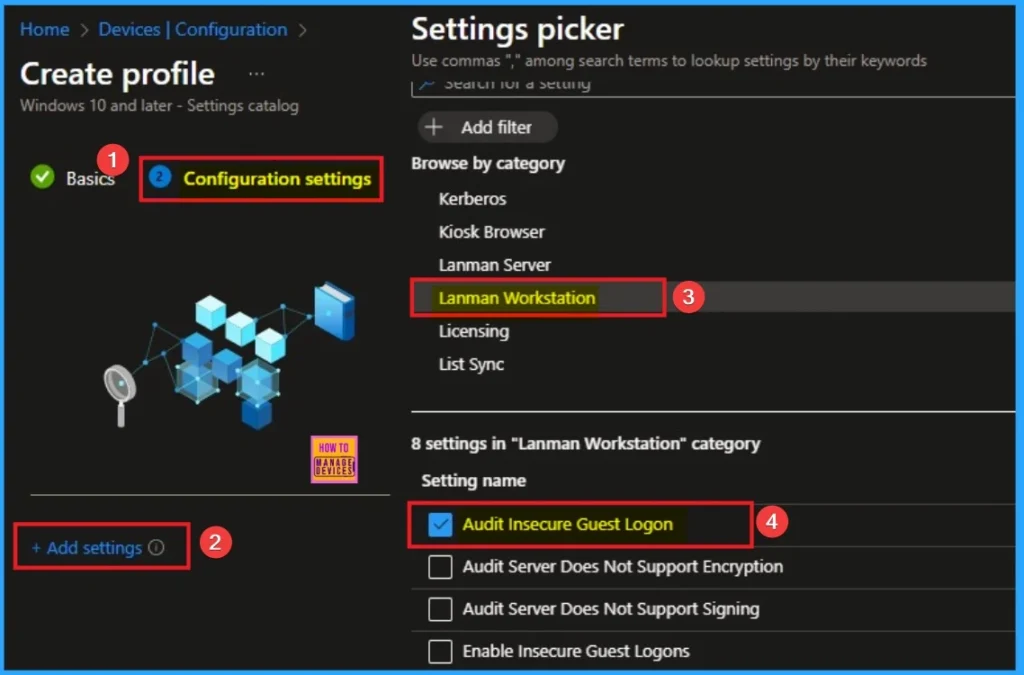
Configuration Settings for Selecting Settings
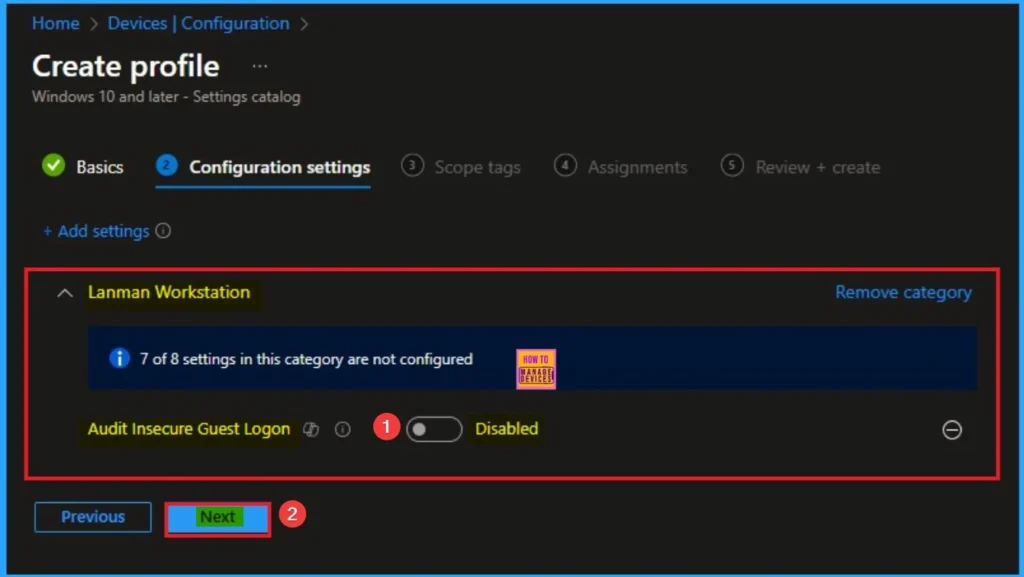
From the configuration settings tab you can access settings picker to select specific settings for policy creation. To get the Settings Picker, click on the +Add settings hyperlink. Here, I would like to select the settings by browsing by Category. I choose Lanman Workstation. Then, I choose Audit Insecure Guest Logon Policy settings.
Disable Audit Insecure Guest Logon
In large, well-secured environments, if the security team is confident that the underlying security policy (blocking insecure guest logons) is correctly applied, they might disable this audit to reduce the volume of low-priority events in their security logs. By default, this policy is disabled. If you want to go with this value, click on the Next button.
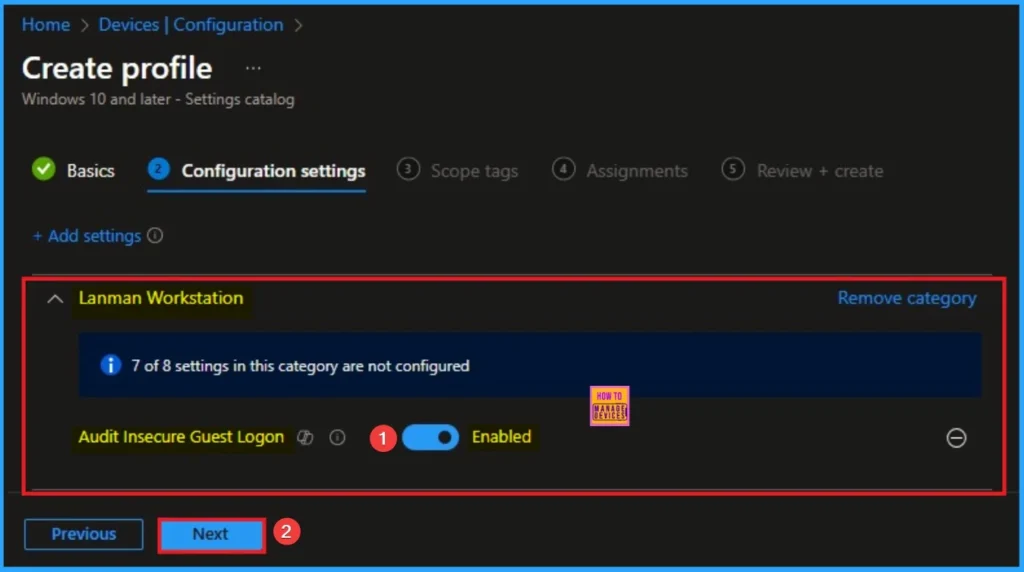
Enable Audit Insecure Guest Logon
This policy, helps pin down which outdated network devices (like legacy Network Attached Storage or older servers) are forcing clients to use unauthenticated access. Click on the Next button to continue.
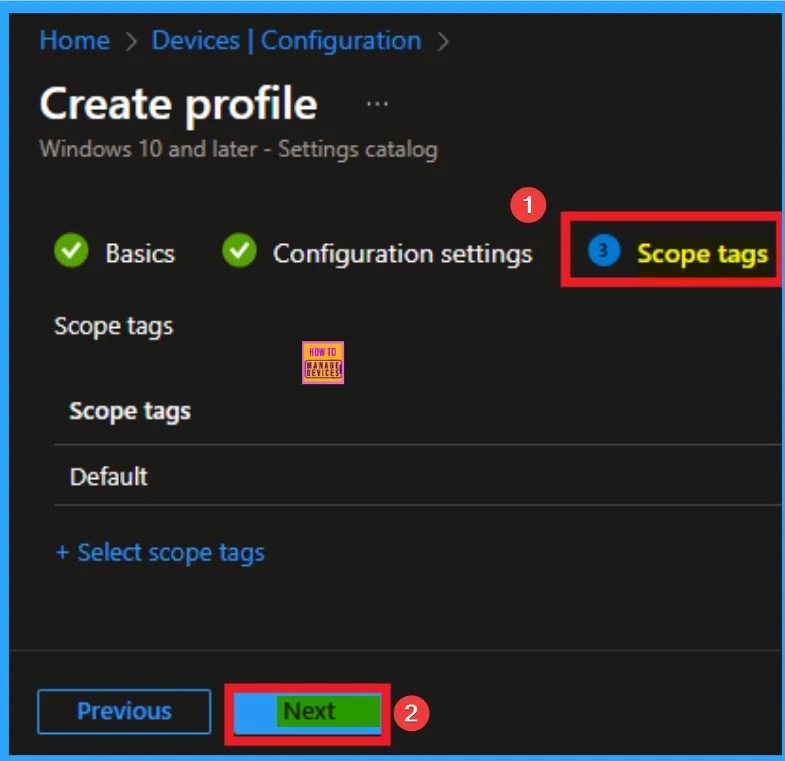
Selecting Scope Tags
Scope Tags sections help you add restrictions to the visibility of the Policy. But it is not a mandatory step, so you can skip this step. Here, I don’t add scope tags for Windows Advertising Id Policy. Click on the Next button.
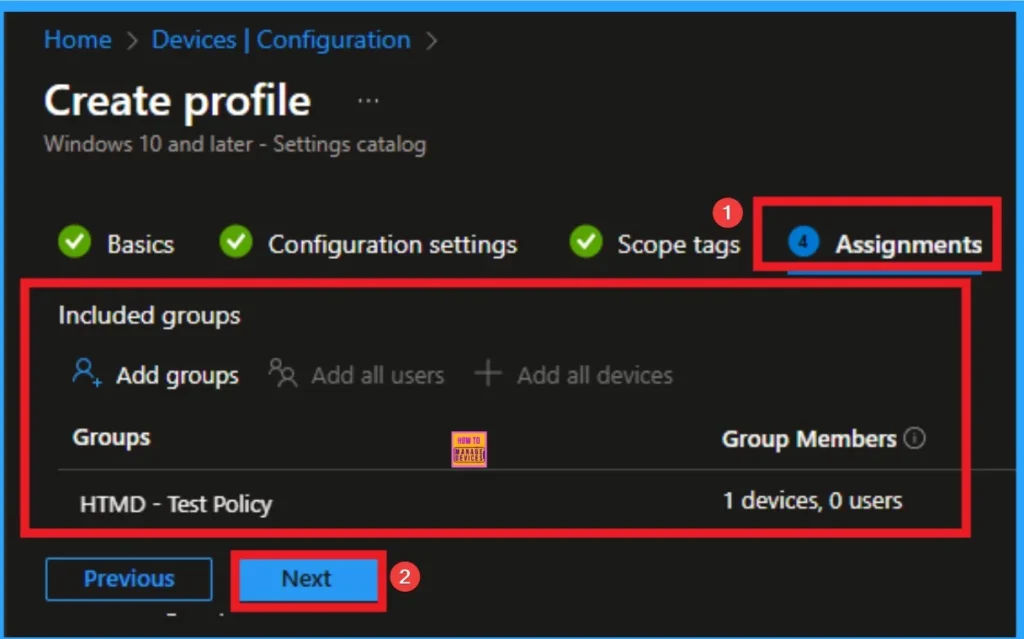
Selecting Group from the Assignment Tab
To assign the policy to specific groups, you can use the Assignment Tab. Here I click, +Add groups option under Included groups. I choose a group from the list of groups and click on the Select button. Again, I click on the Select button to continue.
Review + Create Tab
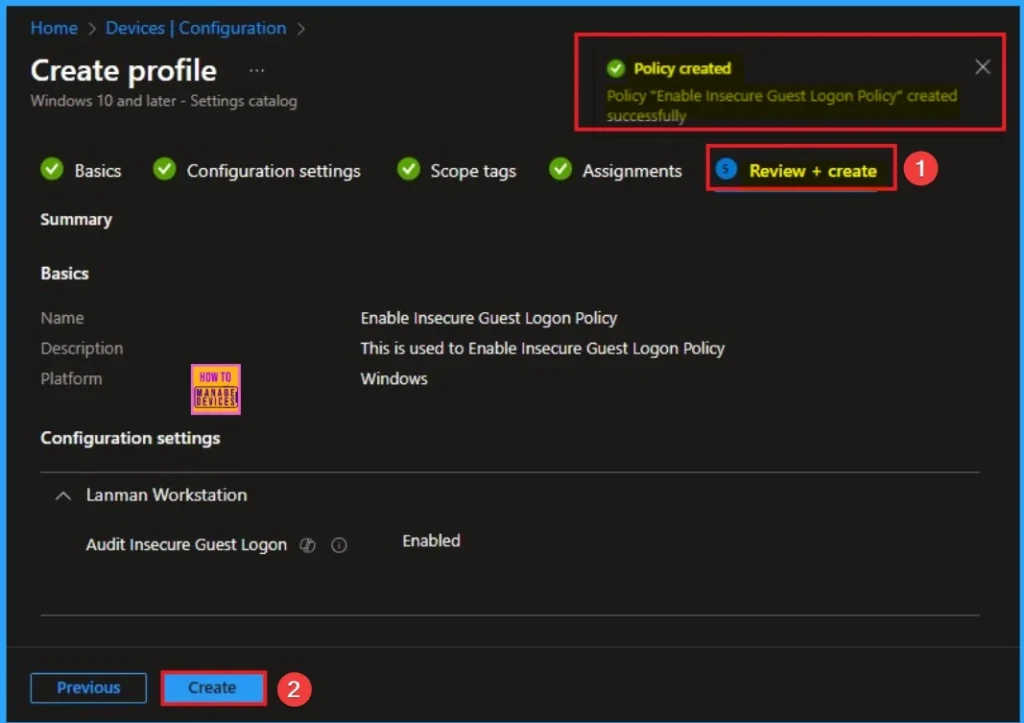
Before completing the policy creation, you can review each tab to avoid misconfiguration or policy failure. After verifying all the details, click on the Create Button. After creating the policy, you will get a success message.
Monitoring Status
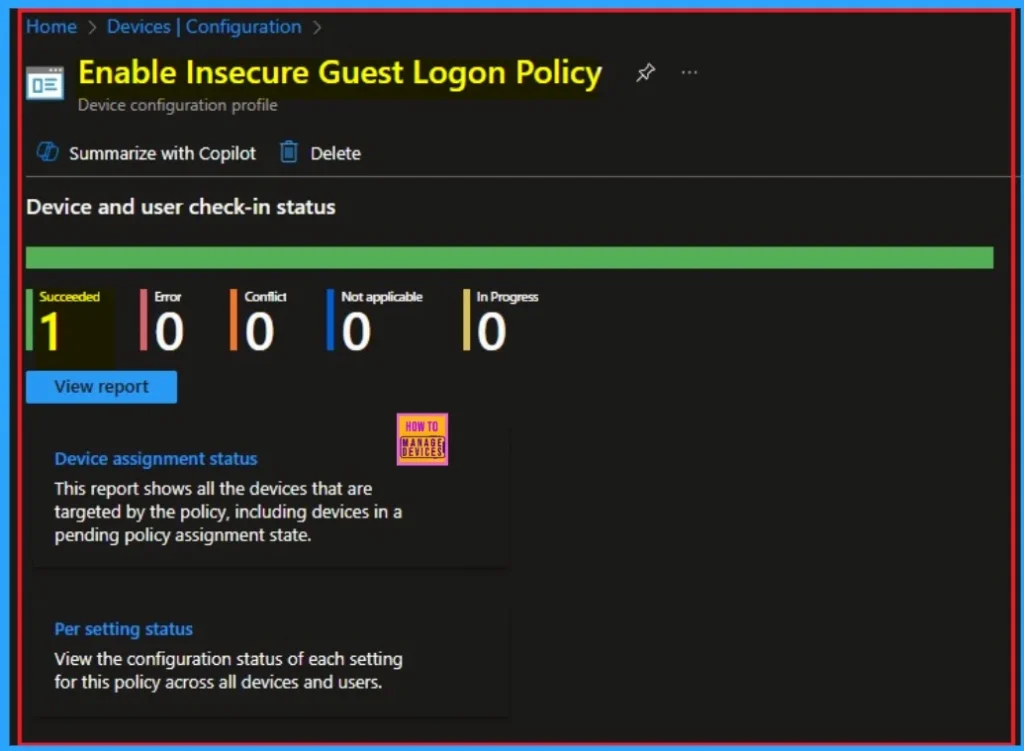
The Monitoring Status page shows whether the policy has succeeded or not. To quickly configure the policy and take advantage of the policy sync, the device on the Company Portal, Open the Intune Portal. Go to Devices > Configuration > Search for the Policy. Here, the policy shows as successful.
Event Viewer
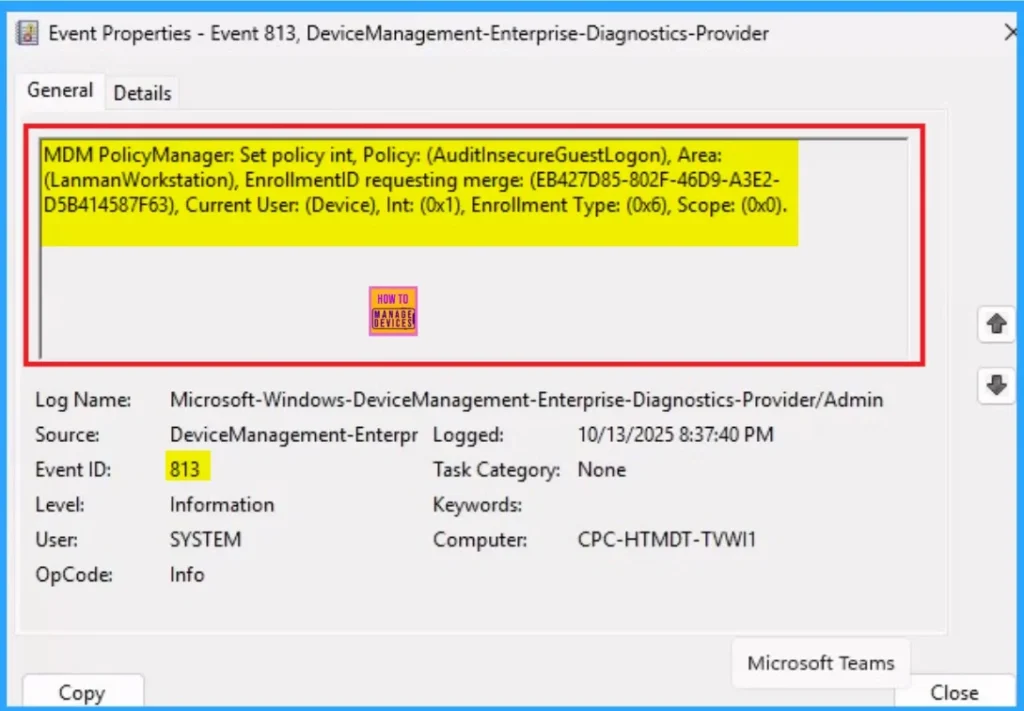
It helps you check the client side and verify the policy status. Open the Client device and open the Event Viewer. Go to Start > Event Viewer. Navigate to Logs: In the left pane, go to Application and Services Logs > Microsoft > Windows > DeviceManagement-Enterprise-Diagnostics-Provider > Admin.
- You will get the success result on Event ID 813
Removing the Assigned Group from Let Apps Get Diagnostic Info Policy Settings
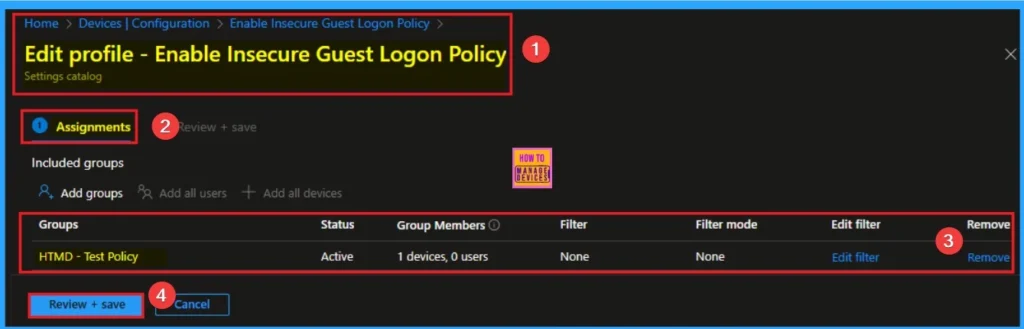
If you want to remove the Assigned group from the policy, it is possible from the Intune Portal. To do this, open the Policy on Intune Portal and edit the Assignments tab and the Remove Policy.
To get more detailed information, you can refer to our previous post – Learn How to Delete or Remove App Assignment from Intune using by Step-by-Step Guide.
How to Delete Windows Apps Get Diagnostic Info Policy
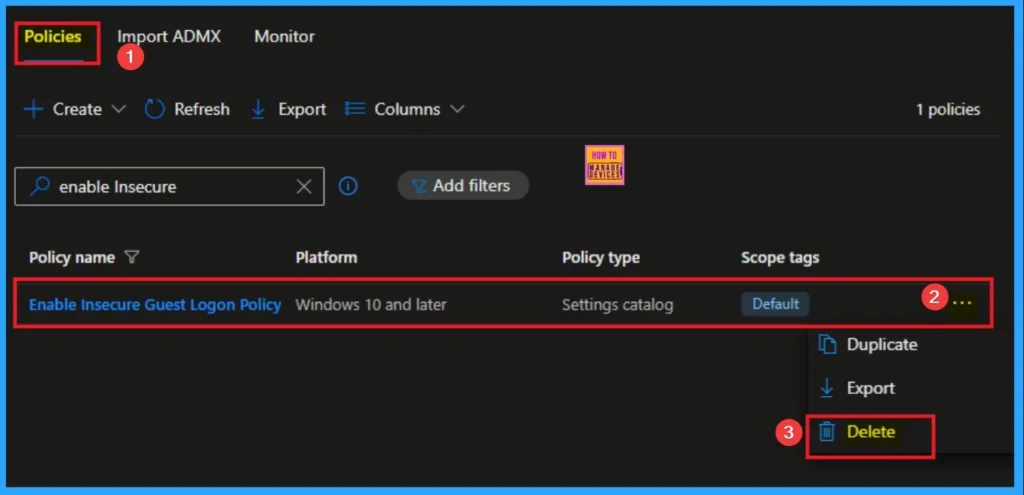
You can easily delete the Policy from the Intune Portal. From the Configuration section, you can delete the policy. It will completely remove it from the client devices.
For detailed information, you can refer to our previous post – How to Delete Allow Clipboard History Policy in Intune Step by Step Guide.
Windows CSP Details
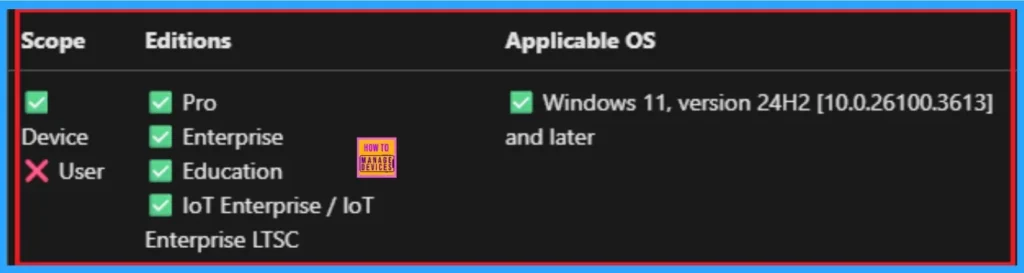
This policy controls whether the SMB client will enable the audit event when the client is logged-on as guest account. This policy is applicable for Windows 11, version 24H2 [10.0.26100.3613] and later.
./Device/Vendor/MSFT/Policy/Config/LanmanWorkstation/AuditInsecureGuestLogon
| Name | Value |
|---|---|
| Name | Pol_AuditInsecureGuestLogon |
| Friendly Name | Audit insecure guest logon |
| Location | Computer Configuration |
| Path | Network > Lanman Workstation |
| Registry Key Name | Software\Policies\Microsoft\Windows\LanmanWorkstation |
| Registry Value Name | AuditInsecureGuestLogon |
| ADMX File Name | LanmanWorkstation.admx |
Need Further Assistance or Have Technical Questions?
Join the LinkedIn Page and Telegram group to get the step-by-step guides and news updates. Join our Meetup Page to participate in User group meetings. Also, Join the WhatsApp Community to get the latest news on Microsoft Technologies. We are there on Reddit as well.
Author
Anoop C Nair has been Microsoft MVP for 10 consecutive years from 2015 onwards. He is a Workplace Solution Architect with more than 22+ years of experience in Workplace technologies. He is a Blogger, Speaker, and Local User Group Community leader. His primary focus is on Device Management technologies like SCCM and Intune. He writes about technologies like Intune, SCCM, Windows, Cloud PC, Windows, Entra, Microsoft Security, Career, etc


Discussion