






Update Deploy Firefox Browser Using SCCM | ConfigMgr | Step-by-Step Guide
Mozilla Firefox released the latest version, 74.0.1, with a Zero-Day security fix. Let’s see how to create a Firefox application in SCCM and deploy it to all Windows 10 devices. Also, check out how to deploy Firefox Browser Using SCCM (A.K.A Configuration Manager).
I think Firefox installation got failed as per SCCM or Configuration Manager detection logic. This is just a reporting error from the Firefox MSI side. It’s not an SCCM issue at all.
The following post explains how to fix this: “FIX Firefox Installation Failed SCCM Reporting Issue| ConfigMgr.”
List of Free & PAID SCCM Custom Catalogs for Third-Party Software Updates – (Firefox update catalogs are also available with 3rd party offerings).

Download Firefox MSI & Getting Ready
You can download the latest version of Firefox MSI from https://www.mozilla.org/en-US/firefox/enterprise/#download. We recommend using the latest version to avoid any known vulnerabilities of Firefox ESR.
Updated – It’s recommended to use the Firefox ESR instead of the standard version for the enterprise environment.
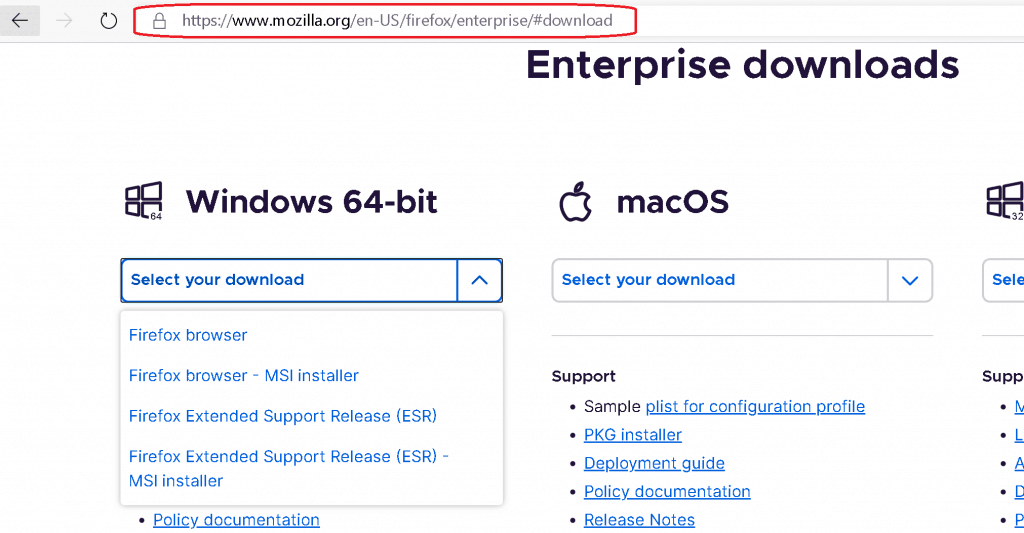
Store or copy the latest version of the MSI file into network share so that you can use the same path as the SCCM Package Source.
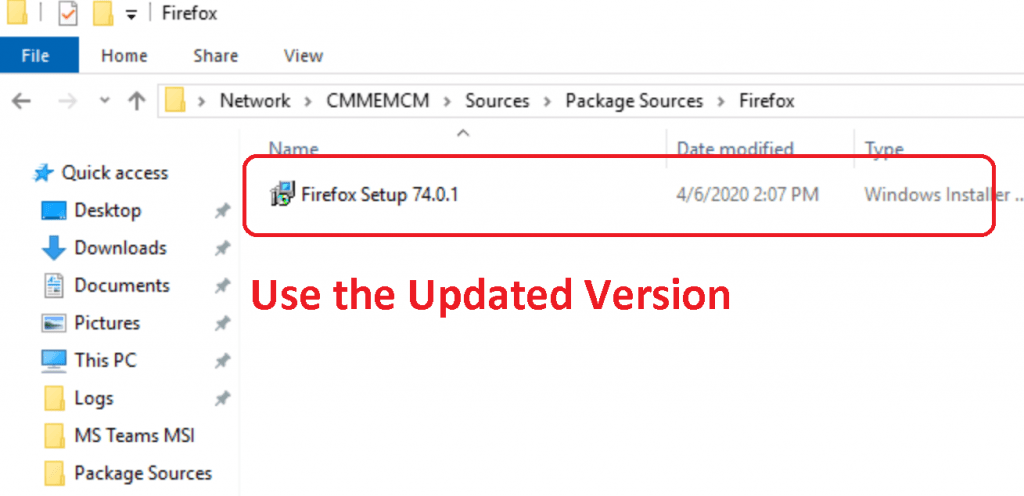
Create a New Firefox Application Using SCCM
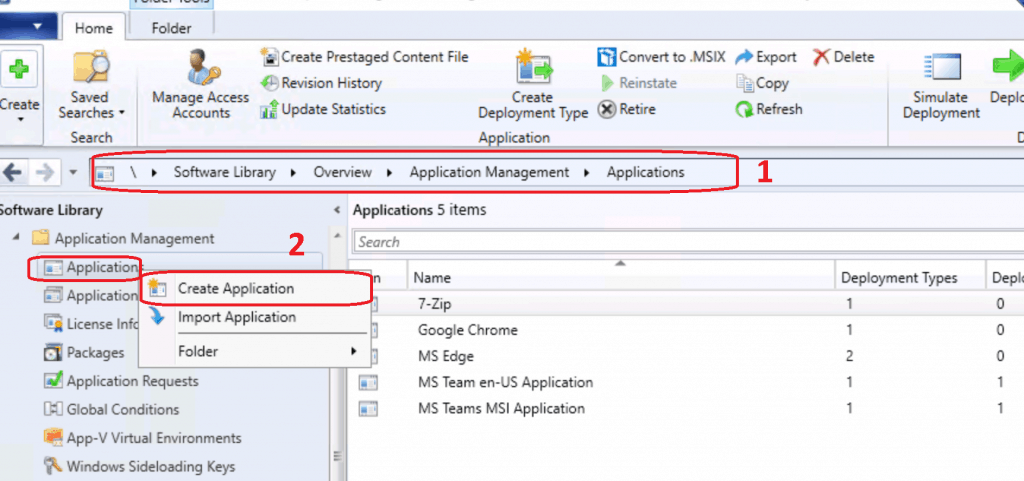
Let’s see how to create a new Mozilla Firefox application using ConfigMgr. Make sure you have appropriate access to create Applications in SCCM.
- Launch Configuration Manager (ConfigMgr) console
- Navigate to \Software Library\Overview\Application Management\Applications
- Right-click on Applications and select Create Application
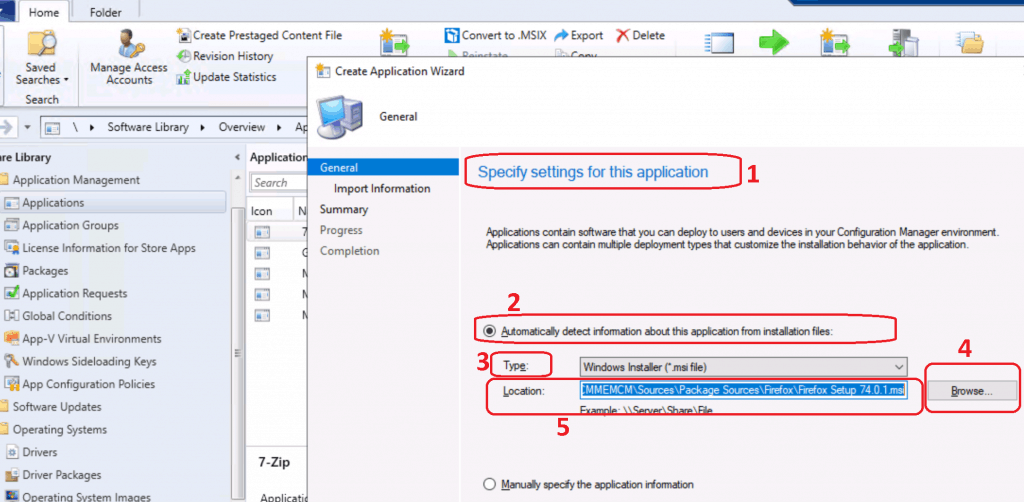
Select the following option “Automatically Detect information about this application from Installation Files” from Specify settings for this application page.
- Select the Type – Windows Installer (*.MSI file)
- Browse through the package source location and Select “Firefox Setup 74.0.1.MSI“
- Click on open from Windows Explorer.
- Location details of the package source file shall automatically get populated
- \CMMEMCM\Sources\Package Sources\Firefox\Firefox Setup 74.0.1.msi
- Location details of the package source file shall automatically get populated
- Click on the NEXT button to continue
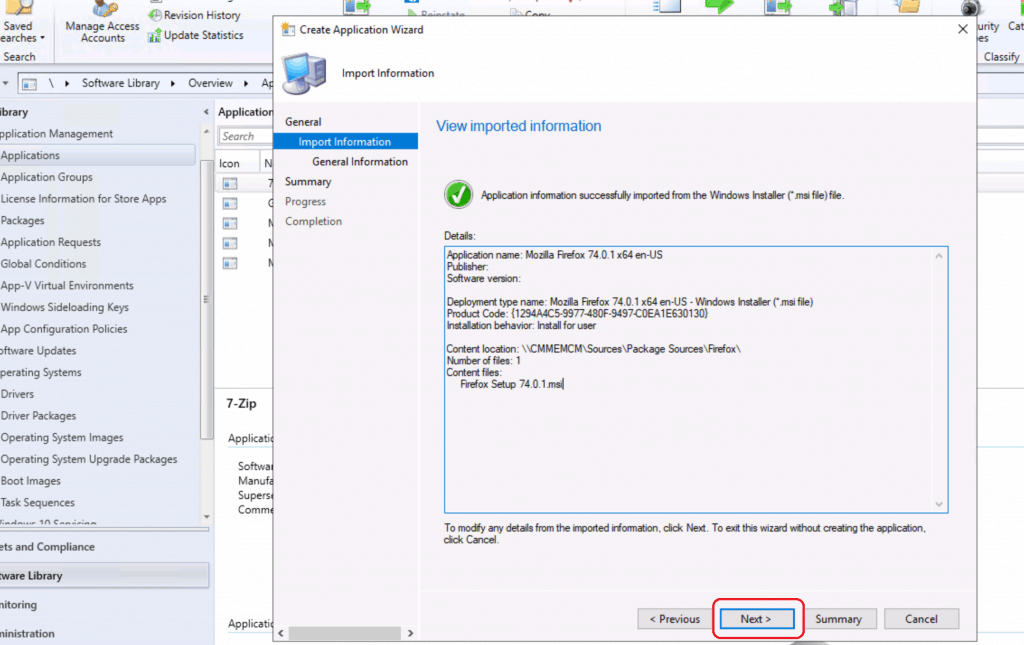
ConfigMgr analysis the MSI and populates all the metadata from the Mozilla Firefox MSI file
- Click on the NEXT button from the View Imported Information Page
Application name: Mozilla Firefox 74.0.1 x64 en-US
Publisher:
Software version:
Deployment type name: Mozilla Firefox 74.0.1 x64 en-US - Windows Installer (*.msi file)
Product Code: {1294A4C5-9977-480F-9497-C0EA1E630130}
Installation behavior: Install for user
Content location: \\CMMEMCM\Sources\Package Sources\Firefox\
Number of files: 1
Content files:
Firefox Setup 74.0.1.msi
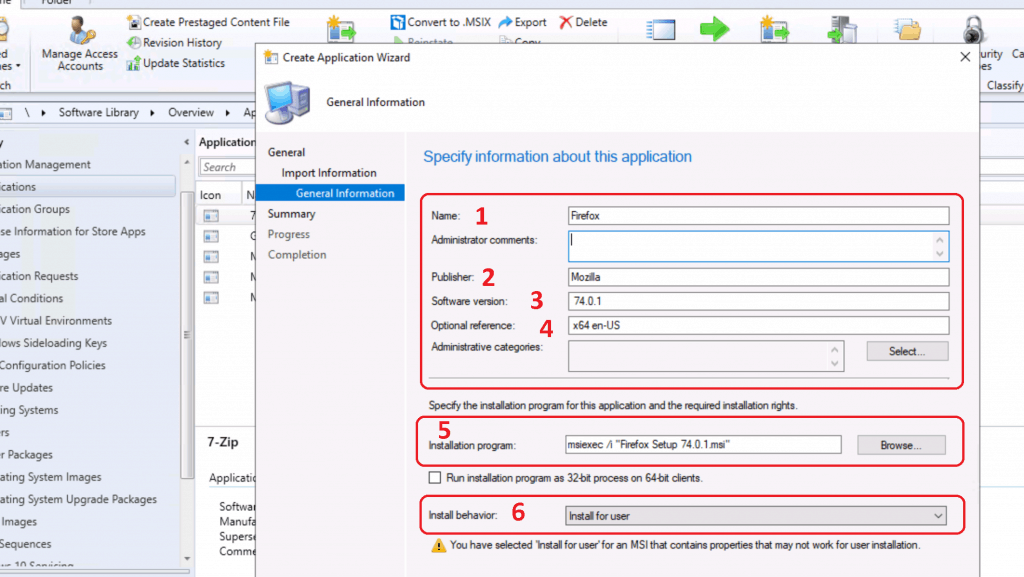
Most of the following details are automatically populated by SCCM. You might need to make some changes as per your requirements or organizational standards.
- Enter the Name of the Package – Firefox
- Enter the Publisher of the package – Mozilla
- Enter the Software Version – 74.0.1
- Enter Optional Reference – x64 en-US version
- Check and Confirm Automatically populated information like Installation command line – Installation Program (for Firefox)
- msiexec /i “Firefox Setup 74.0.1.msi” /q
- Select the Installation Behaviour as “Install for User” (Default option)
- Click on NEXT to continue
Command-Line Options for Firefox
NOTE! – The following are the supported command-line options for Firefox MSI. These details are documented in Firefox docs here.
Supported MSIEXEC Options
/i or /package
Installs the product.
/L or /log
Generates an MSI log file. All of this option's configuration parameters are supported.
/m
Generates an SMS status .mif file.
Without having a copy of Systems Management Server I've been unable to test this, but it should work.
/q, /quiet, and /passive
Sets the UI mode. The full UI option (/qf) is accepted but ignored, because we have no full UI.
/norestart, /forcerestart, and /promptrestart
The default behavior is always /norestart, but the other options behave as expected.
PROPERTY=VALUE
Command line property configuration is supported for all public properties we provide (meaning the ones with UPPERCASE_NAMES).
Options that do not operate on a package file (/?, /h, /help, /y, /z)
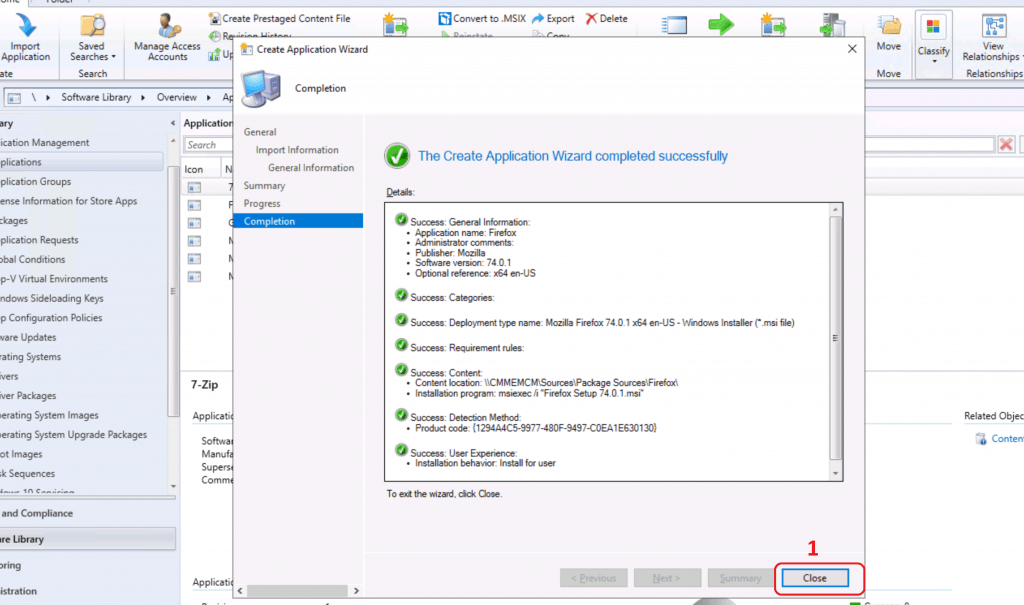
Click on the NEXT, NEXT, and Close buttons to complete the process called “Create SCCM Application for Firefox Browser”
General Information:
• Application name: Firefox
• Administrator comments:
• Publisher: Mozilla
• Software version: 74.0.1
• Optional reference: x64 en-US
Categories:
Deployment type name: Mozilla Firefox 74.0.1 x64 en-US - Windows Installer (*.msi file)
Requirement rules:
Content:
• Content location: \\CMMEMCM\Sources\Package Sources\Firefox\
• Installation program: msiexec /i "Firefox Setup 74.0.1.msi" /q
Detection Method:
• Product code: {1294A4C5-9977-480F-9497-C0EA1E630130}
User Experience:
• Installation behavior: Install for user
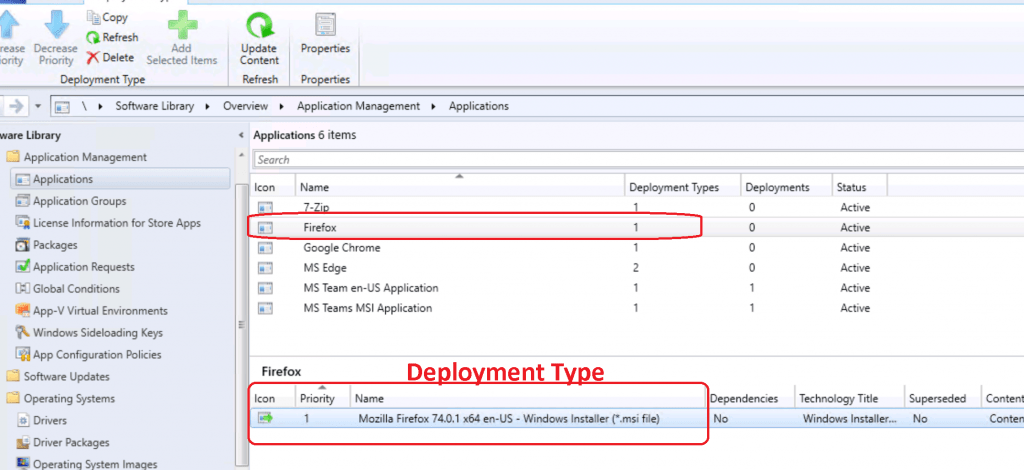
Deployment Type for Firefox
In the above process of creating an SCCM application, Firefox automatically creates a deployment type, as you can see in the screenshot below.
Update Firefox with the Latest Version Using SCCM
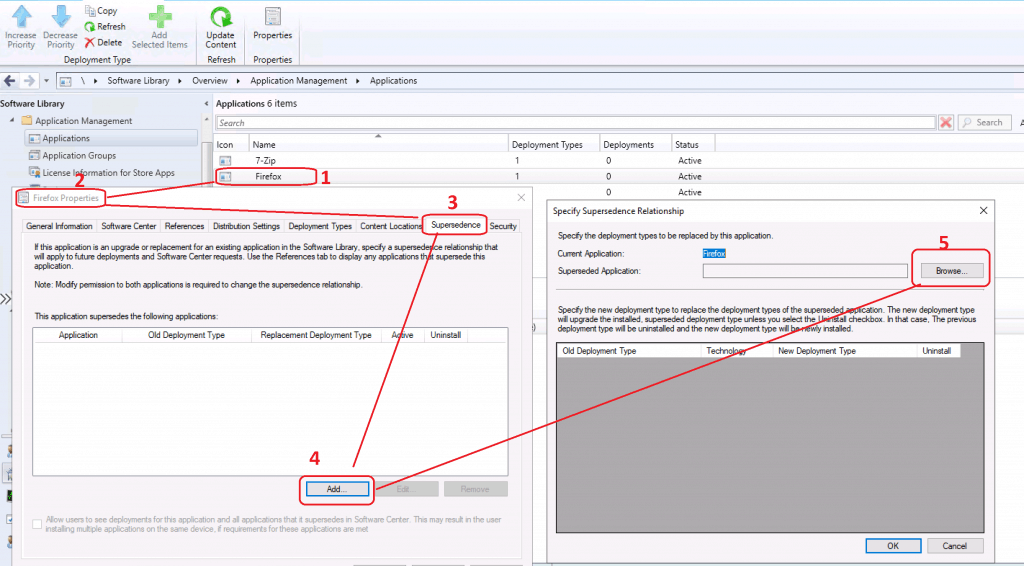
If you want to update your previous version of Firefox to the latest version, you might want to go to the SUPERSEDENCE settings.
- Click on Firefox application properties
- Select SUPERSEDENCE tab
- Click on the Add button to select the previous version of Firefox
- Click on the Browse button to select the previous version of the application
- My recommendation is to go through the Microsoft doc to select the best supersedence option for your scenario
Deploy Firefox Browser Using SCCM
Let’s see how to deploy the Firefox browser application using Configuration Manager Current Branch 2002.
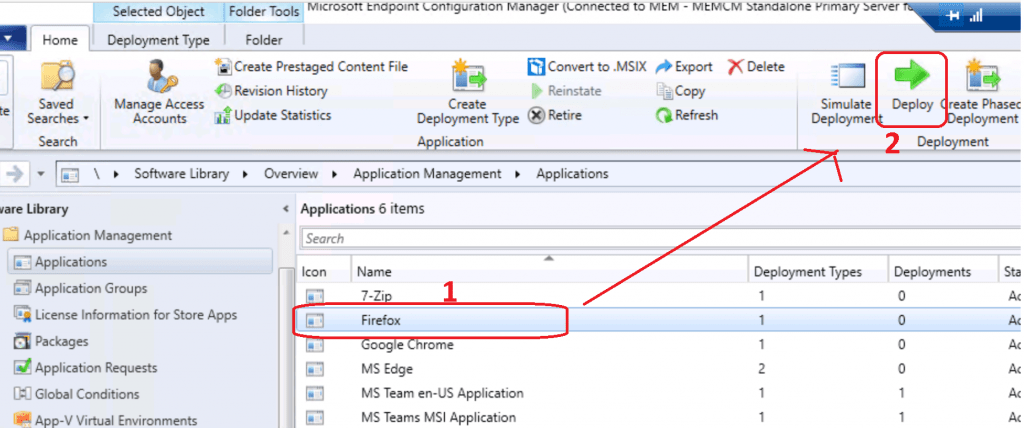
- Select Firefox application
- Select Click Firefox application
- Click on the Deploy button from the ribbon menu
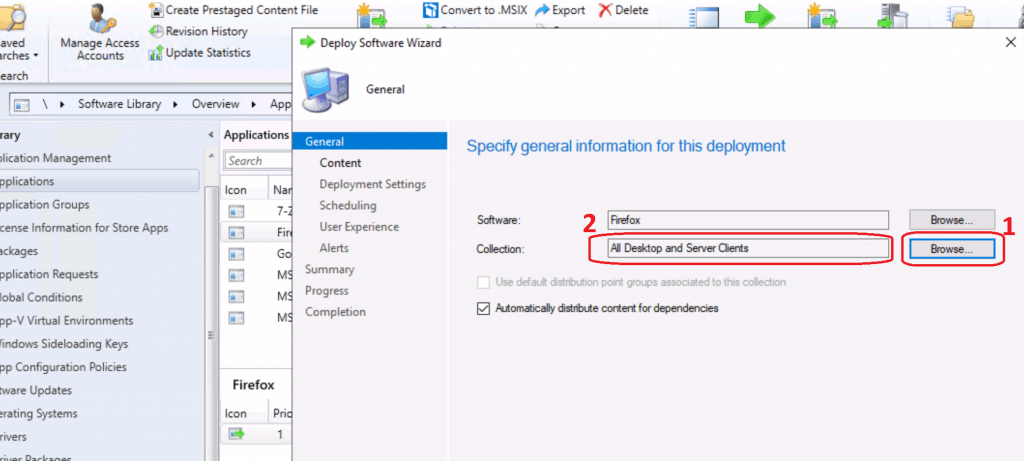
Select Collection
Select the Software – Firefox. Click the Browse button to select the Collection to deploy the Firefox browser application
- Click on the NEXT button
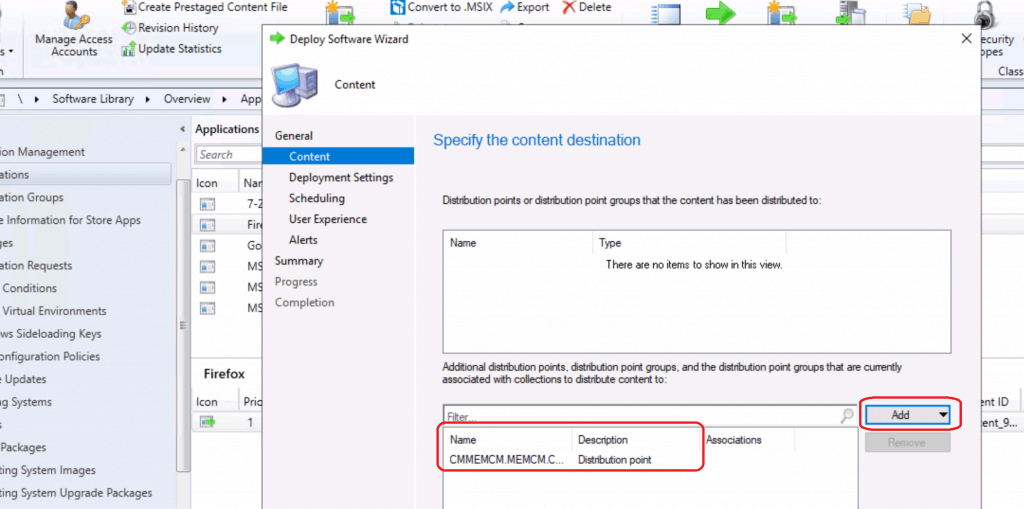
Content Distribution
Specify the content location and distribute the content to the Distribution point or Distribution point group. Click on Add. Select the DPs or DP groups to which you want to distribute the Firefox source file. Click on NEXT to continue.
Deployment Settings
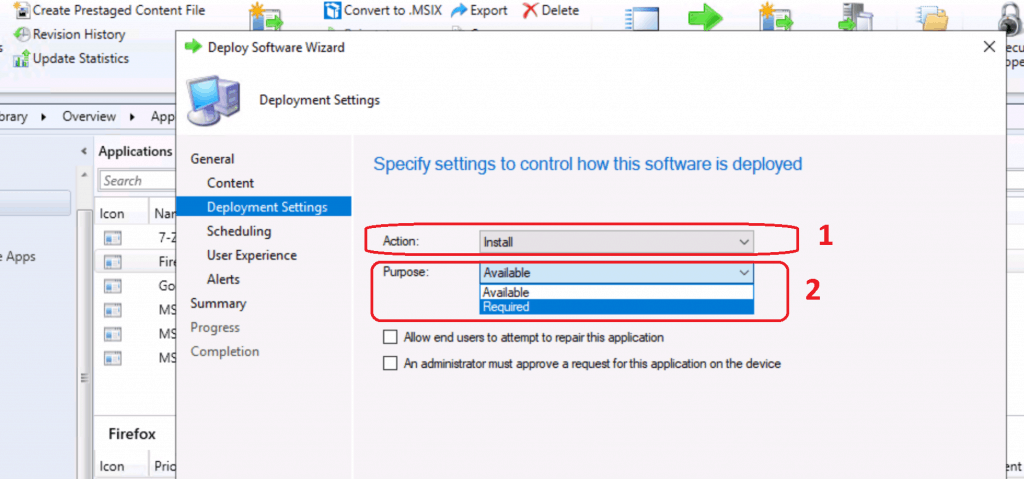
Select Action – Install (Firefox). I selected Install to install Firefox on those devices. Select Purpose as Required, or you can make it an available application if you want. Click NEXT to continue.
NOTE! – You can also select the option to allow end-users to attempt to repair this application.
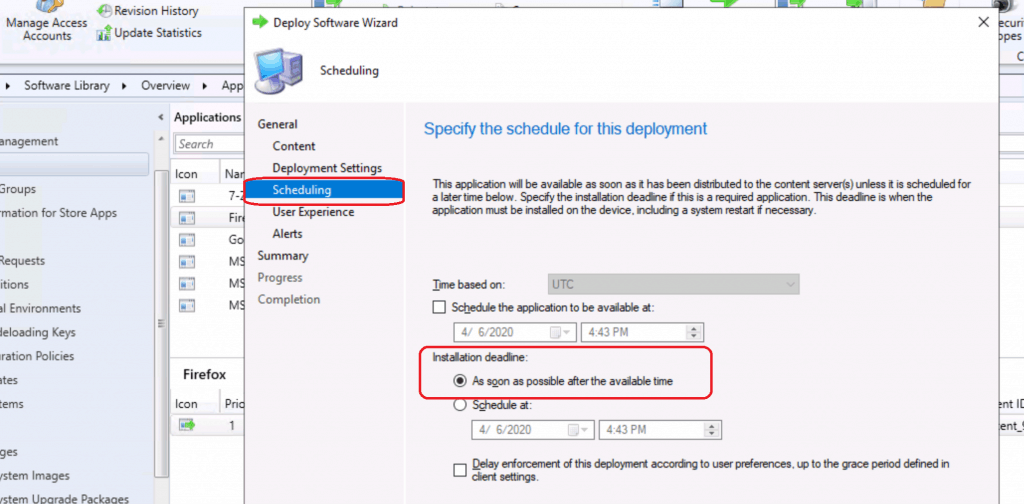
Scheduling Options for Firefox Deployment
Mozilla Firefox Scheduling options from Specify the schedule for this deployment window. You have loads of Mozilla Firefox deployment schedule options. Schedule the application to be available at.
You can also specify the deadline if you want to deploy the Mozilla Firefox update after off-hours as soon as possible after the available time. You can schedule the deadline as per your requirements.
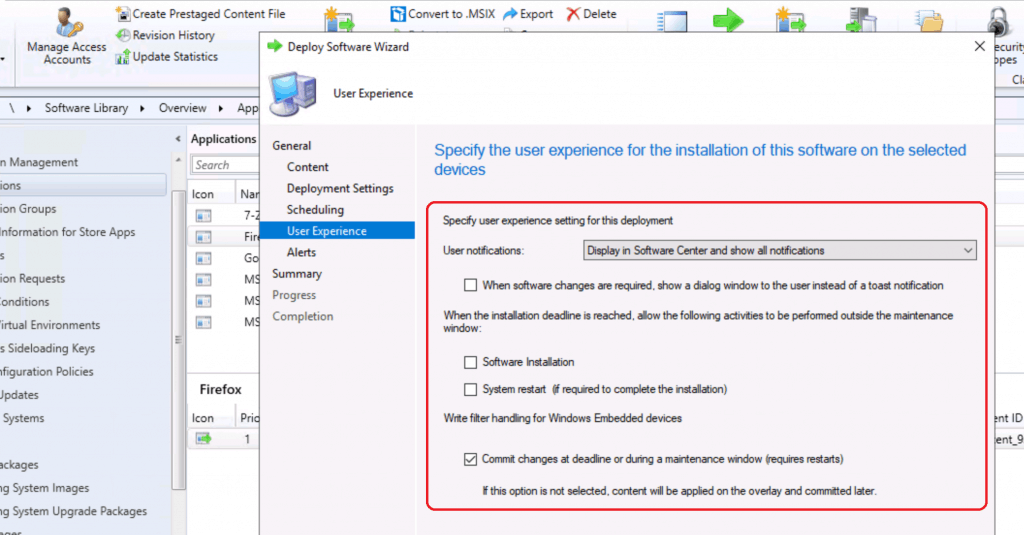
User Experience Options
Specify the user experience for installing Firefox software on the selected devices. Also, specify the user experience setting for the deployment Display in the Software Center to only show notifications for computer restarts. Click on the Next button.
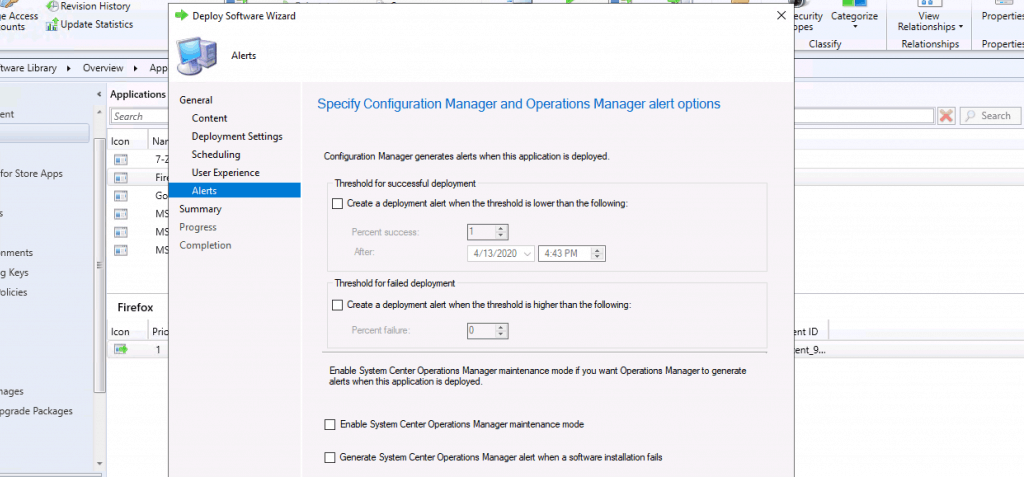
Specify Configuration Manager and Operations Manager alert options. Click on the NEXT (All default settings selected).
Summary
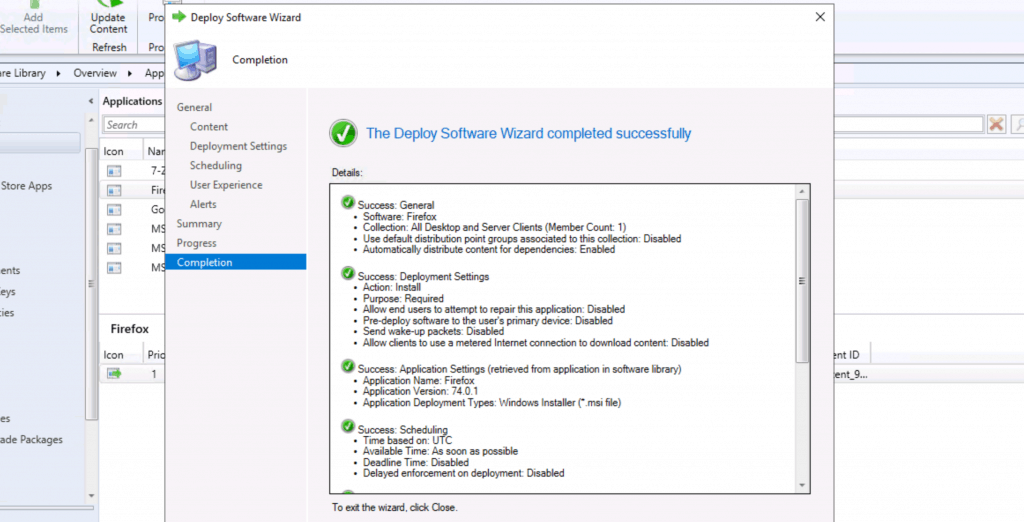
Click on Next, Next, and Close to complete the deployment.
General
• Software: Firefox
• Collection: All Desktop and Server Clients (Member Count: 1)
• Use default distribution point groups associated to this collection: Disabled
• Automatically distribute content for dependencies: Enabled
Deployment Settings
• Action: Install
• Purpose: Required
• Allow end users to attempt to repair this application: Disabled
• Pre-deploy software to the user's primary device: Disabled
• Send wake-up packets: Disabled
• Allow clients to use a metered Internet connection to download content: Disabled
Application Settings (retrieved from application in software library)
• Application Name: Firefox
• Application Version: 74.0.1
• Application Deployment Types: Windows Installer (*.msi file)
Scheduling
• Time based on: UTC
• Available Time: As soon as possible
• Deadline Time: Disabled
• Delayed enforcement on deployment: Disabled
User Experience
• User notifications: Display in Software Center and show all notifications
• Ignore Maintenance Windows: Disabled
• When software changes are required, show a dialog window to the user instead of a toast notification: Disabled
• System restart (if required to complete the installation): Disabled
• Commit changes at deadline or during a maintenance window (requires restarts): Enabled
Alerts
• Enable System Center Operations Manager maintenance mode: Disabled
• Generate System Center Operations Manager alert when a software installation fails: Disabled
• Create a deployment alert when the threshold is lower than the following: Disabled
• Create a deployment alert when the threshold is higher than the following: Disabled
Content (1):
• CMMEMCM.MEMCM.COM
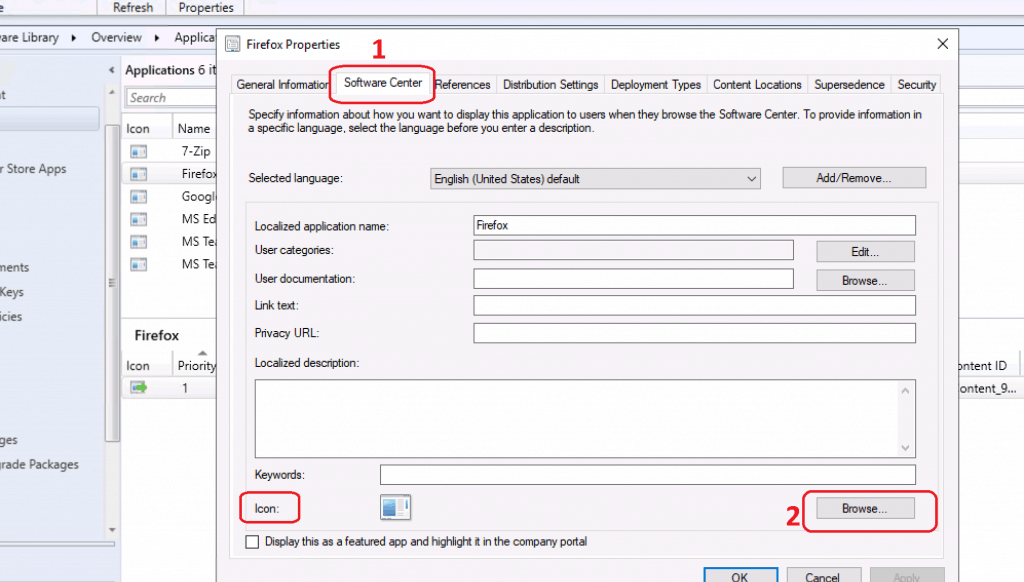
Set Up Firefox Icon for Software Center
Select the Firefox application, click on Properties, Select the “Software Center” tab, and click on the Browse button near the Icon.
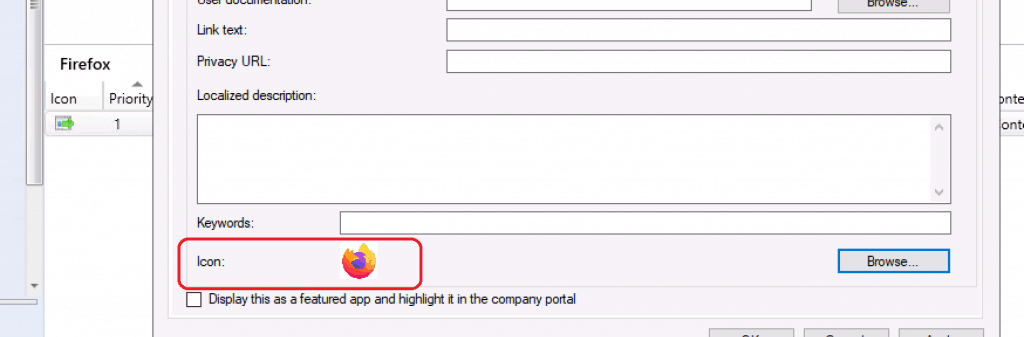
Icon of Firefox

Click on the OK button to complete
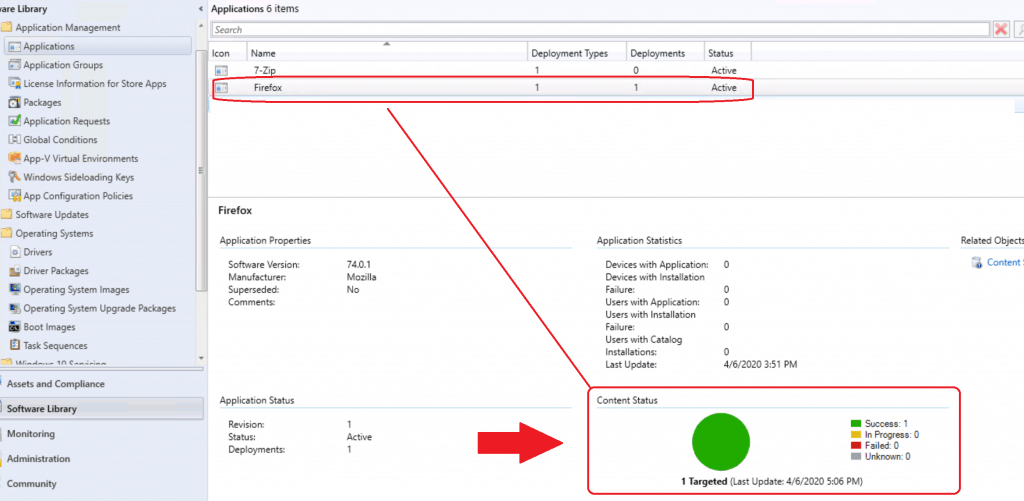
Verify Content Distribution
Before checking the results, confirming whether the Firefox source is distributed to SCCM DPs is better.
SCCM Third-Party Software Update Options
You can use the SCCM third-party software update option to update Firefox. I have explained those featured in the following blog posts. Those are not free solutions but those are paid custom catalogs.
List of Free and PAID SCCM Custom Catalogs for Third-Party Software Updates – (Firefox update catalogs are also available with third party offerings).
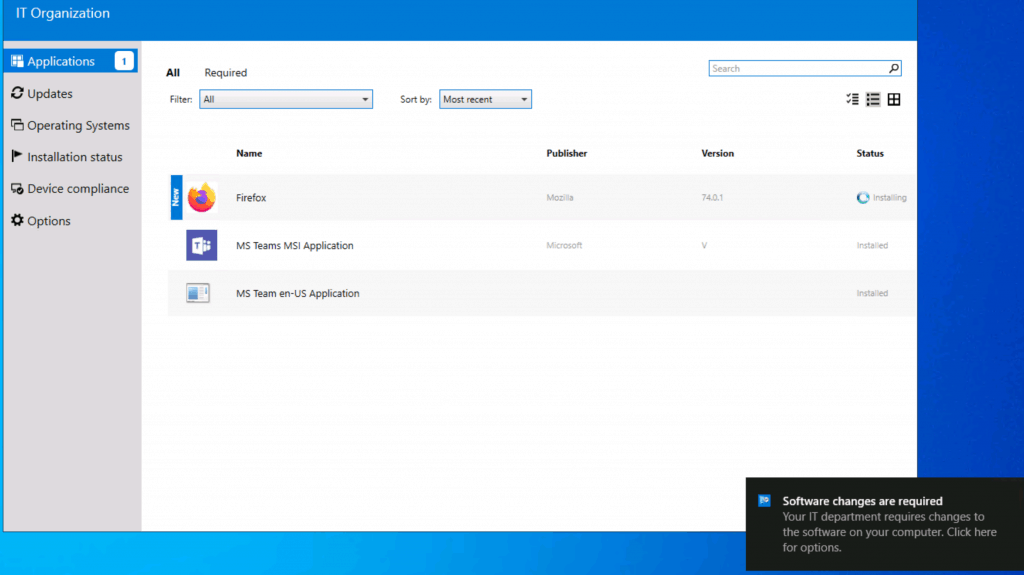
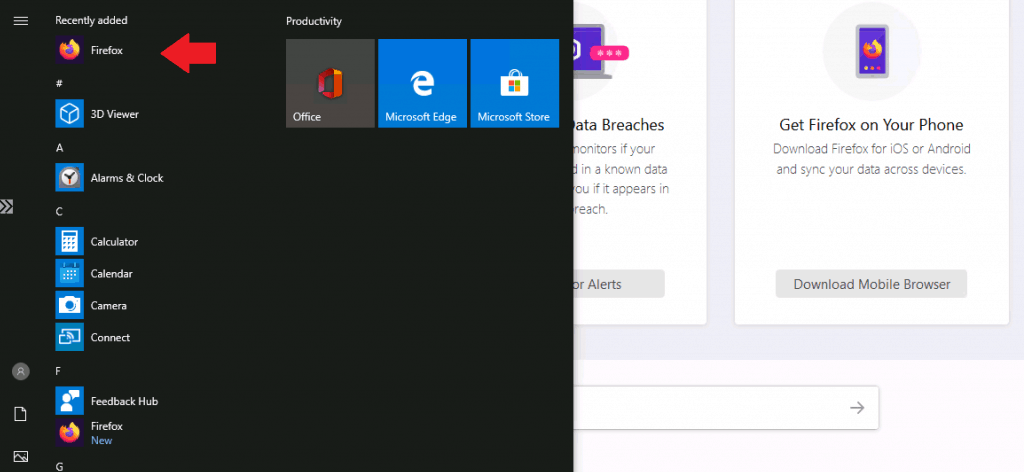
Results
Tips – Failed Detection Rule-Firefox
I think Firefox installation got failed as per SCCM or Configuration Manager detection logic. This is just a reporting error from the Firefox MSI side. It’s not an SCCM issue at all.
The following post explains how to fix this: “FIX Firefox Installation Failed SCCM Reporting Issue| ConfigMgr.”
Resources
- Deploy applications with Configuration Manager
- ConfigMgr 2002 List of New Features Enhancements MEMCM SCCM
We are on WhatsApp. To get the latest step-by-step guides and news updates, Join our Channel. Click here –HTMD WhatsApp.
Author
Anoop C Nair is Microsoft MVP! He is a Device Management Admin with more than 20 years of experience (calculation done in 2021) in IT. He is a Blogger, Speaker, and Local User Group HTMD Community leader. His main focus is on Device Management technologies like SCCM 2012, Current Branch, and Intune. He writes about ConfigMgr, Windows 11, Windows 10, Azure AD, Microsoft Intune, Windows 365, AVD, etc.




Discussion