






Block Attempts to Restart Devices in Safe Mode using Intune ASR Rule
Block Attempts to Restart Devices in Safe Mode using Intune ASR Rule! This rule helps you to stop anyone from restarting a computer in Safe Mode without permission. Safe Mode is a special way to start Windows that turns off some security features, so attackers might use it to get around protections.
By using this Intune Attack Surface Reduction (ASR) rule, you make sure that only authorised users can restart devices normally, keeping your organisation’s systems safe and secure. This policy helps IT admins by making sure users or hackers can not restart a device in Safe Mode to turn off antivirus or other protection settings.
When this rule is on, the device always starts with all security tools active. It keeps all devices safe, saves time on fixing problems, and helps maintain strong security across the organization. This rule helps organizations by keeping their devices and data secure. It prevents anyone from using Safe Mode to turn off security features or make unauthorized changes. This reduces the risk of malware attacks, data theft, or security policy violations.
By enforcing this rule through Intune, organizations ensure that all devices follow the same security standards, stay compliant with company policies, and require less manual monitoring or fixing by IT teams. Overall, it strengthens the organization’s cybersecurity and compliance posture.

Table of Contents
Block Attempts to Restart Devices in Safe Mode using Intune ASR Rule
This rule is supported on Windows devices managed through Microsoft Intune. To apply and enforce the ASR (Attack Surface Reduction) rule effectively, the devices must be running a supported version of Windows with Microsoft Defender Antivirus enabled and updated. It’s also recommended that the devices have the latest security intelligence updates to ensure proper detection and protection capabilities.
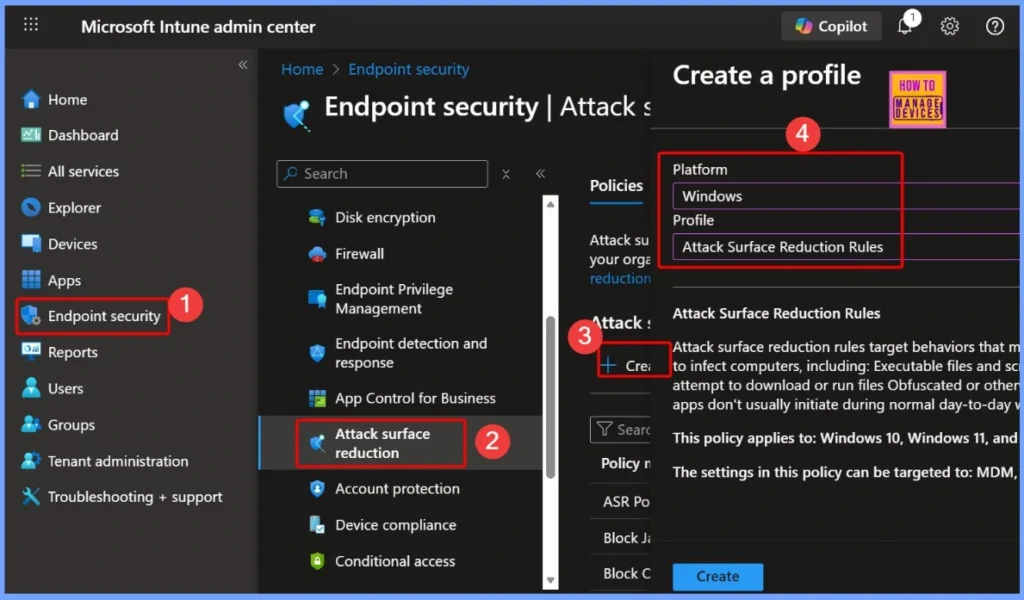
- Sign in to the Microsoft Intune Admin Portal using your admin credentials.
- Go to Endpoint security from the left-hand menu.
- Select Attack surface reduction under the available options.
- Click Create Policy to set up a new ASR rule.
- In the policy creation window:
- Choose Platform: Windows
- Choose Profile type: Attack Surface Reduction Rules
- Block Executable Files with Prevalence Age or Trusted List Criteria using Intune ASR Rules
- Microsoft Defender ASR Rules to Block Rebooting Machine in Safe Mode
- MDE Microsoft Defender for Endpoint Telemetry Issues
- Unable to Join Teams Meetings Using Links from Outlook Because of ASR Rules
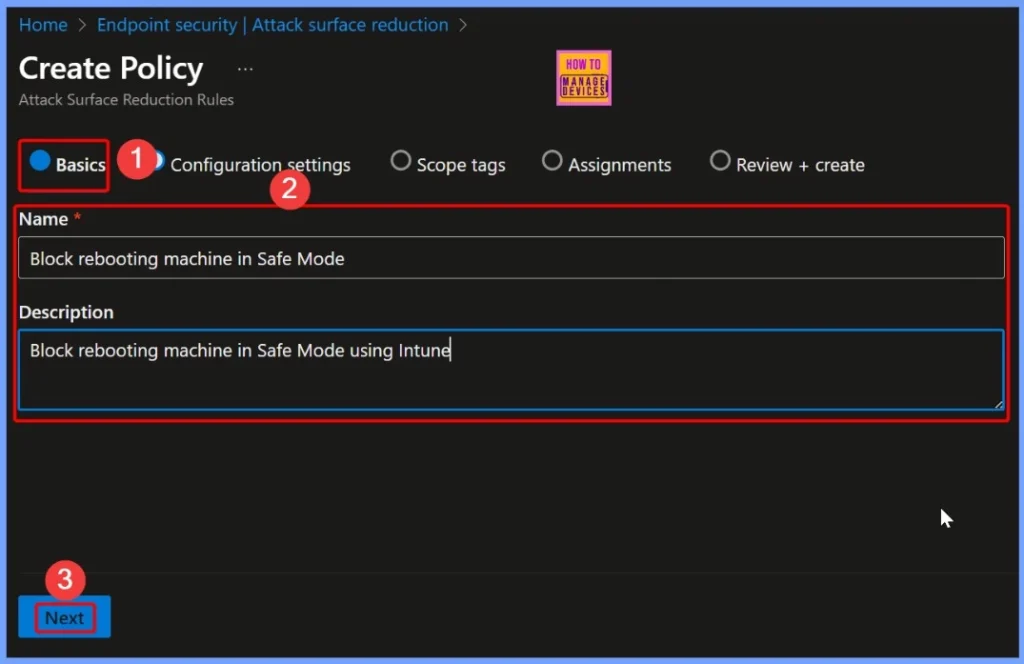
Basics – Policy Configuration Details
In the Basics section, provide key details for easy identification and management of the policy. Enter a suitable Name, such as Block rebooting machine in Safe Mode, and add a Description like Block rebooting machine in Safe Mode using Intune. These details help administrators quickly understand the policy’s purpose.
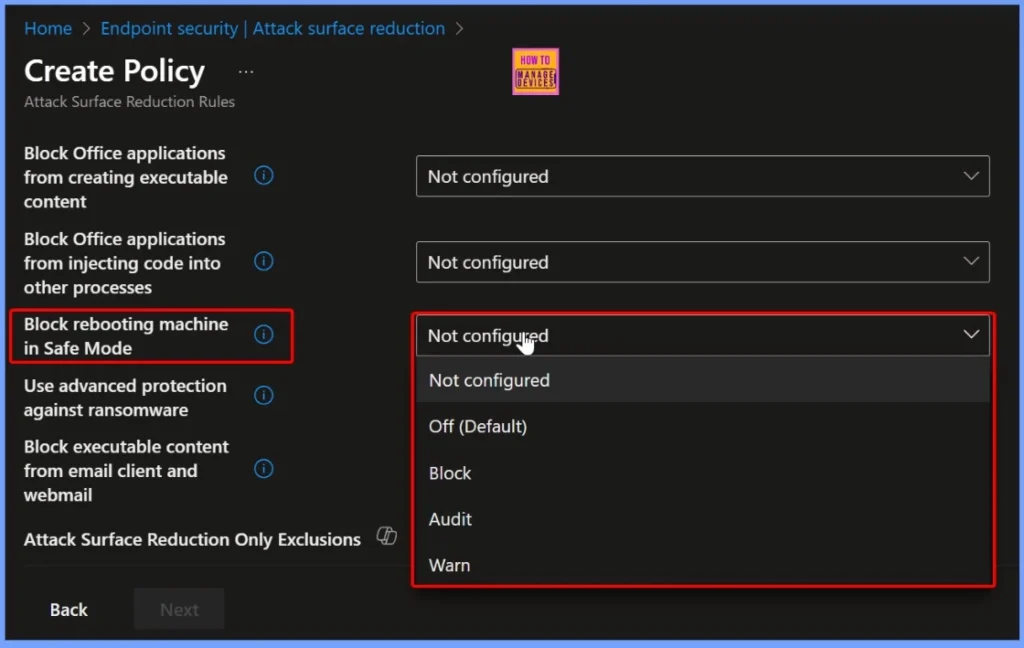
Configuration Settings – Block Rebooting Machine in Safe Mode
In the configuration settings, locate the “Block rebooting machine in Safe Mode” option. By default, it is set to Not configured or Off (Default), meaning the rule is not active. To enforce the policy, select Block to prevent any unauthorized Safe Mode restarts. You can also choose Audit to monitor attempts without blocking them, or Warn to notify users before such actions are blocked.
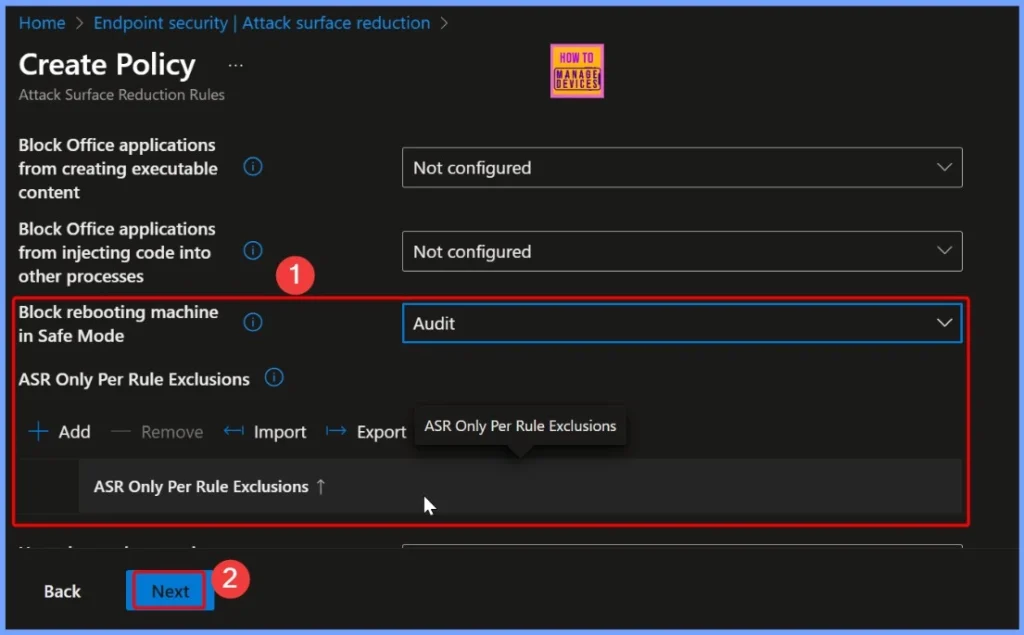
Audit Mode Configuration
This mode allows administrators to monitor and log any attempts to restart a device in Safe Mode without actually blocking the action. It’s useful for testing and evaluating the impact of the rule in your environment before fully enforcing it.
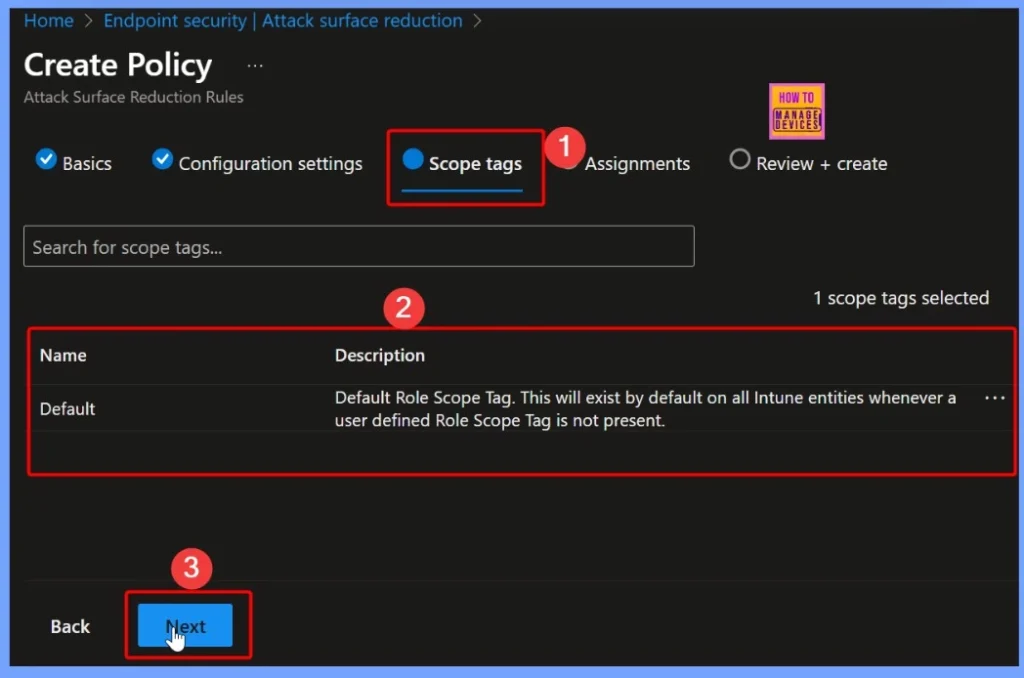
Scope Tags of the Policy
When configuring the Block rebooting machine in Safe Mode ASR rule, assign the appropriate scope tag for example, Default or a custom tag for a specific department. This ensures proper role-based access and helps maintain organized policy management across different admin groups.
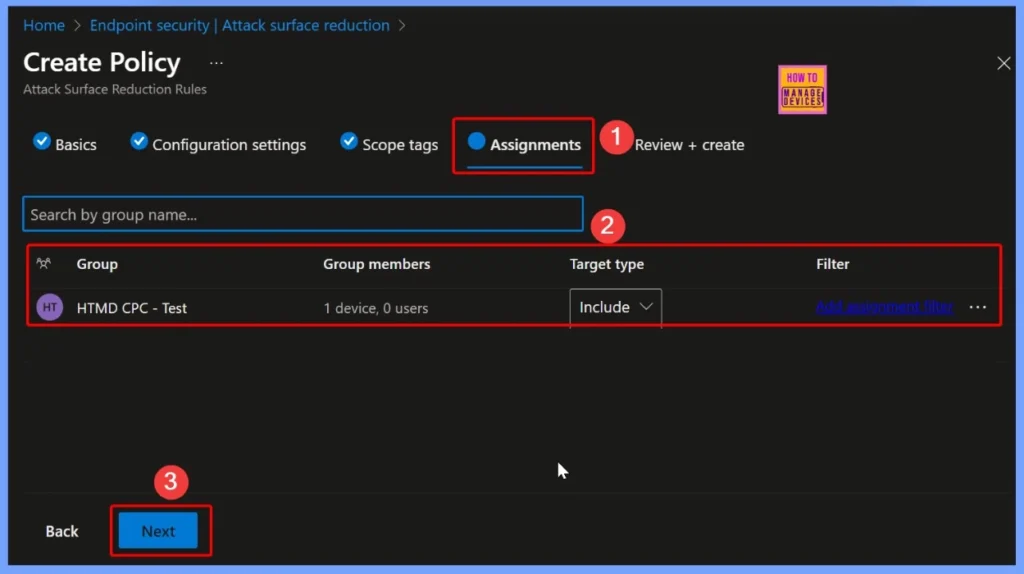
Define Which Users or Devices the Policy will Apply to
Assignments ensure that only the intended endpoints receive the policy. Carefully selecting the right groups helps IT admins test the policy in smaller environments first before a full deployment, ensuring smooth implementation and avoiding unintended disruptions.
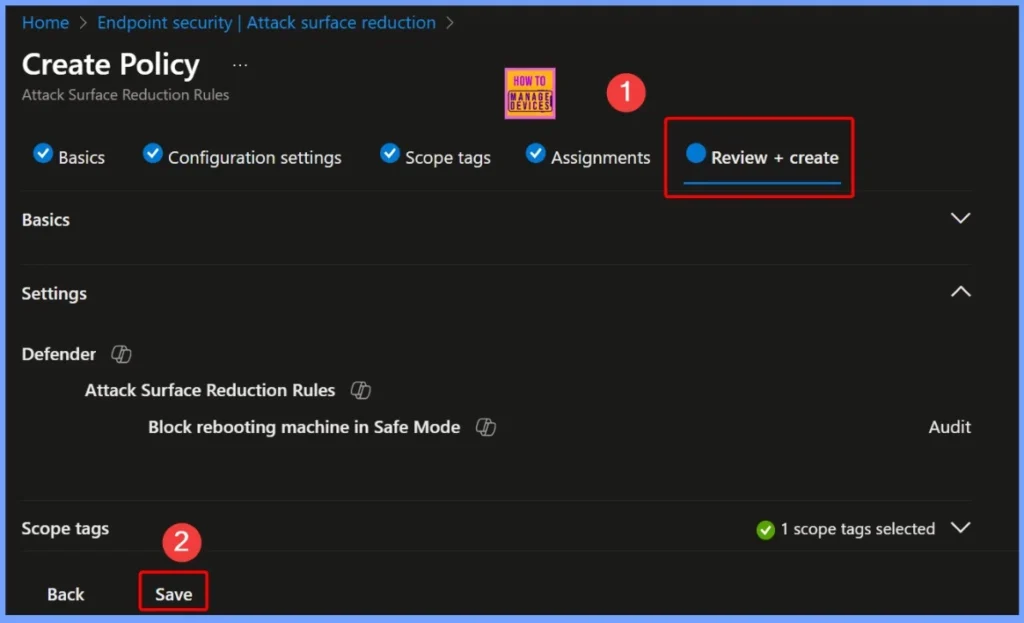
Verify All the Settings Configured for the Policy
In the Review + Create section, you can verify all the settings configured for the policy before deployment. Double-check the policy name, description, configuration mode (such as Audit), scope tags, and assignments to ensure everything is set correctly.
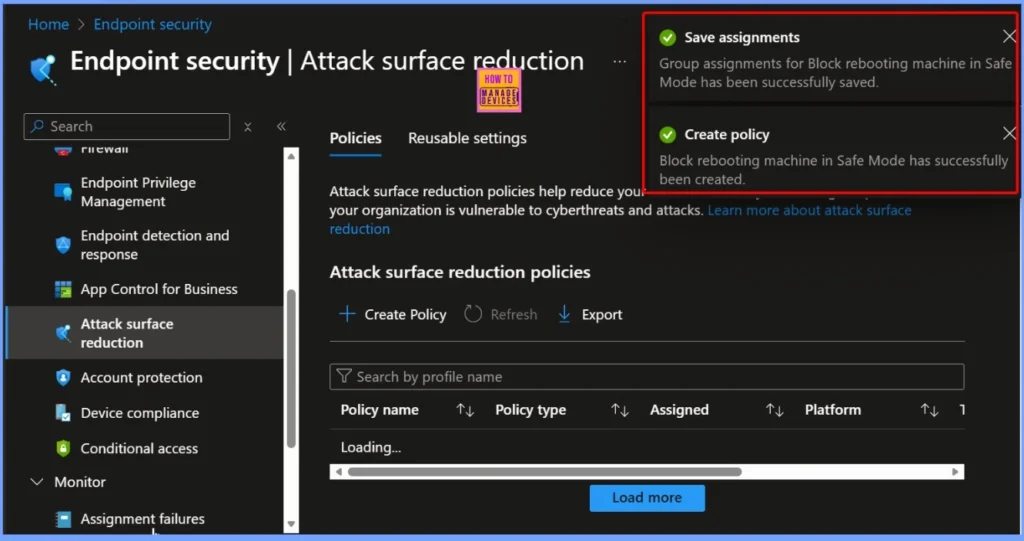
Policy Creation and Assignment Confirmation
The group assignments for the Block rebooting machine in Safe Mode policy have been successfully saved. This confirms that the selected device groups are now linked to the policy. The ASR rule policy itself has also been successfully created in Intune.
Device and User Check in Status
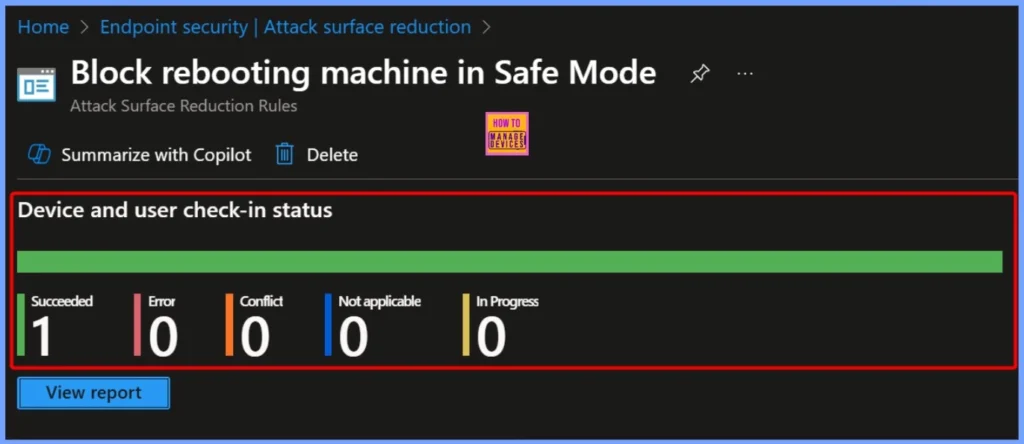
After deploying the policy, you can view the device and user check-in status in the Intune portal to verify successful application. This status shows whether the policy has been properly received and enforced on targeted devices. A typical result includes values such as Succeeded, Error, Conflict, Not Applicable, and In Progress.
Client Side Verifications of the Policy
Attack Surface Reduction (ASR) rules in Microsoft Defender for Endpoint help achieve this by blocking or monitoring actions that could be exploited by attackers, keeping your organization’s systems safer and more resilient.
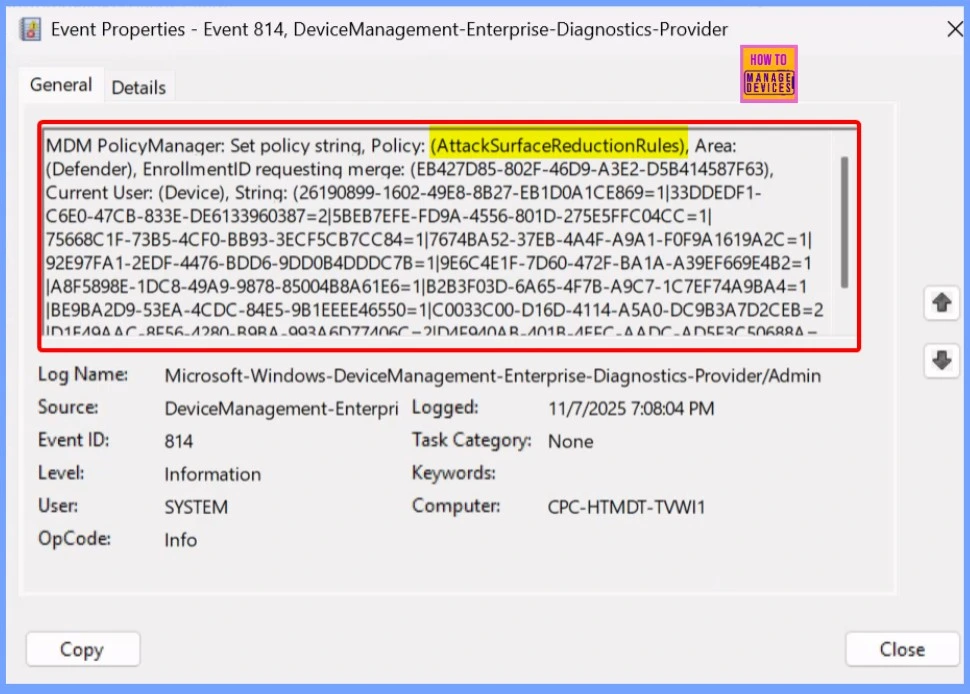
Applications and Services Logs → Microsoft → Windows → DeviceManagement-Enterprise-Diagnostics-Provider → Admin.
Need Further Assistance or Have Technical Questions?
Join the LinkedIn Page and Telegram group to get the latest step-by-step guides and news updates. Join our Meetup Page to participate in User group meetings. Also, Join the WhatsApp Community to get the latest news on Microsoft Technologies. We are there on Reddit as well
Author
Anoop C Nair has been Microsoft MVP from 2015 onwards for 10 consecutive years! He is a Workplace Solution Architect with more than 22+ years of experience in Workplace technologies. He is also a Blogger, Speaker, and Local User Group Community leader. His primary focus is on Device Management technologies like SCCM and Intune. He writes about technologies like Intune, SCCM, Windows, Cloud PC, Windows, Entra, Microsoft Security, Career, etc.


Discussion