






Enhancing Password Security by Blocking Proximity Requests using Intune Policy
Today we are discussing Enhancing Password Security by Blocking Proximity Requests using Intune Policy. This is an important security configuration called Block Password Proximity Requests, which controls whether Apple devices can request passwords from other nearby devices. This feature is mainly used in managed or enterprise environments where strict security policies are required.
When it, enable this setting it stops users from sharing or requesting passwords through proximity-based prompts. It is available only on supervised devices, and it helps organizations prevent unnecessary or unsafe password transfers between devices.
This feature works by disabling Apple’s built-in capability that allows one device to request a Wi-Fi password or similar credentials from another nearby device. While this is convenient for personal use, it can introduce risks in an enterprise environment, because passwords may be shared casually without following official security procedures.
By setting Block password proximity requests to Yes, organizations ensure that passwords remain protected and are shared only through authorized systems like Microsoft Entra ID, approved password managers, or corporate authentication flows. Supported on iOS 12 and later and macOS 10.14 and later.

Table of Contents
Enhancing Password Security By Blocking Proximity Requests using Intune Policy
The main purpose of enabling this restriction is to prevent credential exposure. When proximity-based password sharing is blocked, users cannot accidentally share sensitive information such as internal Wi-Fi passwords or application credentials.
On supervised devices, this setting strengthens the organization’s overall device control. Supervision gives administrators management capabilities, and enabling this restriction ensures that every supervised device security.
Create a Profile
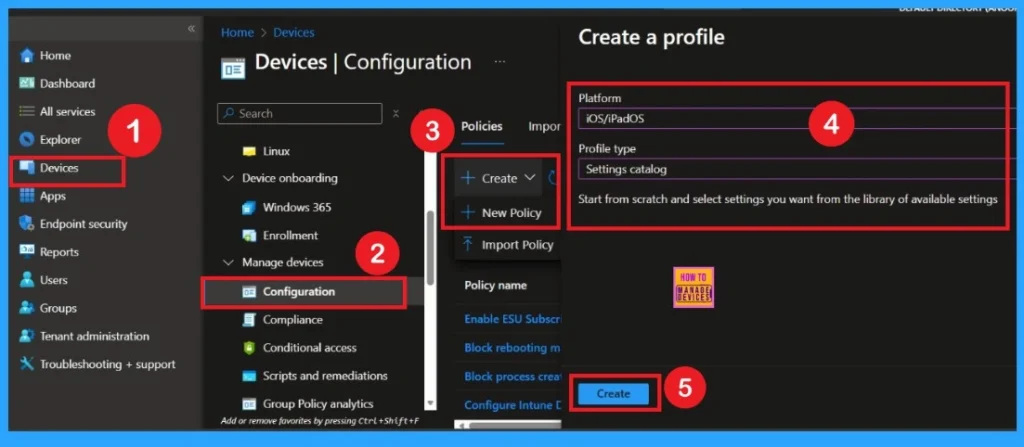
To begin creating the new policy, open the Microsoft Intune admin center and go to Devices> Configuration profiles. This is the place where all device management settings are created and managed.Next, click Create profile. Choose iOS/iPadOS as the platform because this setting only applies to Apple devices. Then pick a profile type, such as the Settings Catalog.
- How to Delete Undecryptable Passwords in MS Edge using Intune Policy
- How to Easily Enable or Disable Device Password History Policy using Microsoft Intune
- How to Configure Minimum Password Age Security Policy using Intune
Understand Basics
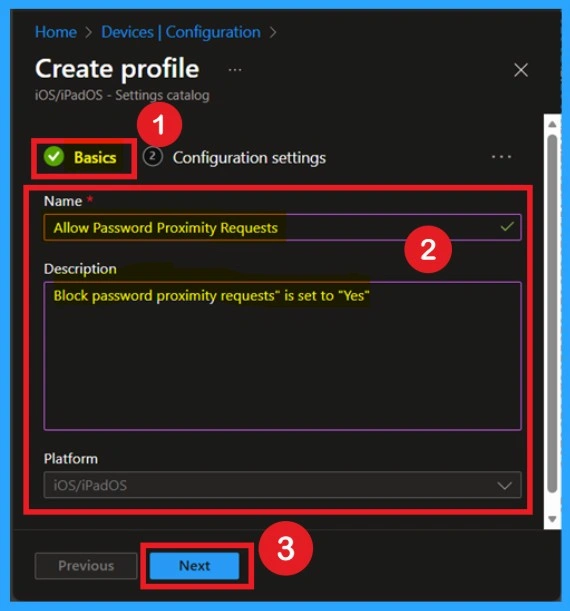
In the Basics page, you will see simple fields like Name and Description. Give the policy a clear name, for example: “Allow Password Proximity Requests. In the description box, add a short line explaining the purpose. Using a clear name and description helps everyone on the IT team understand what this profile does without needing to open and read all settings. It also helps in future troubleshooting.
Configuration Settings
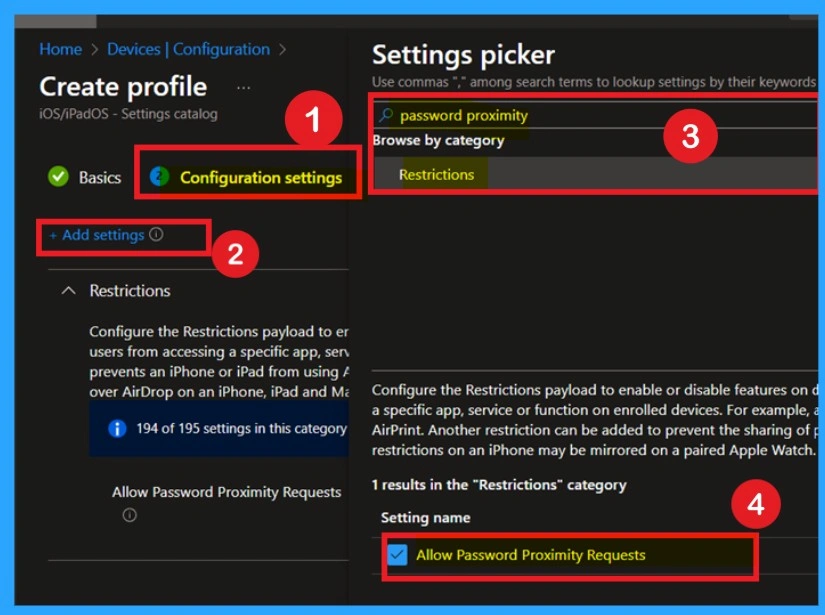
After completing the Basics, go to Configuration settings. This is the main area where the actual policy setting is turned on. Click on the Add settings and find the Password proximity section. Here you will find the option Allow Password Proximity Requests.
Set True for the Policy
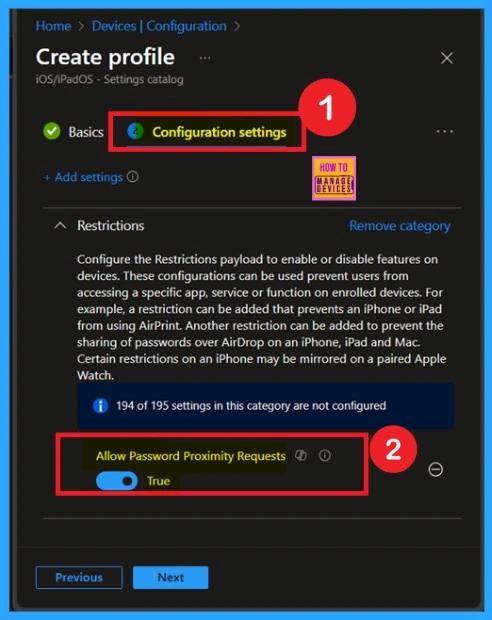
Switch the policy to Yes. This simply means the device will no longer ask for or accept password requests from nearby devices. This step adds the real security protection. Once enabled, users cannot accidentally or unknowingly share important passwords like Wi-Fi or app passwords with nearby devices.
Scope Tags
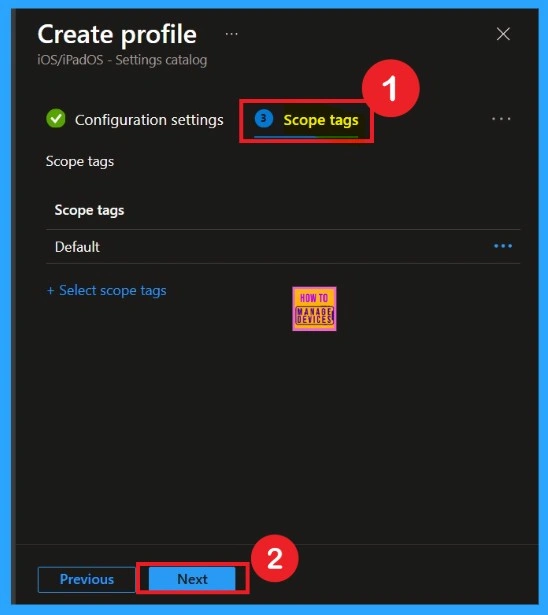
The next step is Scope tags. Not every organization uses tags, but many large companies do. Tags help group and identify policies for different departments. Tags make it easier to filter policies and assign admin permissions. If your environment does not use scope tags, you can simply leave this section as it is. It does not affect how the policy works on devices
Assignments
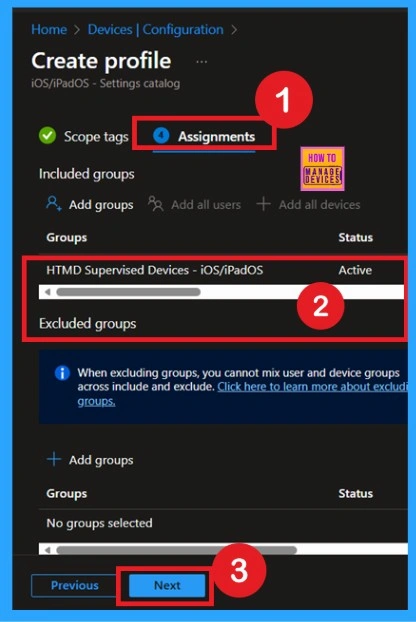
In the Assignments section, choose the device groups that need this setting. You can select groups like All iOS Devices, Corporate iPads, or any custom group you created. This ensures only the right devices receive the policy. You can assign a group to test the policy before applying it to everyone.
Know the Review + Create
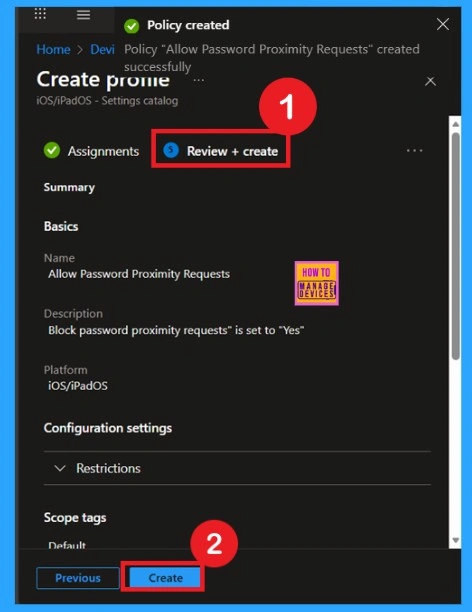
In the Review and Create step, Intune will show you everything you have configured like name, description, platform, settings, and assignments. Take a moment to review all the details. If you see anything incorrect, you can go back and edit it. This is the final check before deployment.
- Once everything looks correct, click Create. Intune will now publish the policy and start sending it to the selected devices automatically.
Device Check ins
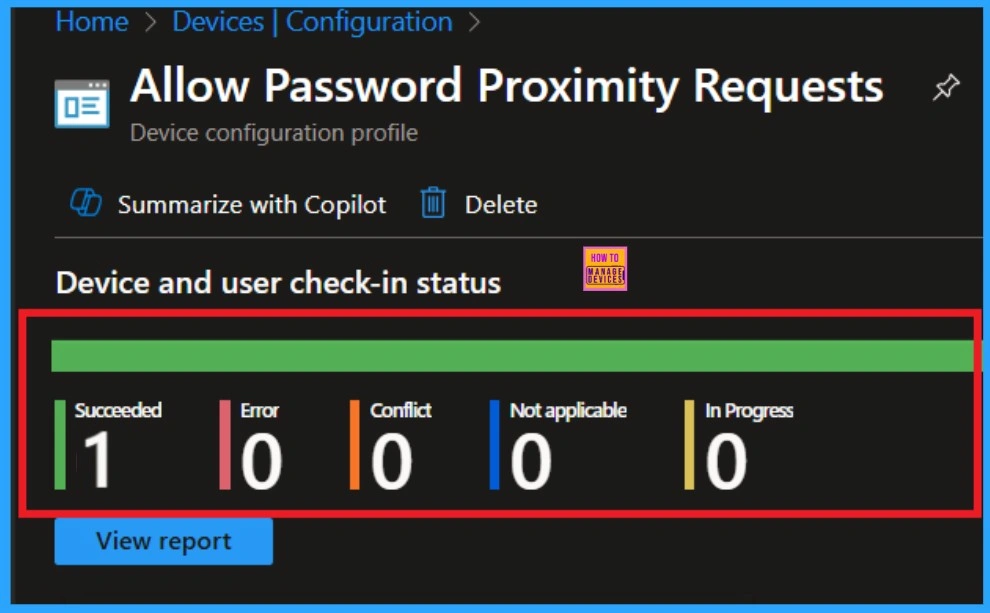
When the policy is created successfully, you can sync the device on the Company portal for faster deployment. After syncing is completed, you can check the status on the Intune Portal. Go to Devices > Configuration and search for the policy.
How to Check on End User Device
After the policy is applied on the user’s device, they will no longer see any pop-ups asking to share or request passwords from nearby Apple devices. It means if someone near them connects to a Wi-Fi network, the user’s device will not show the usual Do you want to share the Wi-Fi password? notification.
For the end user, everything else works normally. They can still connect to Wi-Fi, sign in to apps, and use the device as usual. The only difference is that password sharing must be done through the proper method the organization allows, such as manually entering the password.
Need Further Assistance or Have Technical Questions?
Join the LinkedIn Page and Telegram group to get the latest step-by-step guides and news updates. Join our Meetup Page to participate in User group meetings. Also, Join the WhatsApp Community to get the latest news on Microsoft Technologies. We are there on Reddit as well.
Author
Anoop C Nair has been Microsoft MVP from 2015 onwards for 10 consecutive years! He is a Workplace Solution Architect with more than 22+ years of experience in Workplace technologies. He is also a Blogger, Speaker, and Local User Group Community leader. His primary focus is on Device Management technologies like SCCM and Intune. He writes about technologies like Intune, SCCM, Windows, Cloud PC, Windows, Entra, Microsoft Security, Career, etc


Discussion